Reset a Bold Reports® User Password
You can reset the current password of any Bold Reports® user with the admin utility, using their email address or username. Follow the steps for your platform:
Windows
To reset a Bold Reports® user password on Windows, run the admin utility reset command from the command prompt.
-
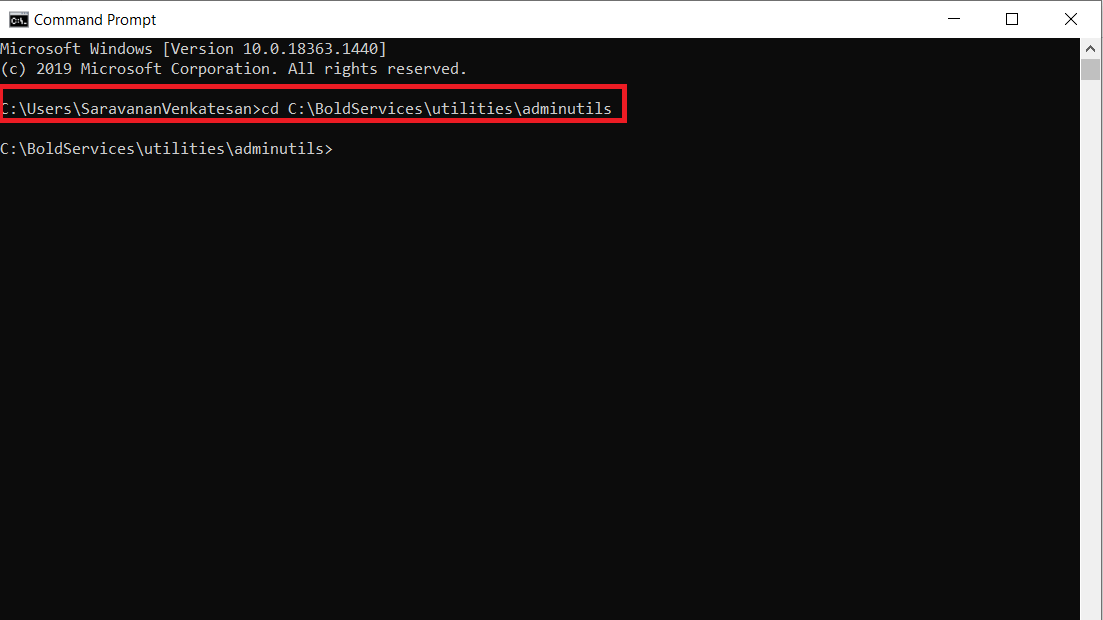
Open the command prompt and change the directory to the Admin Utility location.
cd C:\BoldServices\utilities\adminutilsThe following screenshot shows the command prompt in the admin utility location.
-
Run the following command to reset the password:
Syncfusion.Server.Commands.Utility.exe reset -u 'user email or username here' -p 'new password here'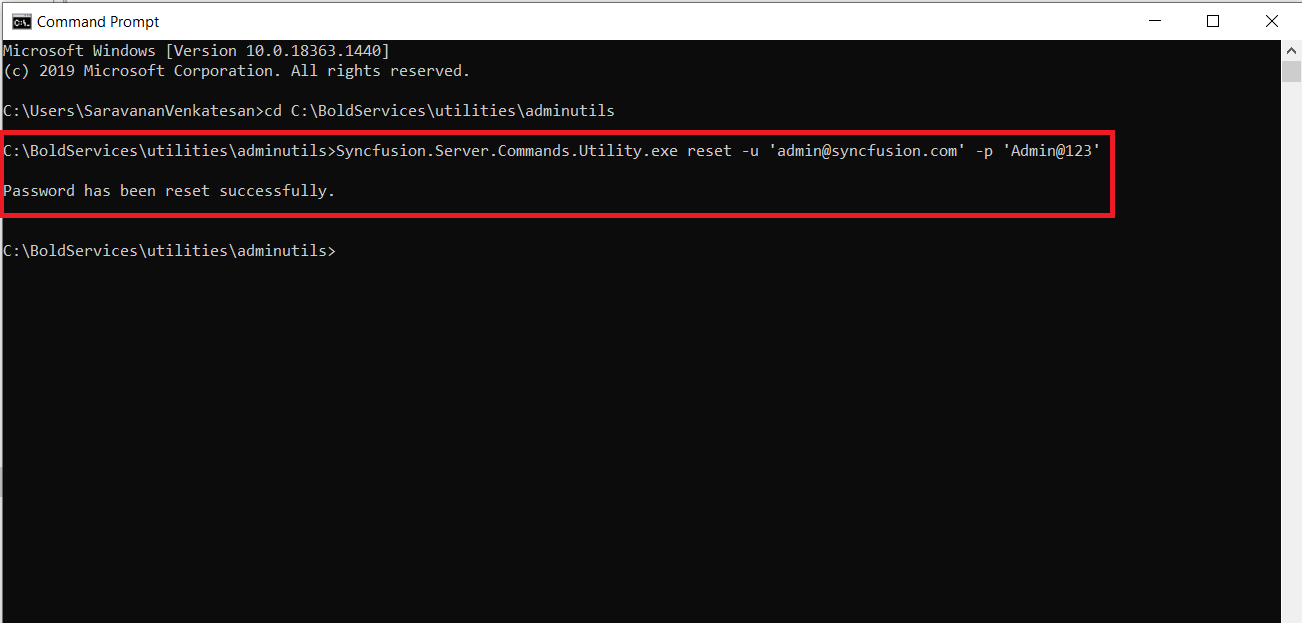
-
After the password resets successfully, the user can log in with the updated password.
Linux
To reset a Bold Reports® user password on Linux, run the admin utility reset command through dotnet.
-
Change the directory to the admin utility location.
cd /var/www/bold-services/application/utilities/adminutils/
-
Run the following command to reset the password:
../../../dotnet/dotnet Syncfusion.Server.Commands.Utility.dll reset -u 'user email or username here' -p 'new password here'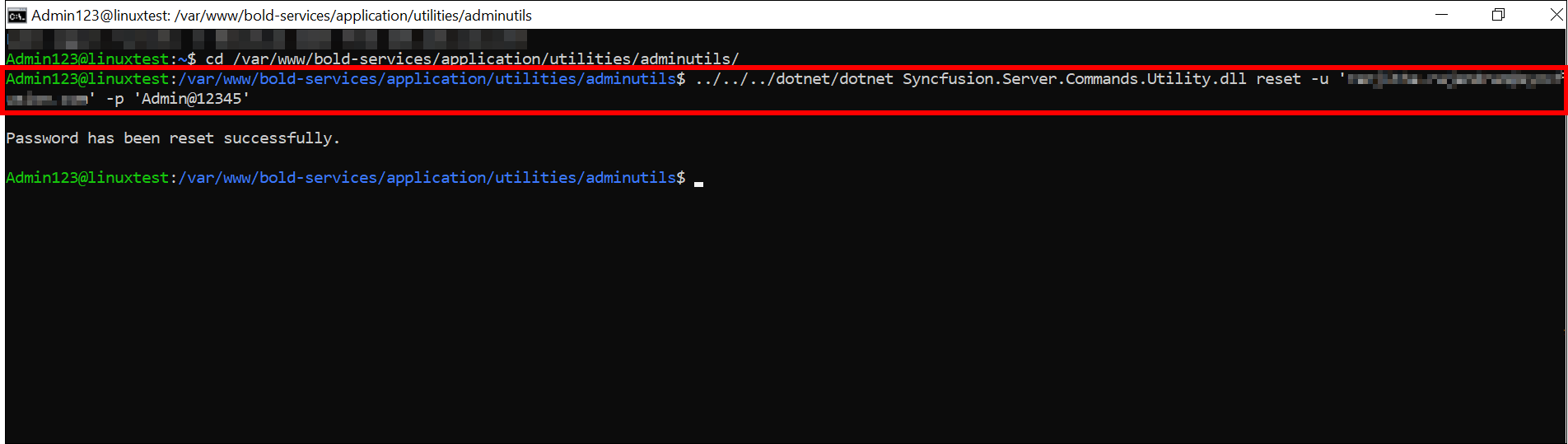
-
After the password resets successfully, the user can log in with the updated password.
Azure App Service
To reset a Bold Reports® user password on Azure App Service, you update the config.xml and privatekeys.dat files with the Password Reset Utility and upload them to the storage account.
Follow these steps to update the user password:
-
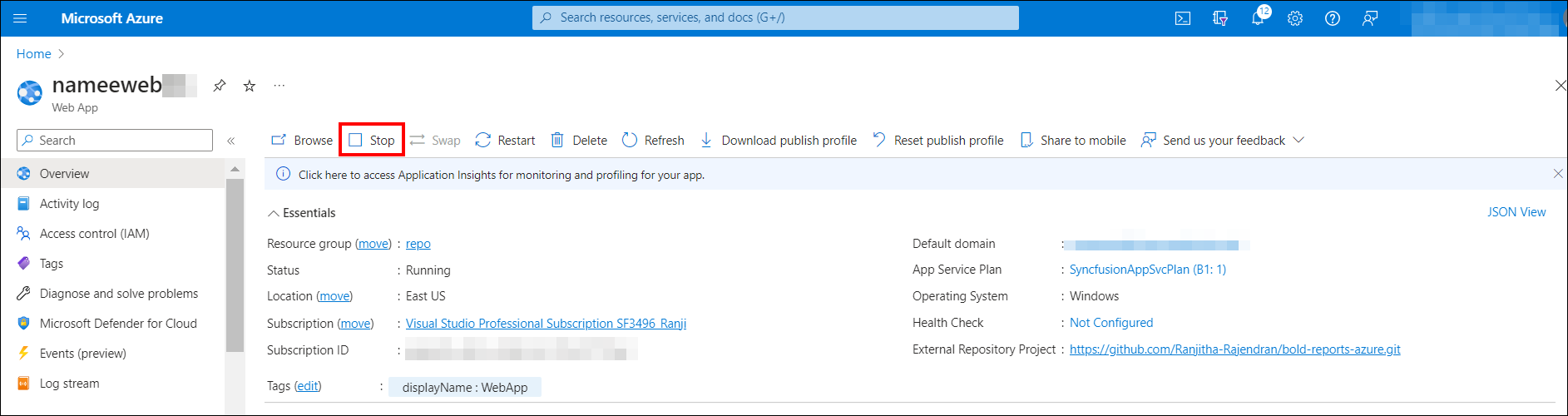
Stop the created Azure App Service.
-
Navigate to your storage account, which was created during the deployment of Bold Reports® in the Azure App Service, and go to the container section.
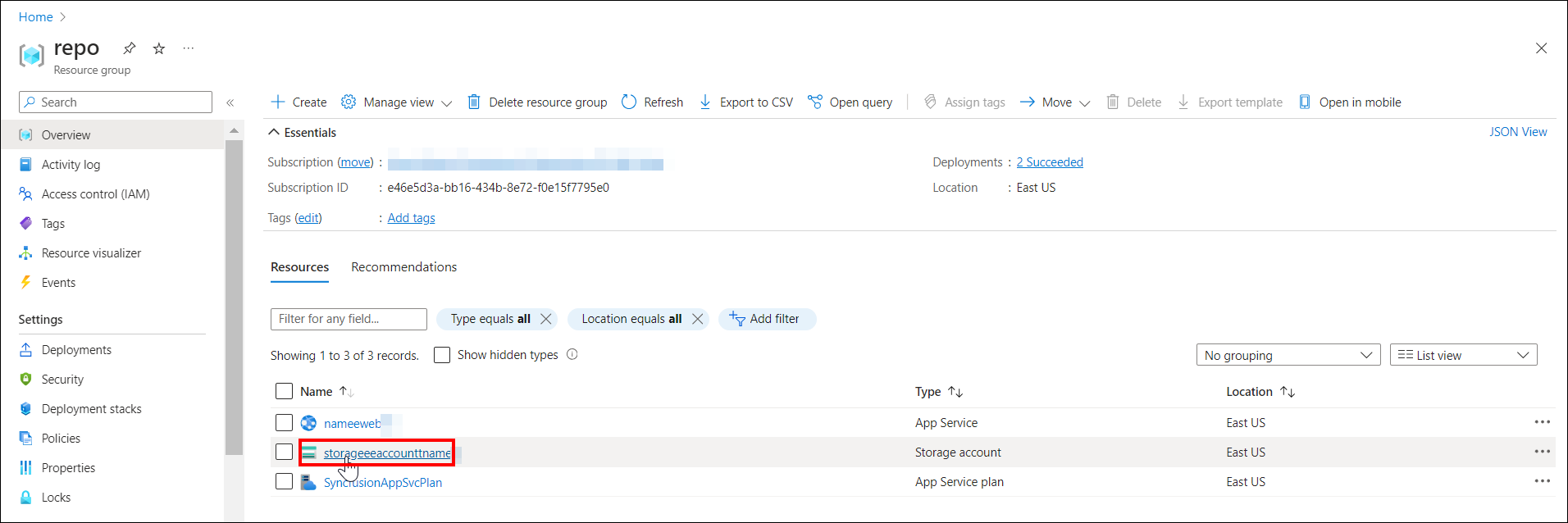
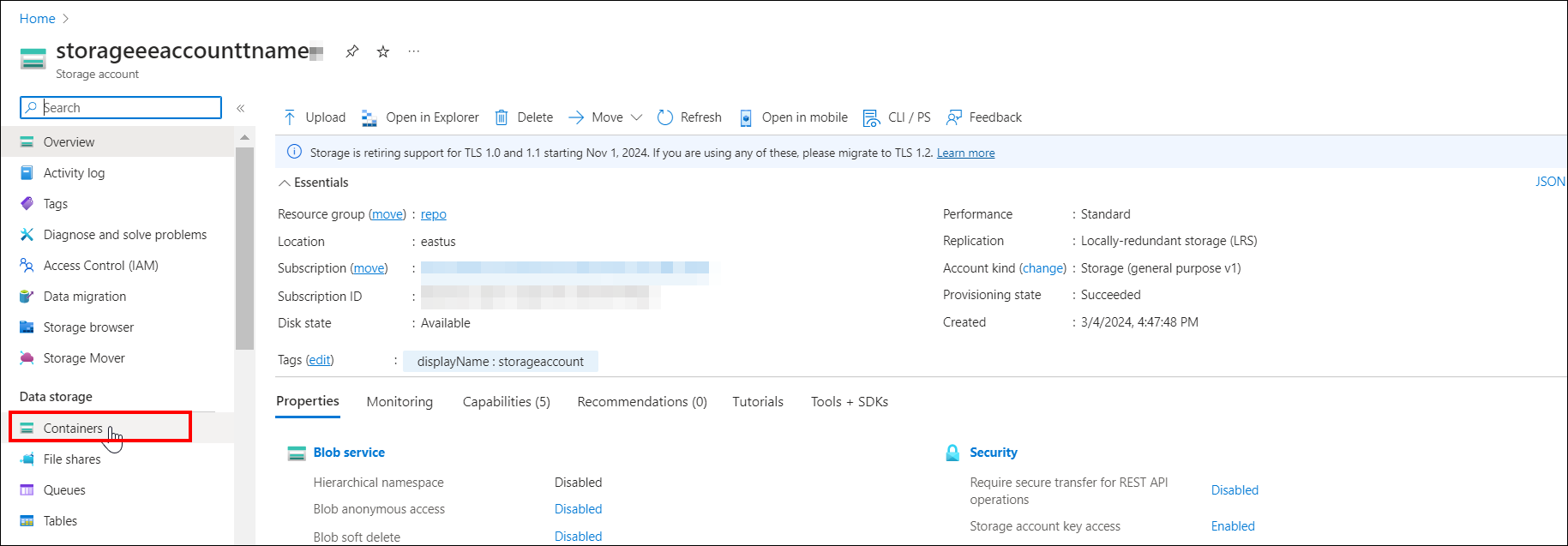
-
Go to the location: boldreportscontainer/boldservices/app_data/configuration.
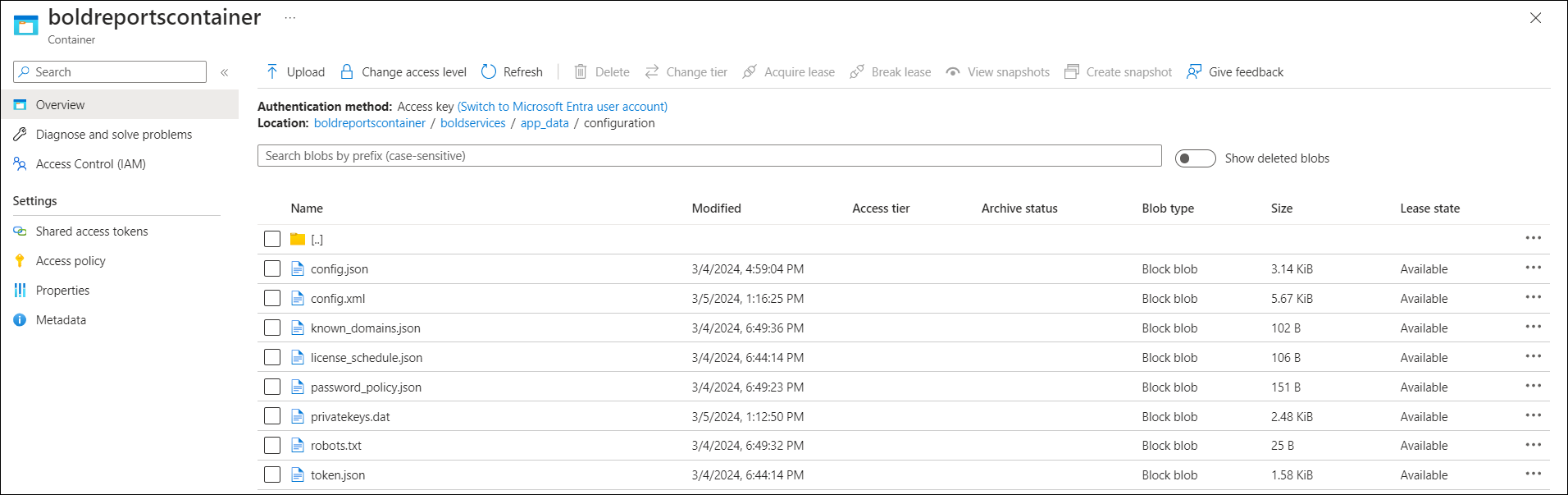
-
Download the config.xml and privatekey.dat files from the specified location.
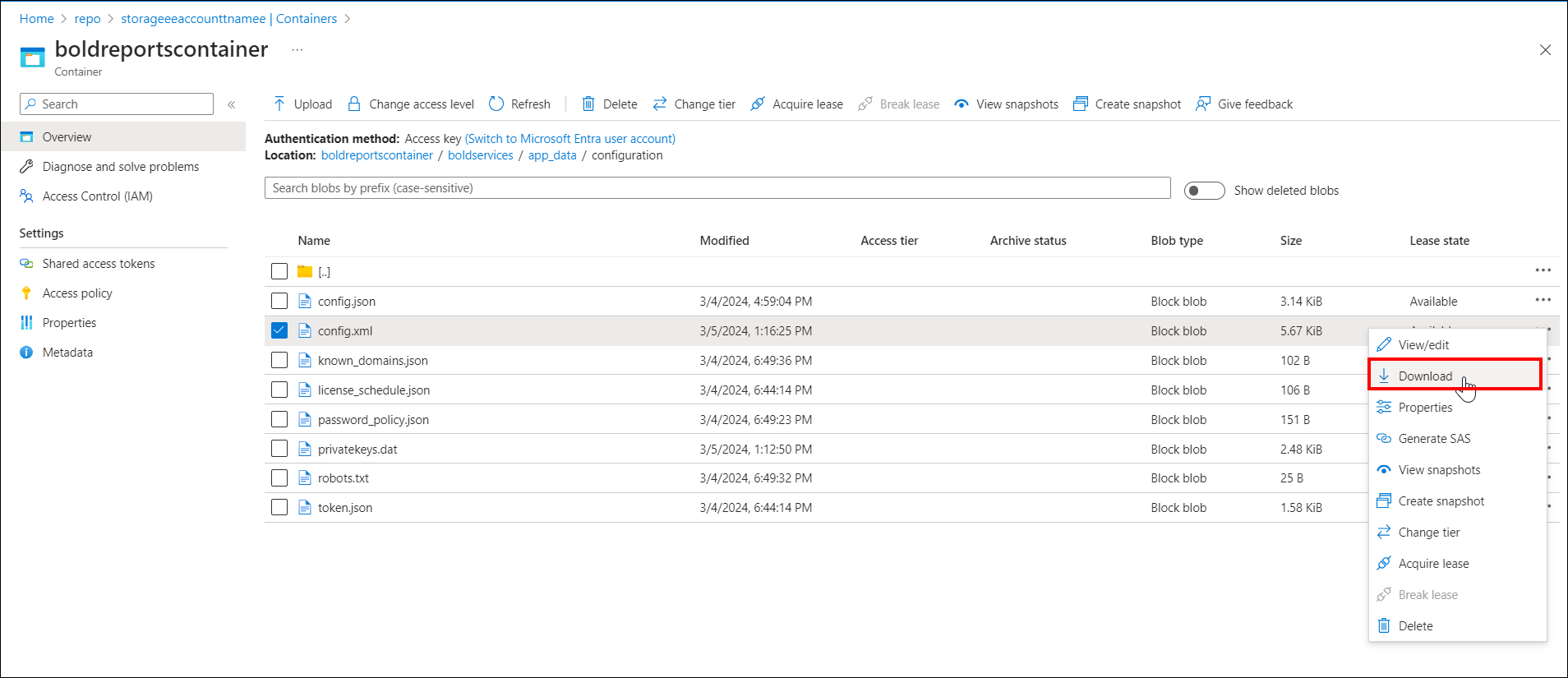
-
To reset the user password, download the Password Reset Utility.
-
Unzip the downloaded file to extract its contents.
-
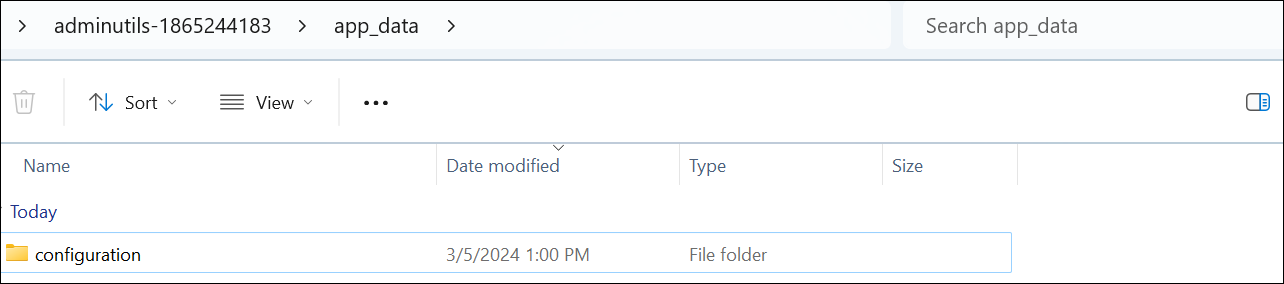
Under the extracted adminutils folder, create a new folder named app_data\configuration, as the following screenshot shows.
-
Copy the
config.xmlandprivatekeys.datfiles downloaded in step 4, and paste them into the adminutils-1865244183\app_data\configuration folder.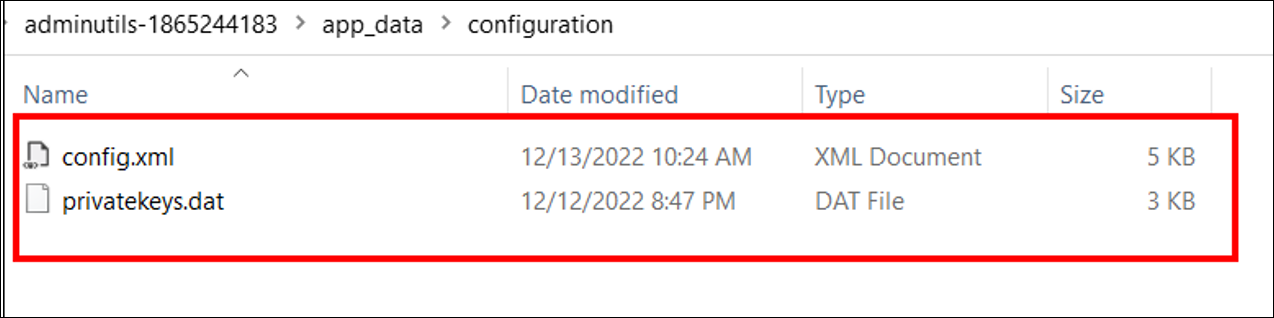
-
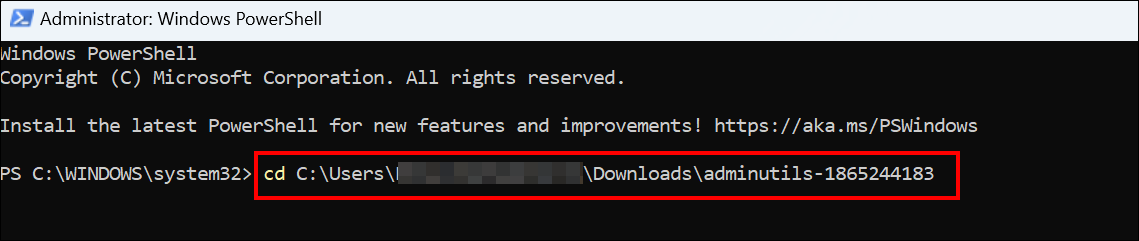
Open Windows PowerShell in Administrator mode and navigate to the utility directory as follows:
-
Reset the password by running the command below:
./Syncfusion.Server.Commands.Utility.exe reset -u <username> -p <new password>Command details:
username - provide your username or email address of the user.
new password - provide new password which you want to reset.
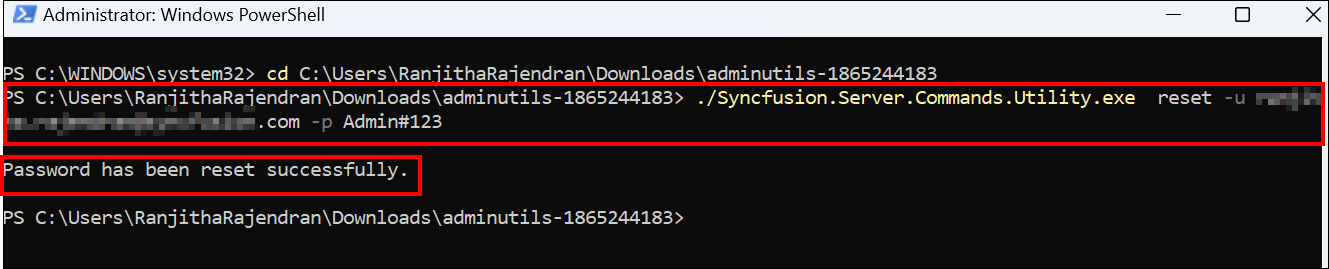 11. After successful execution, the password is updated in the
config.xml and privatekeys.dat files located in the adminutils-1865244183\app_data\configuration directory.
12. Upload the config.xml and privatekeys.dat files to the storage account associated with the Azure App Service. Navigate to your storage account, and go to the following location: boldreportscontainer/boldservices/app_data/configuration.
13. Before proceeding, make a backup of the current config.xml and privatekeys.dat files, then delete them.
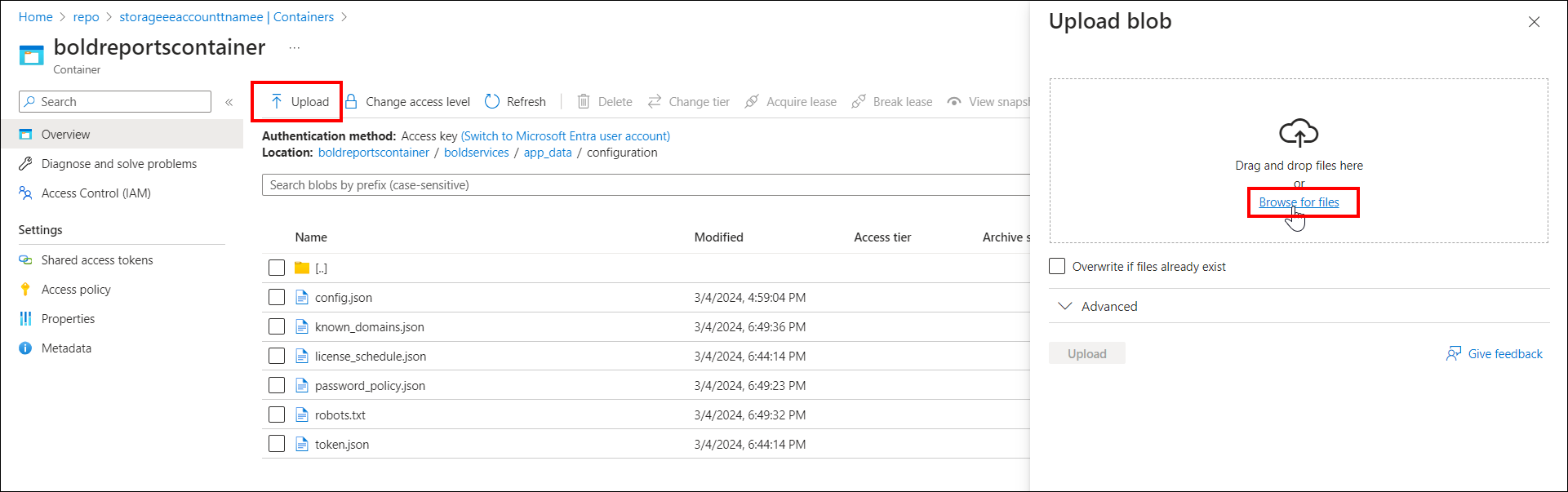
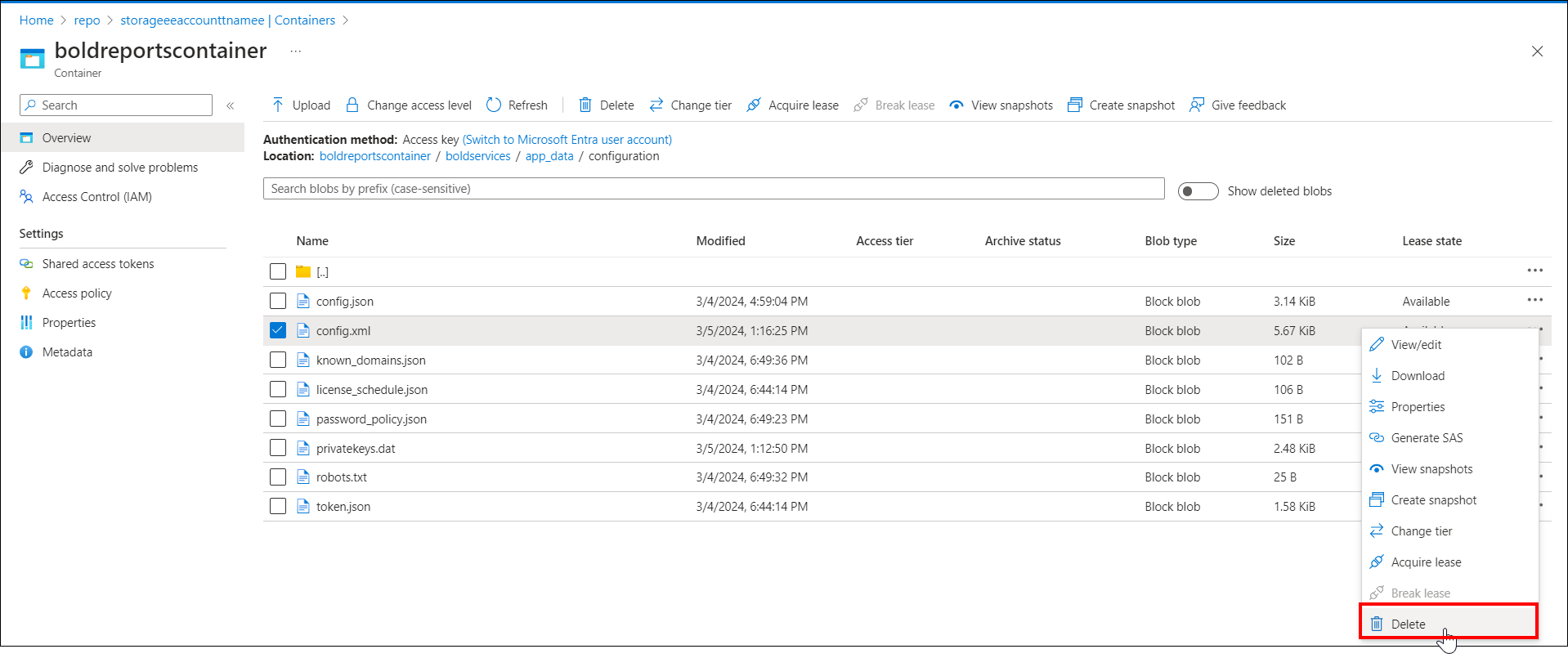 14. Click
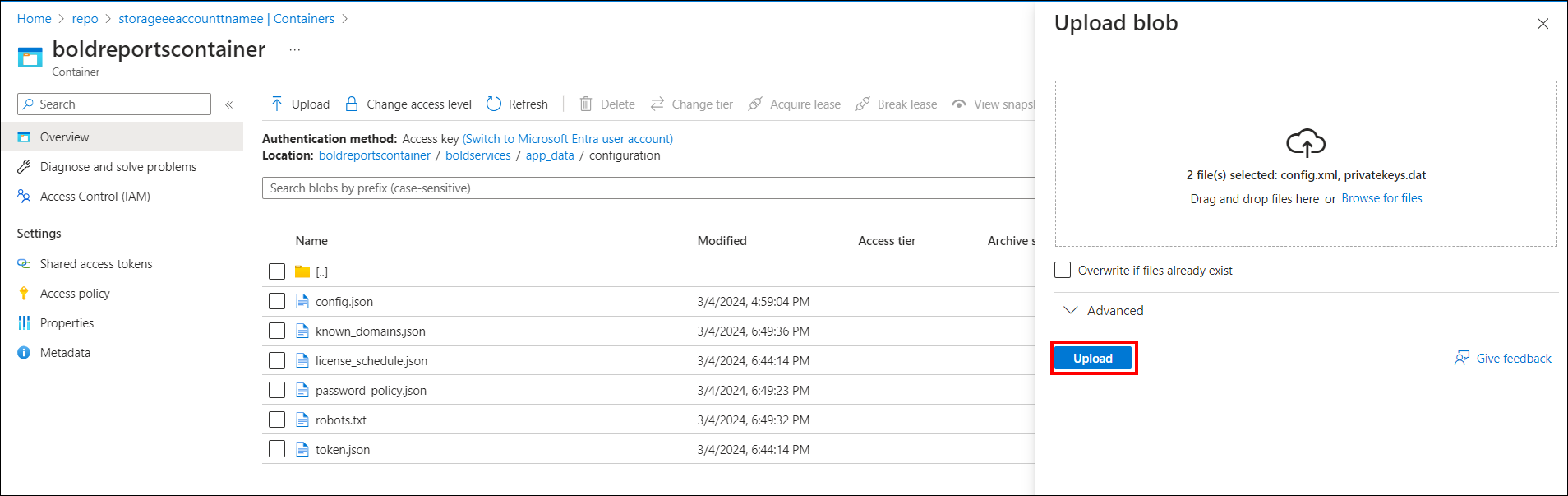
Upload and select the config.xml file from the location: adminutils-1865244183\app_data\configuration to upload it. Next, upload the privatekeys.dat file.
 15. Start the Azure app service.
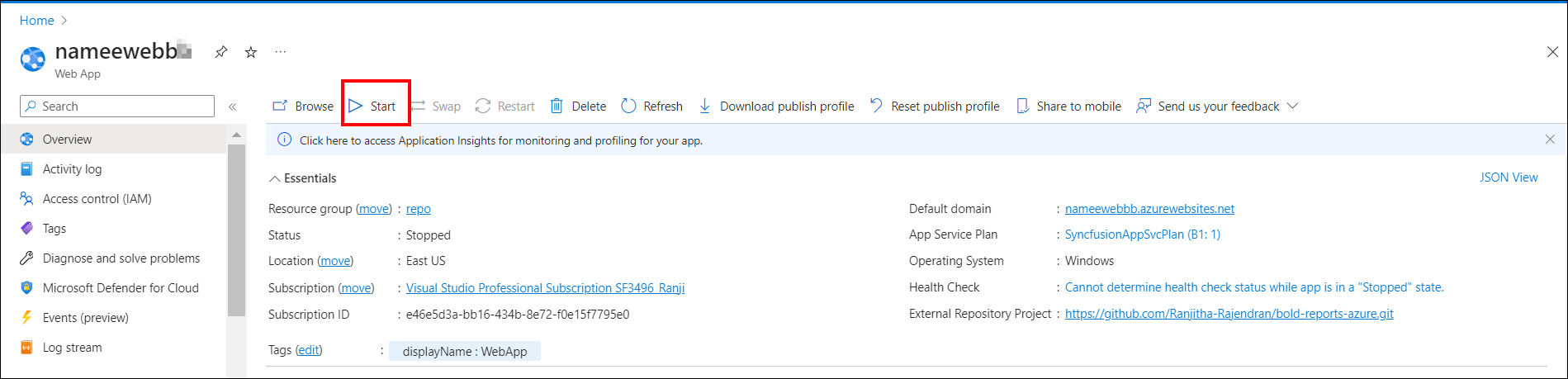 You can now access the application by using its URL.
Frequently asked questions
Can I reset a password using the user’s email address?
Yes. The Bold Reports® admin utility reset command accepts the user’s email address or username with the -u option.
Which files change when I reset a password on Azure App Service?
The utility updates the config.xml and privatekeys.dat files. You then upload them to the boldreportscontainer/boldservices/app_data/configuration location in your storage account.