Connect to ODBC data source
Bold Reports® lets you connect to a data source by using an ODBC Driver or DSN names. You enter a connection string and an authentication type, then query the data.
How do I choose the ODBC data source?
To choose the ODBC data source in the Bold Reports® Web Report Designer, open the Data configuration panel and select the ODBC connection type.
- Click the Data icon in the configuration panel.
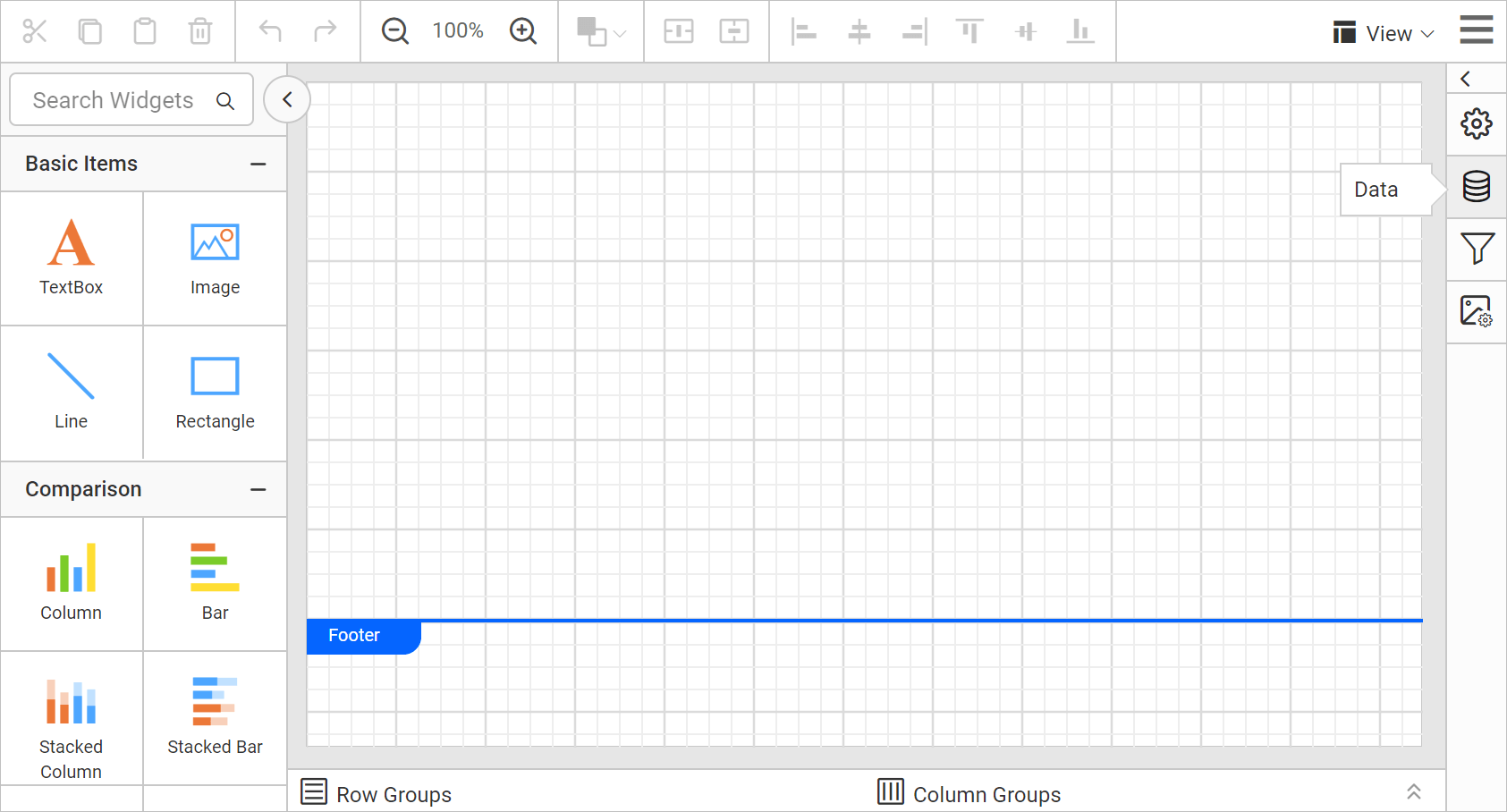
- In the
DATAconfiguration panel, click theNEW DATAbutton.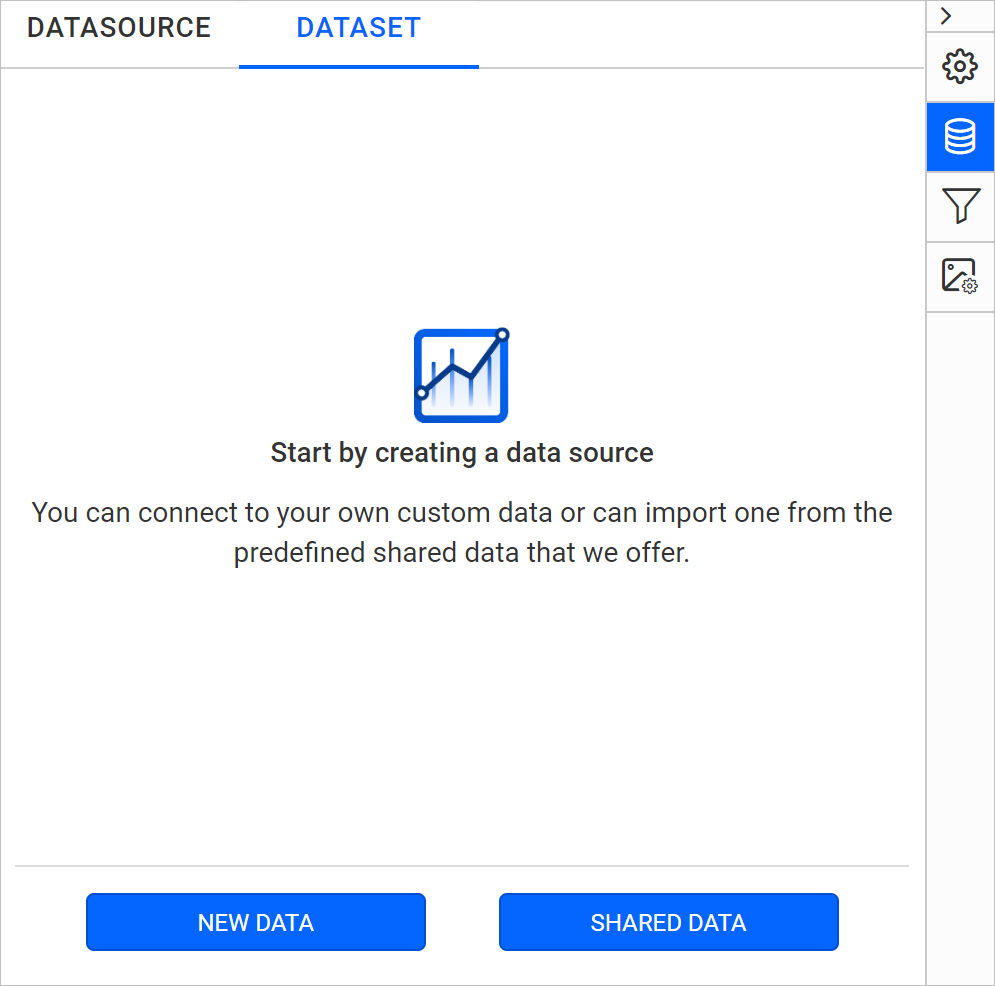
- In the connection type panel, choose the
ODBCdata source type.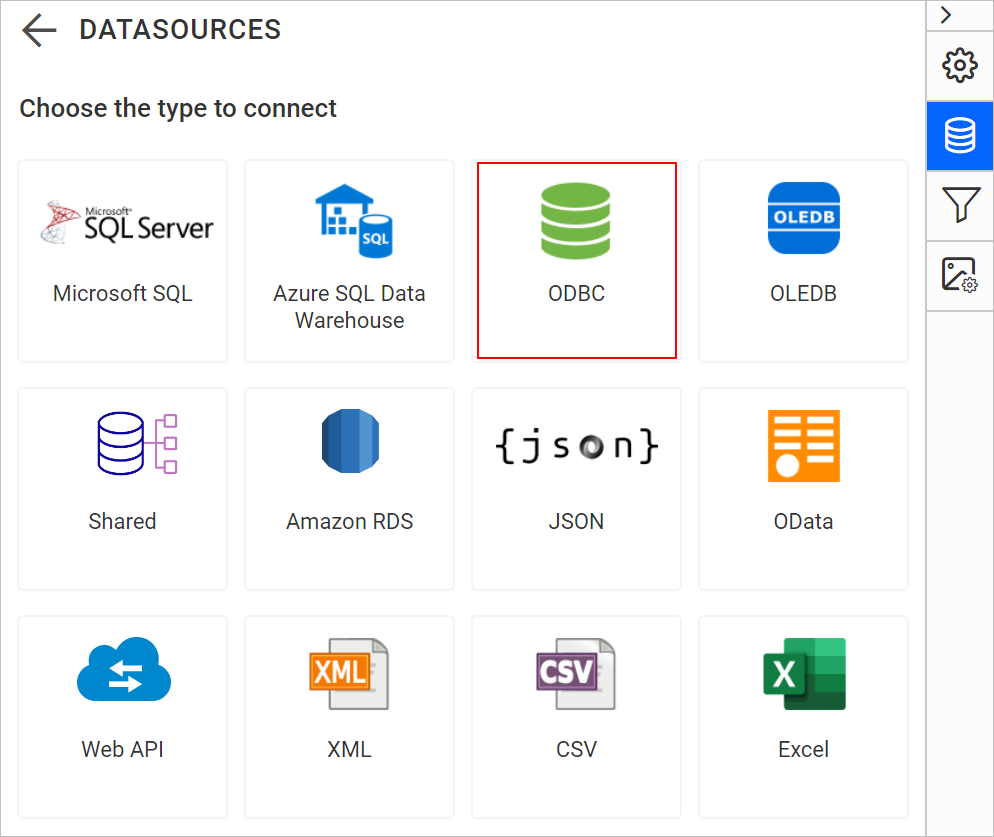
Connection properties
After you click the data source, the Bold Reports® NEW DATASOURCE configuration panel opens. Follow these steps to create an ODBC data source:
-
Specify the data source name without special characters in the Name field.
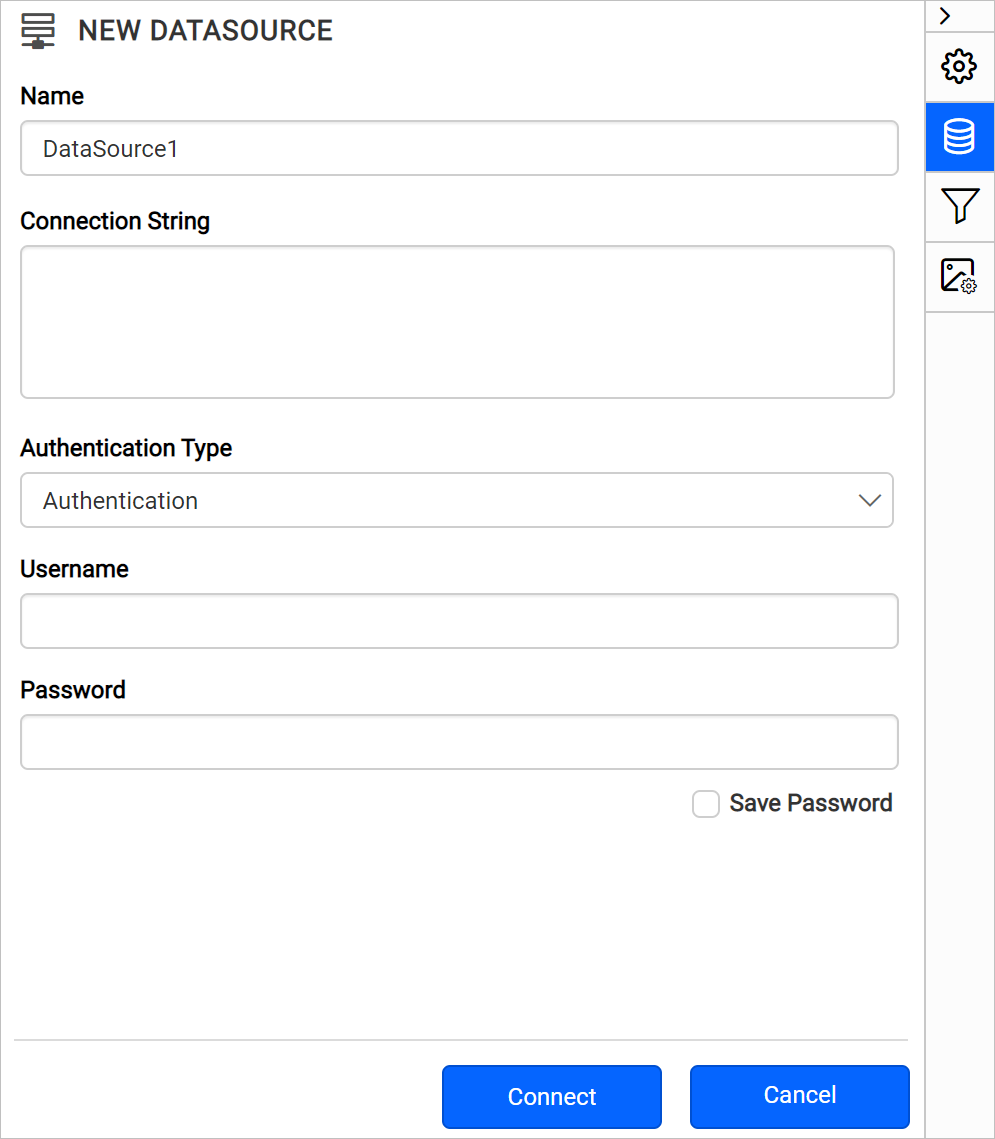
-
Enter a valid connection string and authentication type to connect with the specified data source.
Connection string
A connection string is the text representation of connection properties for a data provider. Bold Reports® connects to the ODBC data source using either a system DSN name or a driver name.
To connect using System DSN, specify the connection string as in the following example:
DSN=myDsn;Uid=myUsername;Pwd=;
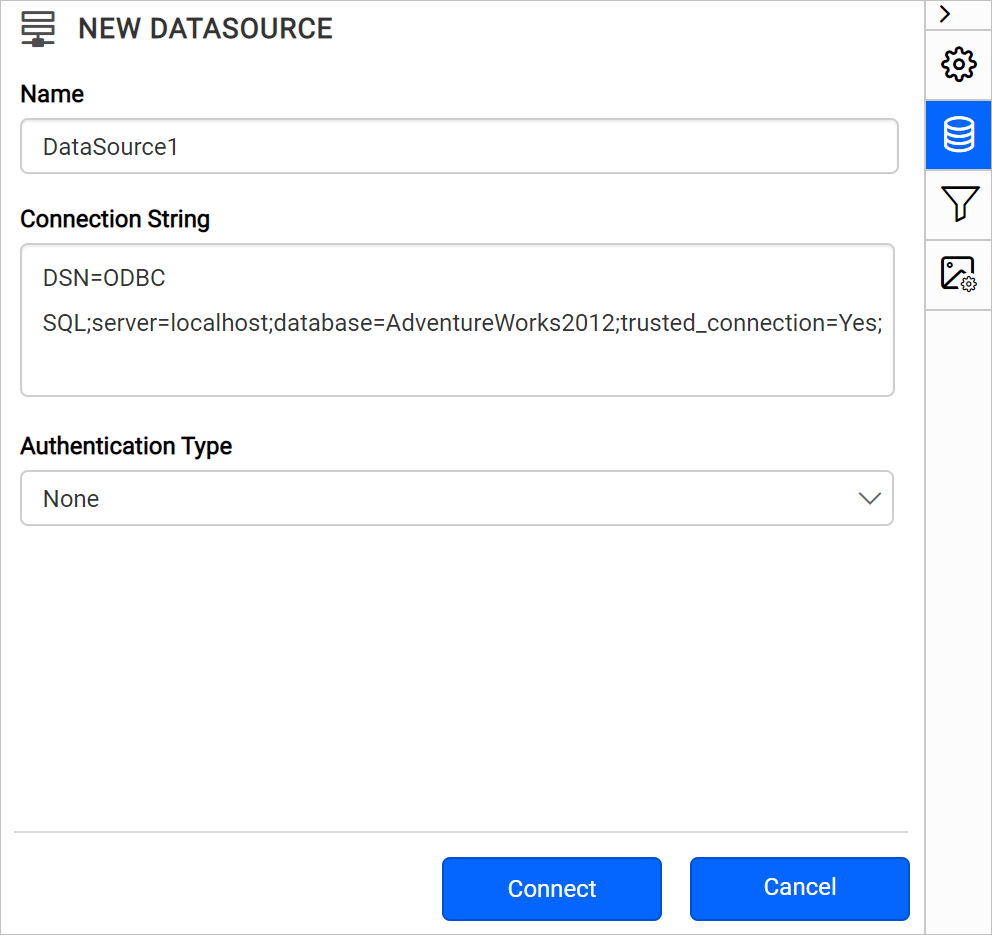
To connect using the driver connection type, specify the connection string as in the following example:
Driver=`{any odbc driver's name}`;OdbcKey1=someValue;OdbcKey2=someValue;
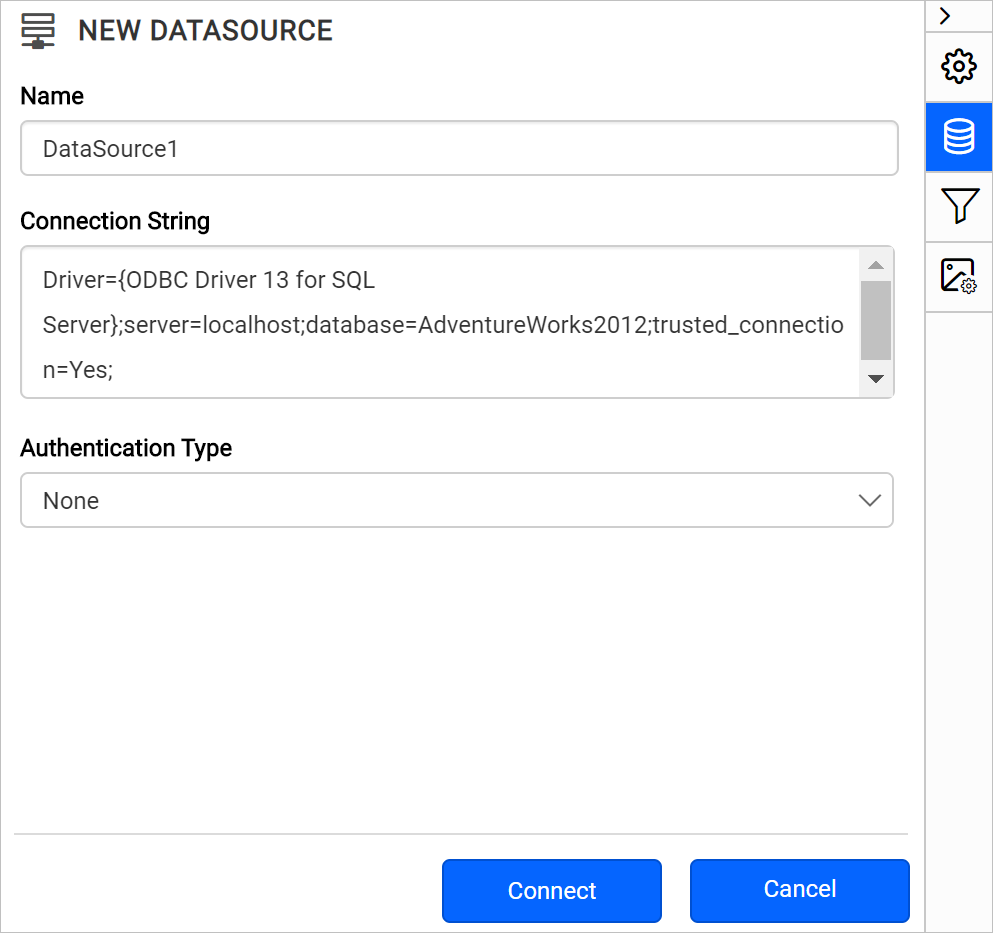
-
Click
Connectto open the query design pane. Enter the required query and execute it. The corresponding values appear in a grid for preview.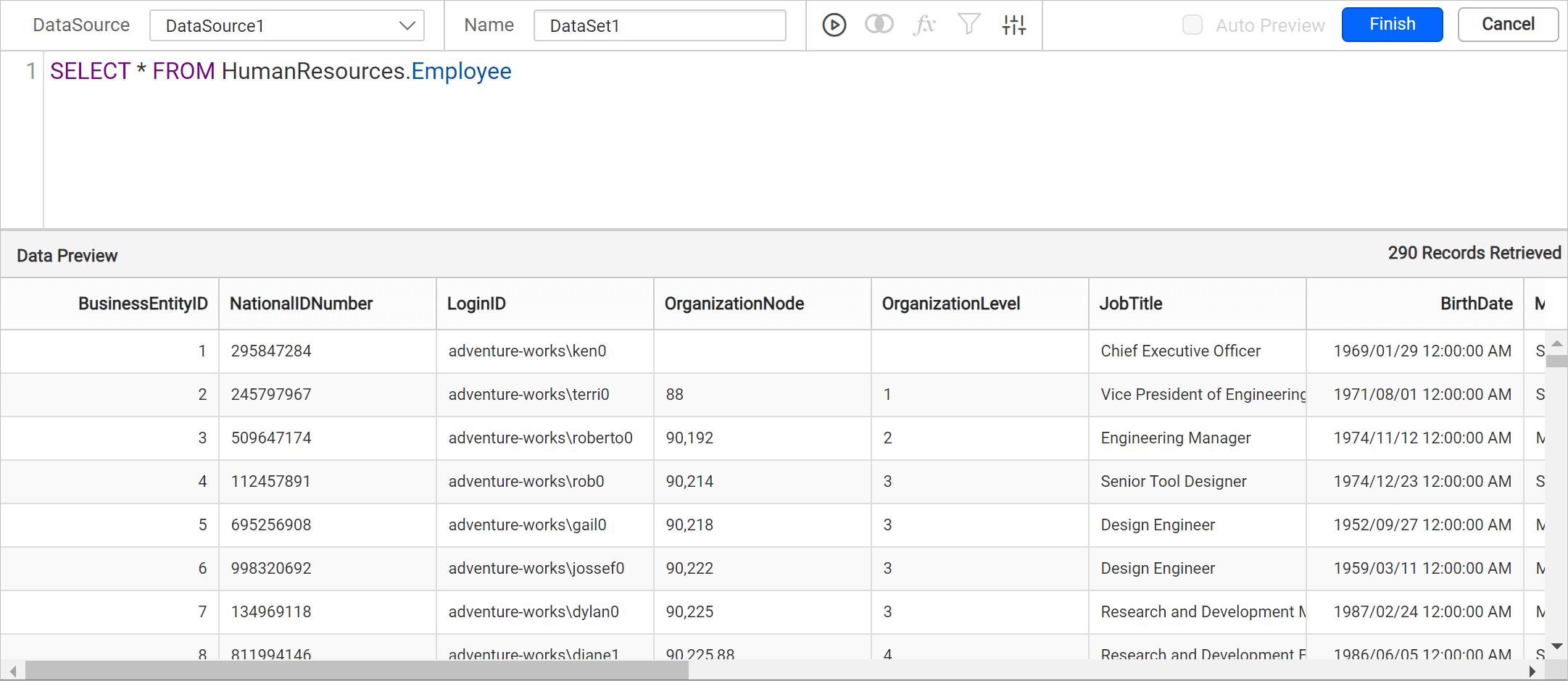
Only query mode is supported for ODBC data source.
-
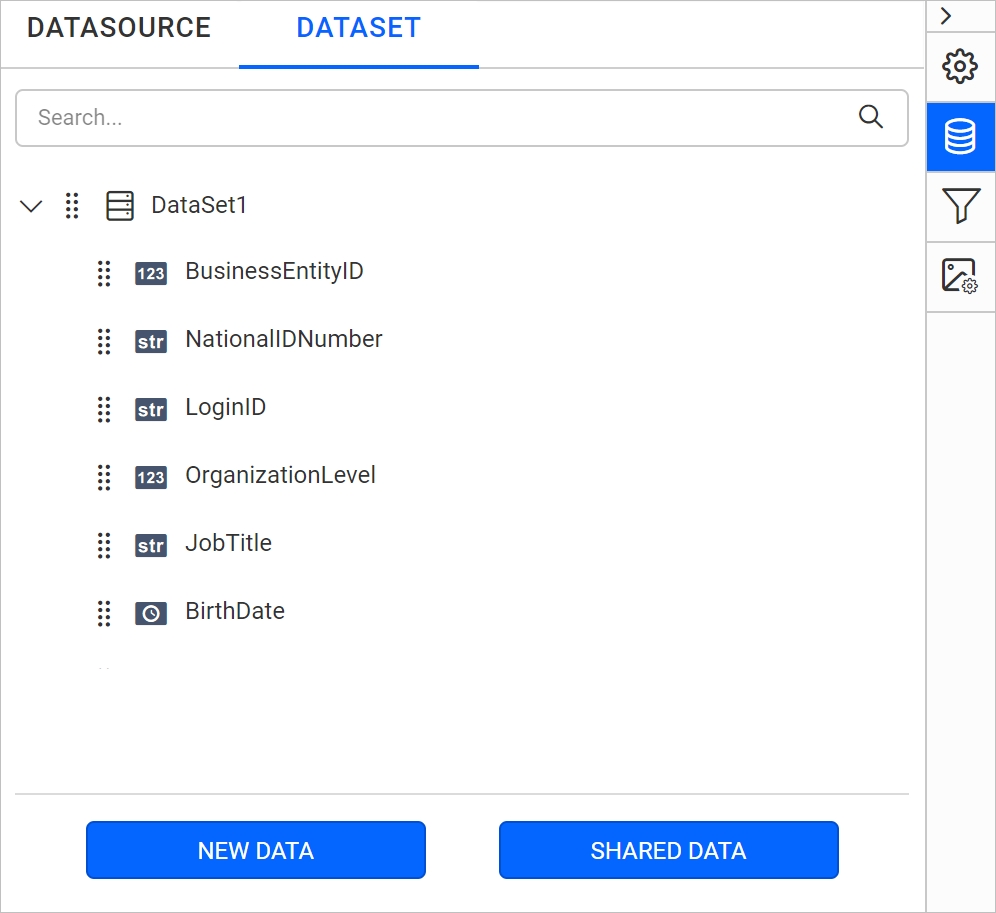
Click
Finishto save the data source with a relevant name and continue designing the report.
Authentication types
The Bold Reports® ODBC data source supports database credentials, prompted credentials, or no credentials.
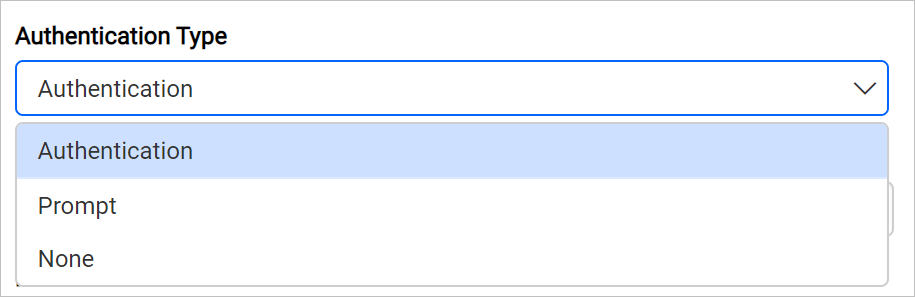
Authentication - A user name and password must be supplied to access the database, the credentials might be for a database login. The credentials are passed to the data source for authentication.
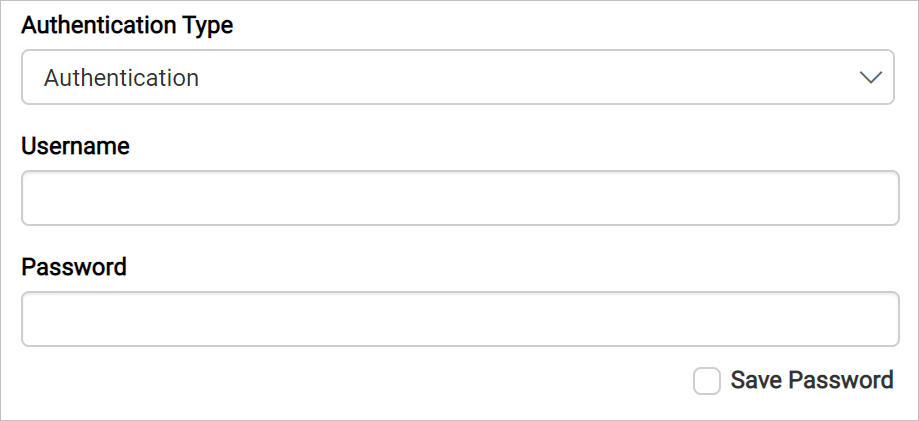
Enable the Save password option to embed the credentials within the report when saving it in Bold Reports® Report Server.
On report download action, the credentials will be not be saved with report data.
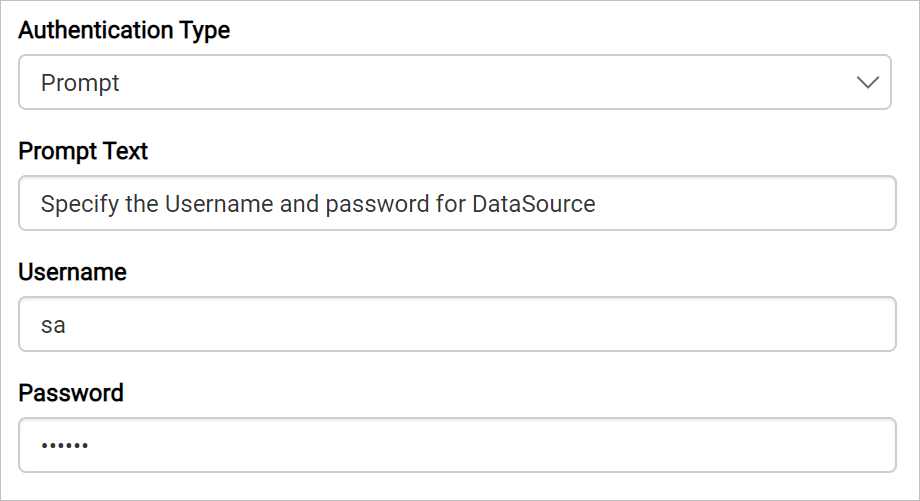
Prompt - When you configure a data source connection to use prompted credentials, each user who accesses the report must enter a user name and password on preview action to retrieve the data.
None - Choose the authentication type as None when the authentication details or any other arguments required to connect with the data source are provided in the connection string.
Frequently asked questions
Can I connect to ODBC with a DSN or a driver name?
Yes. You can connect to the ODBC data source using either a system DSN name or a driver name in the connection string.
Does the ODBC data source support design view?
No. Only query mode is supported for the ODBC data source.