Web
The web connector fetches data from a REST API and supports nested JSON fields.
Limitations
- Currently supports Json response.
Connection Properties
The config section in a YAML file includes the following properties:
url: URL
username: Username
password: Password
type: HHTP method either GET/POST
headers: Header parameters
params: Query Paramaeter value
data: Data value
Example Configuration
version: 1
encrypt_credentials: false
plugins:
  extractors:
    - name: web
      #Json Response only supported
      connectorname: Web
      config:
        url: url
        # Basic Authentication
        username: username
        password: password
        type: get
        headers: { 'ContentType': 'application/json' }
Configure the Bold Data Hub to connect Web
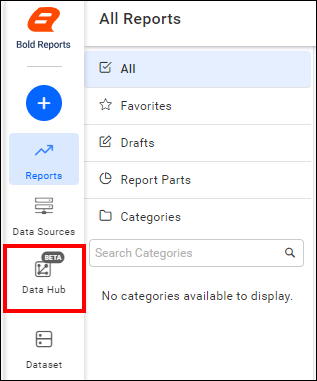
- Click the
Data Hubicon on the Navigation Pane.
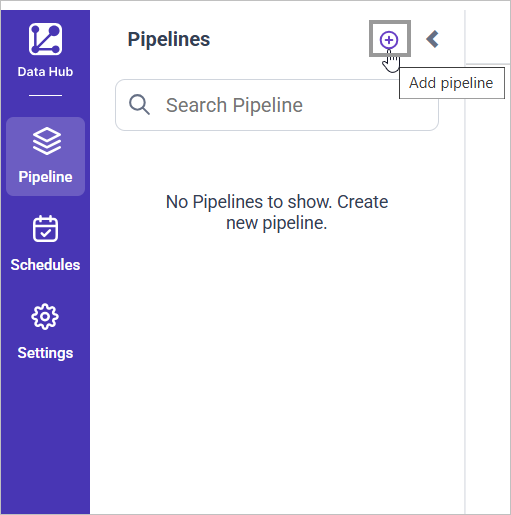
- Click
Add Projectand provide the new project’s name.
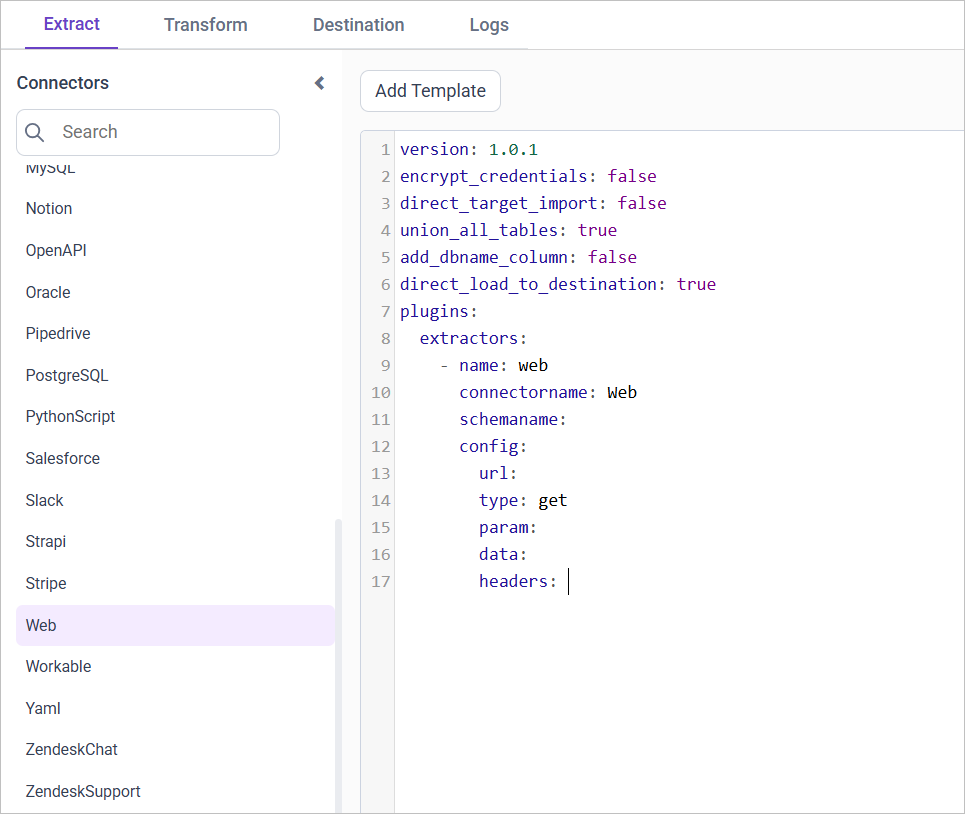
- Select the newly created project and add the
Webtemplate.
Configuration Parameters
| Parameter | Description |
|---|---|
| URL: | Specify the URL of the web service from which data will be extracted. This URL should point to the API endpoint providing the required data. |
| Authentication (Optional): | Username: If the web service requires basic authentication, provide the username here. Password: Corresponding password for basic authentication. |
| Request Type: | Specify whether the connector should use the GET or POST method for making requests to the API. |
| Parameters (Optional): | Provide parameters required for the API call in JSON format - key-value pairs. These parameters are typically used for filtering or customizing the data returned by the API. |
| Data (Optional): | If the API call requires any additional data to be sent, specify it here in JSON format - key-value pairs. This data might include payload or request body parameters. |
| Headers (Optional): | Include any custom headers required for the API call. These headers should be provided in JSON format, specifying key-value pairs such as content type or authentication tokens. |
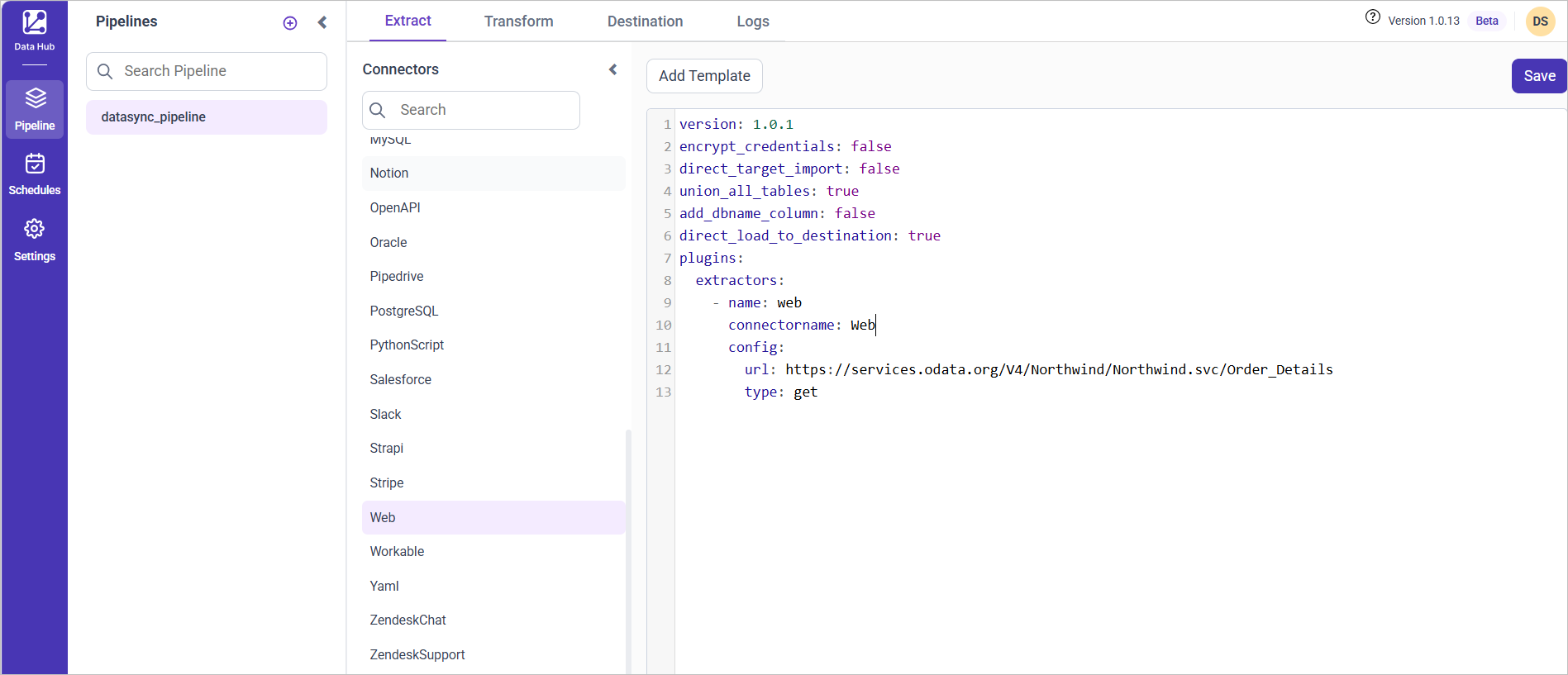
- Update the details required in the template and Click Save, choose the desired destination to save the pipeline.
- Creating a Pipeline in Bold Data Hub automatically creates a Data Source in Bold Reports®. The Bold Reports® Data Source is a live data source to the destination database used in Bold Data Hub.
Schedule Bold Data Hub Job
- To configure interval-based scheduling, click on the schedules tab and select the created pipeline and click on the schedule icon and configure it.


- For on-demand refresh, click
Run Nowbutton.
 .
.
- The Schedule history can be checked using the history option as well as logs.
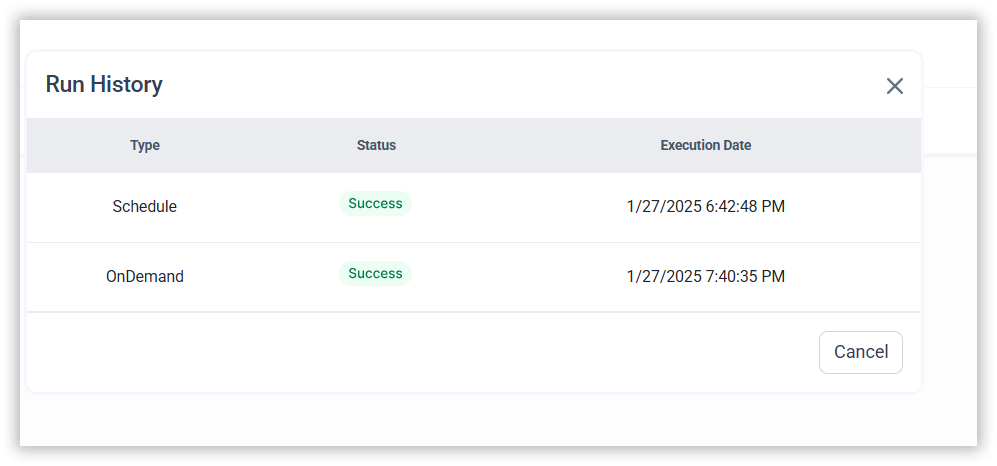
- Click on Logs to see if the run is completed and data source is created in Bold Reports®.

- Click
Edit DataSourceOption to view the created tables.