Multi-Tabbed Reports
The multi-tabbed report feature enables the user to display two or more reports on the same page in Bold Reports® On-Premise.
Manage a Multi-Tabbed Reports
-
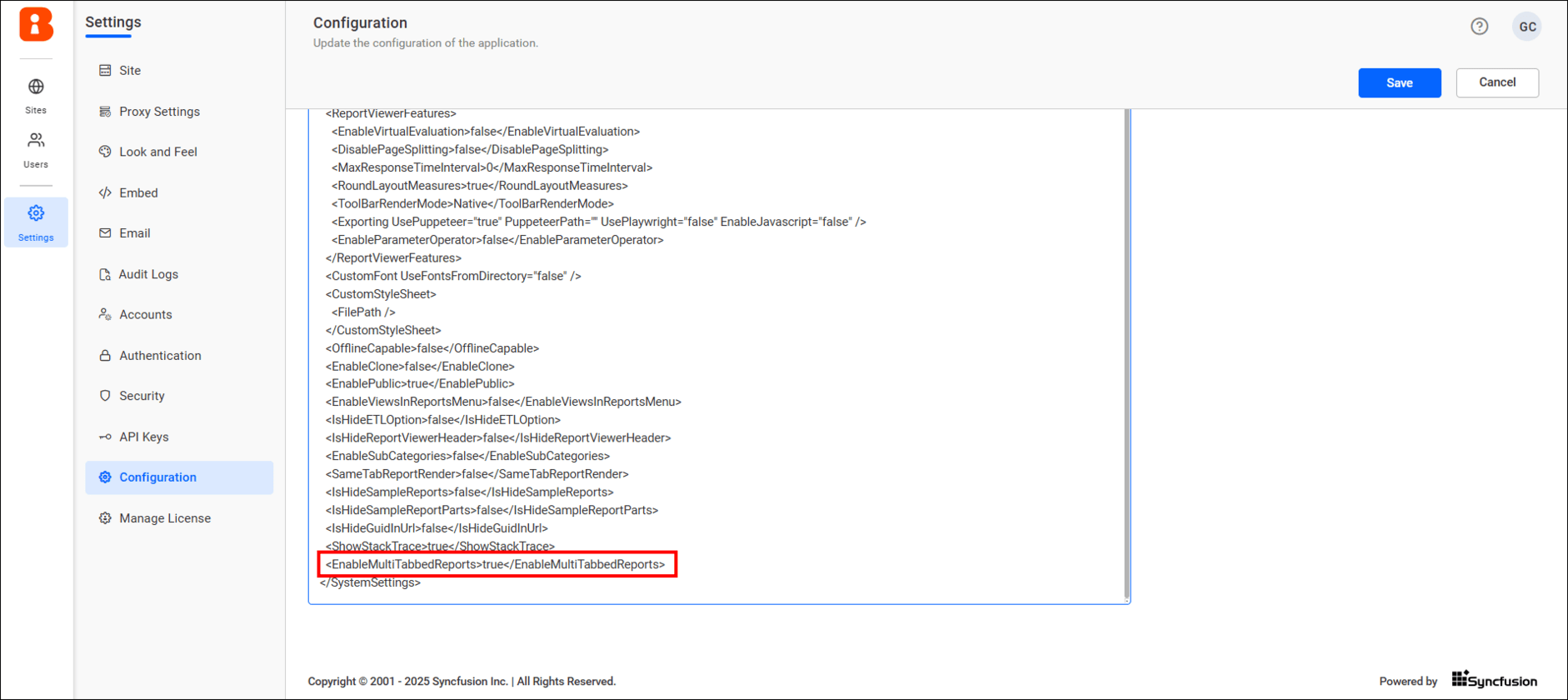
In order to enable the Multi-tab support, navigate to
UMS -> Settings -> Configuration -> reporting/config.xml, set the<EnableMultiTabbedReports>node totrue, and then save the changes`<EnableMultiTabbedReports>true</EnableMultiTabbedReports>`
This section explains how to create, edit, render, and delete a multi-tabbed reports in Bold Reports®
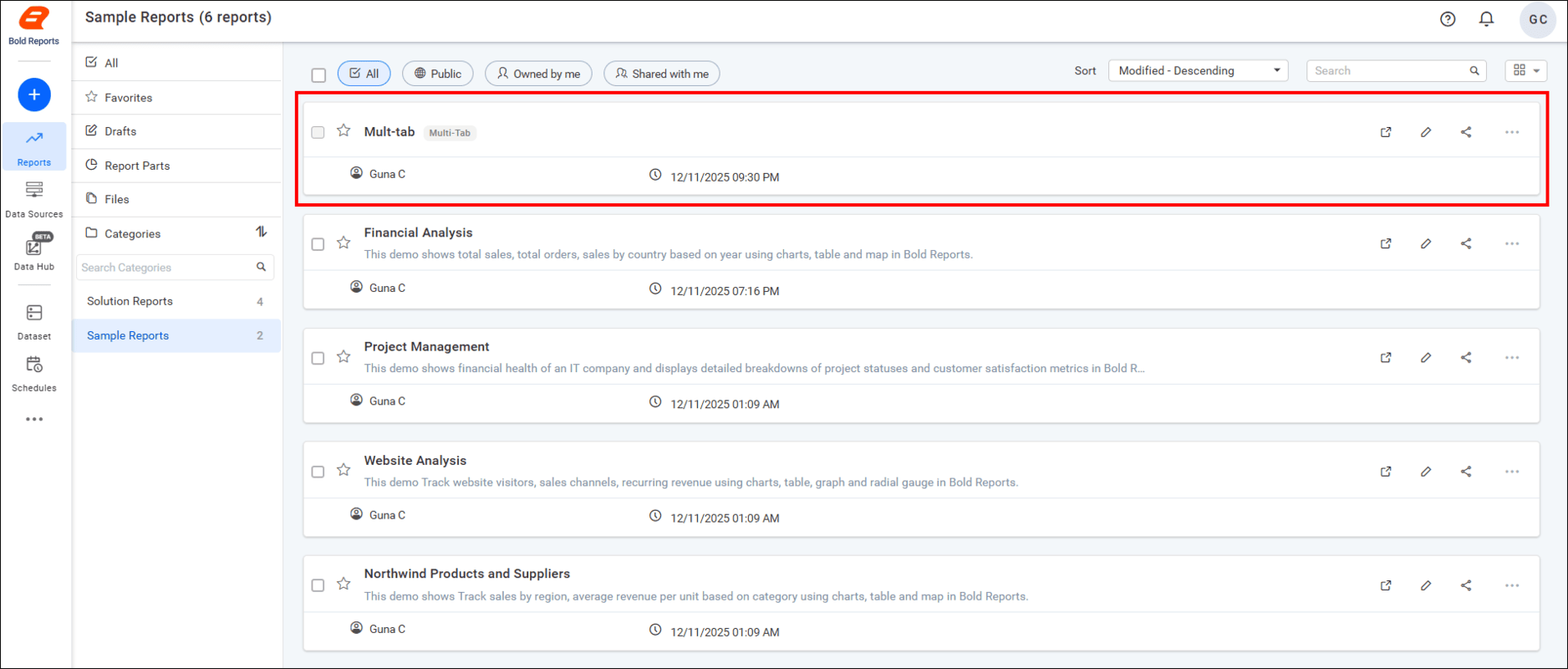
- Multi-tabbed reports that are accessible to the user, depending on their permissions, will be displayed on the reports listing page.
Create a Multi-Tabbed Report
To create a multi-tabbed report, the user must have access to reports. An admin user can utilize any report to create a multi-tabbed report, while other users can only use their own reports or shared reports with write permission.
Steps to create a multi-tabbed Report
- Click the
[+]icon on the left side of the menu area and select the multi-tabbed report option.

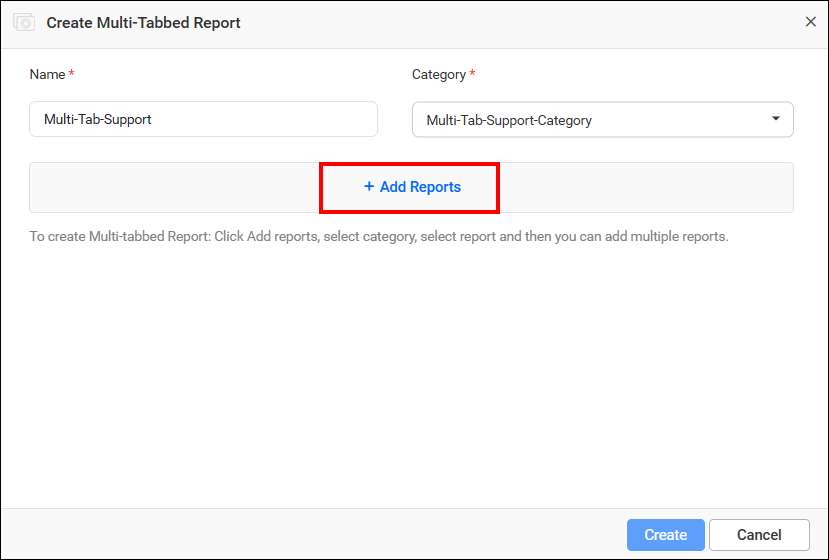
- Fill out the form with the name of the multi-tab report and select the category from the Select Category drop-down menu.

NOTE: The plus icon next to the
Select Categorydrop-down will only appear if the user has permission to create categories.
- After filling out the form, click
Add Reportsin the Create Multi-Tabbed Reports dialog box.
-
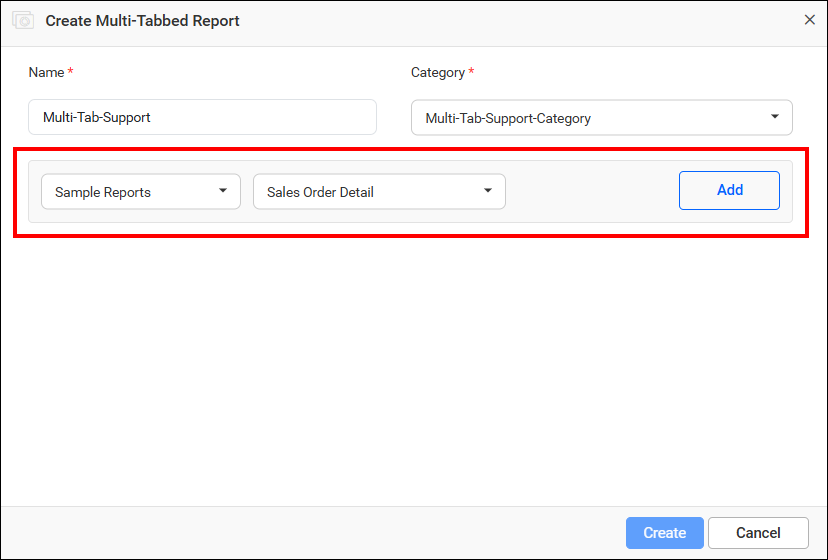
Select the category from the
Select Categorydrop-down menu, and the corresponding reports under that category will be displayed in theSelect Reportsdrop-down menu. -
After selecting the reports from the Select report drop-down menu, the
Addbutton will become enabled. Click theAddbutton.
-
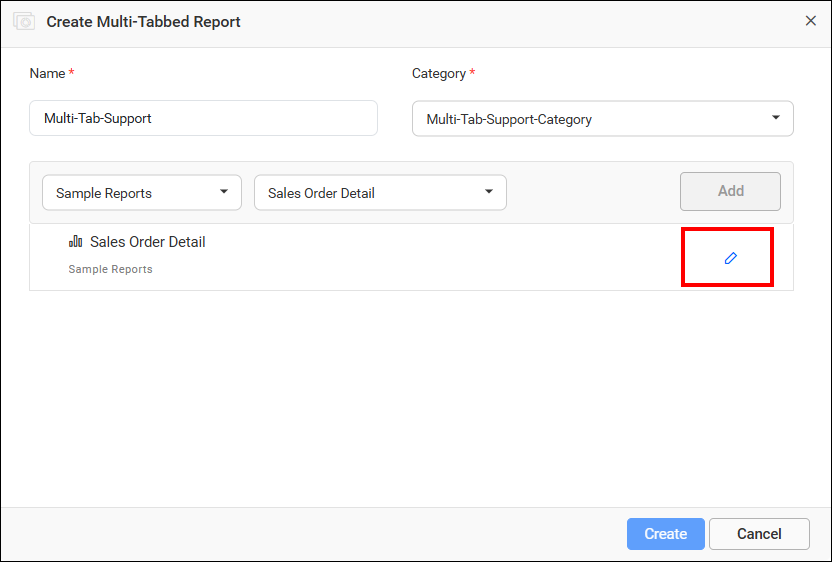
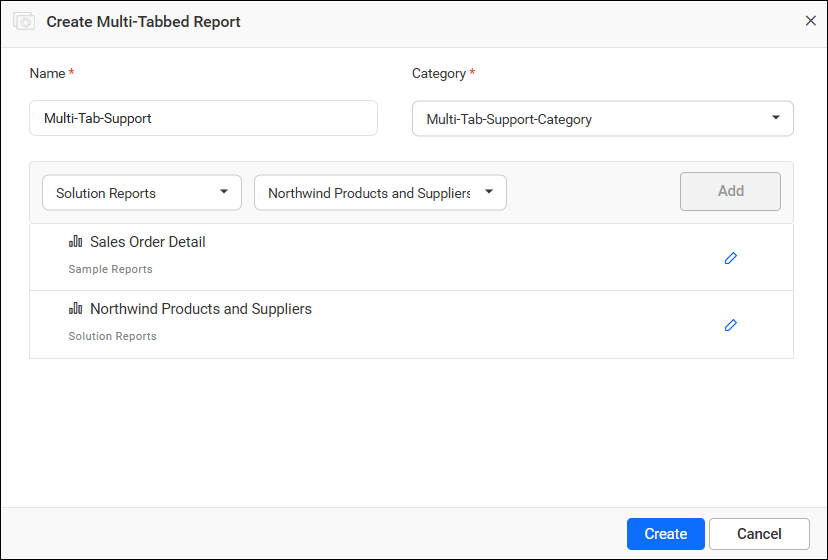
Add a minimum of two or more reports to create the multi-tabbed report. The added reports will be displayed in the multi-tabbed report. Edit the tab name of the multi-tabbed reports by clicking the edit icon.
-
Edit the tab name and click the check icon to apply the edited tab name. Use the cancel icon to reset the tab name.

- After adding reports to the multi-tabbed reports, click
Create.
Open a Multi-Tabbed Report
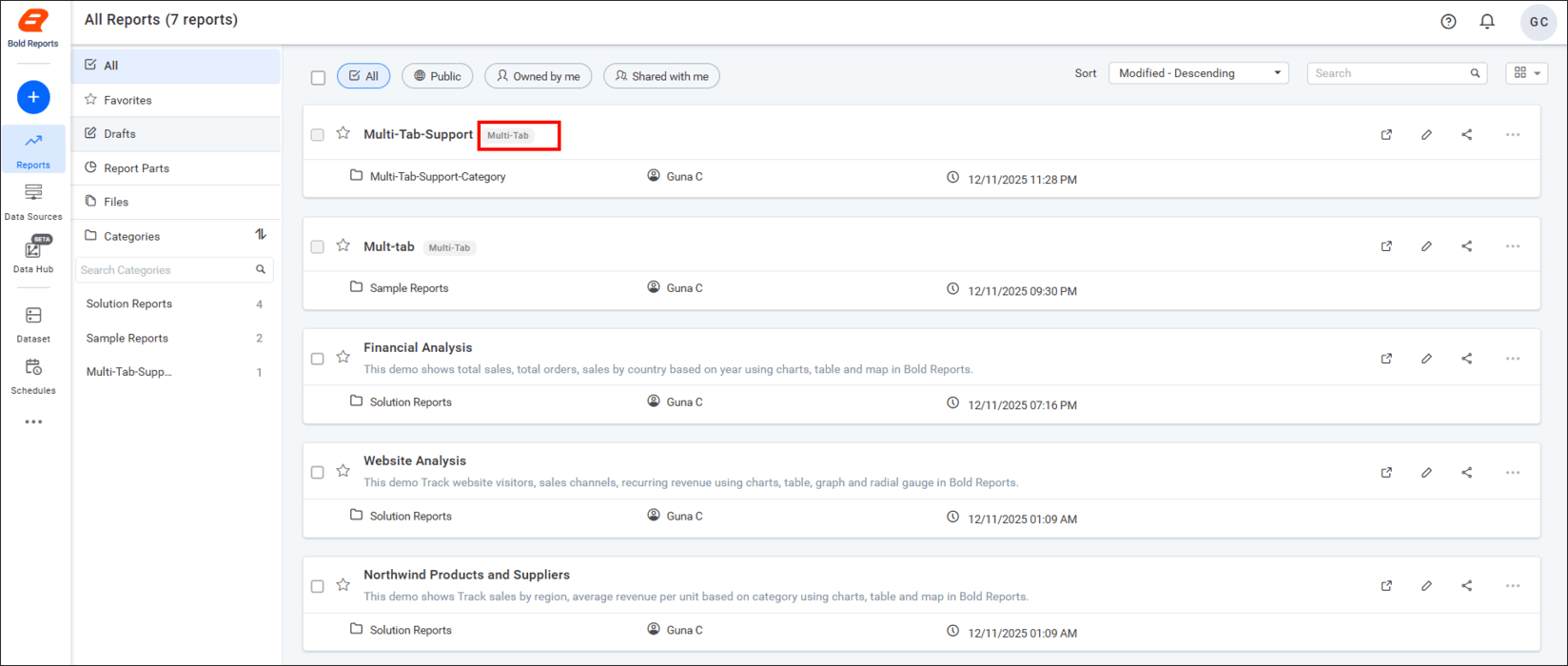
Users can identify the created multi-tabbed report with the multi-tab badge icon in the report listing page.
-
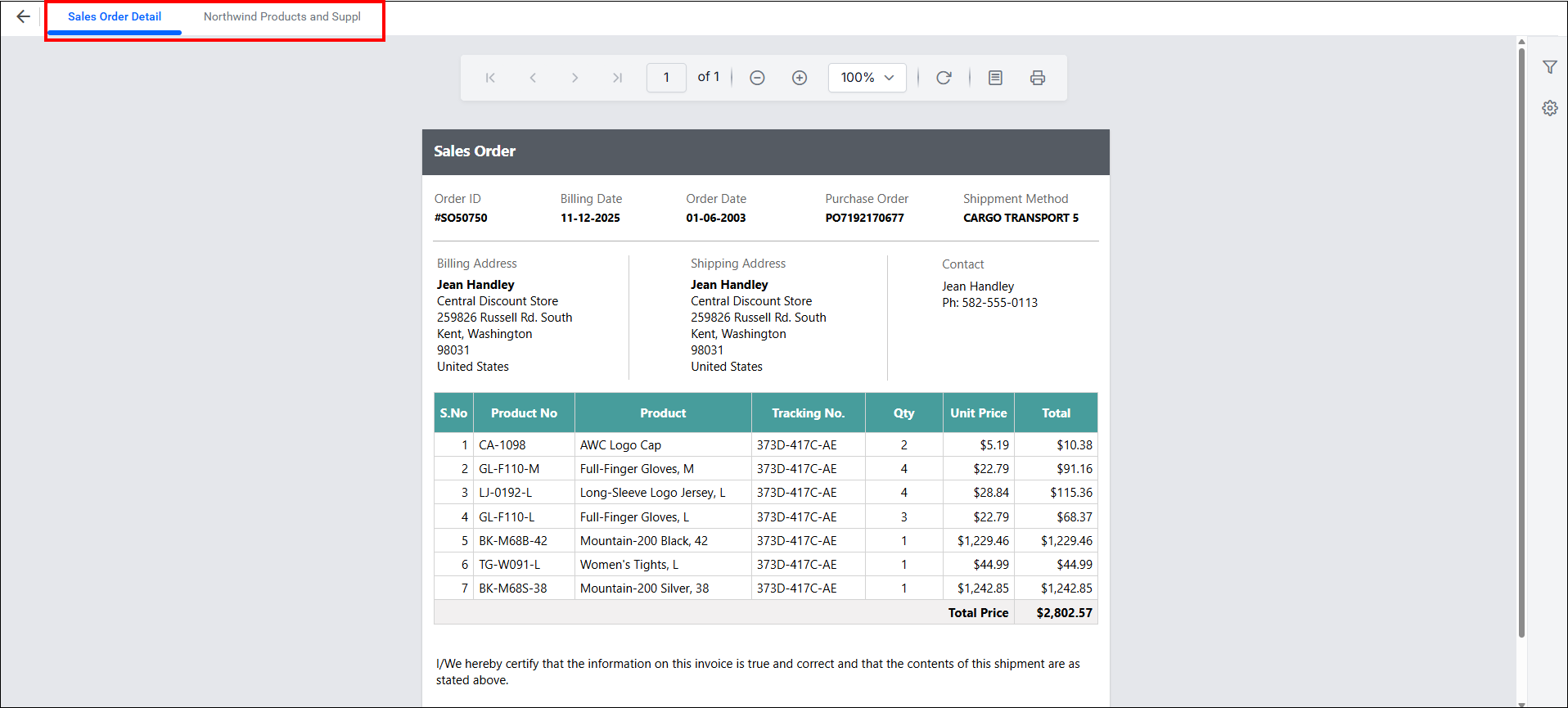
Click on the respective multi-tabbed reports in the list to open it.
-
Users can switch between tabs to view the other reports.
NOTE: There are some limitations of Multi-Tabbed Reports are edit, share, favorite, and get link options in the viewer are hidden and users are unable to share the report views with others.