Copy Multiple Reports using Multi-Select Option from Report Server
This section explains how to use the multi-select feature in Bold Reports® On-Premise to copy multiple reports simultaneously.
-
Select the reports you want to copy by using the multi-select checkboxes.
Note: Select multiple reports using the checkboxes displayed next to each report. After selecting the required reports, the
Copyoption becomes available in the toolbar, allowing you to copy the selected reports simultaneously. -
Click the
Copybutton located near theAlloption to copy the selected reports.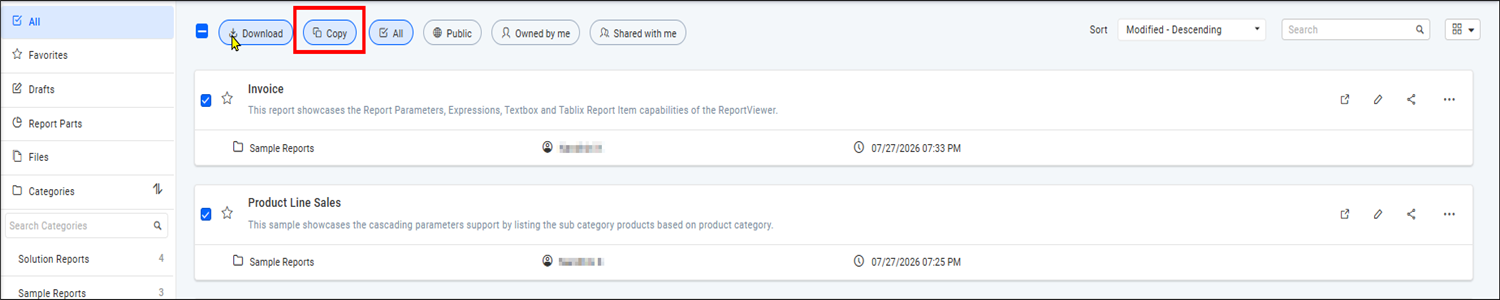
-
Select the site type where the report should be copied by choosing either
Internal SiteorExternal Site.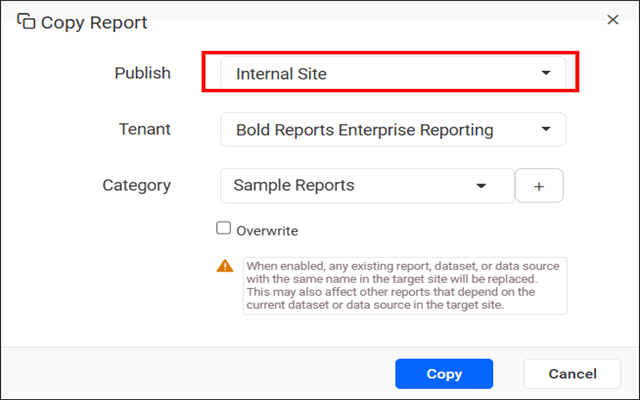
-
Copy the Report from one category to another.
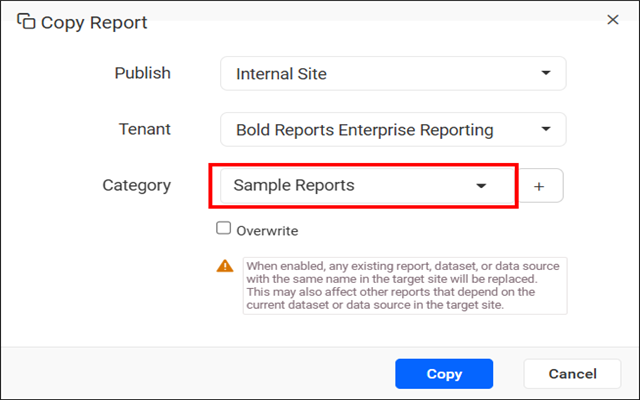
To create a new category while copying a report, click the
+button next to the Category field.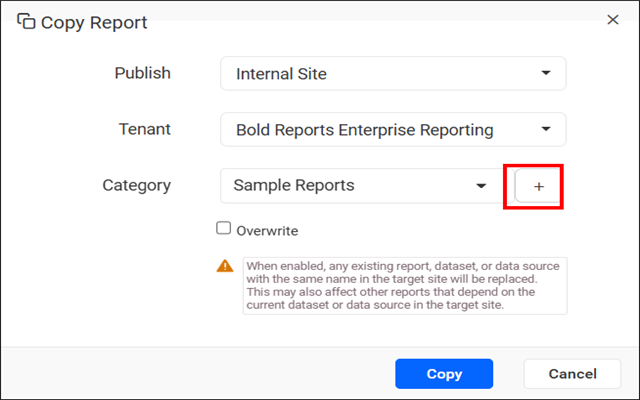
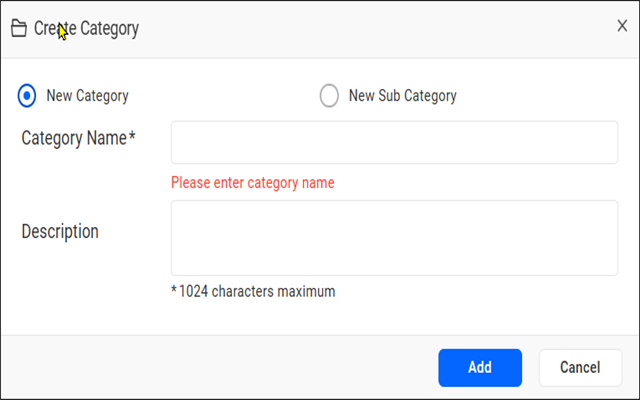
Note: When multiple tenants are selected, the Category list and the option to create a new category are not displayed. In this case, enter the category name manually. If the specified category already exists in the selected tenants, the reports are copied to that category. If the category does not exist, a new category is created automatically in the selected tenants.
Note: When the
Overwriteoption is enabled, any existing report, dataset, or data source with the same name in the target site is replaced. This may affect other reports that depend on the existing dataset or data source in the target site. -
Copy the report to one or more tenants by selecting the required tenants from the
Tenantlist.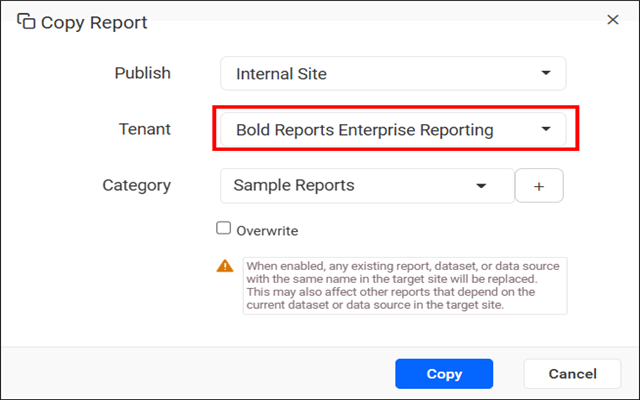
Note: When multiple reports are selected, the
Report Namefield and theAdvancedoption are not available. These options are applicable only when copying a single report.This option is available on Bold Reports® On-Premise Edition from version
14.1.12onwards.