Advanced Report Security
Report security options control which websites, IP addresses, and applications can access or embed the report. These settings ensure that reports are accessible only to authorized users.
This section explains how to restrict report access based on IP address and allow the report to be embedded in a specific domain.
Update security settings
-
Click the Reports context menu and select
Securityto update security settings.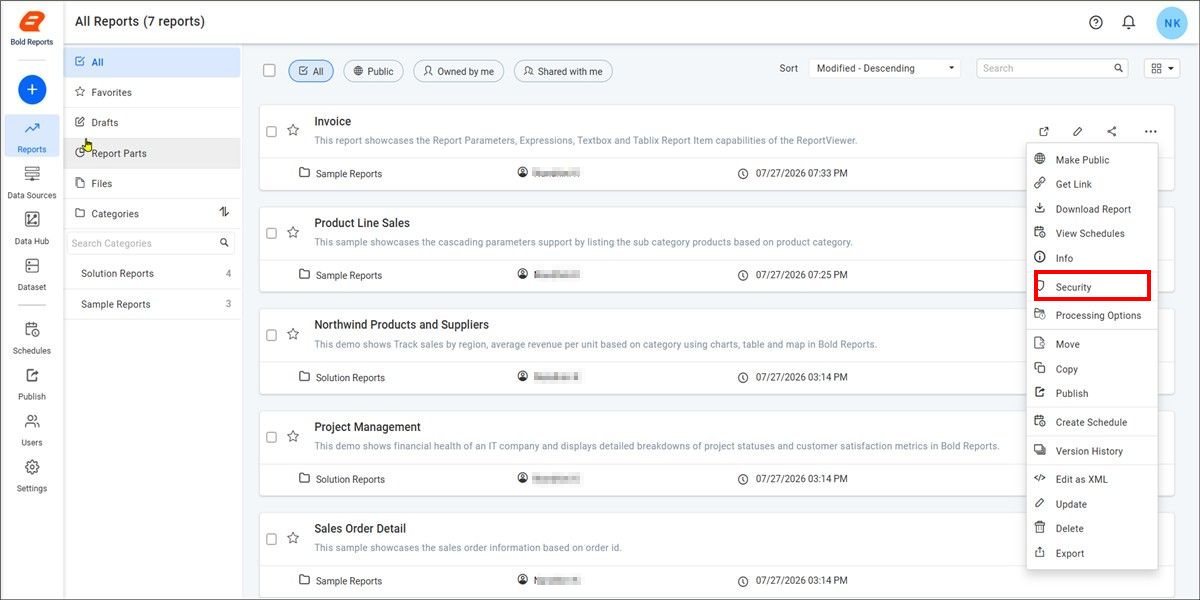
-
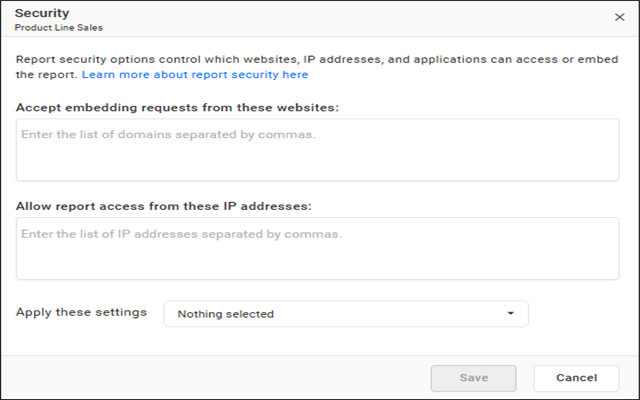
Here, you can specify the domains allowed for report embedding and the IP addresses or IP ranges allowed to access the report.
-
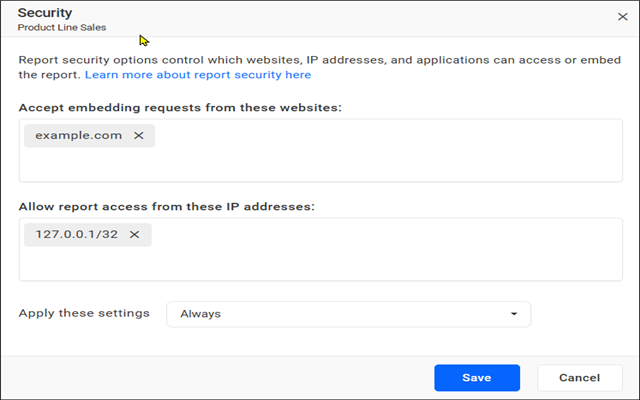
Specify the IP addresses or ranges you want to allow for report access, and specify the domains you want to allow the reports to be embedded in.
When to apply these settings
The restrictions can be applied in three ways for the reports.
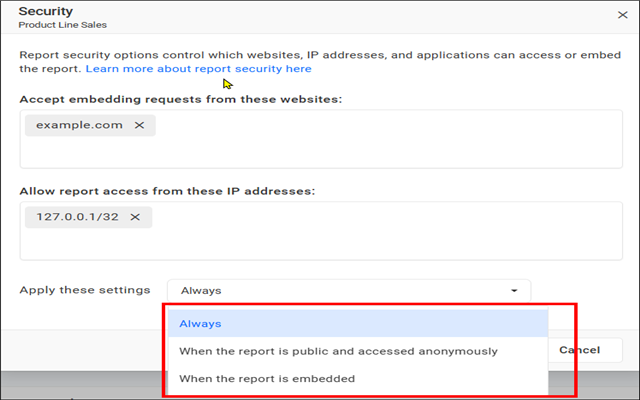
Always
The restriction will be applied to Private, Public, and Embed reports.
For example, specify the IP address that needs to be allowed in the Allow report access from these IP addresses field and choose always from the dropdown.
In this case, the report can be viewed based on the specified IP address in the Allow report access from these IP addresses field.
- The report can be viewed from the allowed IP addresses.
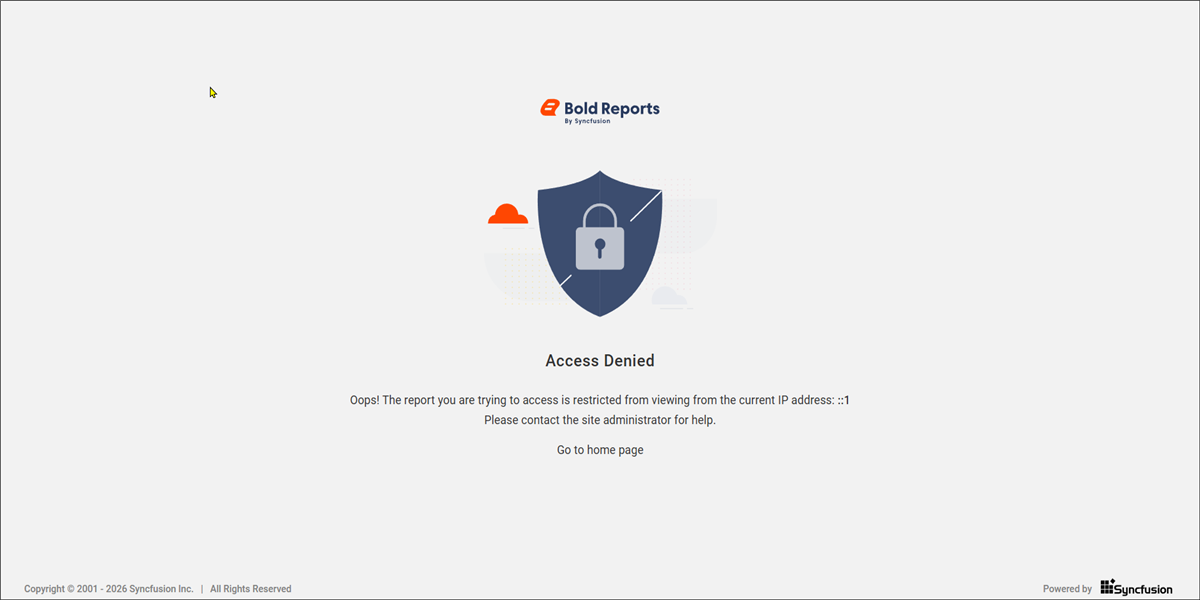
- An Access Denied message will be shown for requests from an IP address not mentioned in the
Allow report access from these IP addresses.
For embedded scenarios, specify the domains in the Accept embedding requests from these websites field.
- The Embedded reports are accessible from allowed domains.
- Access is blocked for other domains.
When the report is public and accessed anonymously
The restriction will be applied only to the public reports accessed anonymously (without login).
For example, specify the IP address that needs to be allowed in the Allow report access from these IP addresses field and choose When the report is public and accessed anonymously from the dropdown.
In this case, the public report accessed anonymously can be viewed based on the specified IP address in the Allow report access from these IP addresses without affecting private reports and viewing public reports with login.
- The public report accessed anonymously can be viewed from the allowed IP addresses.
- An Access Denied message will be shown for requests from an IP address not mentioned in the
Allow report access from these IP addresses.
When the report is embedded
The restriction will only be applied to the embedded reports.
For example, specify the domain in the Accept embedding requests from these websites field where the report should be embedded and choose When the report is embedded from the dropdown.
In this case, the report can be embedded in the specified domains in the Accept embedding requests from these websites.
- The reports embedded in the allowed domain can be viewed.
- The viewing of embedded reports will be blocked by the browser for domains not mentioned in the
Accept embedding requests from these websites.
Note: Ensure that you use a valid HTTPS URL. The following are examples of valid URLs for embedded reports:
example.com,data.com,127.0.0.1,121.1.0.11.
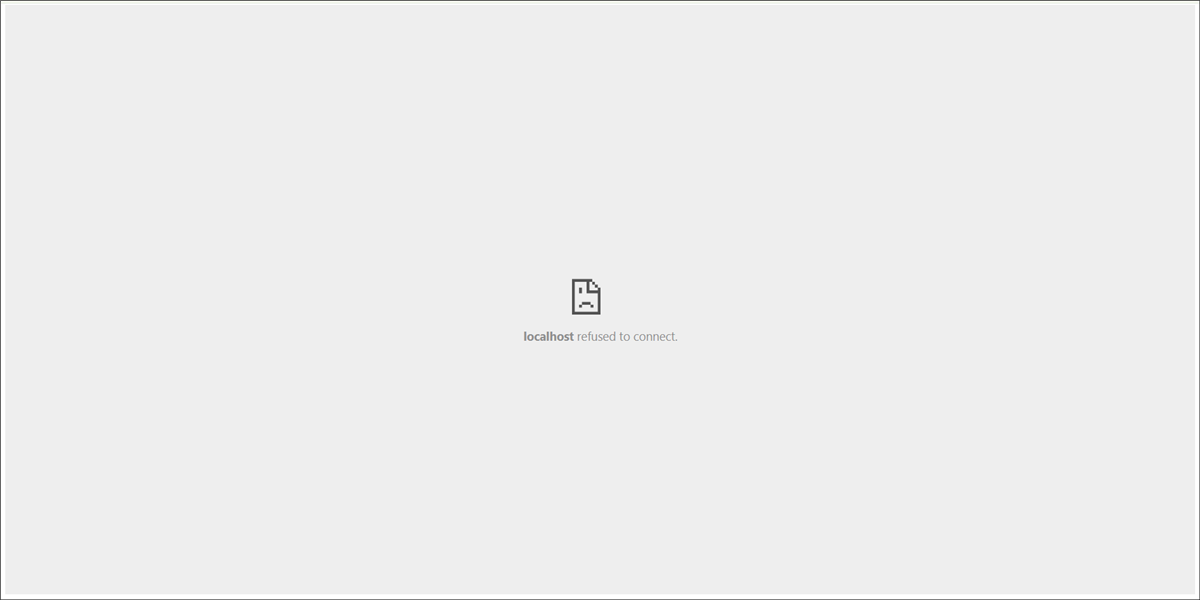
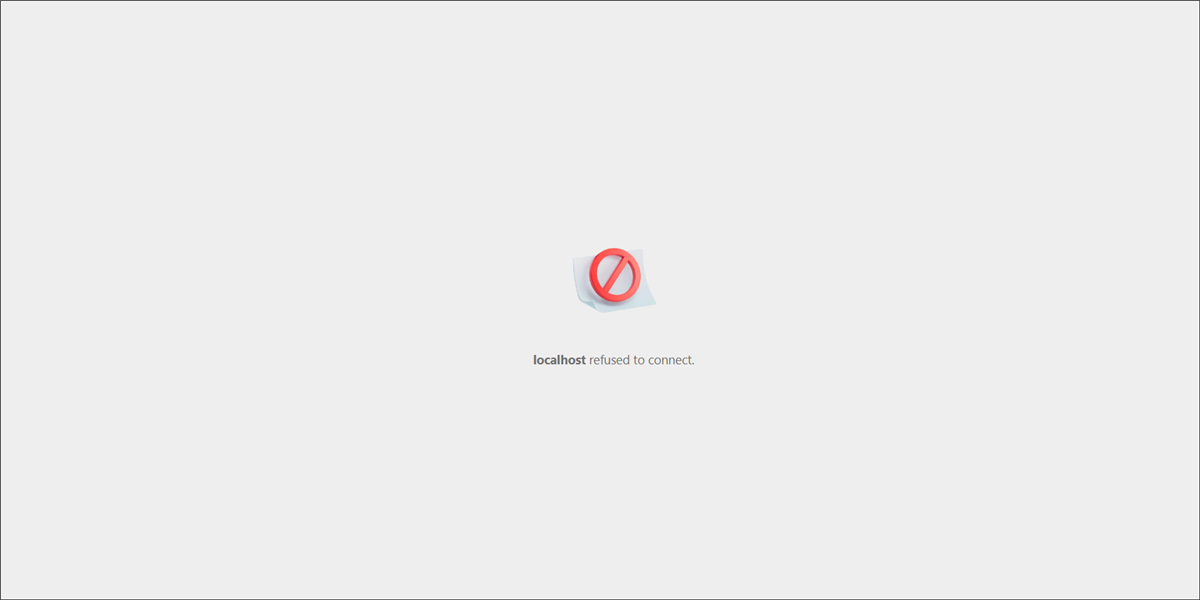
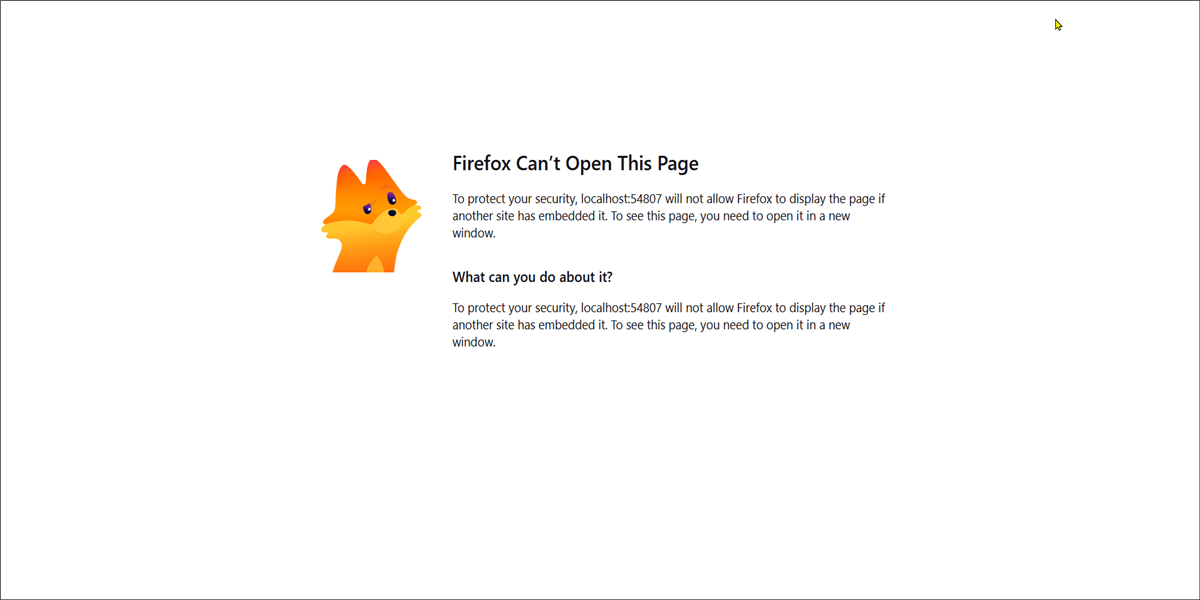
If the report is embedded from domains other than those specified, a blocked message will be displayed.
The blocked message may vary depending on the browser used.
- Google Chrome
- Microsoft Edge
- Firefox
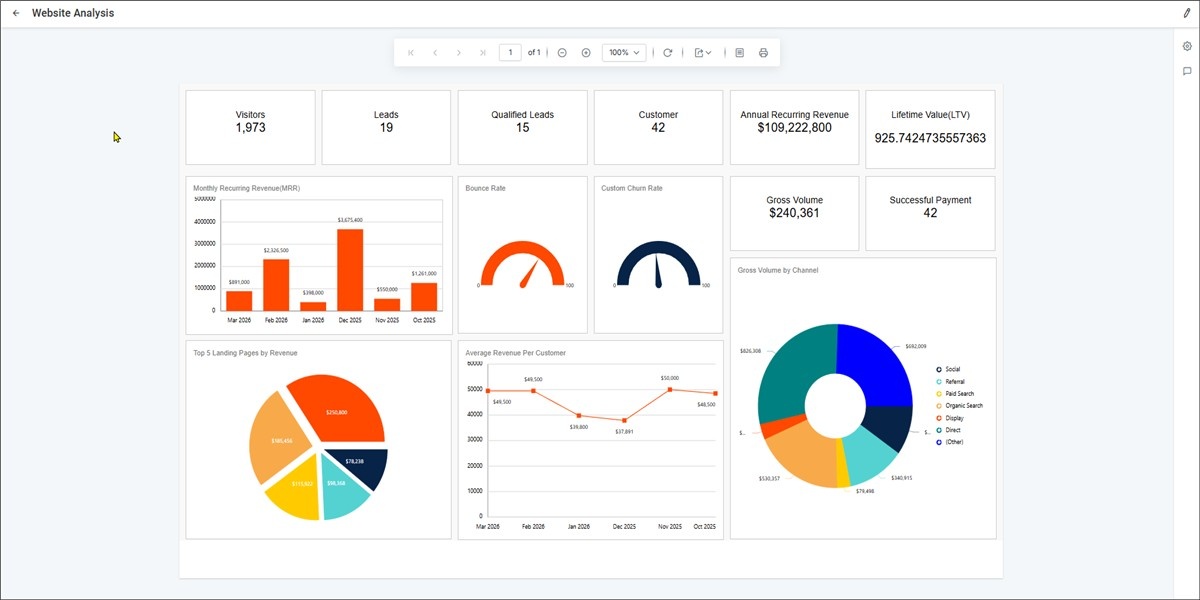
When the report is viewed from the allowed IP address,
When the report is viewed from the restricted IP address,