Deploy Bold Reports® on Docker Single Container
The Bold Reports® Production Image, recommended for production sites, lets you store the application data on your host machine to make the Bold Reports® container a stateful application. The Bold Reports® application reads and writes the data on your host machine.
How do I deploy the Bold Reports® production image?
You deploy the Bold Reports® Production Image with Docker Compose. Follow these steps:
-
Download the Docker Compose file by using the following command:
curl -o docker-compose.yml "https://raw.githubusercontent.com/boldreports/bold-reports-docker/refs/heads/master/deploy/single-container/docker-compose.yml" -
Allocate a directory in your host machine to store the shared folders for applications’ usage. Replace the directory path with
<host_path_boldreports_data>and<host_path_db_data>in docker-compose.yml file.For example,
Windows:device: 'D:/boldreports/boldreports_data'anddevice: 'D:/boldreports/db_data'
Linux:device: '/var/boldreports/boldreports_data'anddevice: '/var/boldreports/db_data'The following screenshot shows the host path volumes in the docker-compose.yml file.
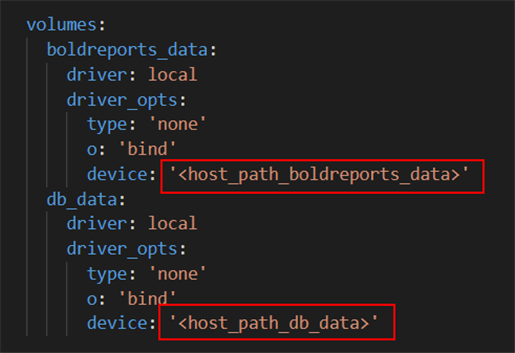
Note: The docker volumes boldreports_data and db_data persist data of Bold Reports® and PostgreSQL respectively. Learn more about docker volumes
-
Run the following command. It starts the Bold Reports® and Postgres SQL containers and displays the Bold Reports® logs, which show the installation status of the Bold Reports® application.
docker-compose up -d; docker-compose logs -f boldreportsThe following screenshot shows the output of the docker-compose up command.
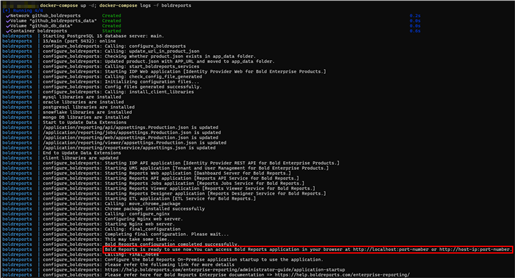
Note: To use the PostgreSQL server deployed with Bold Reports® using the
docker-compose.yamlfile, usepgdbas the host name of the PostgreSQL server. -
Access the Bold Reports® application by entering the URL as
http://localhost:8090orhttp://host-ip:8090in the browser. The browser displays the License page within a few seconds.Note: The default port number mentioned in the compose file is 8090. If you change the port number, use that port number to access the Bold Reports® application.
The following screenshot shows the License (registration) page.
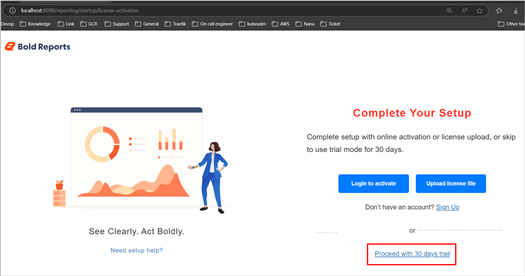
Note: Don’t use
http://127.0.0.1withportto access the application.
Shutdown and cleanup
Bold Reports® single container deployments are stopped and removed with Docker Compose commands.
The command docker-compose down removes the containers and default network, but preserves the volumes of Bold Reports® and PostgreSQL.
The command docker-compose down —volumes removes the containers, default network, and all the volumes.
Frequently asked questions
Which host name do I use for the bundled PostgreSQL server?
Use pgdb as the host name of the PostgreSQL server deployed with Bold Reports® using the docker-compose.yaml file.
What is the difference between docker-compose down and docker-compose down —volumes?
For Bold Reports®, docker-compose down preserves the Bold Reports® and PostgreSQL volumes. docker-compose down —volumes also removes all the volumes.