Email Templates
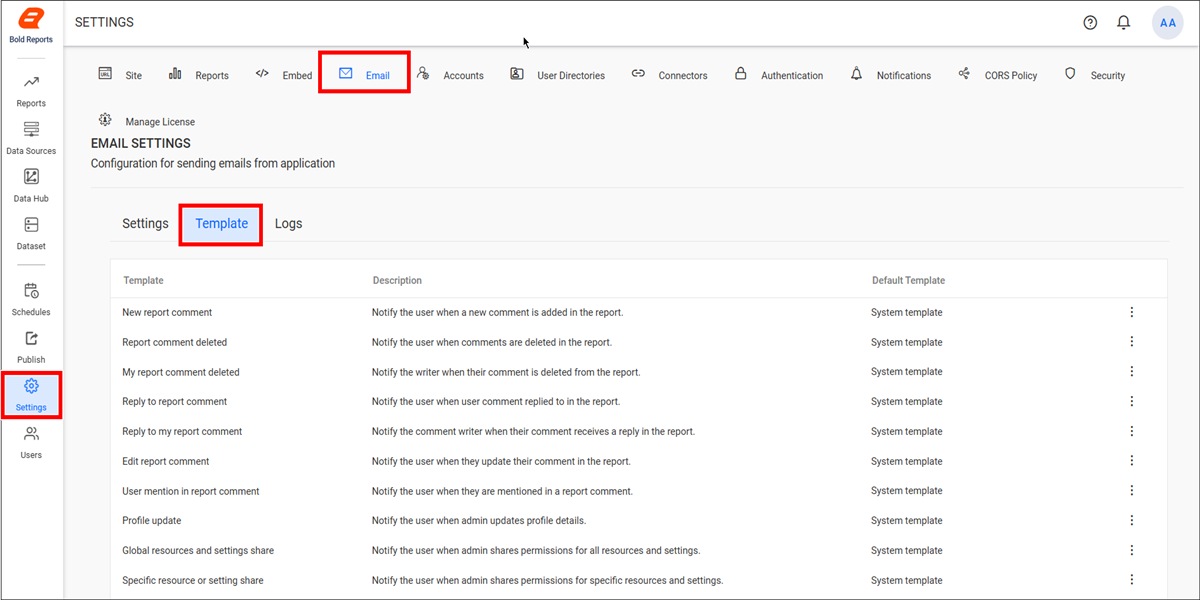
The Email Templates section allows administrators to manage email templates used for sending notifications across various Bold Reports® modules. You can use the built-in system templates, create custom templates, and customize email content according to your organization’s requirements.
NOTE: This setting is applicable only for On-Premises Deployment.
Default Template Overview
Bold Reports® provides predefined system templates for various notification events. These templates serve as the base templates for customization.
| Template | Description |
|---|---|
| New Report Comment |
Notify when someone adds a new comment to a report you have access to.
For Example: If User A comments on a report that is accessible to User B, then User B receives an email notification using this template. |
| Report Comment Deleted |
Notify when any comment is removed from a report you have access to.
For Example: If User A deletes a comment on a report that is accessible to User B, then User B receives an email notification using this template. |
| My Report Comment Deleted |
Notify when someone else deletes a comment that you wrote on a report.
For Example: If you wrote a comment and an administrator deletes it, you will receive an email notification stating that your comment was removed. |
| Reply to Report Comment |
Notify when someone replies to a comment made on a report you have access to.
For Example: If User A replies to a comment on a report accessible to User B, then User B receives an email notification using this template. |
| Reply to My Report Comment |
Notify when someone replies to a comment you made on a report.
For Example: If you commented on a report and someone replies to it, you will be notified of the reply using this template. |
| Edit Report Comment |
Notify when a comment is edited on a report you have access to.
For Example: If User A edits a comment on a report accessible to User B, then User B receives a notification using this template. |
| User Mention in Report Comment |
Notify when someone mentions you in a report comment using '@'.
For Example: If User A mentions User B in a report comment, then User B receives a notification using this template. |
| Profile Update |
Notify when an administrator updates your profile details.
For Example: If your role or email address is changed by an administrator, you will receive a notification using this template. |
| Global Resources and Settings Share |
Notify when an administrator shares access to all resources and settings with you.
For Example: If an administrator grants you access to all reports and settings, you will be notified using this template. |
| Specific Resource or Setting Share |
Notify when an administrator shares access to a specific resource or setting.
For Example: If an administrator grants you access to a specific report or setting, you will be notified using this template. |
| Permission Delegation |
Notify when an administrator allows you to manage permissions for resources or settings.
For Example: If an administrator delegates permission management to you, you will receive a notification using this template. |
| No Data Scheduled Report |
Notify when a scheduled report does not contain any data and therefore is not attached.
For Example: If a scheduled report runs successfully but returns no data, recipients will receive a notification using this template. |
| Timed Report Export |
Notify users when a report export is generated based on a schedule.
For Example: If a report is scheduled to be exported every Monday, the recipients configured in the schedule will receive an email notification using this template. |
| Failed Timed Report Export |
Notify users when a scheduled report export fails.
For Example: If a scheduled report export fails due to a processing or delivery issue, the recipients configured in the schedule will receive a notification using this template. |
| Disabled Timed Report Export |
Notify users when a scheduled export is disabled because of repeated failures.
For Example: If a scheduled report export fails repeatedly, the system automatically disables the schedule and notifies the recipients using this template. |
| Synchronization Azure AD |
Notify users when Azure Active Directory synchronization completes successfully.
For Example: If users or groups are imported from Azure AD and the synchronization completes successfully, an email notification is sent using this template. |
| Synchronized Windows AD |
Notify users when Windows Active Directory synchronization completes successfully.
For Example: If users or groups are imported from Windows AD and the synchronization completes successfully, an email notification is sent using this template. |
| Synchronized Database Users |
Notify users when database user synchronization completes successfully.
For Example: If users are imported from a database and the synchronization completes successfully, an email notification is sent using this template. |
| Failed Azure AD Synchronization |
Notify users when Azure Active Directory synchronization fails.
For Example: If Azure AD synchronization fails because of a connection or configuration issue, a notification is sent using this template. |
| Failed Windows AD Synchronization | Notify users when Windows Active Directory synchronization fails.
For Example: If Windows AD synchronization fails because of an unexpected error, a notification is sent using this template. |
| Failed Database User Synchronization | Notify users when database user synchronization fails.
For Example: If importing users from a database fails because of a connection or query error, a notification is sent using this template. |
| User Activation | Notify users when their account is activated by an administrator.
For Example: If an administrator activates your account, you will receive an email notification using this template. |
| User Invitation | Notify users when they receive an invitation to join the platform.
For Example: If an administrator sends you an invitation to join the Bold Reports® server, you will receive an email notification using this template. |
Managing Email Templates
Create a New Template
To create a custom email template:
-
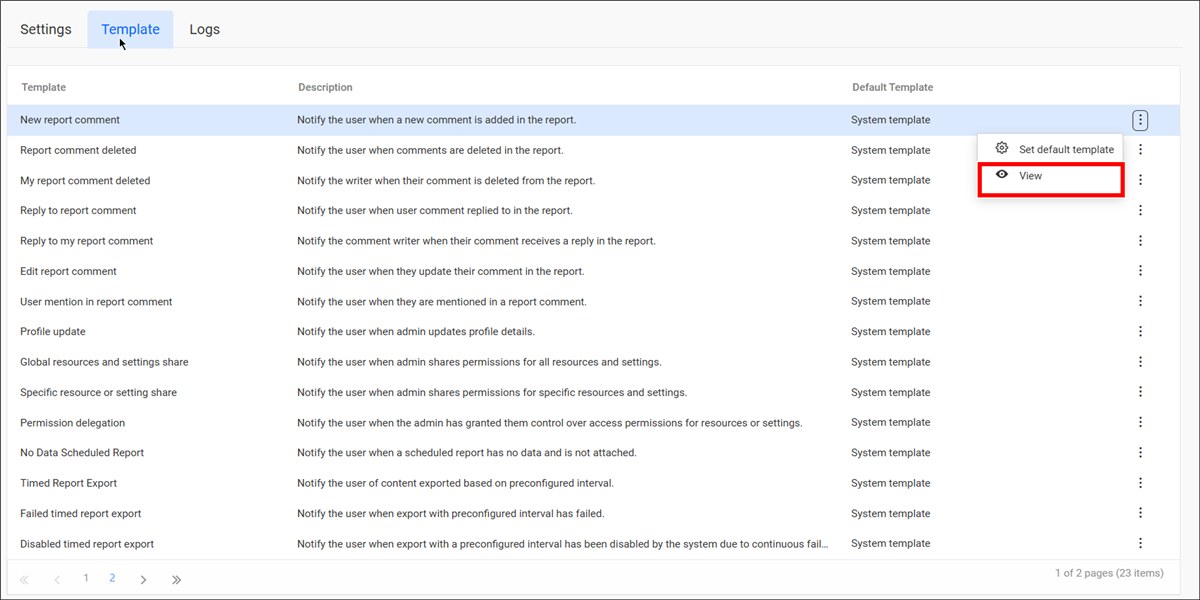
Select a template from the grid.
-
Click the View option.
-
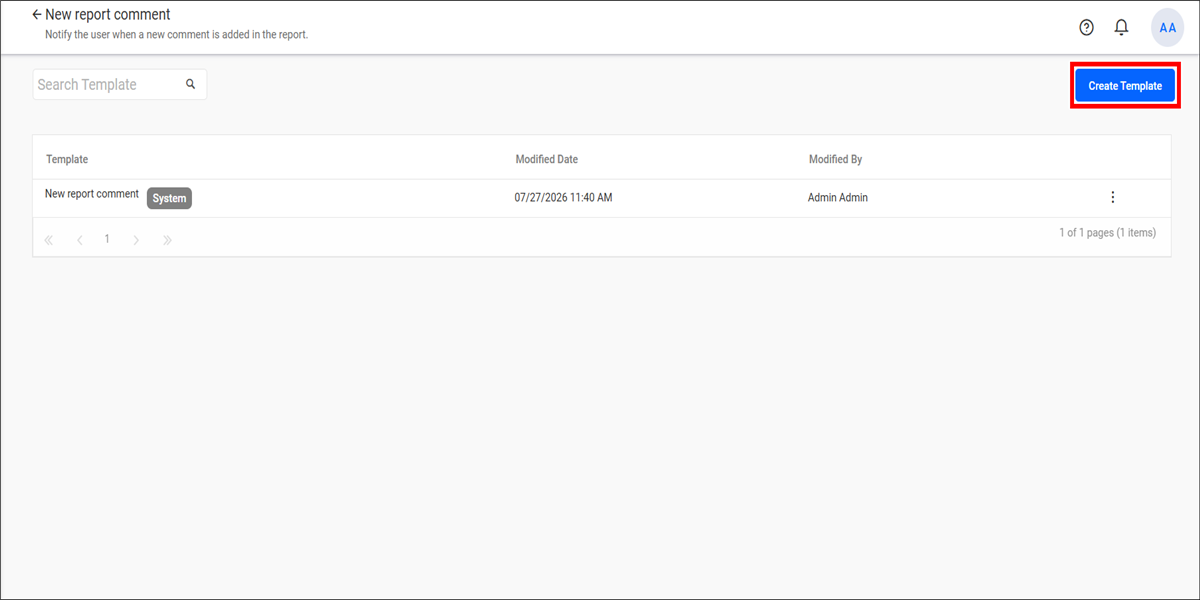
Click Create Template.
-
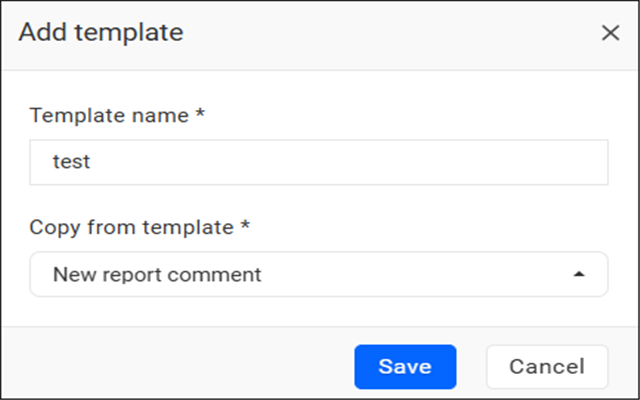
Choose a base template and customize the content as required.
-
Save the template.
Edit a Template
To modify an existing custom template:
-
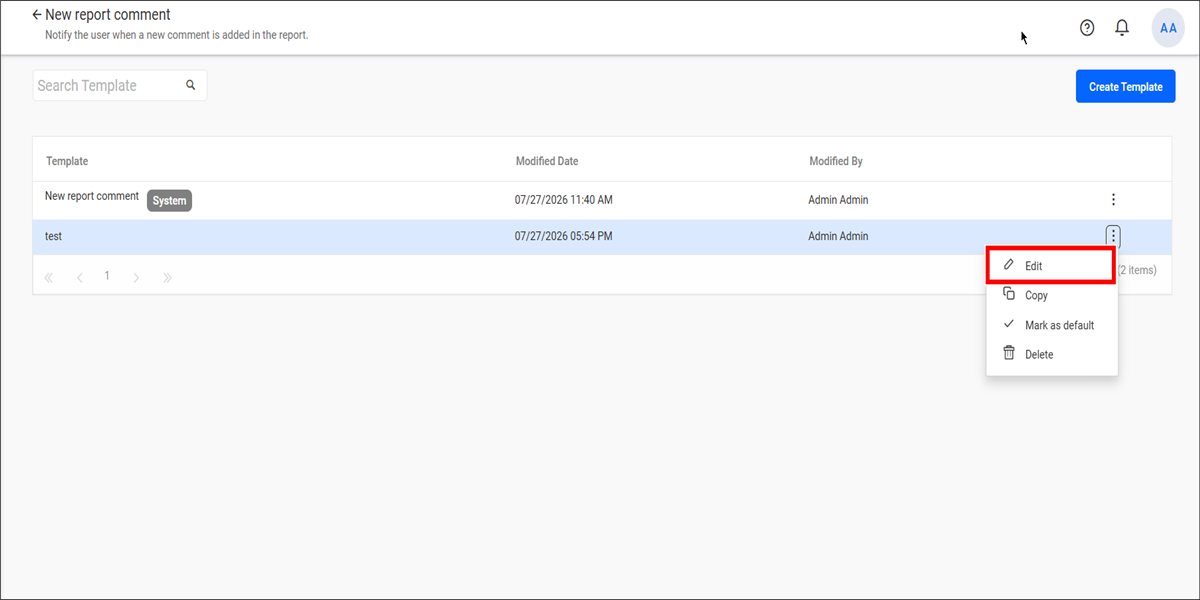
Click the Actions menu in the template grid.
-
Select Edit.
-
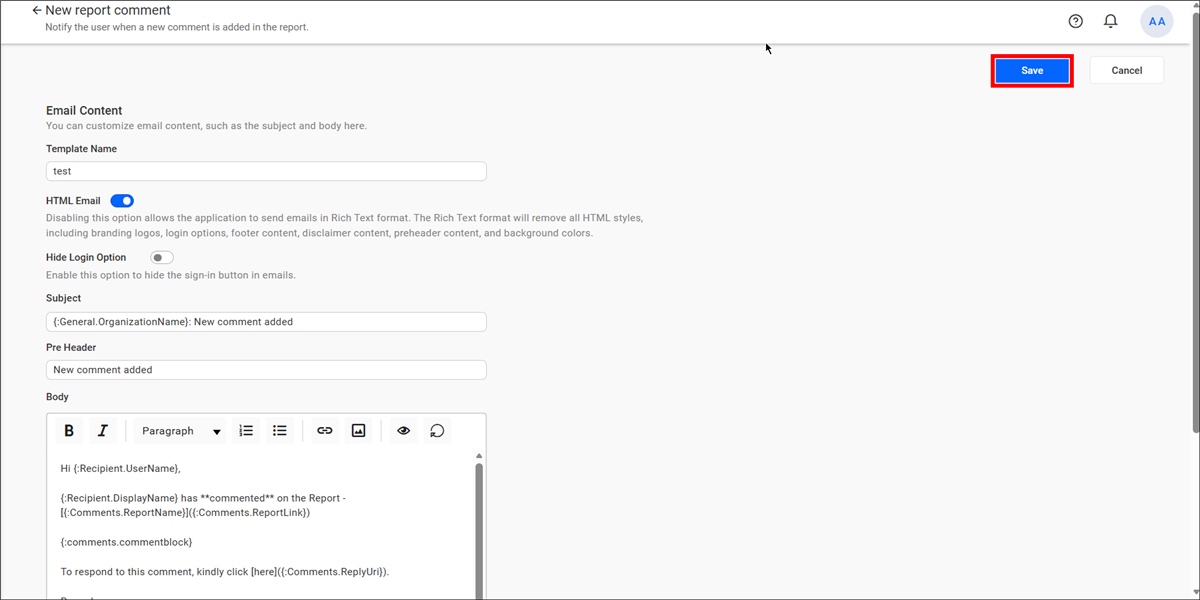
Update the template content as required.
-
Click Save.
Copy a Template
To create a copy of an existing template:
-
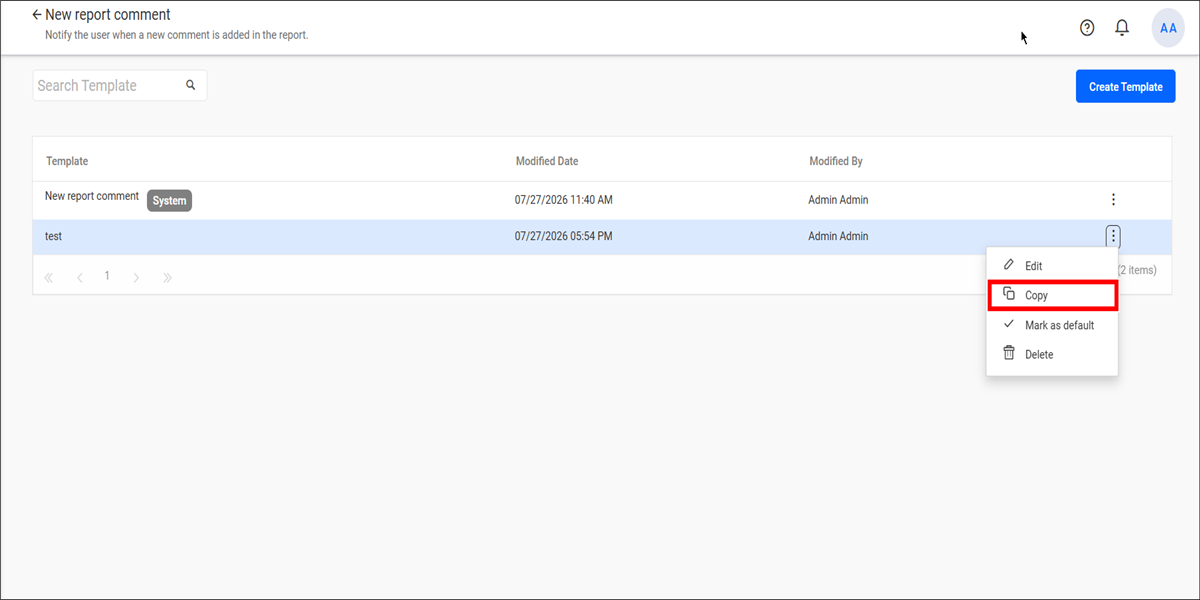
Click the Actions menu.
-
Select Copy.
-
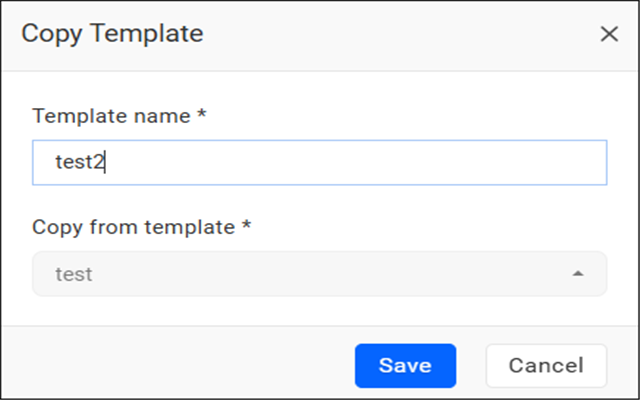
Confirm the copy operation in the dialog.
Mark a Template as Default
To make a custom template the default template:
-
Click the Actions menu.
-
Select Mark as Default.
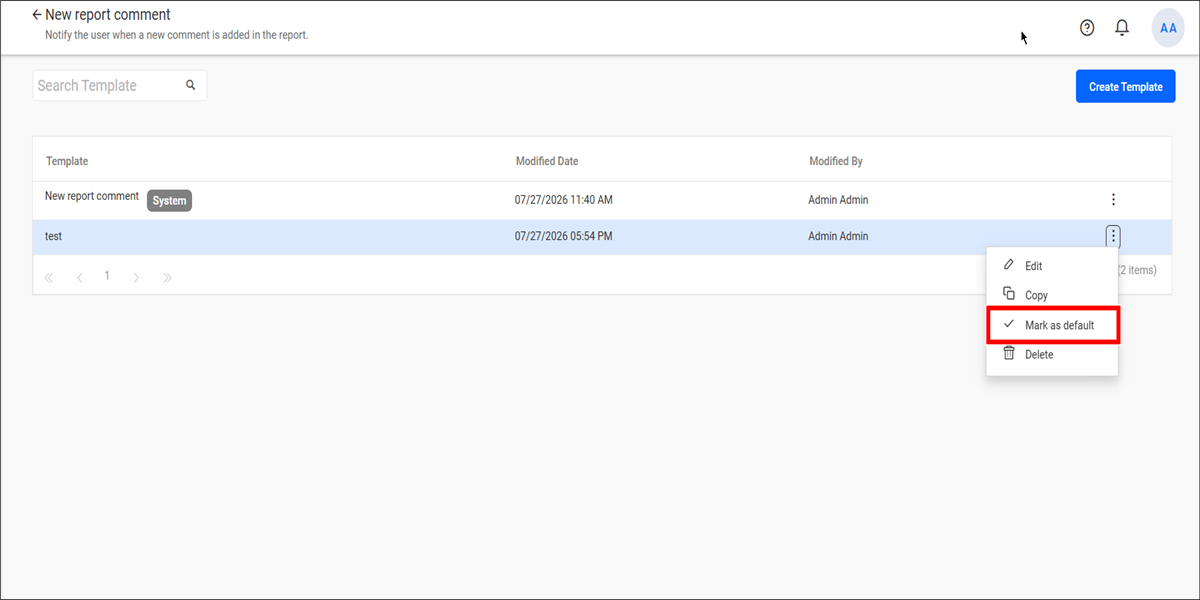
The selected custom template will be used as the default template for that notification type.
Delete a Template
To delete a custom template:
-
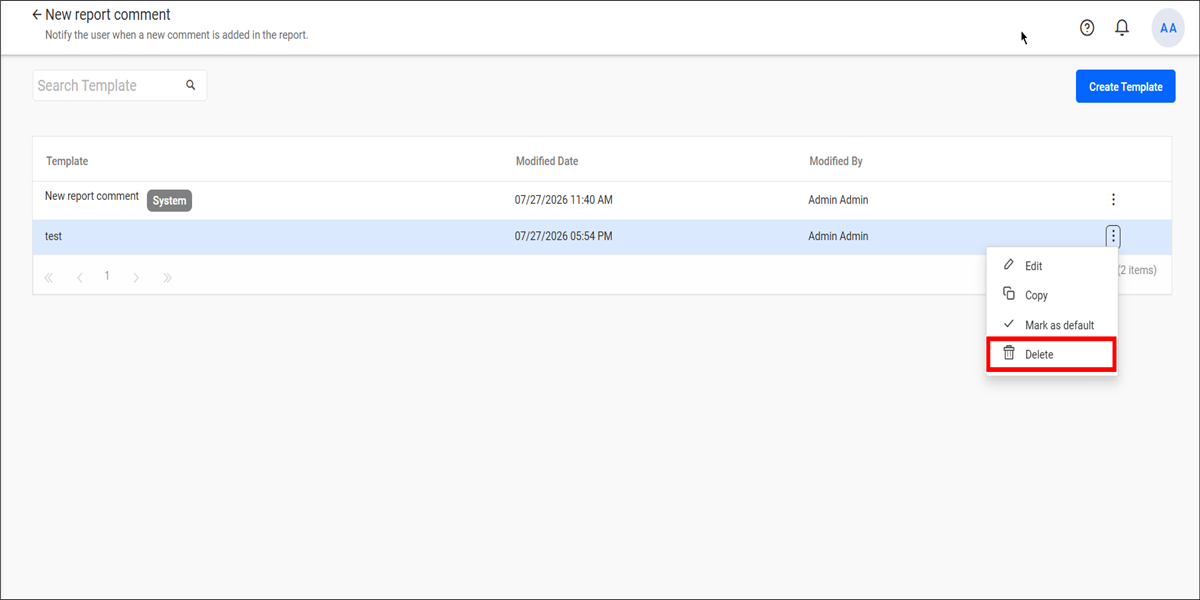
Click the Actions menu.
-
Select Delete.
-
Confirm the deletion.
NOTE: System default templates cannot be edited, deleted, or set as default.
Creating and Managing Schedule Email Templates
You can create and manage schedule email templates from the Email Templates page under Email Settings. Templates created for the Timed Report Export notification type are available for selection when creating or editing a report schedule.
Template Selection Options
When configuring a scheduled report email, the Choose a template dropdown displays the following options:
-
Inherit default from settings – Uses the template currently marked as Default for the Timed Report Export notification type in Email Settings > Email Templates.
-
Timed Report Export – Uses the system default email template.
-
Templates created for Timed Report Export – Any template created for the Timed Report Export notification type is displayed in the dropdown using its template name. For example, if a template named test is created, it will appear as test in the template selection list.
NOTE: When Inherit default from settings is selected, the schedule automatically uses the template currently marked as Default for the Timed Report Export notification type.
NOTE: The Timed Report Export template is the system default template. System templates cannot be edited, deleted, or marked as default.