Email Activity Logs
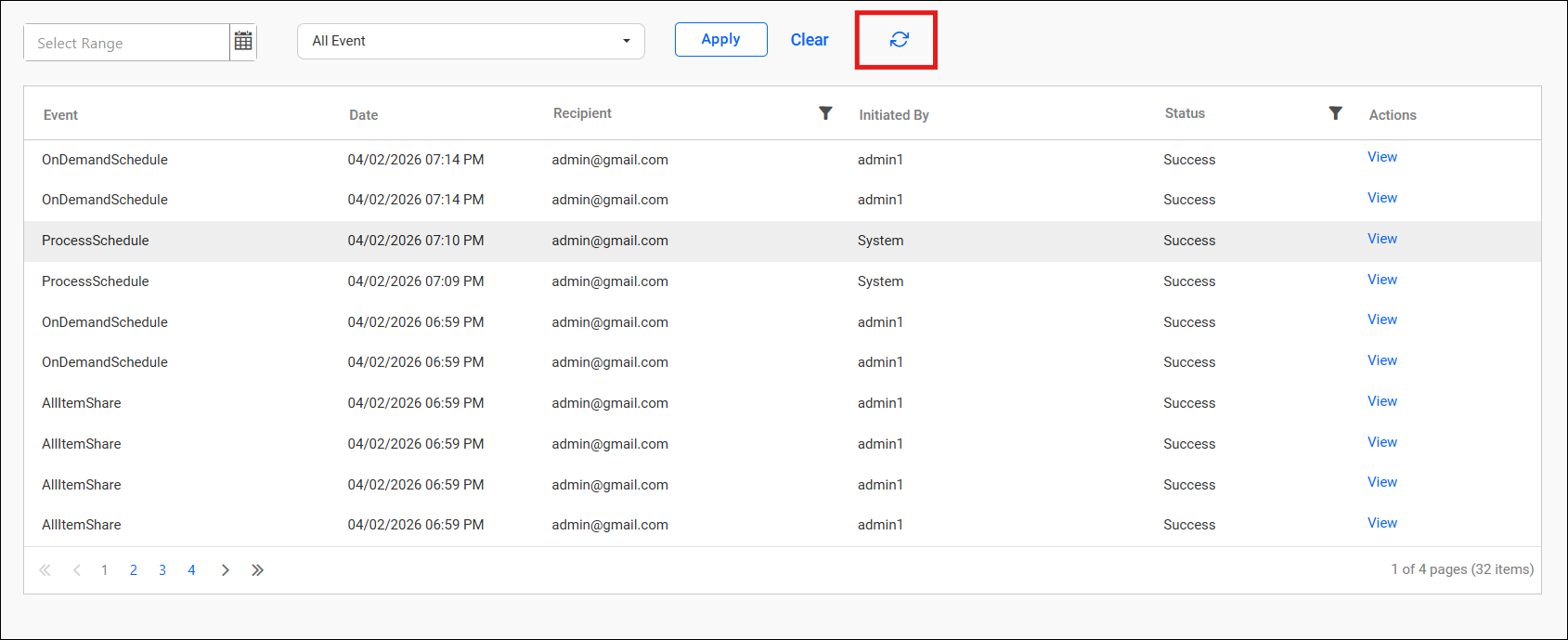
The Email Activity Logs allow you to track whether the email was sent to the recipients or not. The logs contain information about each email, including the sender and recipient, date and time, status, and any associated error messages.
NOTE: These email activity logs only show the status of whether the email was sent from the Bold Reports® server to your SMTP configured server or not. If an email is sent from Bold Reports® to your SMTP server but the SMTP server is unable to deliver the email to the recipient, then the logs will not be shown here. This setting is applicable only for On-Premises Deployment.
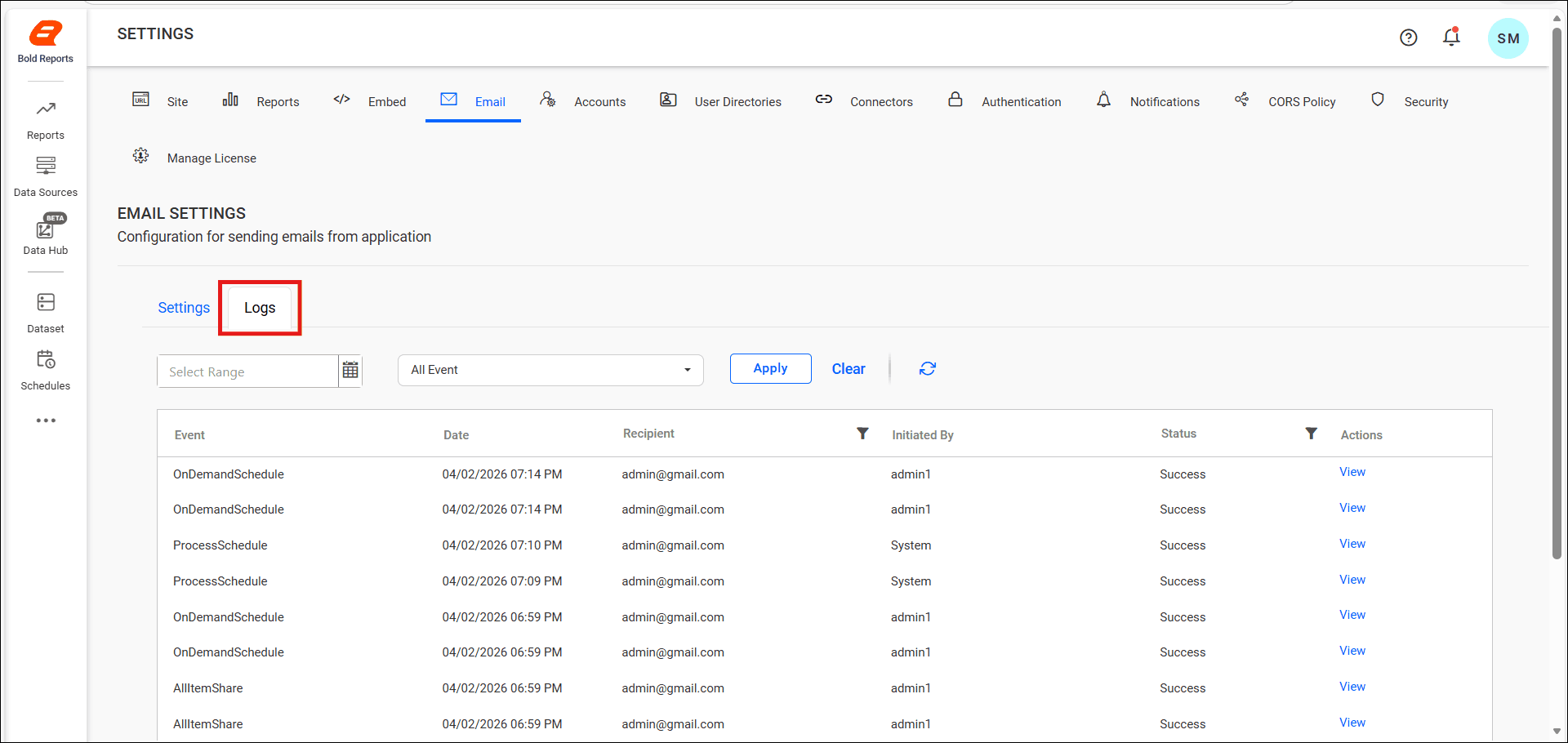
To view email logs for a specific event and date, follow these steps:
-
Open the Email Event drop-down and select the required event. The default selection is
All Event.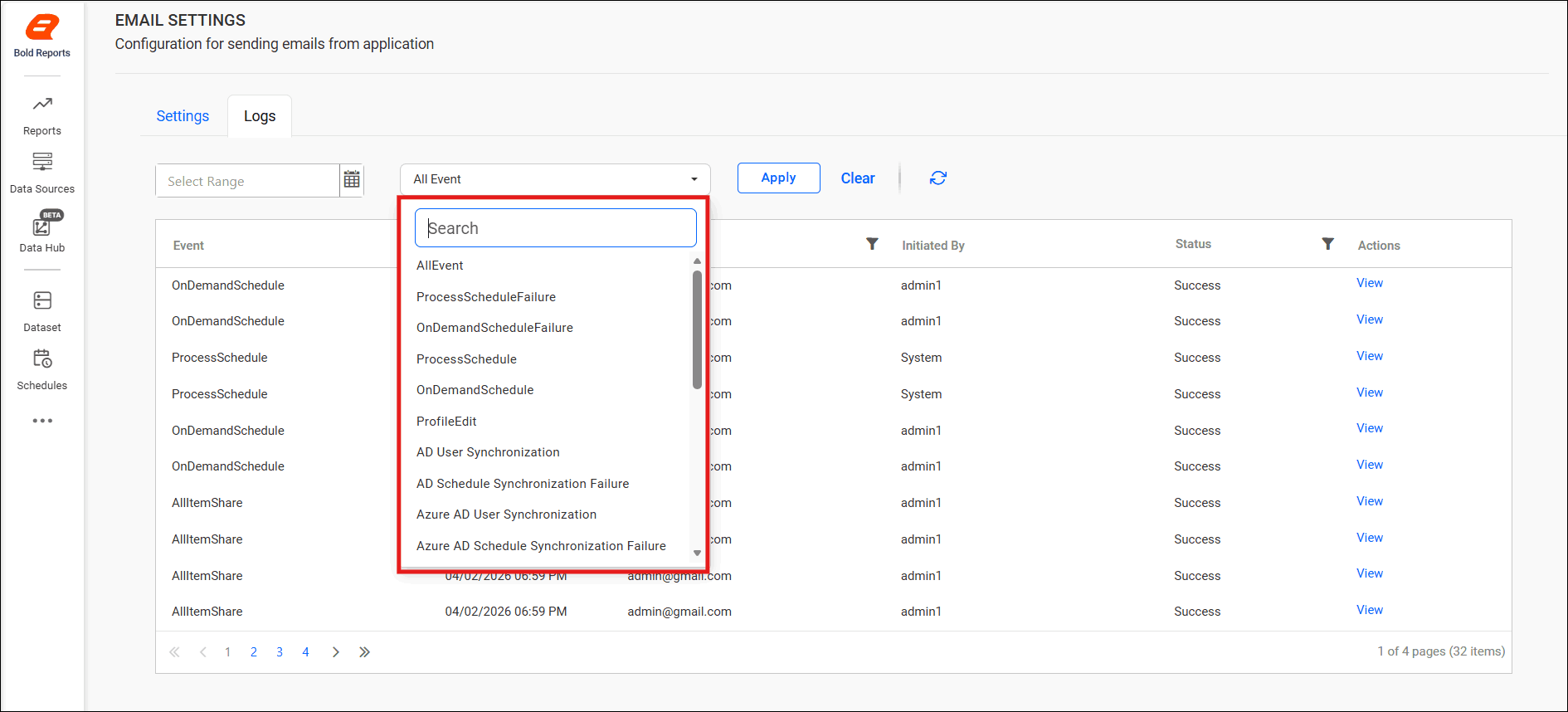
-
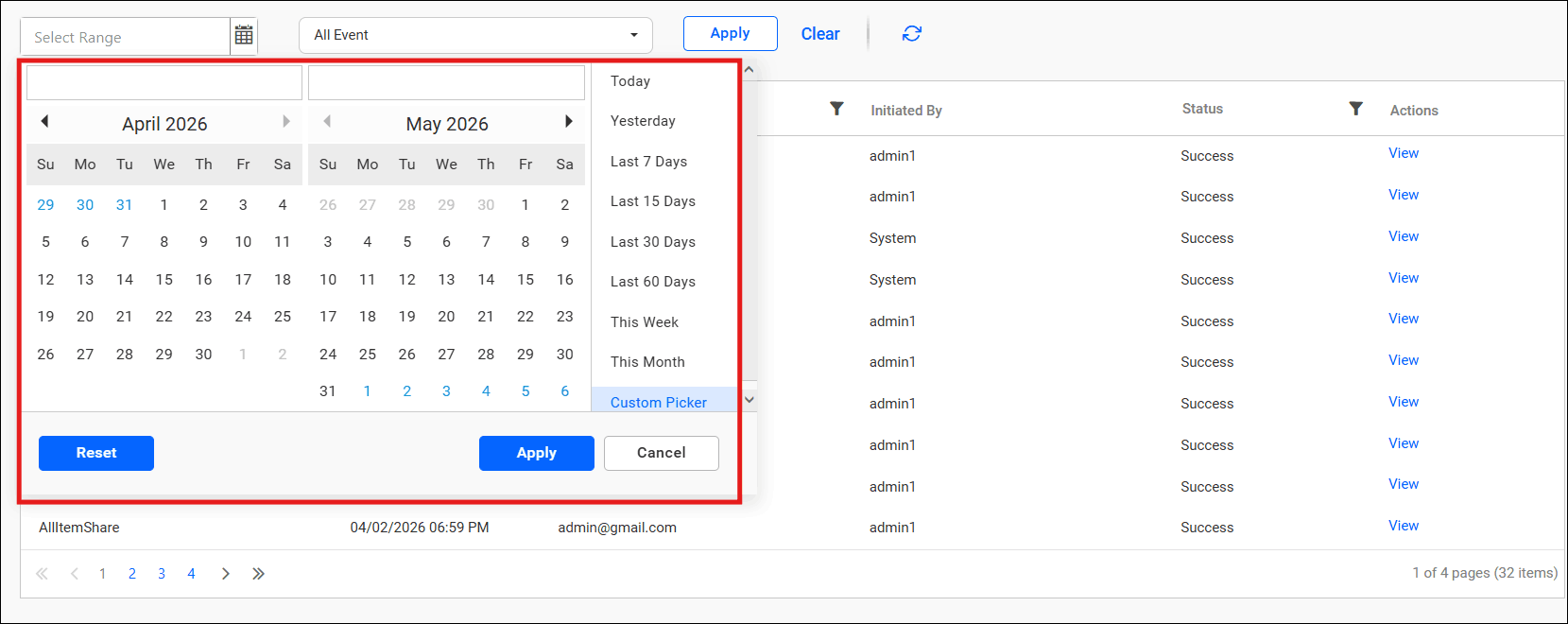
Open the Date Picker Calendar to select a specific date range. Select the required date range you want to filter.
-
Click the
Applyoption to apply that date range.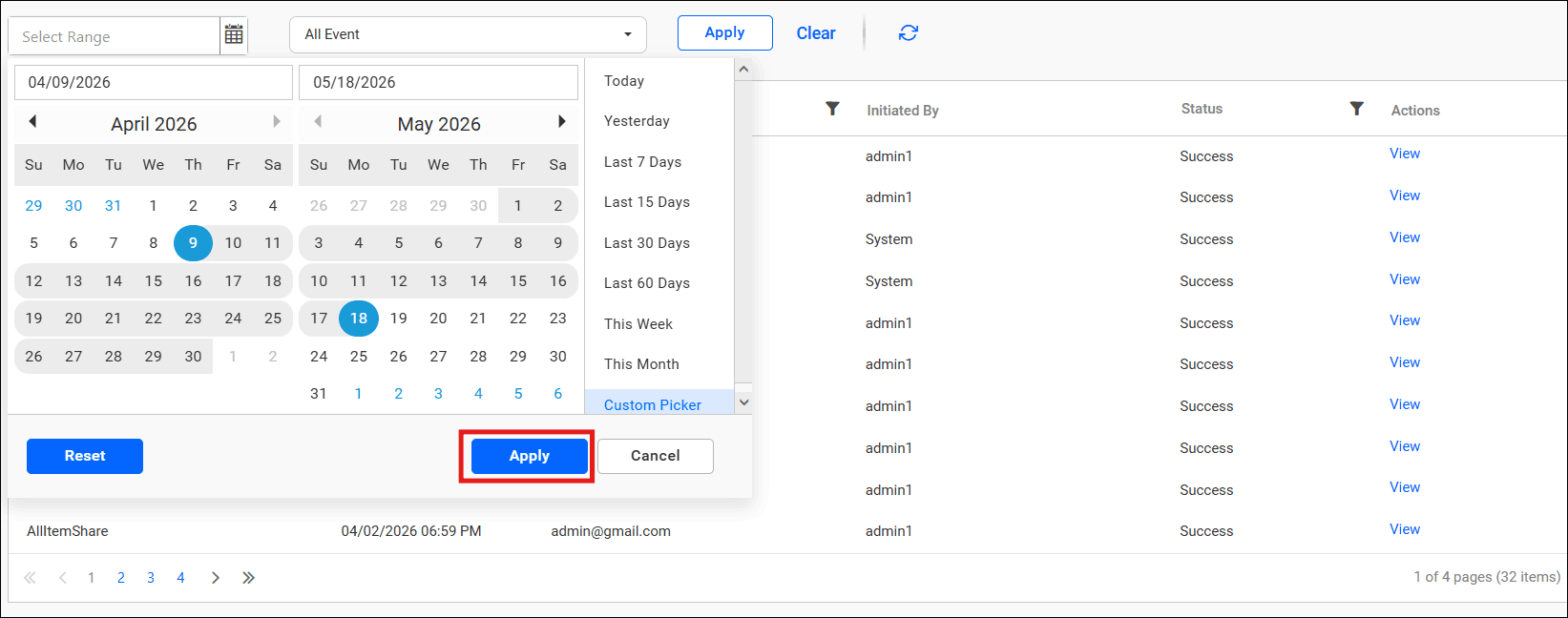
-
Finally, click the
Applybutton to view the email activity logs for the selected date range and event.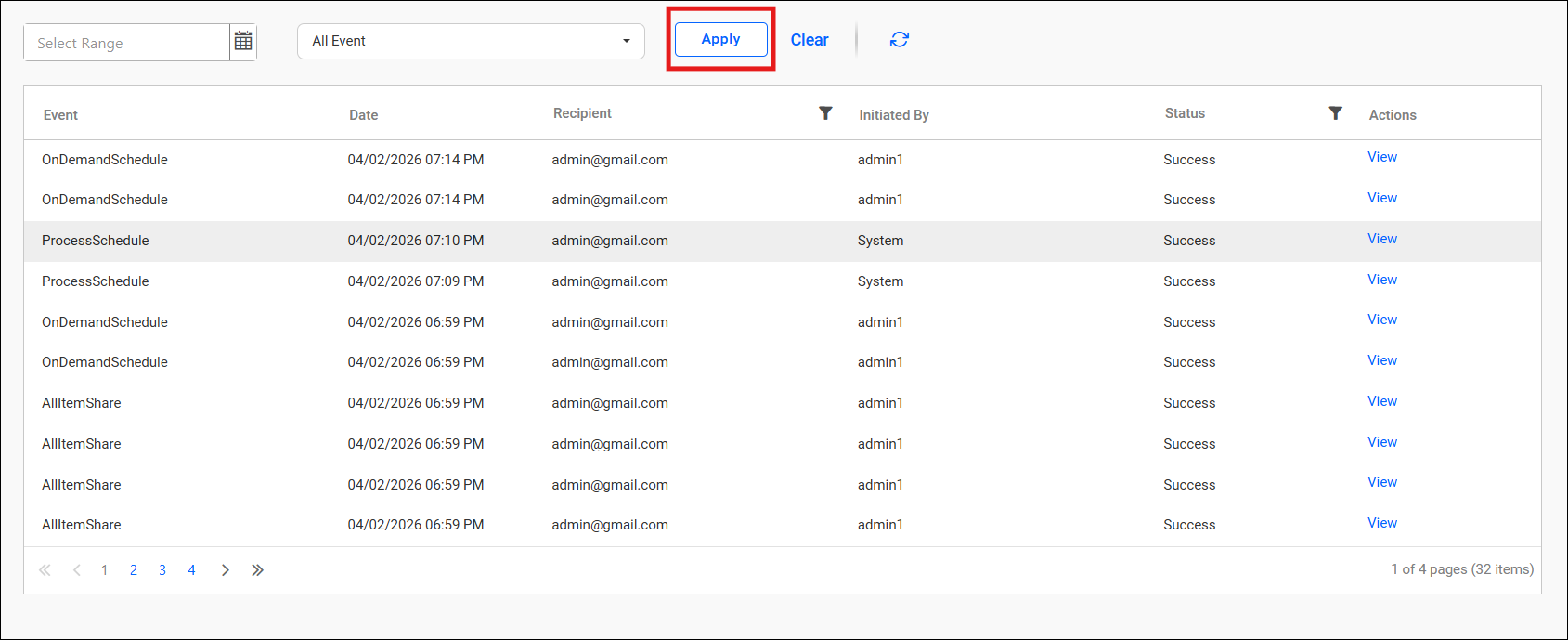
-
If you prefer, you can select a predefined date range from the date range dialog box, such as Today, Yesterday, Last 7 Days, Last 15 Days, or Last 30 Days.
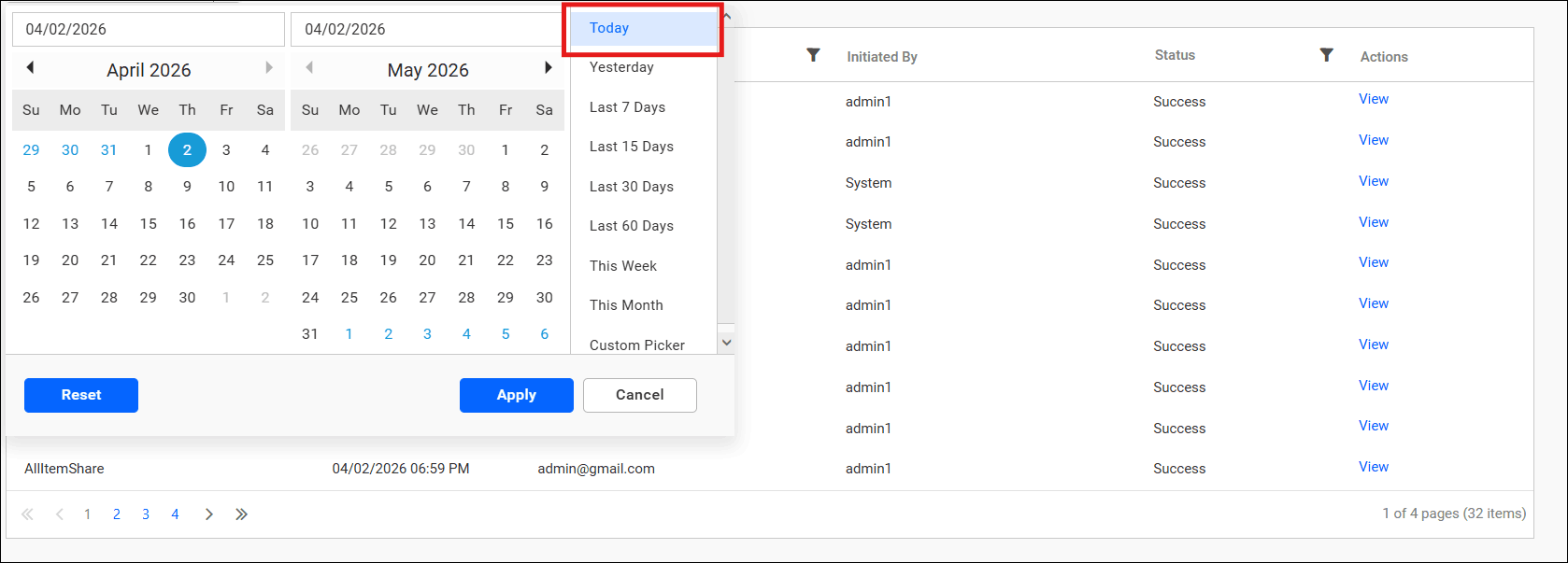
-
You can reset the given date range by clicking the
Resetin the dialog box. This will reset the dates you have selected.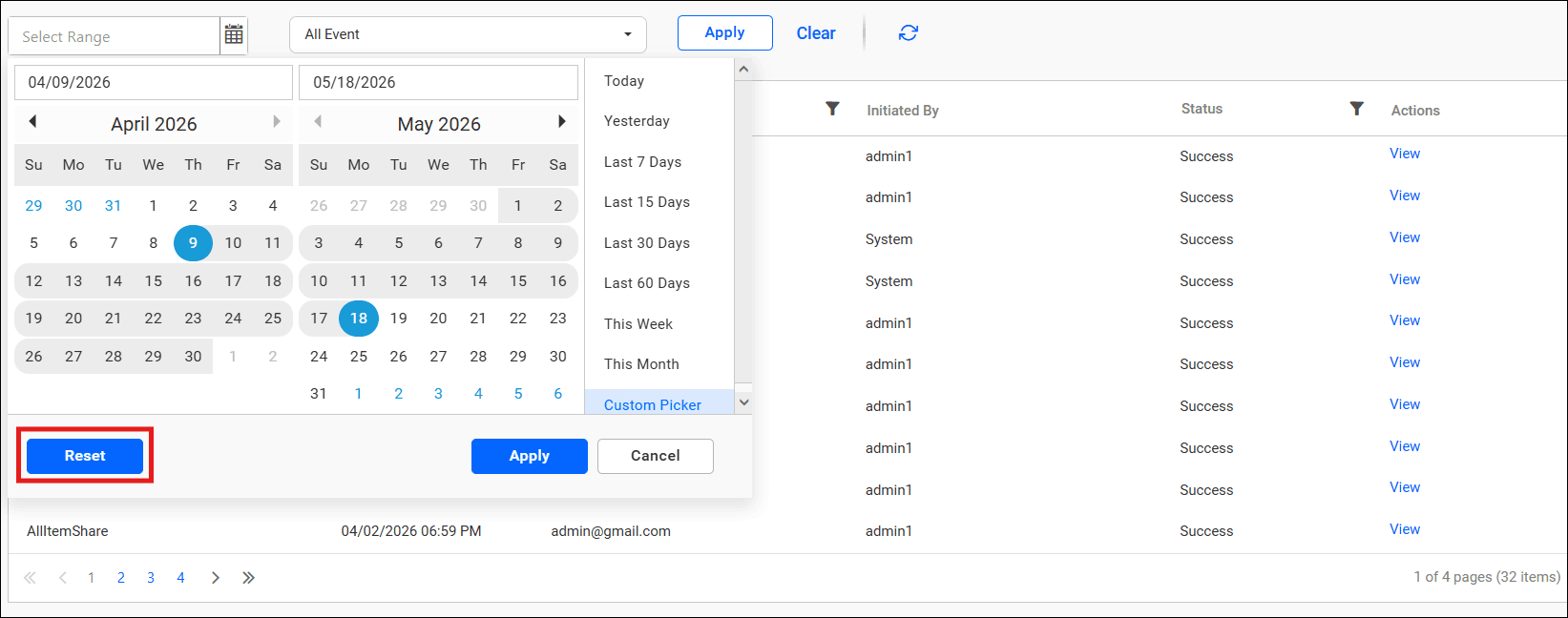
-
You can manually refresh the email activity logs to fetch the latest records.