Bold Reports® Installation and Deployment on Ubuntu
Deployment prerequisites
-
Access to a Linux server with a standard user account and sudo privileges.
-
Install
Nginxby running the following commands:sudo apt-get updatesudo apt-get install nginx -
Install
zipby running the following commandsudo apt-get install zip -
Install
GDIPluspackage using the following command.sudo apt-get install libgdiplus -
Add an
openssl confpath in the environment if it does not exist.export OPENSSL_CONF=/etc/ssl/
Configuring the Bold Reports® application
-
Register and download the Bold Reports® Linux package from here.
-
Download the Bold Reports® Linux package by running the following command:
sudo wget {Bold Reports Linux package link} -
Extract the zip file by running the following command:
sudo unzip {Bold Reports Linux package zip file} -
Change the directory to
BoldReports_EnterpriseReporting-Linuxby running the following command:cd BoldReports_EnterpriseReporting-Linux -
Execute the following command to deploy Bold Reports® on your Linux machine.
sudo bash install-boldreports.sh -i {new} -u {user} -h {host URL} -n {true or false}-
i: Installation type : Specifies either it is a new or upgrade installation.
-
u: Specify the user or group that manages the service.
-
h: Domain or IP address of the machine with HTTP protocol.
-
n: Setting this to
truewill automatically configure the Bold Reports® with the Nginx front-end server.
IMPORTANT: If you have any existing applications running on that Linux machine using Nginx, set “-n” value to false and configure Nginx manually.
Example for a new installation,
sudo bash install-boldreports.sh -i new -u www-data -h http://linux.example.com -n true -
Once the installation is complete, open the host URL in the browser and continue the application startup.
Upgrade breaking changes
Note:
- After upgrading the Bold Reports® application to v5.2.26 from v3.1.x, you need to update the below section of the reportservice and viewer codes in the Nginx configuration file in the location
/etc/nginx/sites-available.- This breaking change should be done for manual Nginx configuration.
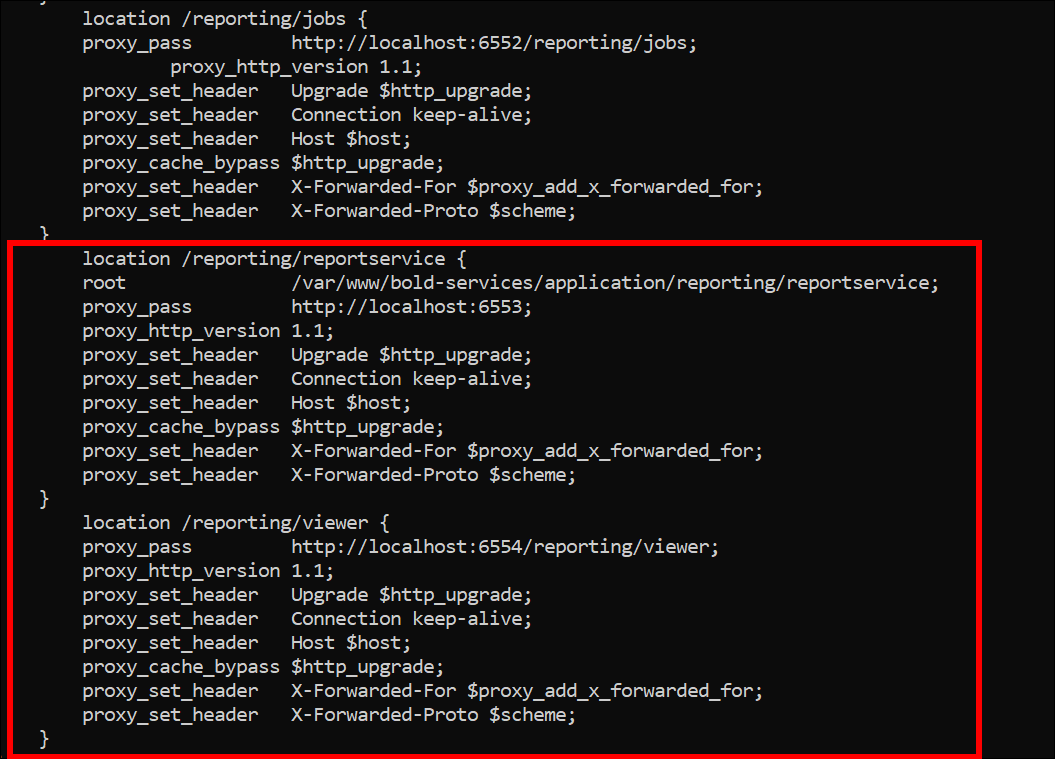
Update the below reportservice and viewer codes in the Nginx configuration file as below:
    location /reporting/reportservice {
        root               /var/www/bold-services/application/reporting/reportservice;
        proxy_pass         http://localhost:6553;
        proxy_http_version 1.1;
        proxy_set_header   Upgrade $http_upgrade;
        proxy_set_header   Connection keep-alive;
        proxy_set_header   Host $host;
        proxy_cache_bypass $http_upgrade;
        proxy_set_header   X-Forwarded-For $proxy_add_x_forwarded_for;
        proxy_set_header   X-Forwarded-Proto $scheme;
    }
    location /reporting/viewer {
        proxy_pass         http://localhost:6554/reporting/viewer;
        proxy_http_version 1.1;
        proxy_set_header   Upgrade $http_upgrade;
        proxy_set_header   Connection keep-alive;
        proxy_set_header   Host $host;
        proxy_cache_bypass $http_upgrade;
        proxy_set_header   X-Forwarded-For $proxy_add_x_forwarded_for;
        proxy_set_header   X-Forwarded-Proto $scheme;
    }
Once the Nginx configuration is updated, run sudo nginx -t to verify the syntax of the configuration files. If the configuration file test is successful, force Nginx to pick up the changes by running the sudo nginx -s reload.
Manually configure Nginx
To configure Nginx as a reverse proxy to forward requests to the Bold Reports® app, modify /etc/nginx/sites-available/default. Open it in a text editor and add the following code:
       #server {
       #listen 80;
       #server_name example.com;
       #return 301 https://example.com$request_uri;
       #}

         server {
       listen        80 default_server;

       #server_name   example.com;

       #listen 443 ssl;
       #ssl on;
       #ssl_certificate /path/to/certificate/file/domain.crt;
       #ssl_certificate_key /path/to/key/file/domain.key;

       proxy_read_timeout 300;
       proxy_connect_timeout 300;
       proxy_send_timeout 300;
       send_timeout 300;
       client_max_body_size 200M;

       location / {
      root /var/www/bold-services/application/idp/web/wwwroot;
        proxy_pass http://localhost:6500/;
        proxy_http_version 1.1;
        proxy_set_header Upgrade $http_upgrade;
        proxy_set_header Connection keep-alive;
        proxy_set_header Host $host;
        proxy_cache_bypass $http_upgrade;
        proxy_set_header X-Forwarded-For $proxy_add_x_forwarded_for;
        proxy_set_header X-Forwarded-Proto $scheme;
        fastcgi_buffers 16 16k;
        fastcgi_buffer_size 32k;
    }
    location /api {
        proxy_pass         http://localhost:6501/api;
        proxy_http_version 1.1;
        proxy_set_header   Upgrade $http_upgrade;
        proxy_set_header   Connection keep-alive;
        proxy_set_header   Host $host;
        proxy_cache_bypass $http_upgrade;
        proxy_set_header   X-Forwarded-For $proxy_add_x_forwarded_for;
        proxy_set_header   X-Forwarded-Proto $scheme;
    }
    location /ums {
        root               /var/www/bold-services/application/idp/ums/wwwroot;
        proxy_pass         http://localhost:6502/ums;
        proxy_http_version 1.1;
        proxy_set_header   Upgrade $http_upgrade;
        proxy_set_header   Connection keep-alive;
        proxy_set_header   Host $host;
        proxy_cache_bypass $http_upgrade;
        proxy_set_header   X-Forwarded-For $proxy_add_x_forwarded_for;
        proxy_set_header   X-Forwarded-Proto $scheme;
    }
    location /ums/signalr/progresshub {
        proxy_pass         http://localhost:6502/ums/signalr/progresshub;
        proxy_http_version 1.1;
        proxy_set_header   Upgrade $http_upgrade;
        proxy_set_header   Connection "upgrade";
        proxy_set_header   Host $host;
        proxy_cache_bypass $http_upgrade;
        proxy_set_header   X-Forwarded-For $proxy_add_x_forwarded_for;
        proxy_set_header   X-Forwarded-Proto $scheme;
    }
    location /reporting {
    root /var/www/bold-services/application/reporting/web/wwwroot;
        proxy_pass         http://localhost:6550/reporting;
        proxy_http_version 1.1;
        proxy_set_header   Upgrade $http_upgrade;
        proxy_set_header   Connection keep-alive;
        proxy_set_header   Host $host;
        proxy_cache_bypass $http_upgrade;
        proxy_set_header   X-Forwarded-For $proxy_add_x_forwarded_for;
        proxy_set_header   X-Forwarded-Proto $scheme;
    }
    location /reporting/messageHub {
        proxy_pass         http://localhost:6550/reporting/messageHub;
        proxy_http_version 1.1;
        proxy_set_header   Upgrade $http_upgrade;
        proxy_set_header   Connection "upgrade";
        proxy_set_header   Host $host;
        proxy_cache_bypass $http_upgrade;
        proxy_set_header   X-Forwarded-For $proxy_add_x_forwarded_for;
        proxy_set_header   X-Forwarded-Proto $scheme;
    }
    location /reporting/api {
        proxy_pass         http://localhost:6551/reporting/api;
        proxy_http_version 1.1;
        proxy_set_header   Upgrade $http_upgrade;
        proxy_set_header   Connection keep-alive;
        proxy_set_header   Host $host;
        proxy_cache_bypass $http_upgrade;
        proxy_set_header   X-Forwarded-For $proxy_add_x_forwarded_for;
        proxy_set_header   X-Forwarded-Proto $scheme;
    }
    location /reporting/jobs {
        proxy_pass         http://localhost:6552/reporting/jobs;
        proxy_http_version 1.1;
        proxy_set_header   Upgrade $http_upgrade;
        proxy_set_header   Connection keep-alive;
        proxy_set_header   Host $host;
        proxy_cache_bypass $http_upgrade;
        proxy_set_header   X-Forwarded-For $proxy_add_x_forwarded_for;
        proxy_set_header   X-Forwarded-Proto $scheme;
    }
    location /reporting/reportservice {
        root               /var/www/bold-services/application/reporting/reportservice;
        proxy_pass         http://localhost:6553;
        proxy_http_version 1.1;
        proxy_set_header   Upgrade $http_upgrade;
        proxy_set_header   Connection keep-alive;
        proxy_set_header   Host $host;
        proxy_cache_bypass $http_upgrade;
        proxy_set_header   X-Forwarded-For $proxy_add_x_forwarded_for;
        proxy_set_header   X-Forwarded-Proto $scheme;
    }
    location /reporting/viewer {
        proxy_pass         http://localhost:6554/reporting/viewer;
        proxy_http_version 1.1;
        proxy_set_header   Upgrade $http_upgrade;
        proxy_set_header   Connection keep-alive;
        proxy_set_header   Host $host;
        proxy_cache_bypass $http_upgrade;
        proxy_set_header   X-Forwarded-For $proxy_add_x_forwarded_for;
        proxy_set_header   X-Forwarded-Proto $scheme;
    }
}
Once the Nginx configuration is established, run sudo nginx -t to verify the syntax of the configuration files. If the configuration file test is successful, force Nginx to pick up the changes by running the sudo nginx -s reload.
Configure SSL
If you have an SSL certificate for your domain and need to configure the site with your SSL certificate, follow these steps, or you can skip this.
-
Uncomment the following marked lines in the Nginx config file.
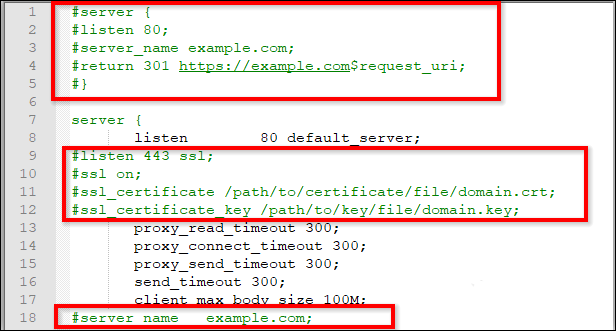
-
Comment on the following marked line in the Nginx config file.
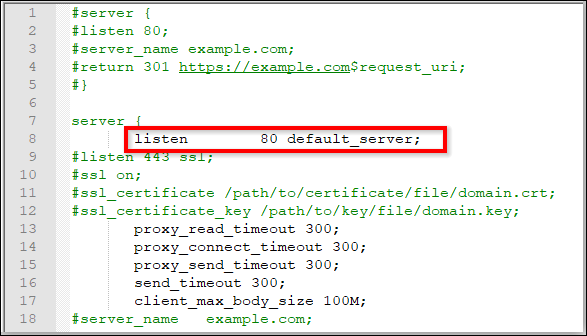
-
Replace
example.comwith your domain name. -
Define the path of the SSL certificate:
ssl_certificate /etc/ssl/domain.crt. -
Specify the directory where the SSL certificate key is located:
ssl_certificate_key /etc/ssl/domain.key. -
Save and run sudo
nginx -tto verify the syntax of the configuration file. If the configuration file test is successful, force Nginx to pick up the changes by runningsudo nginx -s reload.
NOTE: If you are configuring the application with SSL, you need to update the URLs in the product. json with
HTTPSlocated in the/var/www/bold-services/application/app_data/configuration.