How to apply the patches to Bold Reports® Multi-tenant Azure App Service
The support team provides solutions to reported issues in the form of patch files and this topic explains about how to apply these patch files to the Bold Reports® Multi-tenant Azure App Service.
Steps to apply patches in Bold Reports® Multi-tenant Azure App Service.
-
Log in to the Azure portal.
-
Select the Bold Reports® Azure App Service.
-
Stop the Bold Reports® Azure App Service, and then click the Get publish profile.
-
Save the
<App service name>, PublishSettings file and open it. The file contains three<publishProfile>sections for Web Deploy, FTP, and ReadOnly-FTP. -
From the FTP
<publishProfile>section, copy the following values:publishUrluserNameuserPWD
-
Download and install the FileZilla client application.
-
After installing the application, set the values obtained from the PublishSettings file accordingly:
Host: Give the
publishUrlvalue.Username: Give the
userNamevalue.Password: Give the
userPWDvalue. -
After entering these values as shown in the following image, click
Quickconnect.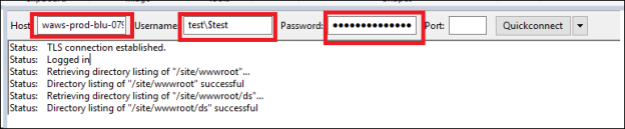
-
Download and extract the files provided in the support incident.
-
Move the folders to the hosted location of the Report Server
/site/wwwroot/Report Server/as follows.
 >If the patch was provided for IDP, then move the folders to the hosted location of the IDP
 /site/wwwroot/IDP/.
>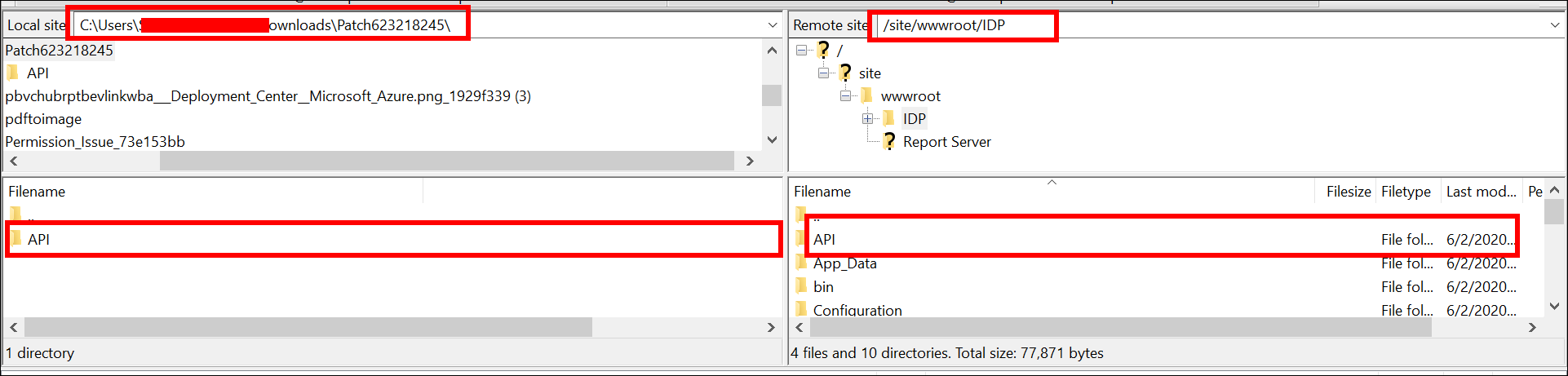 11. Start the Bold Reports® Azure App Service.