How to set up Azure Active Directory for SSO authentication in Bold Reports®
This section explains how to perform Single Sign-On (SSO) for users in Azure Active Directory with the Bold Reports® application.
NOTE: This configuration has to been done in the Azure Portal.
Prerequisites
- An Azure account with Active Directory support is required.
- Install the Bold Reports® application and log in using an administrator account.
Steps to set up Bold Reports® to perform Single Sign-On
-
Login to the URL
{Bold Reports<sup>®</sup> URL}/ums/administration/sso?view=azure-ad-settingsusing the admin credentials. -
Click on
Settingsin the left menu.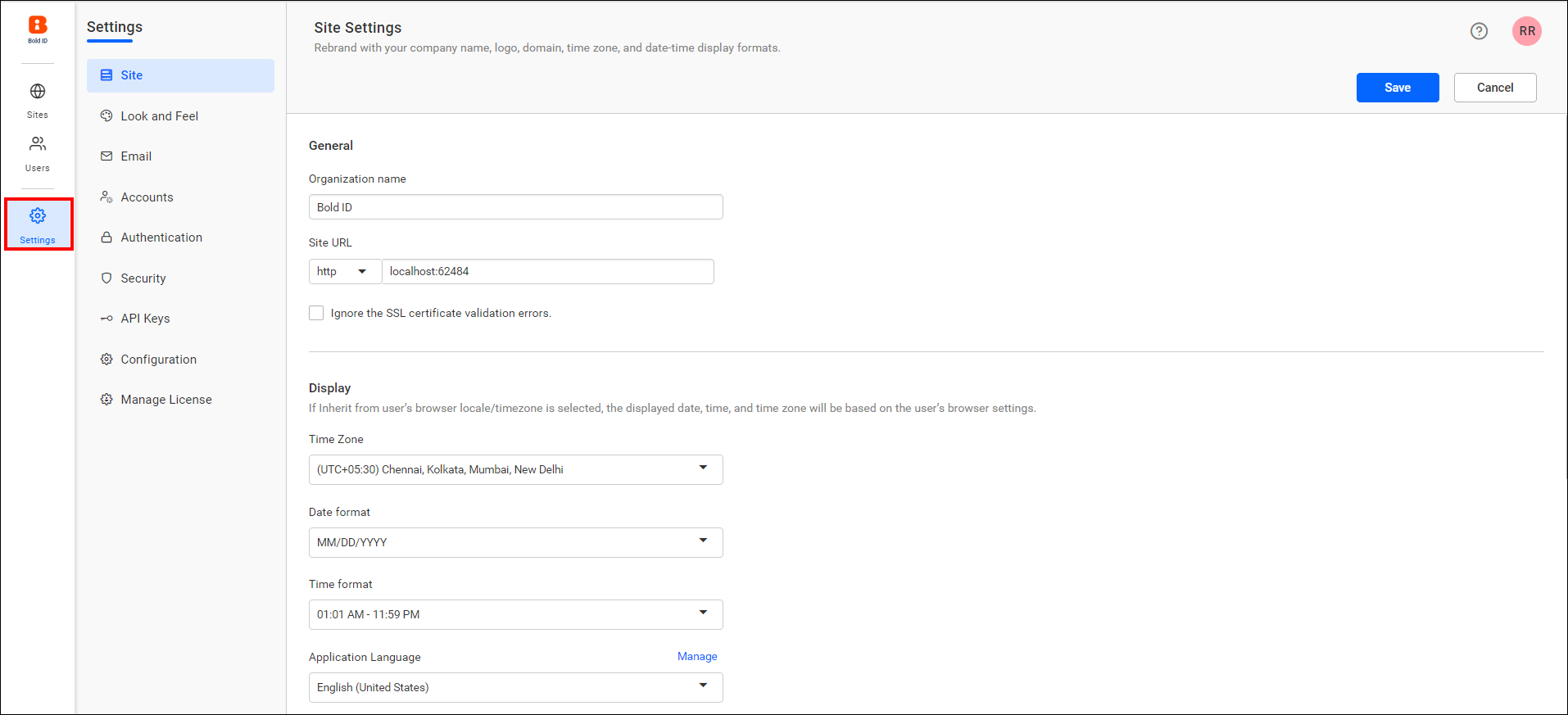
-
Click
Authentication, then navigate to theAzure ADtab and save the following fields in UMS settings: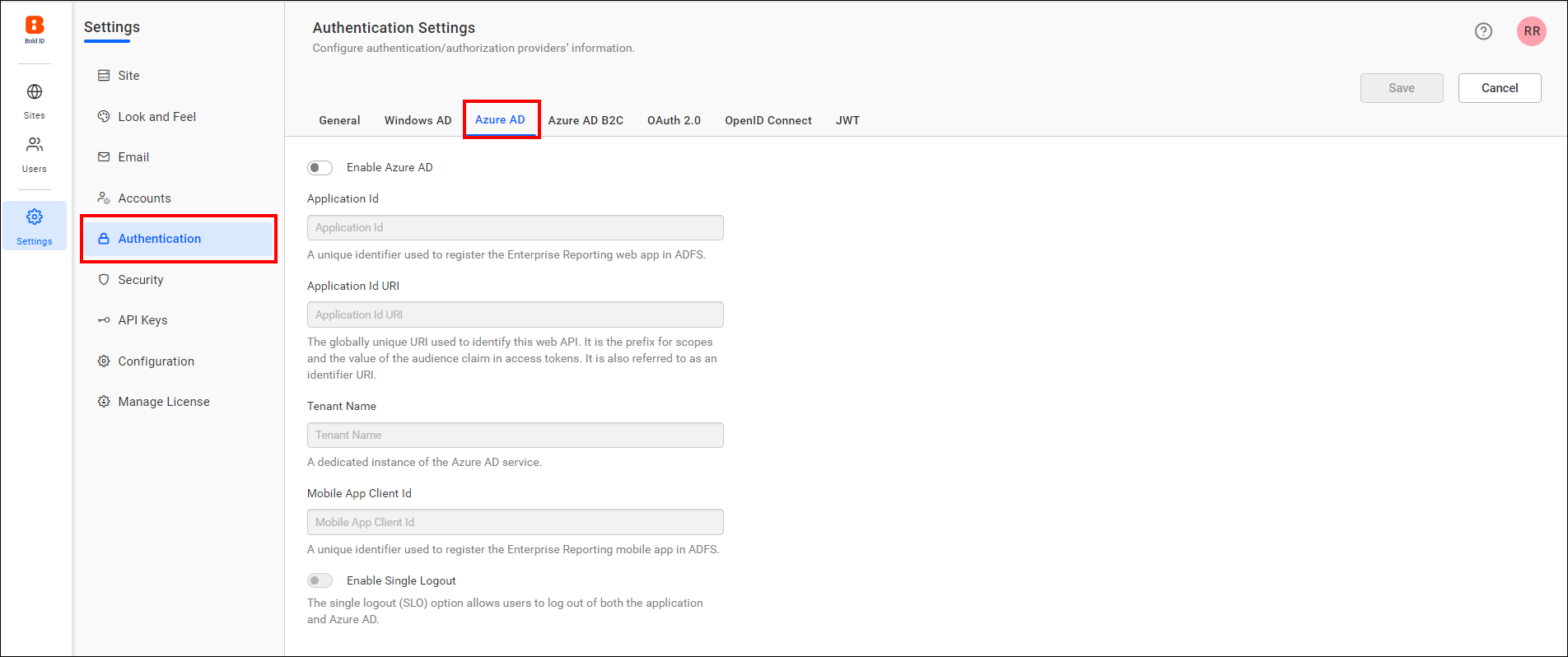
NOTE: Refer to the following link to register the Bold Reports® web application and Bold Reports® mobile application in Azure Active Directory.
*Application Id: Navigate to the registered application, click on
Overview, and then copy theApplication Idto paste it.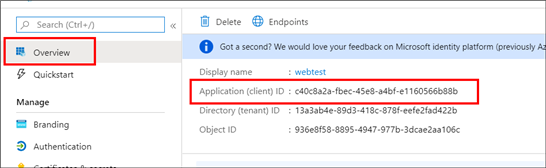
*Application Id URI: Navigate to the registered application, click on
Overview, and then copy theApplication Id URIto paste it.
*Tenant Name: Navigate to the created
Azure Active Directoryand copy the domain name from theOverviewsection.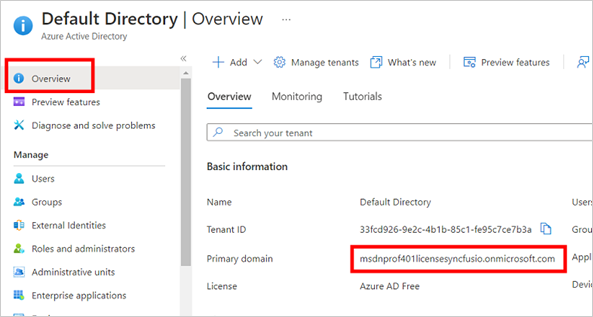
*Mobile App Client ID: Navigate to the registered application for the Bold Reports® mobile application. Copy the
Application IDand paste it.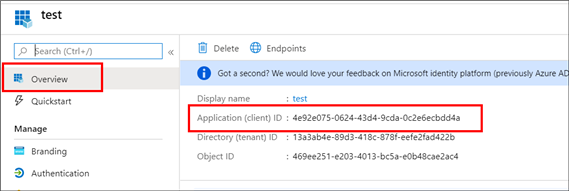
-
Now, click
save. After the values are saved, the application will be restarted to apply the settings.