Troubleshoot installation or upgrade problems
This troubleshooting guide provides step-by-step procedure to resolve the problems encountered while installing and upgrading the Report Viewer SDK.
Allow controlled folder access and the protected file usage
Controlled folder access helps you protect valuable data from malicious apps and threats, such as ransomware. Controlled folder access is included with Windows 10 and Windows Server 2019. When you enable the ransomware protection in your machine, the applications will be restricted to access the protected folders in your machine.
If the Bold Reports® Report Viewer SDK or its related executable are not allowed to access the protected folders in your machine when the ransomware protection is enabled, follow the below-mentioned steps to provide access to Bold Reports® application for accessing the protected folders.
You will receive notifications from Windows when an application is blocked from accessing the protected folders. For example, the following message will be displayed when you are trying to preview the dashboard with ransomware protection enabled.
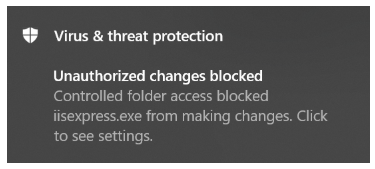
Steps to allow Bold Reports® Report Viewer SDK to access protected folders
- Open the Ransomware protection in Windows security using the start menu.
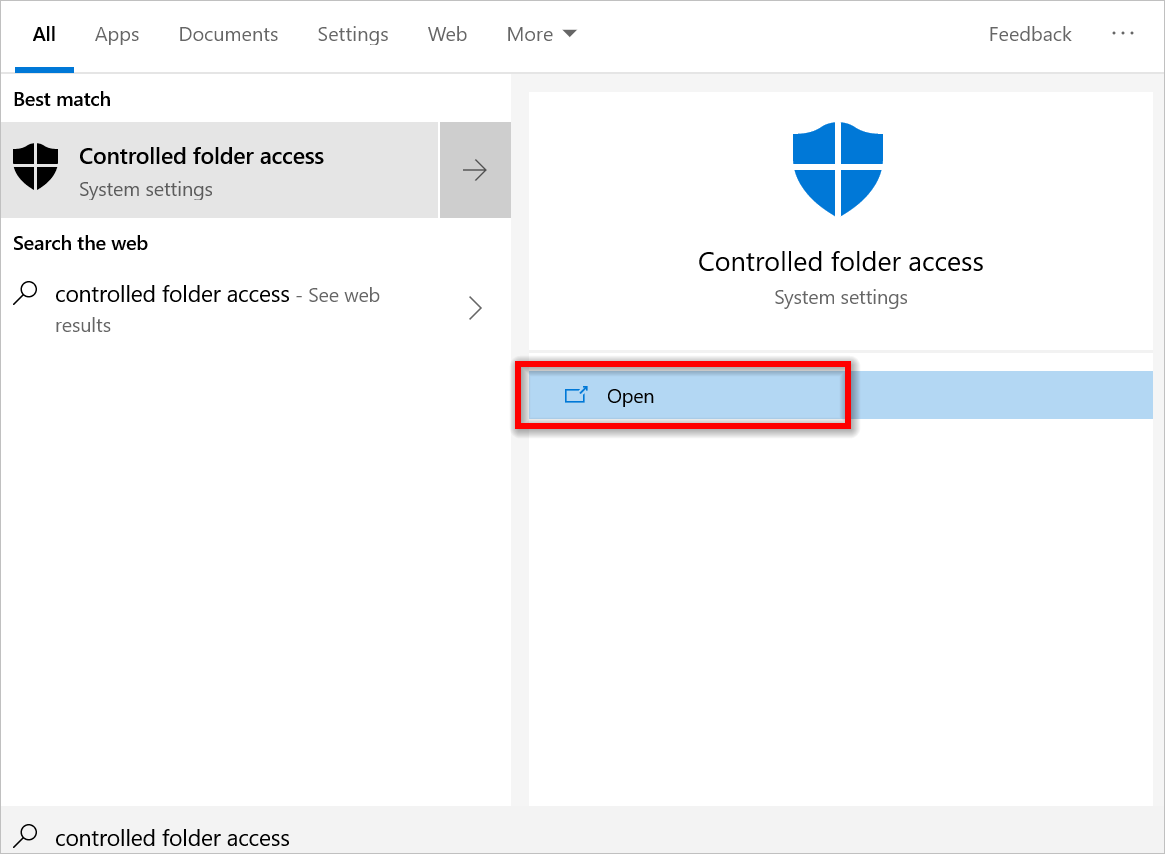
- Click the option
Allow an app through Controlled folder access.
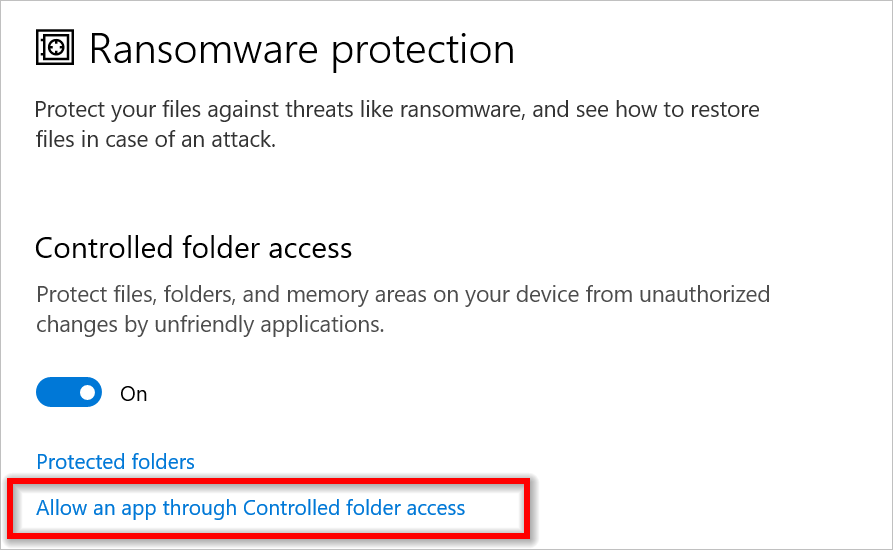
- The list of applications will be shown that can access the protected folders in your machine and click the
Add an allowed appoption.
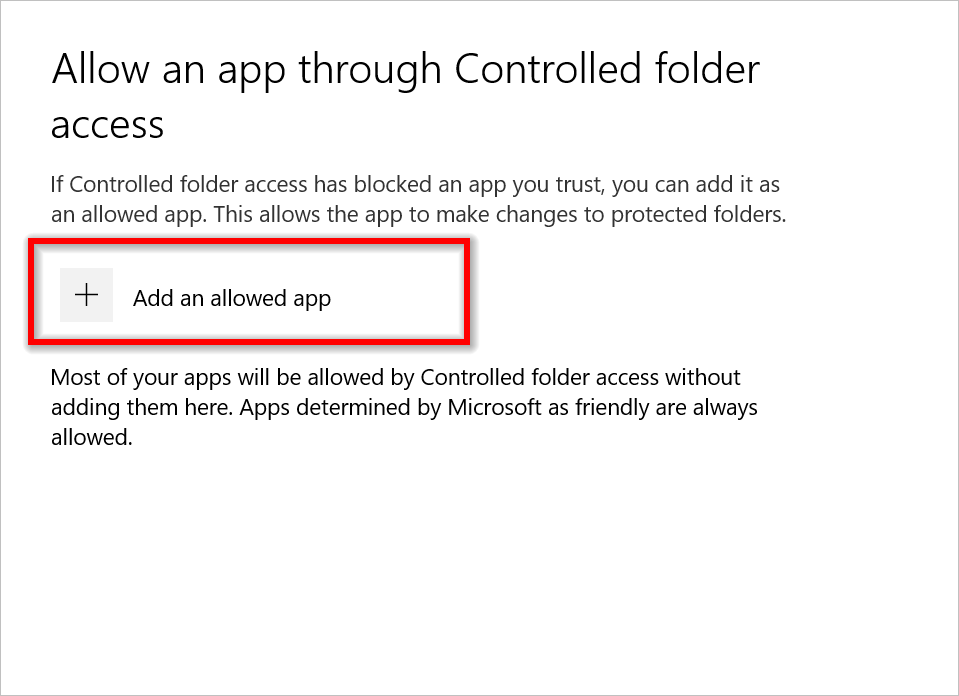
- It will help you choose which application should be allowed to access the protected folder by showing recently blocked apps and all apps.
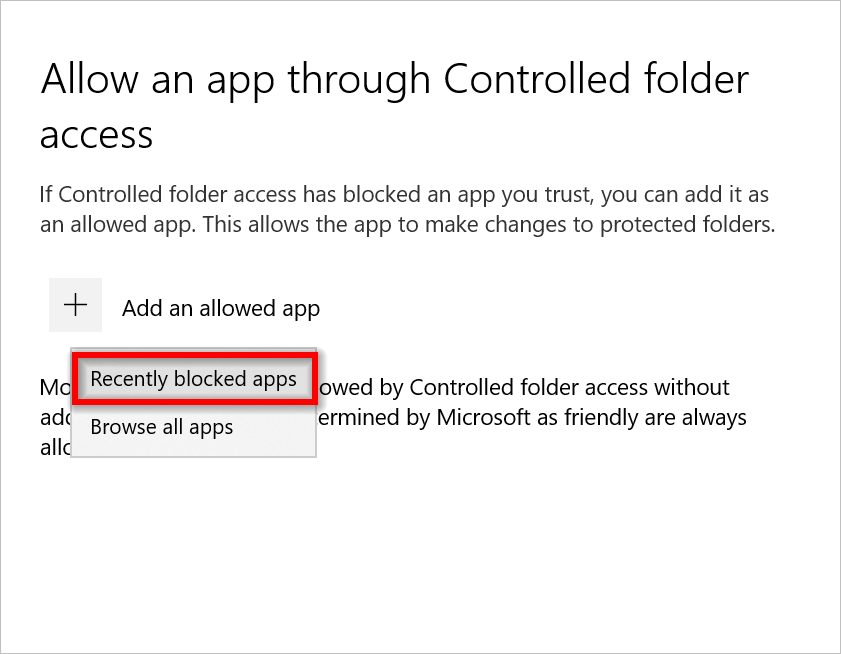
You can click any one of the options and choose the Bold Reports® Report Viewer SDK related applications.
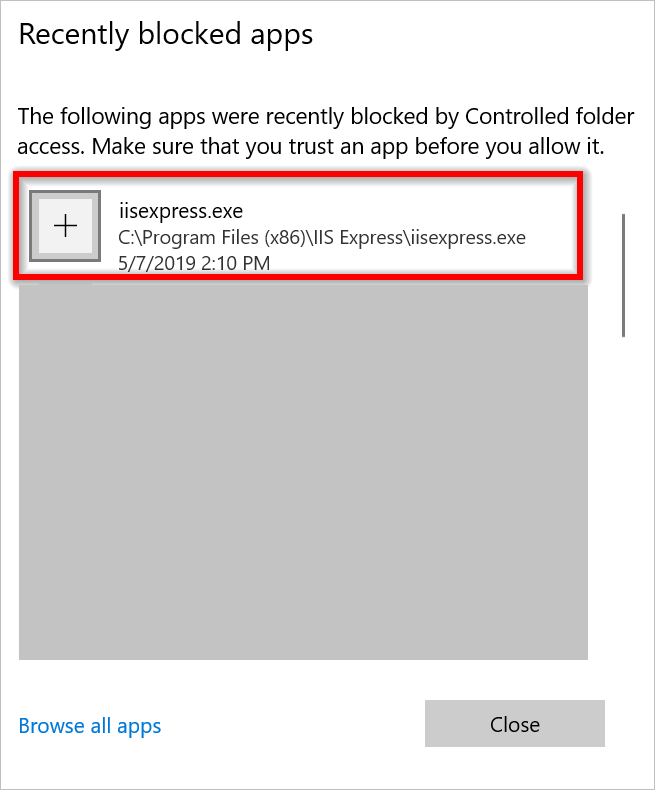
- Allow the iisexpress and the Bold Reports® Report Viewer SDK related apps to access your protected folders if the application is blocked in your machine.
| Application | Path |
|---|---|
| iisexpress.exe | C:\Program Files (x86)\IIS Express |
| Bold Reports® Report Viewer SDK Sample Browser Launcher | C:\Program Files (x86)\Bold Reports\Report Viewer SDK\Utilities\StartSampleBrowserReportingTools\StartSampleBrowserReportingTools.exe |
- Now, you can continue to use the Bold Reports® Report Viewer SDK without blocking any operations to your protected folders.
References
Troubleshooting Report Viewer SDK sample browsers
If you are facing issues with launching the Bold Reports Report Viewer SDK local samples follow the below troubleshooting mechanism.
- Even though you have allowed permission for blocking apps, still not able to launch the Report Viewer SDK Sample Browser?
We recommend you to ensure the below folders present in the installation path
C:\Program Files (x86)\Bold Reports\Report Viewer SDKandC:\Users\Public\Documents\Bold Reports\Report Viewer SDK\Samples.
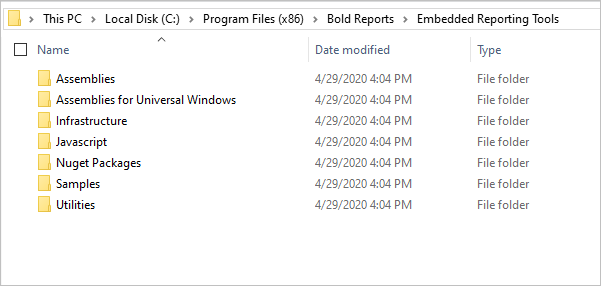
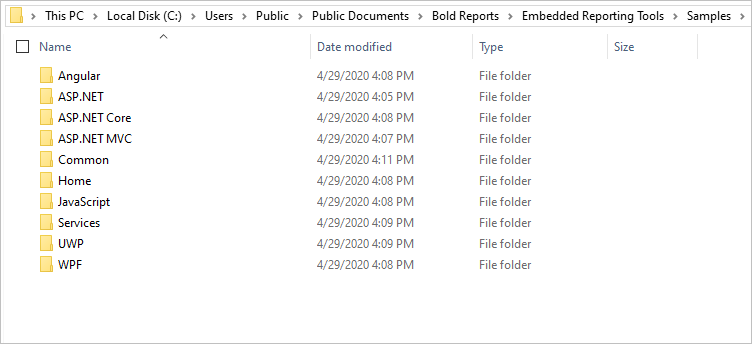
- Even you have properly shipped folders, but still not able to launch Bold Reports® Report Viewer SDK Sample Browser?
Open command prompt in administrator mode and navigate to the path
C:\Program Files (x86)\Bold Reports\Report Viewer SDK\Utilities\StartSampleBrowserReportingToolsand run anyone of the below command through theStartSampleBrowserReportingTools.exe.
| Platform | Arguments |
|---|---|
| JavaScript | StartSampleBrowserReportingTools.exe "JAVASCRIPT" |
| Angular | StartSampleBrowserReportingTools.exe "ANGULAR" |
| ASP.NET | StartSampleBrowserReportingTools.exe "ASPNET" |
| ASP.NET MVC | StartSampleBrowserReportingTools.exe "ASPNETMVC" |
| ASP.NET Core | StartSampleBrowserReportingTools.exe "ASPNETCORE" |
After running the above command, ensure the System tray contains
IISEXPRESS.exeapplication which hosts the samples.
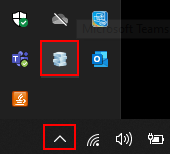
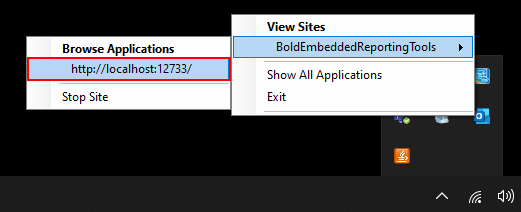
- If none of the above steps doesn’t help to launch the Samples?
You can able to find the error log file in the path
C:\Program Files (x86)\Bold Reports\Report Viewer SDK\Utilities\StartSampleBrowserReportingTools, kindly contact us by creating a support ticket and share the generated log file with us, we will reach you soon.