Add Classic Web Report Designer to a React application
This section explains the steps required to add classic web Report Designer to a React application.
Follow this getting started section to embedded Bold Reports® Designer version less than
v5.2.xx.
To get start quickly with classic Report Designer, you can check on this video:
Prerequisites
Before getting started with the classic bold report designer, make sure that your development environment includes the following commands.
Install the Create React App package
Create React App is a simple way to create single-page React application which provides a build setup with no configuration. To install the Create React App globally in your machine, run the following command in Command Prompt.
npm install create-react-app -gTo learn more about Create React App package refer here
Create a new React application
To create a new React application, run the following command in Command Prompt.
create-react-app reportsThe
create-react-appcommand adds thereact,react-dom,react-scripts, and other dependencies required to your React application.
Install the Create React Class
To configure the Report Designer component, change the directory to your application’s root folder.
cd reportsTo install the type definitions for create-react-class, run the following command in Command Prompt.
npm install create-react-class --saveInstall the Bold Reports® React package
To install the Bold Reports® React package, run the following command in Command Prompt.
npm install @boldreports/react-reporting-components --saveAdding scripts reference
Bold Reports® needs window.jQuery object to render the React components. Hence create a file named globals.js and import jQuery in globals.js file as like the below code snippet.
import jquery from 'jquery';
import React from 'react';
import createReactClass from 'create-react-class';
import ReactDOM from 'react-dom';

window.React = React;
window.createReactClass = createReactClass;
window.ReactDOM = ReactDOM;
window.$ = window.jQuery = jquery;
Refer the globals.js file in index.js file as like below code snippet.
import './globals';
import React from 'react';
import ReactDOM from 'react-dom';
import './index.css';
import App from './App';
//serviceWorker will show warning "unused".
//import * as serviceWorker from './serviceWorker';

ReactDOM.render(<App />, document.getElementById('root'));
import './globals';
import React from 'react';
import {{ createRoot }} from 'react-dom/client';
import './index.css';
import App from './App';
import reportWebVitals from './reportWebVitals';
const root = createRoot(document.getElementById('root'));
root.render(
<React.StrictMode>
<App />
</React.StrictMode>
);Adding Report Designer component
The Bold Report Designer script and style files need to be imported, in order to run the Bold web designer. Hence, import the following files in App.js file.
/* eslint-disable */
import React from 'react';
import './App.css';
//Report designer source
import '@boldreports/javascript-reporting-controls/Scripts/bold.report-designer.min';
import '@boldreports/javascript-reporting-controls/Scripts/bold.report-viewer.min';
import '@boldreports/javascript-reporting-controls/Content/material/bold.reports.all.min.css';
import '@boldreports/javascript-reporting-controls/Content/material/bold.reportdesigner.min.css';
//Data-Visualization
import '@boldreports/javascript-reporting-controls/Scripts/data-visualization/ej.bulletgraph.min';
import '@boldreports/javascript-reporting-controls/Scripts/data-visualization/ej.chart.min';
//Reports react base
import '@boldreports/react-reporting-components/Scripts/bold.reports.react.min';

var designerStyle = {
  'height': '700px',
  'width': '100%'
};

function App() {
  return (
    <div style={designerStyle}>
            <BoldReportDesignerComponent
            id="reportdesigner_container">
            </BoldReportDesignerComponent>
    </div>
  );
}

export default App;
Open the public\index.html and refer the following scripts in <head> tag.
<!-- Data-Visualization -->
<script src="https://cdn.boldreports.com/15.1.10/scripts/common/ej2-base.min.js"></script>
<script src="https://cdn.boldreports.com/15.1.10/scripts/common/ej2-data.min.js"></script>
<script src="https://cdn.boldreports.com/15.1.10/scripts/common/ej2-pdf-export.min.js"></script>
<script src="https://cdn.boldreports.com/15.1.10/scripts/common/ej2-svg-base.min.js"></script>
<script src="https://cdn.boldreports.com/15.1.10/scripts/data-visualization/ej2-lineargauge.min.js"></script>
<script src="https://cdn.boldreports.com/15.1.10/scripts/data-visualization/ej2-circulargauge.min.js"></script>
<script src="https://cdn.boldreports.com/15.1.10/scripts/data-visualization/ej2-maps.min.js"></script>
Create a Web API service
The web Report Designer requires a Web API service to process the data and file actions. You can skip this step and use our online Web API service at https://demos.boldreports.com/services/api/ReportingAPI to create, edit, and browse reports or you must create any one of the following Web API services.
Set a Web API service URL
To set a Web API service, open the App.js file and replace the existing code with the below code snippet.
/* eslint-disable */
import React from 'react';
import './App.css';
//Report designer source
import '@boldreports/javascript-reporting-controls/Scripts/bold.report-designer.min';
import '@boldreports/javascript-reporting-controls/Scripts/bold.report-viewer.min';
import '@boldreports/javascript-reporting-controls/Content/material/bold.reports.all.min.css';
import '@boldreports/javascript-reporting-controls/Content/material/bold.reportdesigner.min.css';
//Data-Visualization
import '@boldreports/javascript-reporting-controls/Scripts/data-visualization/ej.bulletgraph.min';
import '@boldreports/javascript-reporting-controls/Scripts/data-visualization/ej.chart.min';
//Reports react base
import '@boldreports/react-reporting-components/Scripts/bold.reports.react.min';

var designerStyle = {
  'height': '700px',
  'width': '100%'
};

function App() {
  return (
    <div style={designerStyle} className="App">
            <BoldReportDesignerComponent
            id="reportdesigner_container"
            serviceUrl={'https://demos.boldreports.com/services/api/ReportingAPI'}>
            </BoldReportDesignerComponent>
    </div>
  );
}

export default App;
In the above code, the
serviceUrlused from online URL. You can host the Bold Reports® service to any Azure, AWS or own domain URL and use it in Report Designer. View the already created Web API service from the Reporting Service git hub location.
Run the Application
To run the application, run the following command in command prompt.
npm run startWhile running the above command, if you are getting an error like
'BoldReportDesignerComponent' is not definedthen you need to disable theeslintby adding the line/* eslint-disable */at the top of App.js.
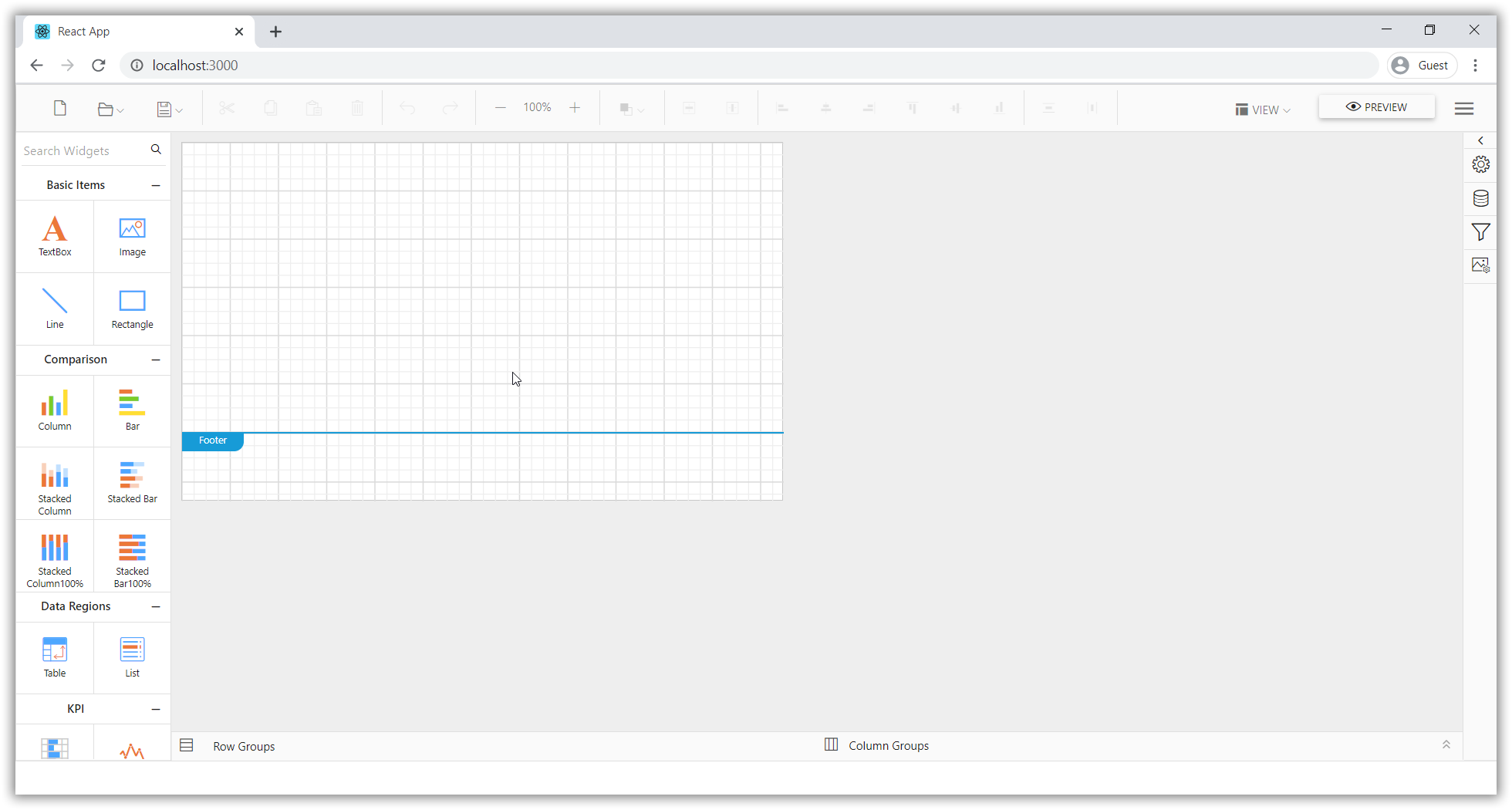
The npm run start command automatically opens your browser to http://localhost:3000/
Deploying the application in production
To deploy the application in production, run the following command in command prompt which will create a folder named buildto generate the build files.
npm run buildNote: You can refer to our feature tour page for the React Report Designer to see its innovative features. Additionally, you can view our React Report Designer examples which demonstrate the rendering of SSRS RDLC and RDL reports.