Add linking actions in Bold Reports® Web Report Designer
Linking in Bold Reports® Web Report Designer makes a report interactive with Hyperlink and Report Linking actions. You find these settings under the Link category in the properties panel.
The following image shows the link options in the properties panel.

Report Linking
Report Linking in Bold Reports® Web Report Designer lets you access the main report from the server. The linked report keeps its original report definition.
Report Path
You set the report path in Web Report Designer by choosing a report from the server in the browse dialog.
-
Choose the
Reportoption in theLink Todropdown. The fields you need to configure the report path are now enabled under the link property.
-
Click the browse button in the Report option.

-
Open any folder in the browse dialog.

-
Select a report shown in the browse dialog and click OK.

-
The selected report path is now linked in the Report option.

Set Parameters
You specify parameters for Report Linking in Web Report Designer through the Parameters dialog.
-
Click the
Set Parametersbutton. TheParametersdialog opens.
-
If the report is linked with the main report, the main report parameter names are available in the drop-down list. To add a New parameter, click the Add icon.

-
In Parameter Name, enter the name of the report parameter.
-
In Value, enter the parameter value.

-
Click the OK button to save the parameters.
Set Expression
You set an expression for a linked report parameter in Web Report Designer from the square icon next to the value. First, follow steps 1 to 4 in Set Parameters to add parameters.
-
To edit or create an expression, click the square icon and select
Expression.
-
The
Expressiondialog opens. For details, read the Expression section and its following sections.
-
The icon turns
Black colorwhen an expression is applied to the parameter.
Reset Expression
You reset a parameter expression in Web Report Designer from the same square icon.
-
To reset an expression, click the square icon and select
Reset.
-
The icon turns
White colorafter the reset action.
Remove Parameters
You remove a linked report parameter in Web Report Designer by clicking the Delete icon.

Hyperlink
A Hyperlink in Bold Reports® Web Report Designer links a report item to a webpage. Use the following steps to add one.
How do I add a hyperlink?
You add a hyperlink in Web Report Designer by choosing URL in the Link To property.
-
Select the URL option in the
Link Toproperty dropdown. The fields you need to specify an external URL are now enabled under the link property.
-
In the URL option, enter a URL or set an Expression that evaluates to the URL.

-
To view the link, click Preview and click the report item. It navigates to the given URL link.
How do I link a bookmark?
You link a bookmark in Web Report Designer by choosing the Bookmark option under the Link category.
- Select the text box, image, or chart series to which you want to link a bookmark. The item properties are listed in the
Propertiespane. - Under the
Linkcategory, choose theBookmarkoption. An option to link the bookmark is enabled.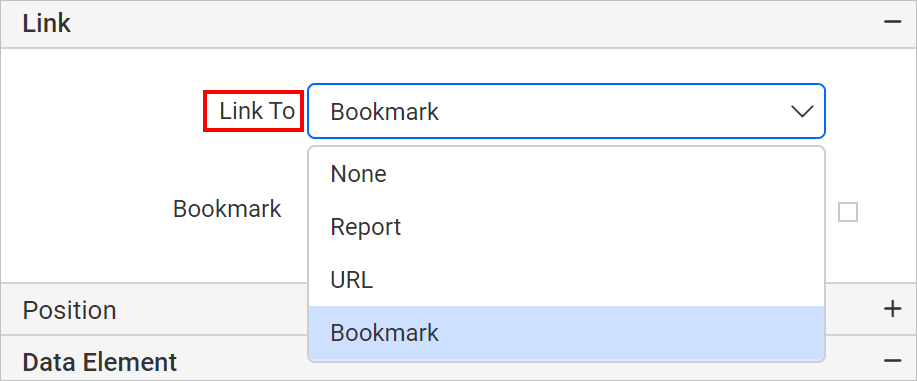
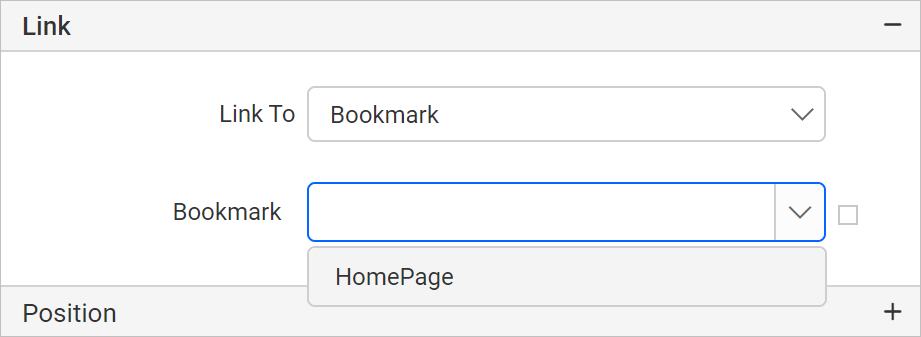
- In the bookmark dropdown, type or select a bookmark, or set an expression that evaluates to a bookmark.
Frequently asked questions
Which link actions can I add in Web Report Designer?
You can add Hyperlink and Report Linking actions from the Link category in the properties panel. You can also link a text box, image, or chart series to a bookmark.
Can a hyperlink URL come from an expression?
Yes. In the URL option, you can enter a URL or set an expression that evaluates to the URL.