Load SSRS Report Server reports
The Bold Reports® JavaScript Report Viewer loads RDL reports from an SSRS Report Server. To render SSRS reports, set the reportServerUrl, reportPath, and reportServiceUrl properties, as in the following steps:
-
To create your first JavaScript reporting application, refer to the Getting started section.
If you need to know about the difference between
reportServiceUrlandreportServerUrl, then refer to Difference between Report Service URL and Report Server URL. -
Set the
reportServerUrlAPI on Bold Reports® Report Viewer withWebServiceURL. Open theApp.jsorapp.component.tsand replace the following code example:<div style="height: 100%; width: 100%;"> <div style="height: 600px; width: 950px; min-height: 400px;" id="viewer"></div> <script type="text/javascript"> $(function () { $("#viewer").boldReportViewer({ reportServiceUrl: "/api/SSRSReports", reportServerUrl: "http://<servername>/Reports_SSRS" }); }); </script> </div>The Web Service URL should be set as
reportServerUrlin the report viewer configuration. The Web Service URL can be found from the Reporting Services Configuration manager under theWeb Service URLsection, as shown in the following image.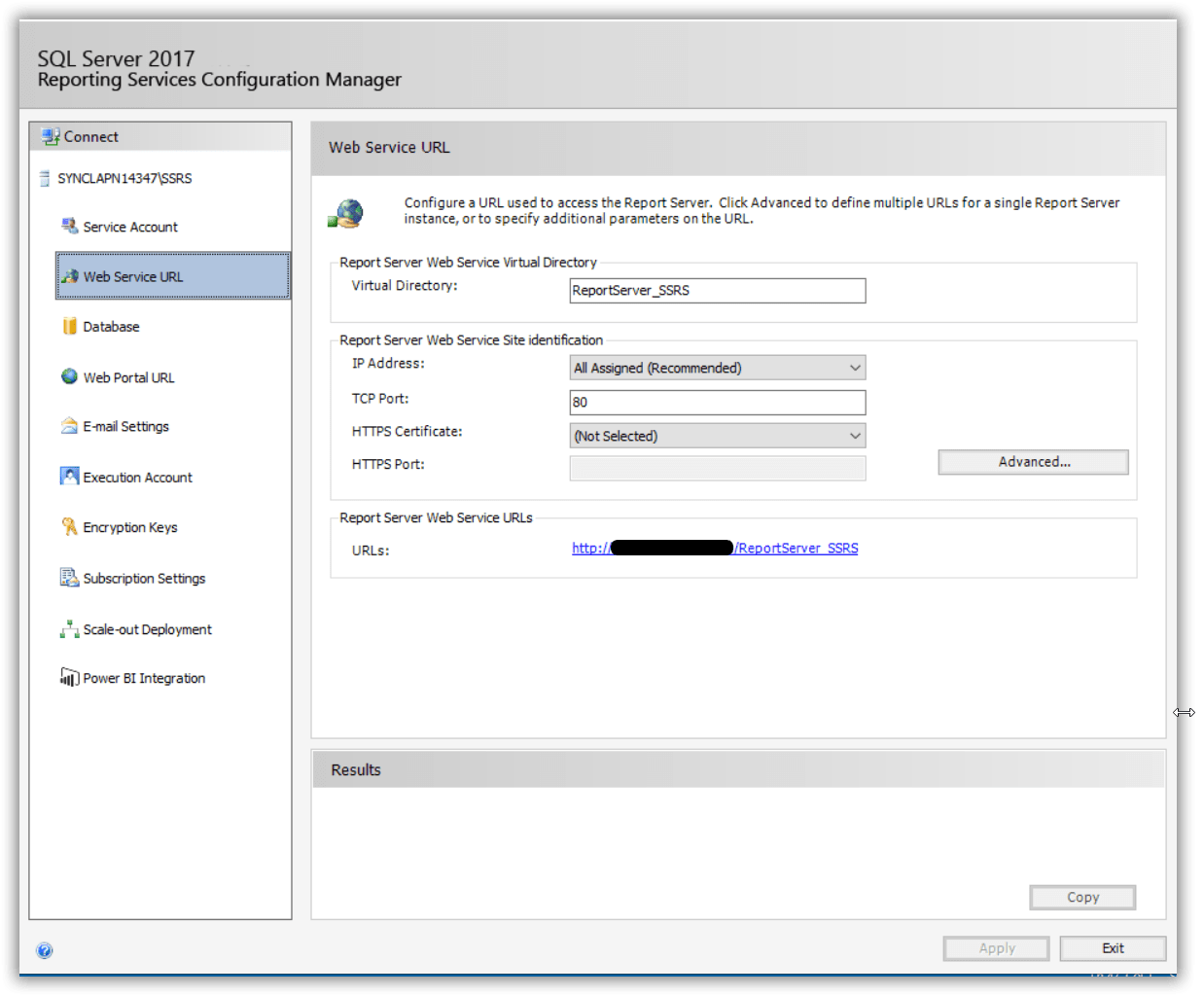
-
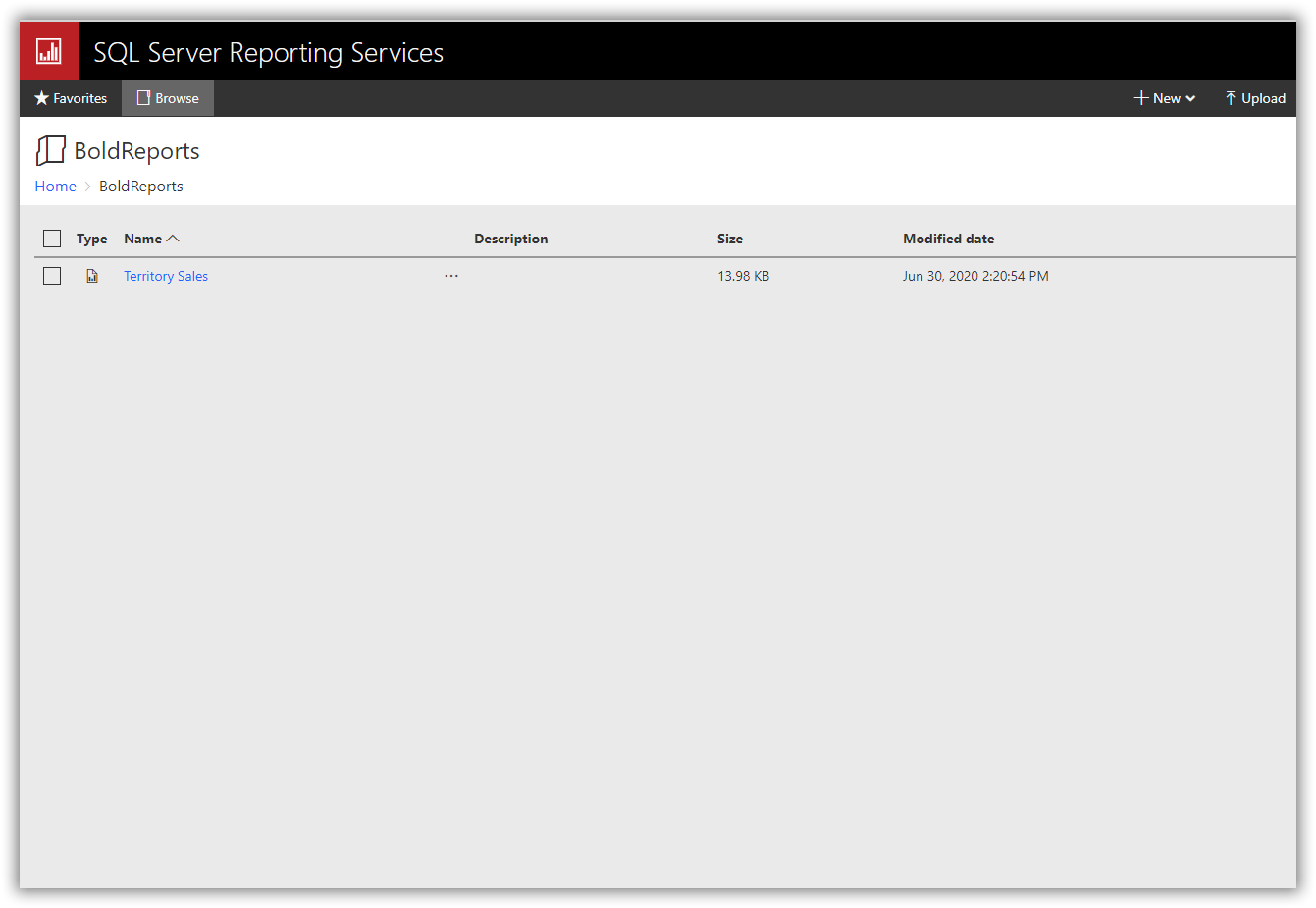
Set the report path for loading the reports from the SSRS Report Server. The report path should be in the format of
/folder name/report name. Open theindex.htmland replace the following code example:<div style="height: 100%; width: 100%;"> <div style="height: 600px; width: 950px; min-height: 400px;" id="viewer"></div> <script type="text/javascript"> $(function () { $("#viewer").boldReportViewer({ reportServiceUrl: "/api/ReportViewer", reportPath: "/BoldReports/Territory Sales", reportServerUrl: "http://<servername>/Reports_SSRS" }); }); </script> </div>The report path can be found from the SSRS Report Server by navigating to the path of the report to be loaded, as shown in the following image.
How do I set network credentials for SSRS?
To set network credentials for SSRS, specify the ReportServerCredential property in the Web API Controller OnInitReportOptions method. The JavaScript Report Viewer requires the network credentials to connect with the specified SSRS Report Server.
[NonAction]
public void OnInitReportOptions(ReportViewerOptions reportOption)
{
    //Add SSRS Report Server credential
    reportOption.ReportModel.ReportServerCredential = new System.Net.NetworkCredential("ssrs", "RDLReport1");
}
If you are facing problem to access the SSRS Report server reports, you can refer How to provide the permission for user to access the SSRS Report Server reports.
Set data source credential for shared data sources
The SSRS Report Server does not provide options to get credential information of the report data source deployed on the SSRS server. If the report has any data source that uses credentials to connect with the database, specify the DataSourceCredentials for each report data source in the JavaScript Report Viewer Web API controller to establish the database connection.
[NonAction]
public void OnInitReportOptions(ReportViewerOptions reportOption)
{
    //Add SSRS Report Server and data source credentials
    reportOption.ReportModel.ReportServerCredential = new System.Net.NetworkCredential("ssrs", "RDLReport1");

    reportOption.ReportModel.DataSourceCredentials.Add(new BoldReports.Web.DataSourceCredentials("<database>", "ssrs1", "RDLReport1"));
}
Data source credentials must be added for shared data sources that do not have credentials in the connection strings.
Build and run the application. Preview and edit the result using the following:
$(function () {
    $("#viewer").boldReportViewer({
                    reportServiceUrl: "https://demos.boldreports.com/services/api/SSRSDataSourceCredentials",
                    reportPath: "/SSRSSamples/Territory Sales",
                    reportServerUrl: "http://<servername>/reportserver$instanceName"
                });
});[NonAction]
public void OnInitReportOptions(ReportViewerOptions reportOption)
{
//Add SSRS Report Server and data source credentials
reportOption.ReportModel.ReportServerCredential = new System.Net.NetworkCredential("ssrs", "RDLReport1");
reportOption.ReportModel.DataSourceCredentials.Add(new BoldReports.Web.DataSourceCredentials("<database>", "<username>", "<password>"));
}You can view the Web API service used in the preceding code in the Reporting Service GitHub location. For more information, see Samples and demos.
Change data source connection string
You can change the connection string of a report data source before it is loaded in the JavaScript Report Viewer. The DataSourceCredentials class provides the option to set and update the modified connection string as in the following code snippet:
        [NonAction]
        public void OnInitReportOptions(ReportViewerOptions reportOption)
        {
            reportOption.ReportModel.DataSourceCredentials.Add(new BoldReports.Web.DataSourceCredentials("<database>", "<username>","<password>","Data Source=<instancename>;Initial Catalog=<database>;"));
        }
The previous code shows an option to change the connection string only, but the class provides multiple options to change data source information. To learn more, refer to the
DataSourceCredentialsclass.