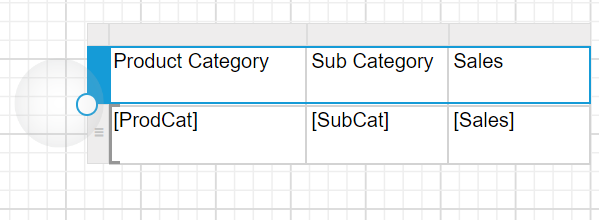
Resize tablix data region
To improve the report readability, we can resize the height and width of specific column and row or the over all tablix data region.
Over all data region
Resize using resizer
Change height property:
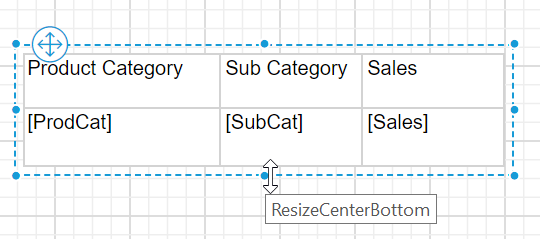
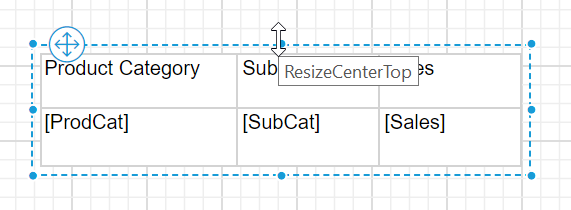
To change the height of the tablix region , place the mouse pointer in the CenterTop or CenterBottom position of the tablix selection line.
Use CenterBottom to increase height towards downward direction or to decrease height towards upward direction,
Use CenterTop to increase height towards upward direction or to decrease height towards downward direction,
Change width property:
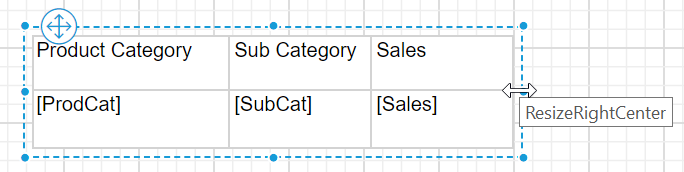
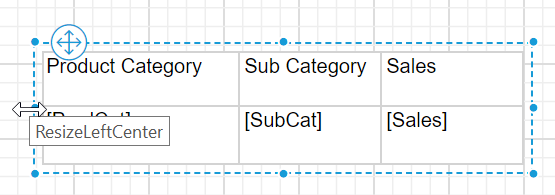
To change the width of the tablix region , place the mouse pointer in the RightCenter or LeftCenter position of the tablix selection line.
Use RightCenter to resize the width outwards or inwards in right side direction,
Use LeftCenter to resize the width outwards or inwards in left direction,
Change width and height proportionally:
- Select the tablix data region in the design area.
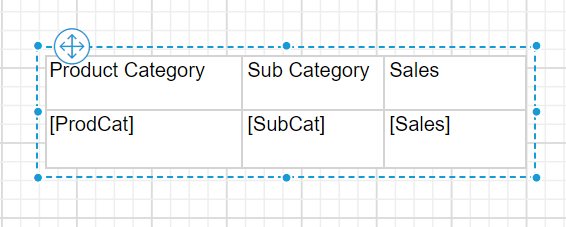
- To resize the data region place the mouse pointer in
LeftToporRightToporLeftBottomorRightBottomposition on the data region. Now, the resizer arrow will be enabled in the respective position like below,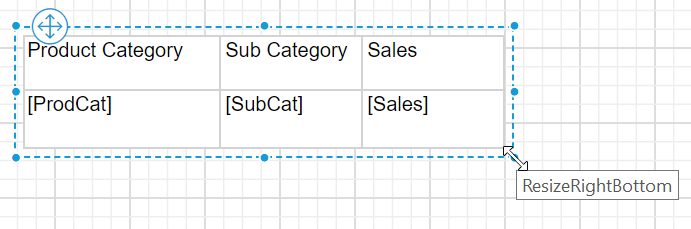
- Hold and drag the resizer arrow, now the tablix data region will be resized proportionally in all direction.
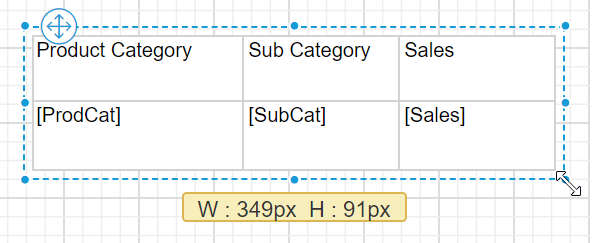
Set width and height in table properties
- Select a tablix data region, now the respective item properties will be listed in the properties panel.
- In the properties panel, modify the
HeightandWidthproperty of the tablix data region.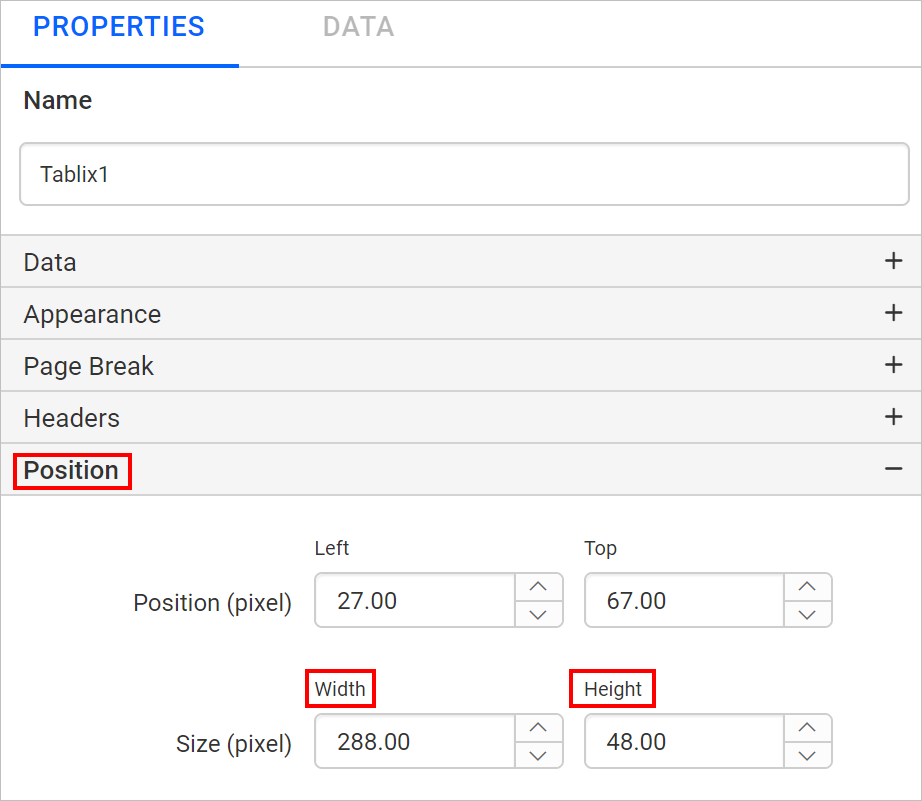
Resize the column
Set column width using gripper
- Place the mouse pointer in the respective column border.
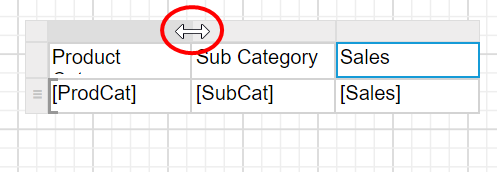
- Drag the column gripper horizontally, to adjust the column width.
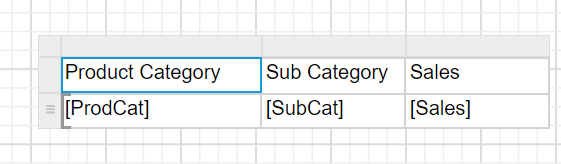
Set column width in cell properties
- Select a cell in the tablix data region, now the respective cell item properties will be listed in the properties panel.
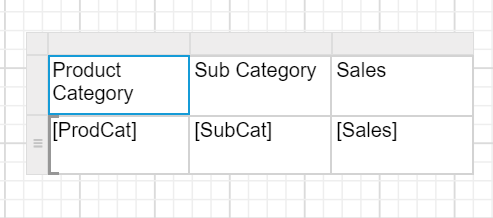
- In the properties panel, modify the
Widthproperty of the respective cell.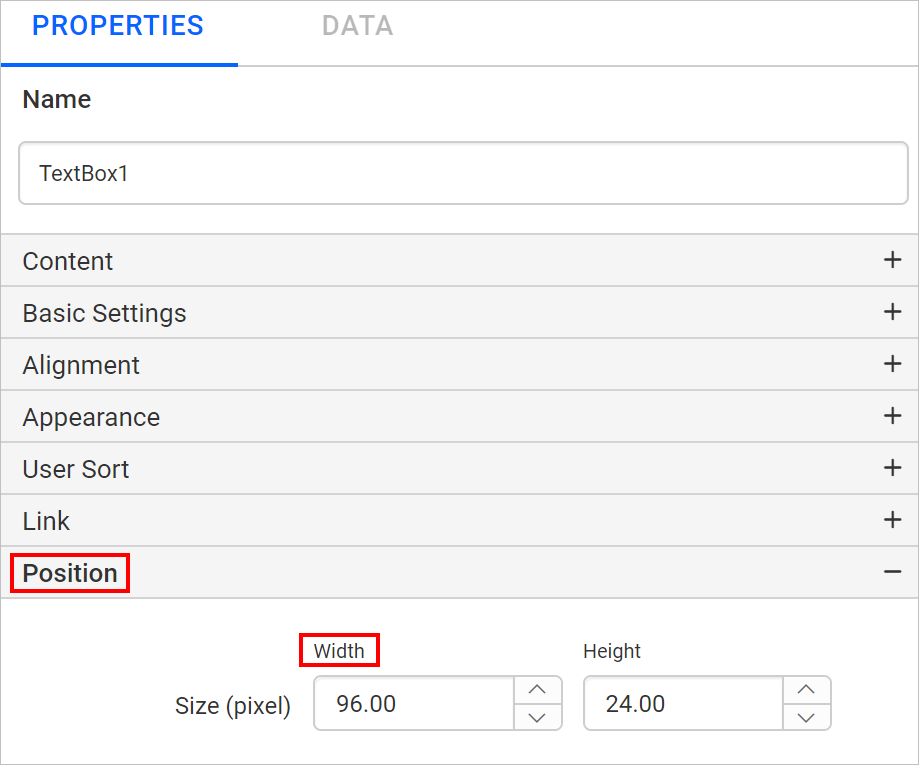
Using touch resizer
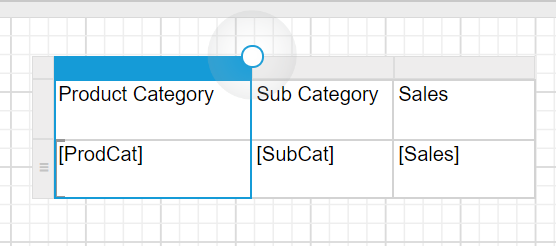
To increase or decrease the column using touch resizer, Tap on the respective column gripper in the screen. Now, a bubble will be enabled in the right side of the column like below.
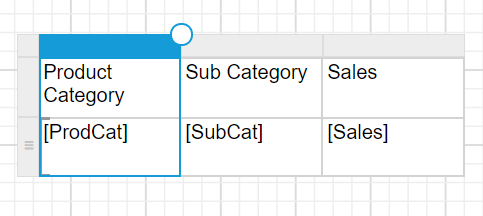
Now, drag the bubble horizontally to adjust the column width.
Resize the row
Set row height using gripper
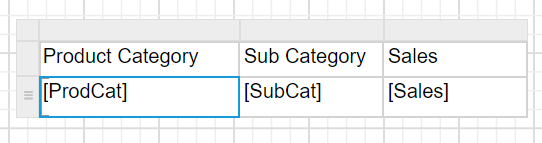
- Place the mouse pointer in the respective row border.
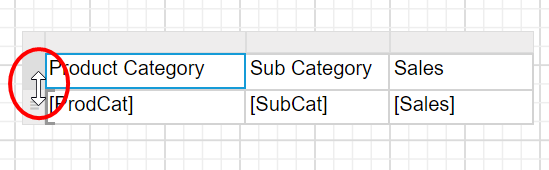
- Drag the row gripper vertically upwards or downwards, to adjust the row height.
Set row height in cell properties
- Select a cell in the tablix data region, now the respective cell item properties will be listed in the properties panel.
- In the properties panel, modify the
Heightproperty of the respective cell.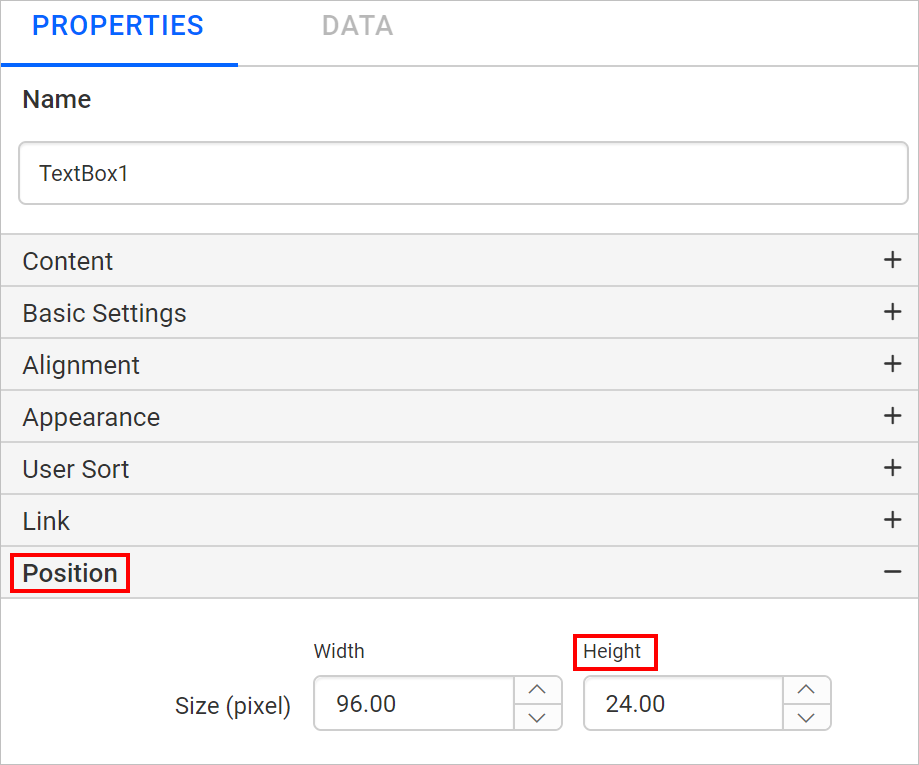
Using touch resizer
To increase or decrease the row height using touch resizer, Tap on the respective row gripper in the screen. Now, a bubble will be enabled in the bottom of the row like below.
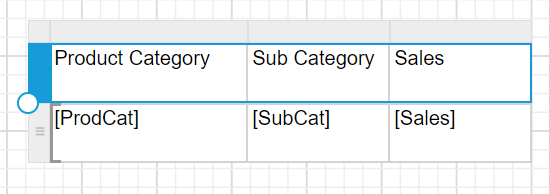
Now, drag the bubble vertically to adjust the row height.