Add or Delete a Details Group
The Details group can be used to display the detailed data in the tablix data region and it has no group expression. By default, when you drag and drop the the tablix report item in the design area,it renders with a Details group.
Add details group
- Select the tablix data region in the design area, now the
Grouping Panelwill be enabled in the design view.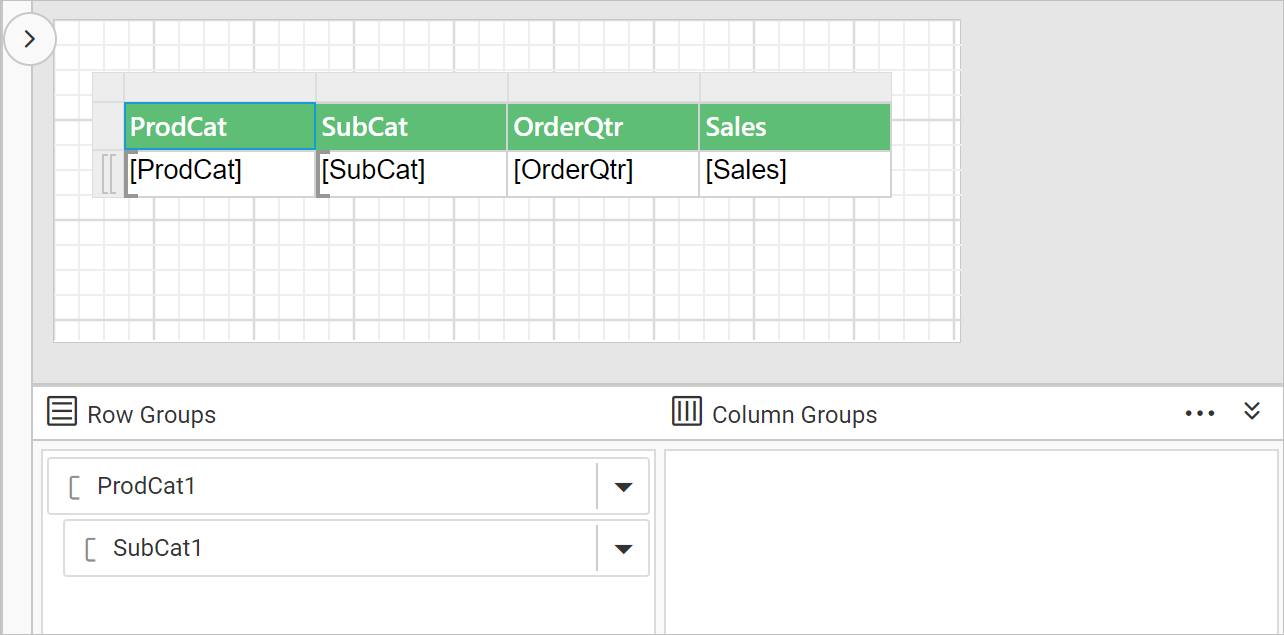
- To add a details group, go to
Row Groupspane in grouping panel and open the context menu on the innermost child group. ClickAdd Group, and then click on theChild Groupoption.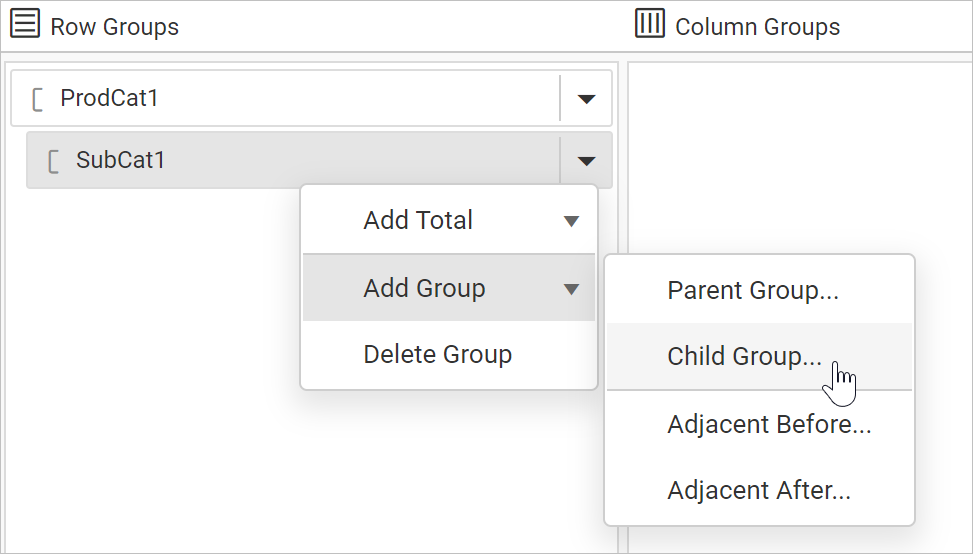
- Once you click on the
Child Groupoption, aTablix Groupdialog will be opened to configure the grouping.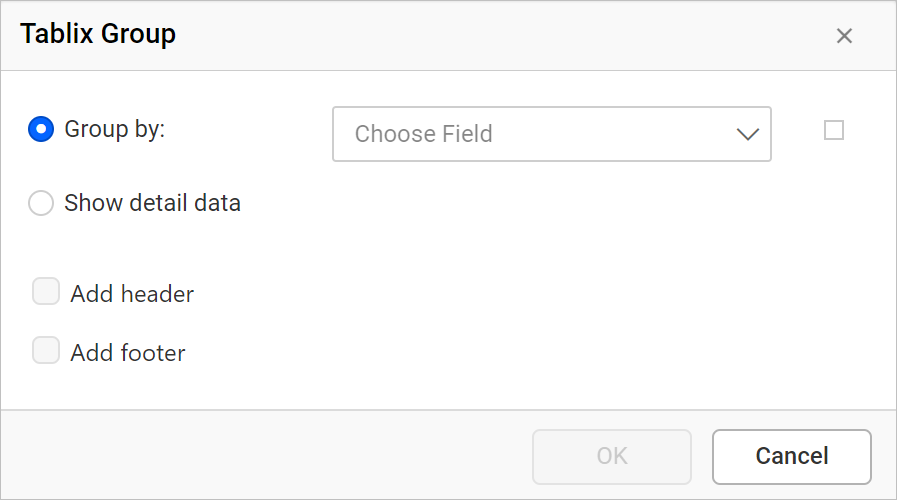
- Select
Show detail dataand click on theOKbutton.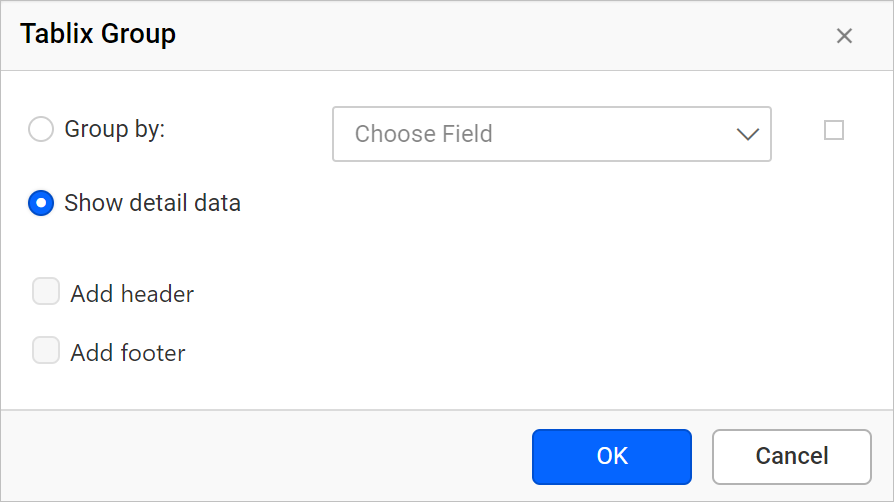
Cannot insert a multi-value item into a detail cell. Detail members can only contain the static inner members.
Delete details group
Details group can be deleted either using the cell context menu or using the group menu provided in grouping panel.
- Click on the icon in the right corner of the
Detailsgroup member. Click onDelete Groupoption in the menu.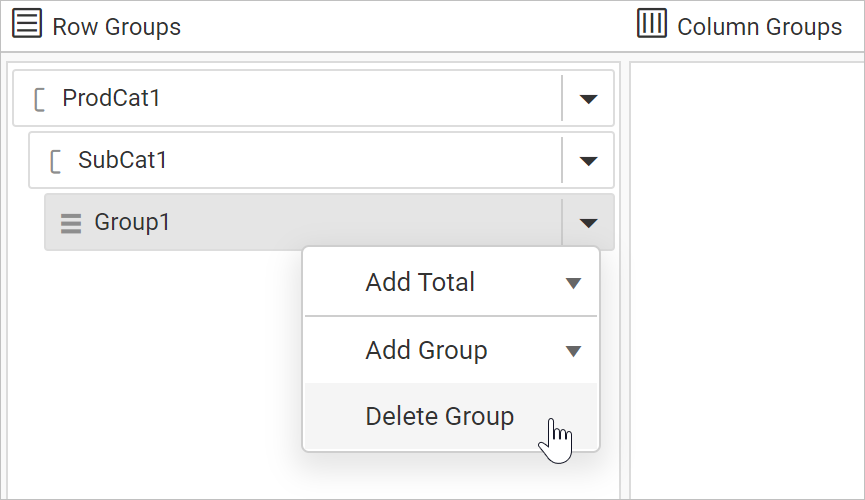
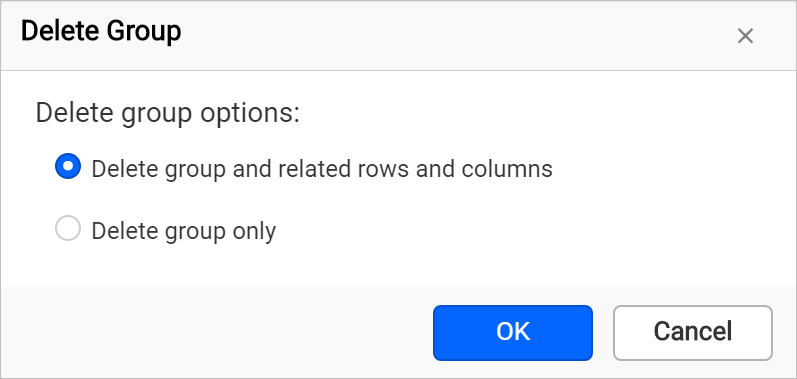
- Now, the following confirmation dialog will be launched.
-
Choose the
Delete group and related rows and columnsoption to delete all the rows and columns associated with the respective group. -
Choose the
Delete group onlyoption to delete the group alone.
Now, the respective Details group information will be deleted from the tablix data region.
A details group is added as a child group in the Grouping panel, so you cannot add child group to the details group further.
Edit group properties
To edit a group properties in a tablix data region, refer Tablix member properties section.