Signature
A Signature report item enables users to add signature fields to reports, supporting both electronic and PDF digital signatures. This functionality is ideal for reports that require formal or informal approvals, acknowledgments, or secure document authentication.
Add an electronic signature report item
- The Electronic signature report item is listed in the item panel under the
Signaturescategory.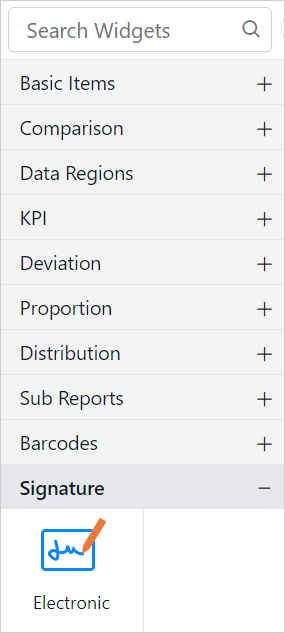
- Drag and drop the
Electronic Signatureitem from the item panel into the design area.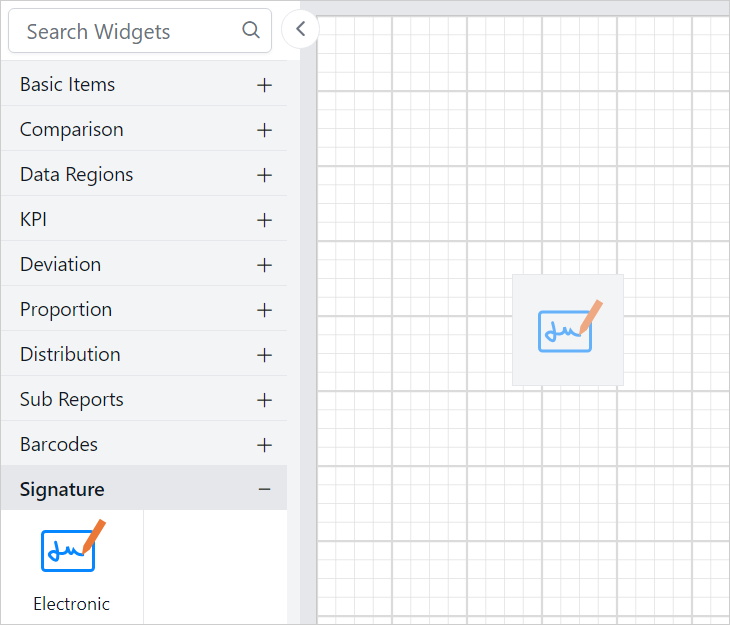
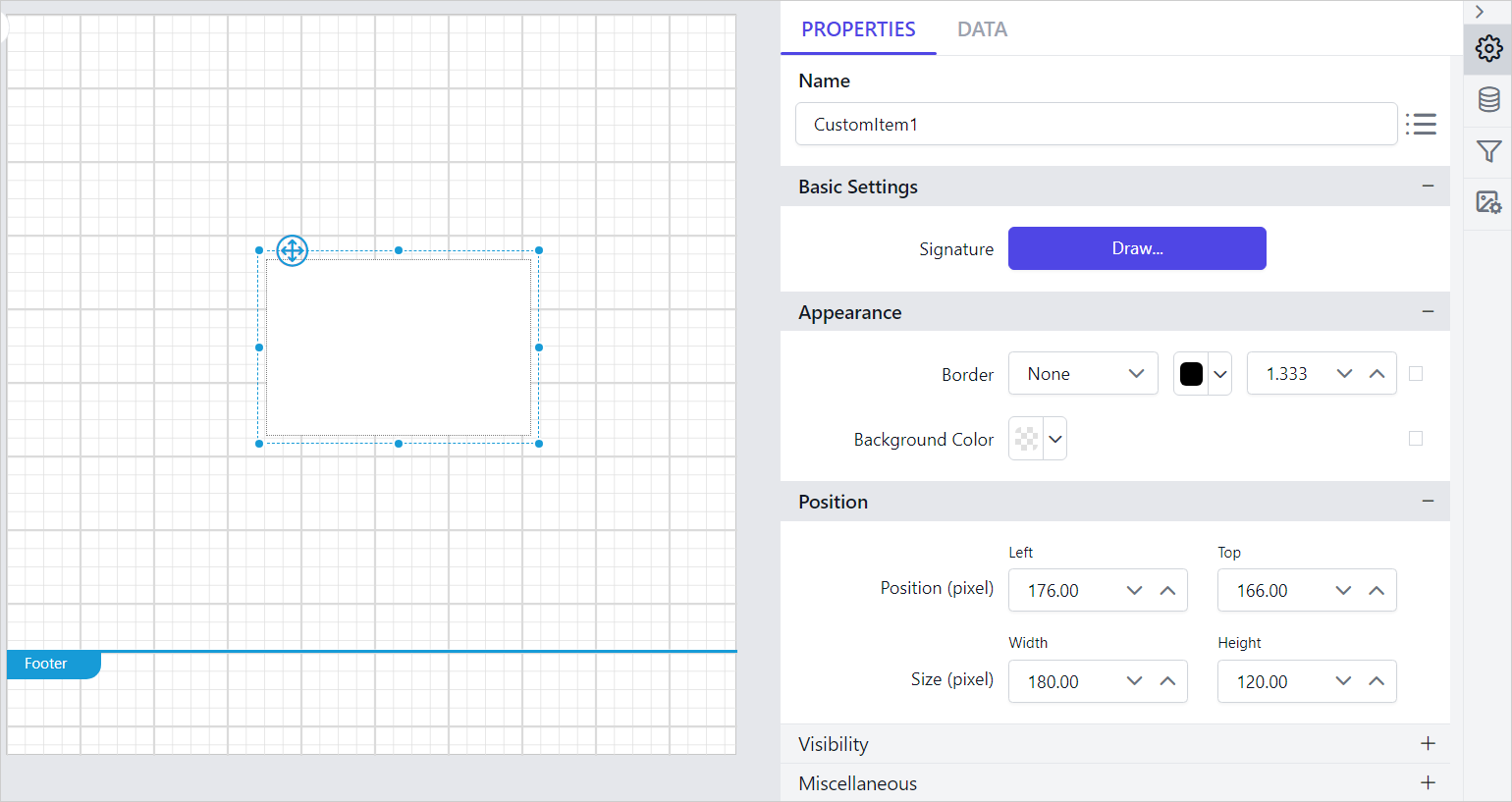
- After placing the report item in the design area, its properties will be displayed in the properties panel.
Add a PDF signature report item
- The PDF signature report item is listed in the item panel under the
Signaturescategory.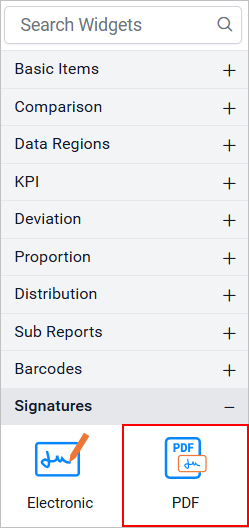
- Drag and drop the
PDF Signatureitem from the item panel into the design area.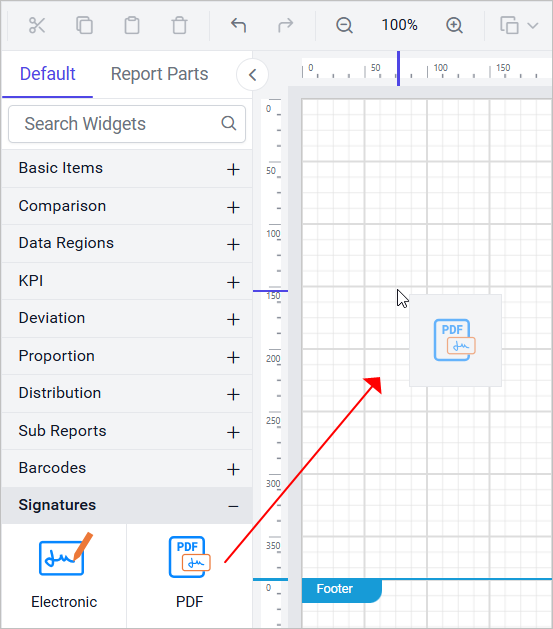
- After placing the report item in the design area, its properties will be displayed in the properties panel.
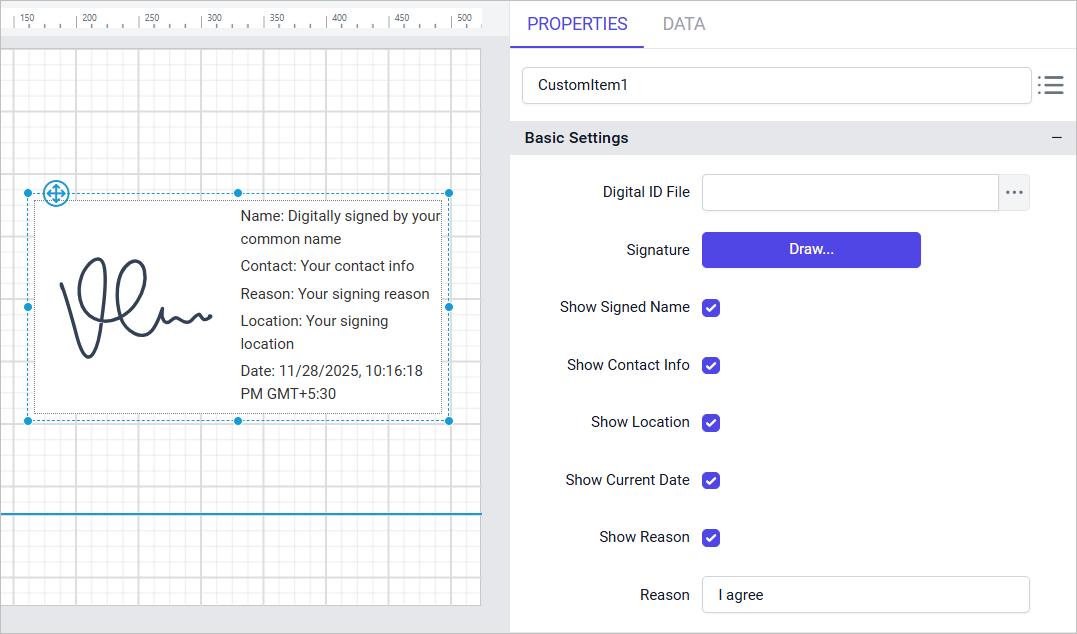
General Properties
Name
The Name property can be used to provide a unique name to the signature item in the report.
Appearance
The appearance of the signature includes border style, color, width, and background color, which are used to style and customize its appearance in the report design. These options are available under the Appearance category in the properties panel.
Border
Border properties allow you to add or customize the border around a signature item to visually separate it from other elements in the report design. To set border properties using the properties panel, refer to the Border Properties section.
Background color
Using the background color property, you can color the signature background. To set background color using the properties panel, refer to the Background color section.
Position
The position property is used to set the width, height, left and top position of the signature in the report design. For guidance on handling these properties using the properties panel, refer to the Position section.
Visibility
The visibility property is used to conditionally show or hide the signature report item during report preview or export actions. To set the visibility of the signature item using the properties panel, refer to the Visibility section.
Miscellaneous
Tooltip
The tooltip property can be used to display informative text or values when the user hovers over the report item in report preview. To set a tooltip for the signature item using the properties panel, refer to the Tooltip section.
Bookmark
Bookmark links enable users to navigate to different parts of an SSRS report. You can add bookmarks to textboxes, images, tables, charts, or unique group values in a tablix, directing users to specified locations in the report. The value of the bookmark property can be either custom strings or expressions. For more details, refer to the Bookmark section to configure bookmark in the report design.
Static or dynamic text can be set as the value for the bookmark property. For setting and resetting dynamic text, refer to the Set Expression and Reset Expression sections.
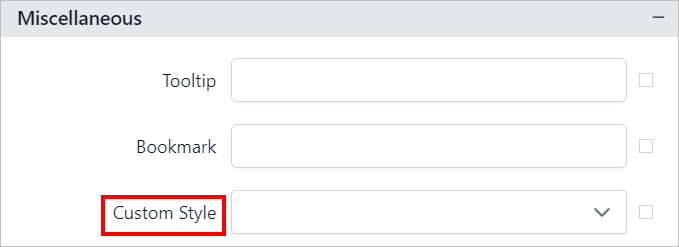
Custom Style
The Custom Style property enables the use of external CSS for styling report items, providing enhanced flexibility beyond the built-in styling options. This property allows you to meet specific design requirements and maintain consistent styling across multiple reports. For a step-by-step guide on setting up custom styles in your report, check the How To section of this guide.
Set expression
Expressions can be applied to certain properties of the signature report item to process the property values based on expressions. To set expressions for the signature report item properties, refer to the Set Expression section.
Reset expression
To Reset the expression applied to a property, refer to the Reset Expression section.
Advanced properties
Some properties of the signature report item contain nested properties. For information on opening and handling nested properties, refer to the Advanced Properties section.