Area Chart
Stacked Area Chart allows you to compare multiple measures through filled curves stacked one after the other vertically.
Add chart to the report
These types of charts are categorized under the Distribution category in item panel.
Drag and drop area chart from the item panel into design area.
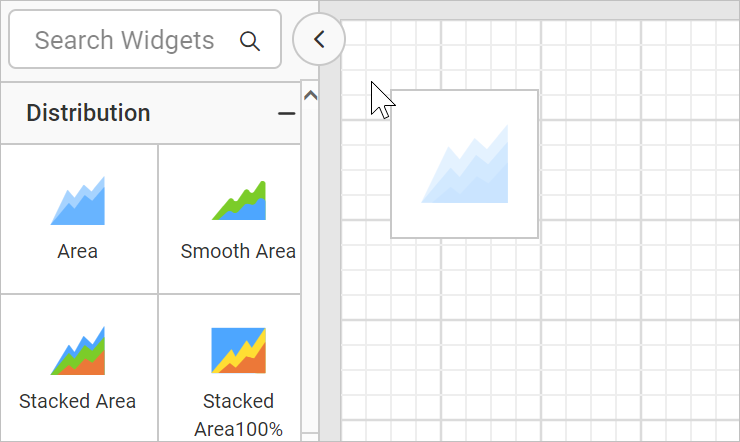
Now, the area chart will be rendered in the design area and the chart properties will be listed in properties panel.
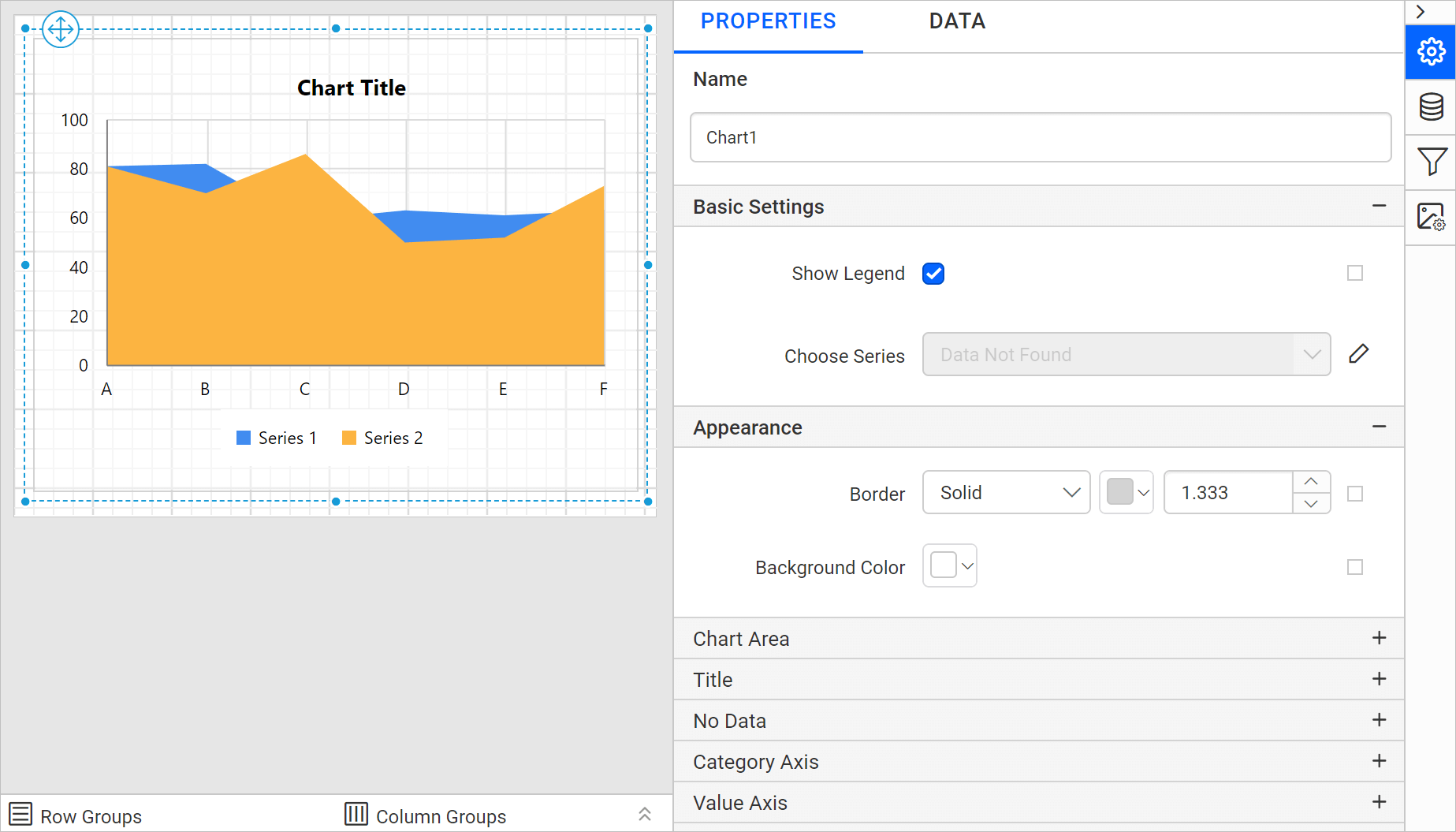
Here,
Stacked Areachart is used for demonstration.
Create data
To present data in the chart, create a dataset and bind data to the chart data region. In this designing section, the following dataset query is used for dataset creation.
SELECT PC.Name AS ProdCat, PS.Name AS SubCat, DATEPART(yy, SOH.OrderDate) AS OrderYear, 'Q' + DATENAME(qq, SOH.OrderDate) AS OrderQtr,SUM(SOD.UnitPrice * SOD.OrderQty) AS Sales
FROM Production.ProductSubcategory PS INNER JOIN
Sales.SalesOrderHeader SOH INNER JOIN
Sales.SalesOrderDetail SOD ON SOH.SalesOrderID = SOD.SalesOrderID INNER JOIN
Production.Product P ON SOD.ProductID = P.ProductID ON PS.ProductSubcategoryID = P.ProductSubcategoryID INNER JOIN
Production.ProductCategory PC ON PS.ProductCategoryID = PC.ProductCategoryID
WHERE (SOH.OrderDate BETWEEN '1/1/2002' AND '12/31/2003')
GROUP BY DATEPART(yy, SOH.OrderDate), PC.Name, PS.Name, 'Q' + DATENAME(qq, SOH.OrderDate), PS.ProductSubcategoryID
Refer Create Data section and create dataset using the above query.
AdventuresWorksdatabase is used here.
Assign data
Stacked Area Chart needs a minimum of 1 value element and 1 column element to showcase. The measure or expression field that you would like to analyze can be dropped into Y Values section. The dimension that you would like to categorize the measure, can be dropped onto Columns section. If you would like to categorize based on a series, then the respective dimension can be dropped onto Rows section in addition.
To configure data into area chart follow the steps:
- To bind data to a chart report item placed in the design area, focus on that report item.
- Click
Propertiesicon in the configuration panel, the property pane opens. Now, switch toDATAtab.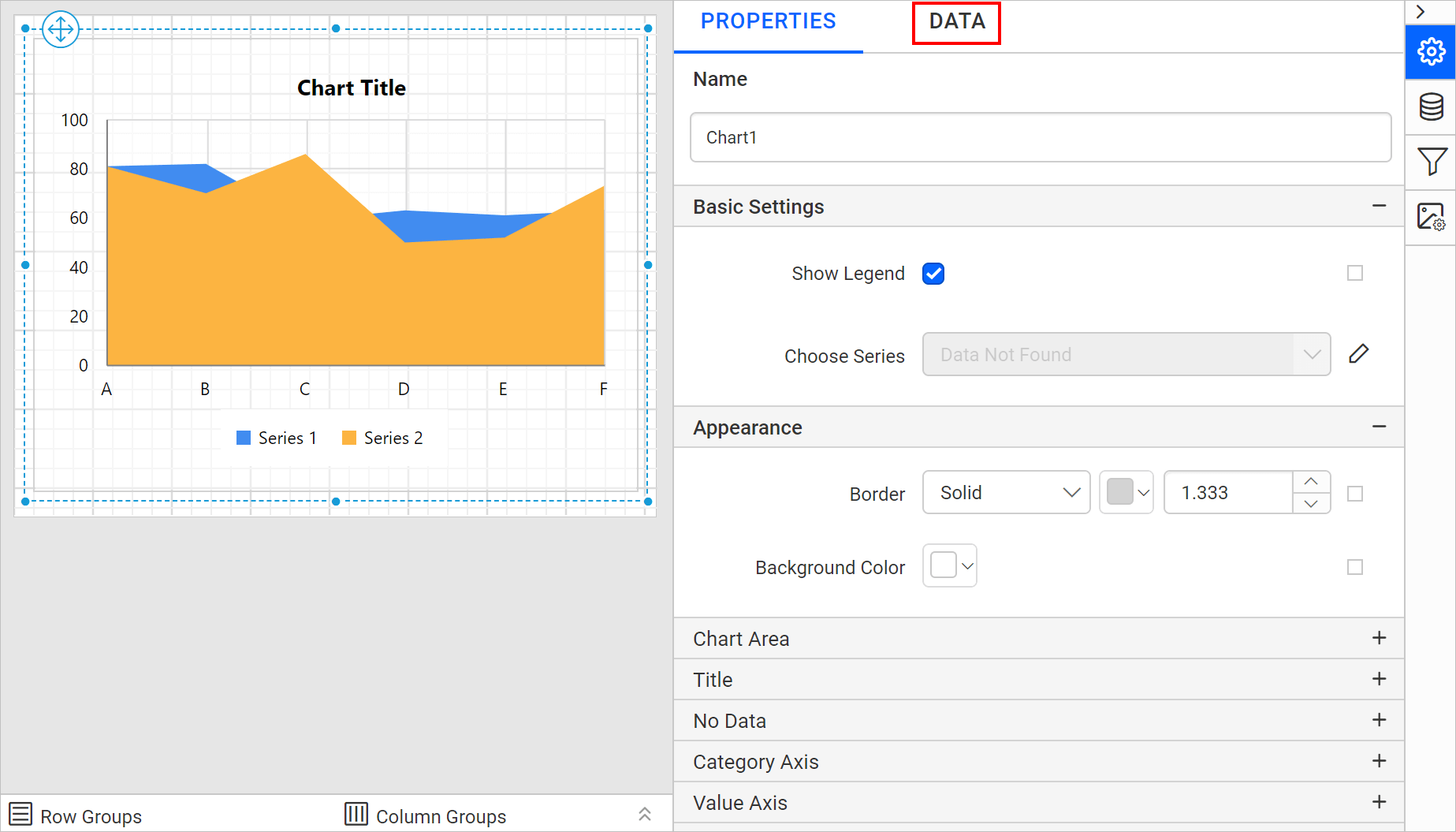
- The available data in the report will be listed in the drop-down, choose a data in the drop-down list.
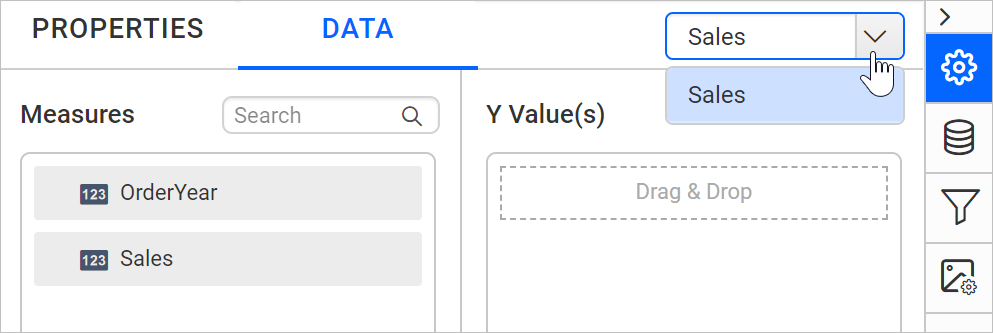
- The numeric columns and numeric expressions are listed under the
Measuressection; other type of columns and dimension expressions are listed under theDimensionssection.
- Drag and Drop Measure Element:
Select and drag the numeric column (measure element) or the numeric expression column from the
Measuresection and drop it in theY Valuessection.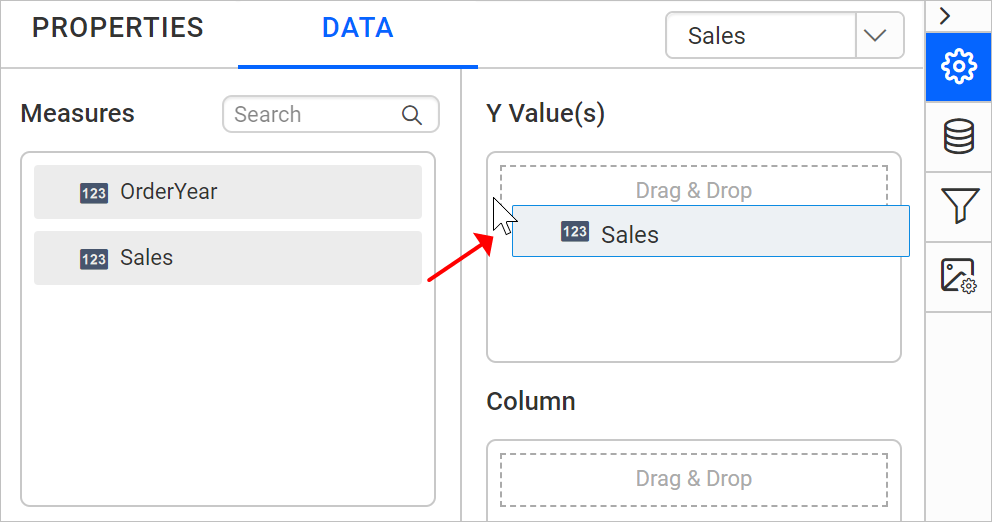 Now, the report item design will look like below:
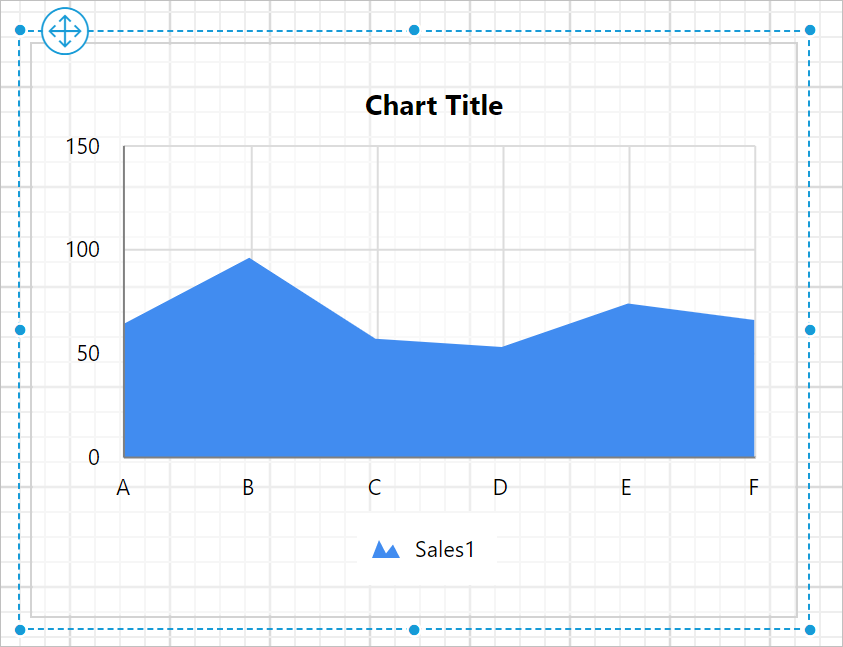
- Aggregate Options:
Click the
Settingsicon (highlighted below) to open the aggregation type drop-down list.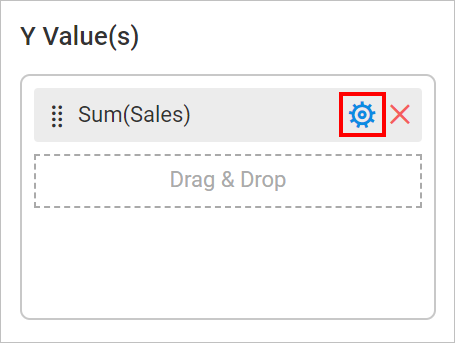 You can set the aggregation type by which you can compute the selected column.
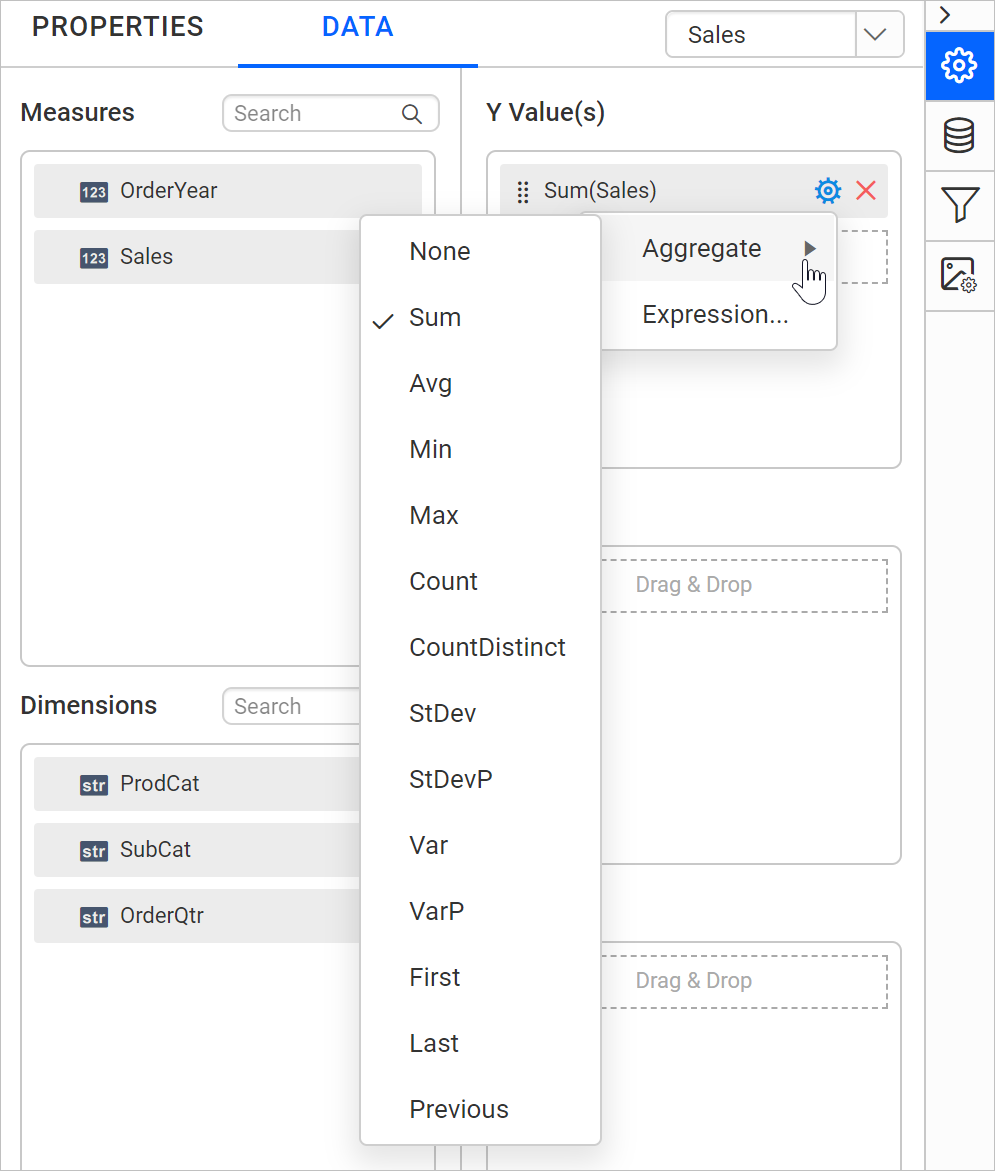
- Drag and Drop Dimension Element:
Select and drag the dimension element from the
Dimensionssection to measure against any of the selected numeric column(s) inY Value(s)section, and drop into theColumnsection.
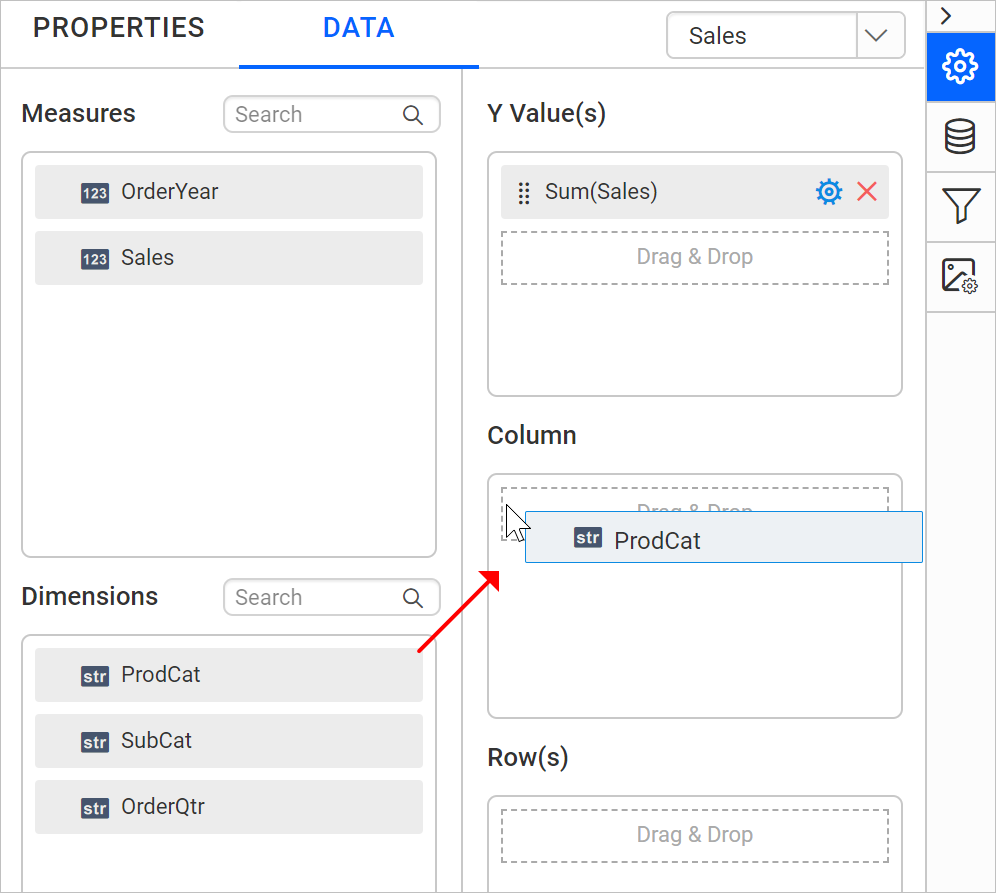 Now, the report item design will look like below:
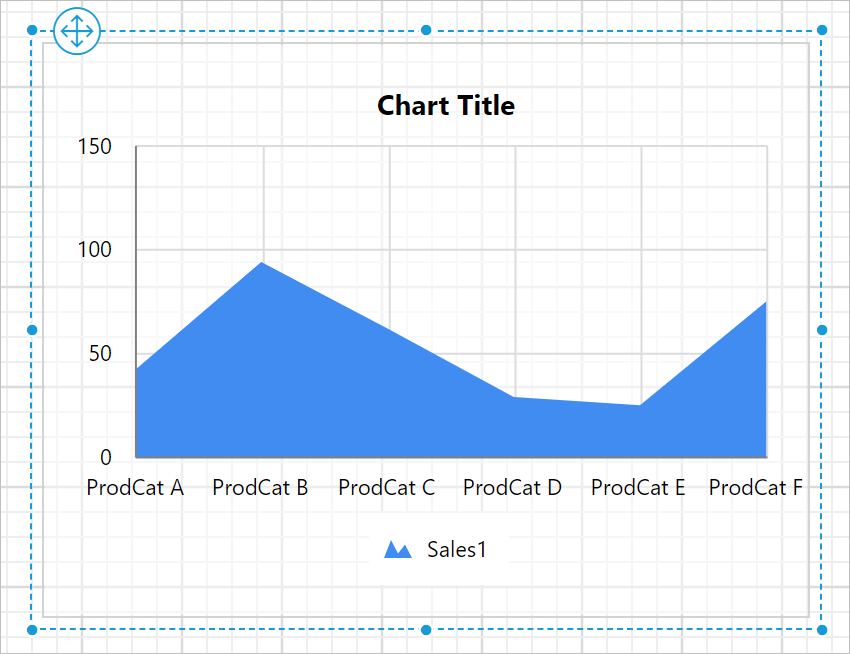
- Grouping:
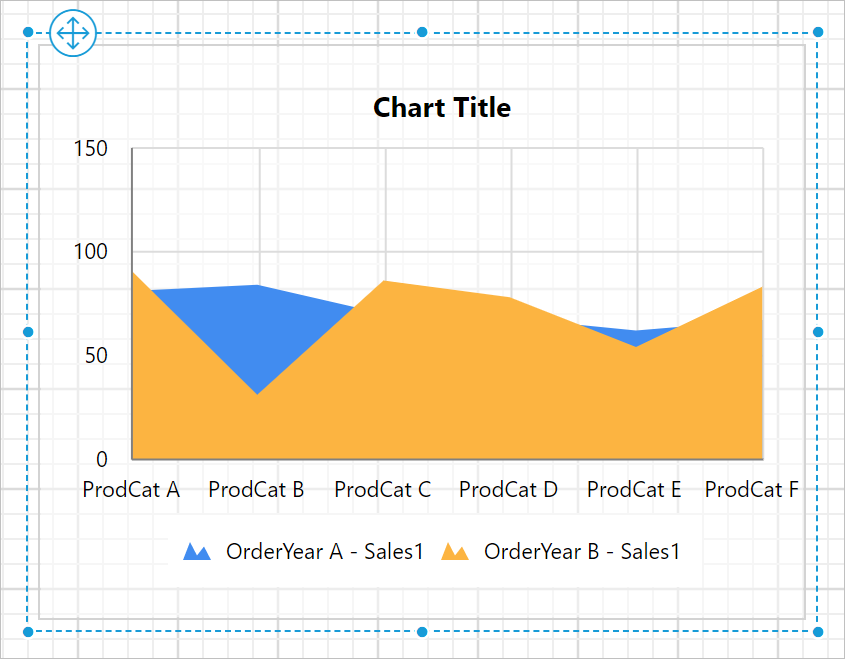
You can group the added column element with another column, by adding the respective dimension element into Row(s) section.
 Now, the report item design will look like below.
Format area chart
You can format the area chart for better illustration of the view that you require, through the settings available in Properties tab.
To format area chart follow the below steps:
- Drag and drop the area chart into design area and resize it to required size.
- Configure the data to the area chart.
- Focus on the area chart and click
Propertiesicon in the configuration panel, the property pane opens.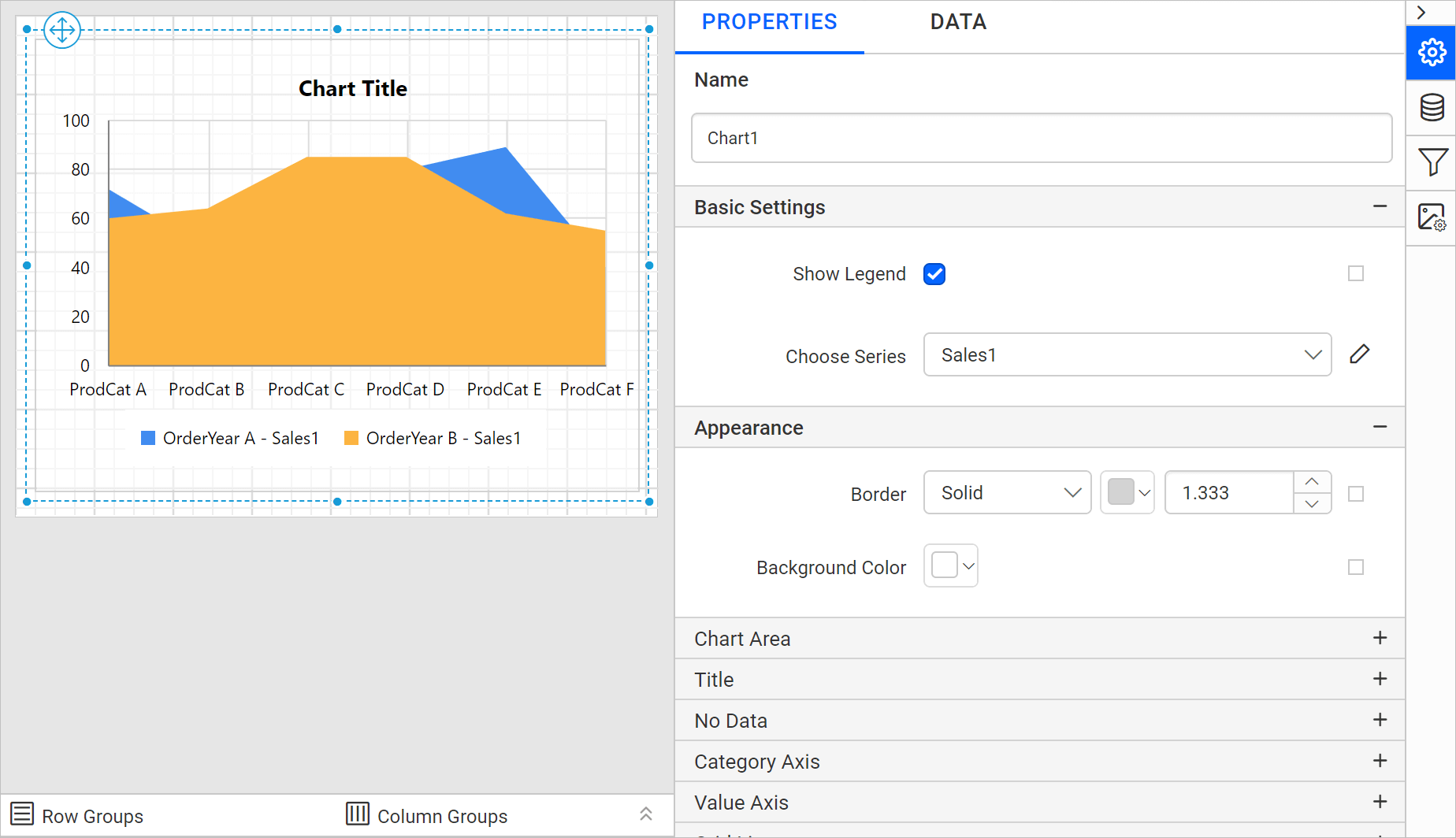
You can see the list of properties available for the widget with default value.
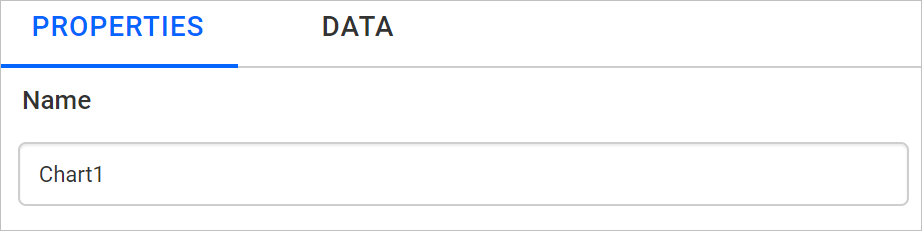
Name
Name property can be used to provide an unique name to the chart item in the report.
Basic Settings
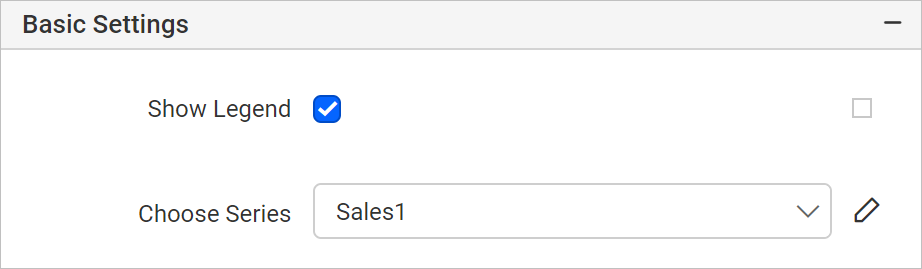
Show Legend
A Legend is a text used to describe the data plotted. This allows you to toggle the visibility of legend in chart and also you can customize the legend text appearance. To set/reset legend properties, refer Show Legend property.
Choose Series
You can add multiple series to the chart and the available series will be listed in the Choose Series drop-down. To customize the series appearance choose the required series name in the drop-down.
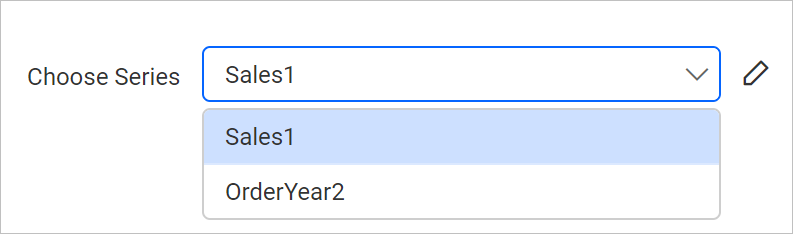
Refer Series section, to customize each series using the properties panel.
Appearance
The border style, color, width and background color properties can be used to style the chart and customize its appearance in the report design. These properties are listed under the Appearance category in the properties panel.
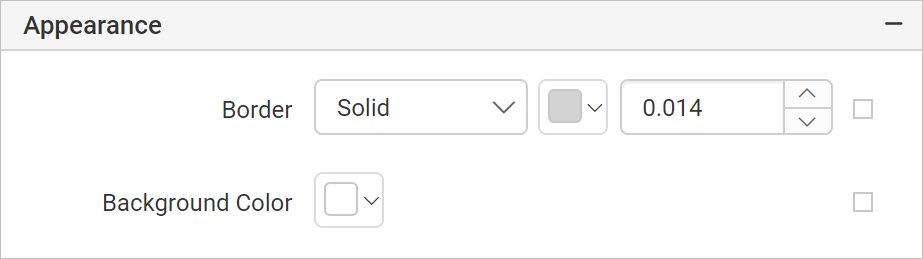

Chart Area
Chart Area properties such as border width, color, shadow color, shadow offset and background color can be used to customize the area of the chart design.
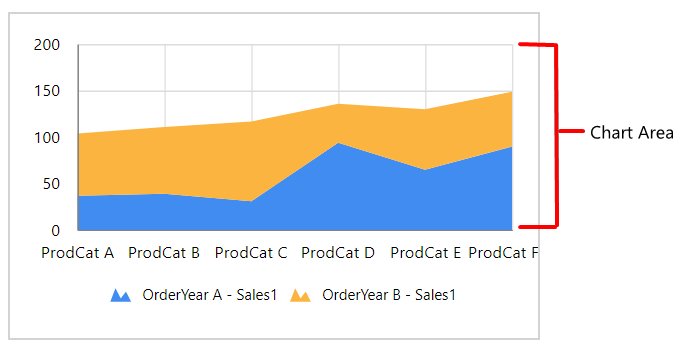
These properties are listed under Chart Area category.
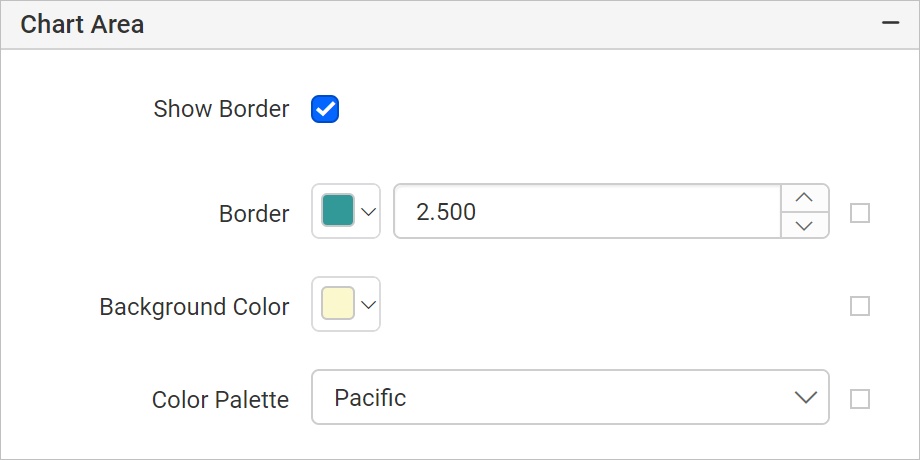
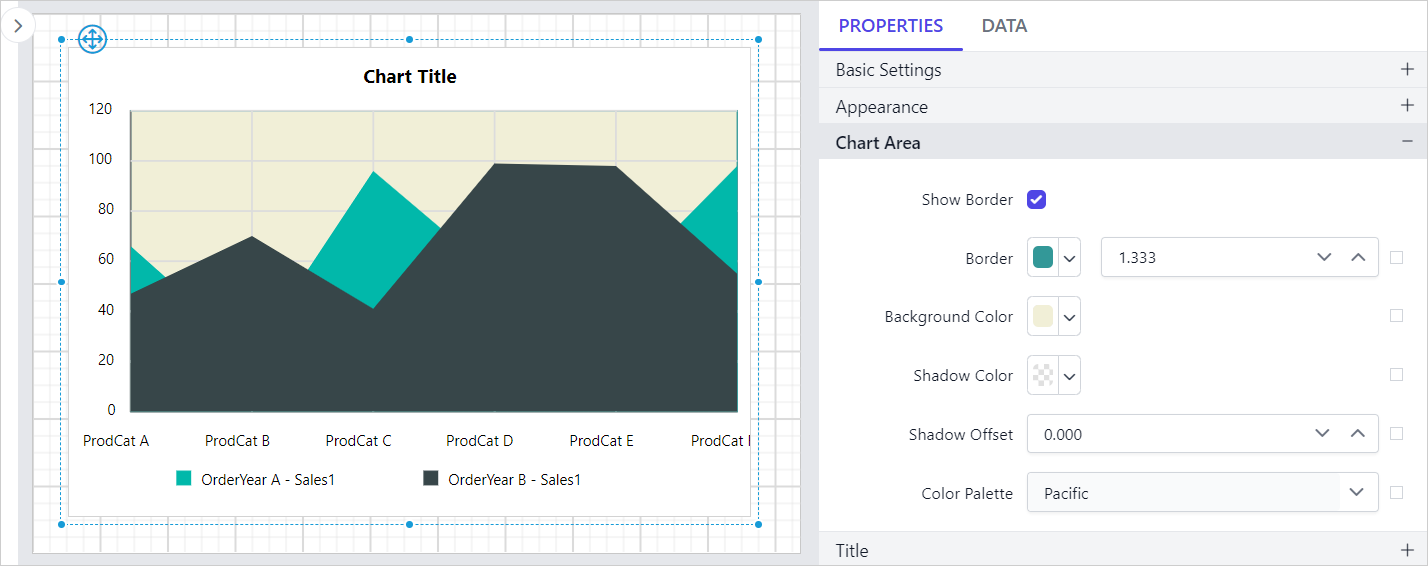
Use Color Palette property to customize the color of the chart.
Title
The chart title can be customized by editing the Title Text property of the chart.
To show/hide the chart title, toggle the Show Chart Title checkbox.
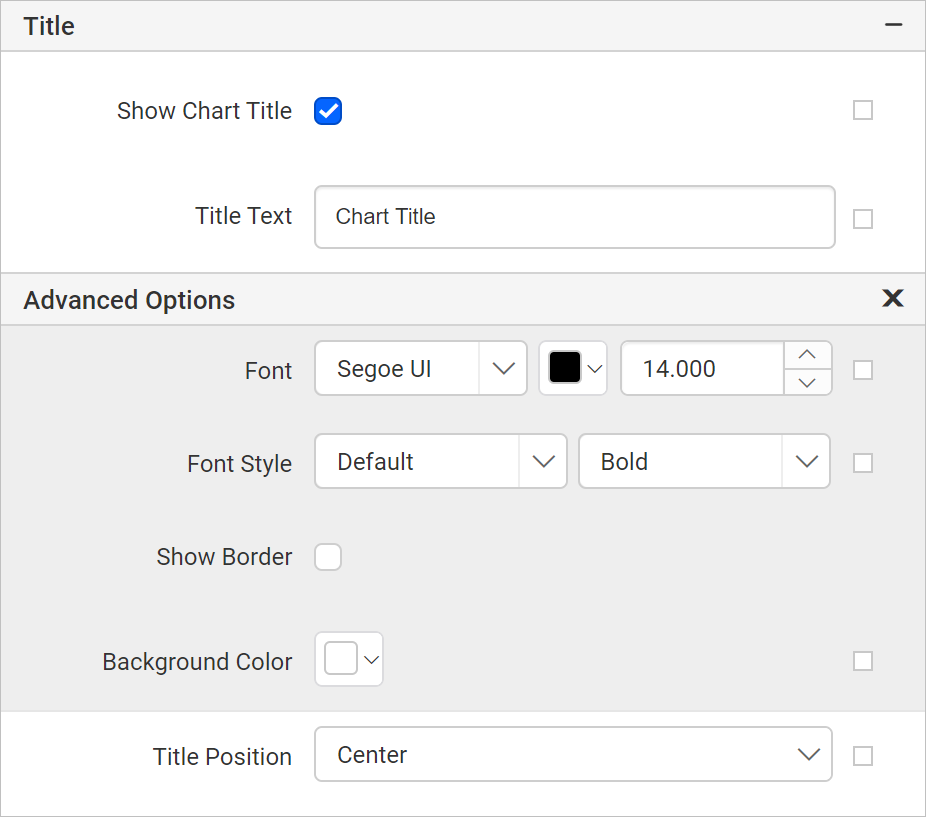
Using these properties the font color, font text, font style, border, background and position of the title can be customized in the chart design.
No Data
No Data property is used to display static text when dataset results with a empty or zero rows at run time.
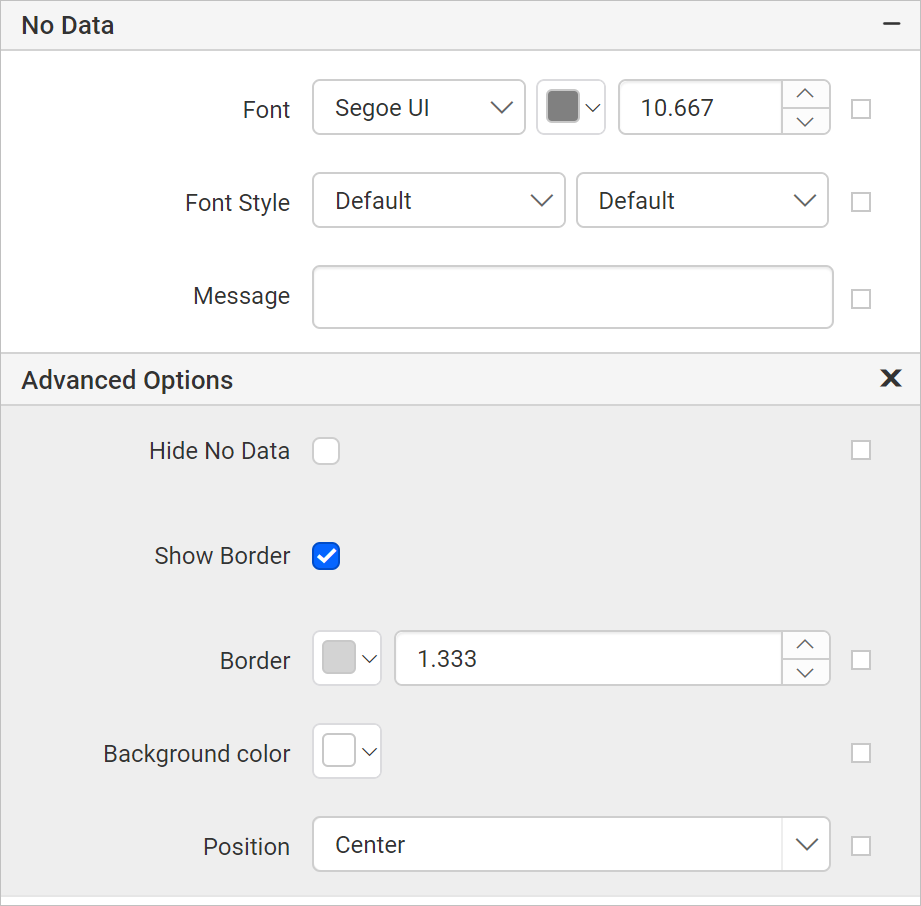
To set/reset no data message properties, refer No Data Message property section.
Category Axis
Category axis displays the text labels instead of numbers. To use the categorical axis, toggle the Enable Axis checkbox under Category Axis category in the chart properties.
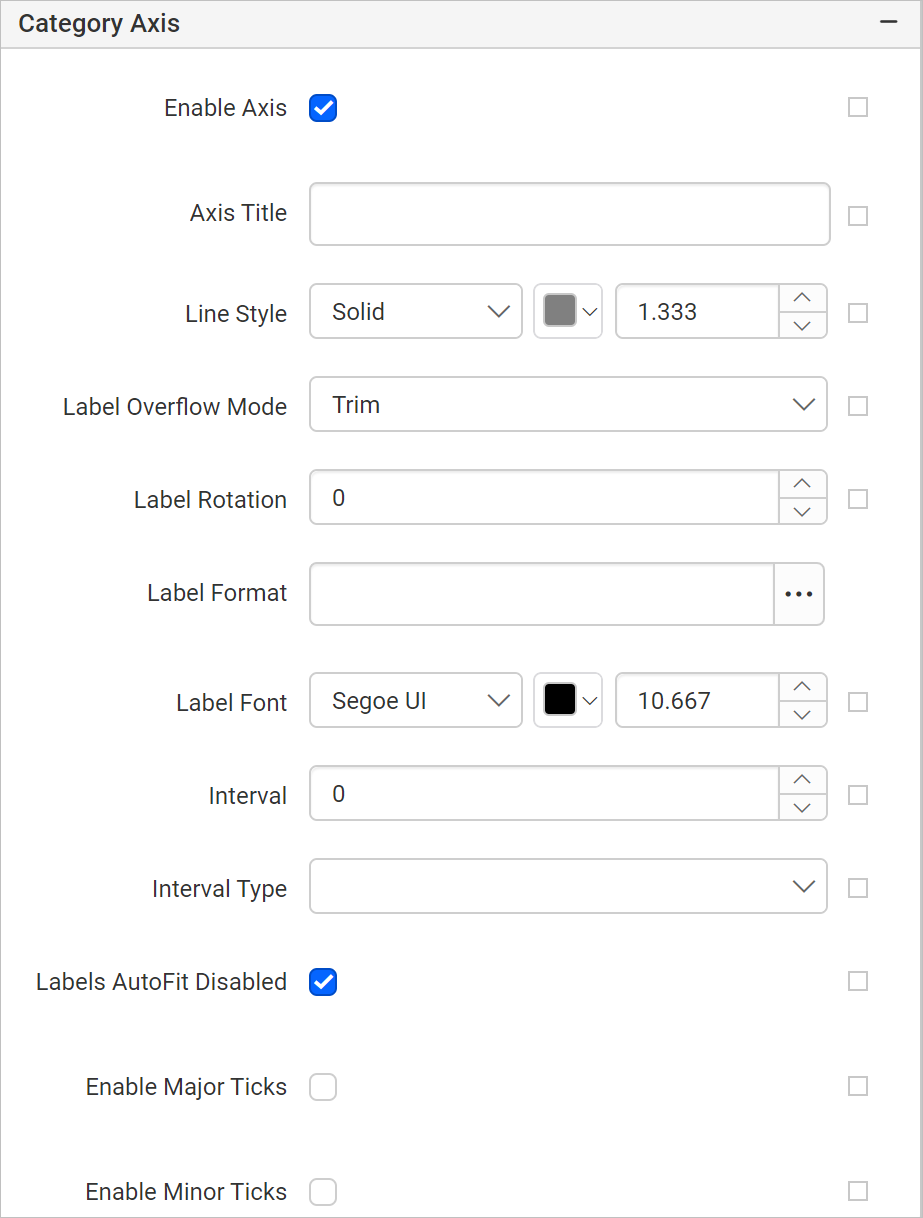
To set/reset axis properties, refer Axis Properties property.
Value Axis
Value axis uses numerical scale and displays numbers as labels. To use the value axis, toggle the Enable Axis checkbox under Value Axis category in the chart properties.
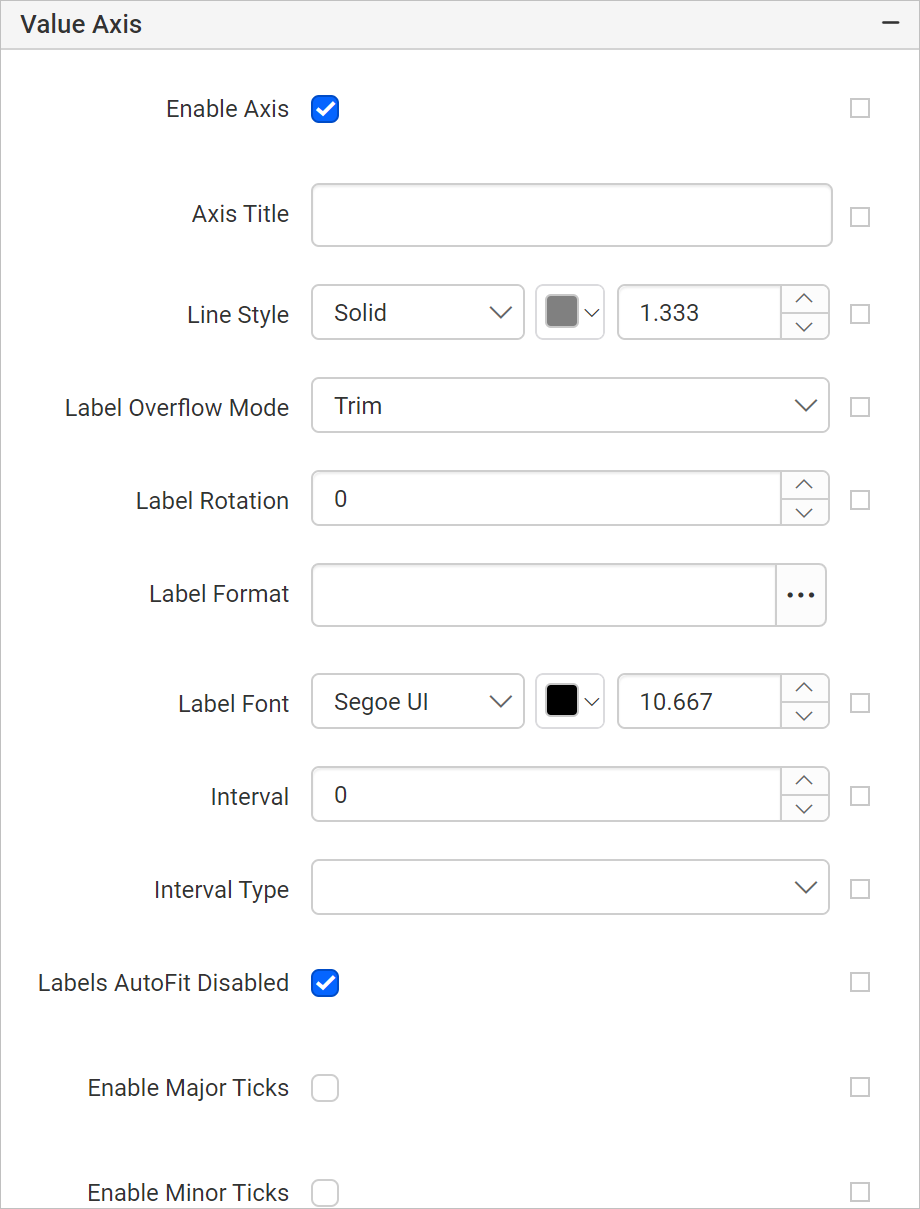
To set/reset axis properties, refer Axis Properties property.
Grid line
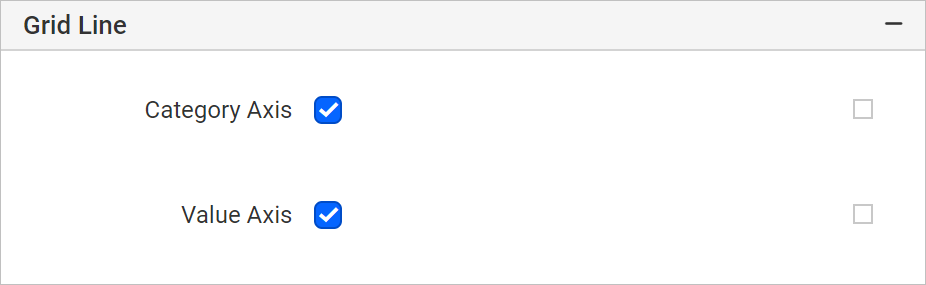
The Grid line properties can be set to category and value axis.
Category Axis
To show the grid line for category axis, enable the Category Axis checkbox.
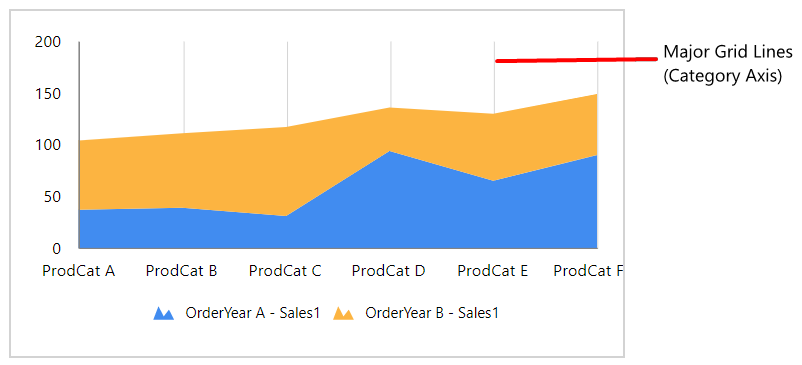
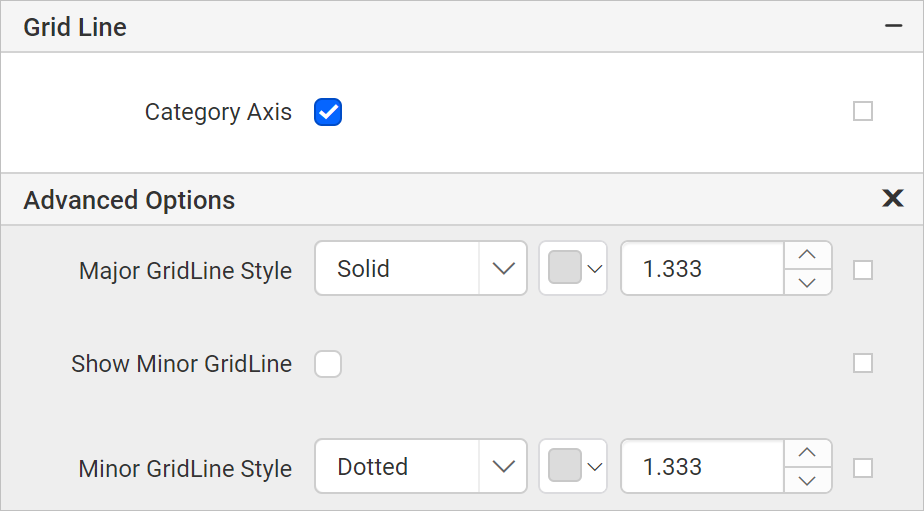
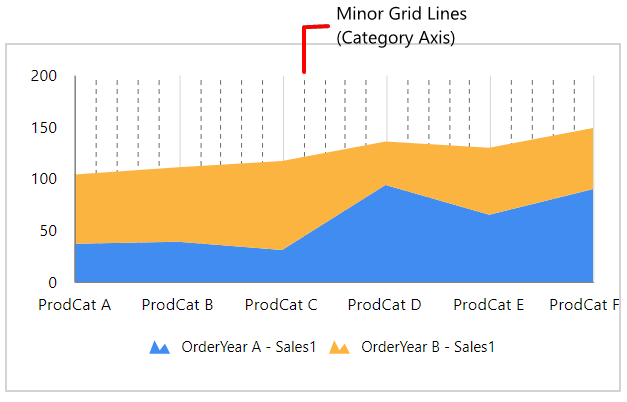
You can also enable the Minor Grid Lines and customize the major and minor gridline style and color in the Advanced Options menu.
Value Axis
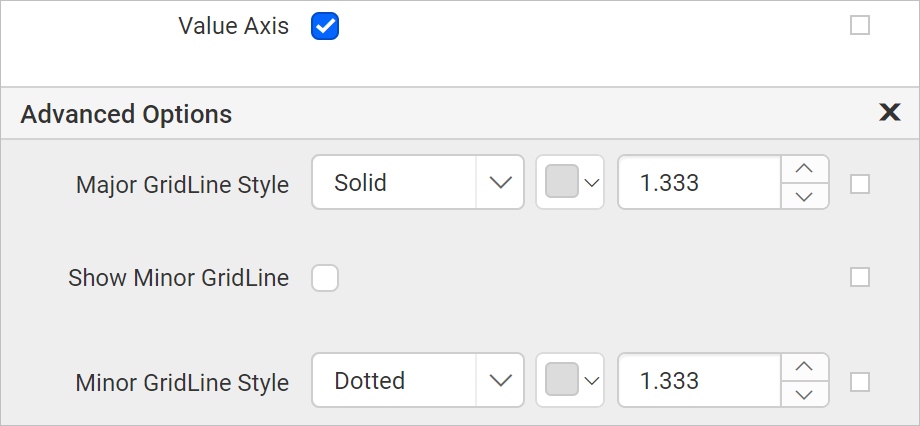
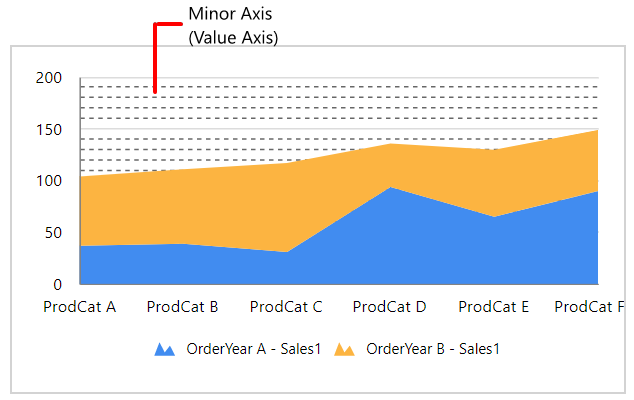
To show the grid line for value axis, enable the Value Axis checkbox.
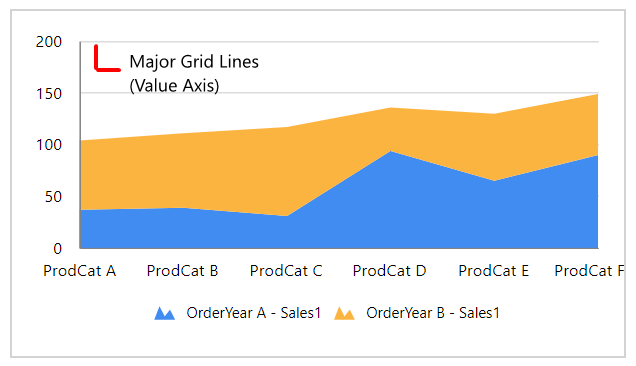
You can also enable the Minor Grid Lines and customize the major and minor gridline style and color in the Advanced Options menu.
Page break
The page break property can be used to control the amount of information on each page when you preview the report. Follow the below steps to apply page break property for chart report item.
-
The Break Location property specifies where the page break should occur. Choose any
Break Locationtype in the drop-down.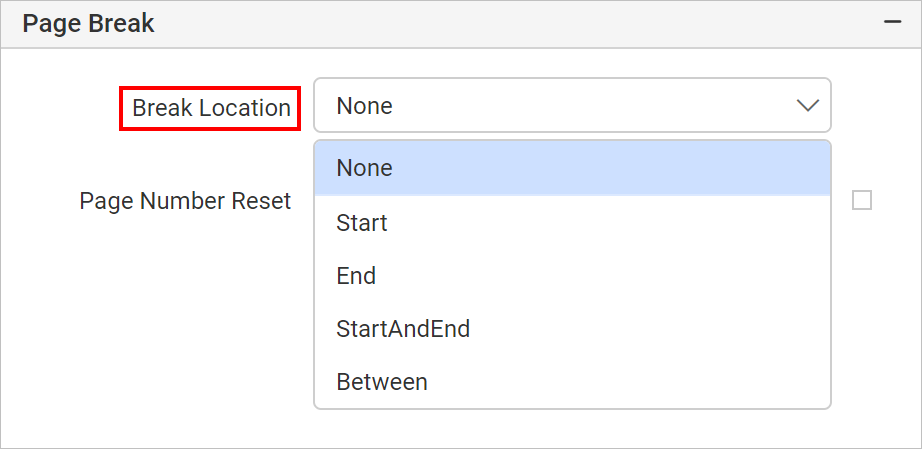
-
To prevent predefined page breaks from being applied during report preview, enable the
Break Disabledproperty checkbox. You can also control the application of page breaks during report preview by using expressions. For details on setting and resetting page breaks dynamically, refer to the Set Expression and Reset Expression sections.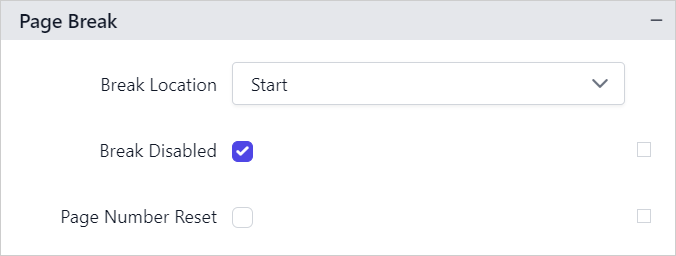
-
To restart page numbering on each page, enable the
Page Number Resetproperty checkbox.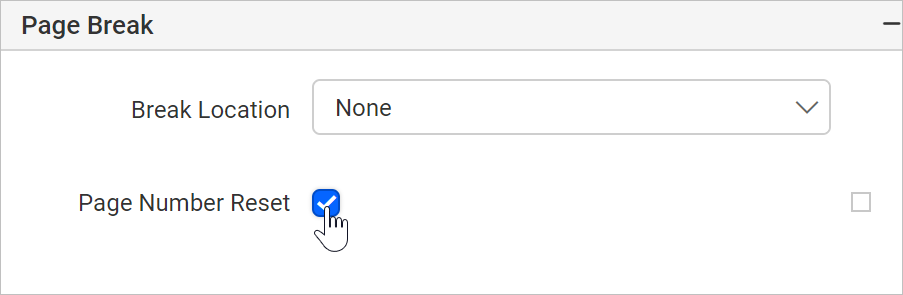
Data Element
Data element can be used to control visibility of a report item when exporting the report in XML format. The Data element properties are listed in the properties panel, under the Data Element category.
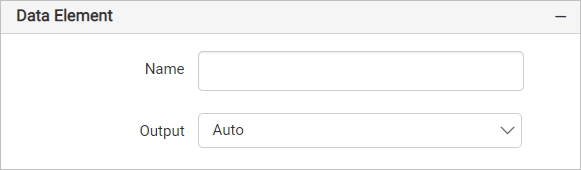
Name
You can assign a custom name for the chart element using the Name field. The chart report item will be exported with the provided name.
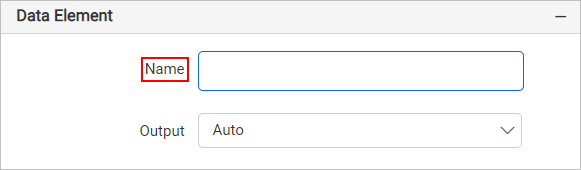
Note: The name cannot contain spaces, and it must begin with a letter followed by letters, numbers, or the underscore character (_).
Output
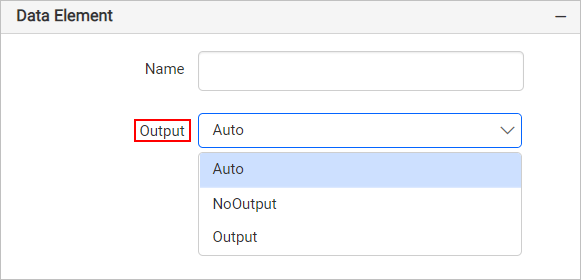
On exporting the report, the visibility of the chart can be controlled using the Output property. Choosing the following options for the Output property will perform the respective operations:
- Auto or Output - Exports the chart report item
- NoOutput - Does not export the chart report item
Miscellaneous
Page name
The page name property is used to name the first worksheet of the Excel workbook, when exporting the report to excel format.

You can set the static or dynamic text as page name. To set and reset dynamic text, refer Set Expression and Reset Expression section.
Document Map
A document map is a navigational feature that displays a separate side pane with set of navigational links in hierarchical structure when you view a report. A user can click the content in the list, to navigate to the report page that displays that item. Refer Document Map section to configure document map in the report design.
You can set the static or dynamic text as value for document map property. To set and reset dynamic text, refer Set Expression and Reset Expression section.
Bookmark
Bookmark links allows the users to navigate to different parts of a SSRS report. You can add bookmarks to each textbox, image, table or chart or to the unique group values displayed in a tablix which can direct the users to specified locations in the report. The value of bookmark property can be your own strings or an expression. Refer Bookmark section to configure bookmark in the report design.
You can set the static or dynamic text as value for bookmark property. To set and reset dynamic text, refer Set Expression and Reset Expression section.
Custom attributes
This property can be used to set the values for chart custom properties. To assign values for custom properties using properties panel refer Custom Properties section.
Tooltip
Tooltip property can be used to display informative text or value, when the user hovers over on the report item in report preview. To set tooltip for chart item using properties panel refer Tooltip section.
Custom Style
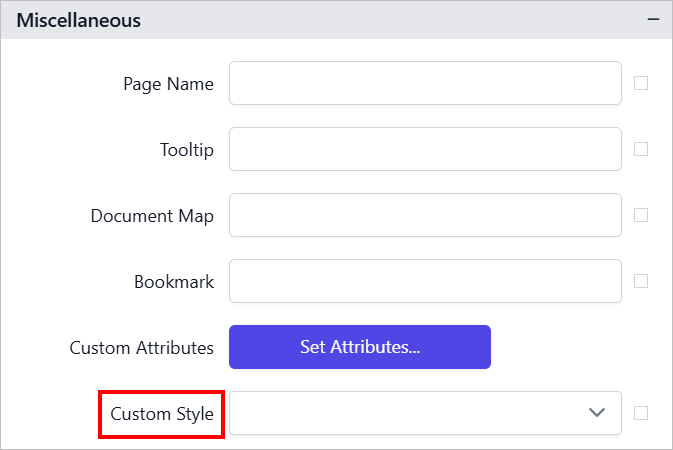
The Custom Style property enables the use of external CSS for styling report items, providing enhanced flexibility beyond the built-in styling options. This property allows you to meet specific design requirements and maintain consistent styling across multiple reports. For a step-by-step guide on setting up custom styles in your report, check the How To section of this guide.
Preview report
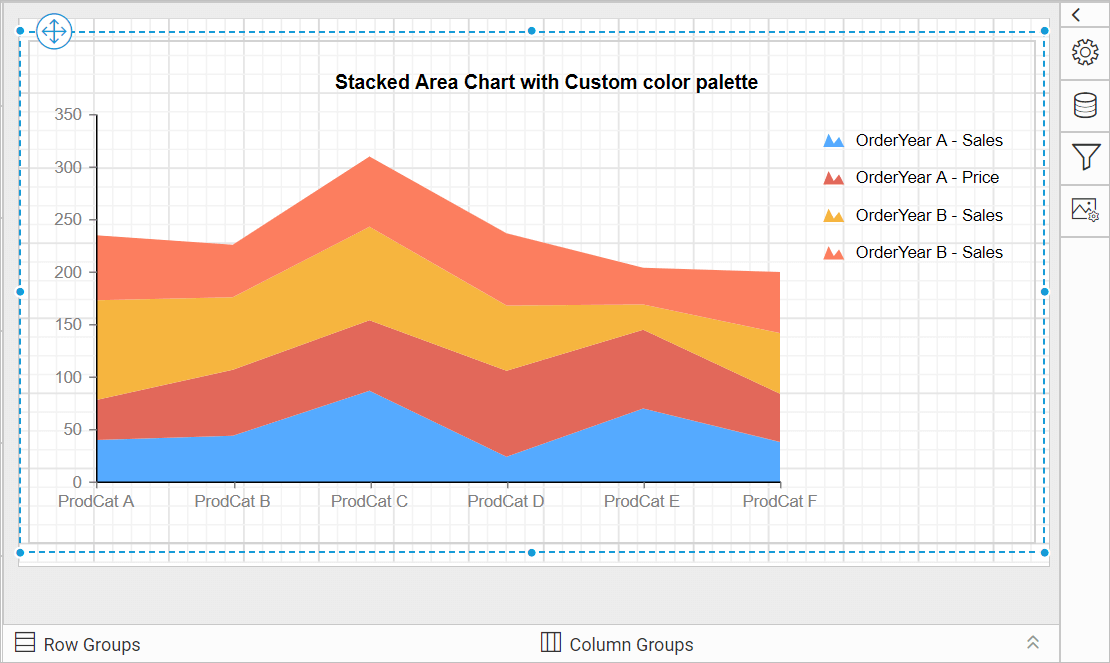
- The final report design looks like below.
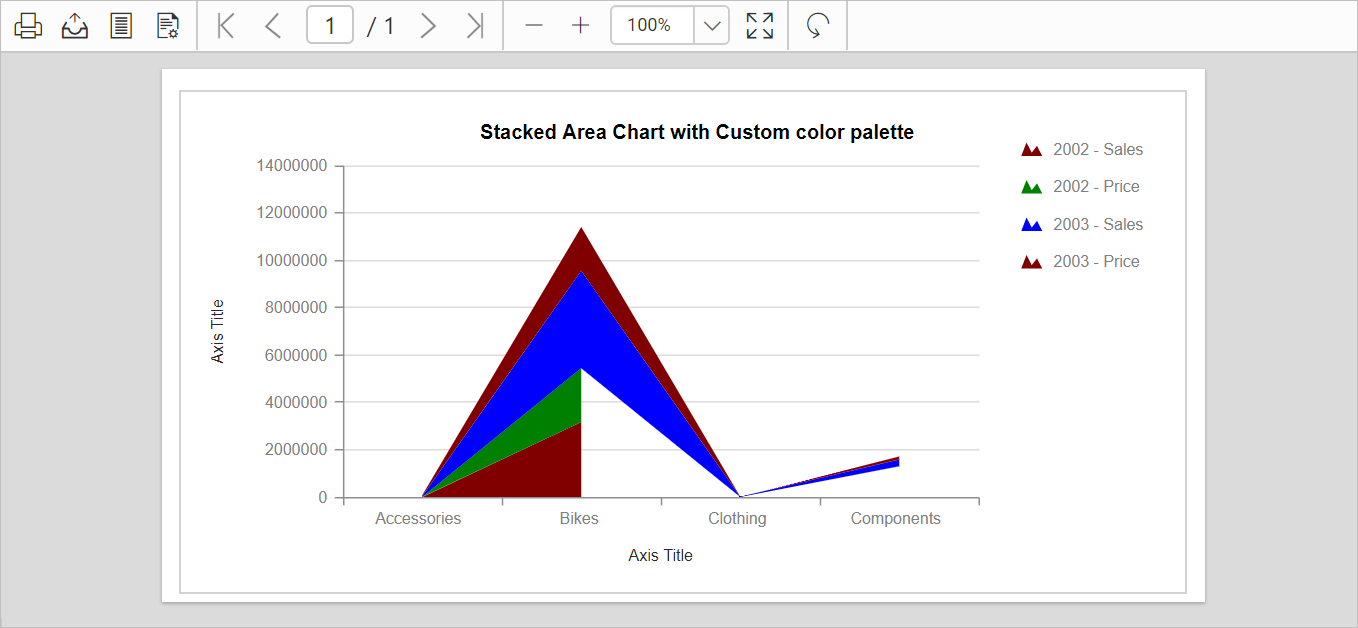
- Now, the report preview can be visualized like below.
Download the above report design from link.