Connect to MongoDB data source
The Bold Reports® allows you to connect to a MongoDB data source.
Create a MongoDB data source
To configure the MongoDB data source, follow the below steps:
- Click the Data icon in the configuration panel.
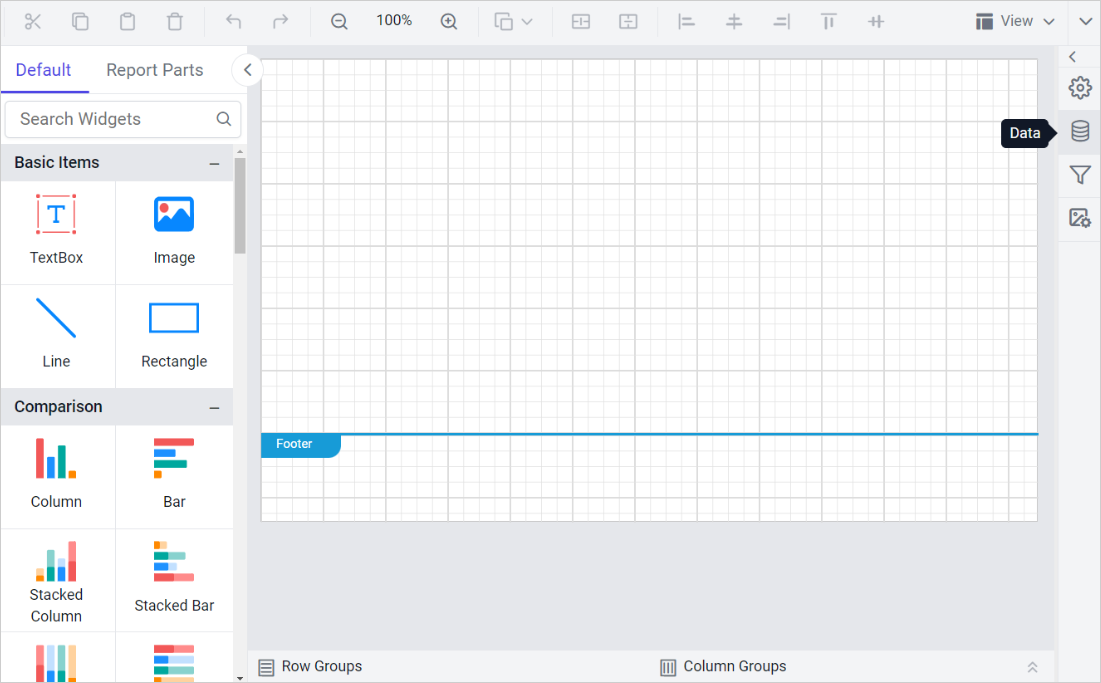
- In the
DATAconfiguration panel, click on theNEW DATAbutton.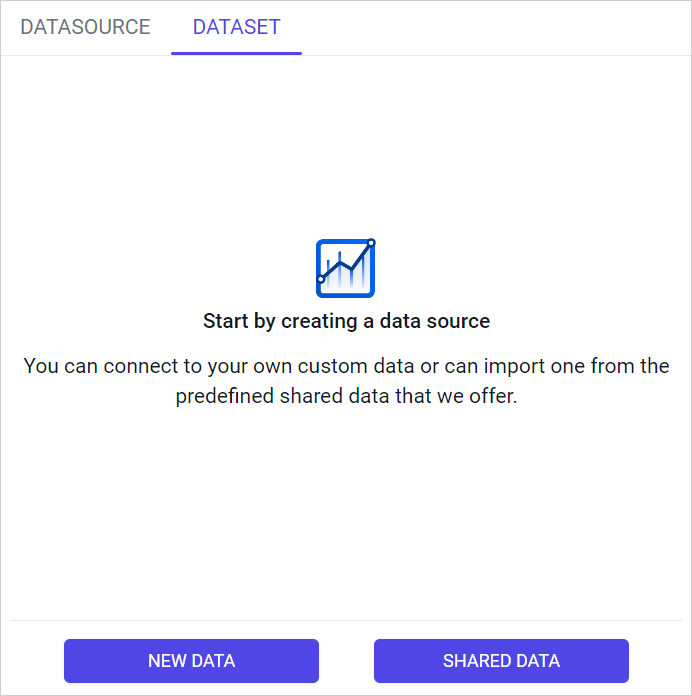
- In the connection type panel, choose the
MongoDBdata source type.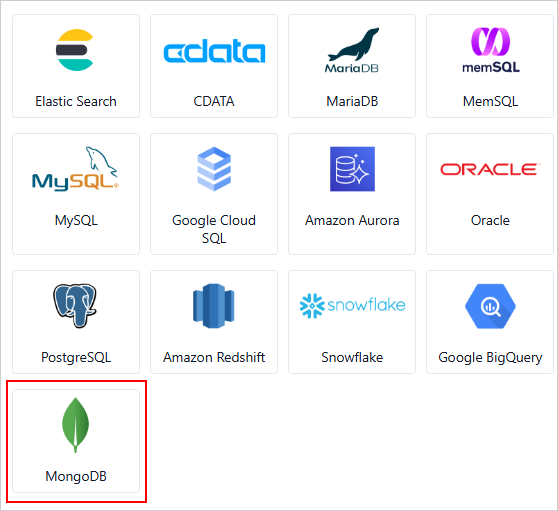
Create MongoDB data source with basic options
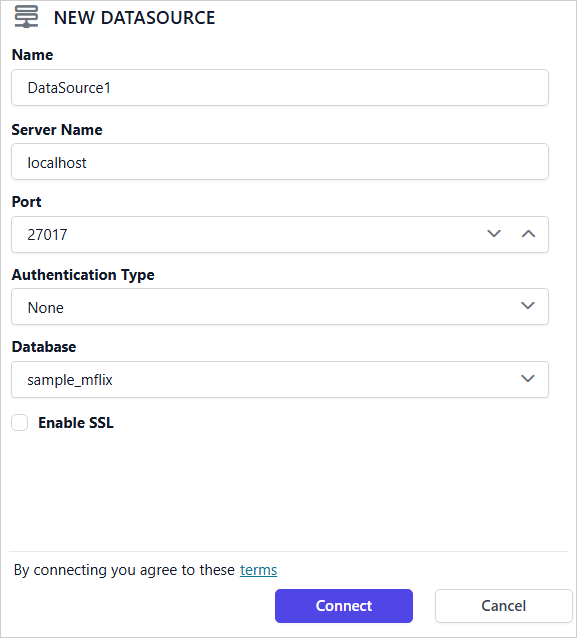
When you create a new data, the NEW DATASOURCE panel will show up with basic options,
-
Specify the data source name without special characters, in Name field.
-
In Connection string scheme field, choose mongodb or mongodb+srv.
-
In the Host field, specify one or more host and port combinations.
For single host: host1:27017
For multiple hosts (e.g., for replica set or sharded cluster): host1:27017,host2:27018
-
In the Options field, you can provide any valid connection string options separated by &.
Example: tls=true&retryWrites=true&replicaSet=mySet&readPreference=primary
-
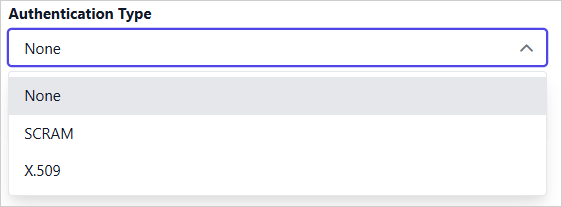
In Authentication Type field, choose None or SCRAM or X.509 authentication.
-
Choose an existing valid database. e.g. sample_mflix.
-
Click on the
Connectto proceed with query design pane. Now, enter the required query and execute. Its corresponding values will be shown in grid for preview.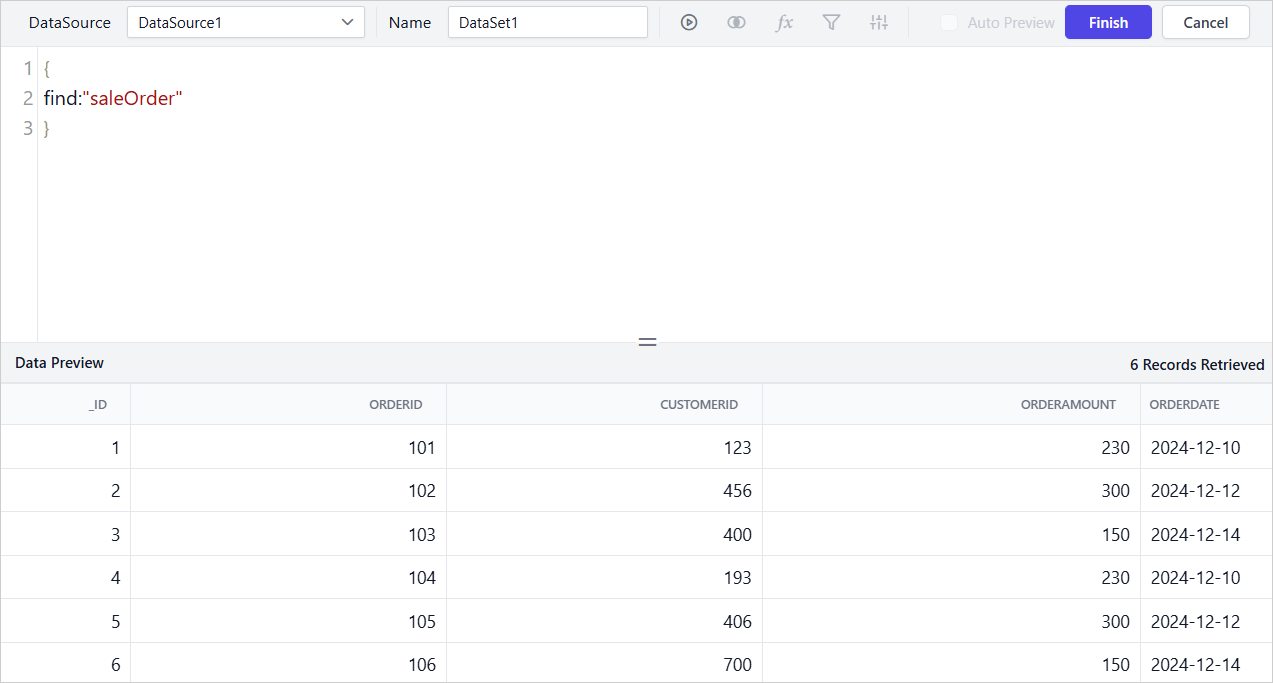
Only query mode is supported for MongoDB data source.
-
Click
Finishto save the data source with a relevant name to proceed with designing report.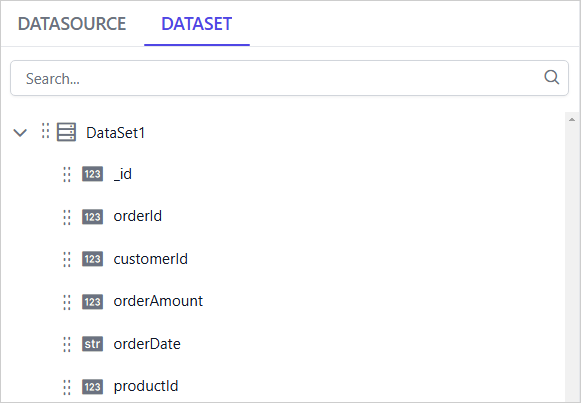
Connection string scheme
You can set connection string scheme, either as mongodb or mongodb+srv.
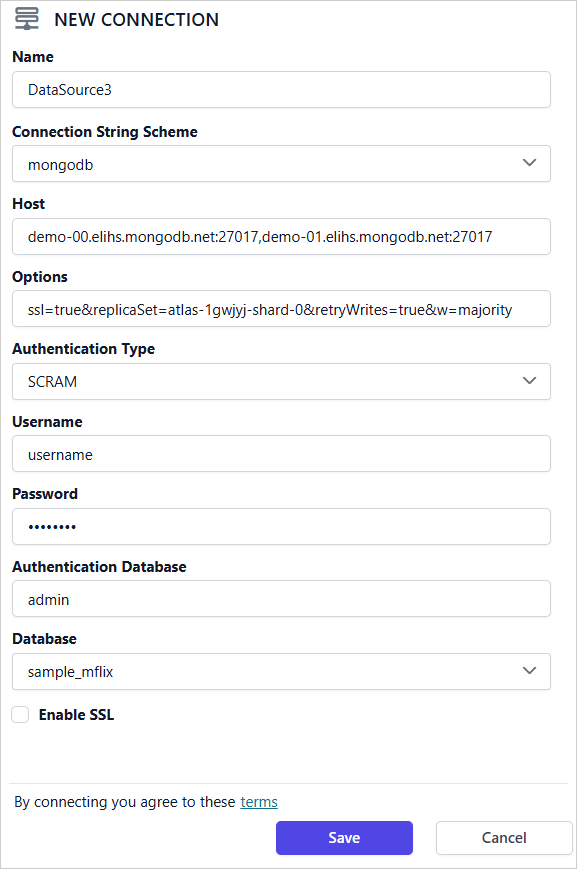
If the user wants to connect using the standard connection format, choose mongodb under Connection string scheme.
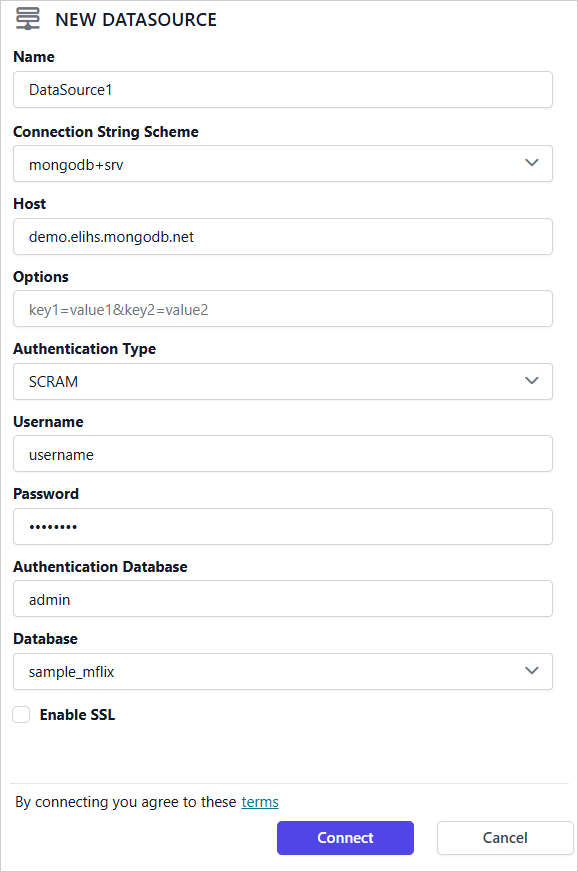
If the user wants to connect to a cloud-hosted MongoDB (such as Atlas) using DNS-based host discovery without specifying ports, choose mongodb+srv under Connection string scheme.
Authentication types
You can set authentication type, either as None or SCRAM or X.509.
If your MongoDB server does not require authentication, choose None under Authentication Type.
If your MongoDB server requires a username, password, and authentication database, choose SCRAM as the Authentication Type and enter the username, password, and authentication database for the server specified Server Name field.
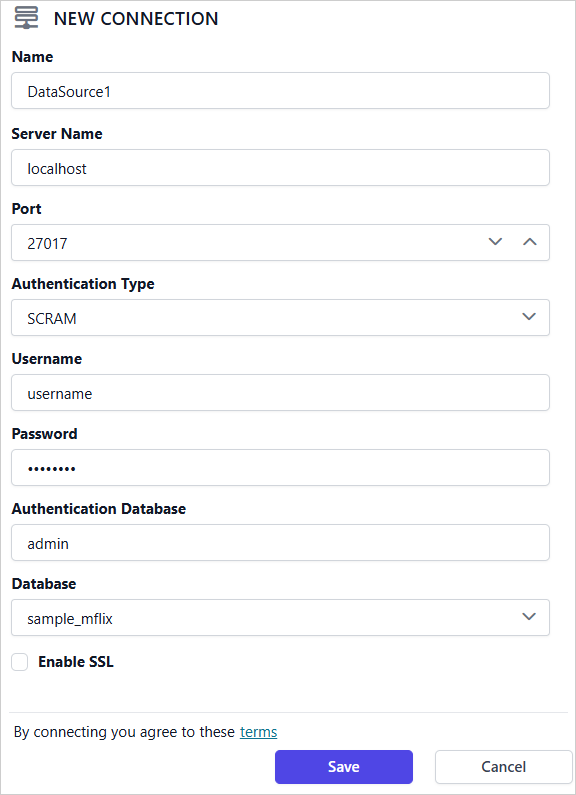
For SCRAM authentication, the authSource parameter is configured through the Authentication Database field in the UI. Therefore, it should not be duplicated in the Options field.
If your MongoDB server uses SSL encryption with client certificates, Choose X.509 under Authentication Type and provide the Client Certificate File and Client Certificate Password for the server specified in the Server Name field.
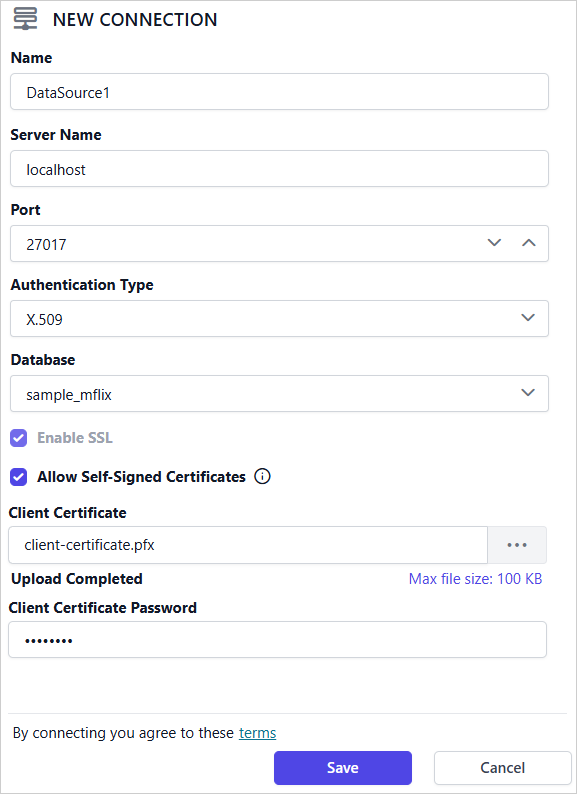
Enable Allow Self-Signed Certificates if the MongoDB server configured to accept self signed certificates.
Connecting to MongoDB Datasource through SSL
You can connect to MongoDB data sources securely using an SSL/TLS connection. This ensures encrypted communication between the client and the MongoDB server, providing a secure method to access remote databases over untrusted networks.
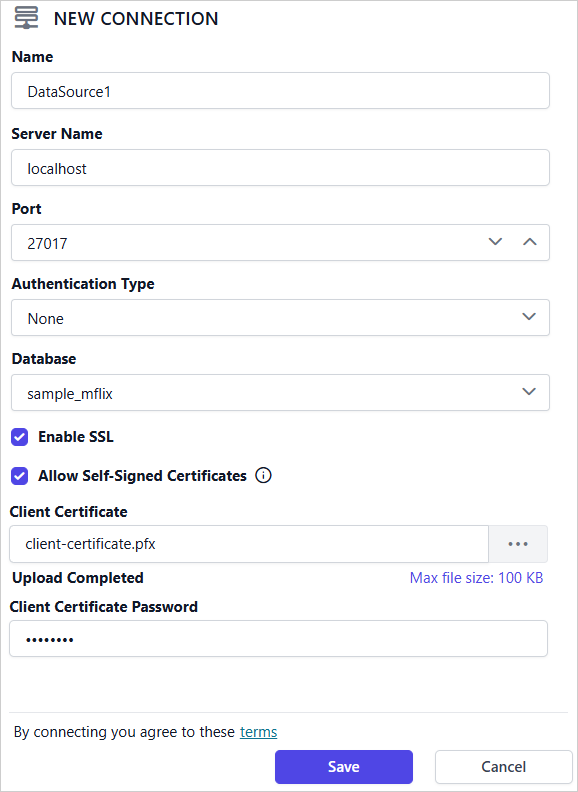
Client Certificate: The SSL certificate used for client authentication when connecting to the MongoDB server.
Client Certificate Password: The password associated with the client certificate, if it is encrypted.
Technical Considerations for MongoDB Connections
- MongoDB integration in Bold Reports® uses the
runCommandmethod, allowing interaction with one database context per connection. Query execution is always scoped to the selected database. - When using SSL or X.509 authentication, MongoDB often provides the client certificate in .pem format. Since the .NET driver does not support .pem files directly, you must convert it to .pfx format. A password is required during this conversion and must be provided in the Client Certificate Password field along with the .pfx file in the UI.
- The Options field must only be used to specify additional connection parameters that are not available through the UI. Do not duplicate or override values already configured through dedicated UI fields.
- In cases where SSL/TLS is required without using a client certificate (e.g., when connecting with username and password over SSL), you may enable
tls=truedirectly in the Options field.
Sample Queries
The MongoDB data source in Bold Reports® Designer supports Code Mode for querying data. Internally, the connector uses the MongoDB runCommand to execute queries on the connected database. Following are few of the sample queries to retrieve data.
-
Retrieve all documents from a collection
{ find:"products" } -
Filter documents with condition
{ find:"products", filter:{productId: "PRD123"} } -
Sorting data
{ find:"products", sort:{price: -1} } -
Filter documents with multiple conditions
{ find: "products", filter: { "orderDetails.date": { $gt: ISODate("2022-01-09")}, "orderDetails.status": { $in: ["Shipped", "Processing"] }, $and:[ {"payment.totalAmount": { $not: { $gt: 1000 } }}, {"payment.totalAmount": { $type: "double" }} ] } } -
Filter documents using parameter
{ find: "orders", filter: { "payment.method": @paymentType, "payment.totalAmount": { $gte: @amount }, "orderDetails.date": { $gte: @greater} } } -
Filter documents using multi value parameter
{ find: "orders", filter: { orderId: { $in: [@param] } } } -
Lookup (Join) between collections
{ aggregate: "orders", pipeline: [ { $lookup: { from: "customer", localField: "customerId", foreignField: "Id", as: "customerDetails" } } ], cursor: {} } -
Unwind array fields
{ aggregate: "orders", pipeline: [ { $unwind: "$items" } ], cursor: {} } -
Flatten a nested object
{
   aggregate: "orders",
   pipeline: [
      {
         $project: {
         customerId: "$customer.customerId",
         name: "$customer.name",
         email: "$customer.email",
         phone:"$customer.contact.phone",
         street:"$customer.contact.address.street",
         city:"$customer.contact.address.city",
         state:"$customer.contact.address.state",
         postalCode:"$customer.contact.address.postalCode",
         country:"$customer.contact.address.country",
         }
      }
   ],
   cursor: {}
}
Bold Reports® uses MongoDB’s runCommand syntax internally to execute queries. This means you can write your queries in the same format supported by MongoDB’s runCommand. For more advanced query scenarios, you can search online for MongoDB runCommand examples or refer to the official MongoDB documentation. These examples will help you construct queries compatible with Bold Reports’ MongoDB connector.