Connect to AWS Secrets Manager
The Bold Reports® allows you to connect to AWS Secrets Manager to dynamically retrieve database credentials and connect to your chosen database (e.g. SQL Server, PostgreSQL, and MySQL) within reports. This enhances security by centralizing credential management.
Create a secret in AWS Secrets Manager
Before connecting Bold Reports® to AWS Secrets Manager, you must first create and configure a secret in your AWS account. This secret will store the credentials for your database.
Follow these steps to create a secret in AWS Secrets Manager:
-
Sign in to the AWS Management Console and open the Secrets Manager console. You can access it here: AWS Secrets Manager Console
-
In the Secrets Manager console, choose
Secretsoption from the left navigation panel, then click on theStore a new secret.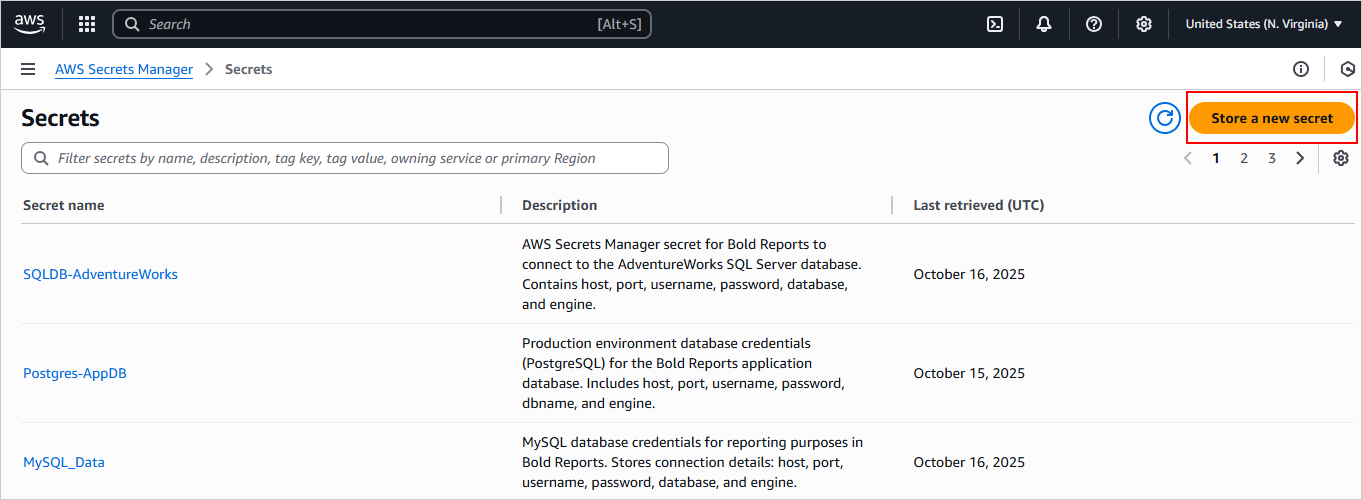
-
On the Choose secret type page, select the
Other type of secretoption. This allows you to manually define the key-value pairs or provide a custom JSON string for your database credentials.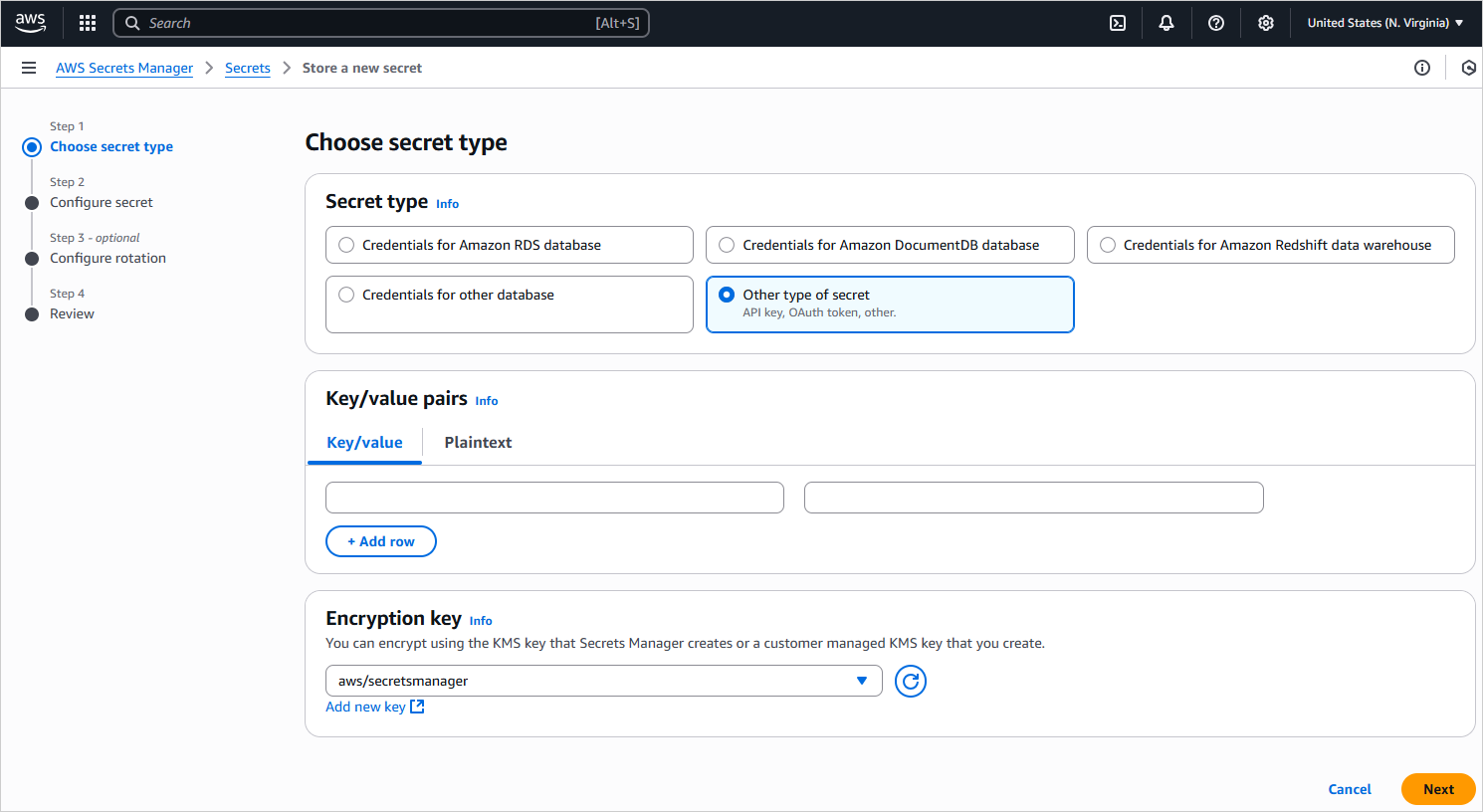
-
In the Key/value pairs section, select the Key/value option then add your database credentials as individual key-value pairs. For proper integration with Bold Reports®, use the following valid keys:
Engine Valid Keys SQL Server server, data source, initial catalog, database, user id, uid, pwd, password, trusted_connection, integrated security, persist security info, encrypt, trustservercertificate, certificate, port, connect timeout, connection timeout MySQL server, host, port, database, db, uid, user id, userid, username, user, user name, pwd, password, sslmode, ssl mode, tlsversion, ssl-ca, sslcert, sslkey, sslverify, use compression, persist security info, allow public key retrieval, connection timeout, connect timeout, default command timeout PostgreSQL server, host, port, database, db, username, user id, uid, user name, pwd, password, sslmode, ssl mode, sslrootcert, sslcert, sslkey, sslcrl, trust server certificate, connect timeout, command timeout, timeout, client_encoding, options, keepalives, keepalives_idle, keepalives_interval, keepalives_count, integrated security, persist security info 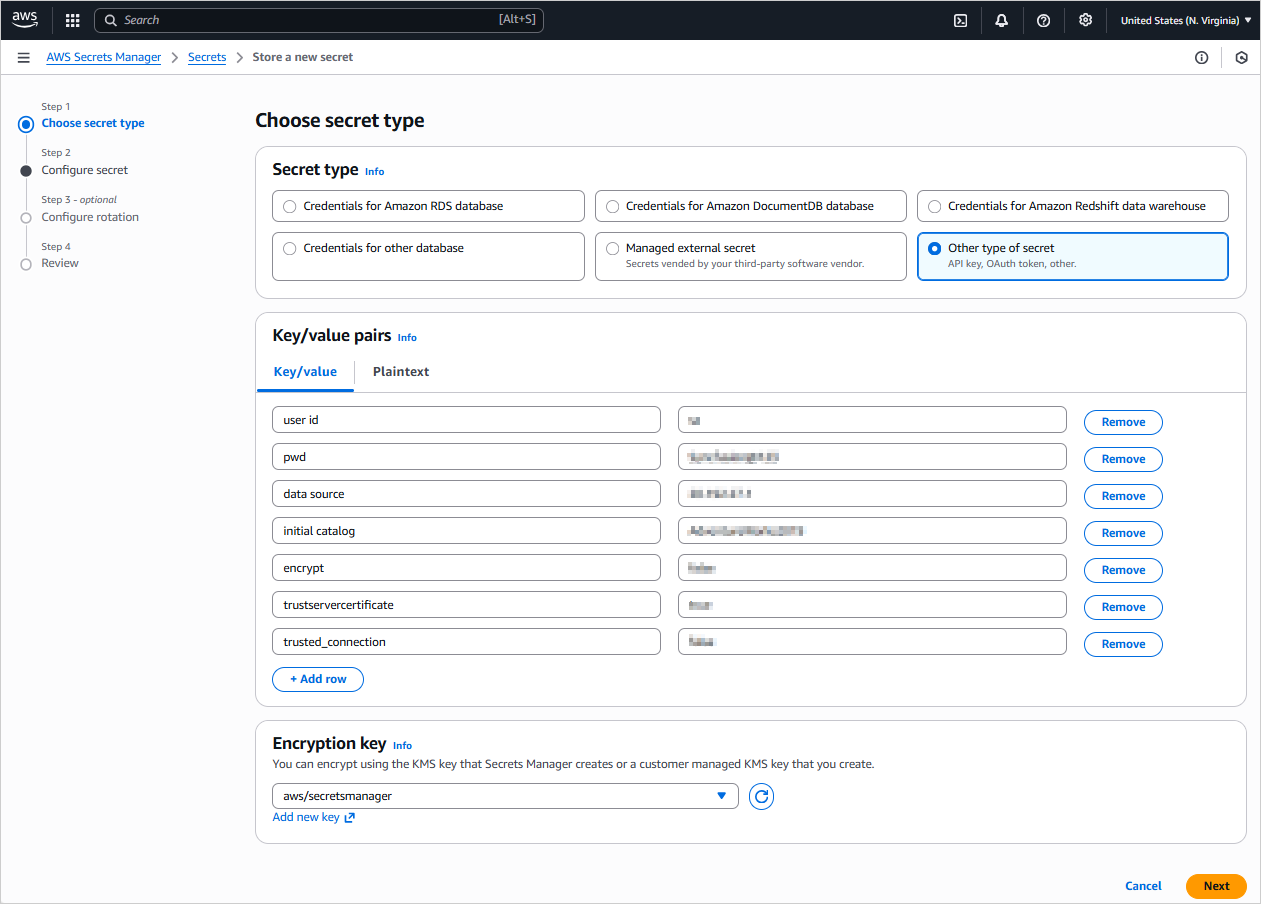
-
In the Configure secret section, enter a
Secret name. You will use thisSecret Namelater when configuring the data source in Bold Reports®. Optionally, add aDescription. ClickNext, then complete the remaining configuration steps (for example rotation settings) until you reach the finalReviewpage.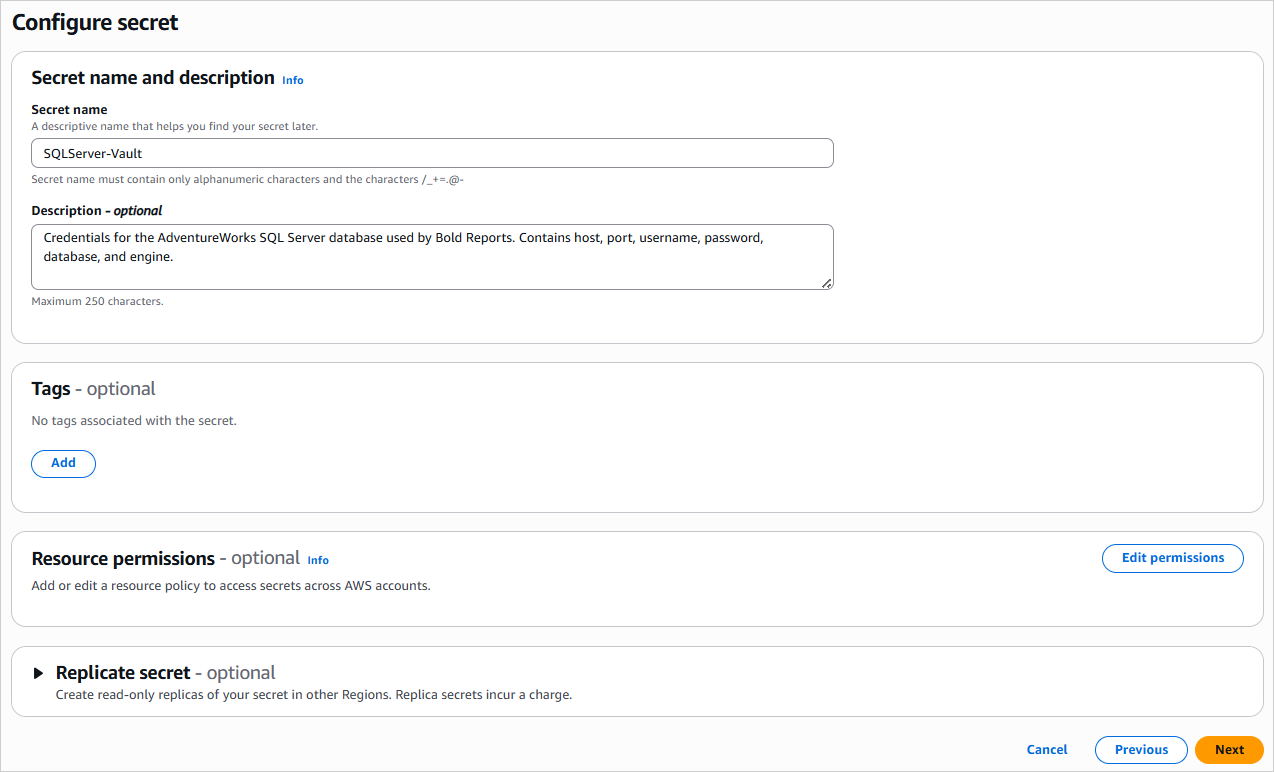
-
On the
Reviewsection, verify all your settings then click on theStoreoption to finalize the creation of your secret.
Your secret has now been created and is ready to be accessed by Bold Reports®.
Create an AWS Secrets Manager data source
To configure the AWS Secrets Manager data source, follow the below steps:
- Click the Data icon in the configuration panel.
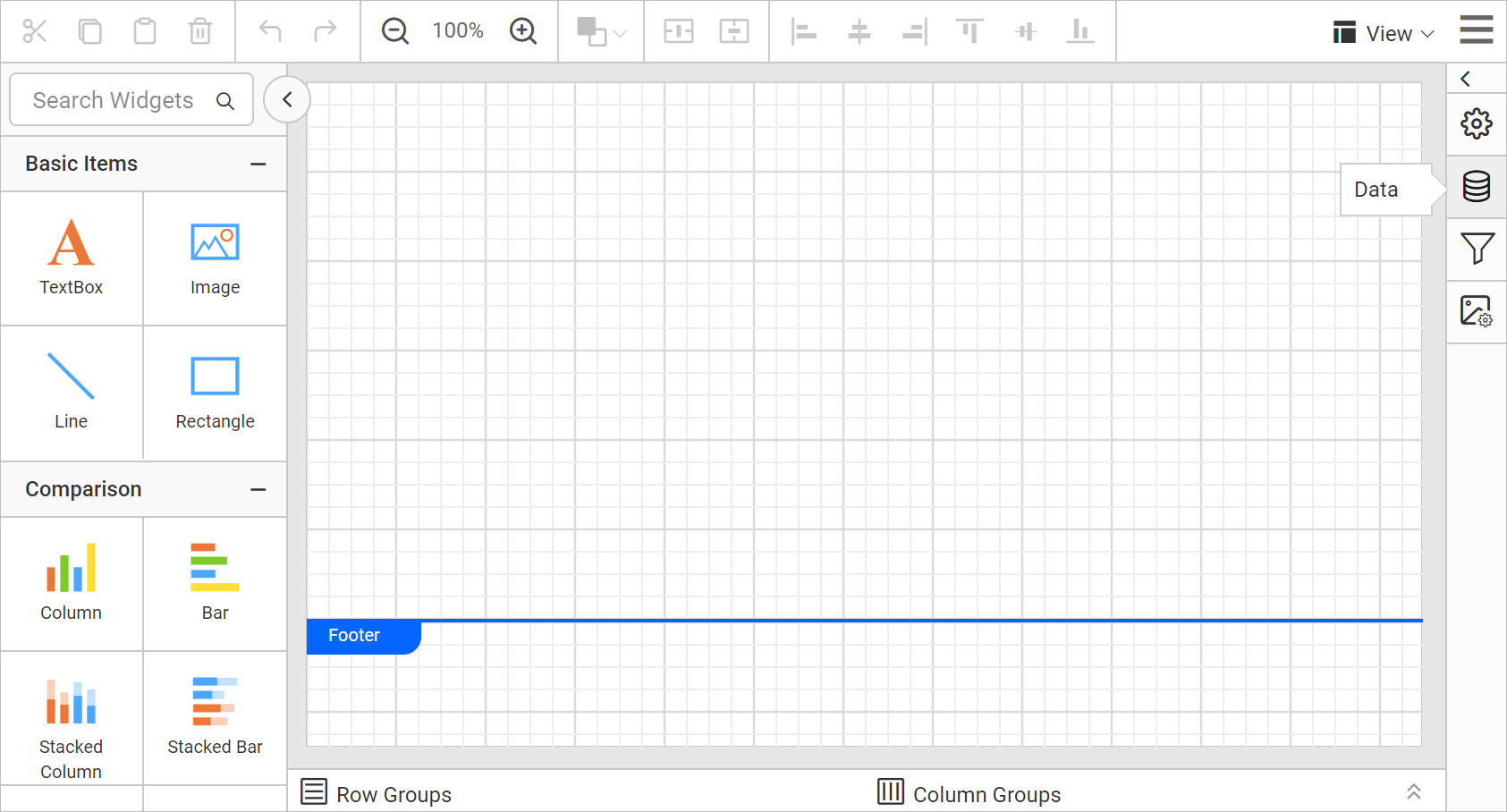
- In the
DATAconfiguration panel, click on theNEW DATAoption.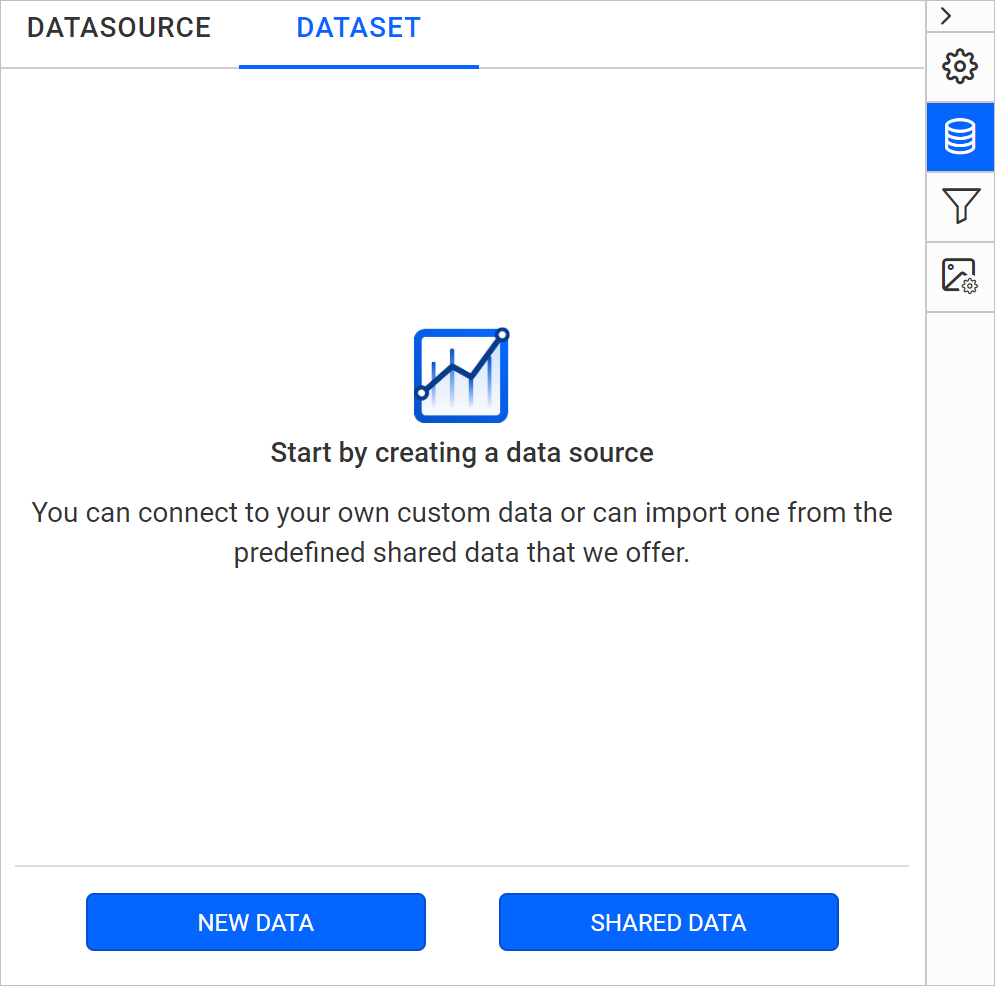
- In the Connection type panel, select
AWS Secrets Manageras the data source type.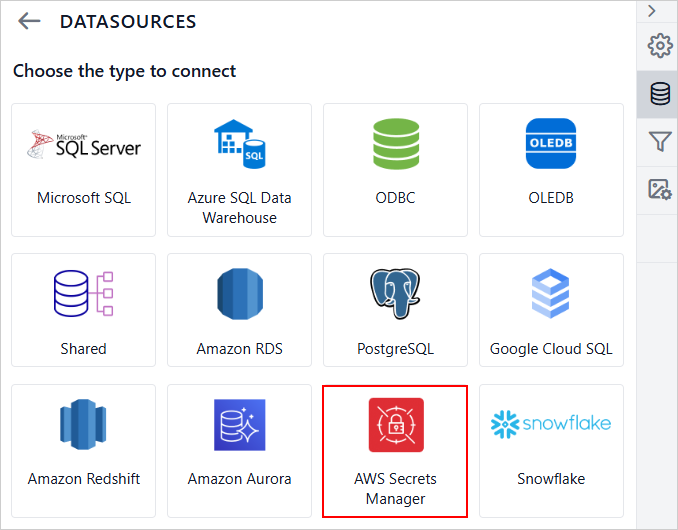
- In the
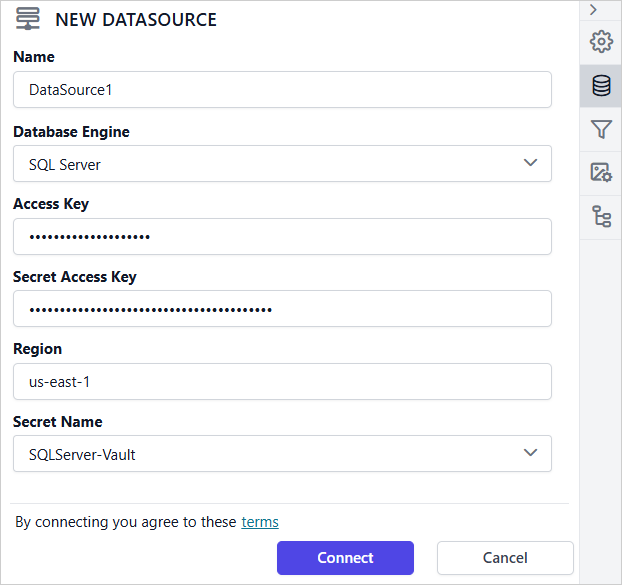
NEW DATASOURCEpanel, provide the following details:- Specify the data source name without special characters in the Name field.
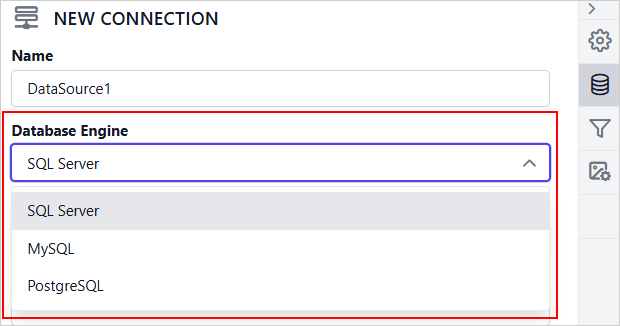
- Select
SQL Serverfrom the Database Engine drop-down to use with the configured AWS Secrets Manager secret. - Enter your AWS Access Key ID in the Access Key text box. This is used to authenticate requests to AWS.
- Enter your AWS Secret Access Key in the Secret Access Key text box. This key is used in conjunction with the Access Key ID for authentication.
- Enter the Region where your AWS Secrets Manager secret is stored (e.g., us-east-1).
- From the Secret Name drop-down, select the secret that contains your database credentials in AWS Secrets Manager (e.g., SQLServer-Vault). The selected secret is expected to contain the following SQL Server connection string key-value pairs: data source, user id, pwd, initial catalog, encrypt, trustservercertificate and trusted_connection.
- Click on the
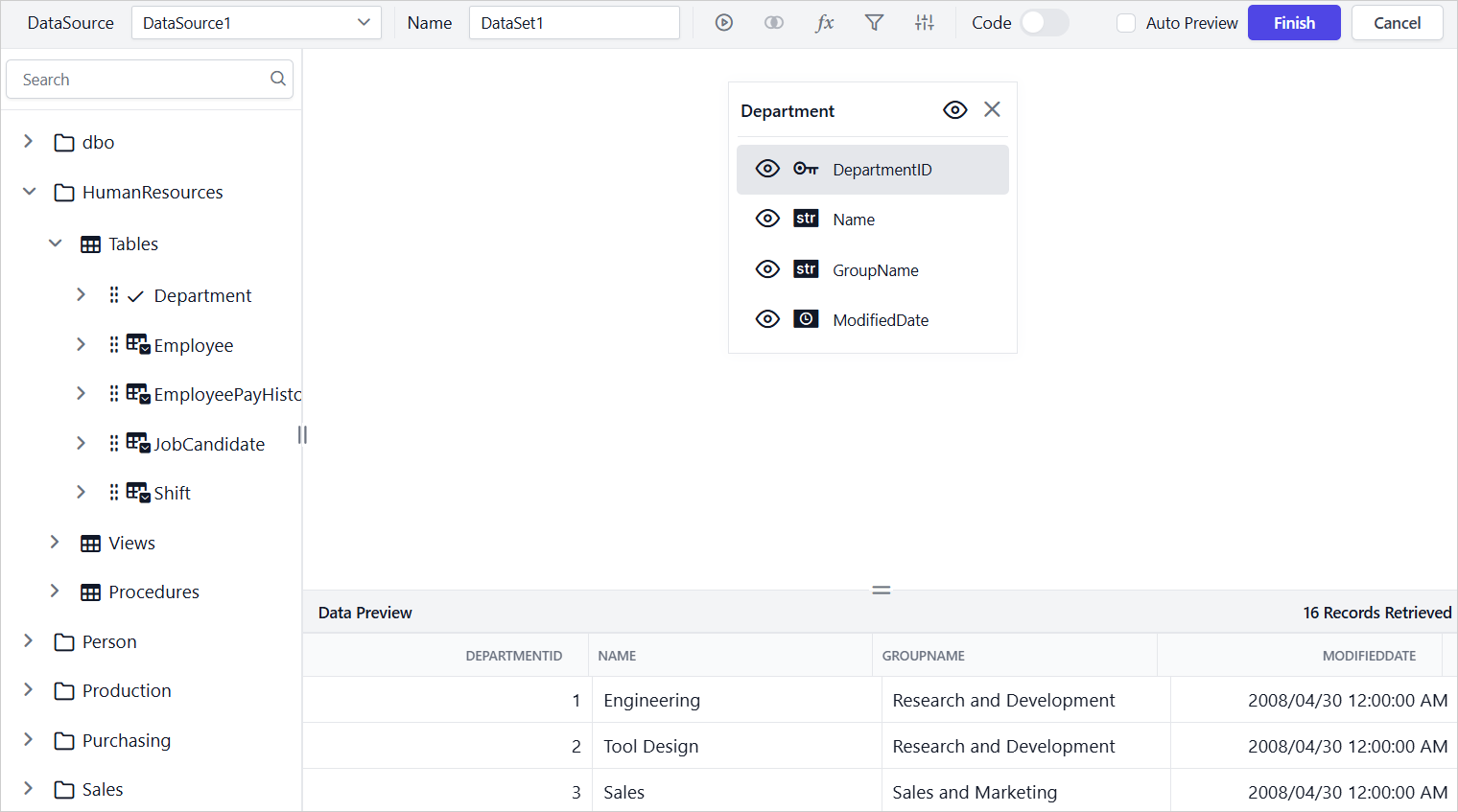
Connectoption to connect Bold Reports® with the Microsoft SQL Server database. - Drag and drop the table from the table schema in the query design view page.
- Click on the
Finishoption to save the data source with a relevant name to proceed with designing report.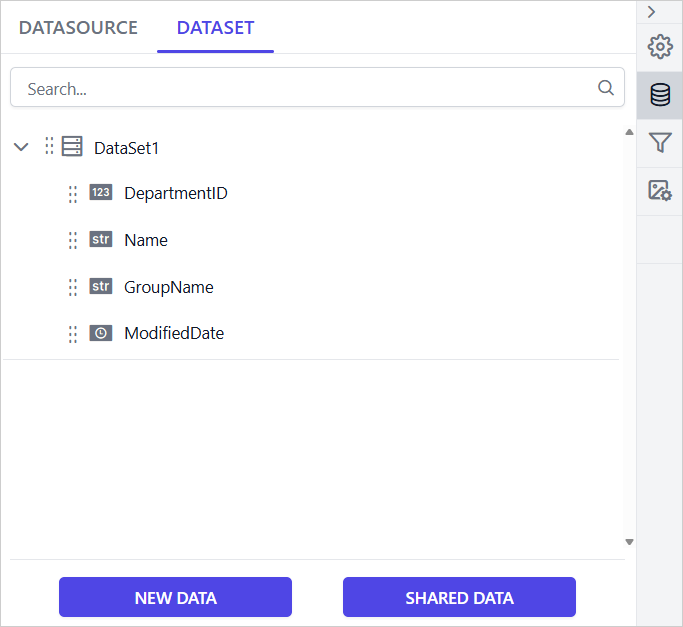
AWS Secrets Manager supported database engine in Bold Reports®
- SQL Server
- MySQL
- PostgreSQL