How to configure PostgreSQL Data Processing Extension for Report Designer
To configure the PostgreSQL Data Processing Extension for the Bold Reports® Report Designer, install the BoldReports.Data.PostgreSQL NuGet package and register it with ReportConfig.DefaultSettings at application startup. The following steps register and load PostgreSQL data extensions in a Web Report Designer application.
How do I install the PostgreSQL data source extension NuGet package?
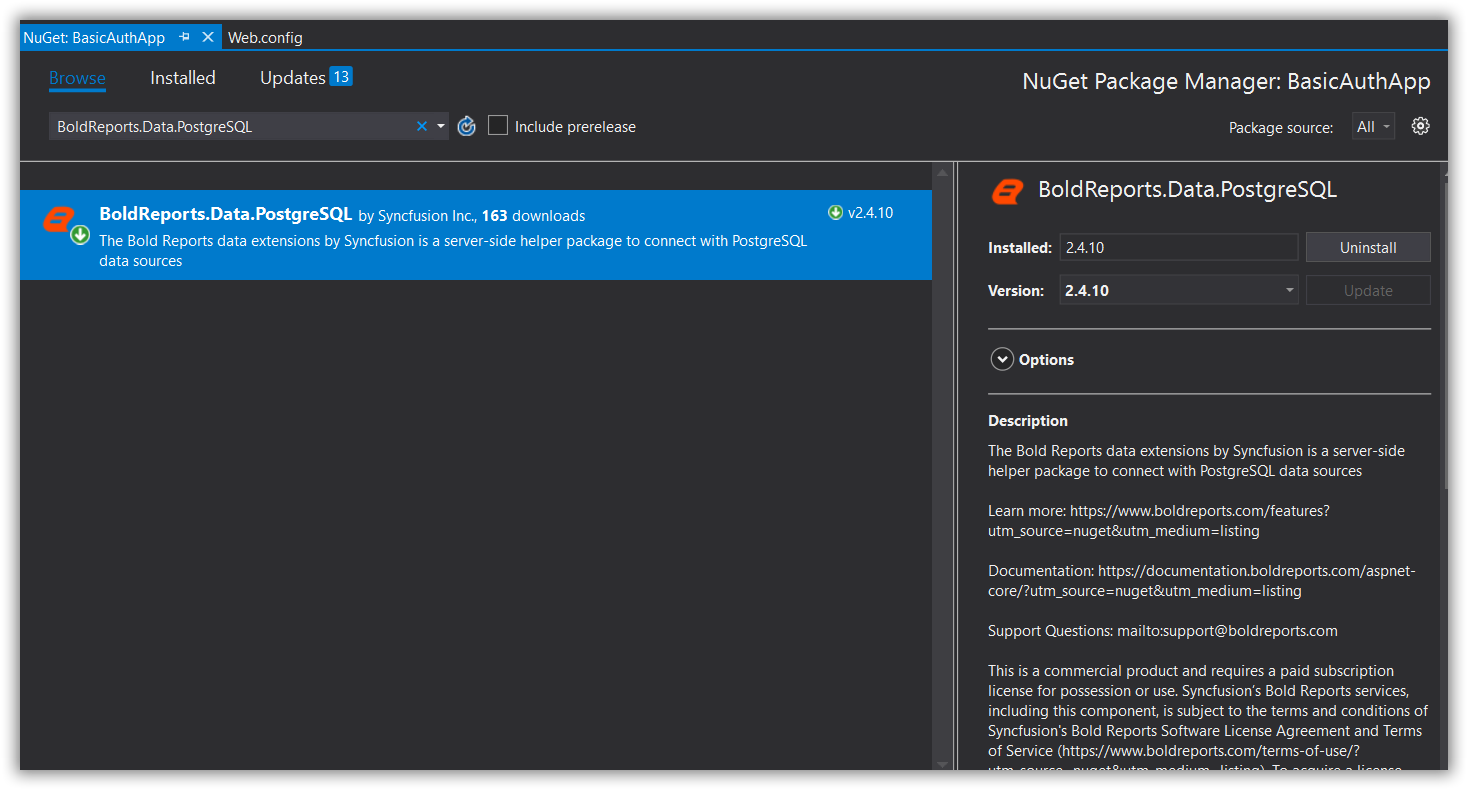
To register and load PostgreSQL data sources in the Bold Reports® Report Designer, install the BoldReports.Data.PostgreSQL package in your application.
Right-click the project or solution in the Solution Explorer tab, and choose Manage NuGet Packages. Alternatively, select the Tools > NuGet Package Manager > Manage NuGet Packages for Solution menu command.
Search for BoldReports.Data.PostgreSQL NuGet package, and install it in your application.
How do I register the PostgreSQL data source extension at application startup?
To register the PostgreSQL data source extension for the Bold Reports® Report Designer, add BoldReports.Data.PostgreSQL to ReportConfig.DefaultSettings at application startup, as described for each platform in the following sections.
ASP.NET
To register the extension in the ASP.NET Web application, follow these steps.
-
Open the code-behind file
Global.asax.csand add the following using statement.using BoldReports.Web; -
Then register the assembly name
BoldReports.Data.PostgreSQLin Application_Start usingReportConfig.DefaultSettingsas follows to use the PostgreSQL data extension.protected void Application_Start(object sender, EventArgs e) { System.Web.Http.GlobalConfiguration.Configuration.Routes.MapHttpRoute( name: "DefaultApi", routeTemplate: "api/{controller}/{action}/{id}", defaults: new { id = RouteParameter.Optional }); AppDomain.CurrentDomain.SetData("SQLServerCompactEditionUnderWebHosting", true); //Use the below code to register extensions assembly into report designer ReportConfig.DefaultSettings = new ReportSettings().RegisterExtensions(new List<string> { "BoldReports.Data.PostgreSQL" }); }
ASP.NET Core
To register the extension in the ASP.NET Core application, follow these steps.
-
Open the file
Startup.csand add the following using statement.using BoldReports.Web; -
Register the package name
BoldReports.Data.PostgreSQLin Startup usingReportConfig.DefaultSettings, as follows, to use the PostgreSQL data extension.public void Configure(IApplicationBuilder app, IWebHostEnvironment env, ILoggerFactory loggerFactory) { loggerFactory.AddConsole(Configuration.GetSection("Logging")); loggerFactory.AddDebug(); AppDomain.CurrentDomain.SetData("SQLServerCompactEditionUnderWebHosting", true); //Use the below code to register extensions assembly into report designer ReportConfig.DefaultSettings = new ReportSettings().RegisterExtensions(new List<string> { "BoldReports.Data.PostgreSQL" }); }
To register multiple data extensions in the application, provide the assembly names as a list of strings.