Troubleshooting Embedded Reporting Tools
If you are facing issues with launching the Bold Reports Embedded Reporting Tools local samples follow the below troubleshooting mechanism.
- If you face problem regarding controlled folder access(Ransomware protection) permission for Bold Reports® Embedded Reporting Tools?
We recommend you to refer how to enable permission to allow-access-protected-folders.
- Even though you have allowed permission for blocking apps, still not able to launch the Embedded Reporting Tools Sample Browser?
We recommend you to ensure the below folders present in the installation path
C:\Program Files (x86)\Bold Reports\Embedded Reporting ToolsandC:\Users\Public\Documents\Bold Reports\Embedded Reporting Tools\Samples.
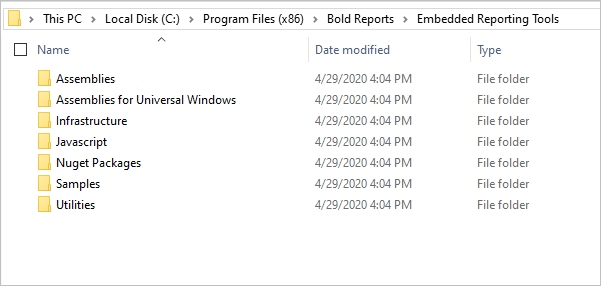
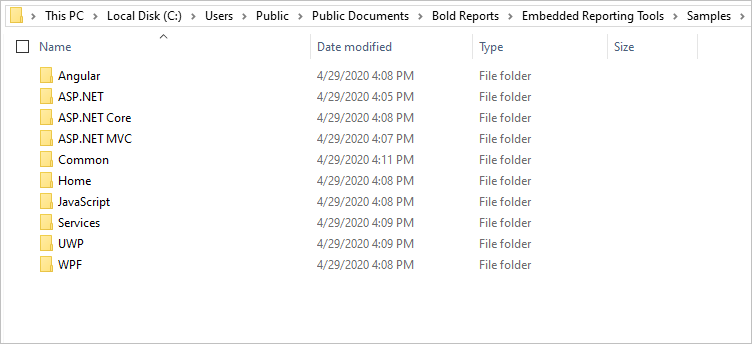
- Even you have properly shipped folders, but still not able to launch Bold Reports® Embedded Reporting Tools Sample Browser?
Open command prompt in administrator mode and navigate to the path
C:\Program Files (x86)\Bold Reports\Embedded Reporting Tools\Utilities\StartSampleBrowserReportingToolsand run anyone of the below command through theStartSampleBrowserReportingTools.exe.
| Platform | Arguments |
|---|---|
| JavaScript | StartSampleBrowserReportingTools.exe "JAVASCRIPT" |
| Angular | StartSampleBrowserReportingTools.exe "ANGULAR" |
| ASP.NET | StartSampleBrowserReportingTools.exe "ASPNET" |
| ASP.NET MVC | StartSampleBrowserReportingTools.exe "ASPNETMVC" |
| ASP.NET Core | StartSampleBrowserReportingTools.exe "ASPNETCORE" |
After running the above command, ensure the System tray contains
IISEXPRESS.exeapplication which hosts the samples.
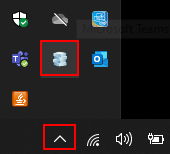
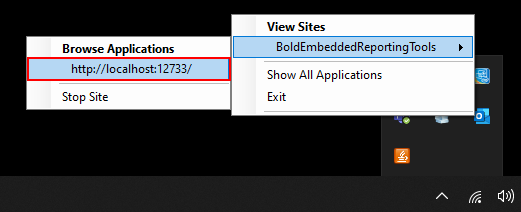
- If none of the above steps doesn’t help to launch the Samples?
You can able to find the error log file in the path
C:\Program Files (x86)\Bold Reports\Embedded Reporting Tools\Utilities\StartSampleBrowserReportingTools, kindly contact us by creating a support ticket and share the generated log file with us, we will reach you soon.