Load Bold Report Server reports
You can embed the Bold Report Server reports in the Report Viewer easily without creating a Web API service. Bold Report Server provides the built-in Web API service that helps you to display the server reports.
To get started, create a Blazor Server App template application and name it BlazorReportingTools using Visual Studio 2022. If this template is not available, refer to this link to configure the system environment.
The source code for this Blazor reporting components app is available on GitHub.
To get started quickly with Report Viewer, you can check this video:
Create Blazor Server application
-
Start Visual Studio 2022 and click Create new project.
-
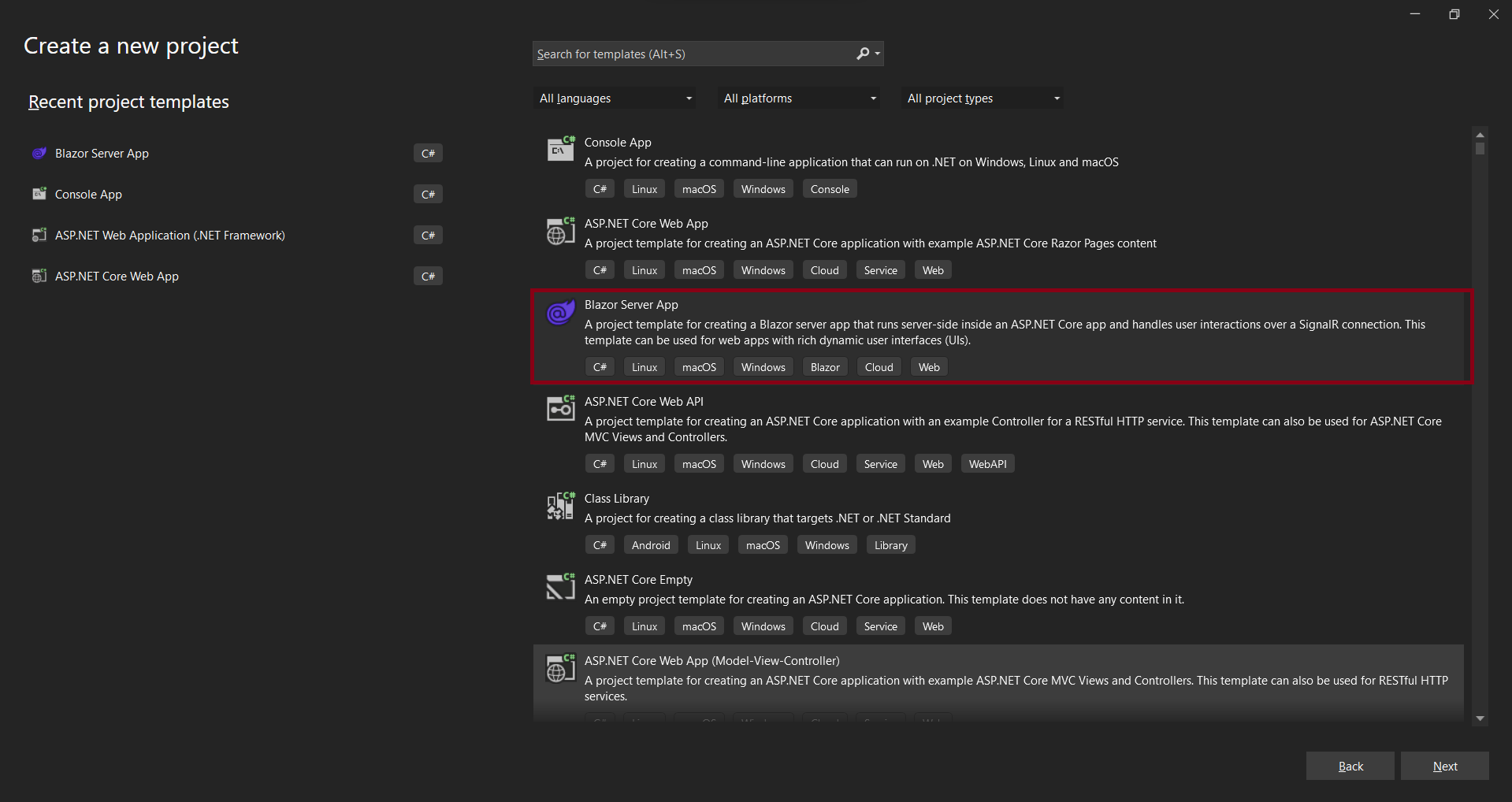
Choose Blazor Server App, and then click Next.
-
Change the project name, and then click Next.
-
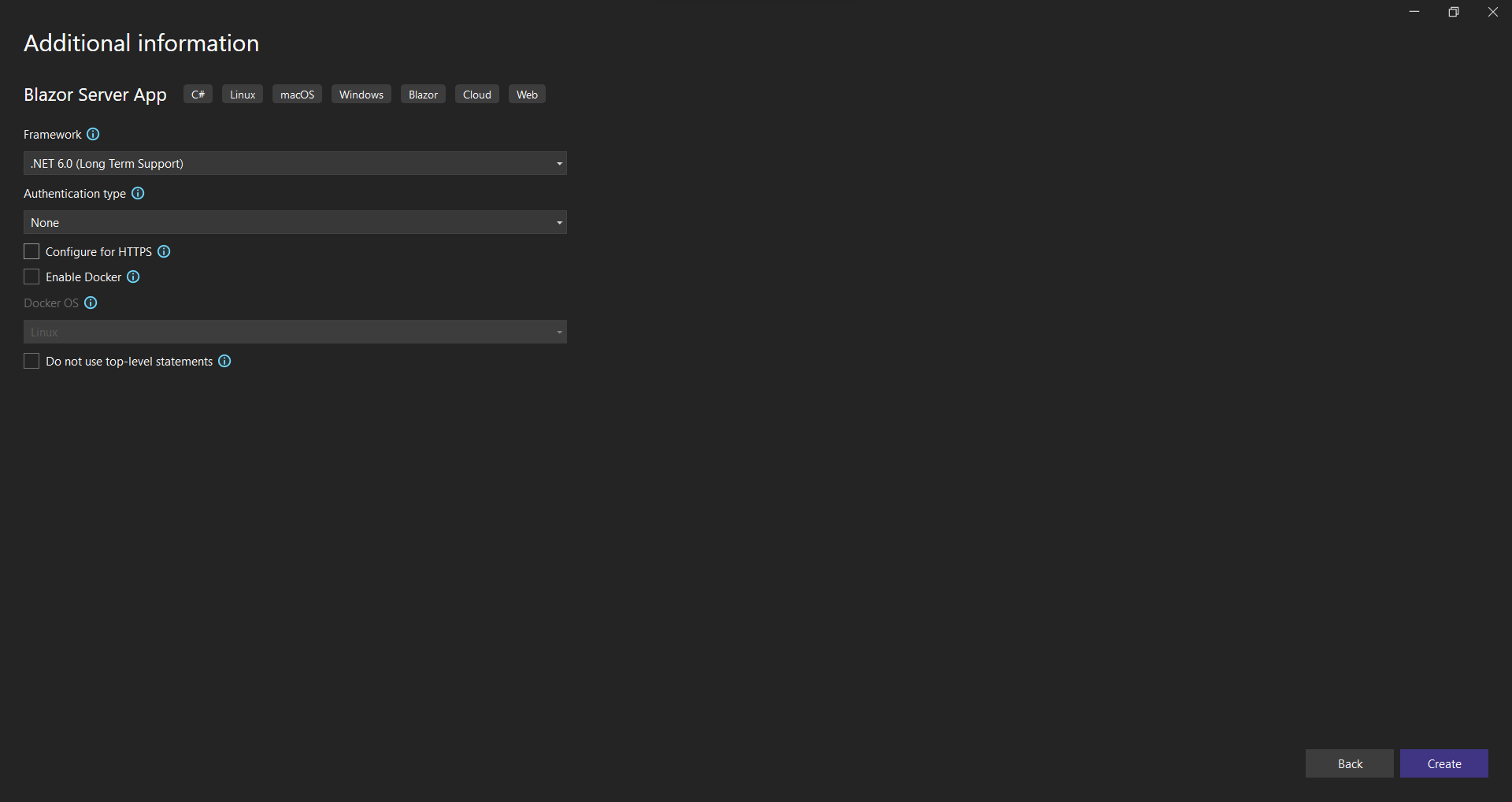
Select Blazor server app, and then click Create
List of dependency libraries
- In the Solution Explorer tab, right-click the project or solution , and choose Manage NuGet Packages. Alternatively, go to Tools > NuGet Package Manager > Manage NuGet Packages for Solution menu command.
- Search for
BoldReports.Net.Core,System.Data.SqlClientandMicrosoft.AspNetCore.Mvc.NewtonsoftJsonpackages, and install them in your Blazor application. The following table provides details about the packages and their usage.
| Package | Purpose |
|---|---|
BoldReports.AspNet.Core |
Creates Web API service is used to process the reports. |
System.Data.SqlClient |
Should be referenced in the project when the RDL report renders visual data from the SQL Server or SQL Azure data source based on the RDL design. The package version should be higher than 4.1.0. |
Microsoft.AspNetCore.Mvc.NewtonsoftJson |
ASP.NET Core MVC features that use Newtonsoft.Json. Includes input and output formatter for JSON and JSON Patch. The package version should be higher than 3.1.2. |
Refer to the NuGet Packages section to learn more details about installing and configuring Report Viewer NuGet packages.
Refer scripts and CSS
Directly refer all the required scripts and style sheets from CDN links.
-
The following scripts and style sheets are mandatorily required to use the Report Viewer.
bold.report-viewer.min.cssjquery.min.jsbold.reports.common.min.jsbold.reports.widgets.min.jsbold.report-viewer.min.js
-
Reference the following online CDN links along with the
boldreports-interop.jsinterop file in the head section ofPages/_Host.cshtmlto use our JavaScript reporting controls in the Blazor application.
<!-- Report Viewer component styles -->
<link href="https://cdn.boldreports.com/15.1.10/content/v2.0/tailwind-light/bold.report-viewer.min.css" rel="stylesheet" />
<!-- Report Viewer component dependent script -->
<script src="https://cdnjs.cloudflare.com/ajax/libs/jquery/3.6.0/jquery.min.js"></script>
<script src="https://cdn.boldreports.com/15.1.10/scripts/v2.0/common/bold.reports.common.min.js"></script>
<script src="https://cdn.boldreports.com/15.1.10/scripts/v2.0/common/bold.reports.widgets.min.js"></script>
<!-- Report Viewer component script -->
<script src="https://cdn.boldreports.com/15.1.10/scripts/v2.0/bold.report-viewer.min.js"></script>
<!-- Blazor interop file -->
<script src="~/scripts/boldreports-interop.js"></script>
Report Server Configuration to render the report
Report Viewer requires the serviceAuthorizationToken, reportPath and reportServiceUrl to embed the reports. You can provide the information from report server as like explained below,
reportServiceUrl– Report Server Reporting Service information should be provided for this API.reportServerUrl- Report Server Reporting Server information should be provided for this API.serviceAuthorizationToken– Authorization token to communicate with reportServiceUrl.reportPath- Path of report need to formed with information for category and report name as like/{category name}/{report name}
Initialize Report Viewer
- Create a
Data/BoldReportOptions.csclass with the following code to hold the RDL report rendering properties.
[Data/BoldReportOptions.cs]
namespace BlazorReportingTools.Data
{
    public class BoldReportViewerOptions
    {
        public string ReportPath { get; set; }
        public string ServiceURL { get; set; }
        public string ServerURL { get; set; }
        public string AuthorizationToken { get; set; }
    }
}- Create a
boldreports-interop.jsfile inside thewwwroot/scriptsfolder and use the following code snippet to invoke the Bold Report Viewer JavaScript control.
// Interop file to render the Bold Report Viewer component with properties.
window.BoldReports = {
    RenderViewer: function (elementID, reportViewerOptions) {
        $("#" + elementID).boldReportViewer({
            reportPath: reportViewerOptions.reportPath,
            reportServiceUrl: reportViewerOptions.serviceURL,
            reportServerUrl: reportViewerOptions.serverURL,
            serviceAuthorizationToken: reportViewerOptions.authorizationToken
        });
    }
}- Open
index.razorpage. Remove existing code and add the following code
@page "/"

@using Microsoft.JSInterop
@using Microsoft.AspNetCore.Components
@inject IJSRuntime JSRuntime
@using BlazorReportingTools.Data;

<div id="report-viewer" style="width: 100%;height: 950px"></div>

@code {
    // ReportViewer options
    BoldReportViewerOptions viewerOptions = new BoldReportViewerOptions();

    // Used to render the Bold Report Viewer component in Blazor page.
    public async void RenderReportViewer()
    {
        await JSRuntime.InvokeVoidAsync("BoldReports.RenderViewer", "report-viewer", viewerOptions);
    }
    // Initial rendering of Bold Report Viewer
    protected override void OnAfterRender(bool firstRender)
    {
        RenderReportViewer();
    }
}
If you need to know the difference between
reportServiceUrlandreportServerUrl, refer to the Difference between Report Service URL and Report Server URL.
You can follow one of the procedure from below based on your Report Server type,
Enterprise Reporting Server
- Generate token with your user credentials and assign it to serviceAuthorizationToken. You can refer to the documentation here, to generate the token by using credentials.
public async void RenderReportViewer()
    {
        viewerOptions.AuthorizationToken = "bearer <server token>";
        await JSRuntime.InvokeVoidAsync("BoldReports.RenderViewer", "report-viewer", viewerOptions);
    }
You can refer to the documentation here on how to generate the token within an application.
- Set the Bold Report Server built-in service URL to the
report-service-urlproperty. Thereport-service-urlproperty value should be in format ofhttps://<<Report server name>>/reporting/reportservice/api/Viewer.
public async void RenderReportViewer()
    {
        viewerOptions.ServiceURL = "https://on-premise-demo.boldreports.com/reporting/reportservice/api/Viewer";
        viewerOptions.AuthorizationToken = "bearer <server token>";
        await JSRuntime.InvokeVoidAsync("BoldReports.RenderViewer", "report-viewer", viewerOptions);
}- Set the Bold Report Server built-in server URL to the
report-server-urlproperty. Thereport-server-urlproperty value should be in format ofhttps://<<Report server name>>/reporting/api/site/<<site name>>.
public async void RenderReportViewer()
    {
        viewerOptions.ServiceURL = "https://on-premise-demo.boldreports.com/reporting/reportservice/api/Viewer";
        viewerOptions.ServerURL = "https://on-premise-demo.boldreports.com/reporting/api/site/site1";
        viewerOptions.AuthorizationToken = "bearer <server token>";
        await JSRuntime.InvokeVoidAsync("BoldReports.RenderViewer", "report-viewer", viewerOptions);
}- Set the path of report in
report-pathproperty. You can use the following complete code in yourindex.cshtmlpage.
public async void RenderReportViewer()
    {
        viewerOptions.ReportPath = "/Sample Reports/Sales Order Detail";
        viewerOptions.ServiceURL = "https://on-premise-demo.boldreports.com/reporting/reportservice/api/Viewer";
        viewerOptions.ServerURL = "https://on-premise-demo.boldreports.com/reporting/api/site/site1";
        viewerOptions.AuthorizationToken = "bearer <server token>";
        await JSRuntime.InvokeVoidAsync("BoldReports.RenderViewer", "report-viewer", viewerOptions);
    }
You can also load the report using GUID instead of report location. Set the GUID of the report in the
report-pathproperty asreport-path: ‘91f24bf1-e537-4488-b19f-b37f77481d00’.
Cloud Reporting server
- Generate token with your user credentials and assign it to serviceAuthorizationToken. You can refer the documentation here, to generate the token by using credentials.
public async void RenderReportViewer()
    {
        viewerOptions.AuthorizationToken = "bearer <server token>";
        await JSRuntime.InvokeVoidAsync("BoldReports.RenderViewer", "report-viewer", viewerOptions);
    }
You can refer to the documentation here on how to generate the token within an application.
- Set the Bold Report Server built-in service URL to the
report-service-urlproperty. Thereport-service-urlproperty value is ahttps://service.boldreports.com/api/Viewer.
public async void RenderReportViewer()
    {
        viewerOptions.ServiceURL = "https://service.boldreports.com/api/Viewer";
        viewerOptions.AuthorizationToken = "bearer <server token>";
        await JSRuntime.InvokeVoidAsync("BoldReports.RenderViewer", "report-viewer", viewerOptions);
}- Set the Bold Report Server built-in server URL to the
report-server-urlproperty. Thereport-server-urlproperty value should be in format ofhttps://<<Report server name>>/reporting/api/.
public async void RenderReportViewer()
    {
        viewerOptions.ServiceURL = "https://service.boldreports.com/api/Viewer";
        viewerOptions.ServerURL = "https://acmecorp.boldreports.com/reporting/api";
        viewerOptions.AuthorizationToken = "bearer <server token>";
        await JSRuntime.InvokeVoidAsync("BoldReports.RenderViewer", "report-viewer", viewerOptions);
}- Set the path of report in
report-pathproperty. You can use the following complete code in yourindex.cshtmlpage.
public async void RenderReportViewer()
    {
        viewerOptions.ReportPath = "/Sample Reports/Sales Order Detail";
        viewerOptions.ServiceURL = "https://service.boldreports.com/api/Viewer";
        viewerOptions.ServerURL = "https://acmecorp.boldreports.com/reporting/api";
        viewerOptions.AuthorizationToken = "bearer <server token>";
        await JSRuntime.InvokeVoidAsync("BoldReports.RenderViewer", "report-viewer", viewerOptions);
    }
You can also load the report using GUID instead of report location. Set the GUID of the report in the
report-pathproperty asreport-path: ‘91f24bf1-e537-4488-b19f-b37f77481d00’.