Formatting Columns
When designing the data in query designer, the columns in the data table can be organized based on your dataset design requirements.
Prefer watching over reading? Check out this video for formatting columns:
Refer Create Data section for better understanding with the following sections.
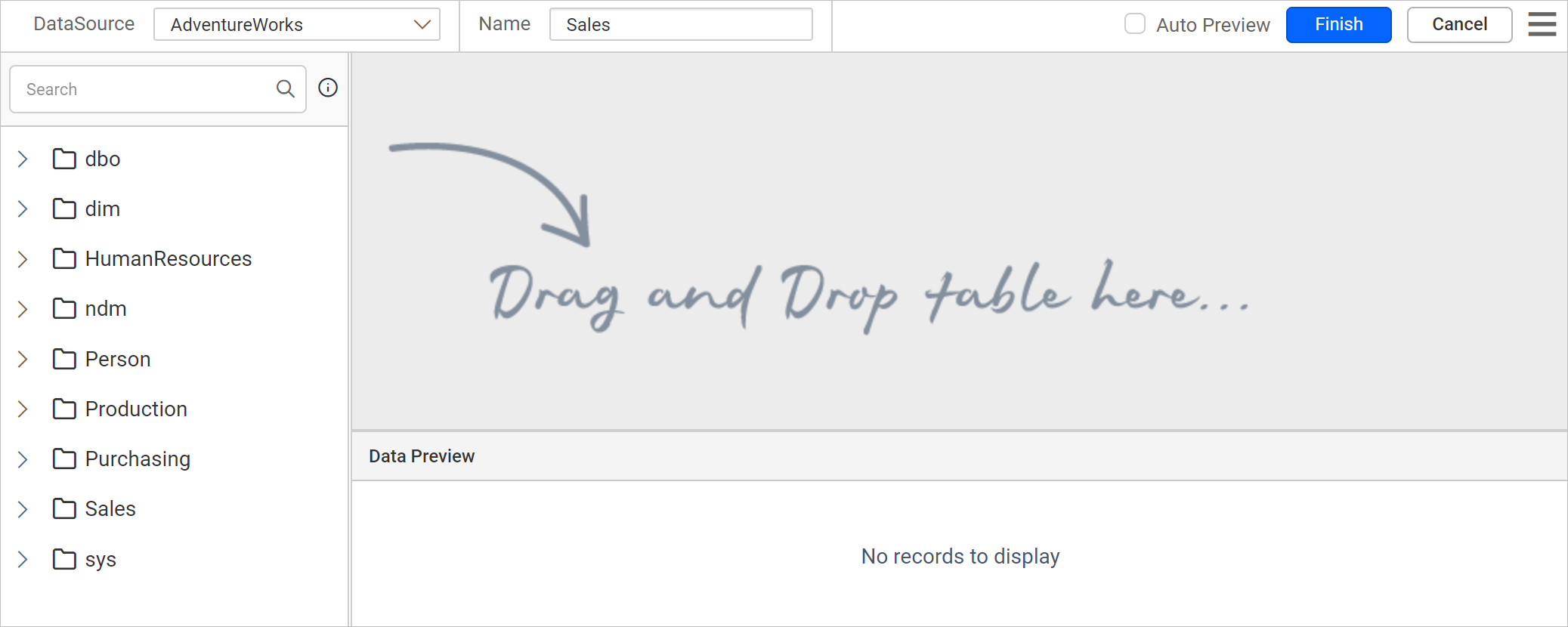
The below image showcases the initial view of query designer.
Rename a column
The column names in data table can be renamed in query designer after retrieving the data from data source.
The column rename action will not affect the actual data in the data source.
Follow the below steps to rename a column in data table.
- Drag a table or view from the left pane and drop it into the center pane labeled with
Drag and Drop tables herelike below.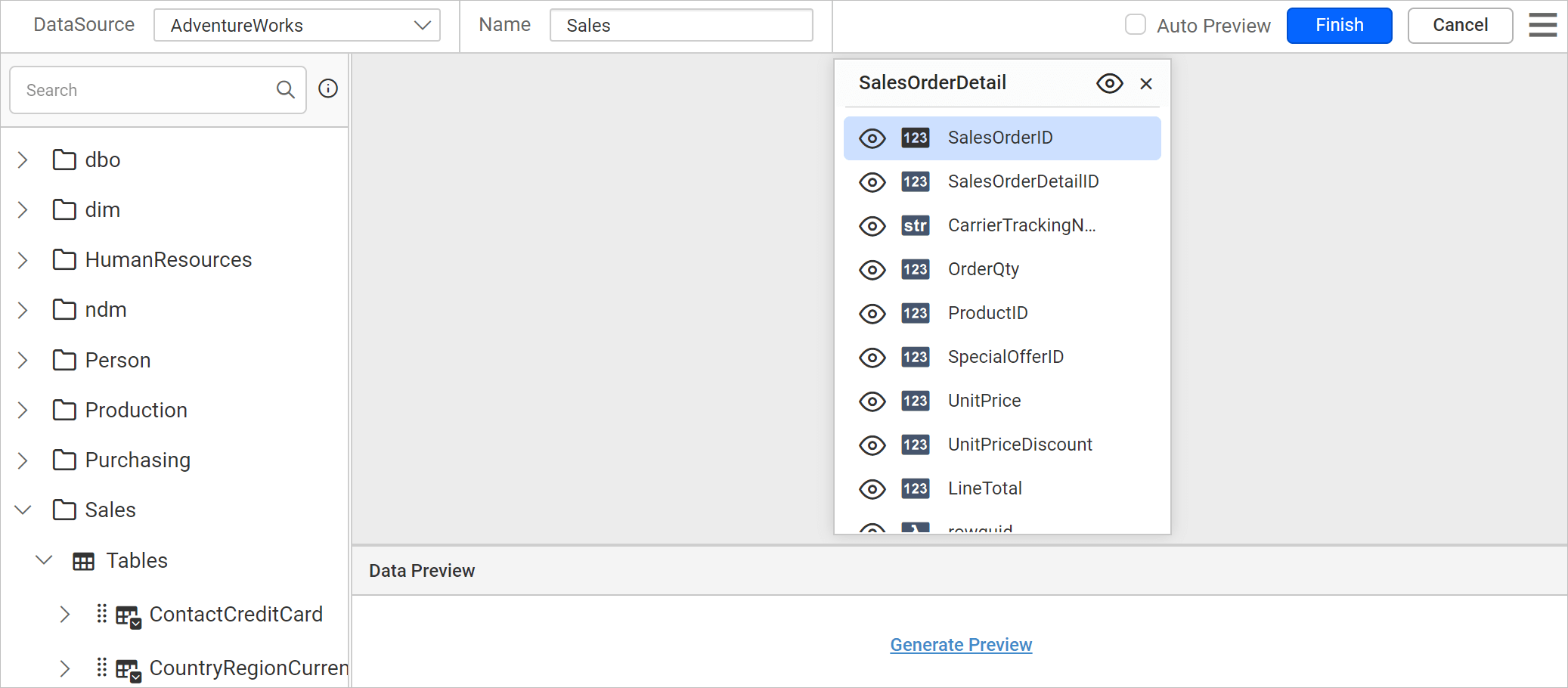
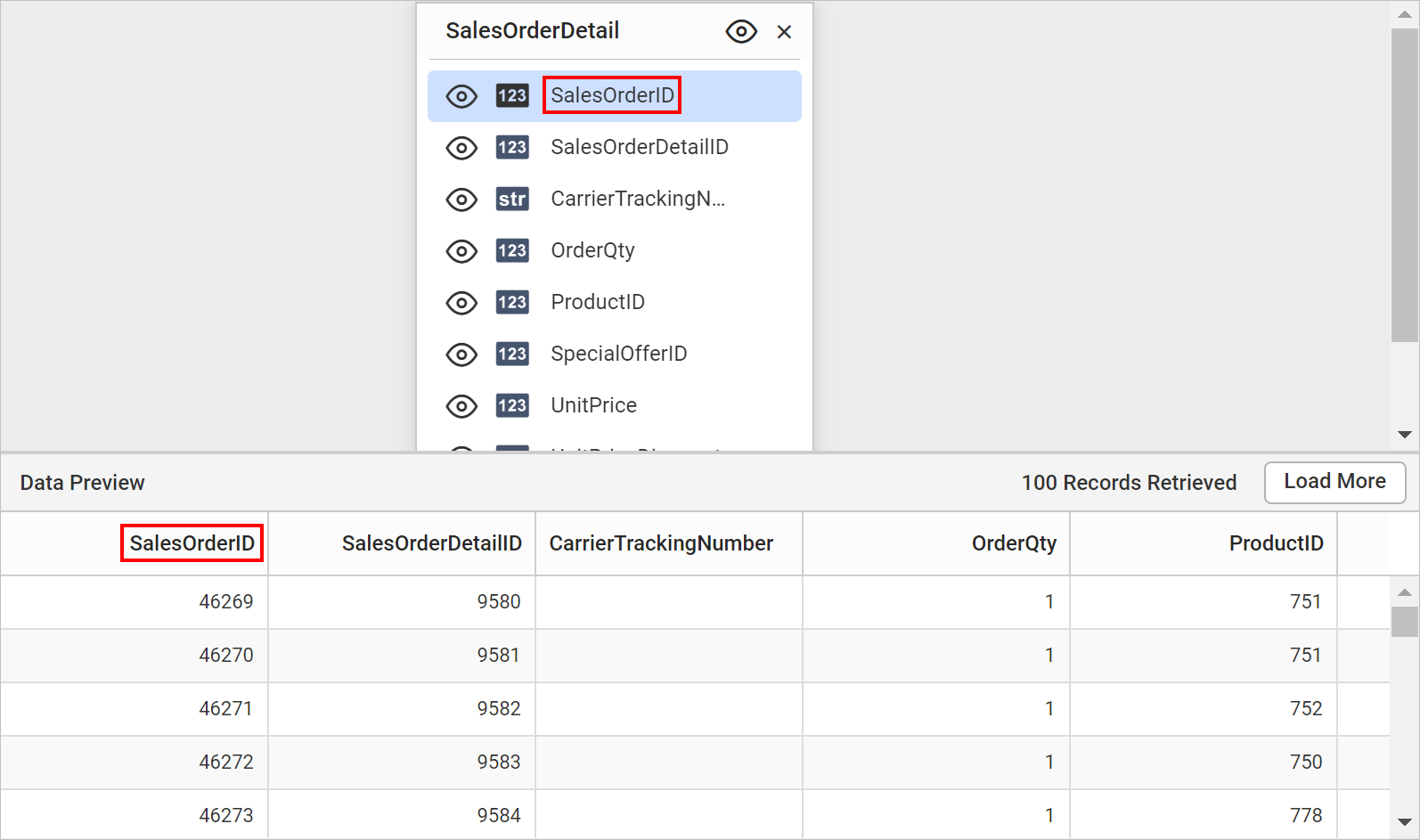
- Execute the query and the data will display in preview grid as follows.
- Double-click on the column name in the table to rename the respective column.
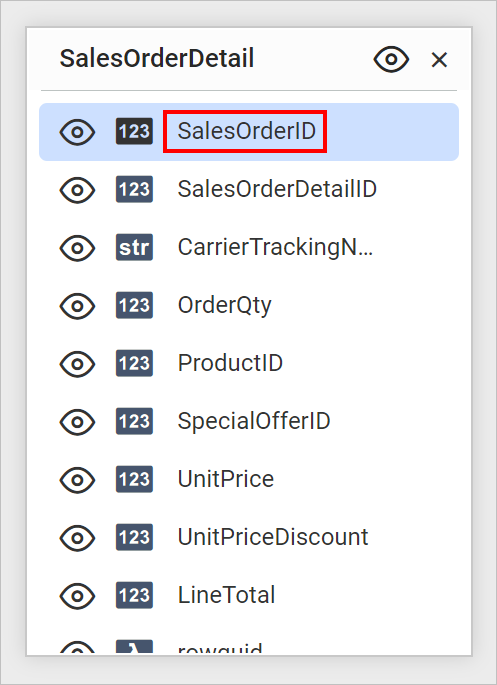
- The edit mode will be enabled like below.
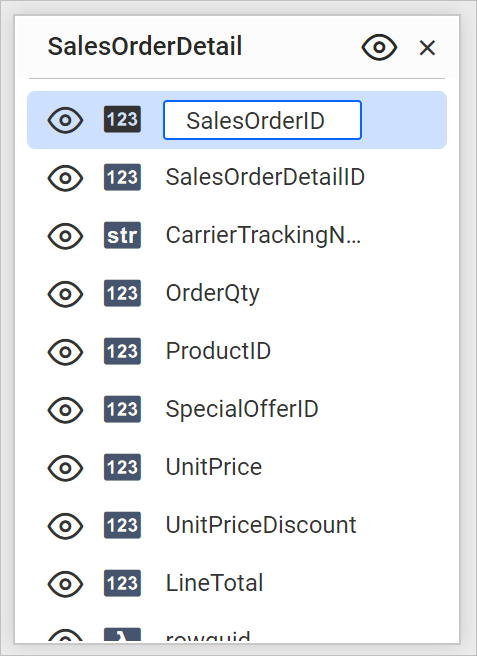
- Now, modify the column name and press enter key to commit the modification done.
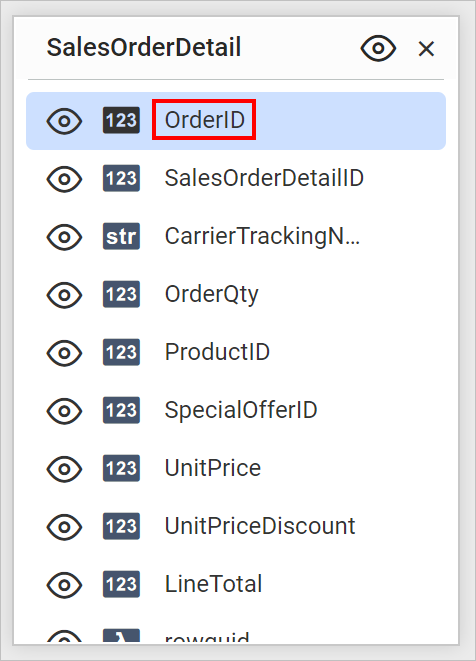
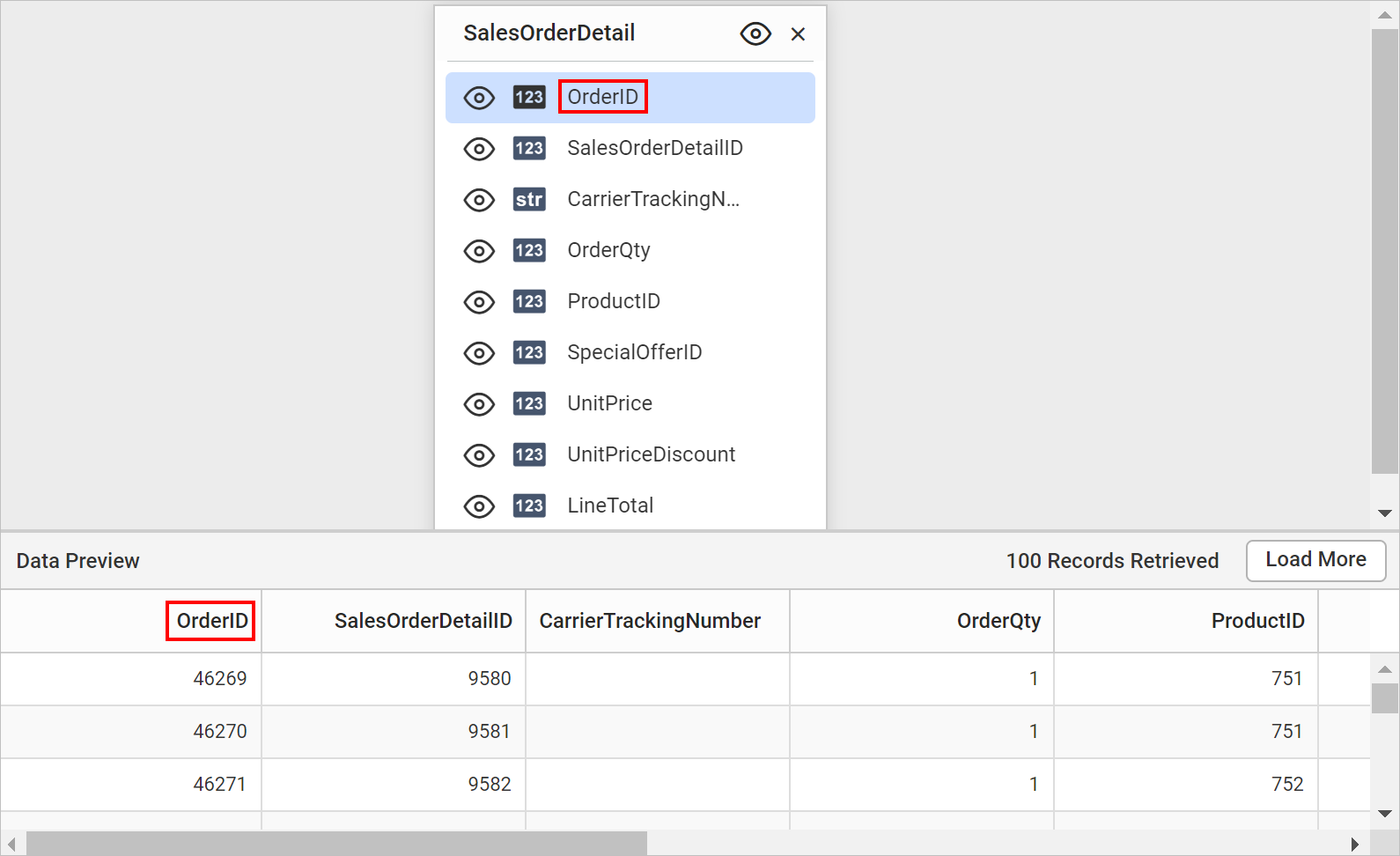
- Execute the query, the renamed column will display in preview grid as follows.
Exclude columns
To remove or avoid the unwanted columns from the query design after retrieving the data from data source, the Exclude option can be used.
Excluding the columns from data table will not affect the actual data in the data source.
Follow the below steps to exclude and include a column in data table.
- Exclude the column that you requisite, by clicking the icon at left corner of the respective column name.
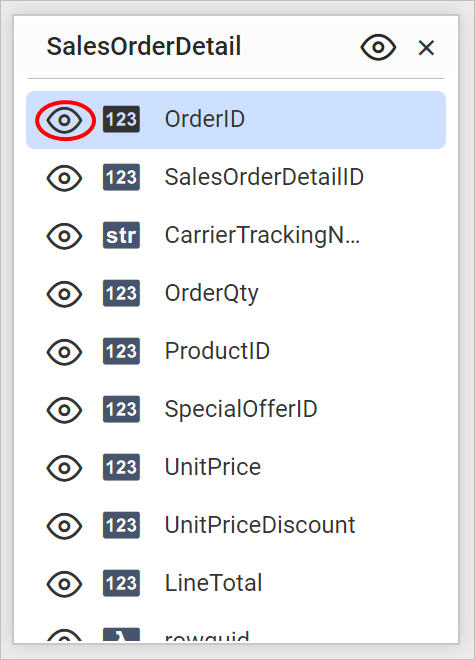
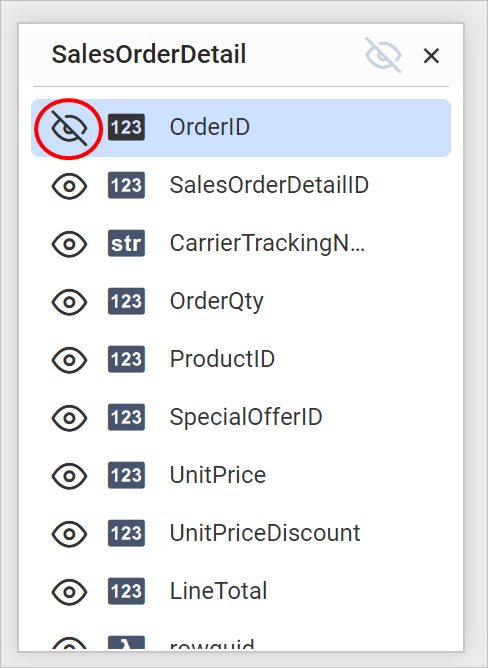
- The excluded column will be represented in table design like below.
- Now, execute the query and notice that
SalesOrderIDcolumn will be removed in the data preview.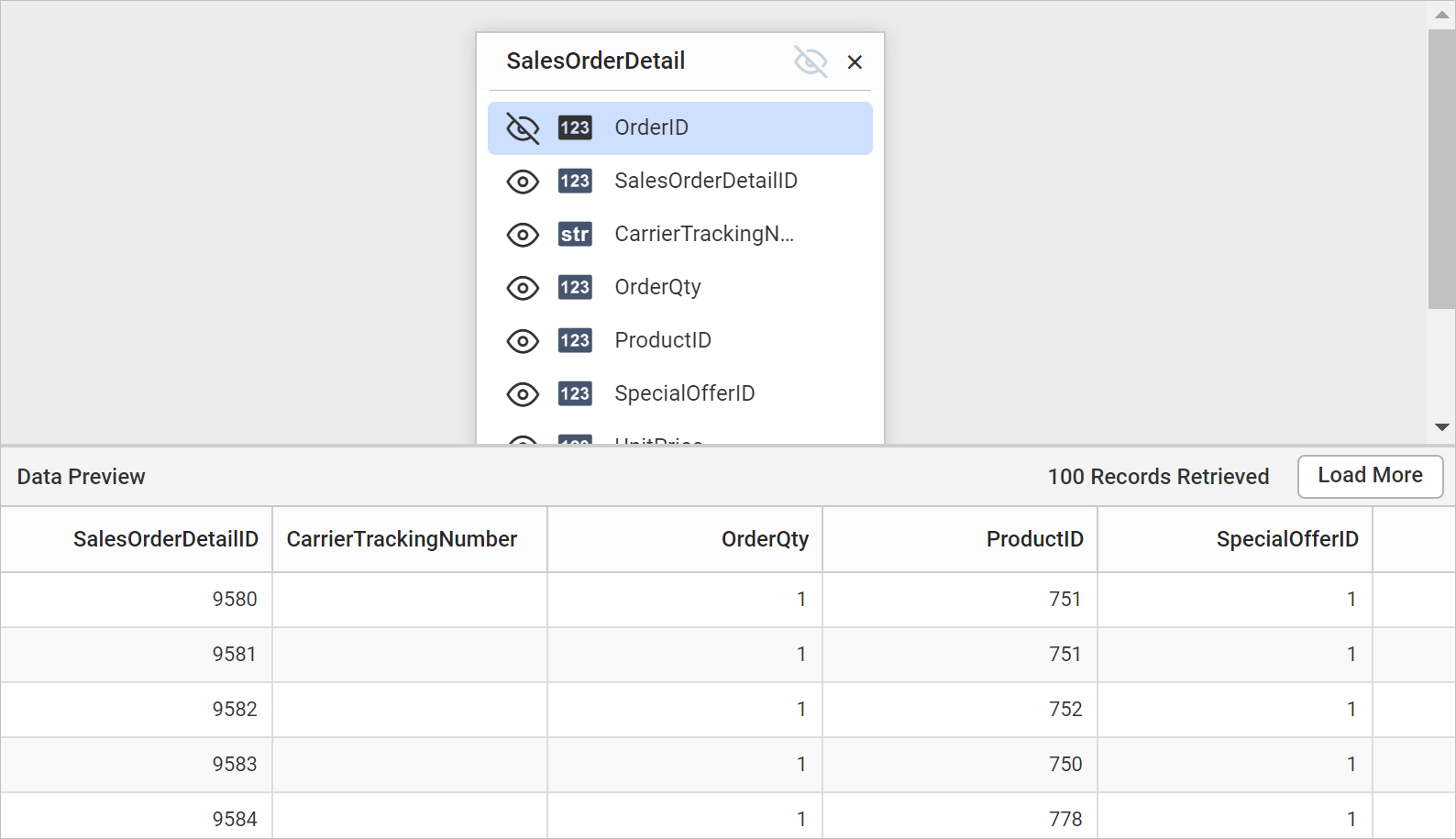
You can also exclude all the columns in a single click, by clicking on the icon at the table header.
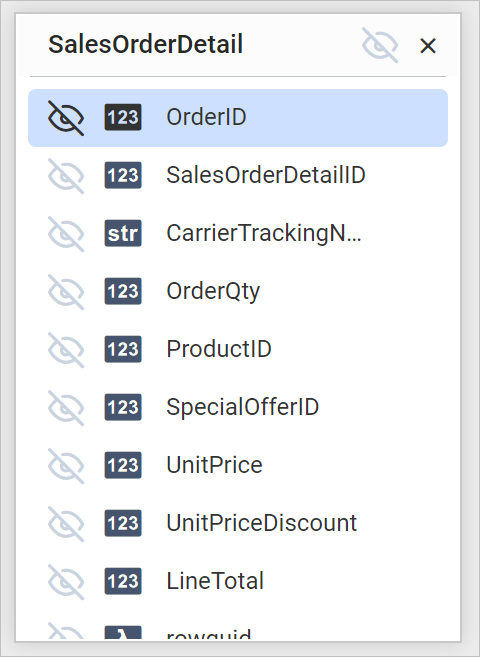
Clicking on the same icon again will include all the columns.
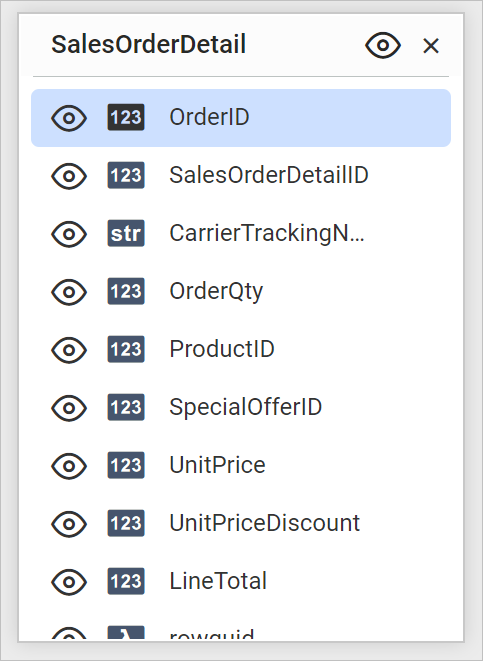
Minimum of one column must be in enabled state to create dataset.
Search columns
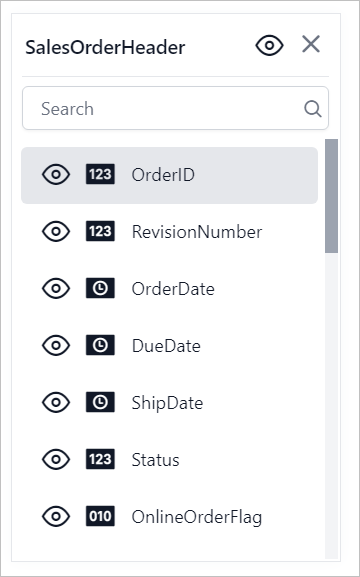
The column search option allows users to locate fields by name quickly and efficiently, especially in large tables.
- The search bar is enabled for tables with more than 14 columns.
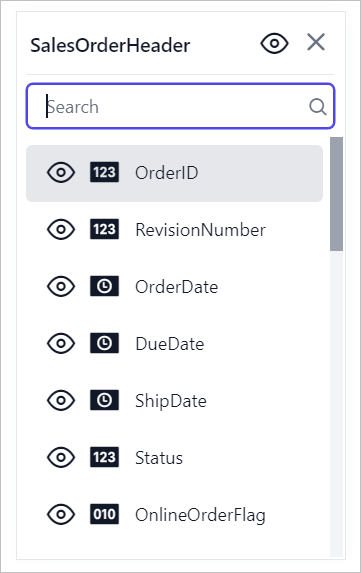
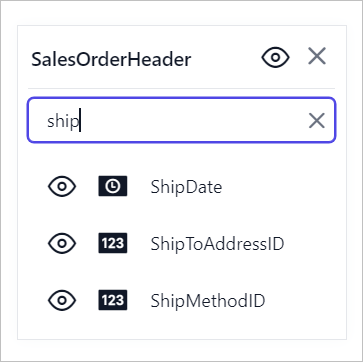
- Enter a field name to list the matching fields.
- Click the clear icon to reset the search.
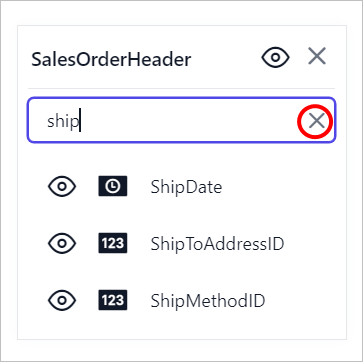
- Once the clear icon is clicked, the entire table fields are restored.