Create an embedded dataset
This section guides you to create an embedded dataset in Bold Report Designer.
Design query data
-
Click the
Dataicon in the configuration panel to launch aDataconfiguration.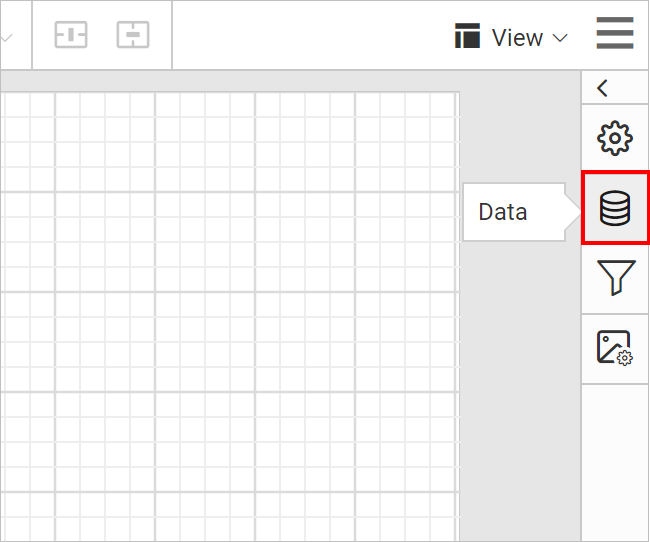
-
Click on the
New Databutton inDatapanel.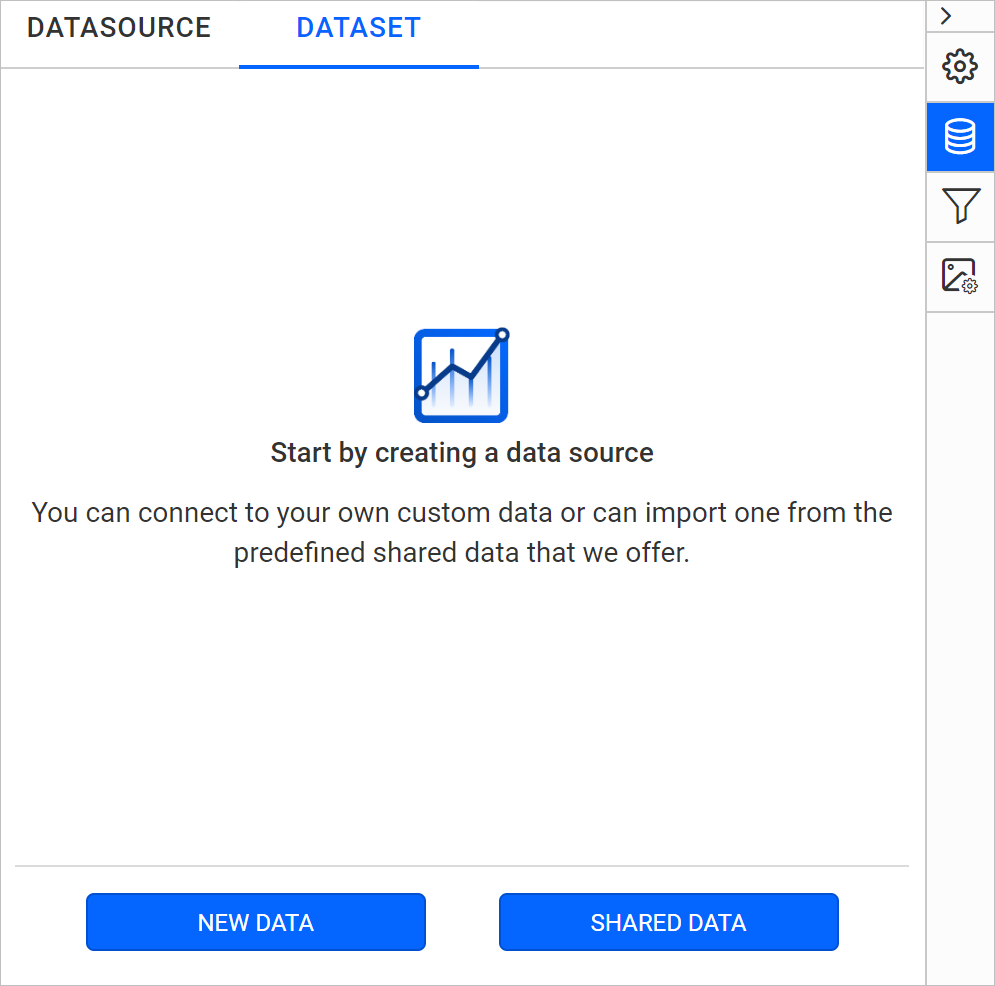
-
In the connection type panel, click the data source type that you want to connect. Here,
SQLconnection type is used to demonstrate.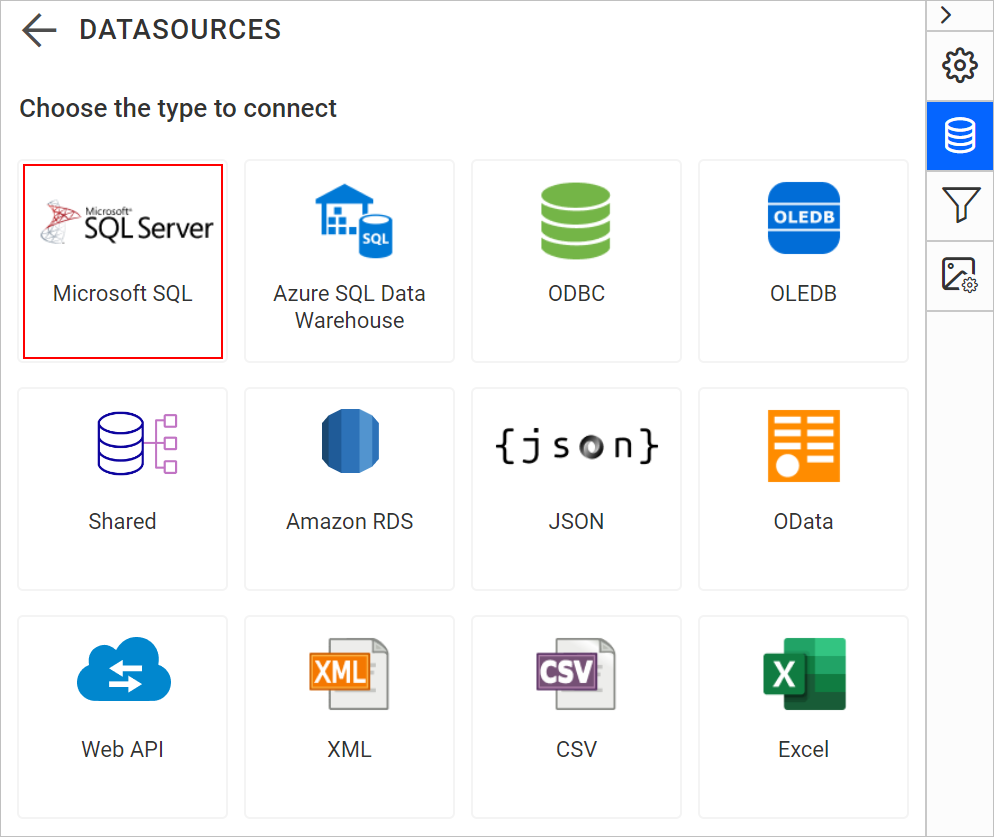
-
In the new data source configuration panel, fill the server name and related details.
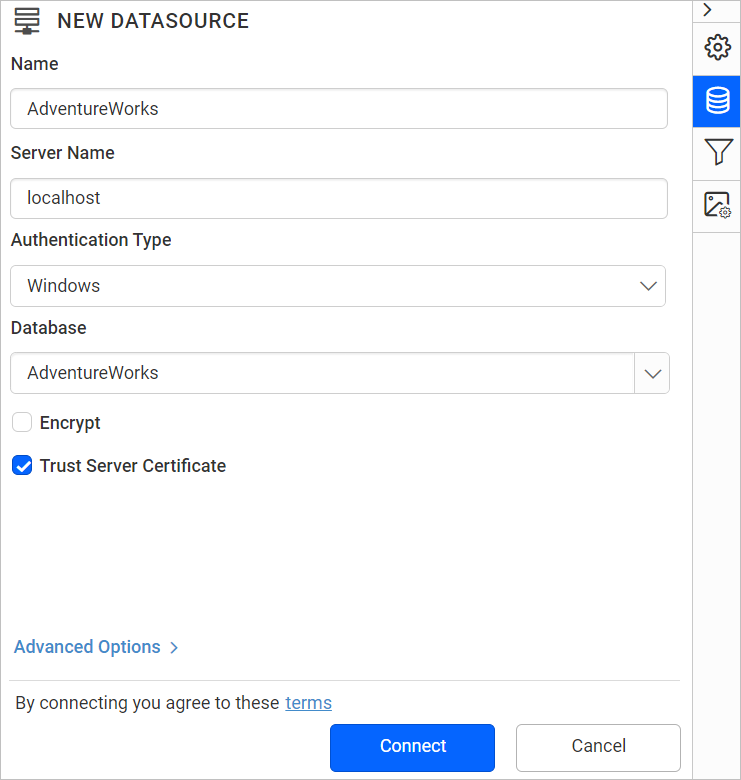
-
Click on the
Connectbutton, now the following view will be displayed.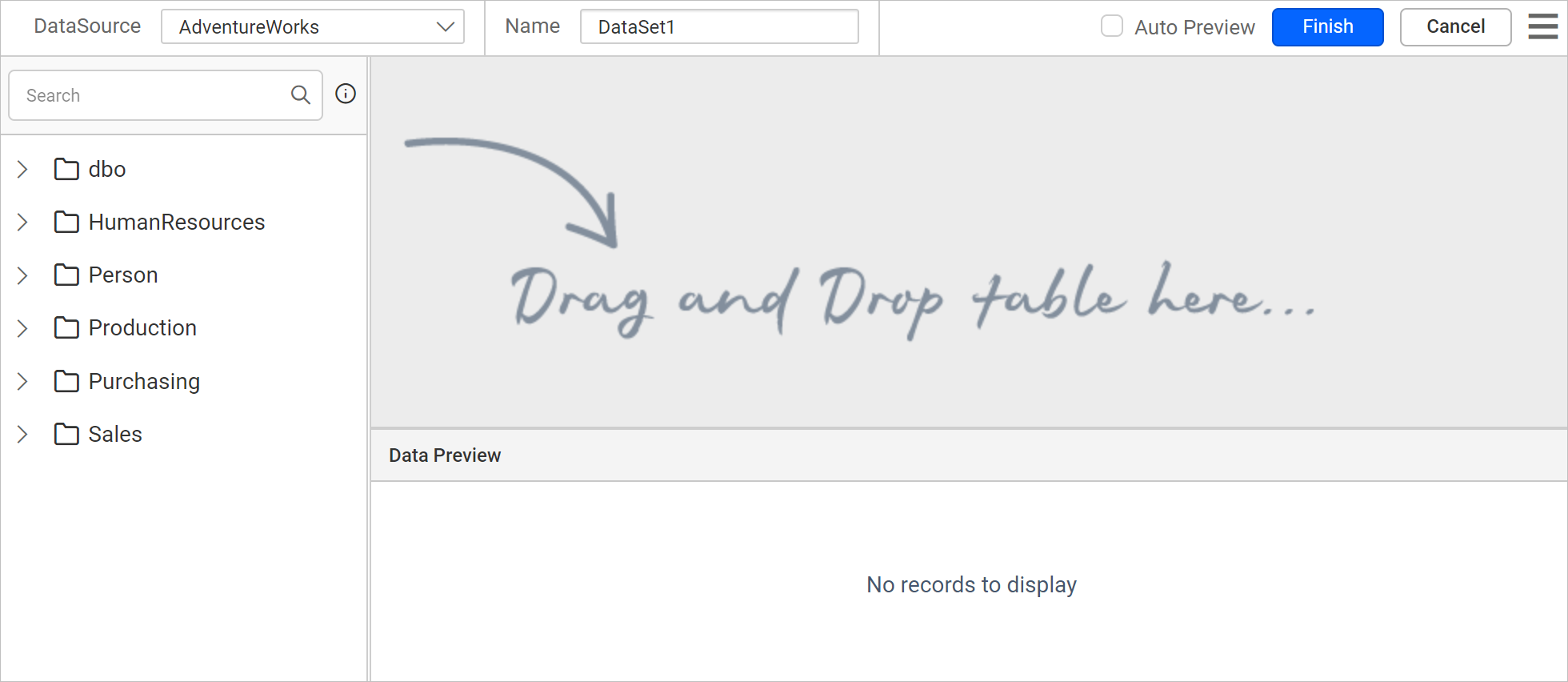
-
You can edit the name of the
Datain the Name field that is available in toolbar pane.
-
You can drag the tables and views associated with the connected database from left pane. Dragged table or view from the left pane can be dropped into the center pane labeled with
Drag and Drop tables herelike below.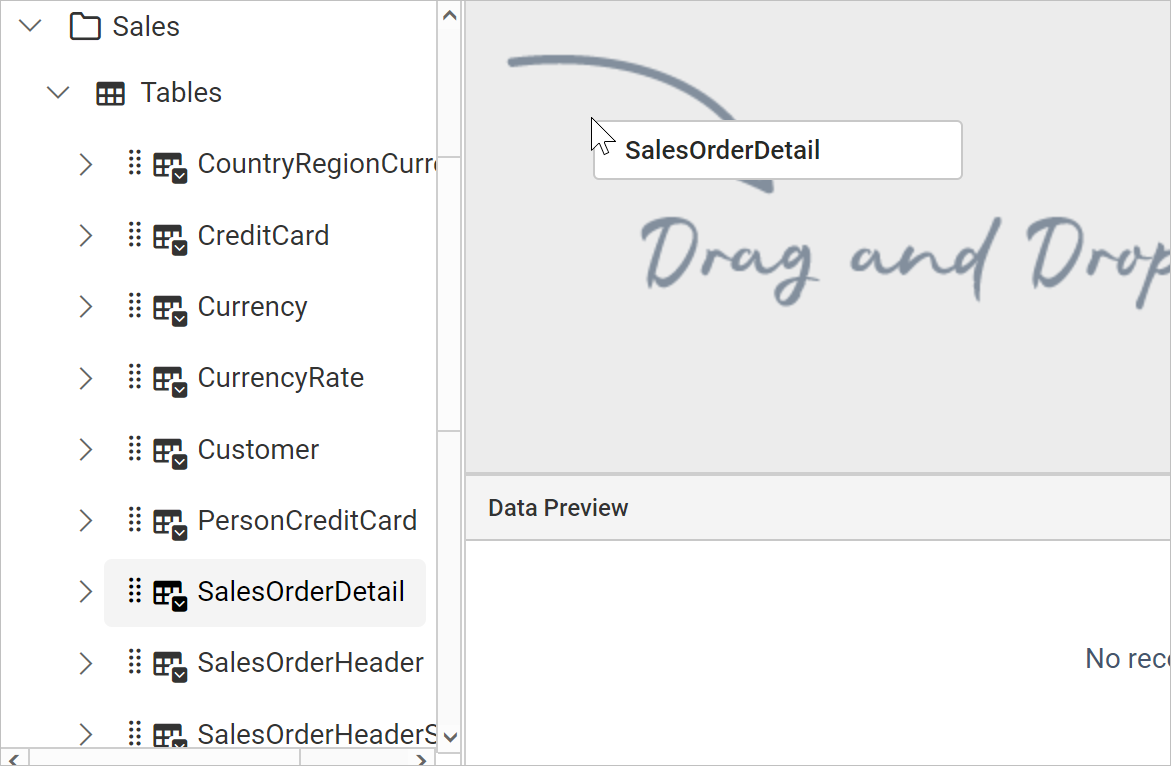
After you drop the item into the center pane, it displays like below:
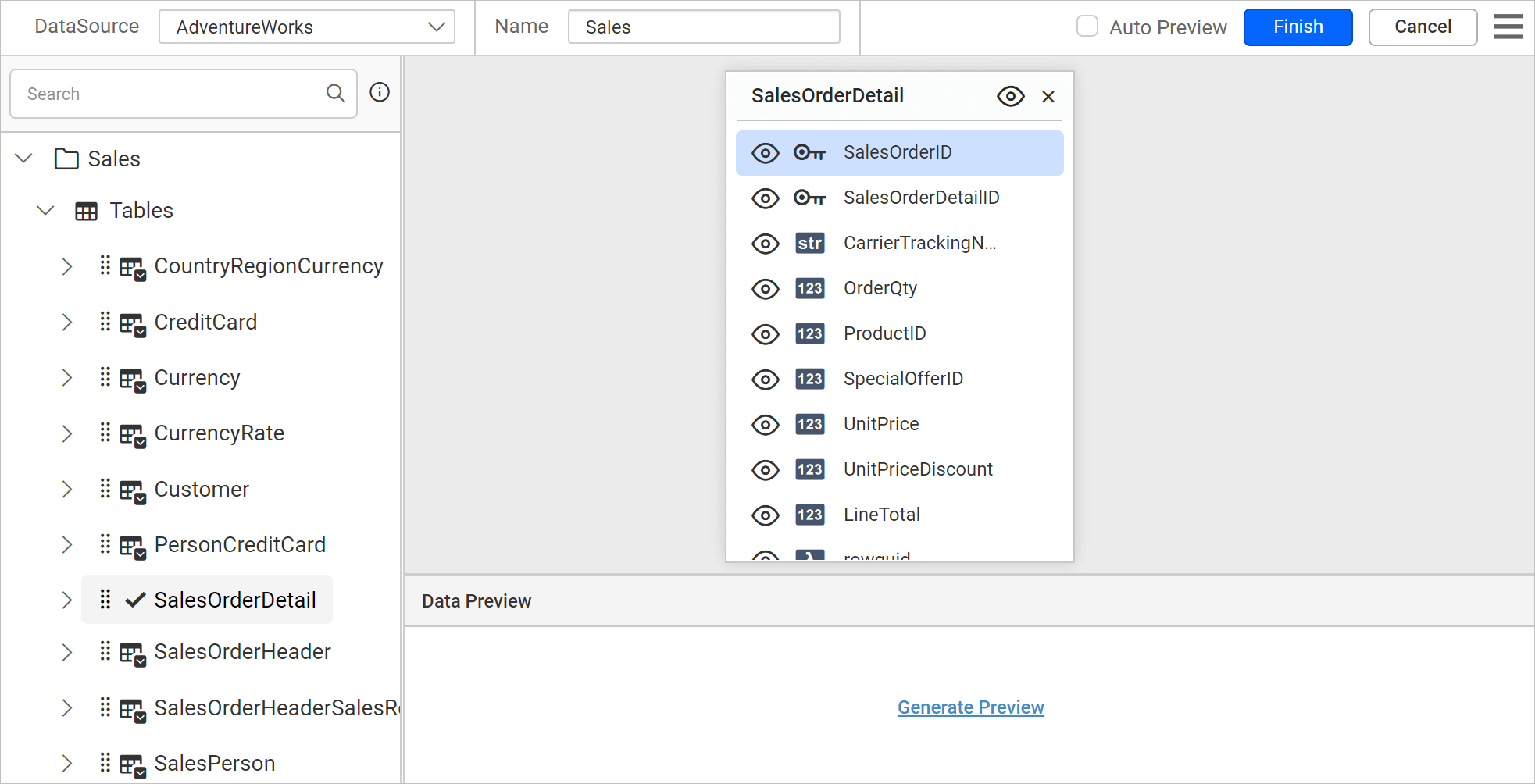
-
To search the table or view from the data collection, you can use the
Searchfield in the left pane of the query designer.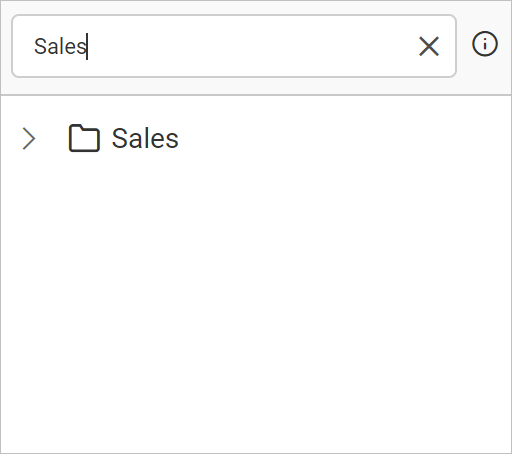
Save Data
- Click on the
Finishbutton in the tools pane.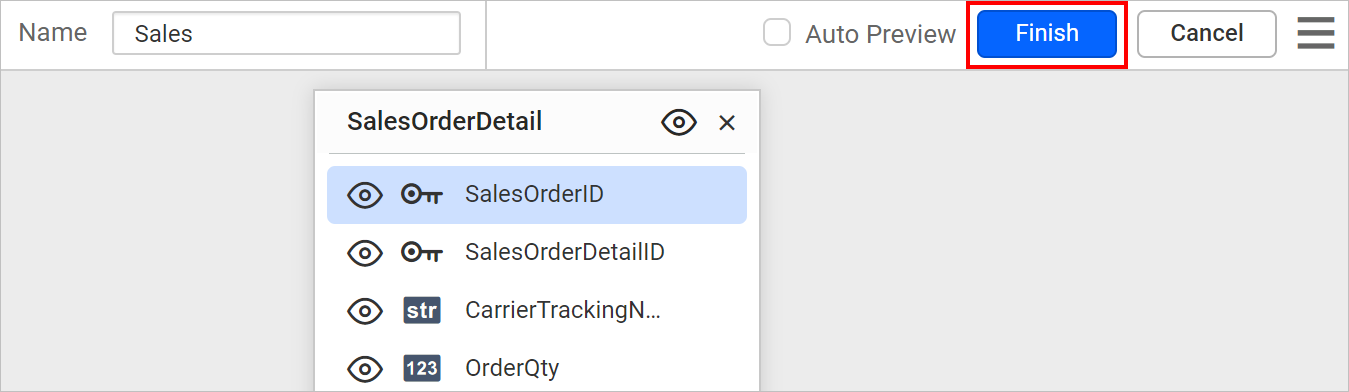
- Your dataset should now be listed in the
Datapanel like below.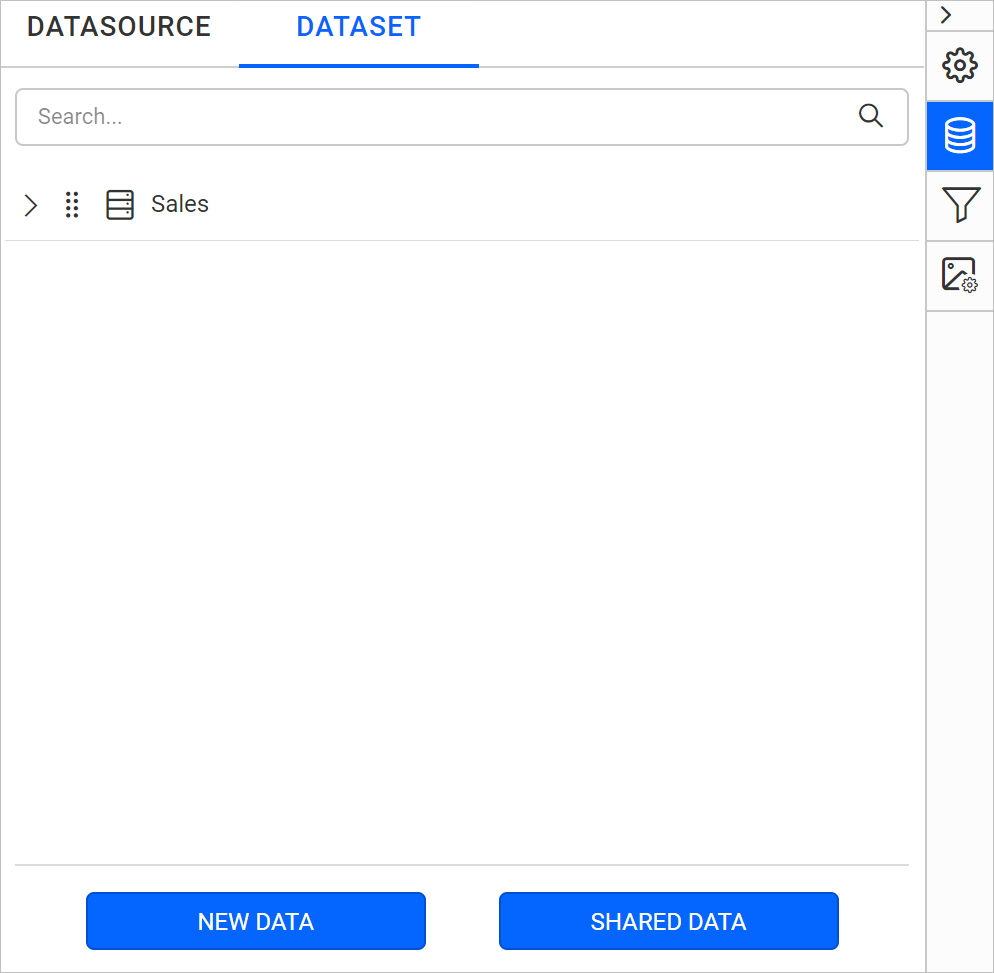
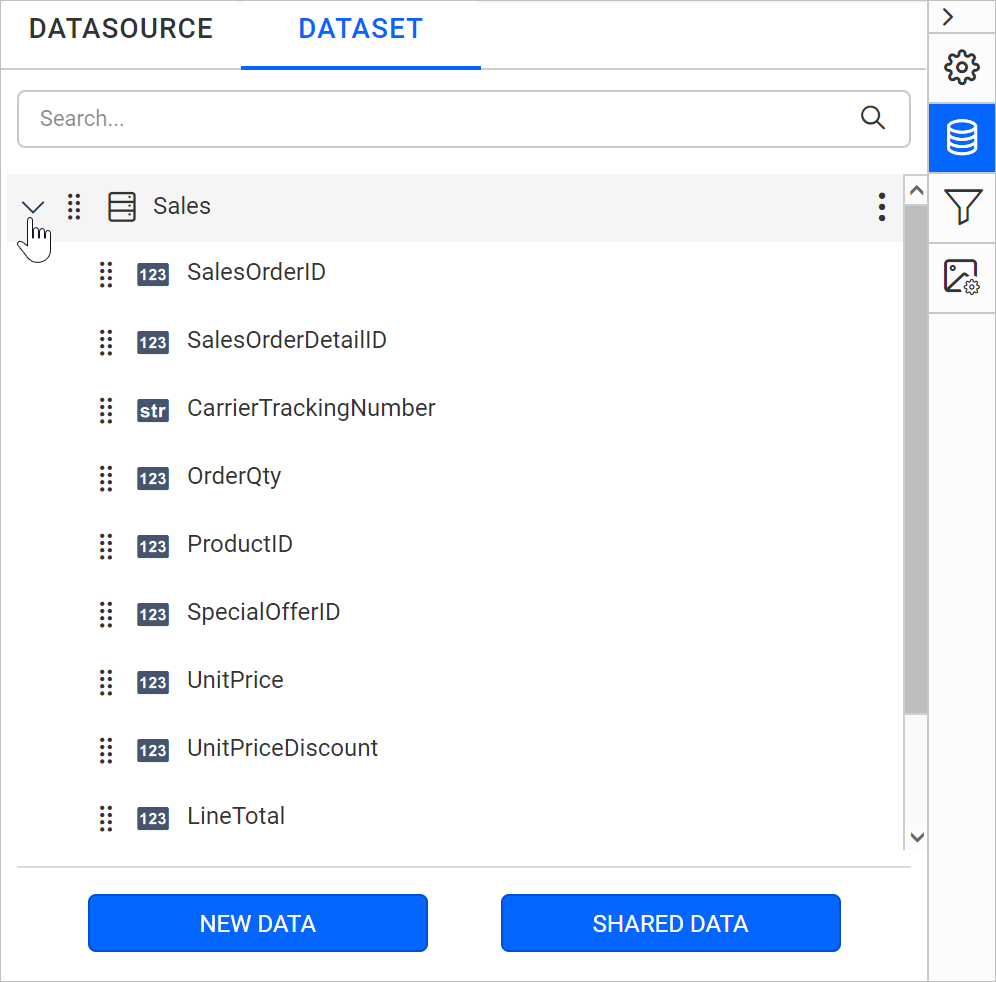
- Expand the icon to view the data fields.