Save a Report
In Web Report Designer, you can save a report to your computer or publish report into Report Server.
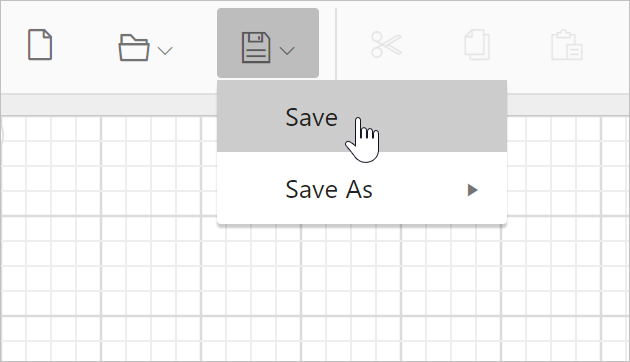
Open the save menu in toolbar and click on Save option in the context menu.
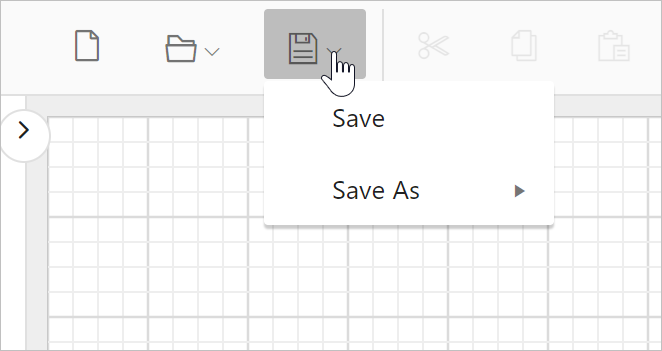
Direct save option
If you have opened a report from server, the Save option will directly replace the report into server.
If you have created a new report, the Save option will download the report to the local computer.
Save a report into report server
- Open the save menu in toolbar.
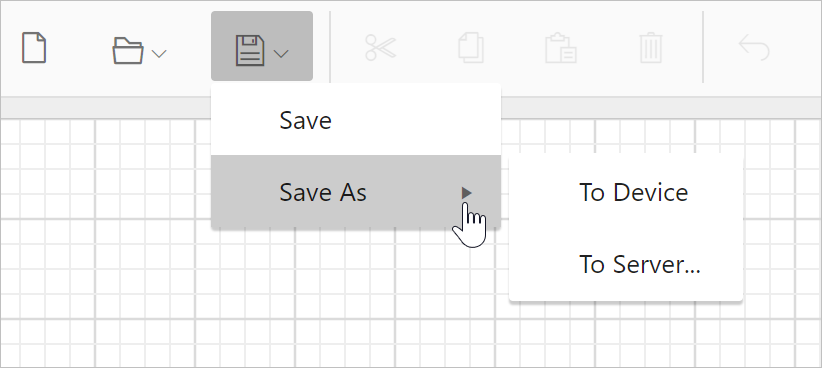
- In
Save Asoption, click onTo Server. It will launch theSave As Reportdialog.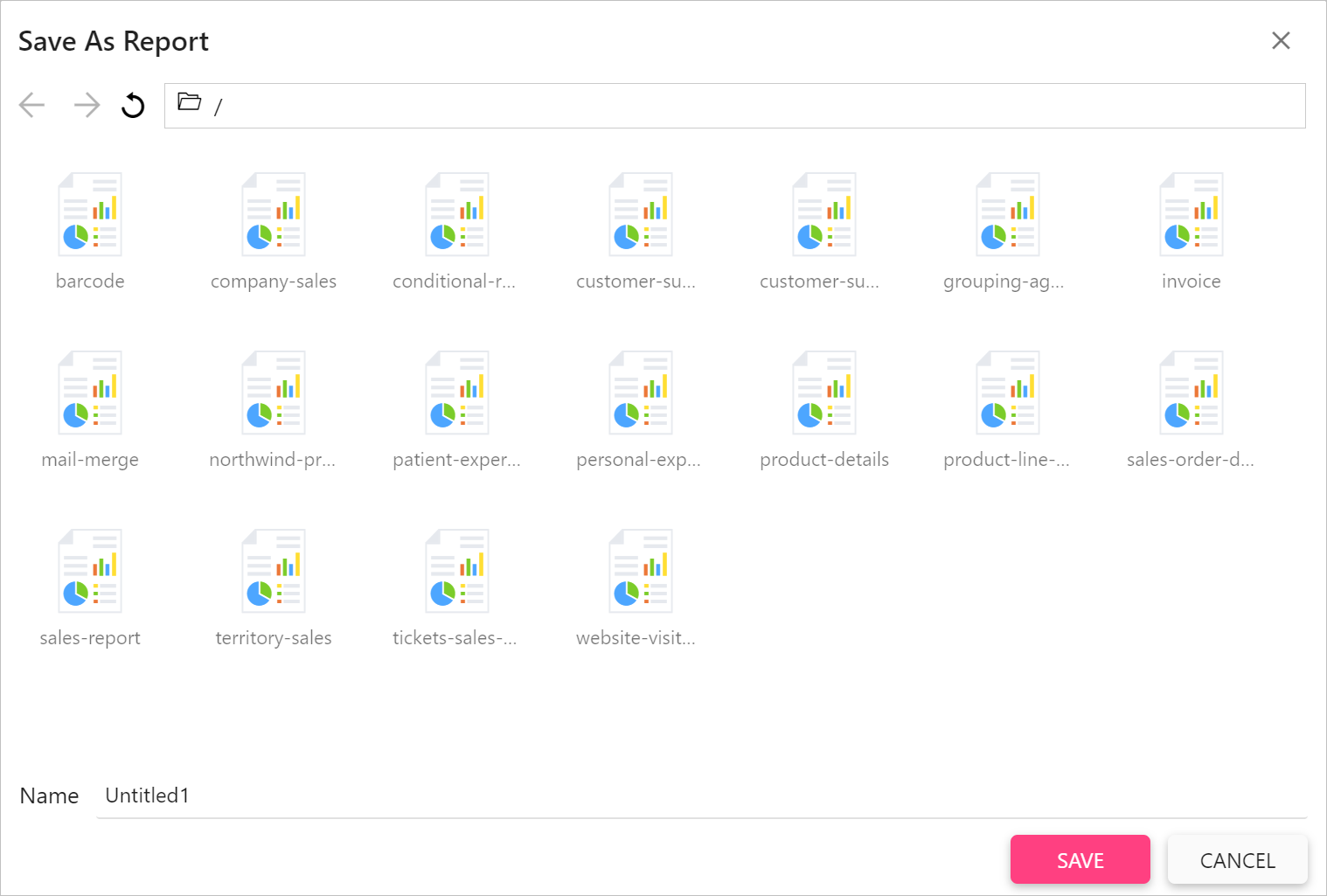
- Browse to the reports folder location and provide name for the report in Name field.
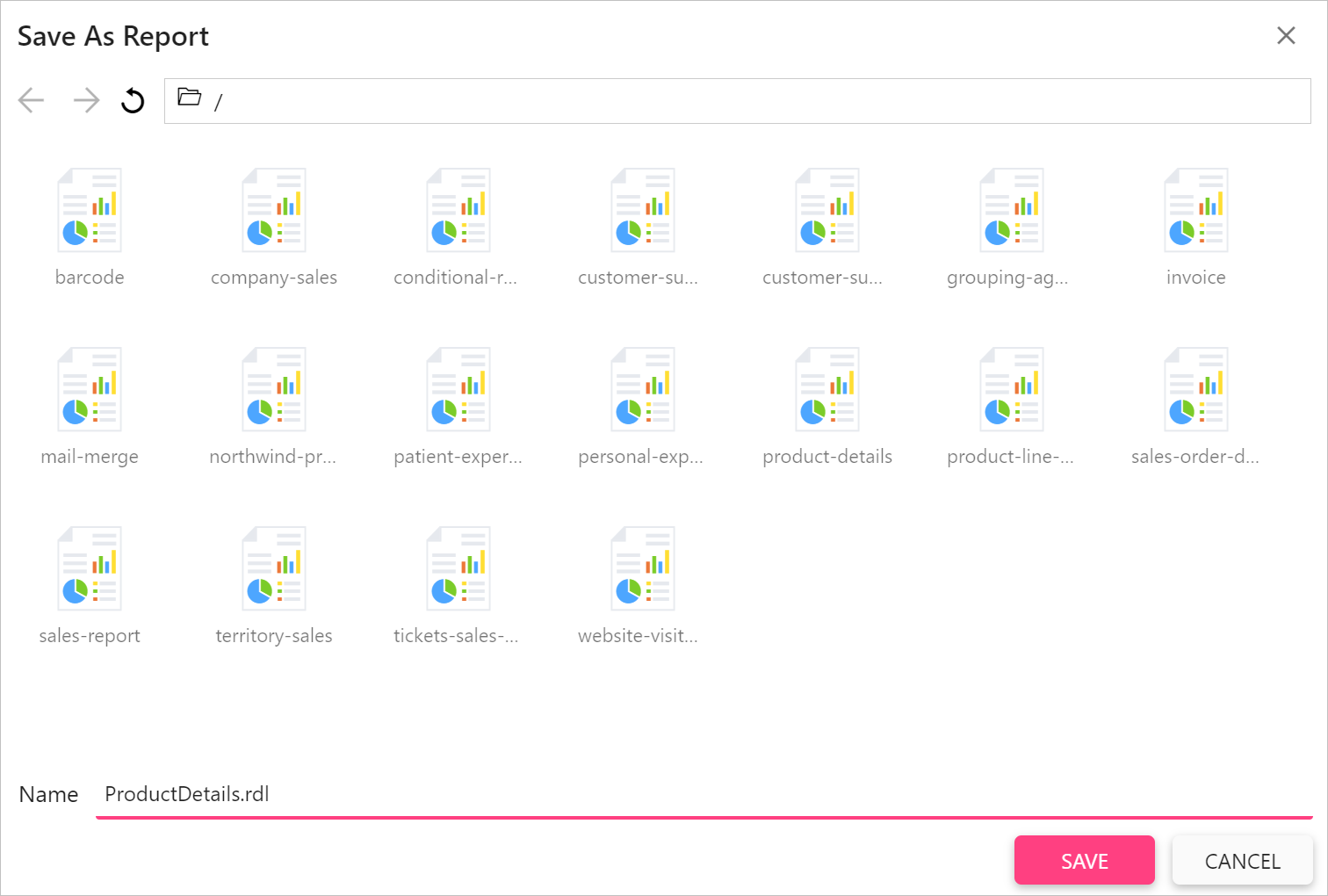
- Click on
Savebutton to save the report.
If you are saving the report with duplicate report name, it will launch Save As Report alert dialog,
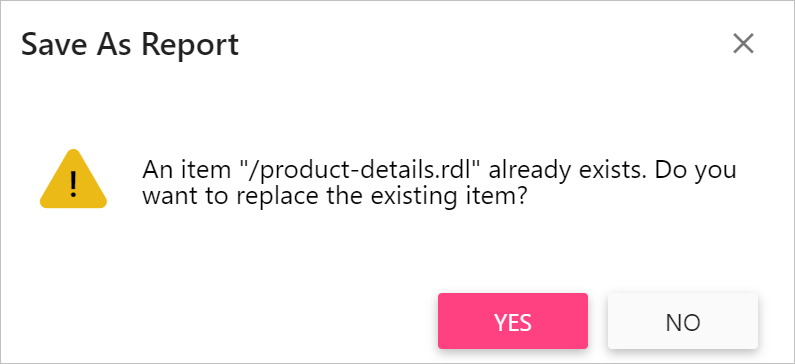
Click Yes to replace the report or No to edit the report name in the name field.
You can save reports to server only when you configure external server in your application.
Save report to your computer
- After designing the report, open the save menu in toolbar. In
Save Asoption, click onTo Device.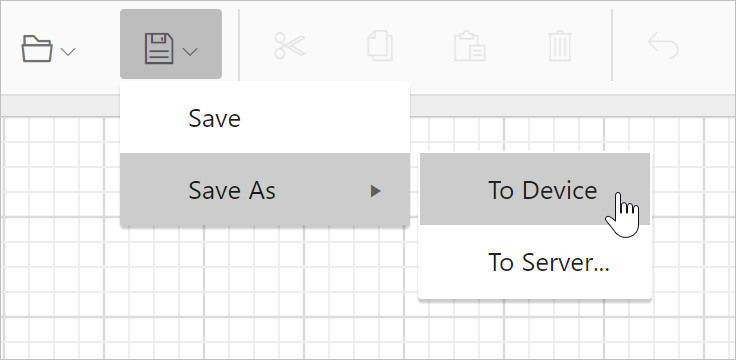
- Now, the report will be automatically downloaded to the local computer.