Define default values for a parameter
A list of default values can be specified for a report parameter. If the parameters in the report have default value, the report runs automatically on report preview action.
Refer Create Parameter section for better understanding with the following steps.
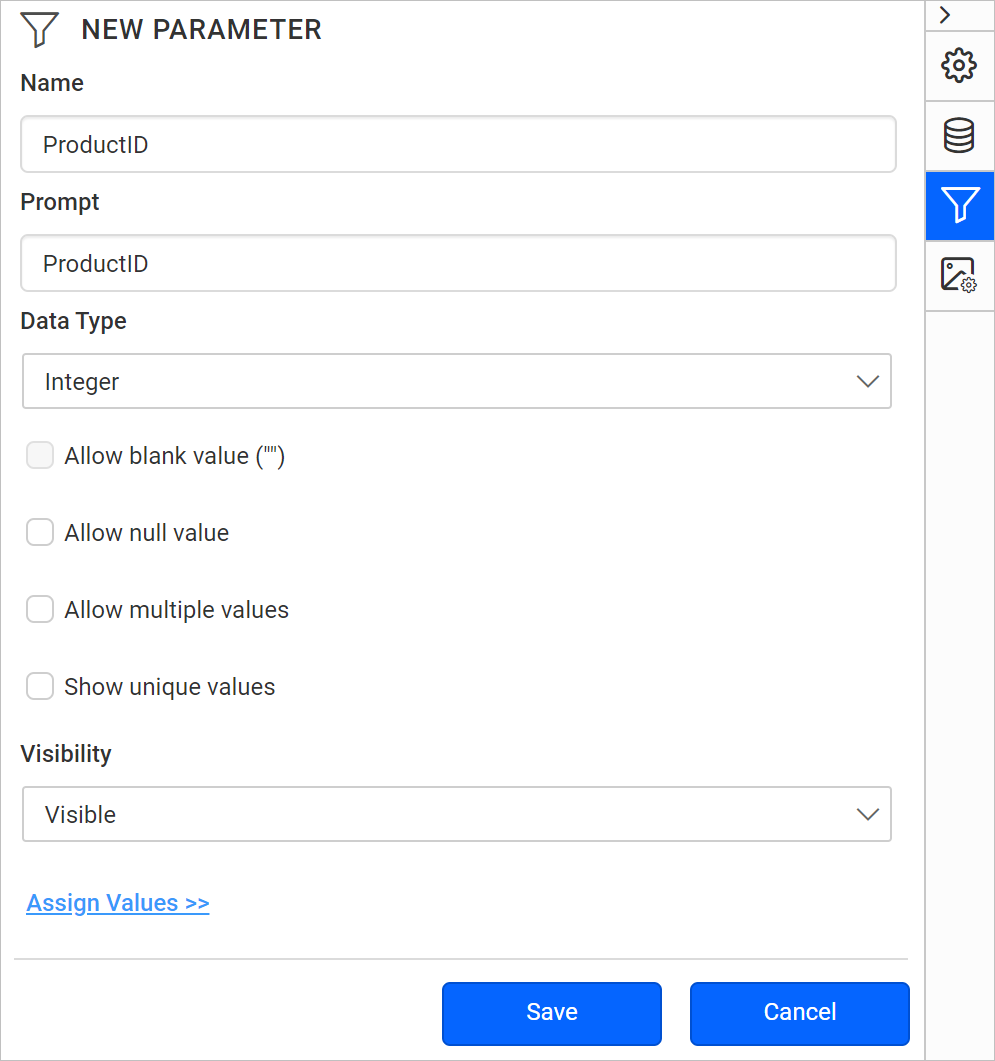
Click on Assign Value >> to open parameter assign dialog.
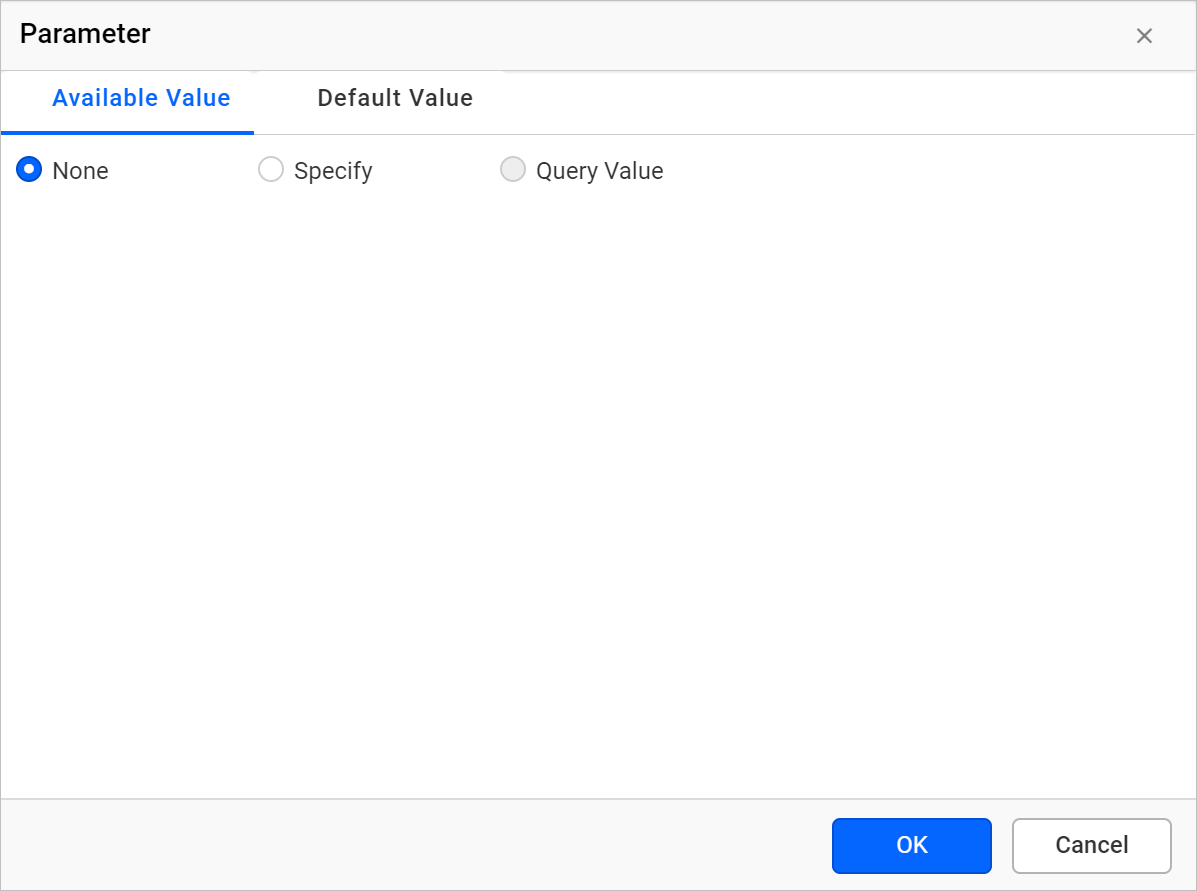
By default, the parameter dialog will be launched with Available Value tab. To switch over to Default Value tab, click the Default Value which has below options.
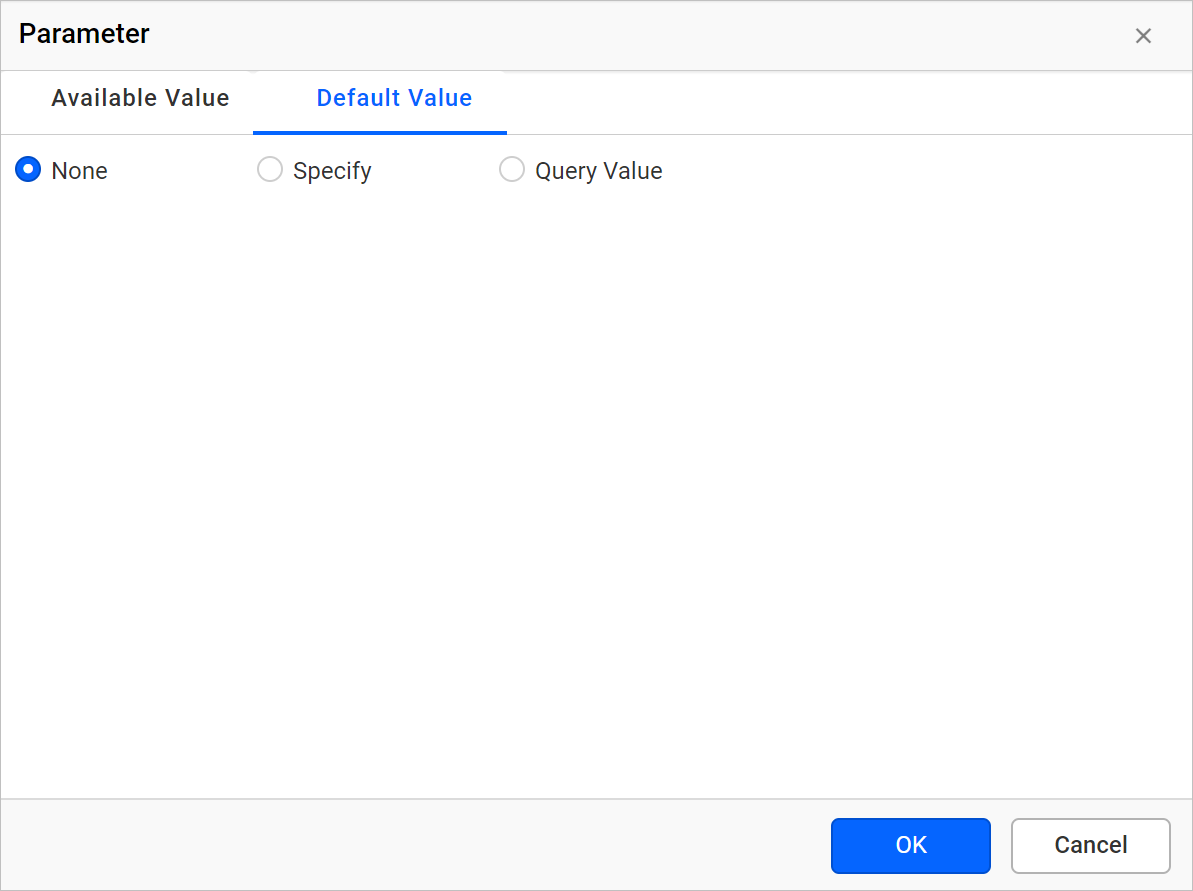
Manual values
- Select
Specifyoption underDefault Valuetab.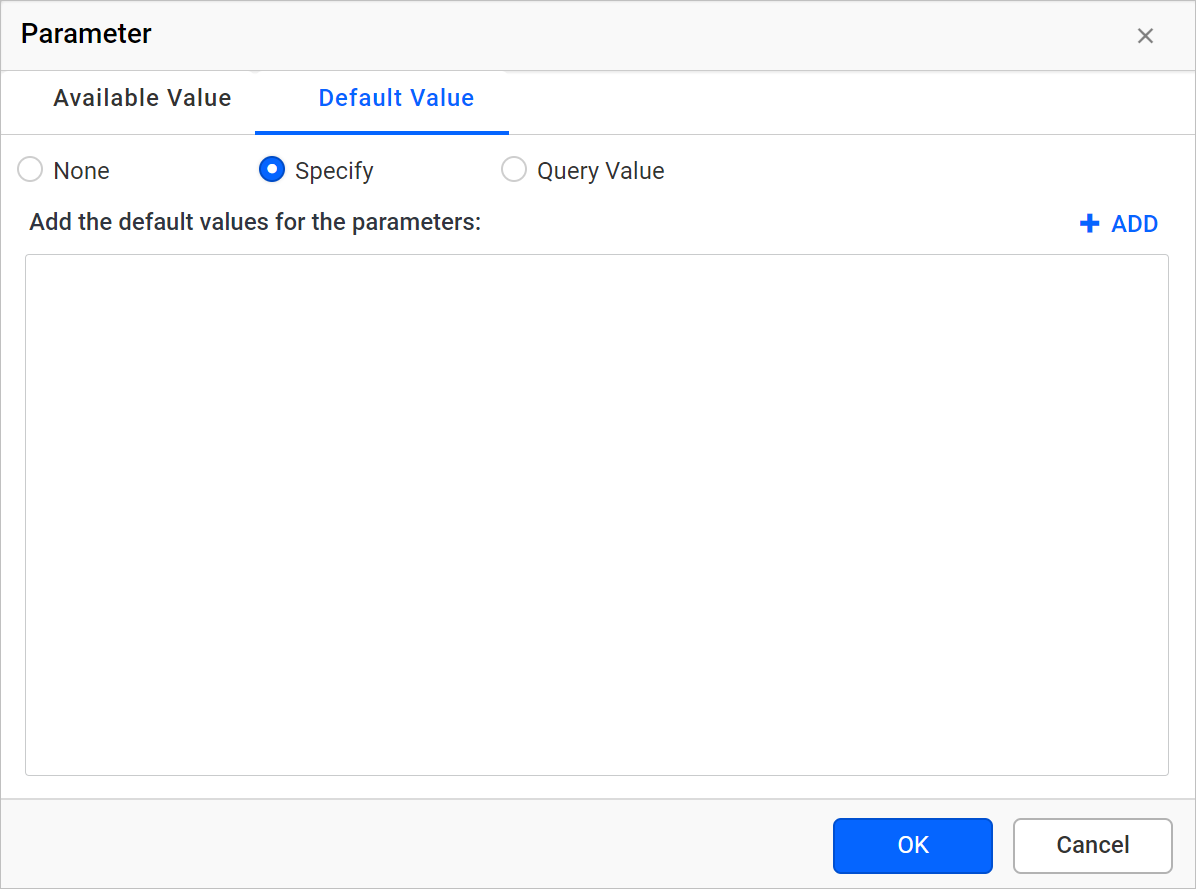
- Click on the Add icon. Now, a list in which you can type values appears.
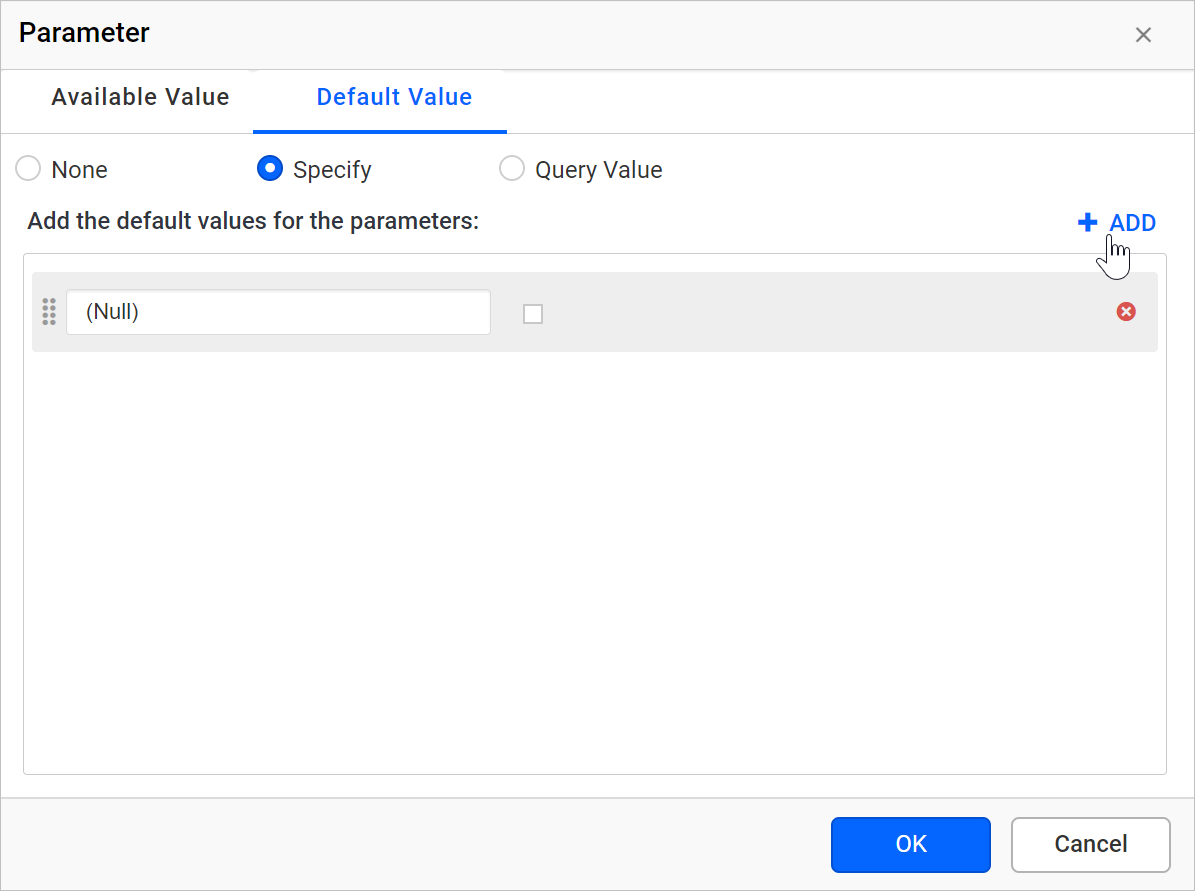
- Enter the value in the Value text box and click
OK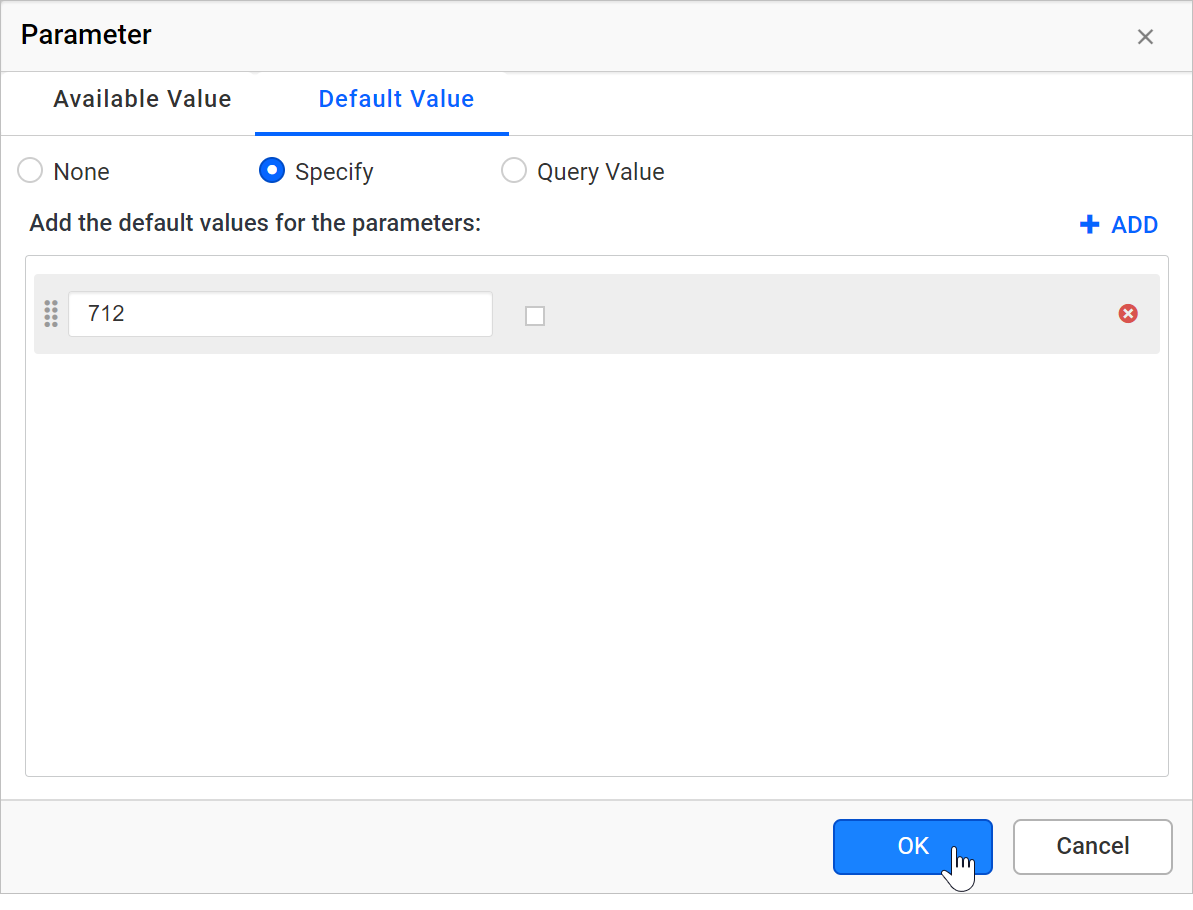
- Save the parameter.
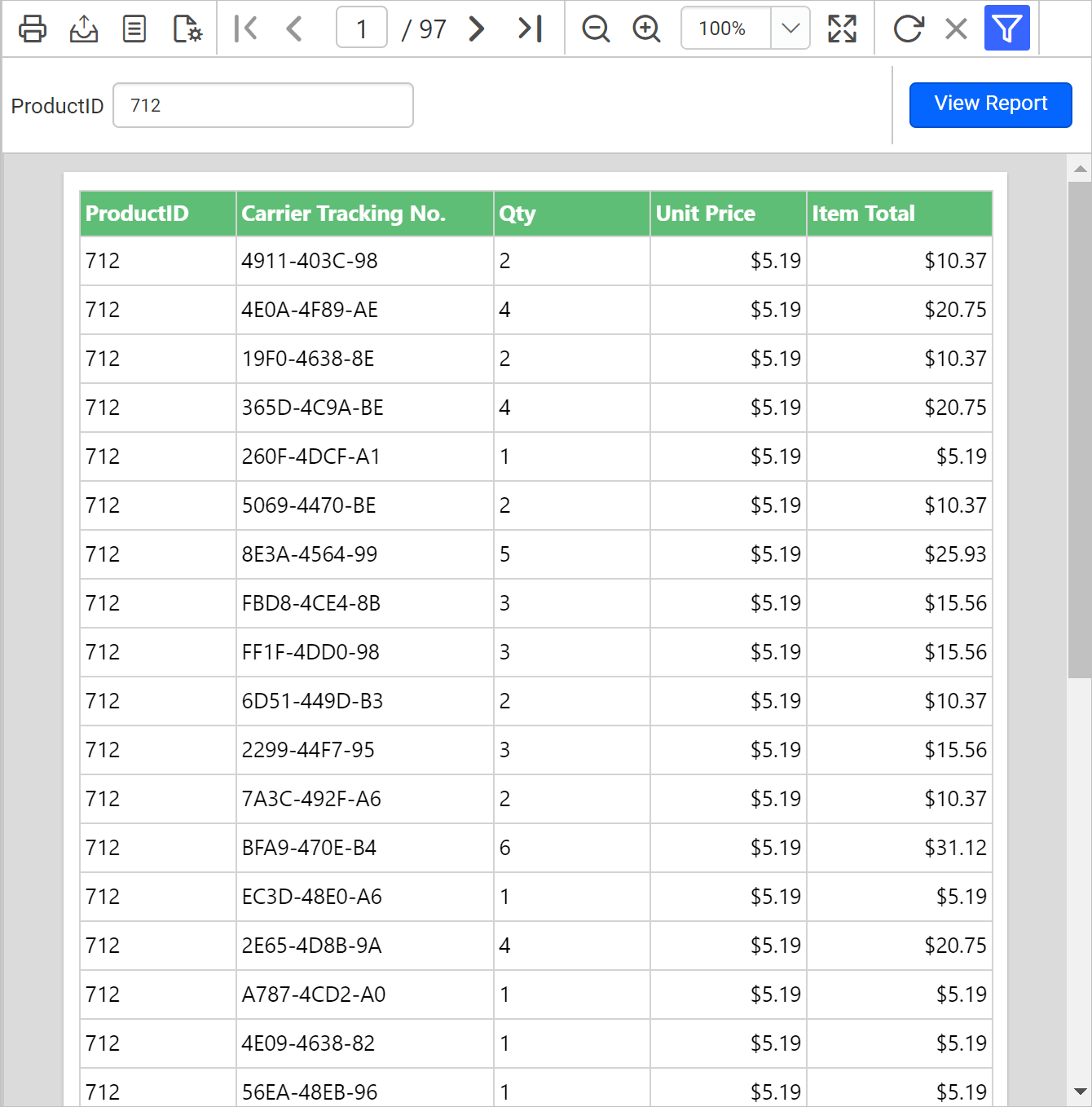
On report preview, the report automatically runs and displays all the records whose ProductID is 712.
Query values
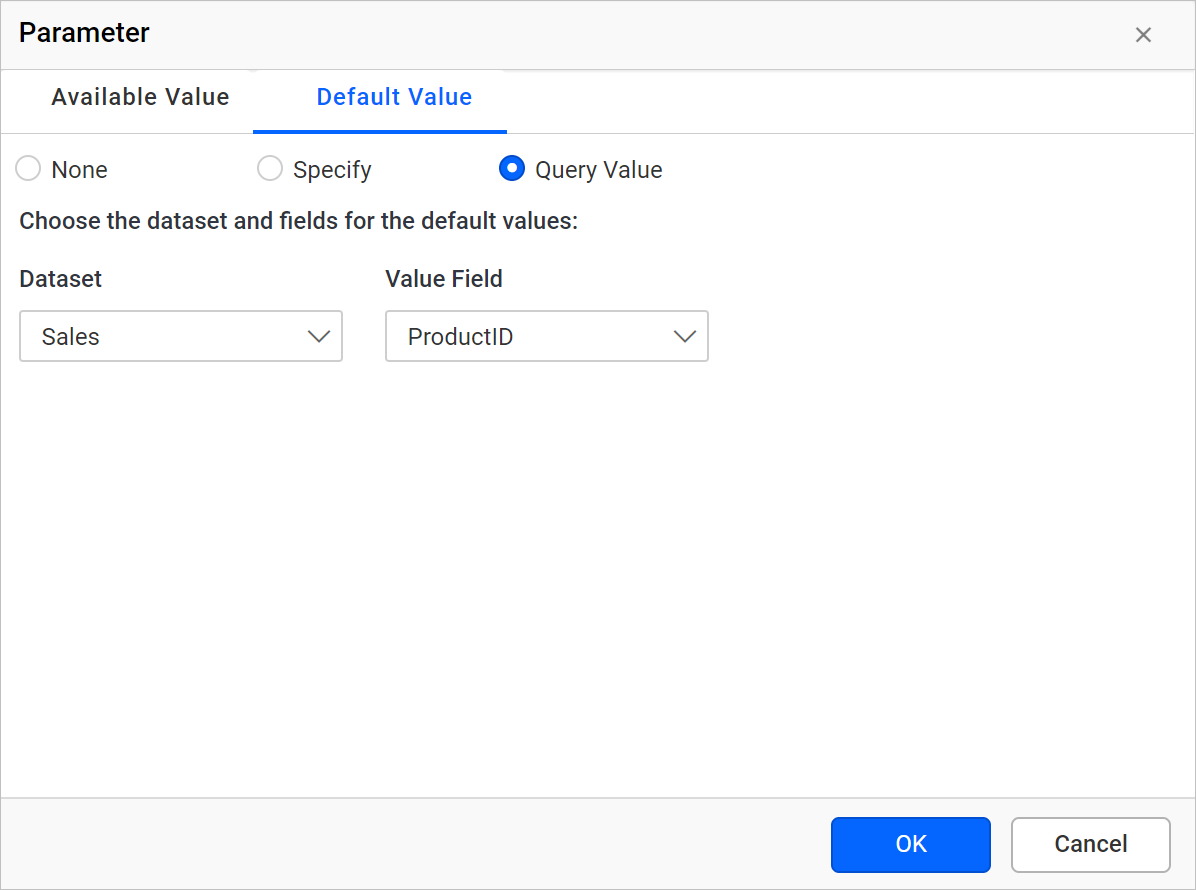
- Select Query Value option under Default Value tab.
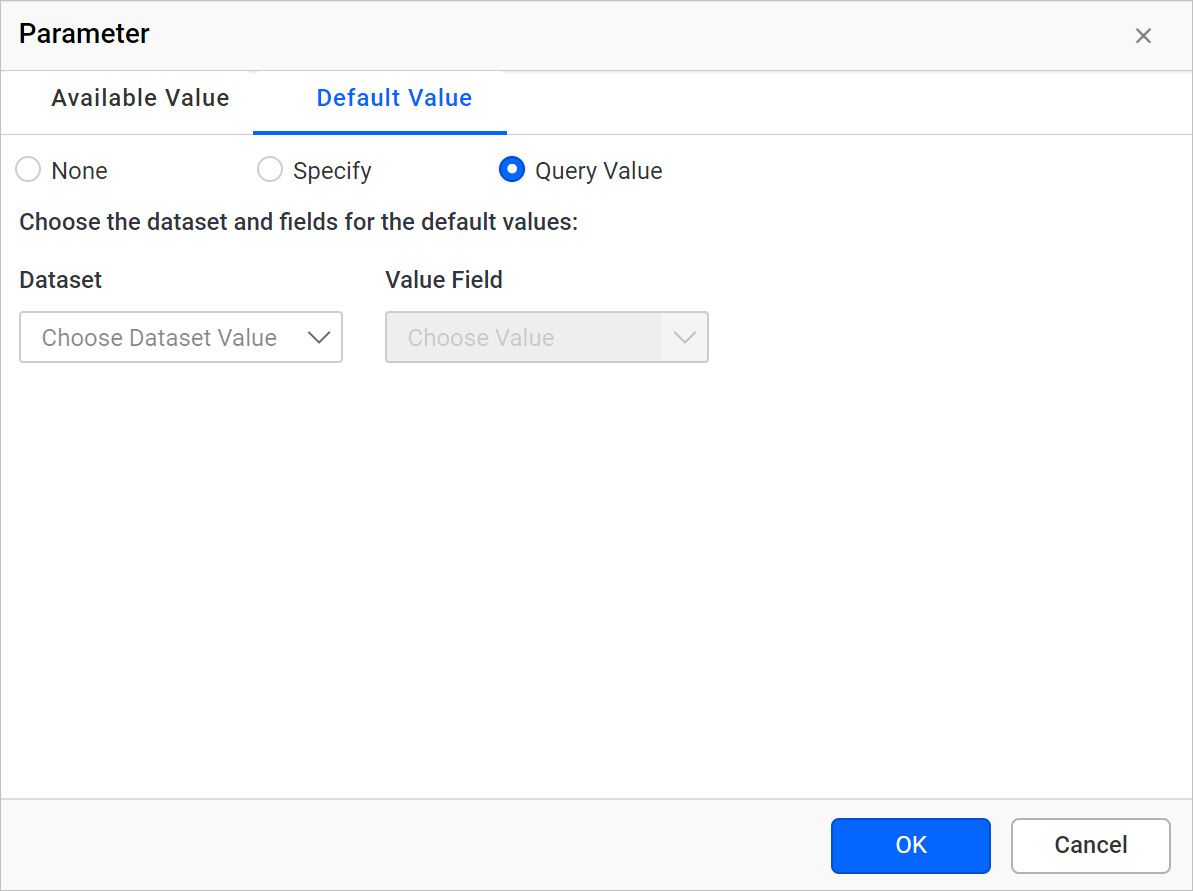
- In Dataset drop-down, choose the name of the dataset. Datasets can be defined using the data view.
- In Value field, choose the name of the field that provides parameter values.
Note: These fields are retrieved from the list of column or field names in the dataset.
- Click OK.
- Save the parameter.
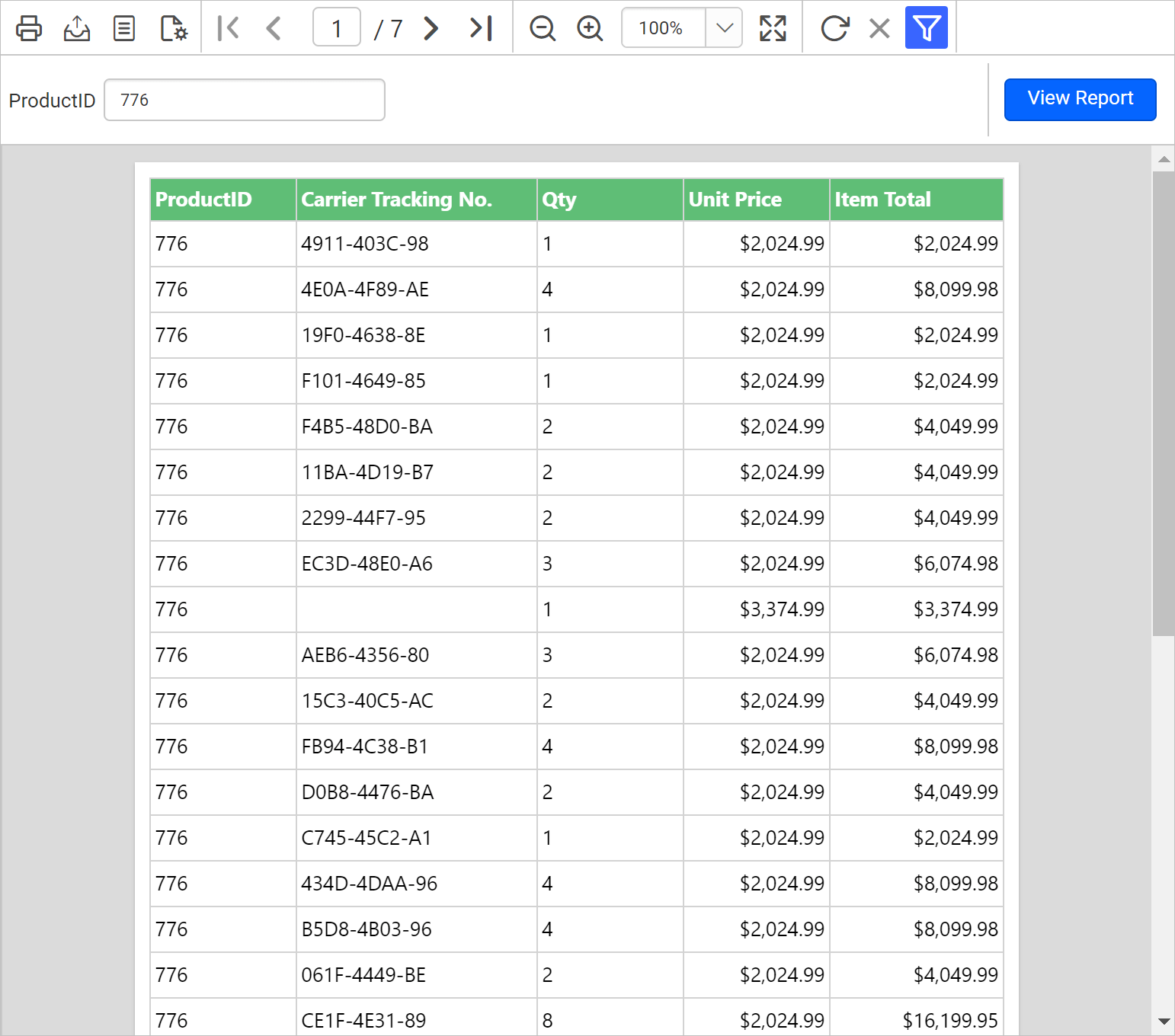
On report preview, the report automatically runs and displays the first record of ProductID data field.
Remove default values
To remove the default values defined for the parameter follow the below steps:
- Refer Edit Parameter section and open parameter properties.
- Click on
Assign Value >>to open parameter assign dialog. - Under the
Default Valuestab, choose theNoneoption.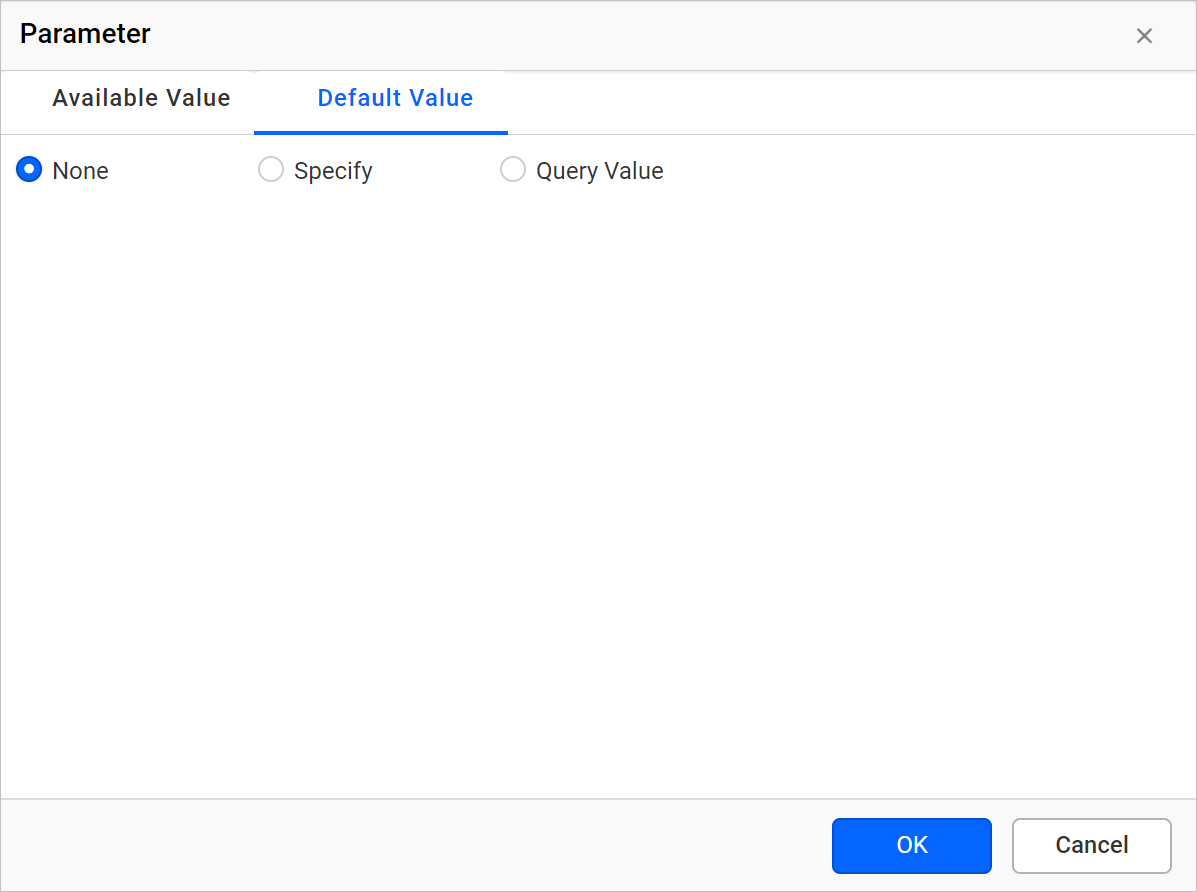
- Click
OKand save the parameter.