Add report parameter to the report
Report parameters can be used to filter the report data or associate related reports together. This section guides you to add a report parameter into the report with Bold Report Designer.
Prefer watching over reading? Check out this video for report parameters:
Create parameter
-
To add a parameter, click on the
Parametericon in theData Configurationpanel. It opens thePARAMETERSpanel.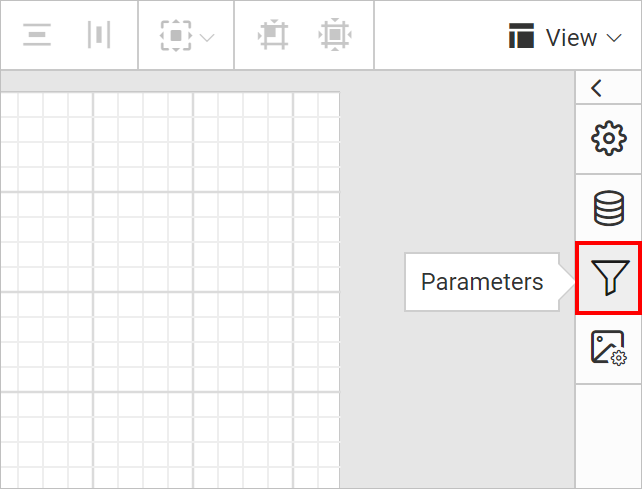
-
Next, click on the
NEW PARAMETERbutton in thePARAMETERSpanel.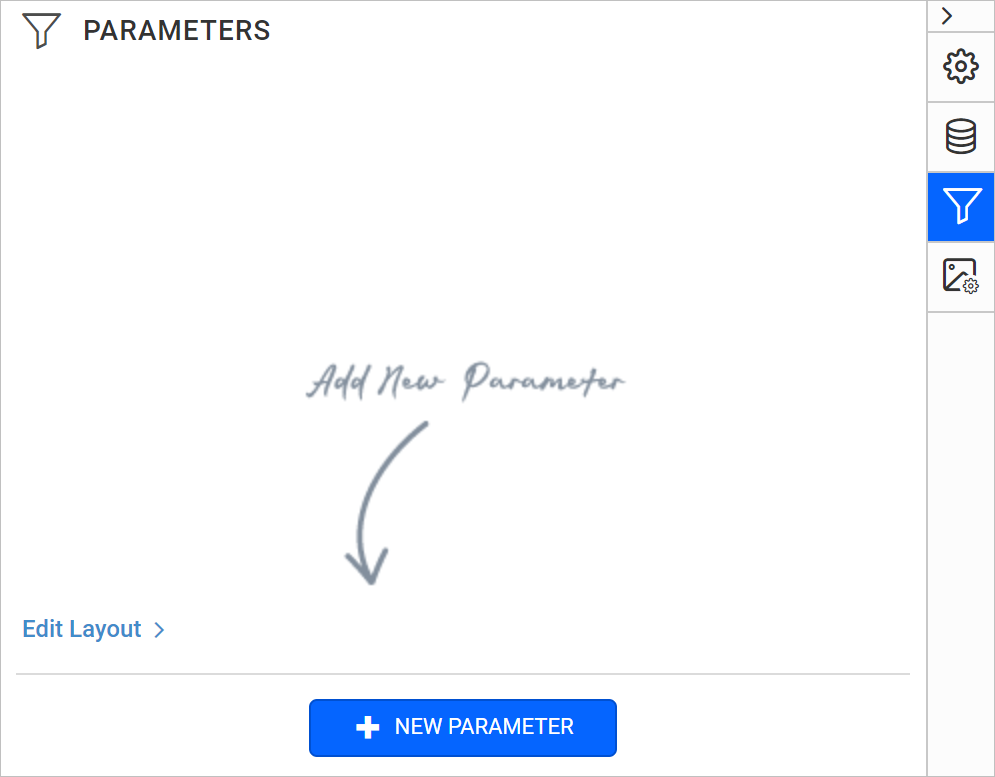
-
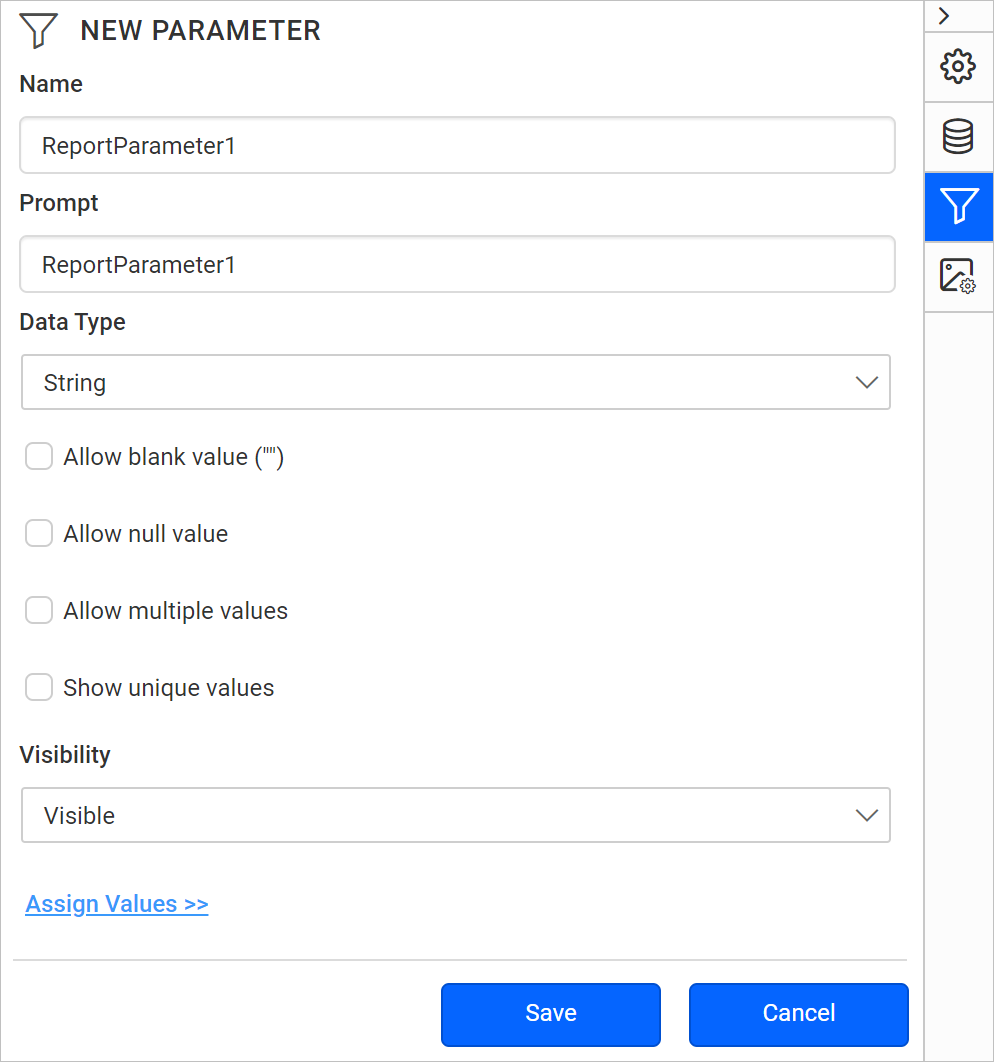
Now, the following wizard will be displayed.
-
In Name field, type the name for the parameter or use the default name. By default, manually-created parameters name are similar to
ReportParameter1. -
In Prompt field, type the text that appears next to the parameter when the user previews the report.
-
In Data type field, select the data type for the parameter value. The supported data types are
Boolean,DateTime,Integer,FloatandText. -
Select Allow blank value, if parameter value needs to be set as an empty string or a blank value.
Note: If you specify valid values for a parameter, and you want a blank value to be one of the valid values, you must include it as one of the values that you specify. Selecting this option does not automatically include a blank value for available values.
-
Select Allow null value, if the value of the parameter needs to be set as null.
Note: If you specify valid values for a parameter, and you want null to be one of the valid values, you must include null as one of the values that you specify. Selecting this option does not automatically include the null value for available values.
-
Select Allow multiple values, if the value for the parameter should be multiple values. Null values are not allowed.
-
Set the
visibilityoption.- Select Visible to display the report parameter at the top of the report while running the report. This option allows you to select parameter values at run time.
- Select Hidden to hide the report parameter in the published report. The report parameter values can still be set on a report URL, in a subscription definition, or on the Report Server.
- Select Internal to hide the report parameter. In the published report, the report parameter can only be viewed in the report definition.
-
-
Click on
Savebutton. Now, the parameter will be listed under thePARAMETERSpane like below.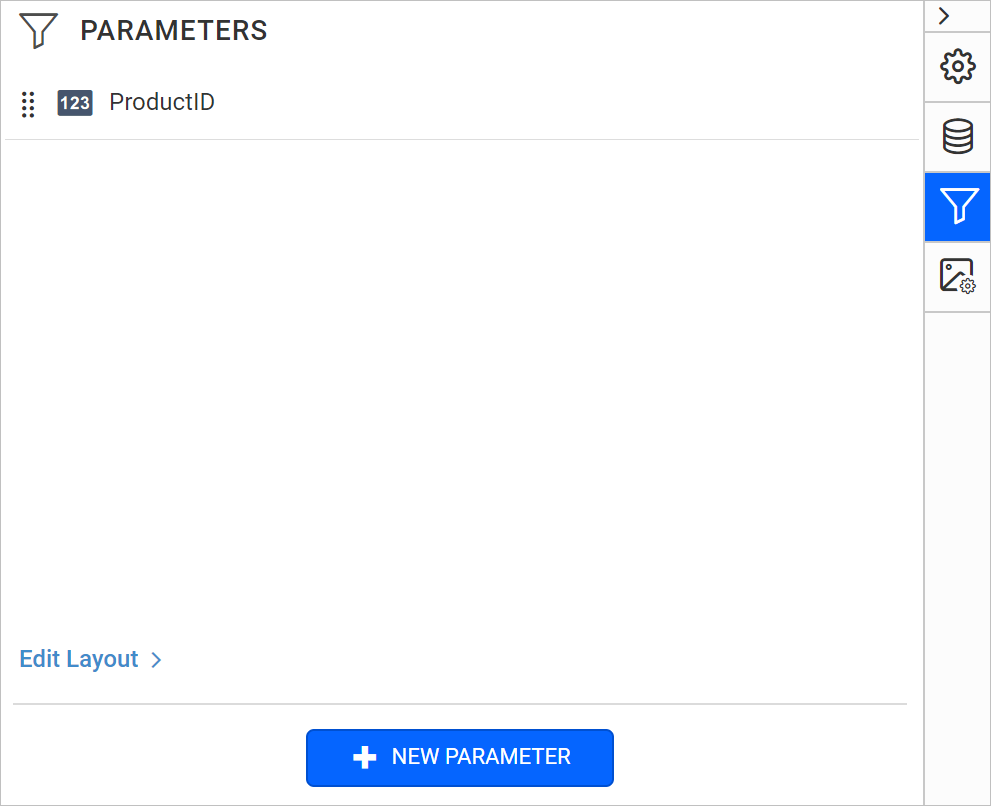
Filter a table data based on report parameter
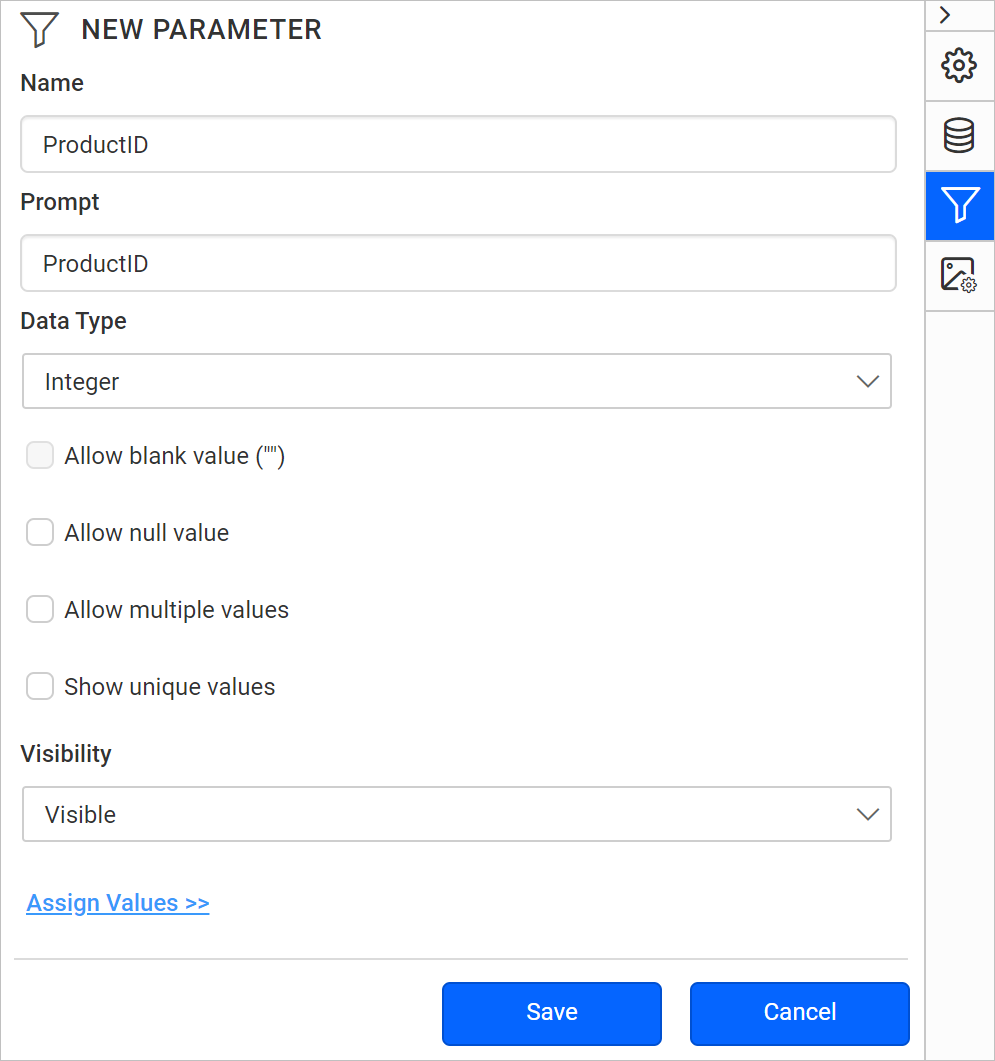
Using the ProductID parameter, we can filter the ProductID field values at runtime like below.
- Select the table report item to enable grouping panel in the designer.
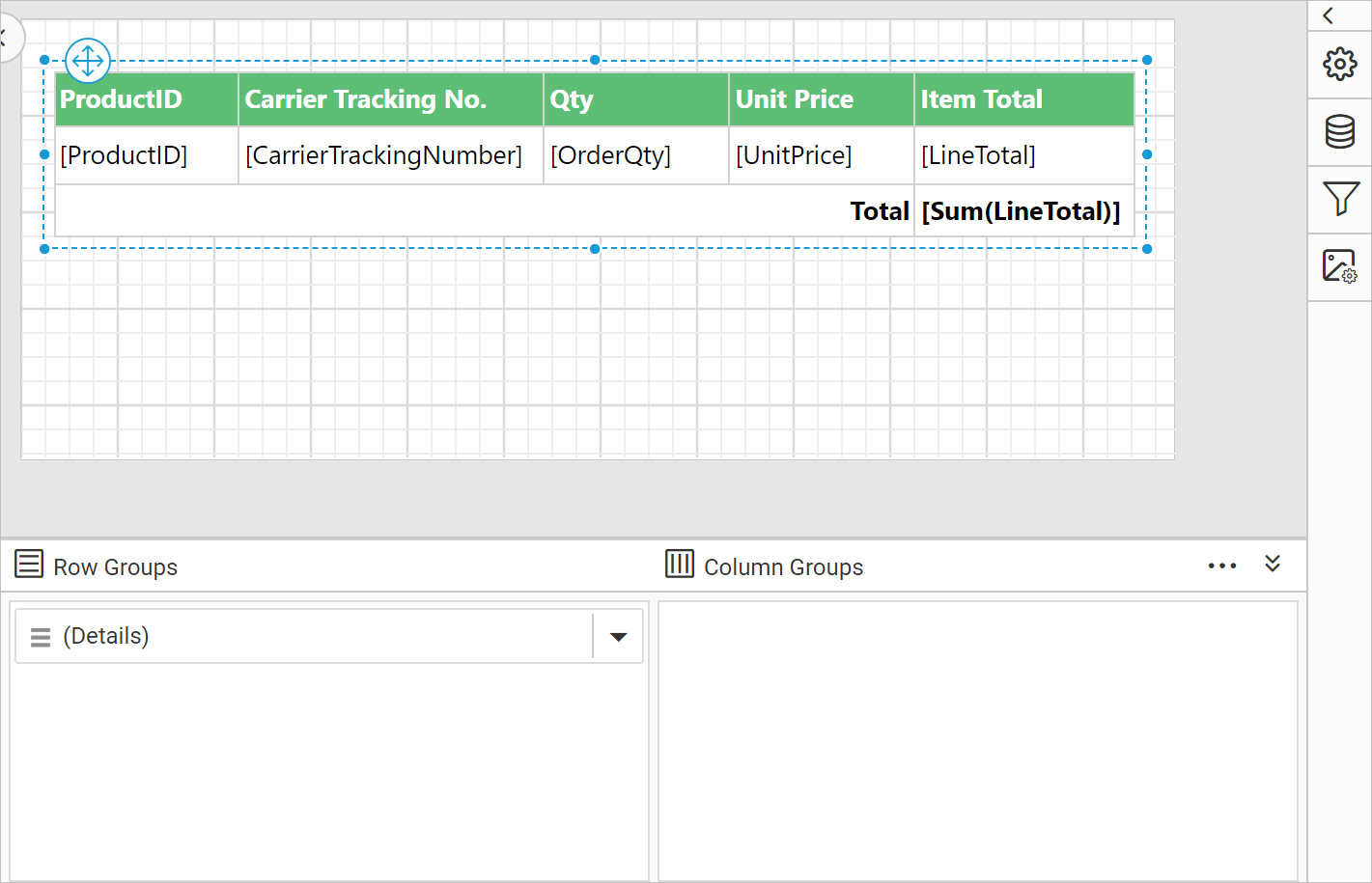
- Now, click on the
(Details)member field in the grouping panel to open the tablix member properties.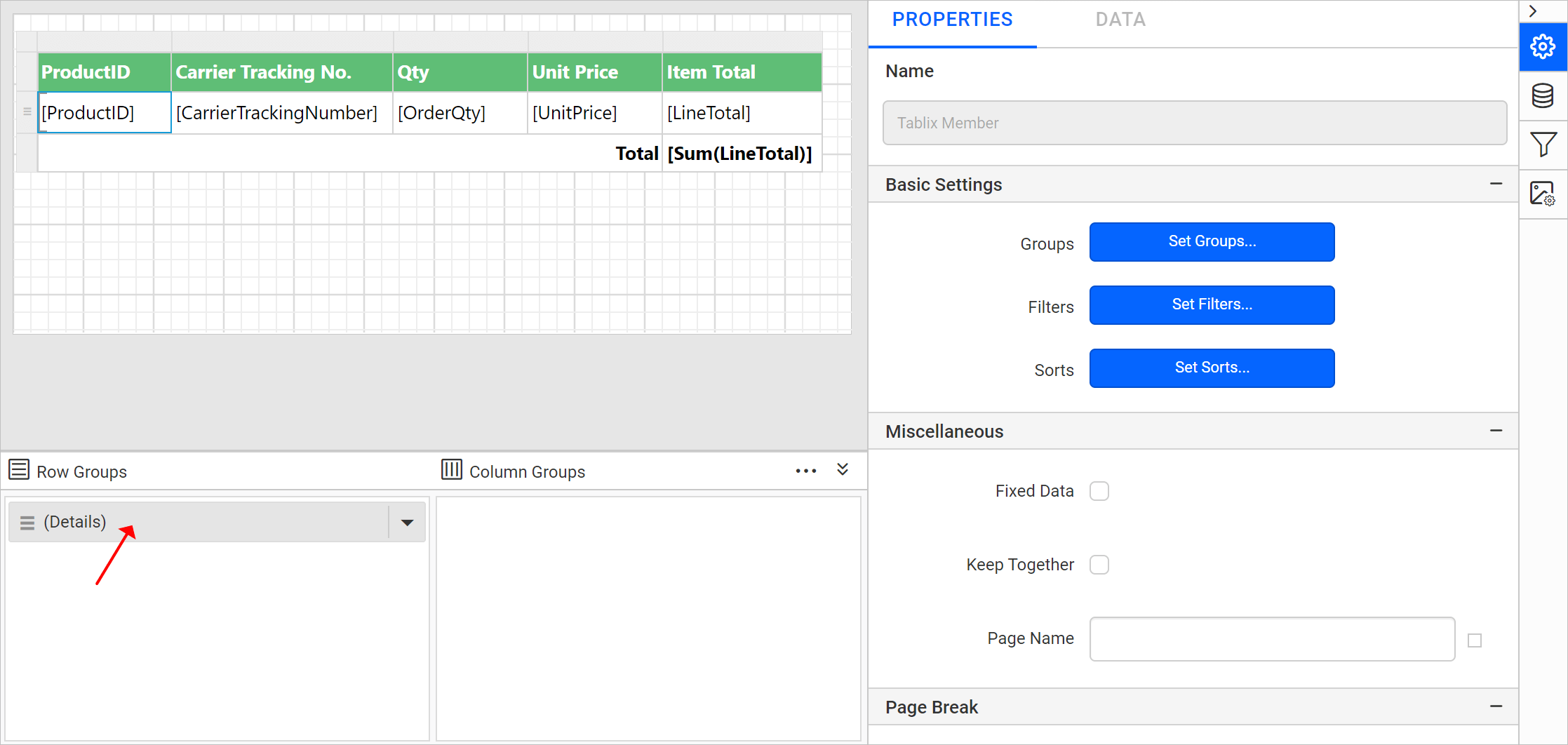
- In
Tablix Memberproperties, click onSet Filters...button.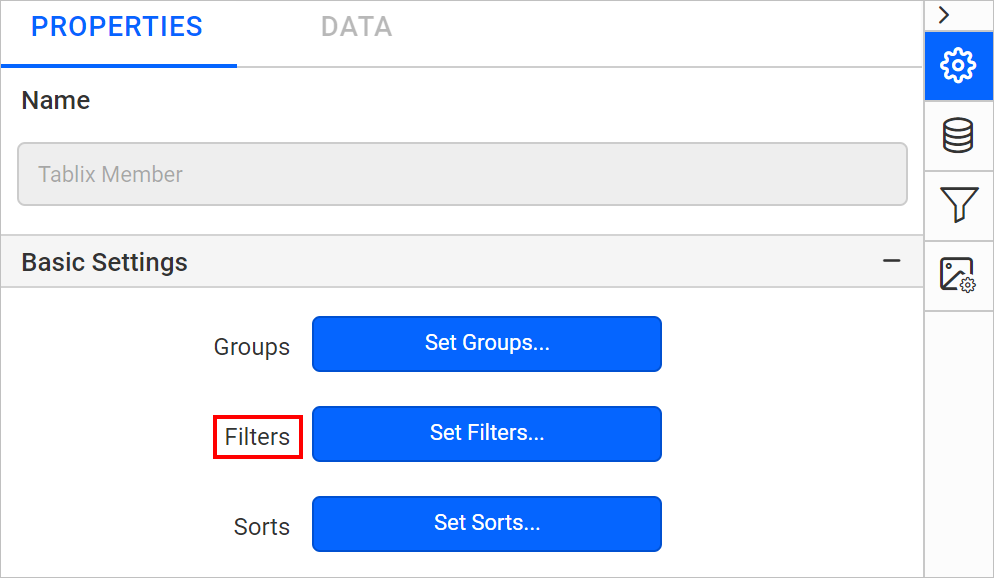
- Refer Set filters section to create new filter expression.
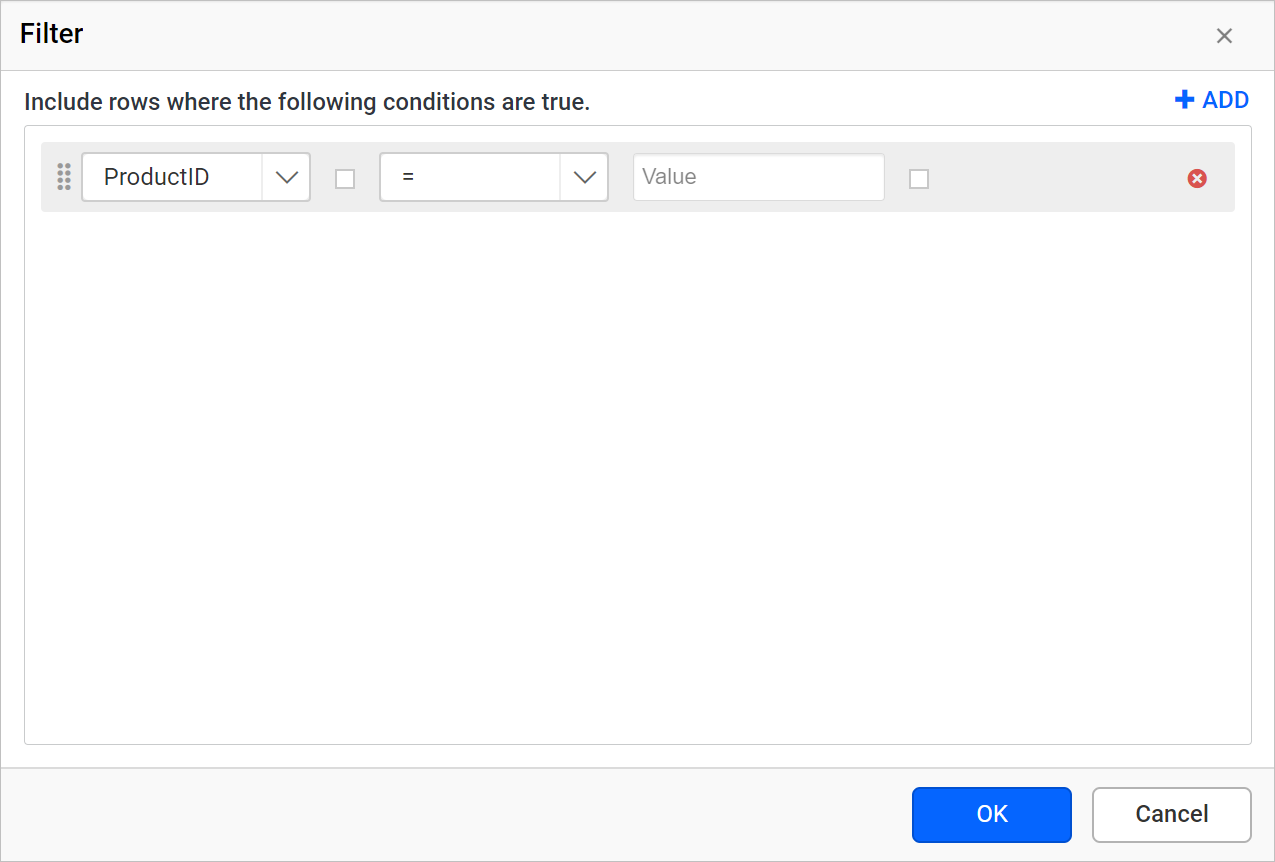
- Choose the
Equaloperator and assign theProductIDparameter in the Value field. Save the filter.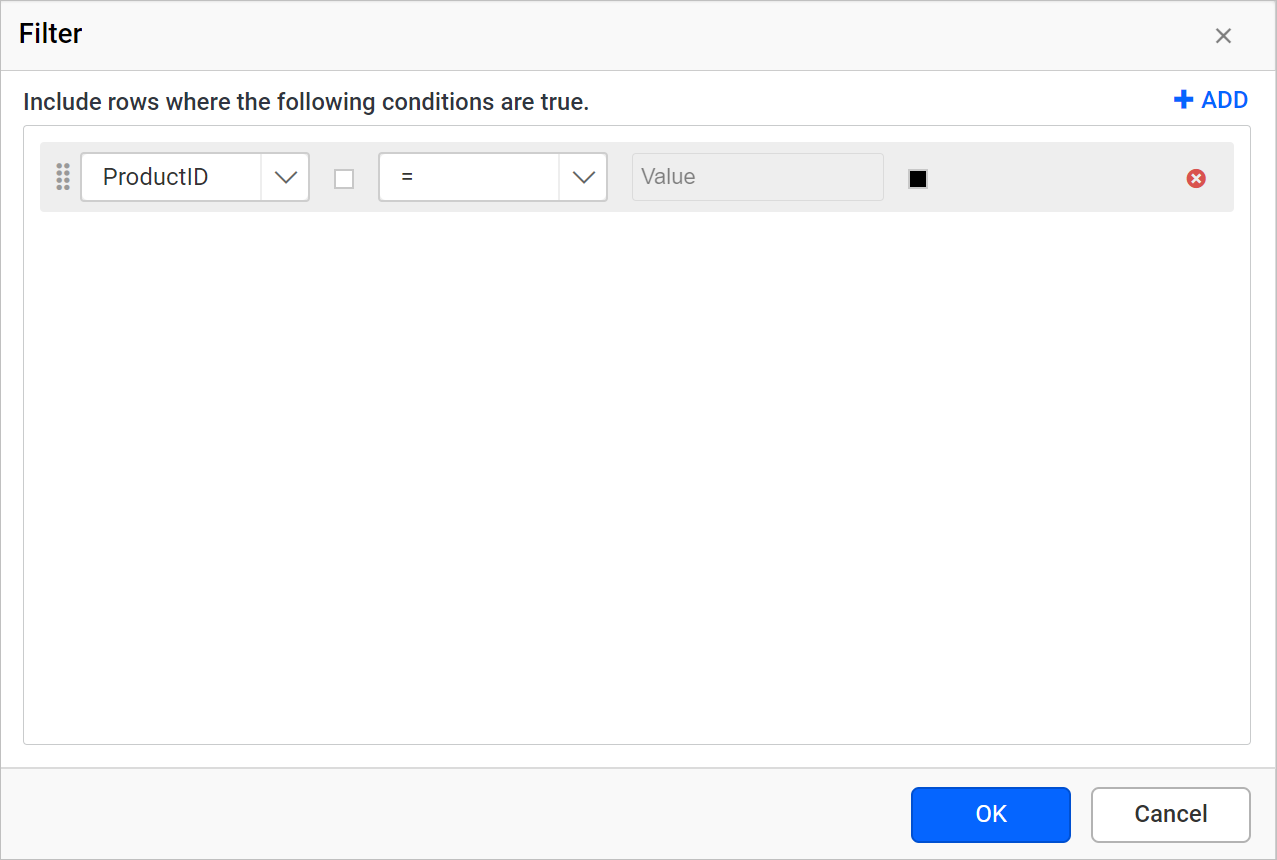
- Preview the report, now the following view will be displayed.
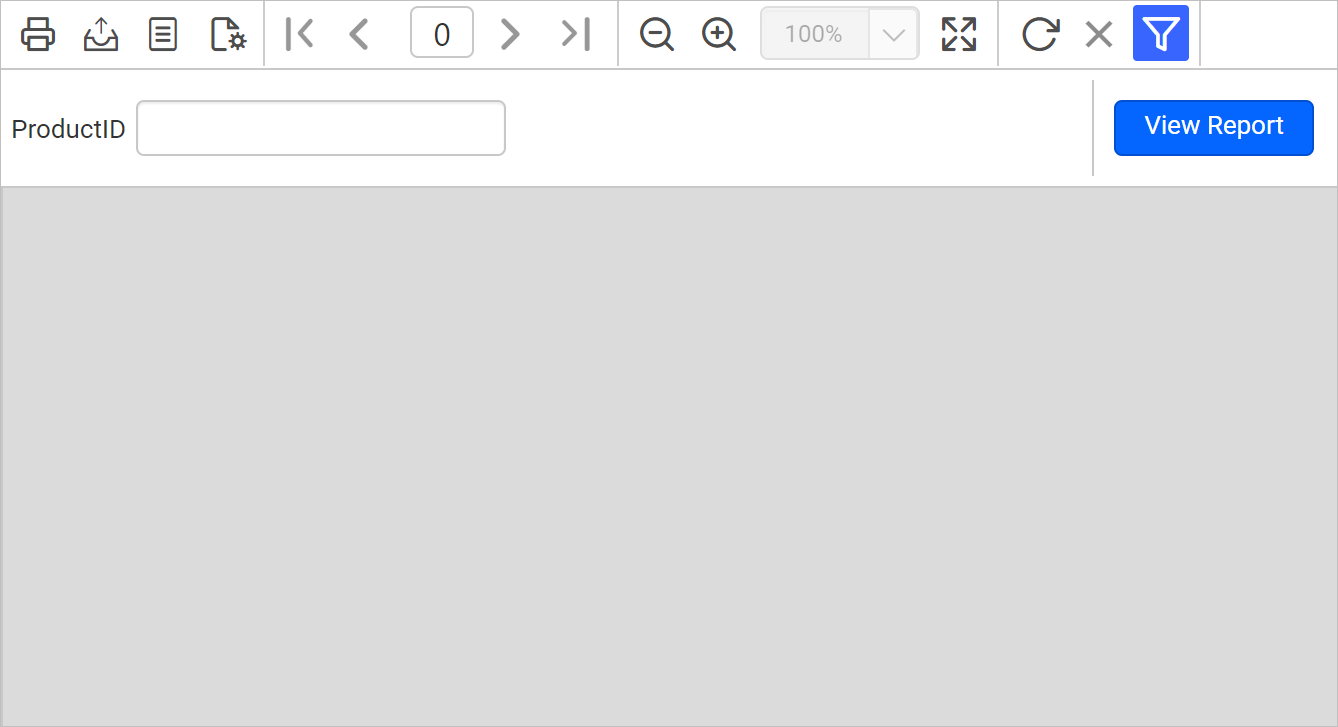
- Enter the valid
ProductIDin the textbox and click onView Report.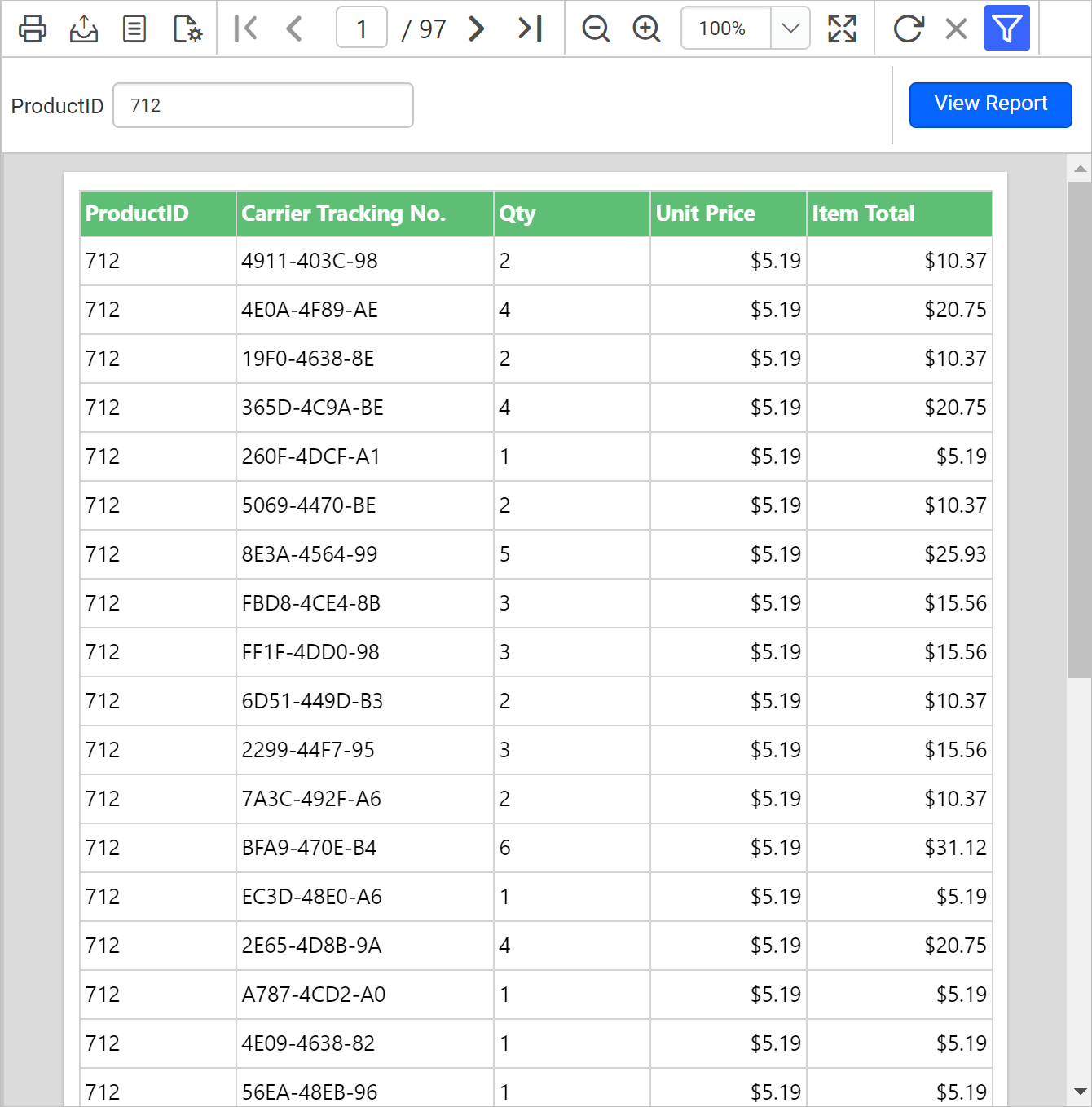
Download the above report design from link.