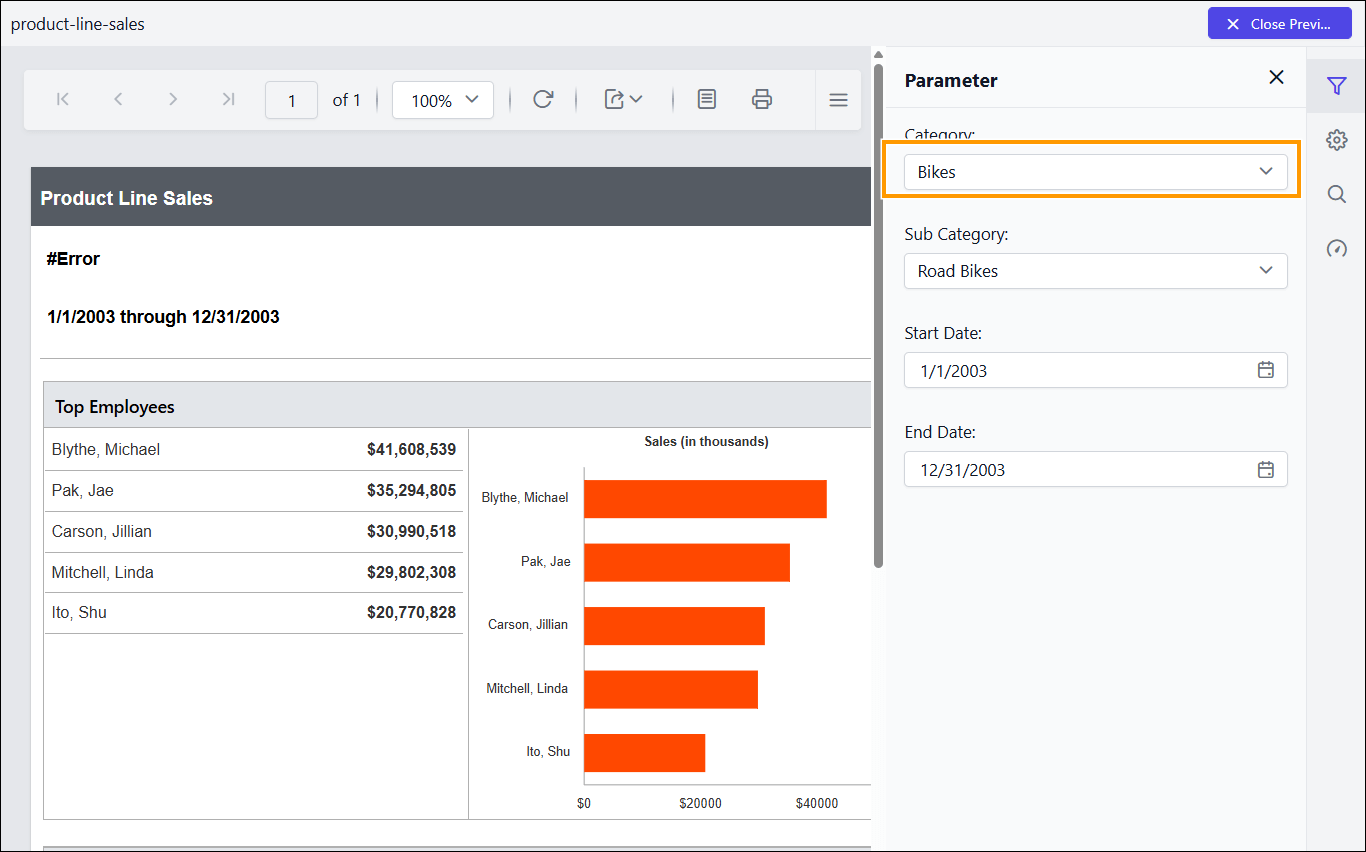
Parameter custom properties
Parameter custom properties in the Bold Reports® ASP.NET Web Forms Report Viewer customize how report parameters appear in preview, such as drop-down size, date and time pickers, and the parameter block.
How do I show only distinct values in a parameter?
To show only unique values in a parameter drop-down, set the UniqueValueParameters custom property in the Report Viewer. A parameter created with data set query values may contain duplicate values, and UniqueValueParameters shows only unique values while viewing the report, without creating a new data set. The following image shows the property setting option.
You can also provide the parameter names with comma (,) separator to set for multiple parameters.
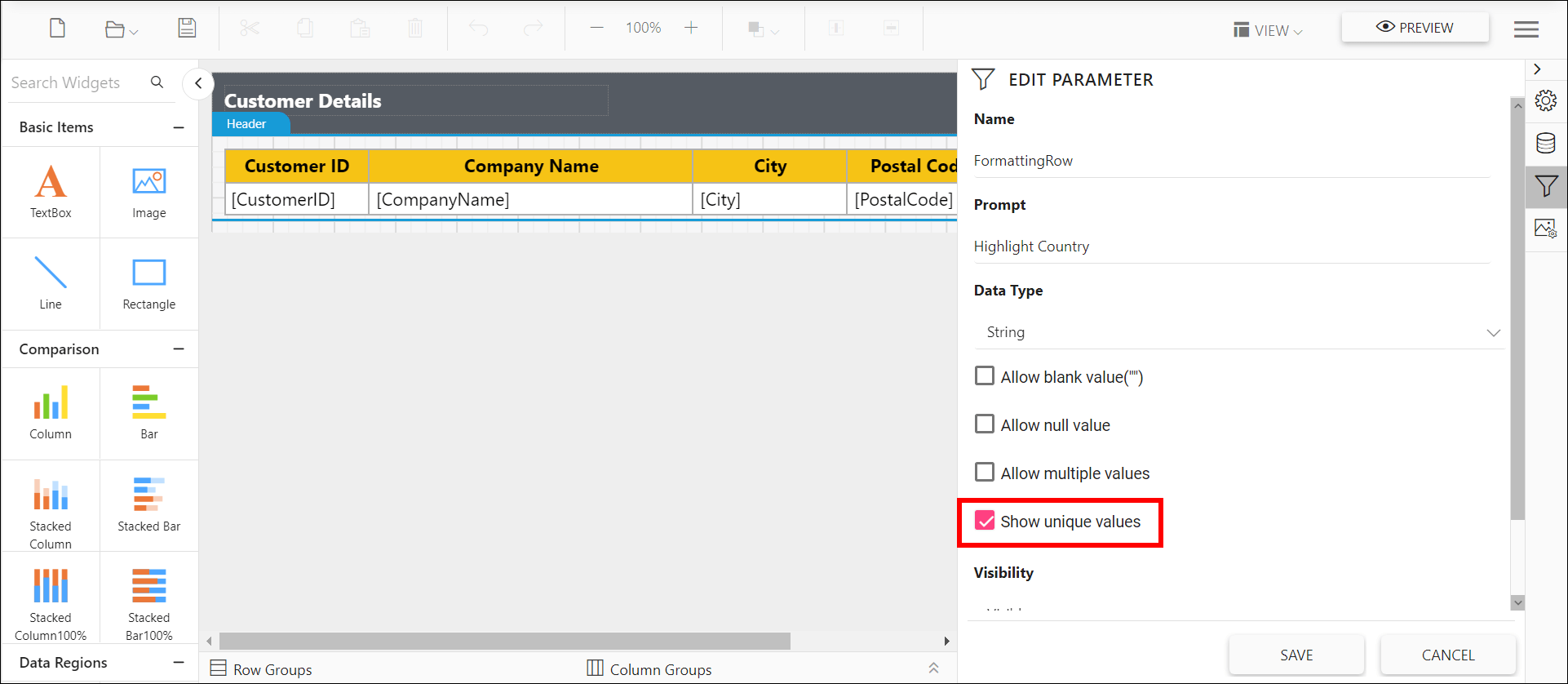
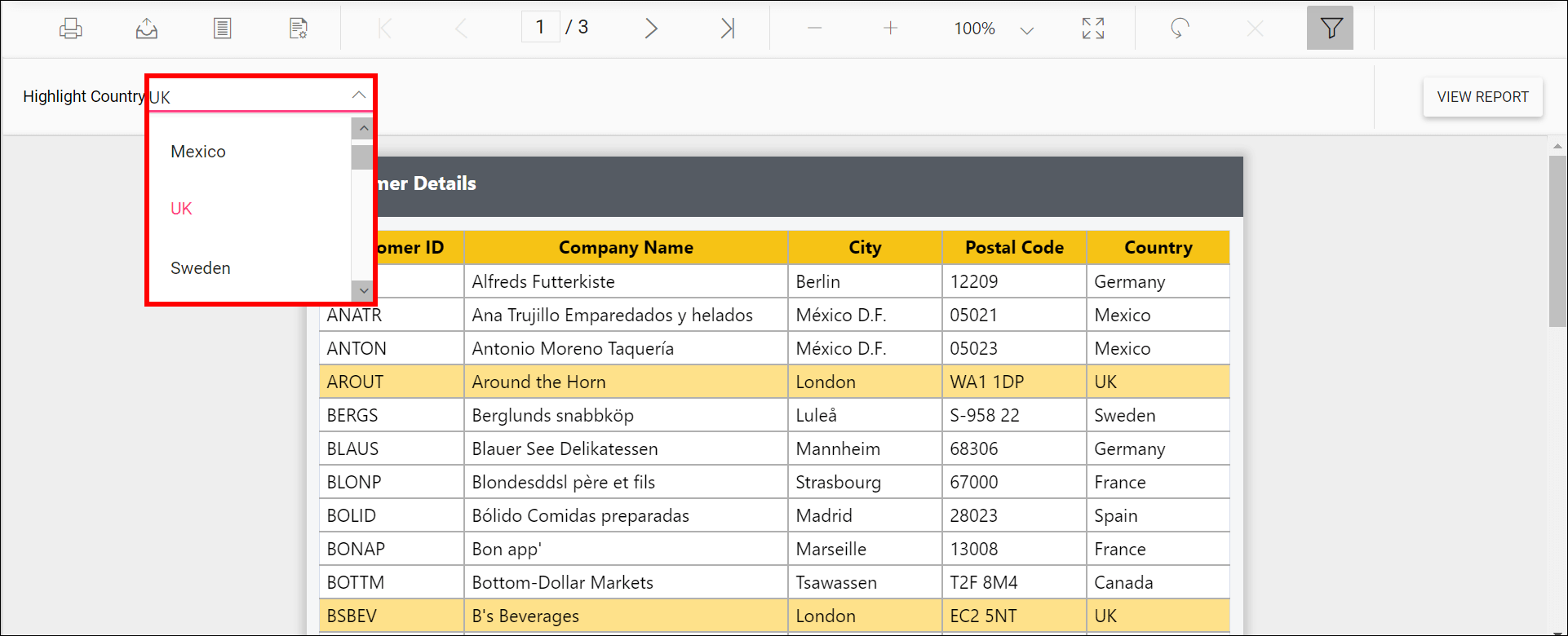
Preview the report to see the unique values in the parameter drop-down.
How do I change the drop-down parameter popup height?
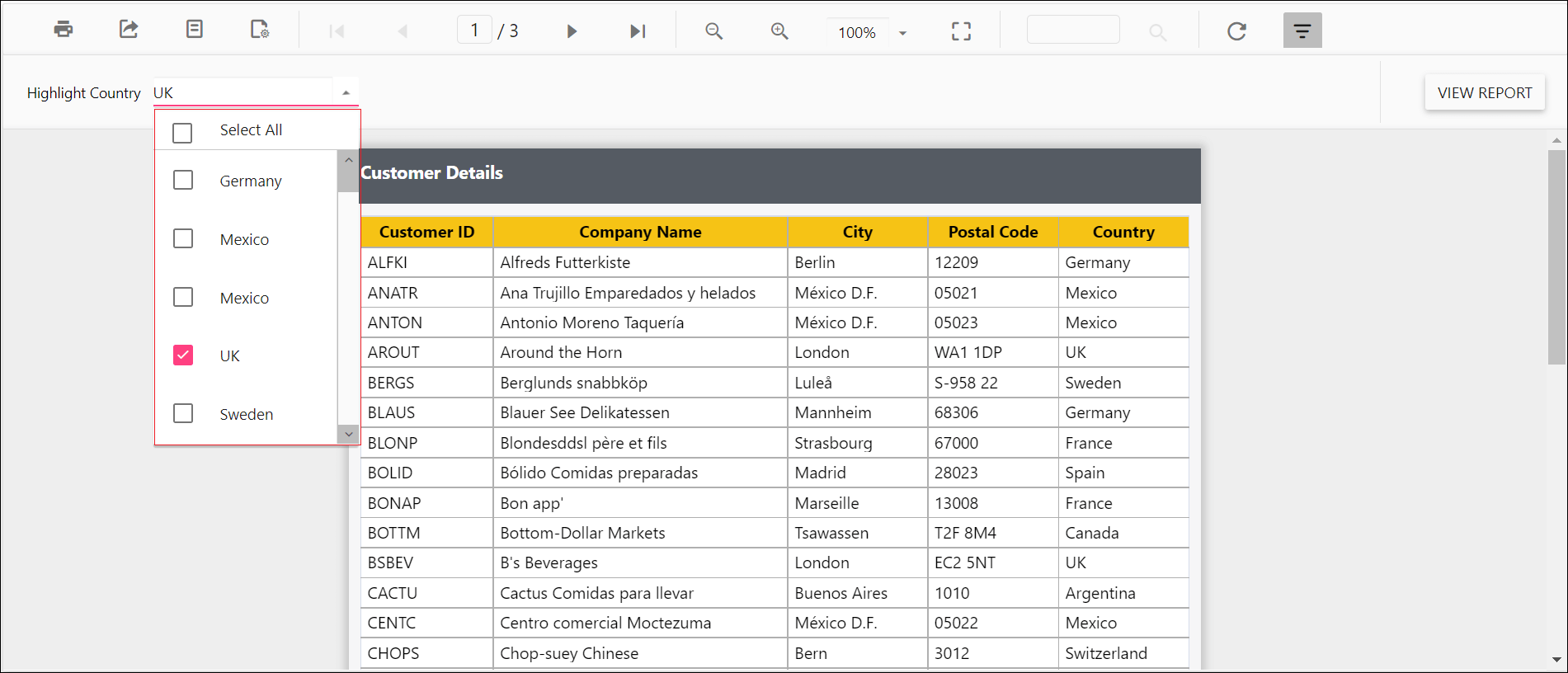
To change the height of the parameter combobox popup list in the Report Viewer, set the PopupHeight custom property. By default, the PopupHeight value is 152px.
You can set the PopupHeight property value.
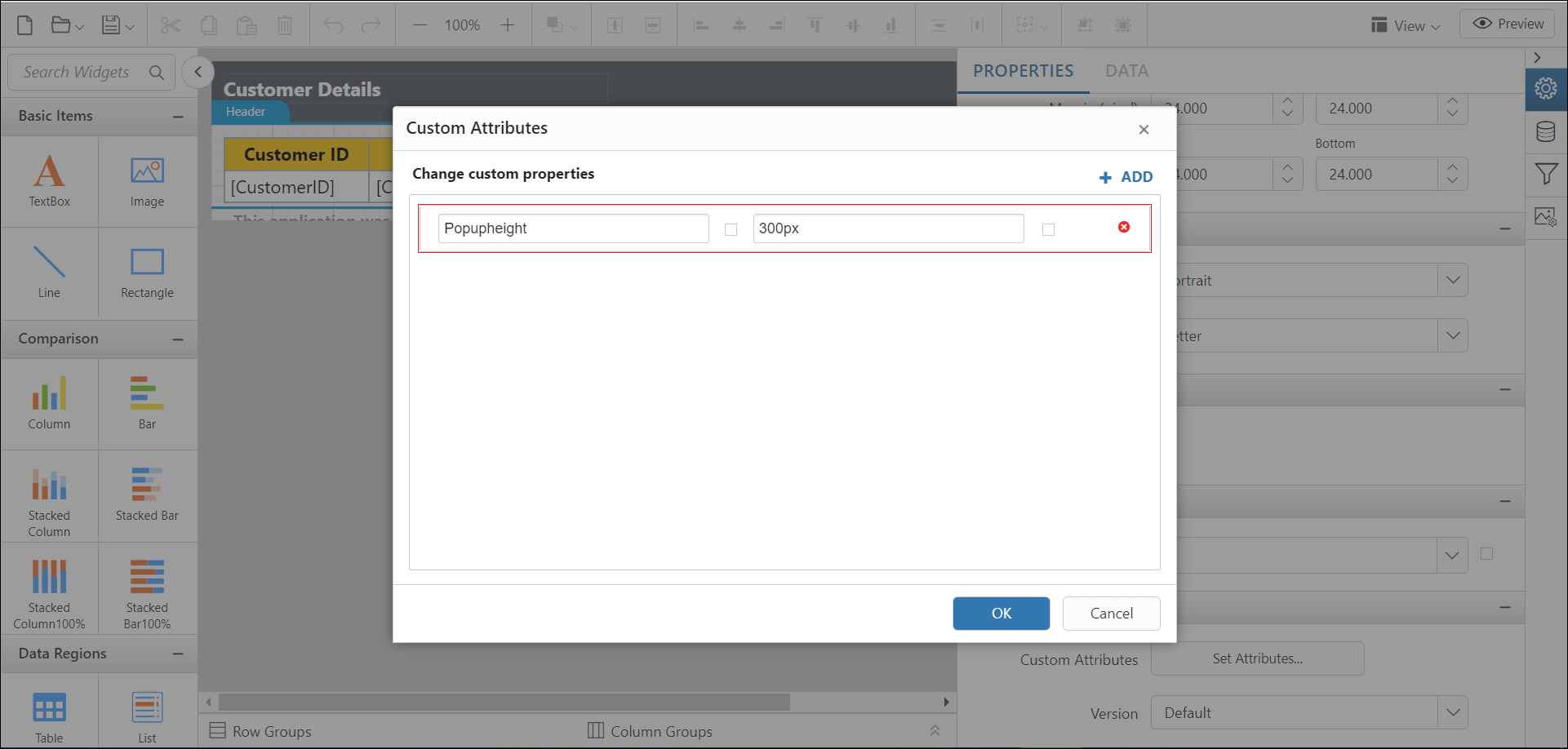
Preview the report to see the popup height in the parameter drop-down.
How do I change the drop-down parameter popup width?
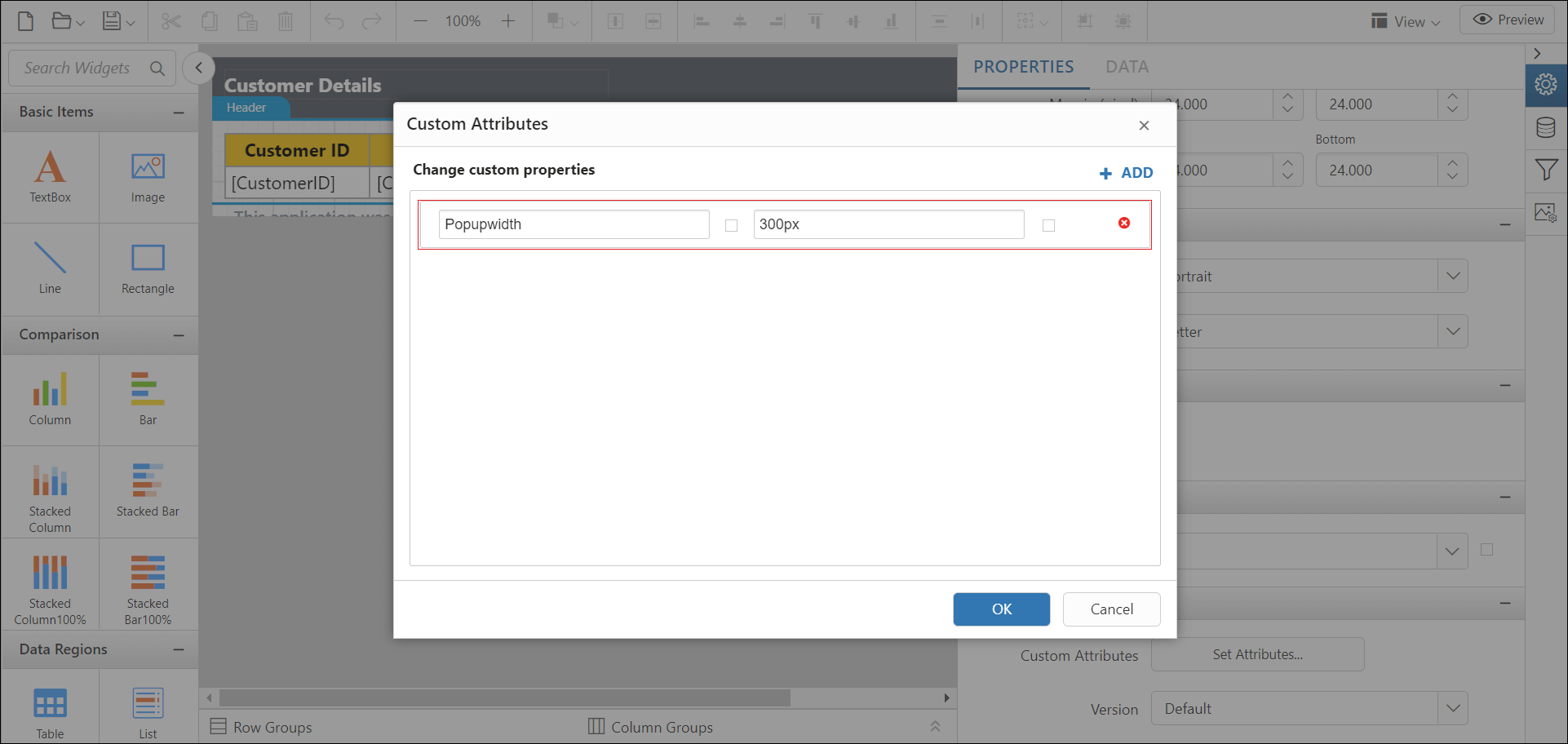
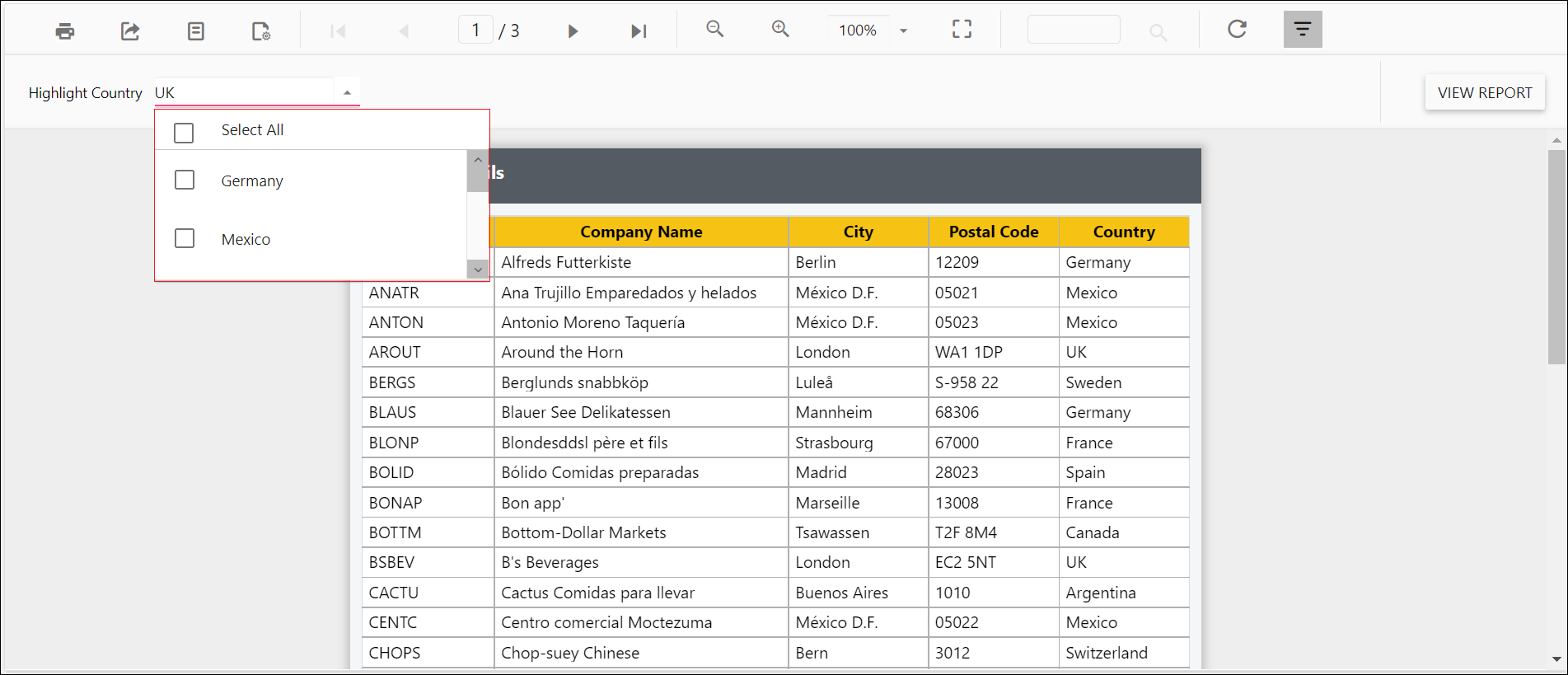
To change the width of the parameter combobox popup list in the Report Viewer, set the PopupWidth custom property. By default, the popup width sets based on the width of the component.
You can set the PopupWidth property value.
Preview the report to see the popup width in the parameter drop-down.
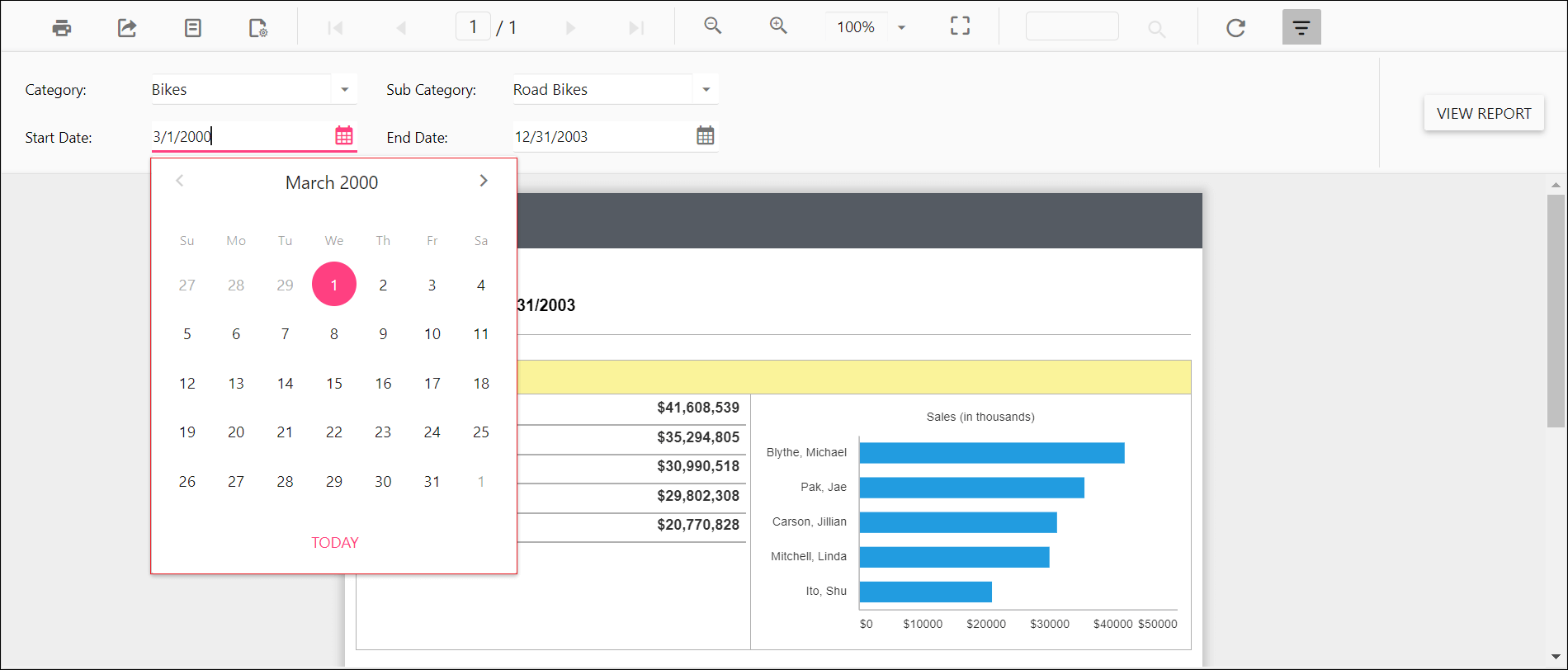
How do I set the minimum date for a date parameter?
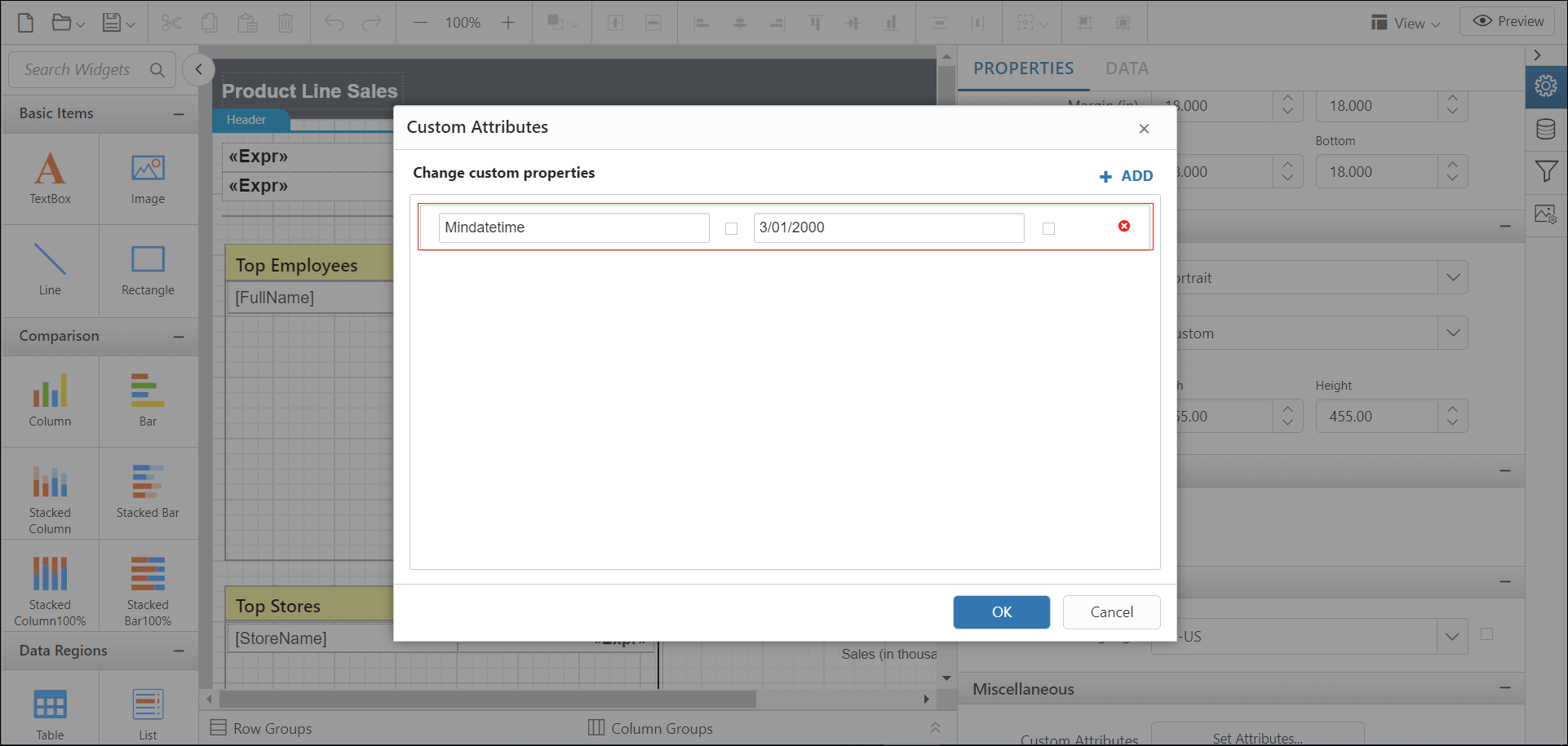
To set the minimum date in a datetime parameter item in the Report Viewer, use the MinDateTime custom property. By default, the MinDateTime value is set as null.
You can set the MinDateTime property value.
Preview the report to see the minimum date in the datetime parameter drop-down.
How do I set the maximum date for a date parameter?
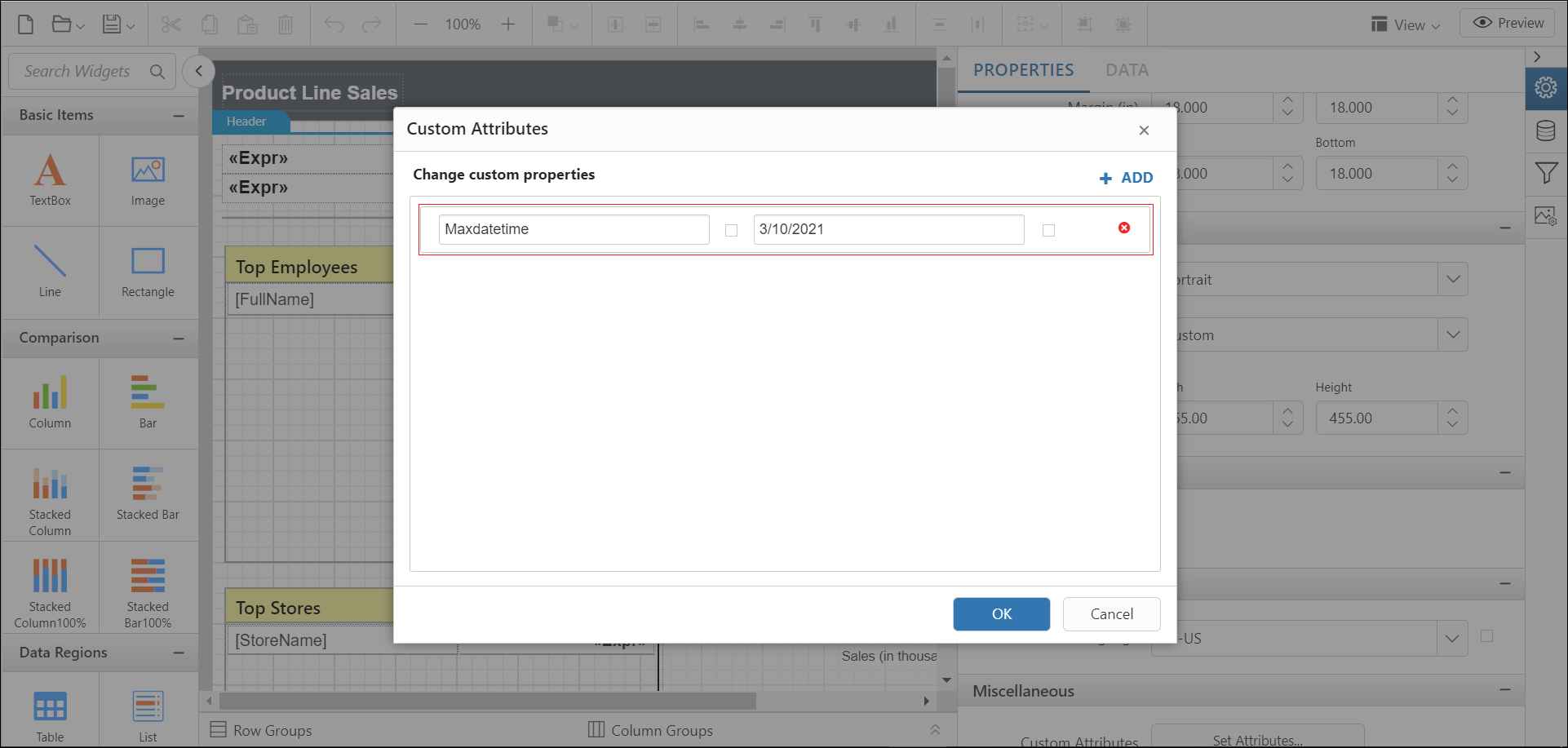
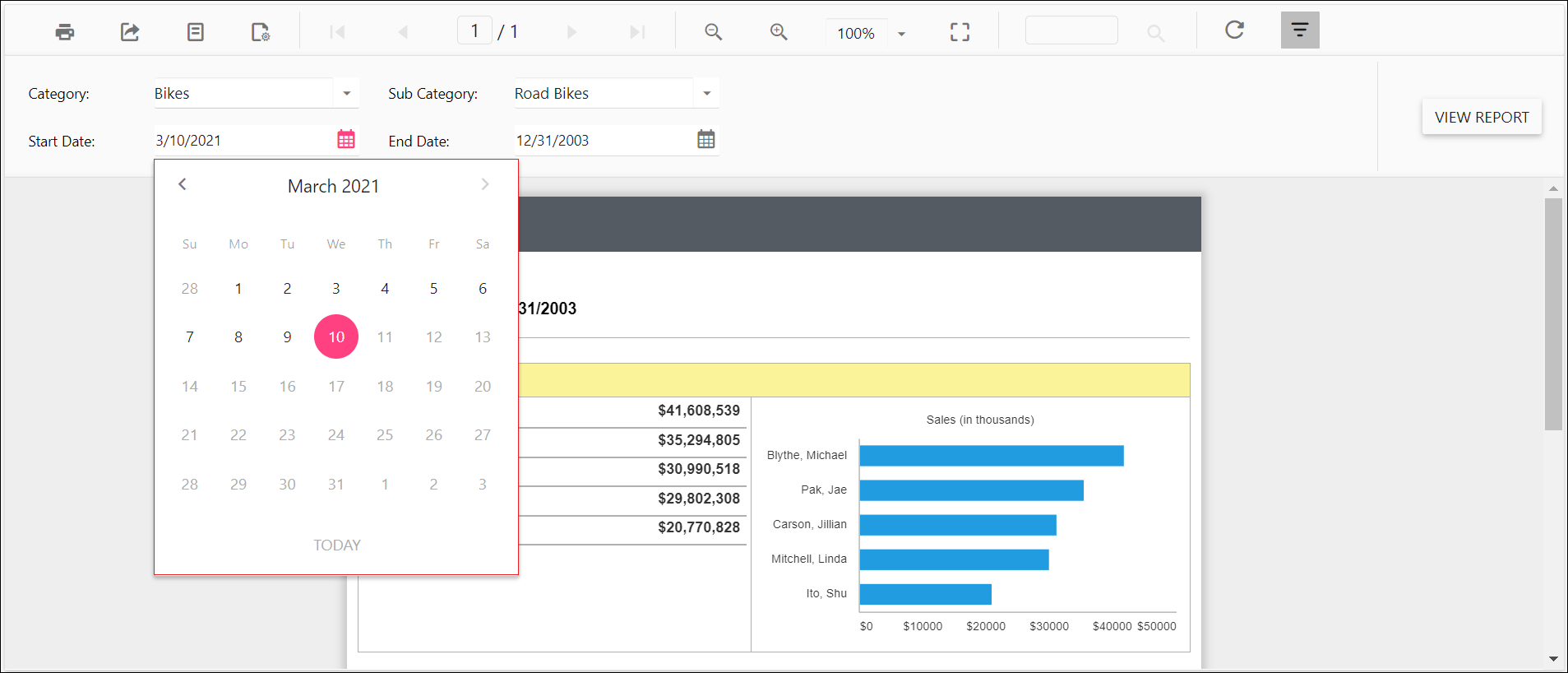
To set the maximum date in a datetime parameter item in the Report Viewer, use the MaxDateTime custom property. By default, the MaxDateTime value is set as null.
You can set the MaxDateTime property value.
Preview the report to see the maximum date in the datetime parameter drop-down.
How do I hide the report parameter block?
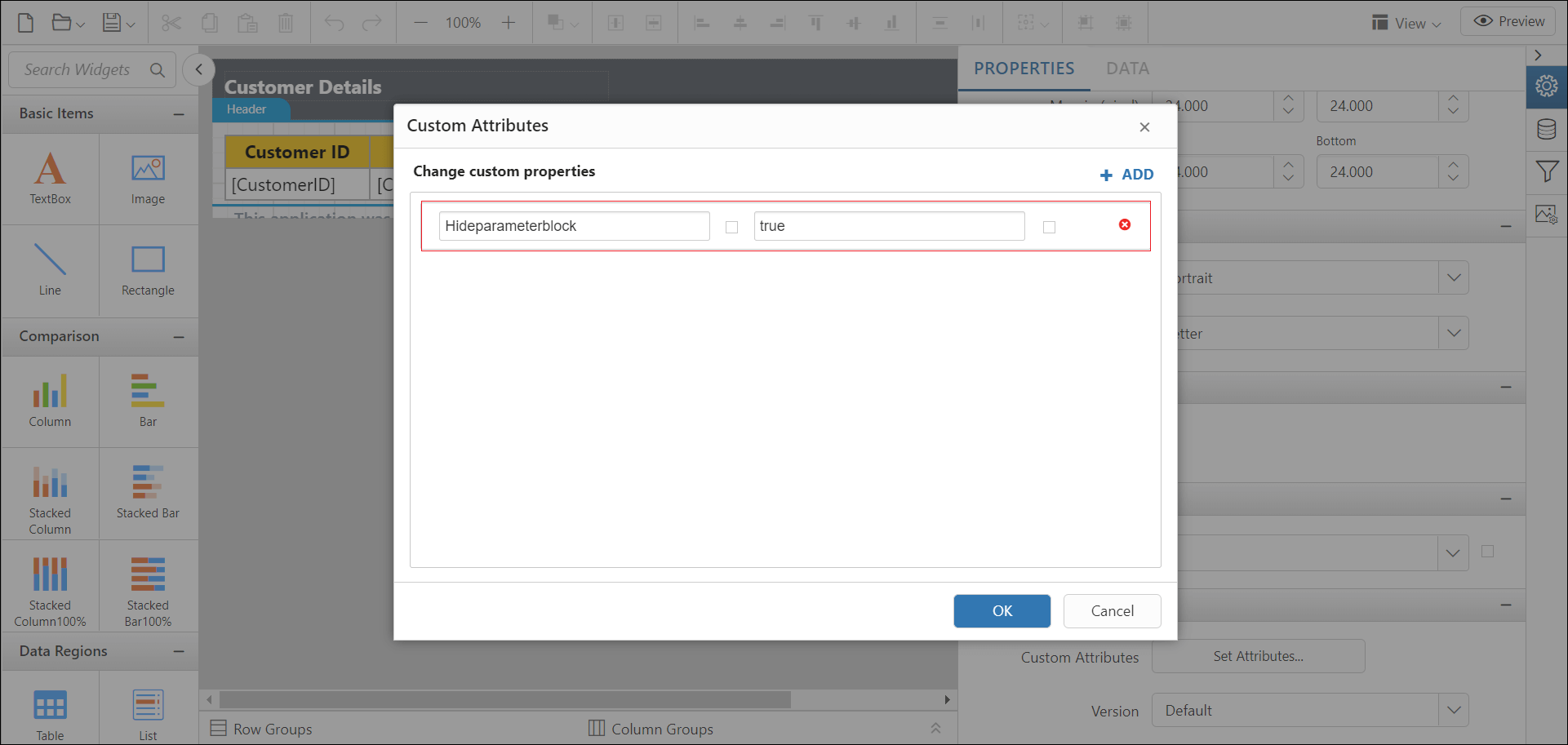
To hide the parameter block on initial report rendering in the Report Viewer, use the HideParameterBlock custom property. The property value should be boolean. By default, the HideParameterBlock value is false.
You can set the HideParameterBlock property value.
Preview the report to see that the parameter block is hidden.
How do I set the date and time format for a parameter?
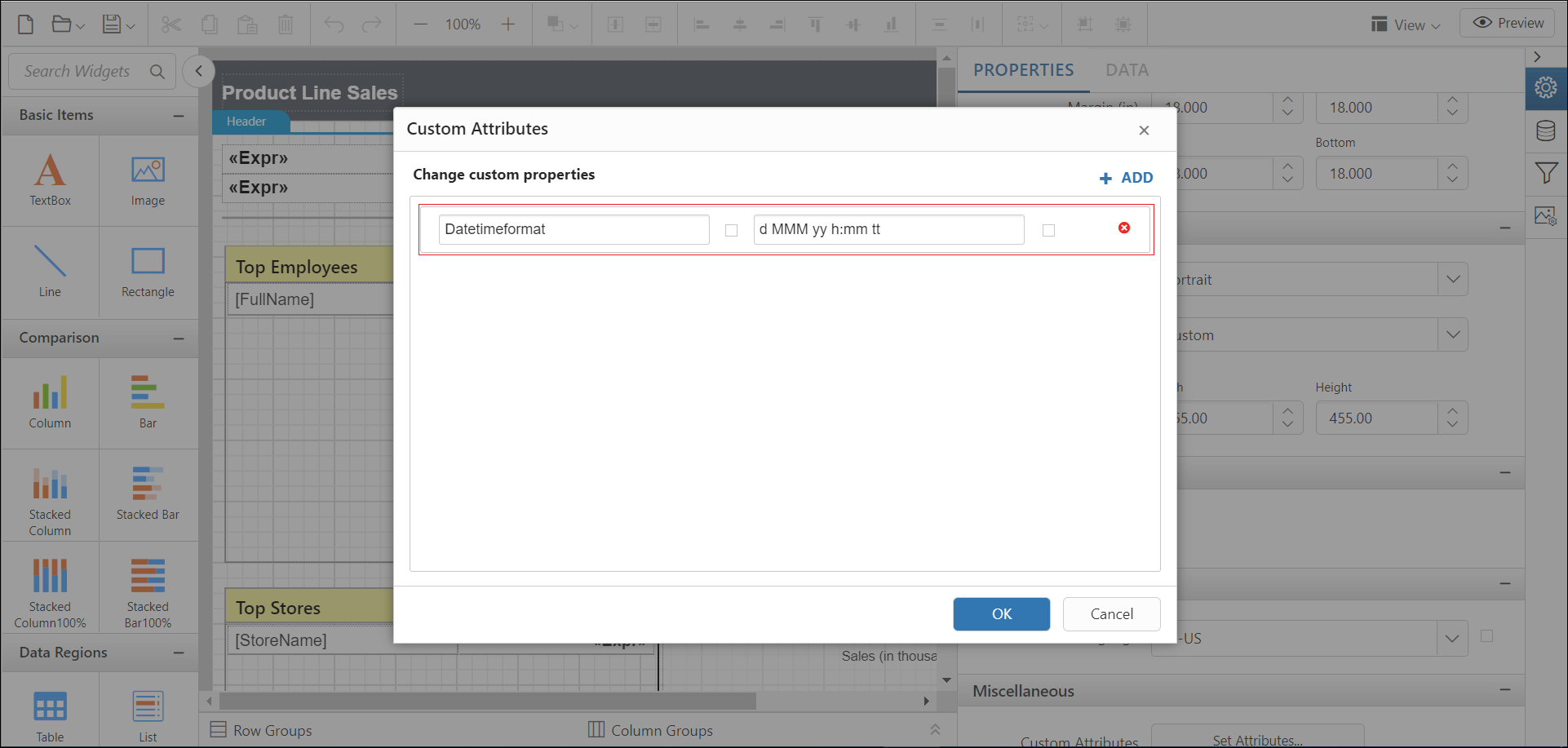
To set the date time format displayed in the DateTimePicker popup in the Report Viewer, use the DateTimeFormat custom property. By default, the DateTimeFormat value is set as empty.
You can set the DateTimeFormat property value.
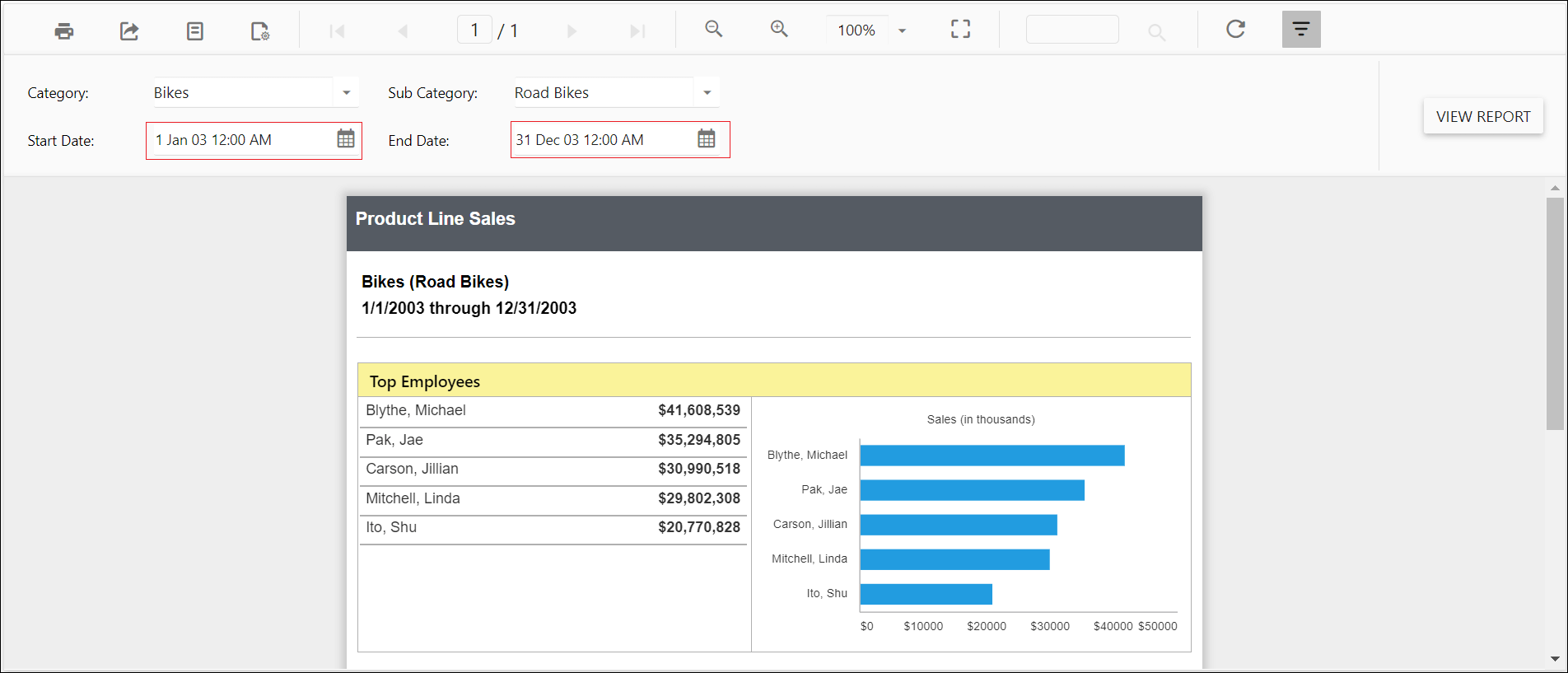
Preview the report to see the date time format in the datetime parameter.
How do I change the time display format for a parameter?
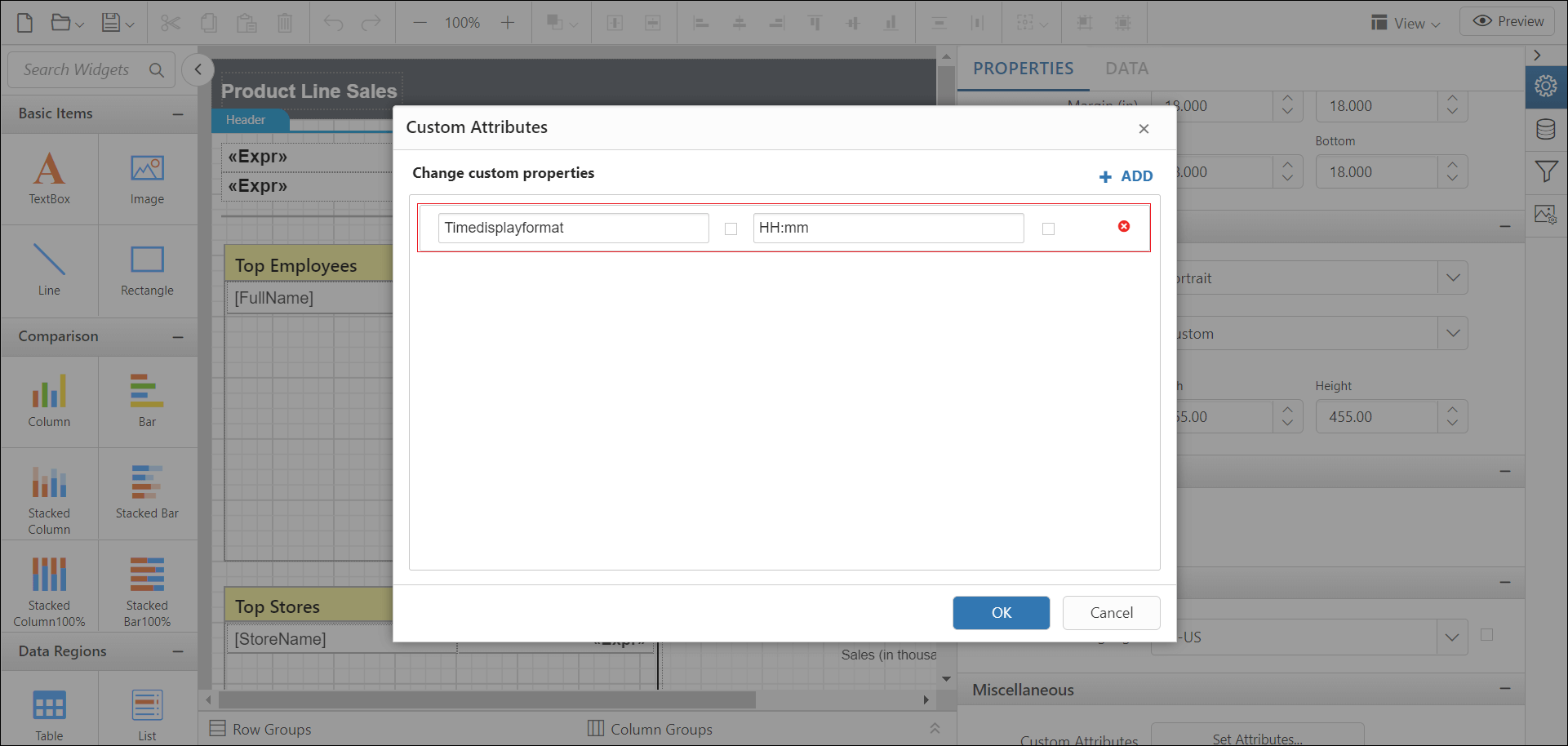
To change the time format displayed in the time drop-down inside the DateTimePicker popup in the Report Viewer, use the TimeDisplayFormat custom property. You must set the DateTimePickerType custom property as DateTime before setting the TimeDisplayFormat. By default, the TimeDisplayFormat value is set as empty.
You can set the TimeDisplayFormat property value.
Preview the report to see the time format in the datetime parameter.
How do I set the time interval in a datetime parameter?
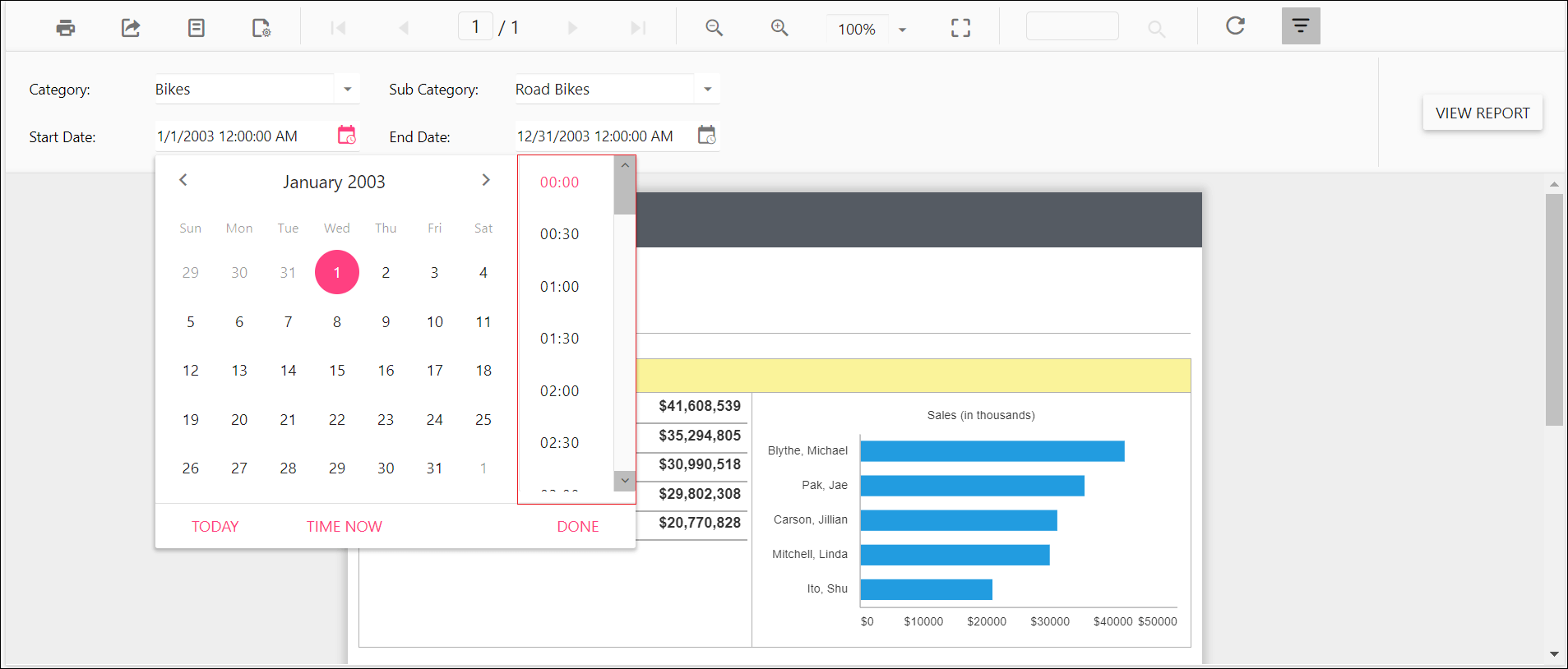
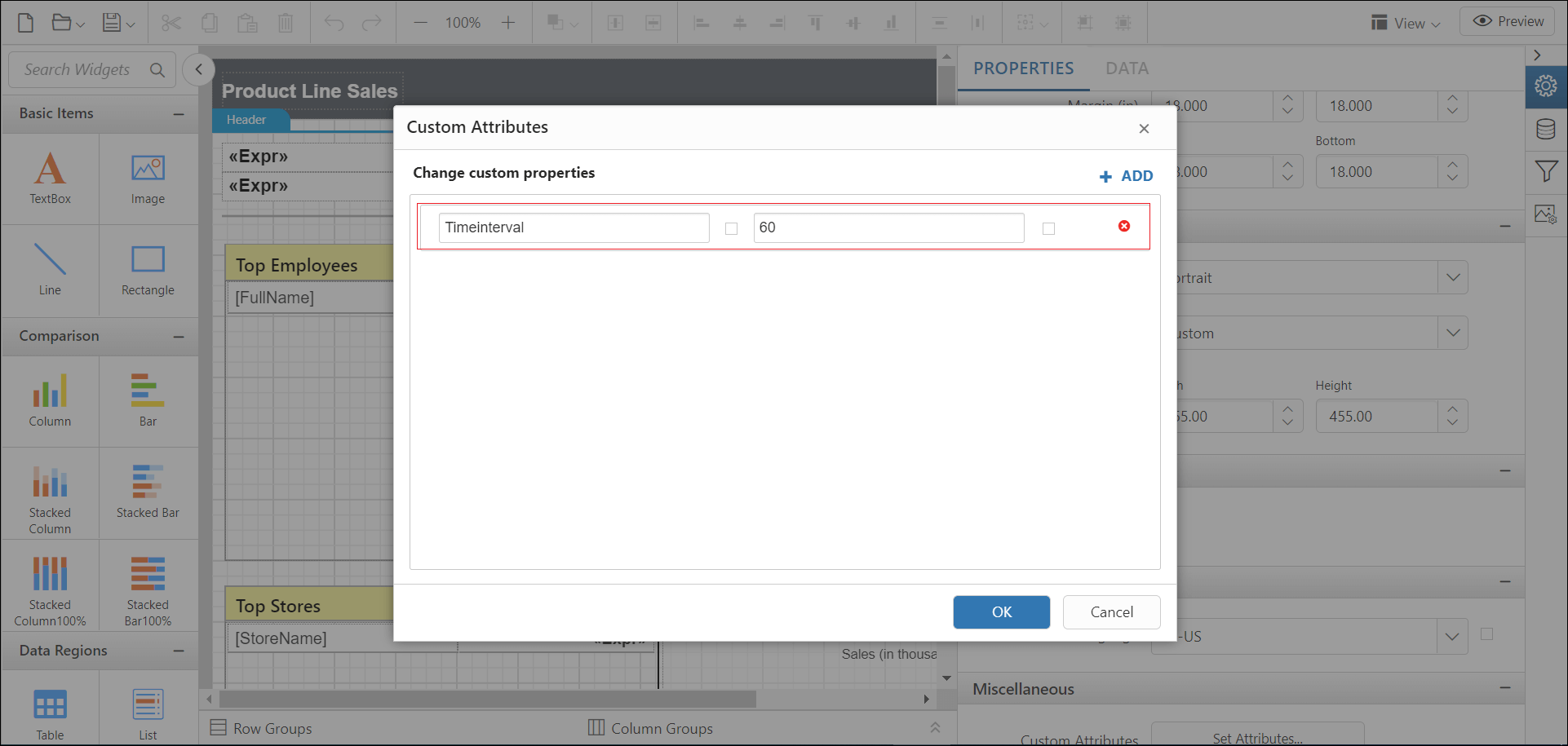
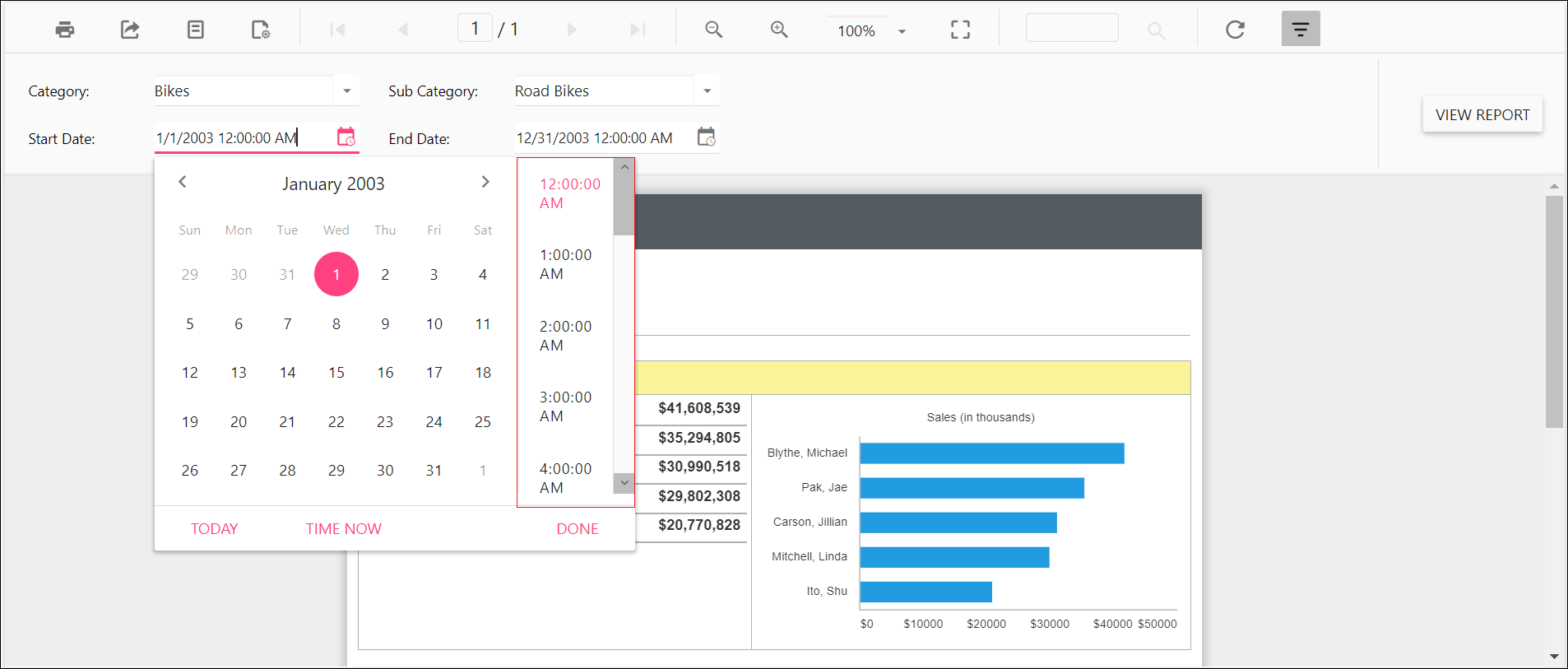
To set the interval between two adjacent time values in the DateTimePicker popup in the Report Viewer, use the TimeInterval custom property. You must set the DateTimePickerType custom property as DateTime before setting the TimeInterval. By default, the TimeInterval value is set as 30.
You can set the TimeInterval property value.
Preview the report to see the time interval in the datetime parameter.
How do I enable filtering and searching in a drop-down parameter?
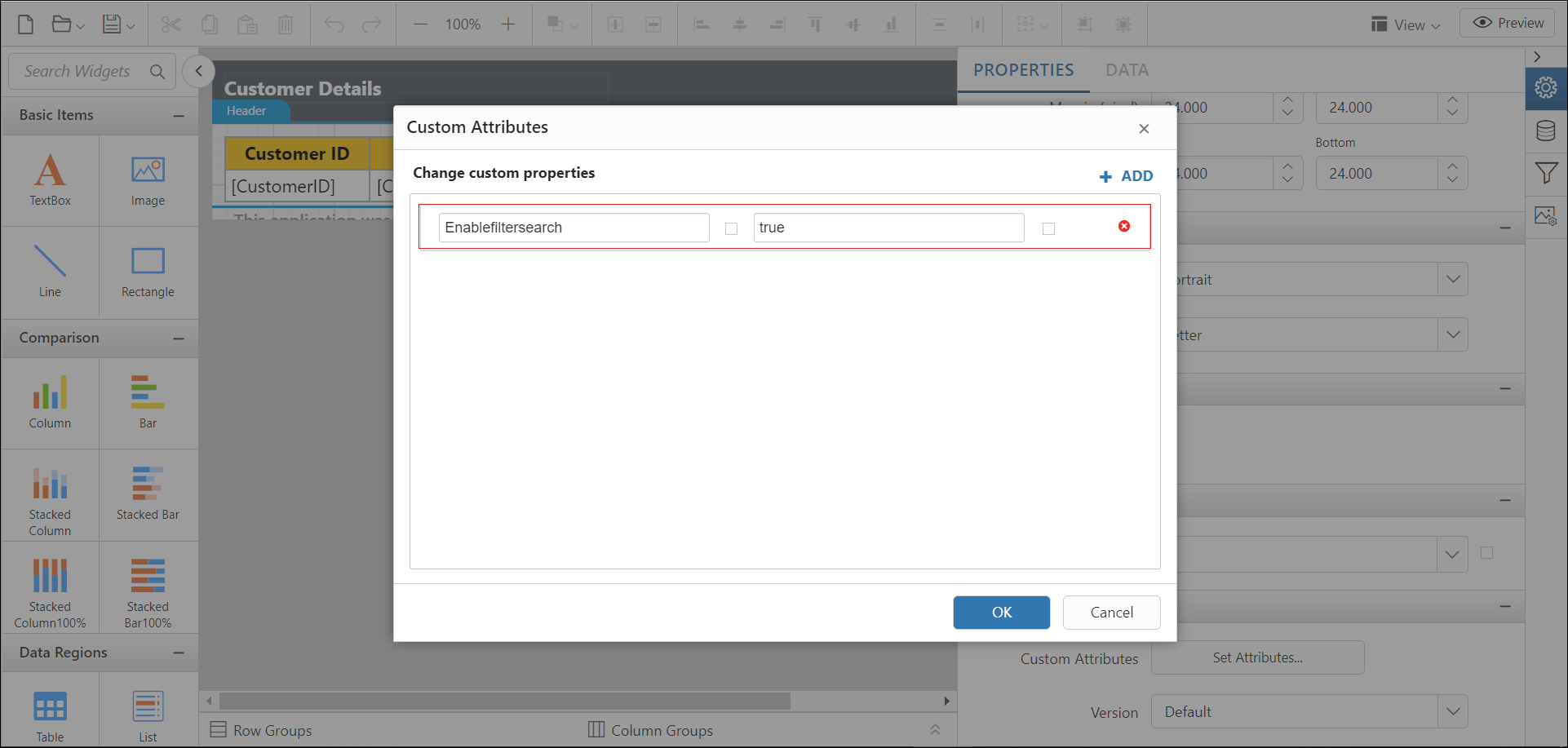
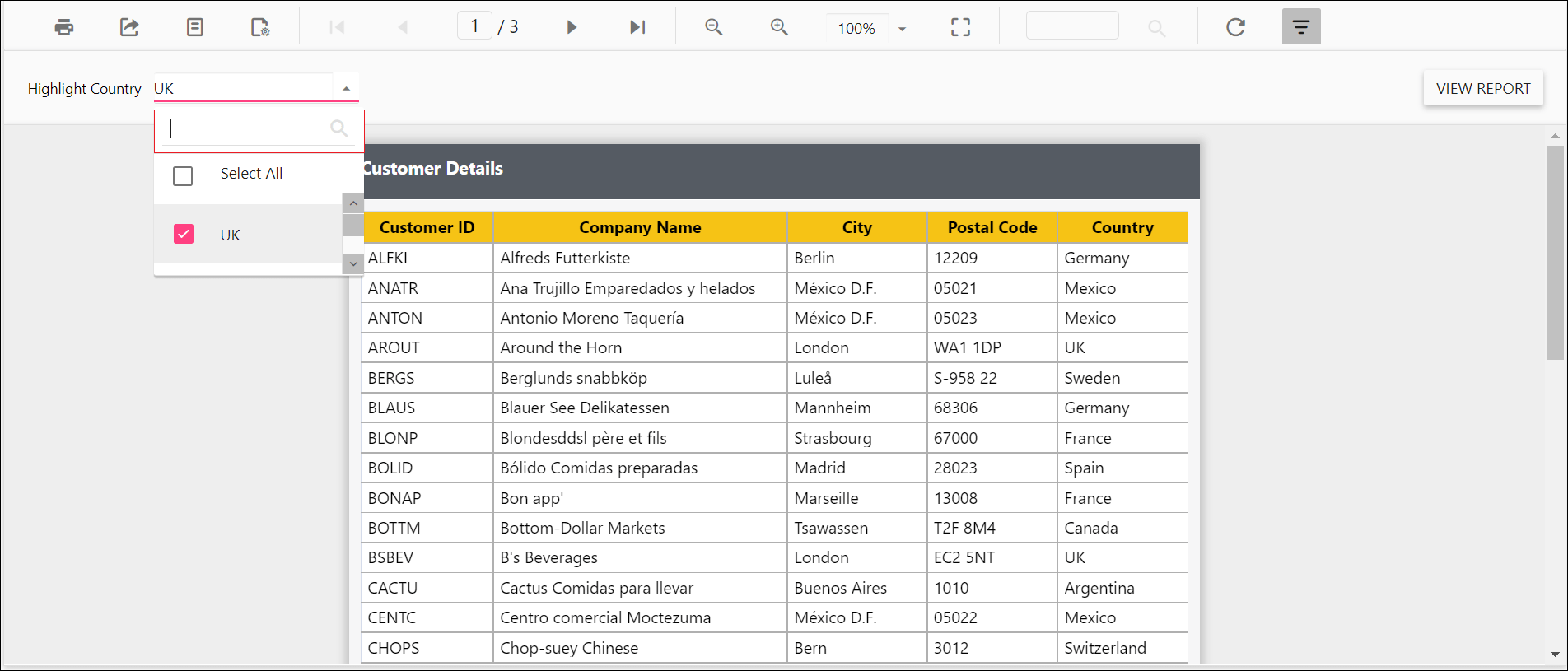
To enable search and filtering in a drop-down parameter in the Report Viewer, set the EnableFilterSearch custom property, which helps users find values easily. The property value should be boolean. By default, the EnableFilterSearch value is false.
You can set the EnableFilterSearch property value.
Preview the report to see the search filter in the parameter.
How do I display a date time picker for a date parameter?
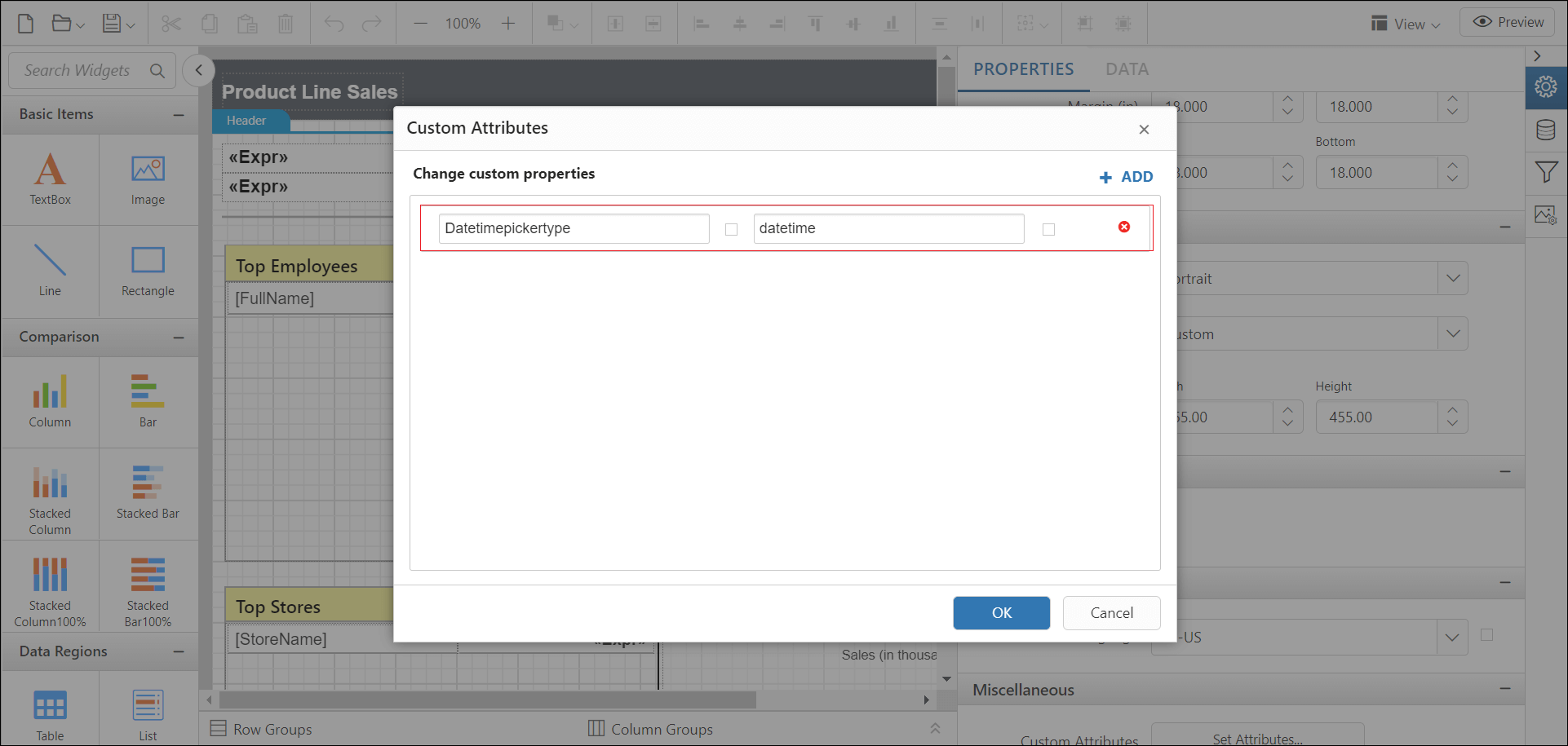
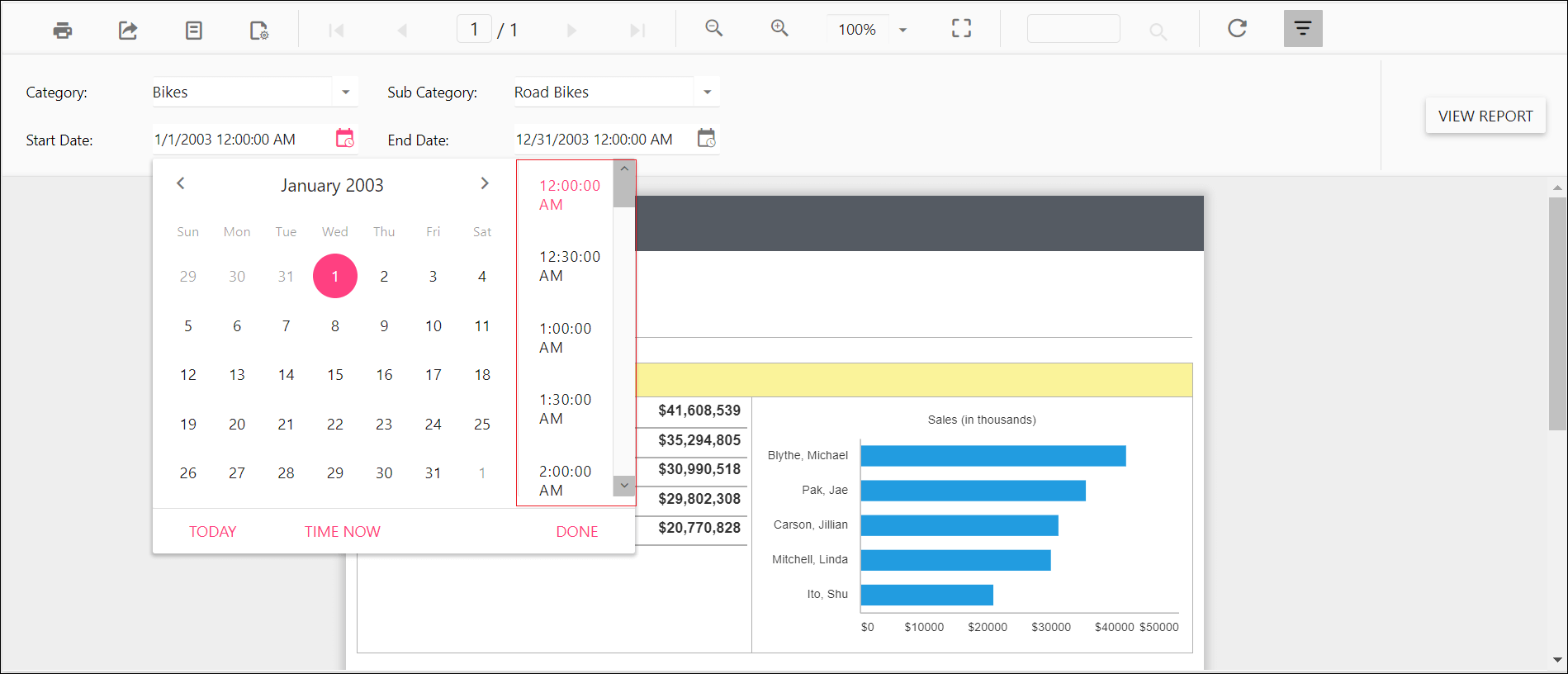
To display a DateTimePicker for value selection in a date parameter item in the Report Viewer, set the DateTimePickerType custom property value to DateTime.
You can set the DateTimePickerType property value.
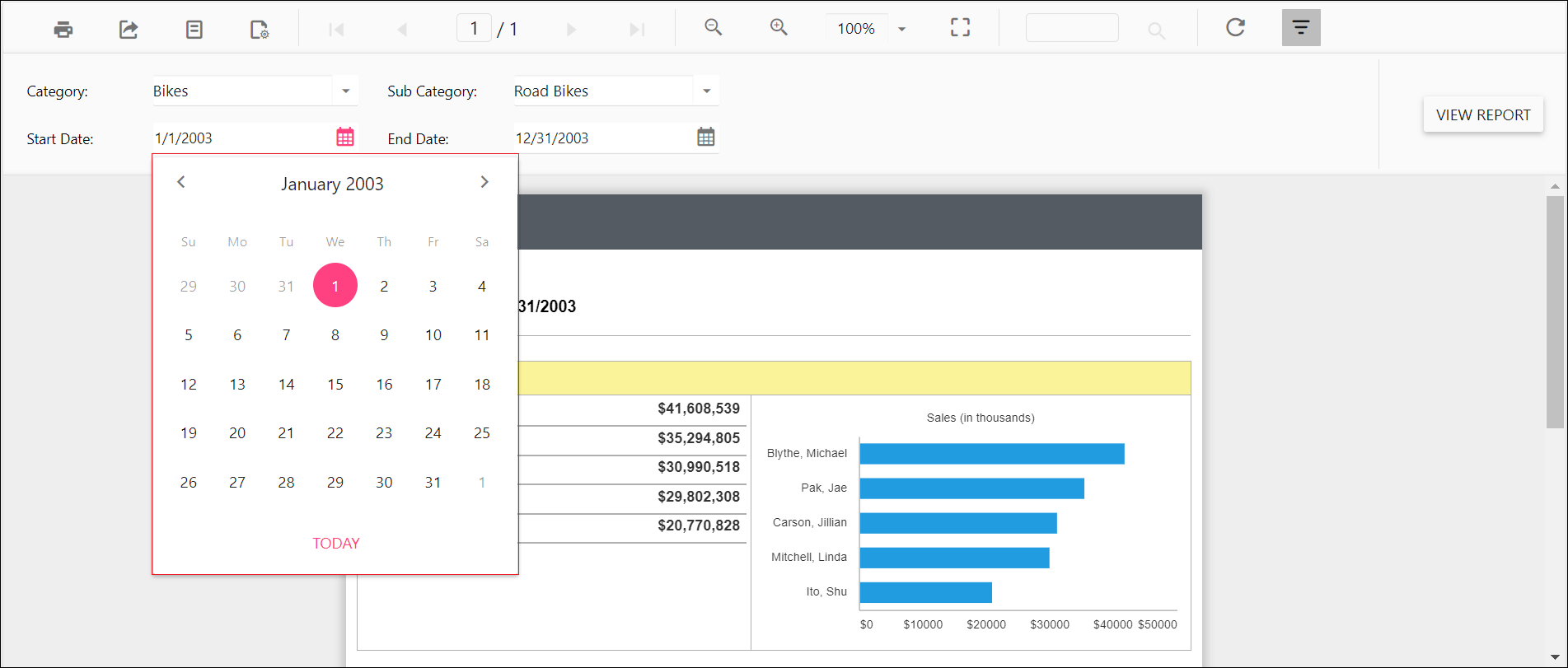
Before you enable the date time picker type, the parameter uses the default value.
Enable the date time picker type to see the time in the DateTimePicker.
How do I enable popup resize in a drop-down parameter?
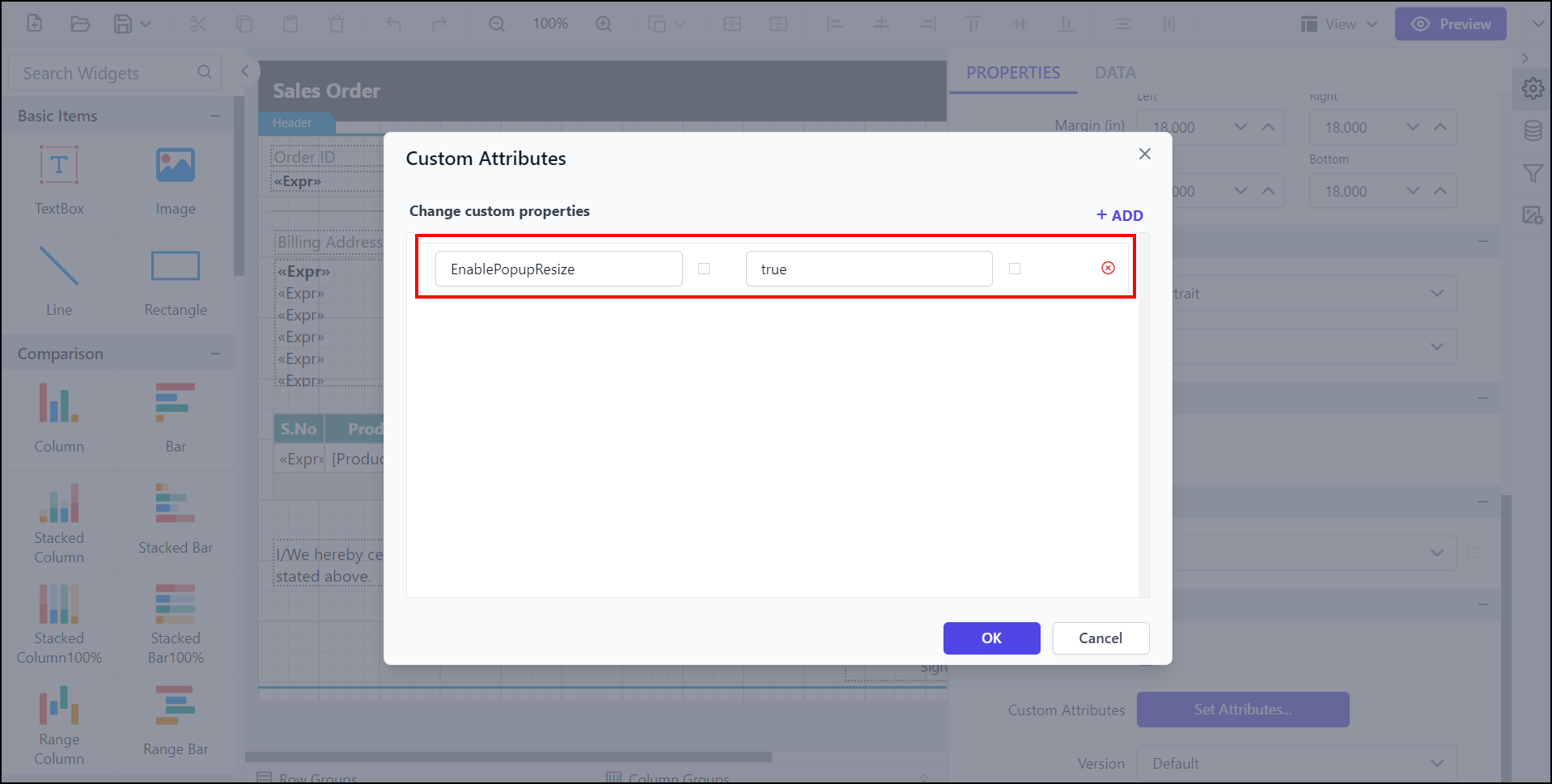
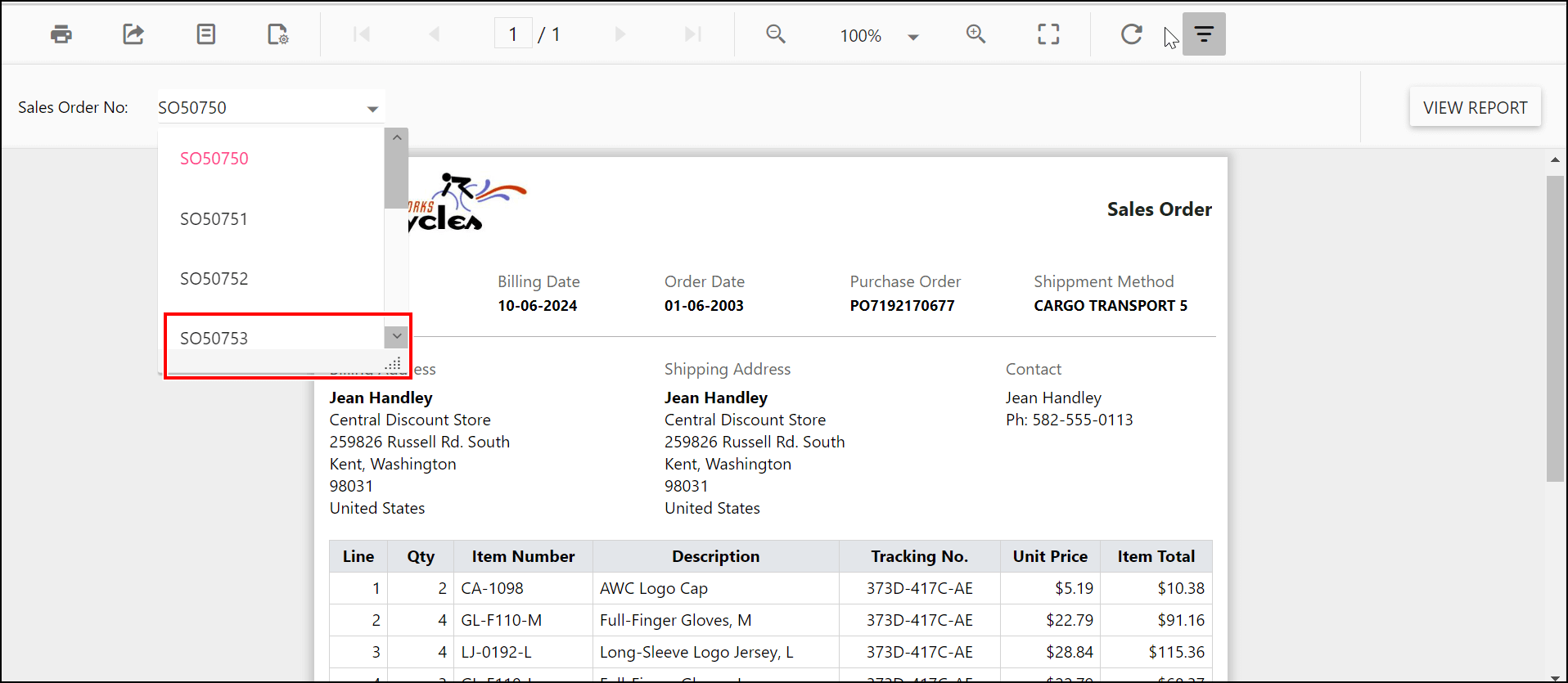
To enable the popup resize option in a drop-down parameter in the Report Viewer, set the EnablePopupResize custom property, which adjusts the size of the drop-down in EJ1. The property value should be a Boolean. By default, the EnablePopupResize value is false.
You can set the EnablePopupResize property value.
Preview the report and see the popup resize option in the parameter.
How do I change the parameter block position?
To change the position of the parameter block in the classic view of the Report Viewer, set the ParameterBlockPosition custom property. The property accepts the following values:
Right - Displays the parameter block on the right side of the report.
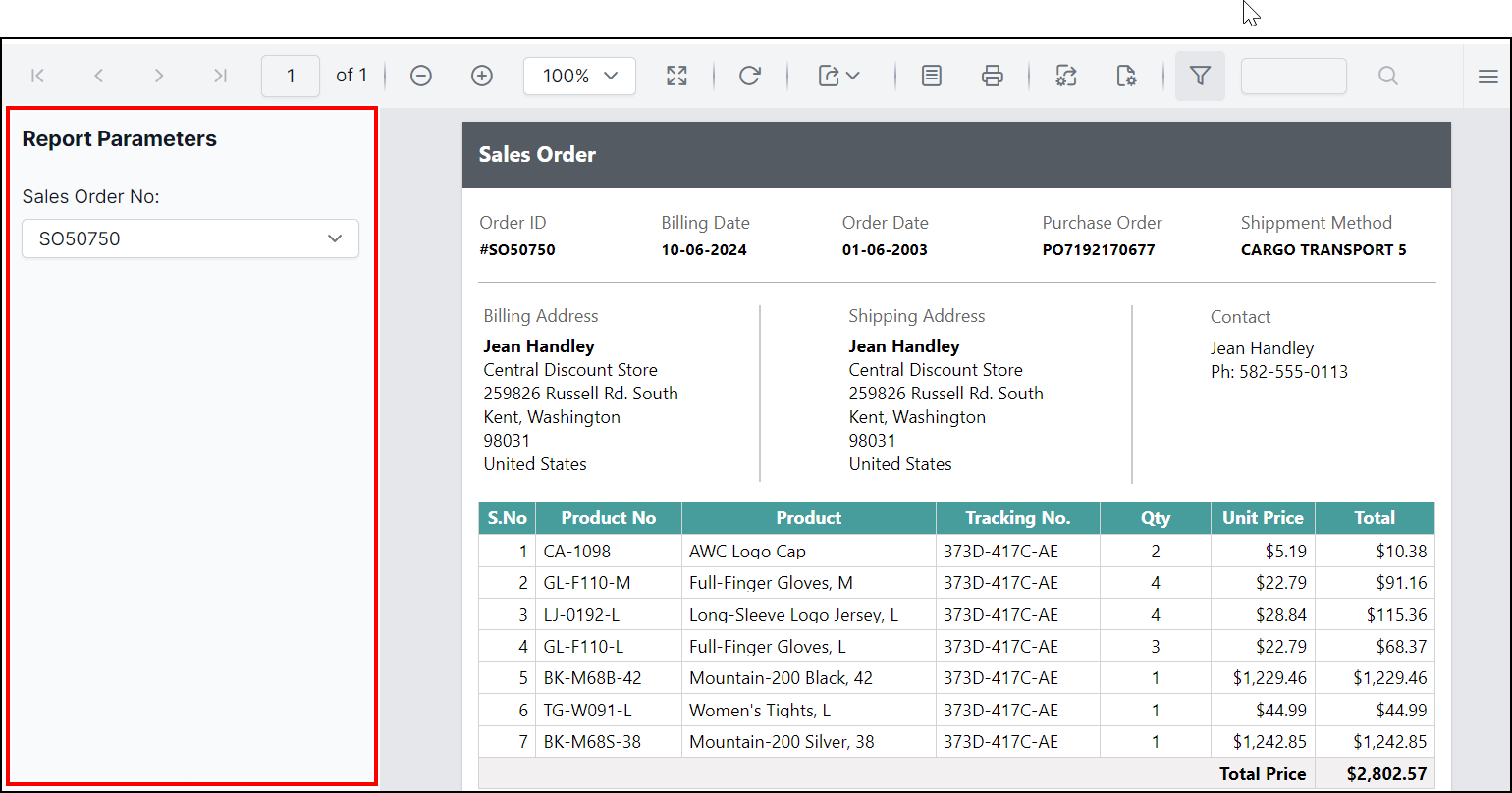
Left - Displays the parameter block on the left side of the report.
Top - Displays the parameter block at the top of the report.
Bottom - Displays the parameter block at the bottom of the report.
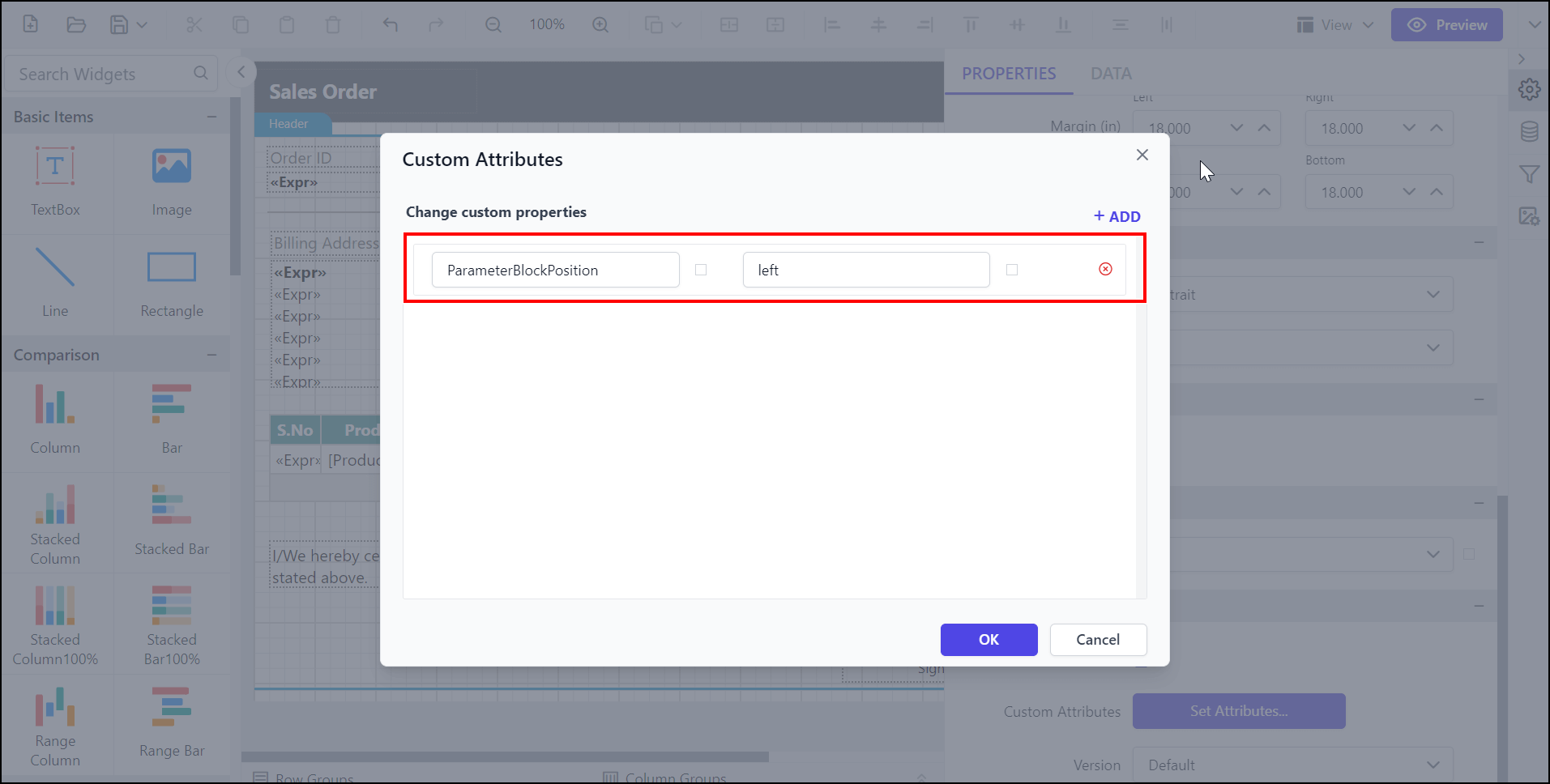
Set the ParameterBlockPosition property to see the parameter position in the following output.
How do I set the width of a parameter item?
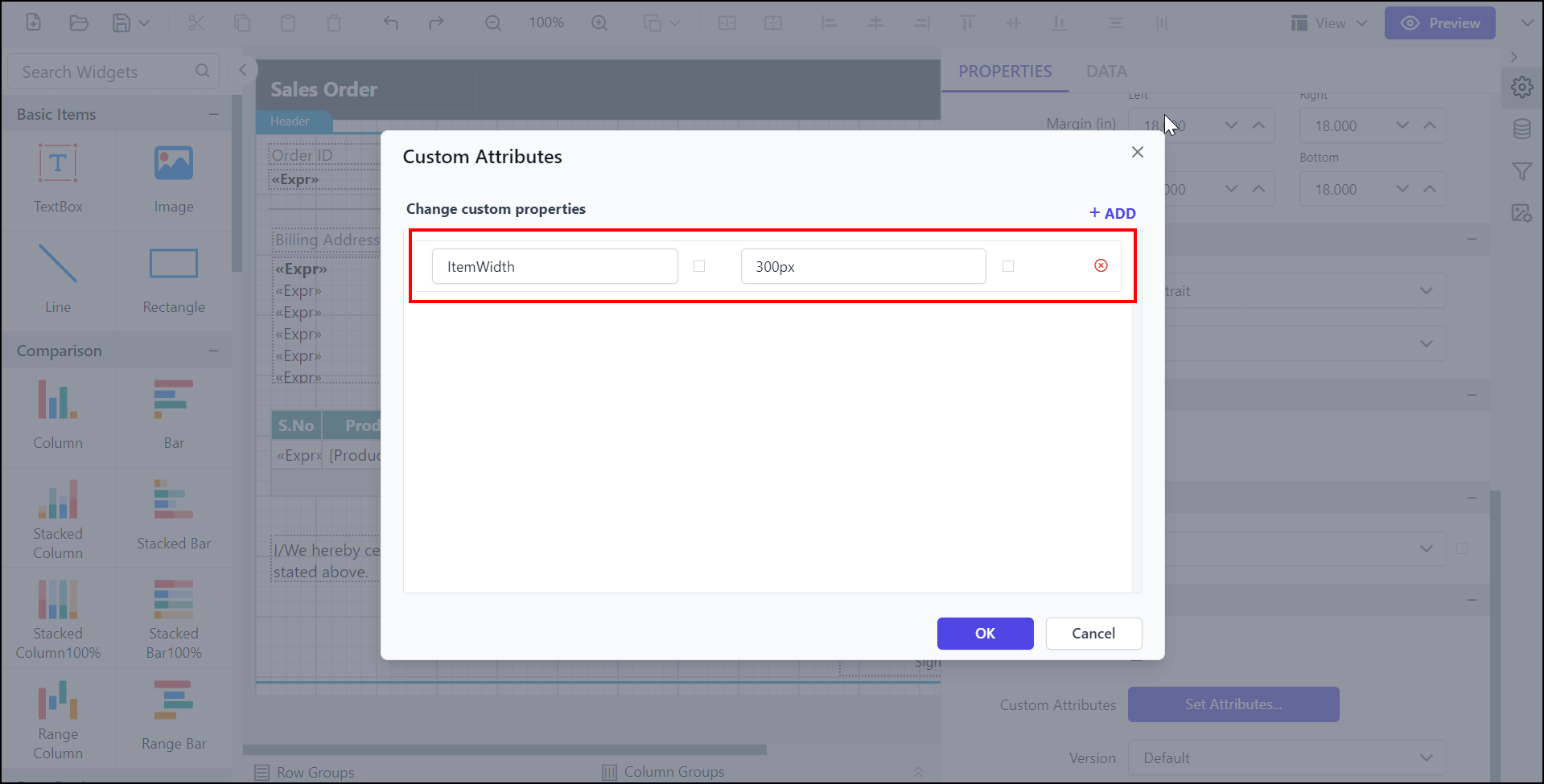
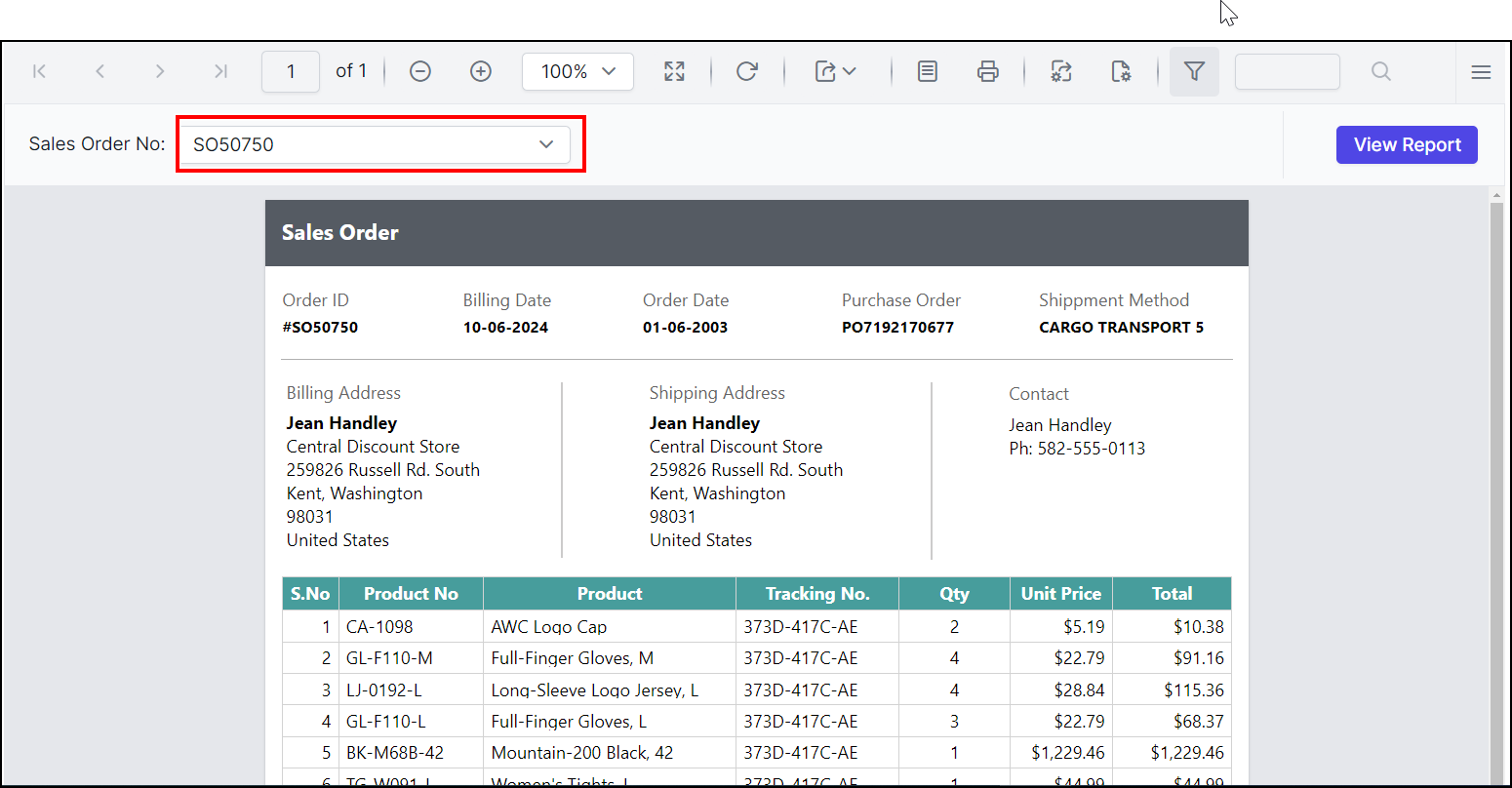
To set the width of a parameter item in the Report Viewer, use the ItemWidth custom property. By default, the item width value is set as 185px. You can increase or decrease the width of the parameter item as needed.
Preview the report and see the width of the parameter.
How do I change the first day of the week in the calendar?
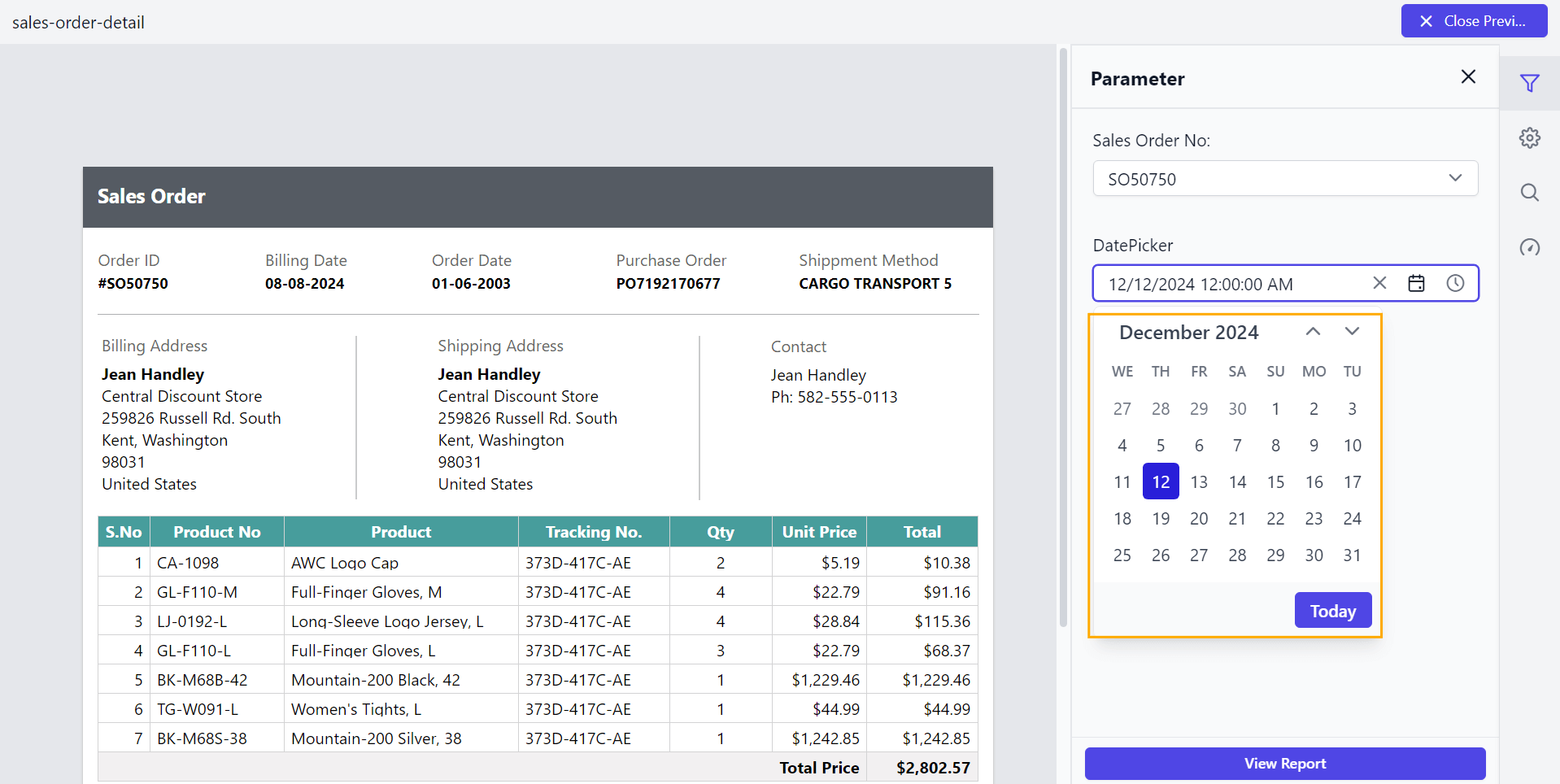
To change the first day of the week in the Report Viewer parameter calendar, set the WeekStartDay property. Generally, the days of the week are numbered from 0 (Sunday) to 6 (Saturday).
By default, the first day of the week is determined by the culture settings.
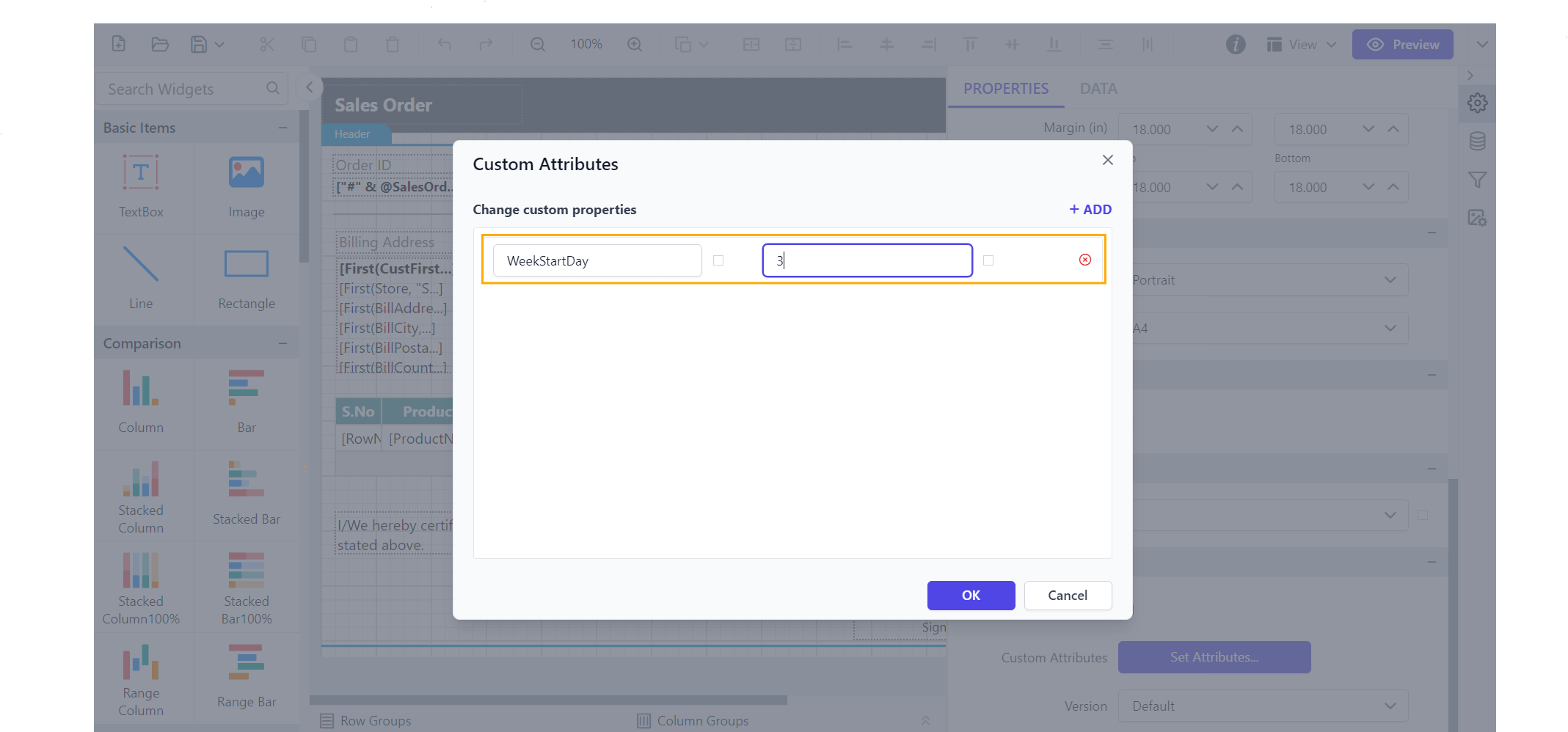
Enable the WeekStartDay property to set your preferred start day, and see the calendar updated.
How do I mark a parameter as mandatory?
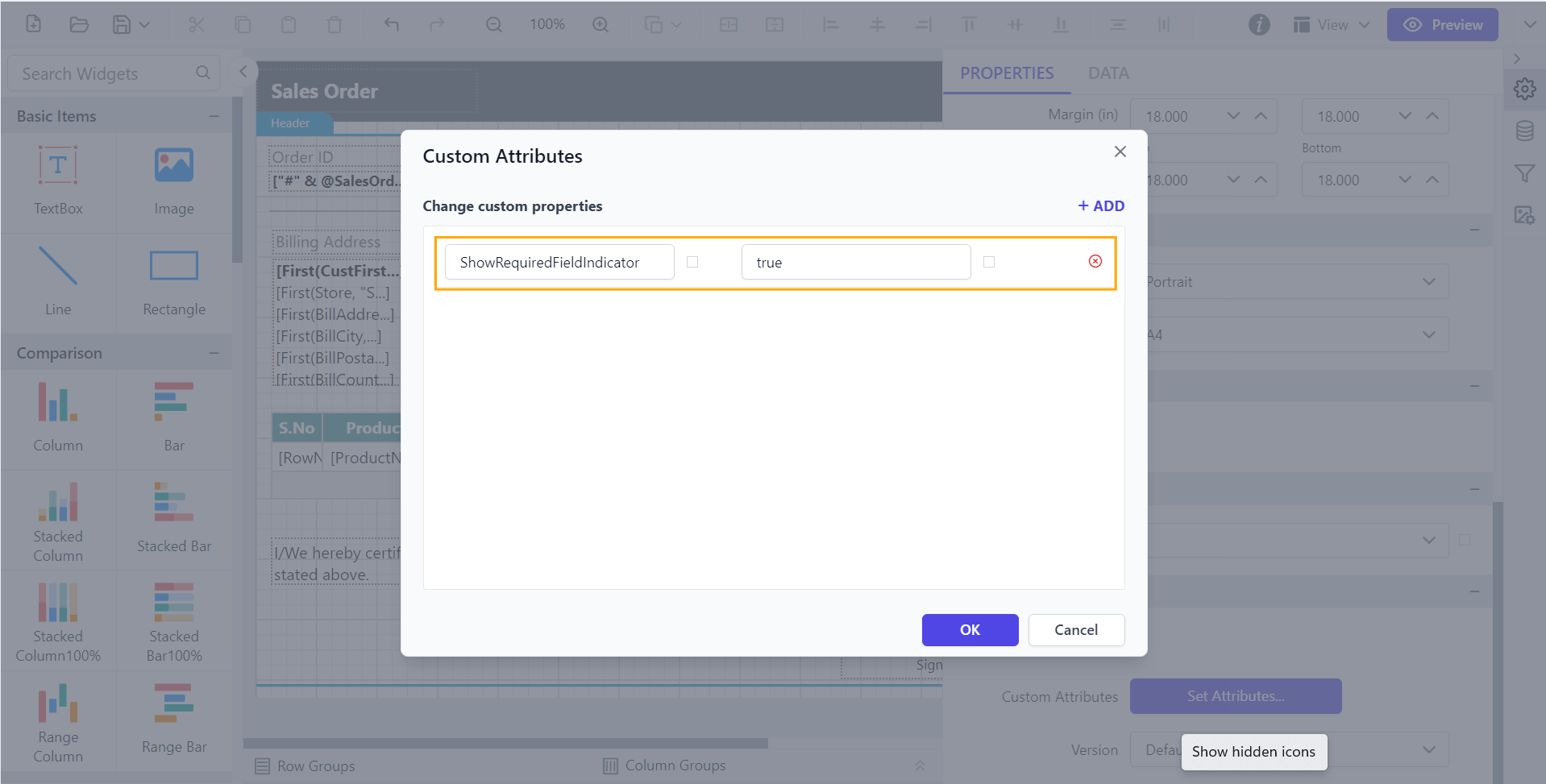
To mark a parameter as mandatory in the Report Viewer, use the ShowRequiredFieldIndicator custom property, which indicates that the parameter must have a non-blank value to be valid. The property’s value should be Boolean. By default, the ShowRequiredFieldIndicator value is false.
You can set the ShowRequiredFieldIndicator property value.
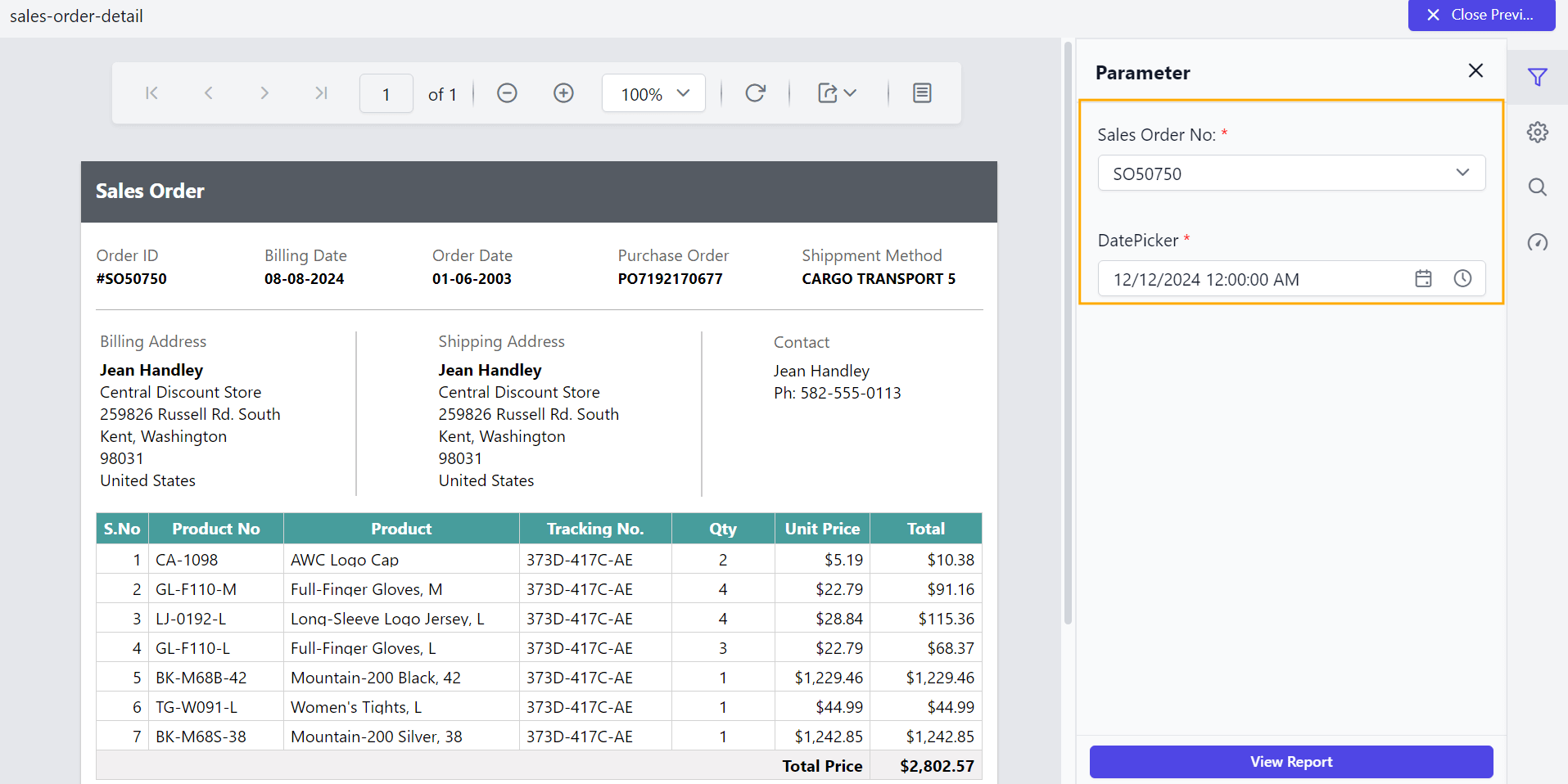
Preview the report and see the required field in parameter.
How do I enable or disable the parameter block scroller?
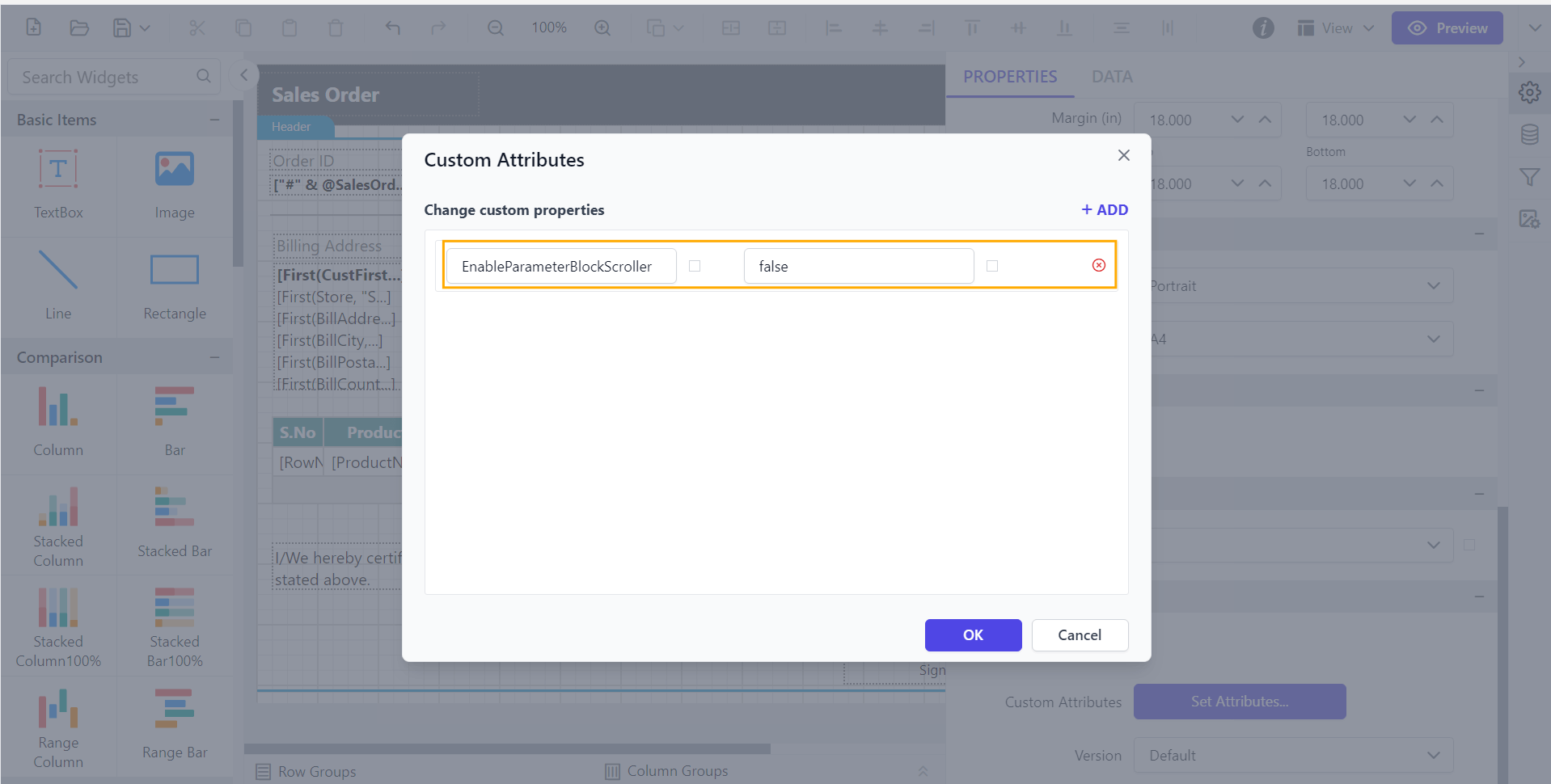
To enable or disable the scroller for the parameter block in the Report Viewer, set the EnableParameterBlockScroller custom property. The property’s value should be Boolean. By default, the EnableParameterBlockScroller value is true.
You can set the EnableParameterBlockScroller property value.
Before disabling the parameter scroller, the default value will be displayed.
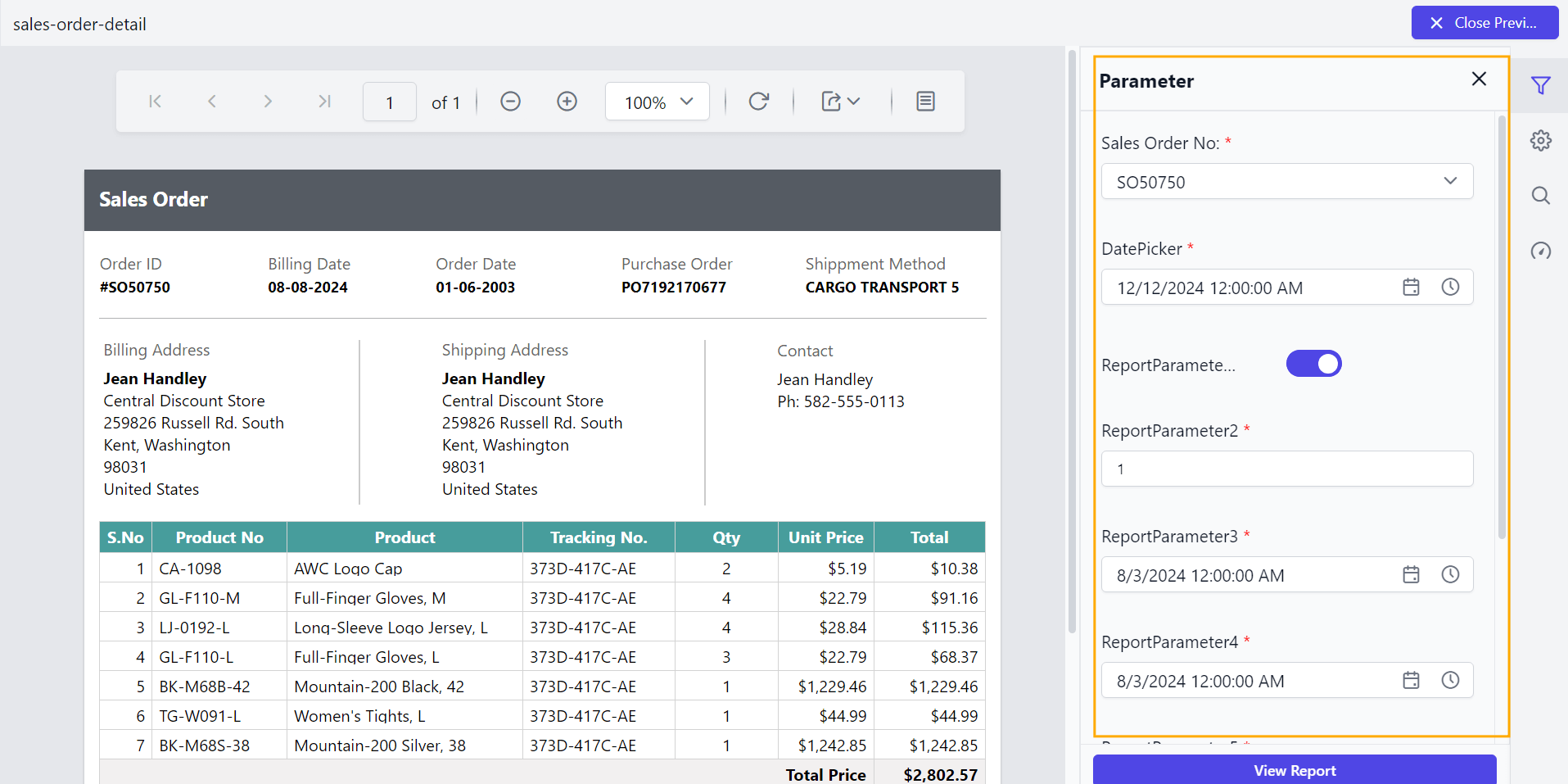
Disable the parameter scroller and see the output.
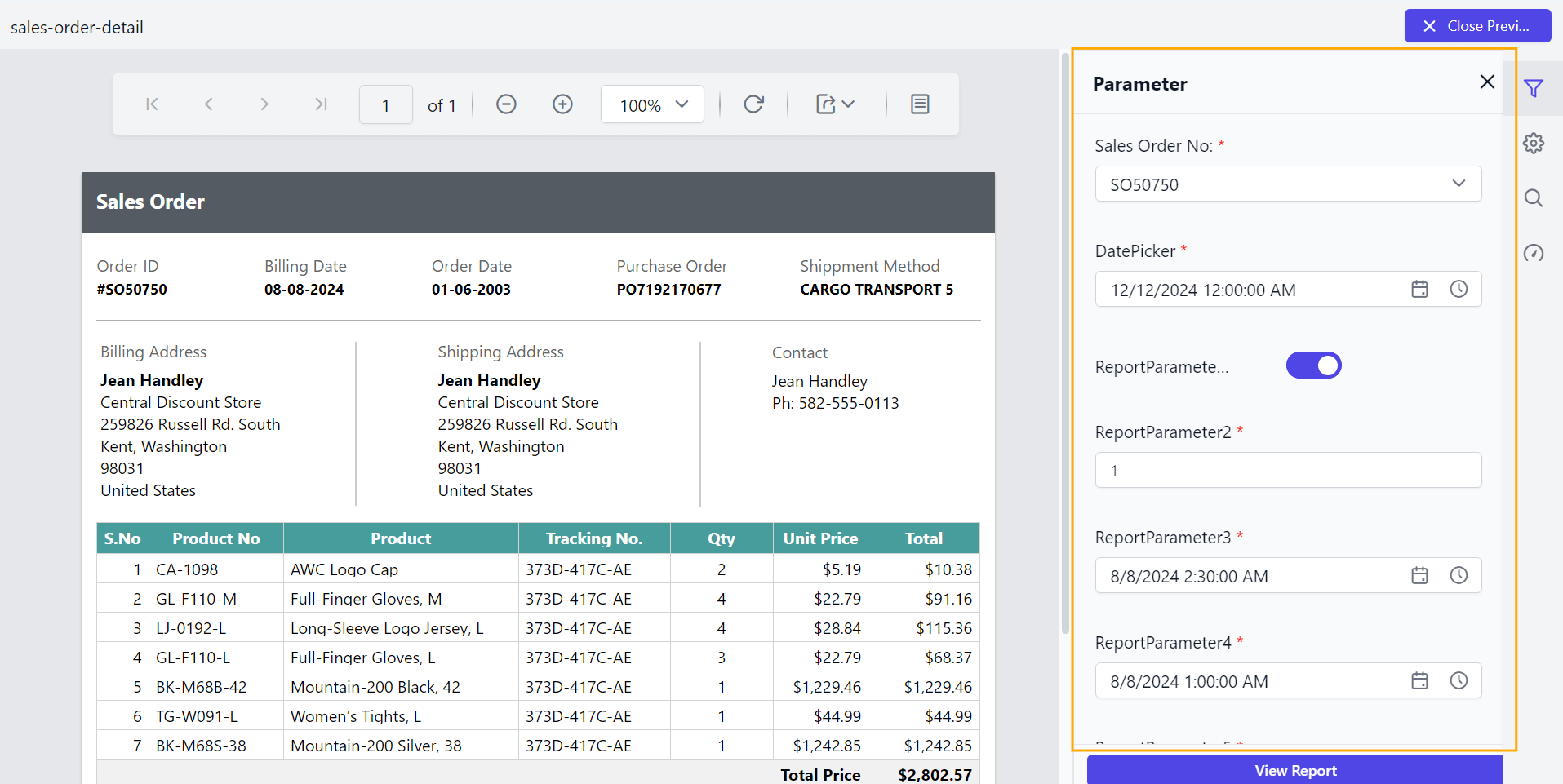
How do I set the start view of a date parameter?
To set the initial view of a datetime parameter item in the Report Viewer, use the DateStartLevel custom property. By default, the DateStartLevel value is set as Month.
Year - Displays the months in a year
Decade - Displays the years in a decade
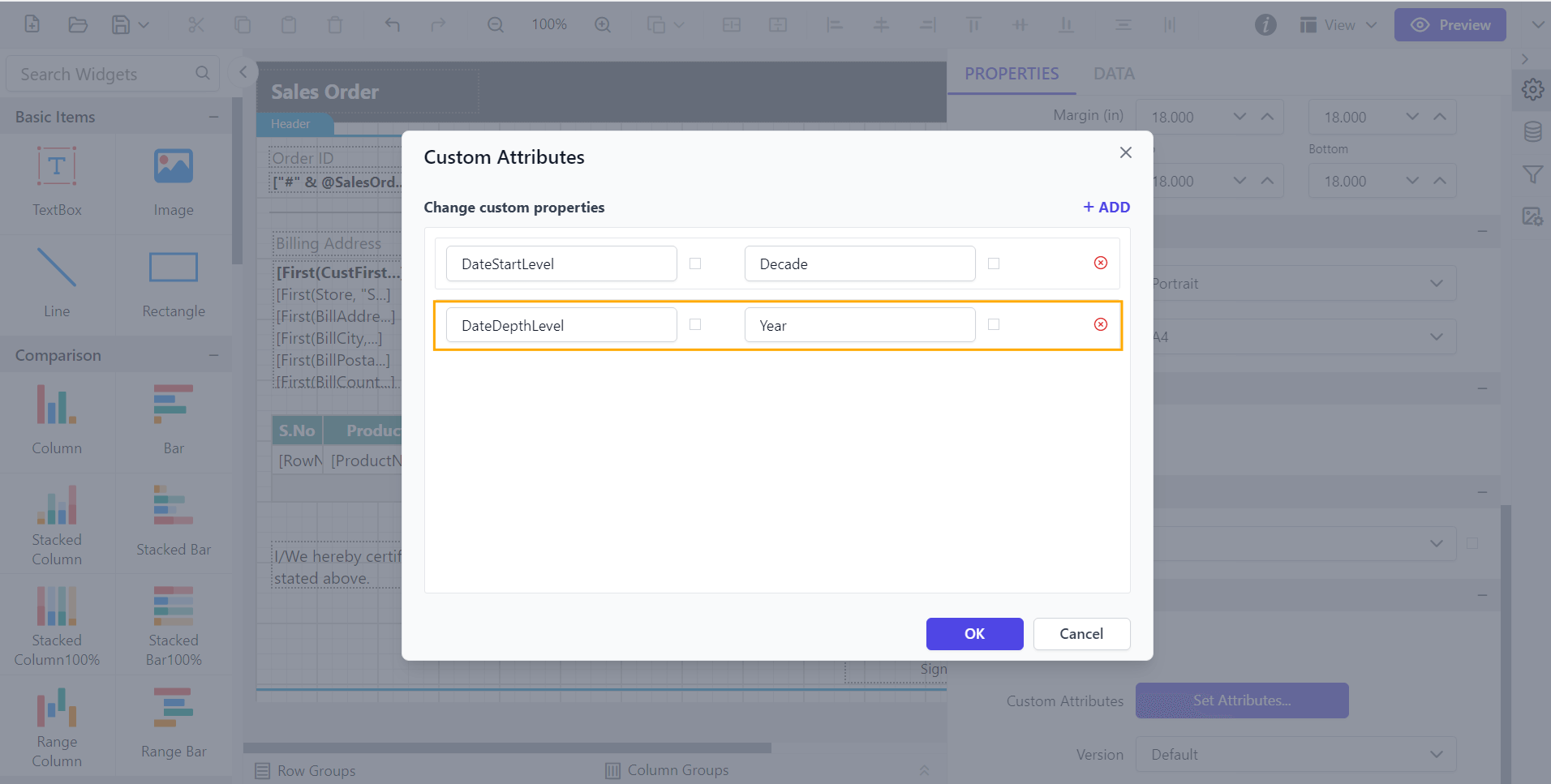
You can set the DateStartLevel property value.
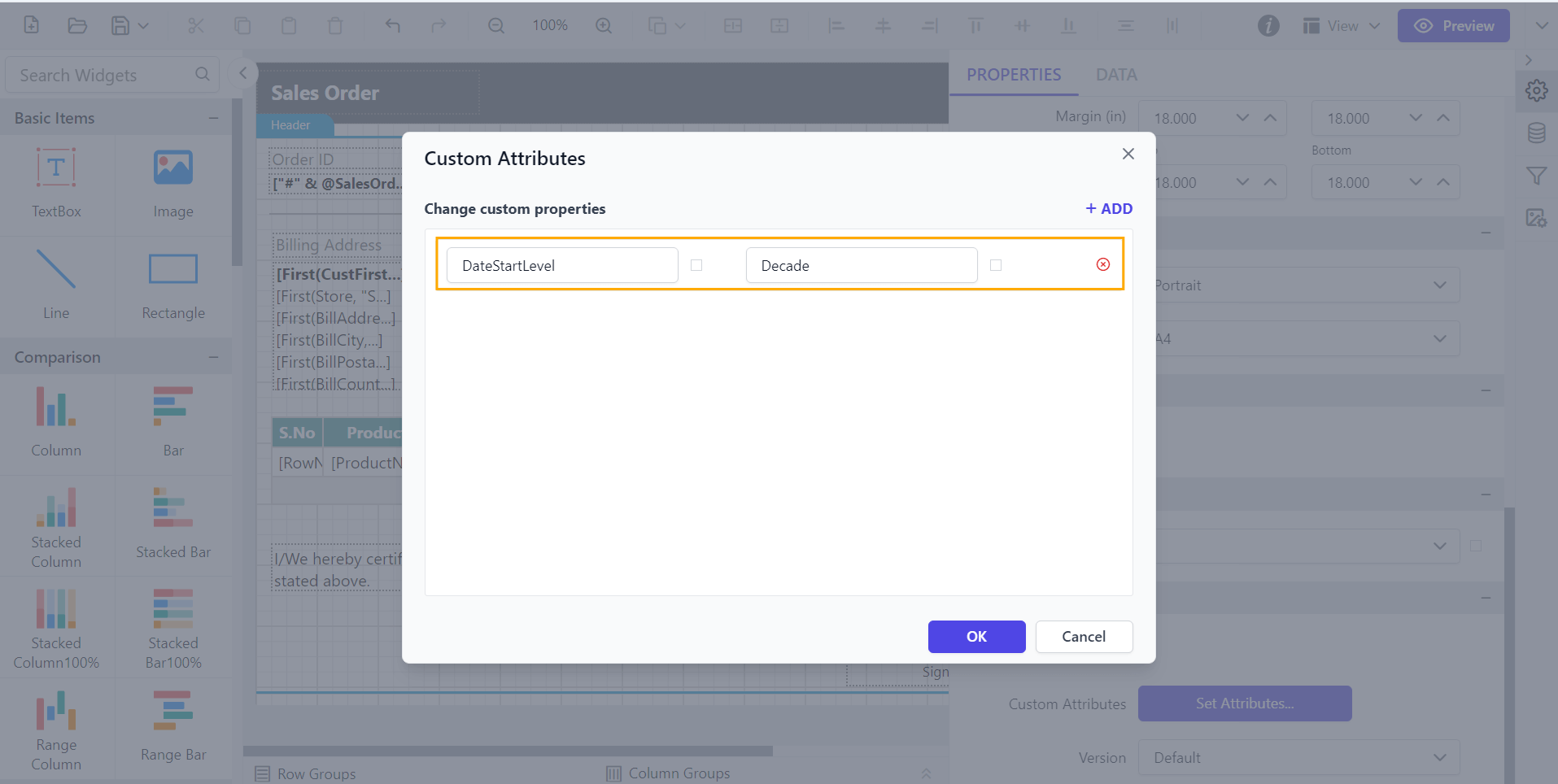
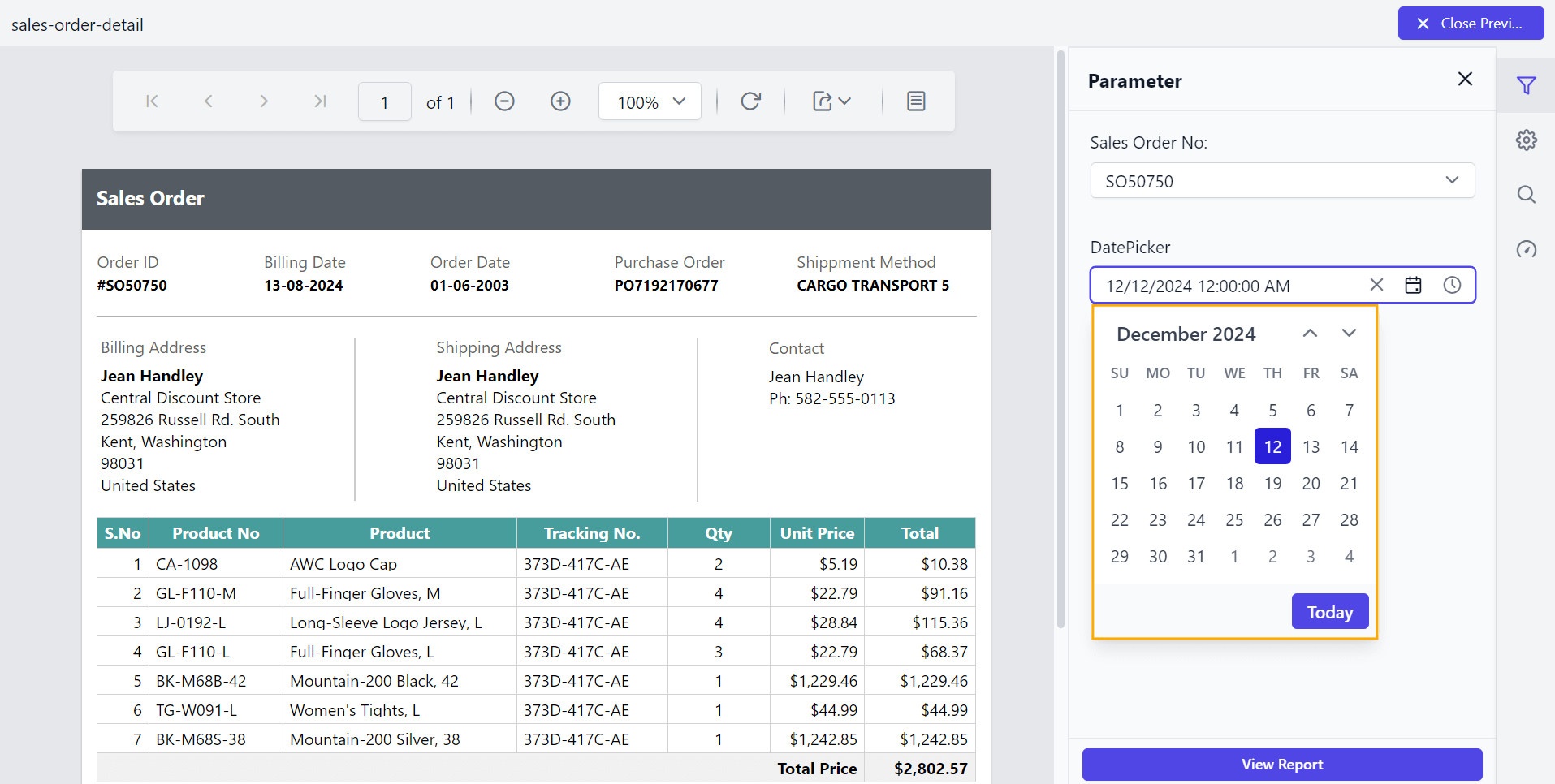
By default, the DateStartLevel is set as Month.
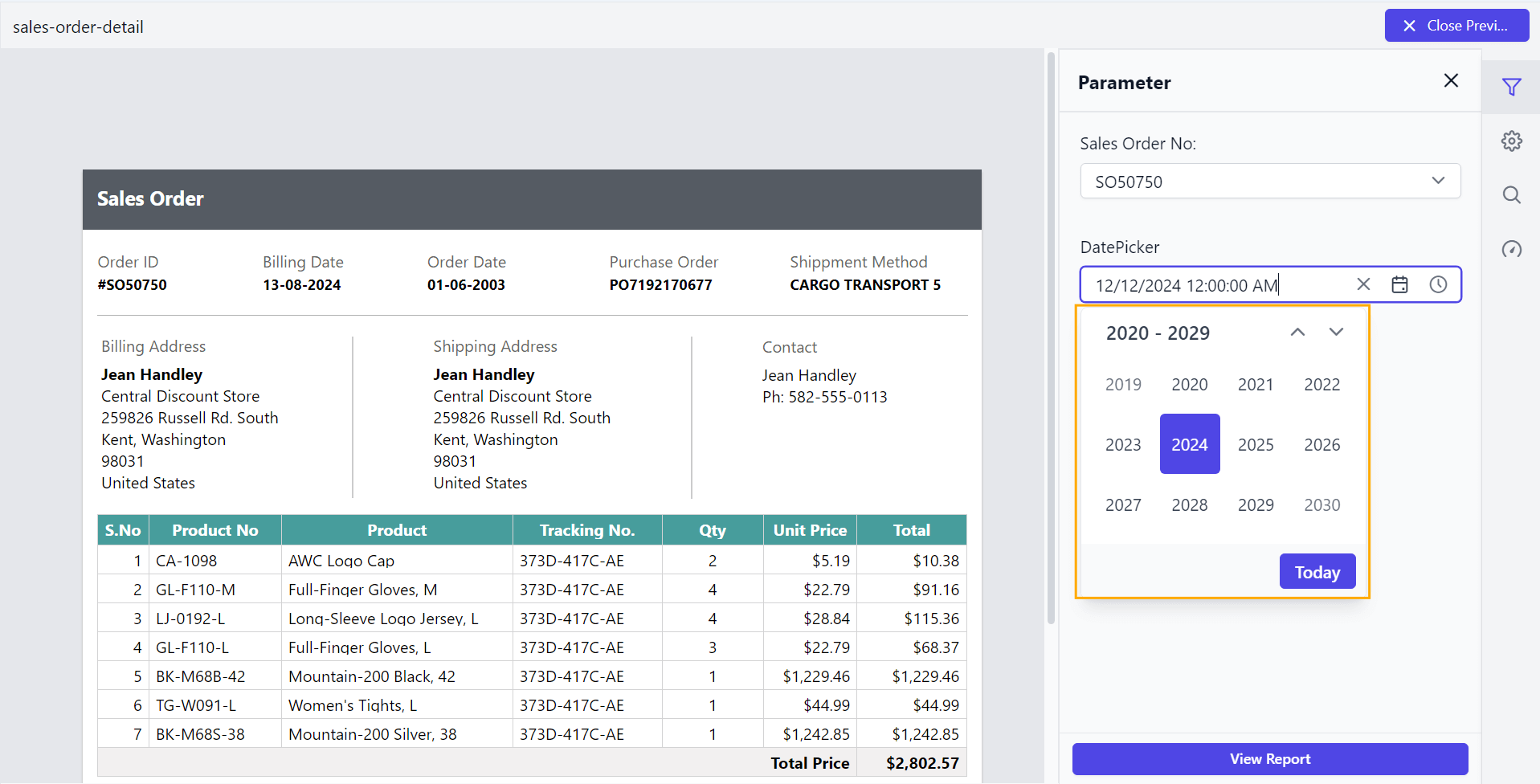
Preview the report to see the DateStartLevel set to Decade in the datetime parameter.
How do I set the depth view of a date parameter?
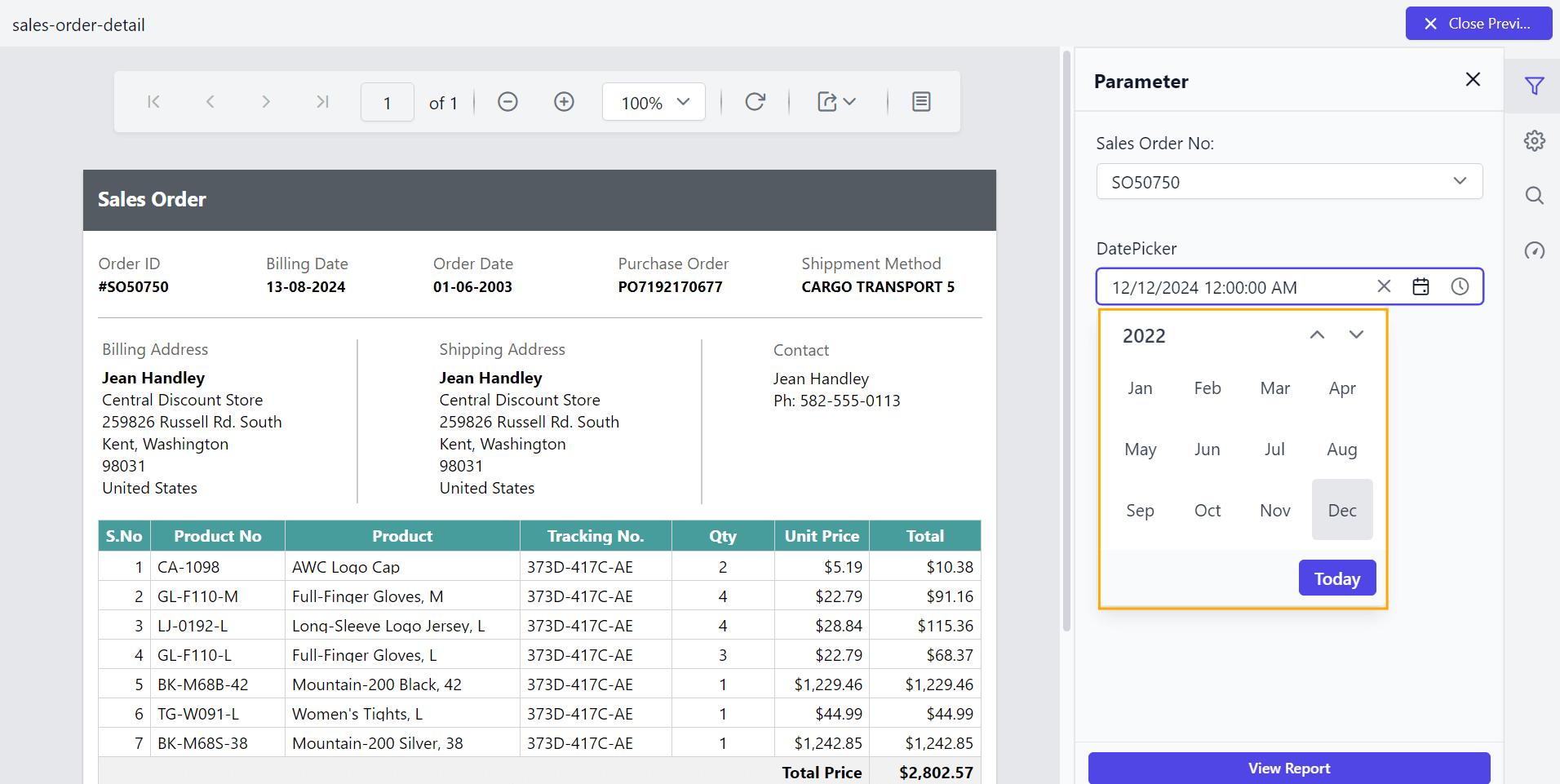
To set the maximum level of a datetime parameter item, such as Month, Year, and Decade in the calendar, use the DateDepthLevel custom property in the Report Viewer. The depth view should be smaller than the start view to restrict its view navigation. By default, the DateDepthLevel value is set as Month.
You can set the DateDepthLevel property value.
Preview the report to see the DateDepthLevel set to Year in the datetime parameter.
How do I keep the selection order in multi-select parameters?
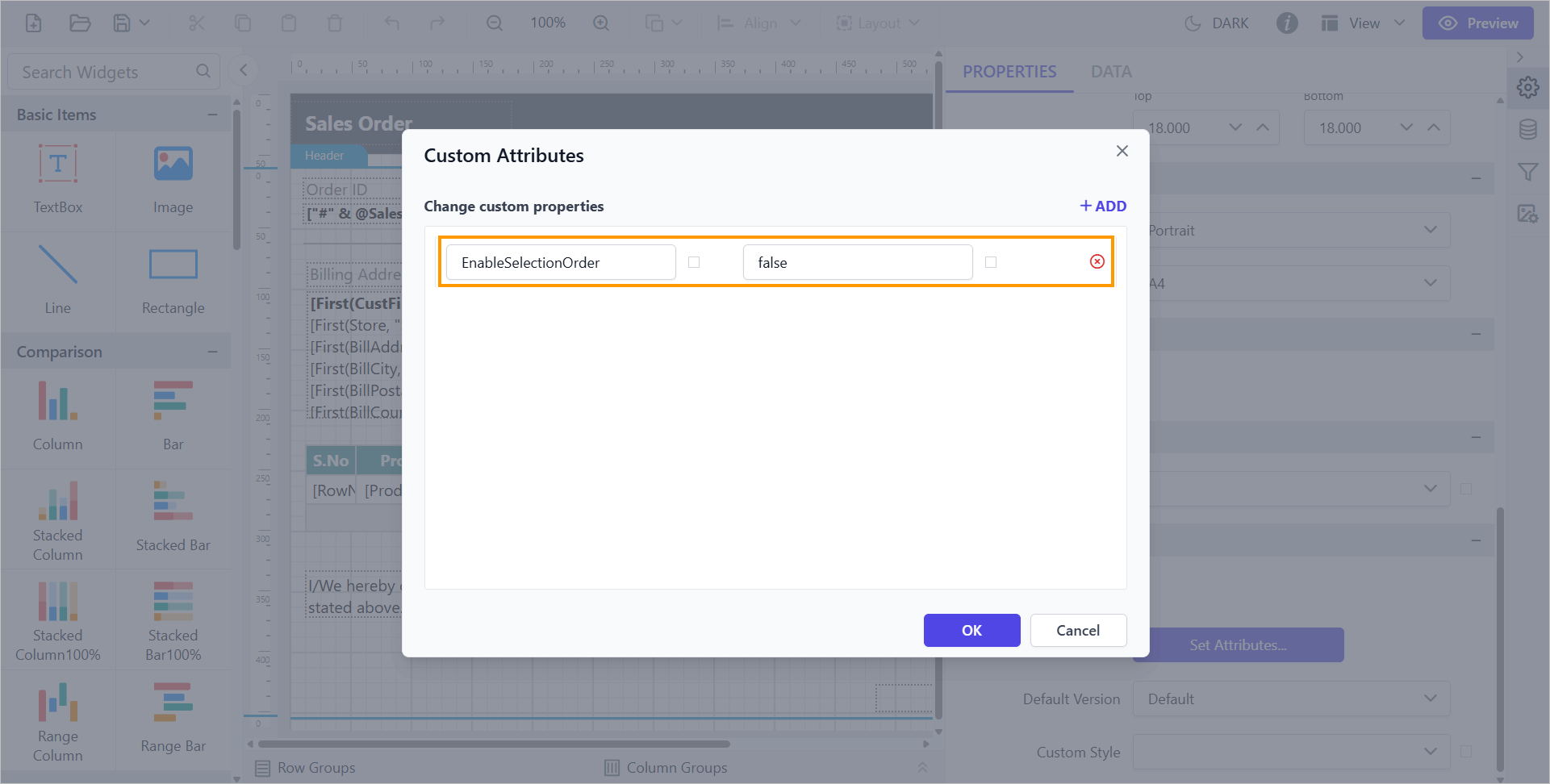
To maintain the order in which users select items in the Report Viewer, use the EnableSelectionOrder custom property. By default, the value of EnableSelectionOrder is set to true, which means the selected items in a MultiSelect dropdown will be displayed in the top.
You can set the EnableSelectionOrder property:
Before disabling the selection order, the default value will be displayed.
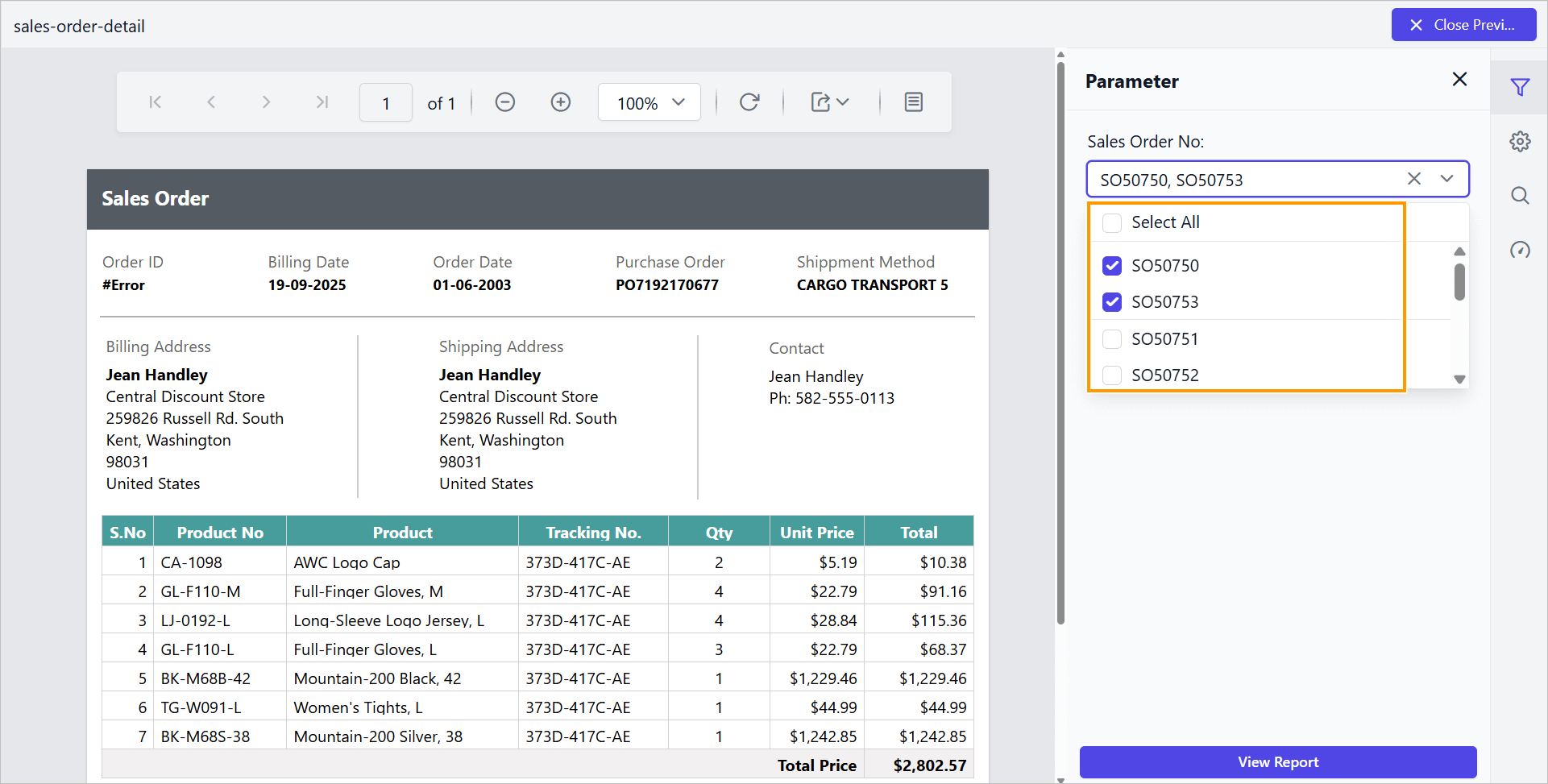
Preview the report and check the selection order in the parameter list.
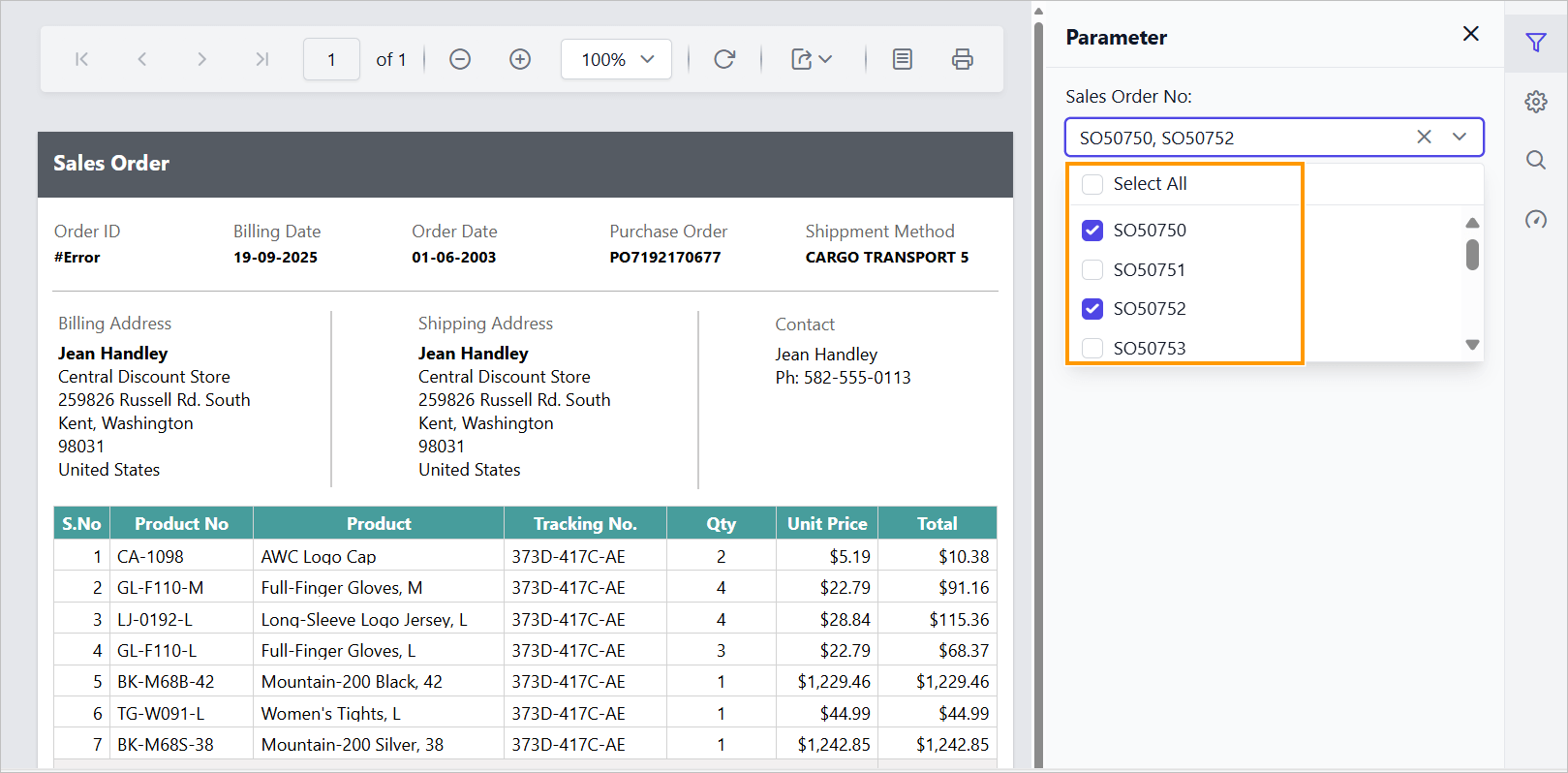
How do I display selected values in multi-select parameters?
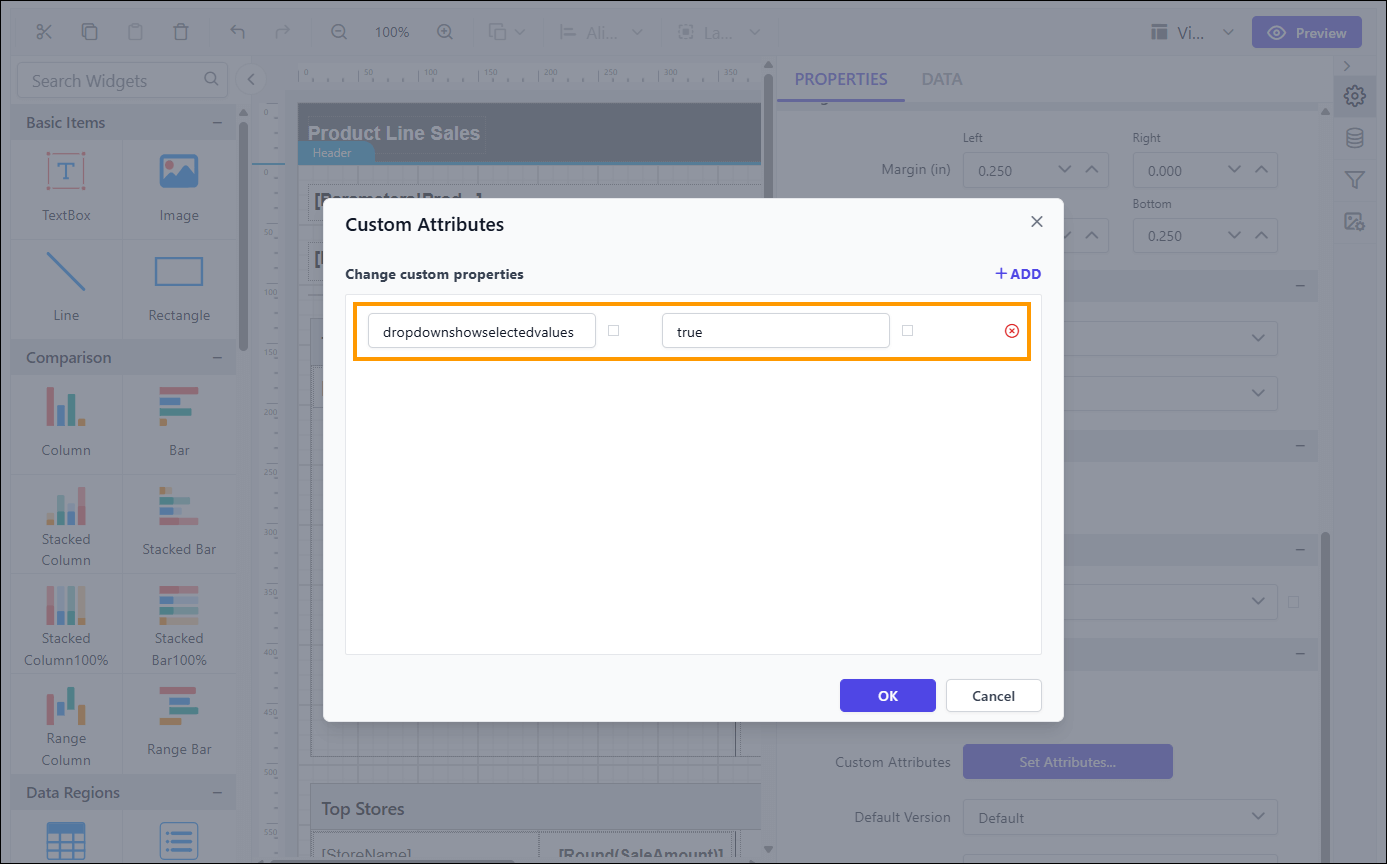
To display the selected values in the MultiSelect input box in the Report Viewer, set the DropdownShowSelectedValues custom property. By default, the value of DropdownShowSelectedValues is set to false, which means the input box displays only the number of selected items in a MultiSelect dropdown
You can set the DropdownShowSelectedValues property:
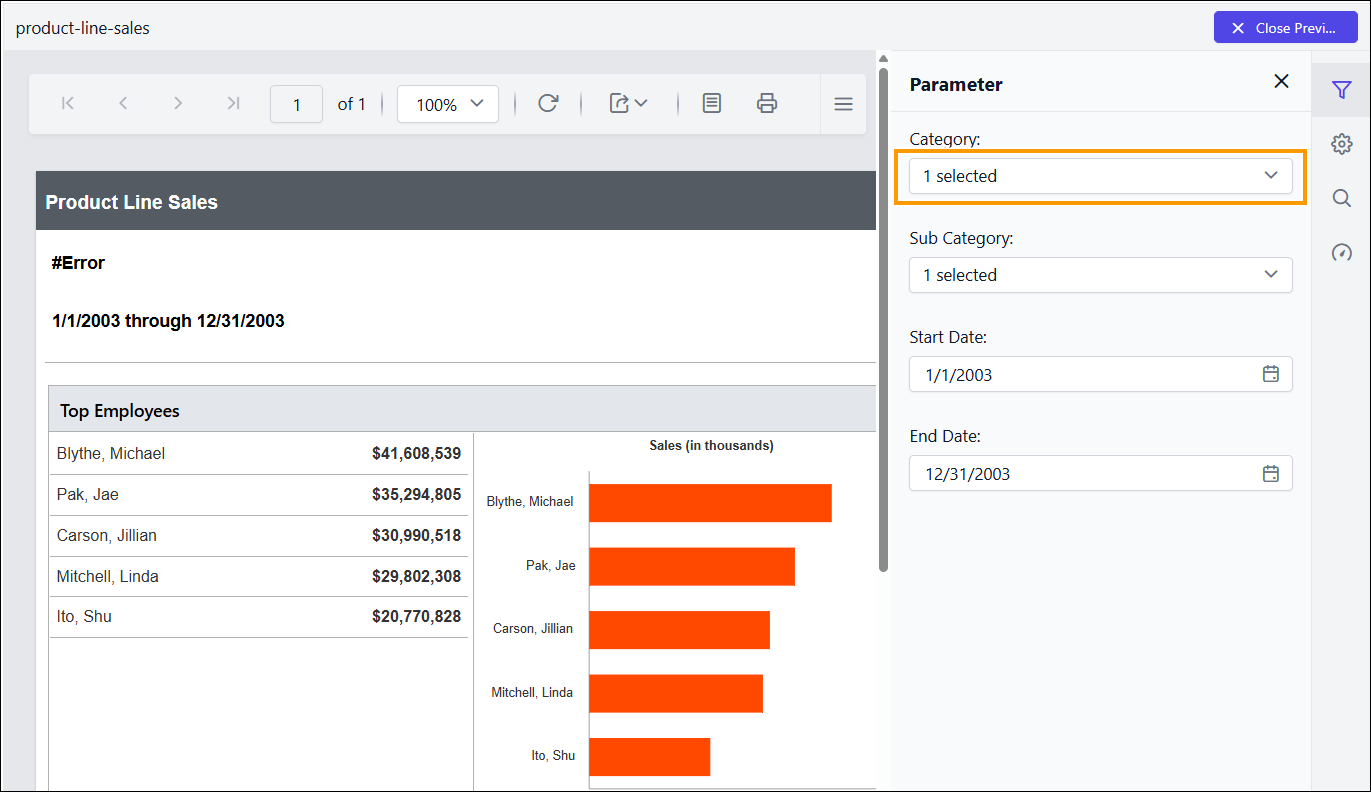
Before enabling this property, the default value will be displayed:
After enabling the property, preview the report to see the selected values displayed in the parameter list: