Chart custom properties
Chart custom properties in the Bold Reports® ASP.NET Web Forms Report Viewer control legend interaction, legend size and shape, axis padding, label placement, and column style and width in chart report items.
How do I disable chart legend item interaction?
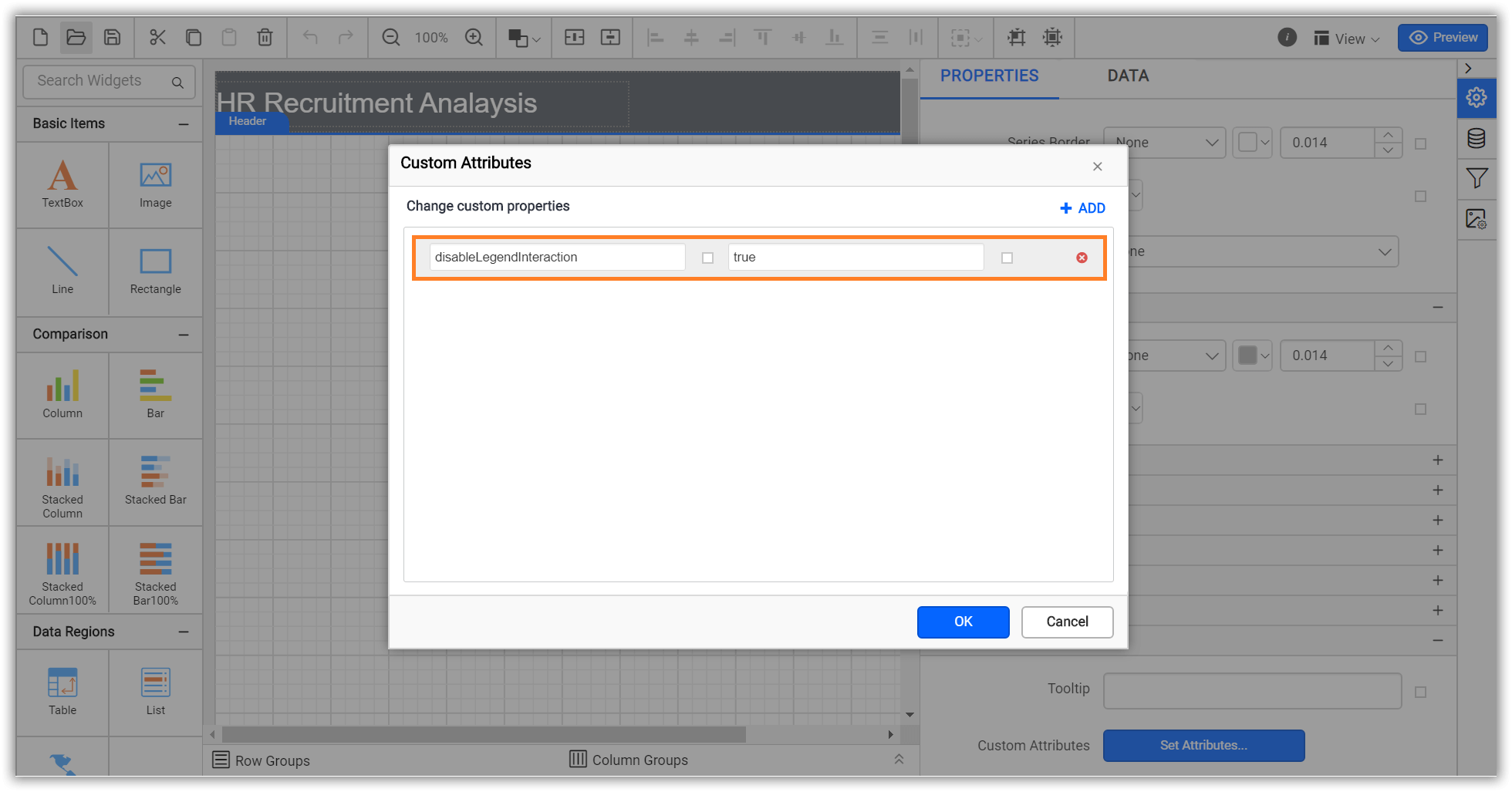
To disable legend item interaction in the Report Viewer, set the DisableLegendInteraction custom property value to true. The property value must be Boolean. You can set the property value.
How do I set the maximum size of the chart legend?
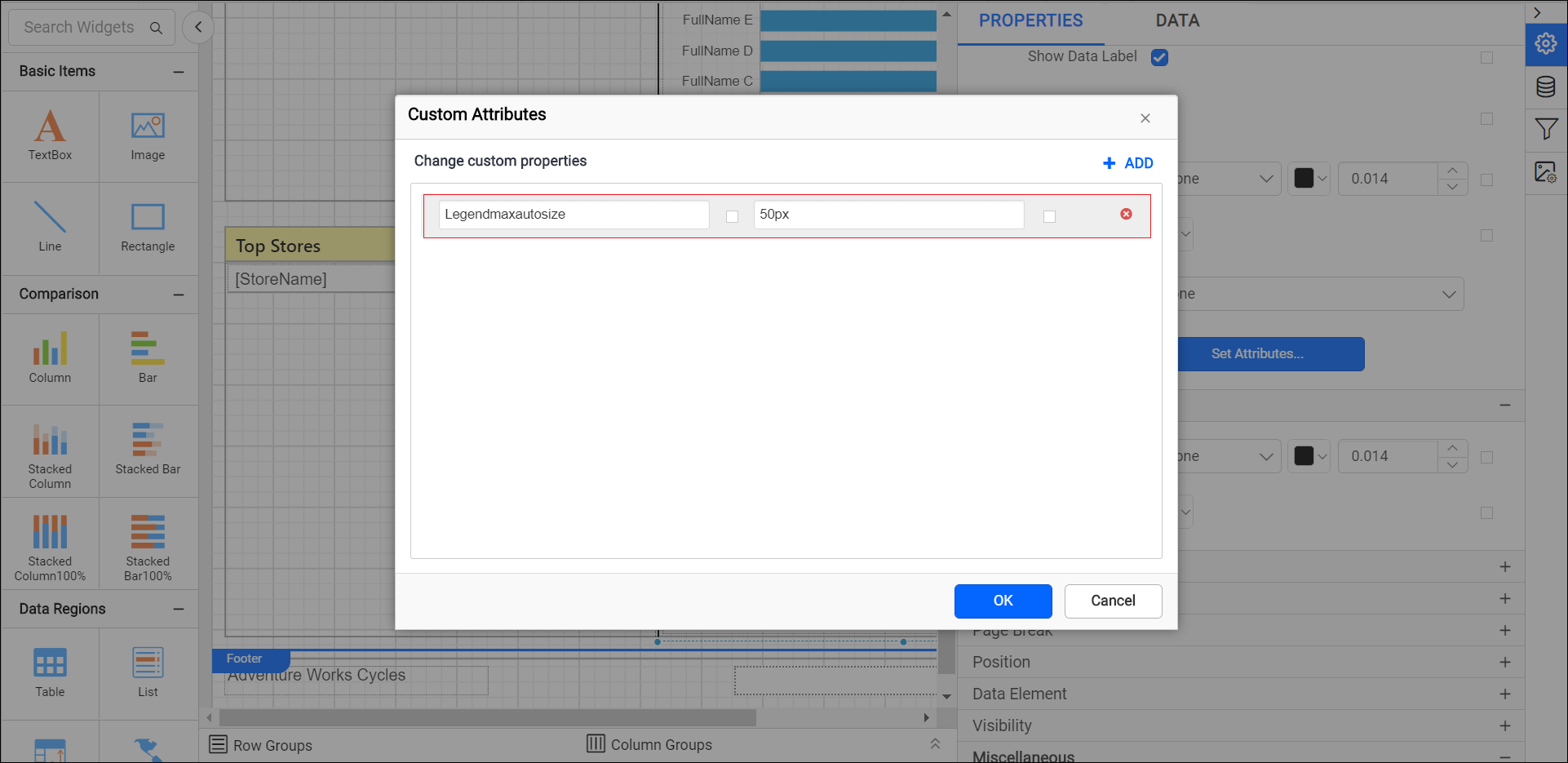
To set the maximum size of the chart legend in the Report Viewer, use the LegendMaxAutoSize custom property, which specifies the maximum size of the legend container in the report.
You can set the LegendMaxAutoSize property value.
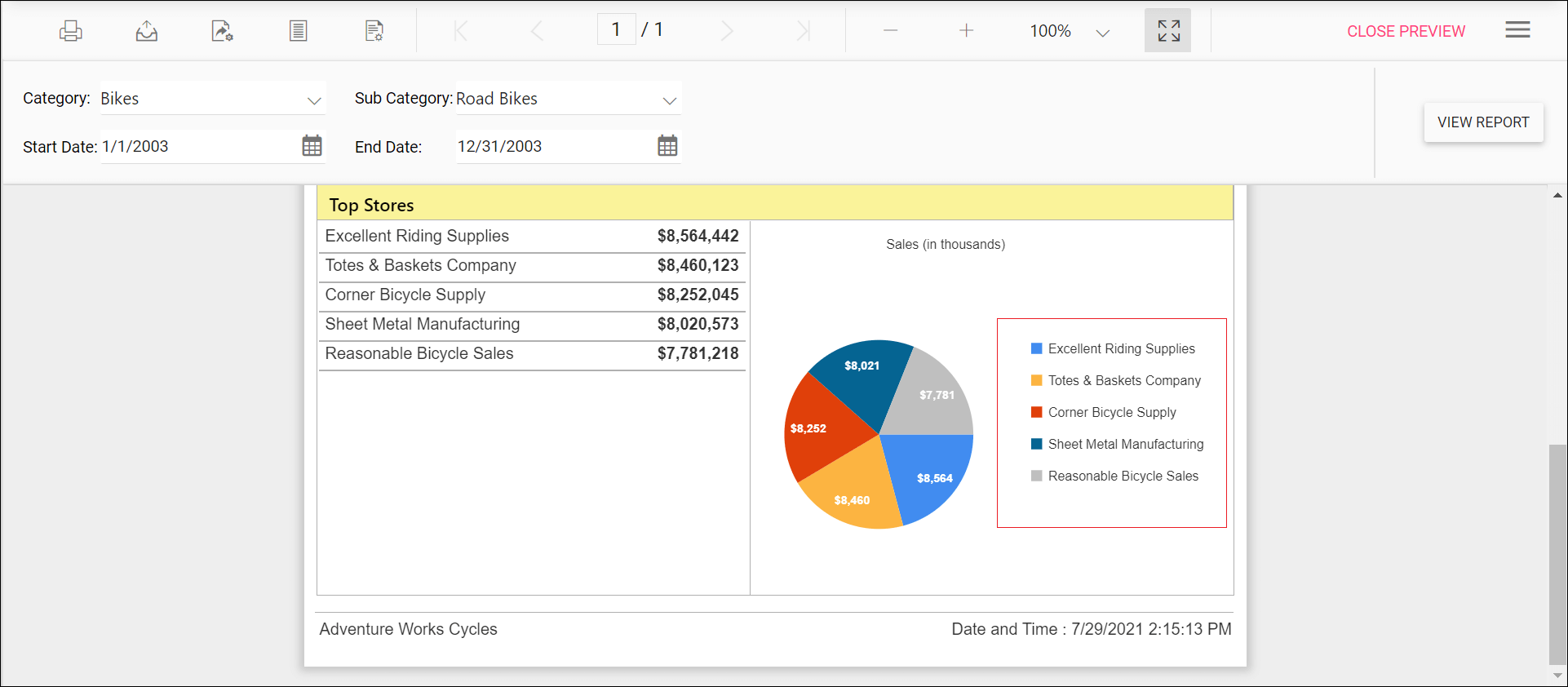
Preview the report to see the legend container size in the chart report.
How do I change the chart legend shape?
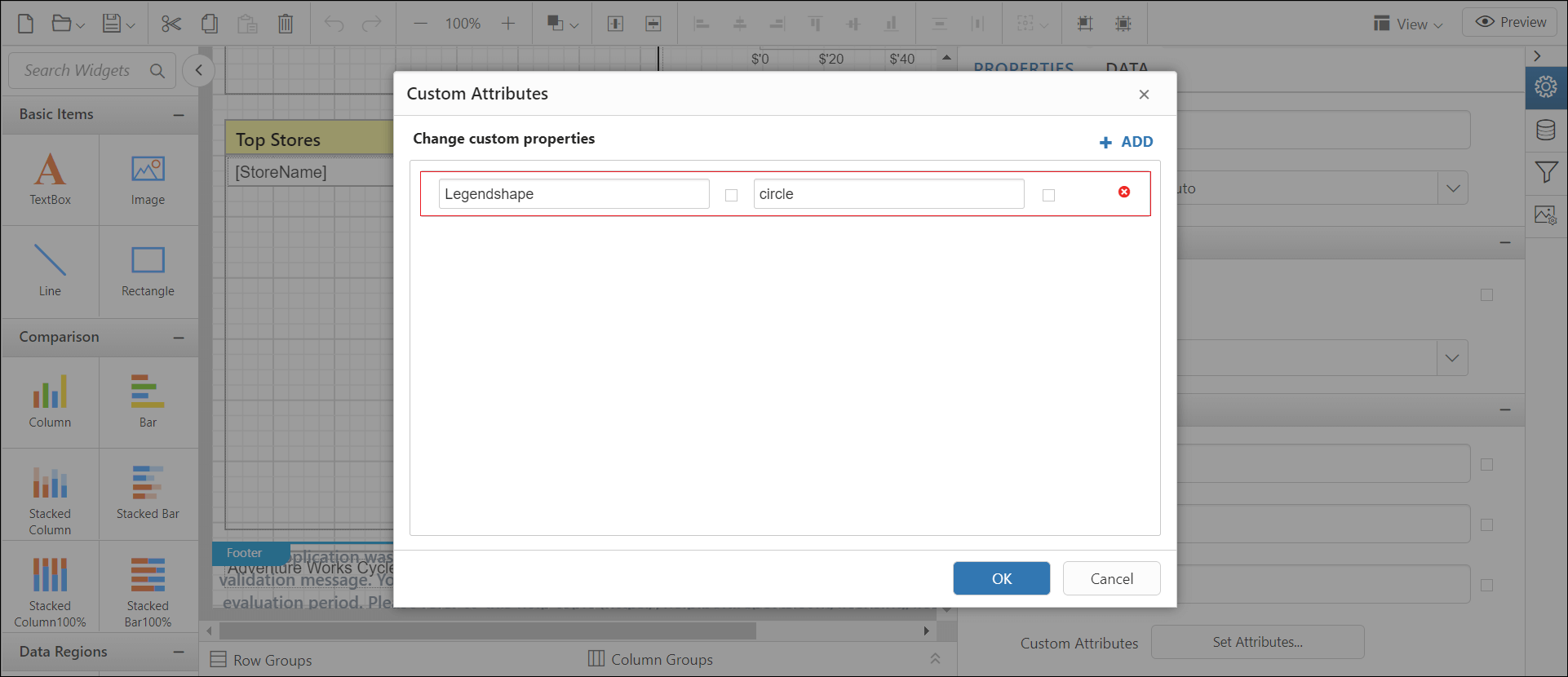
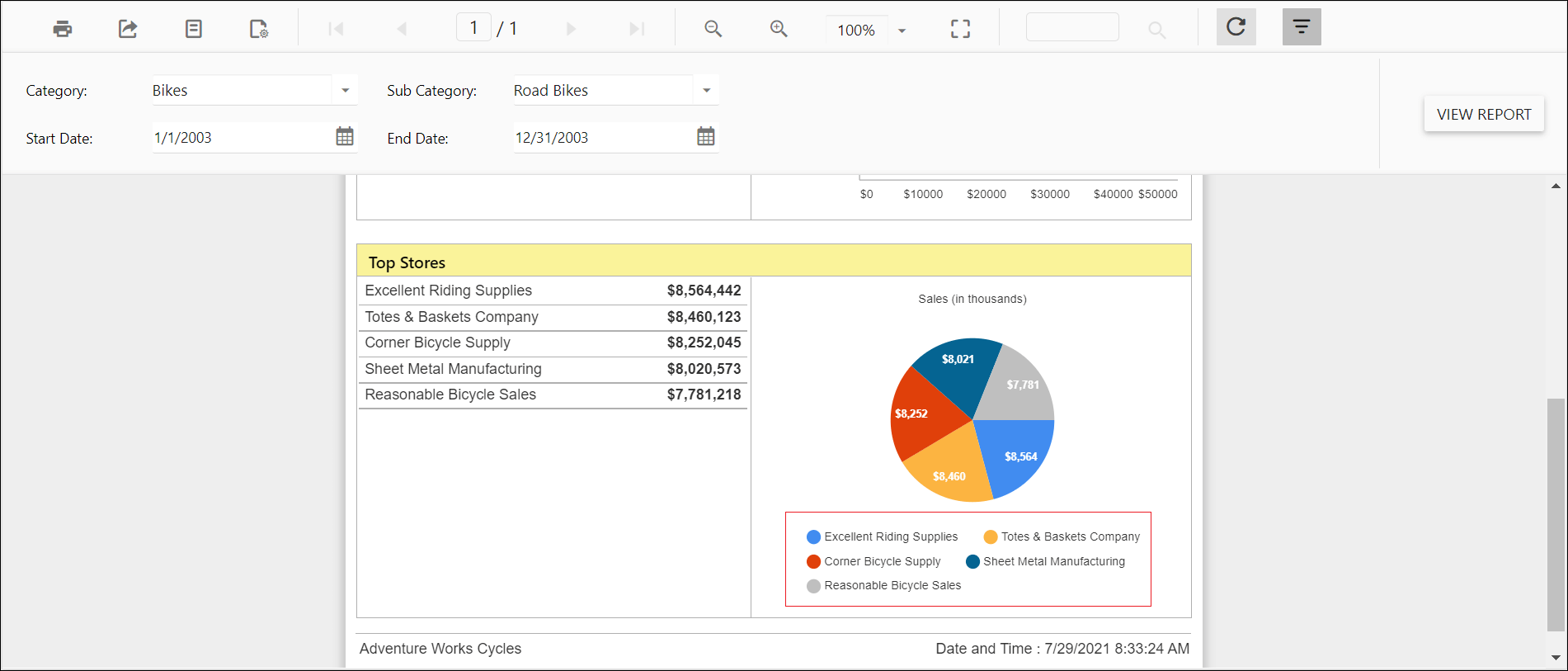
To change the shape of the legend in a chart report item in the Report Viewer, set the LegendShape custom property. By default, the LegendShape value is rectangle.
- Rectangle - legend shapes displayed in
rectangle. - Circle - legends are displayed in
circle. - Thumbnail - legends are displayed in
seriestype.
You can set the LegendShape property value.
Preview the report to see the legend shape in the chart report.
How do I show or hide the chart legend scroller?
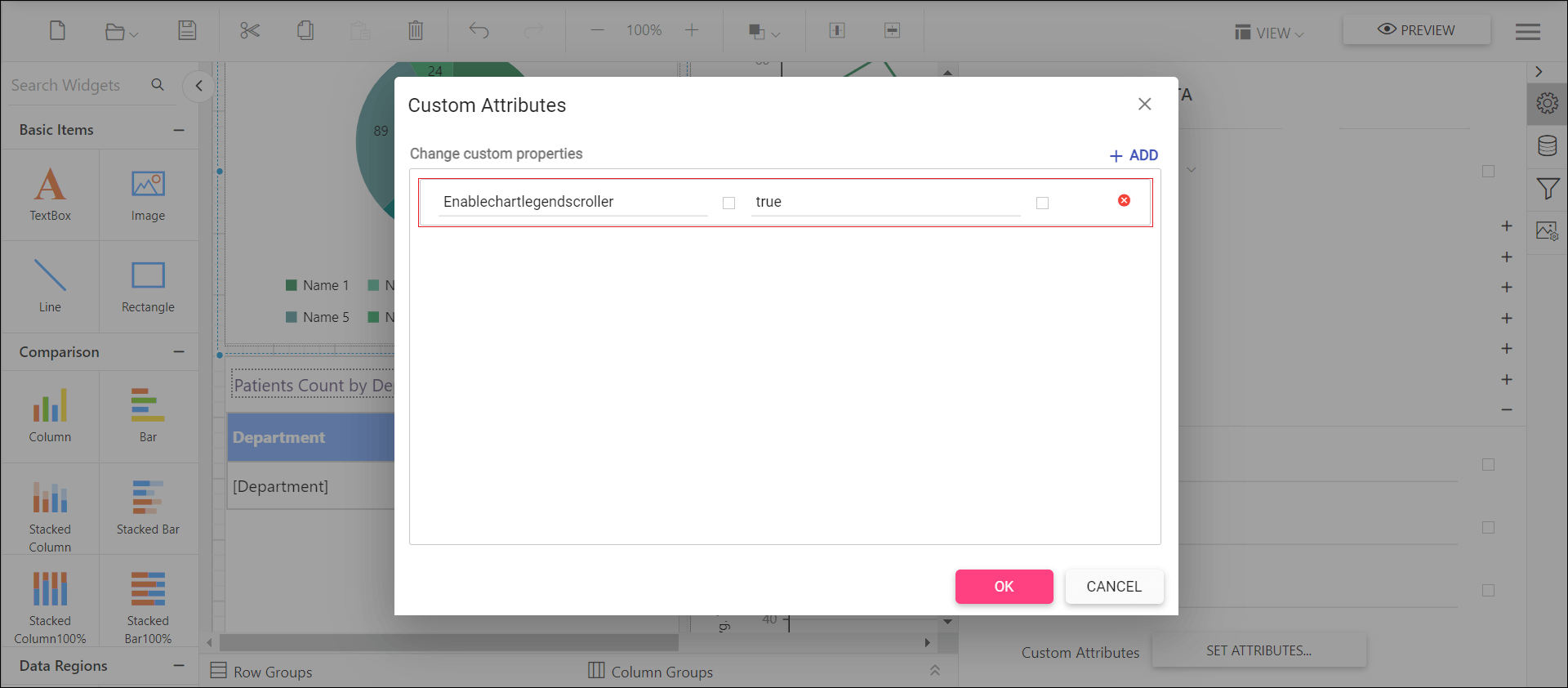
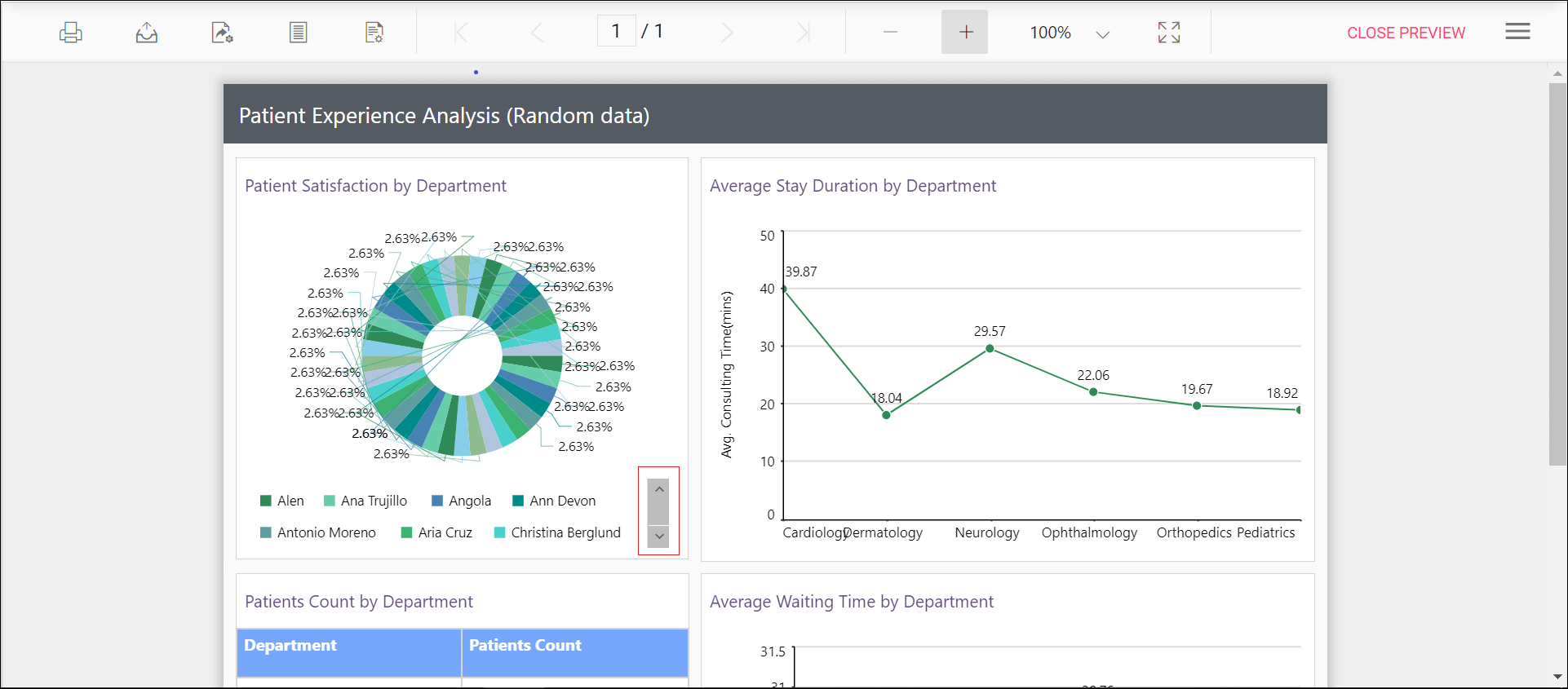
To show or hide the chart legend scroller in the Report Viewer, set the EnableChartLegendScroller custom property, which controls whether the legend uses a scrollbar. The scrollbar appears depending upon size and position properties of legend. By default, the EnableChartLegendScroller value is false.
You can set the EnableChartLegendScroller property value.
Preview the report to see the legend scrollbar in the chart report.
How do I set range padding for the X-axis and Y-axis?
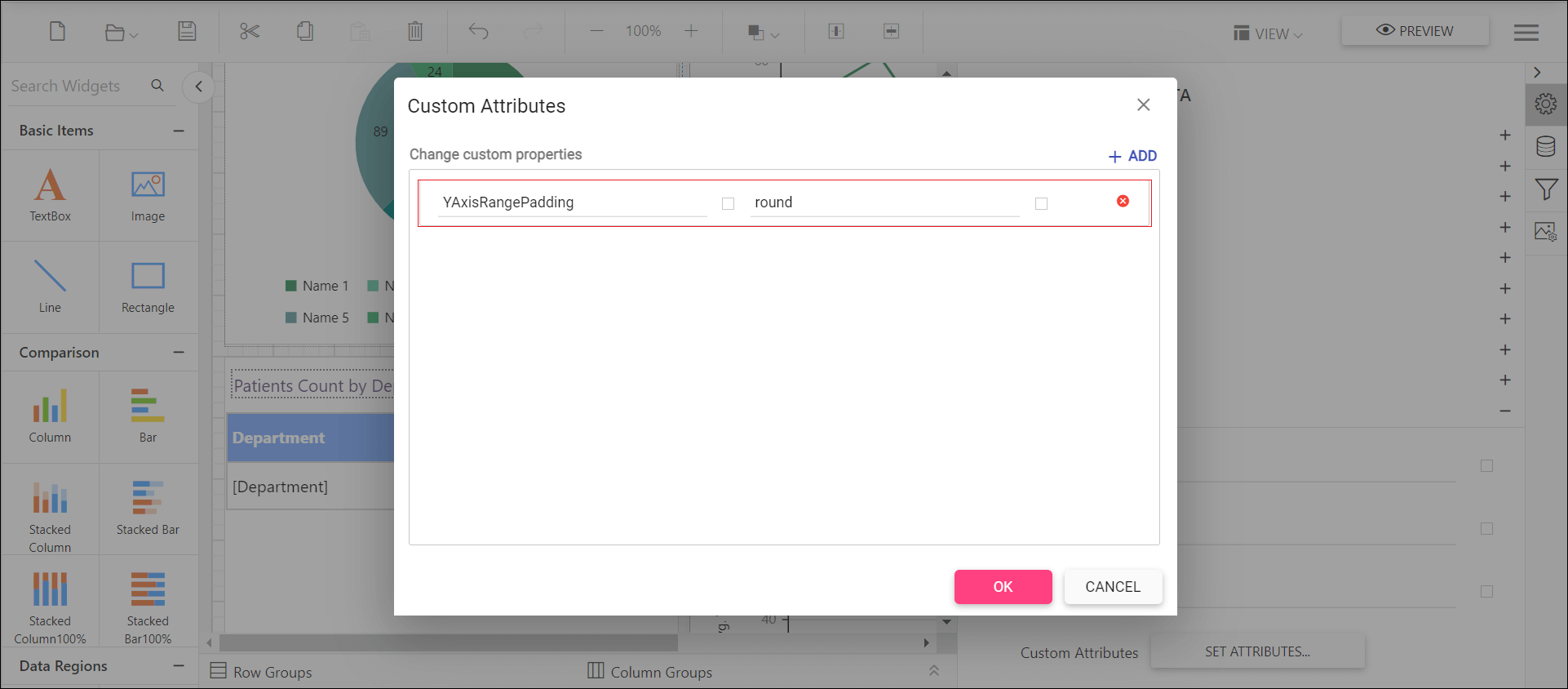
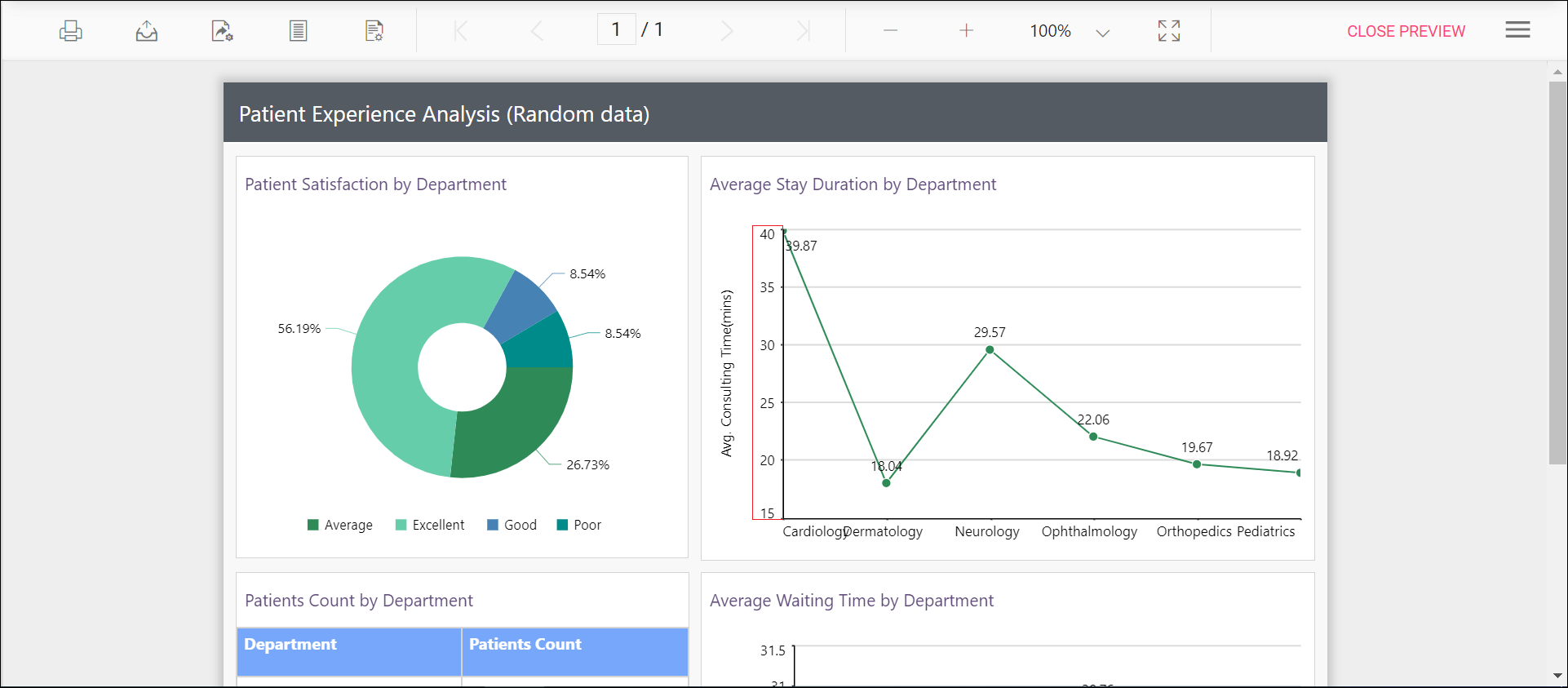
To add padding to the minimum and maximum extremes of a chart axis range in the Report Viewer, use the XAxisRangePadding and YAxisRangePadding properties. The default value isnone.
Numeric axis supports the following types of padding.
| Name | Description |
|---|---|
| Additional | Interval of the axis is added as padding to the minimum and maximum values of the range |
| Normal | Padding is applied to the axis based on the range calculation |
| None | Padding cannot be applied to the axis |
| Round | Axis range is rounded to the nearest possible value divided by the interval |
You can set the XAxisRangePadding and YAxisRangePadding property values.
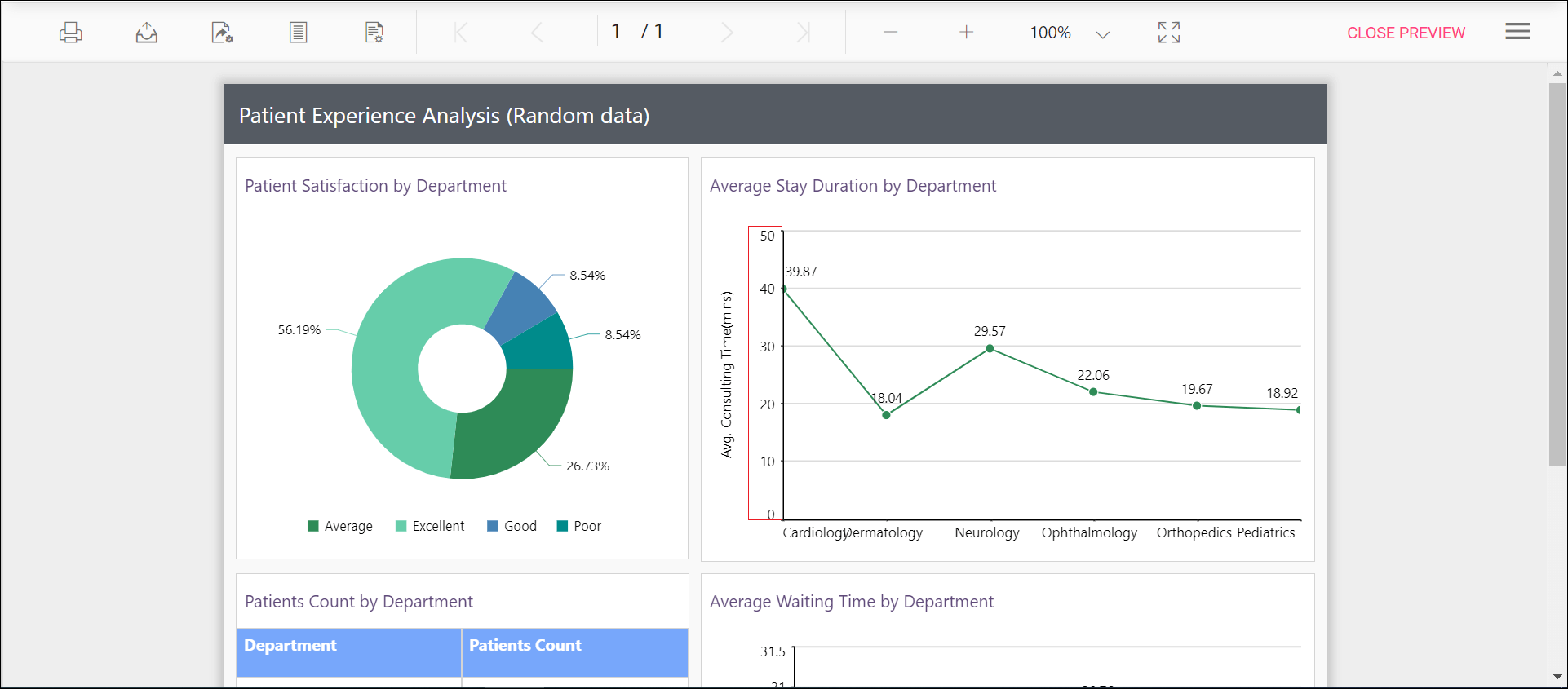
Before you set the range padding, the chart uses the default value.
Set the padding range to see the changes in the chart report.
How do I control edge label placement on a chart axis?
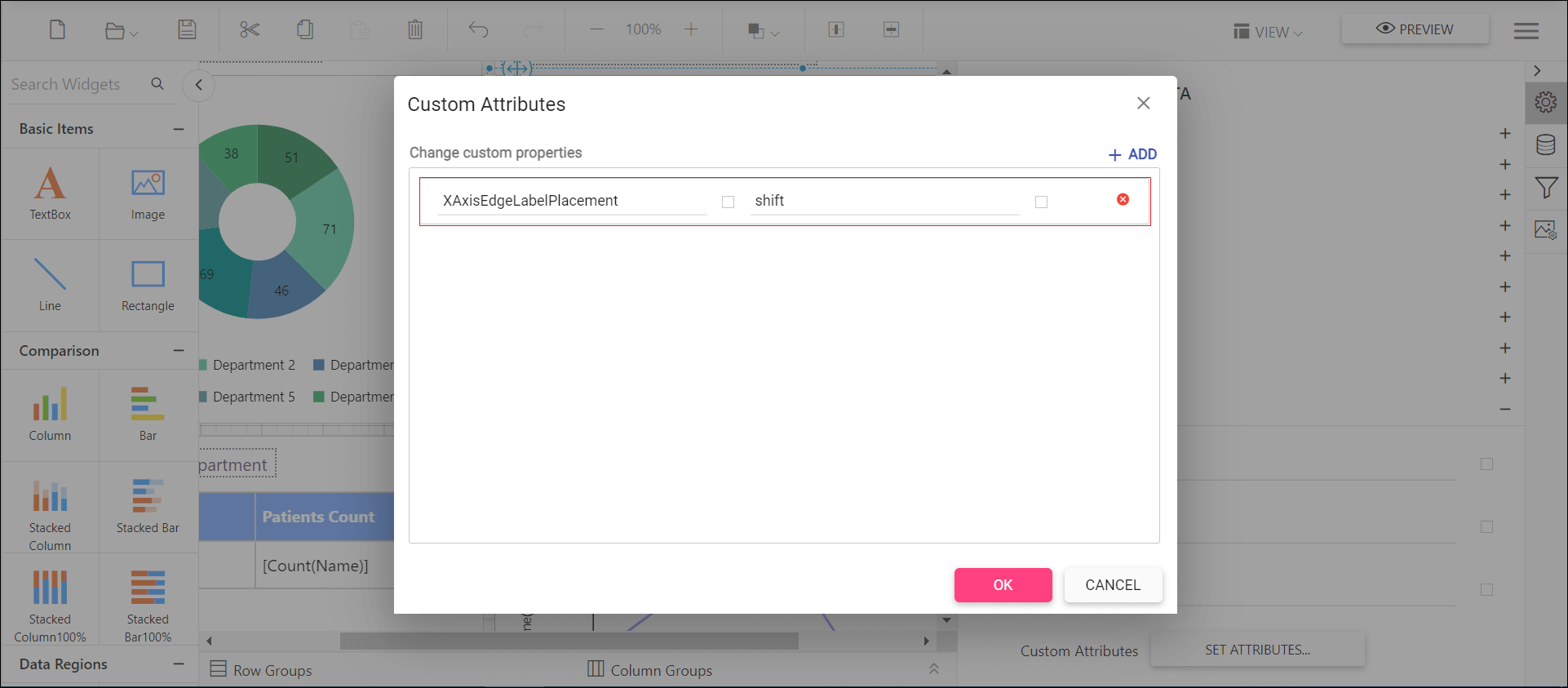
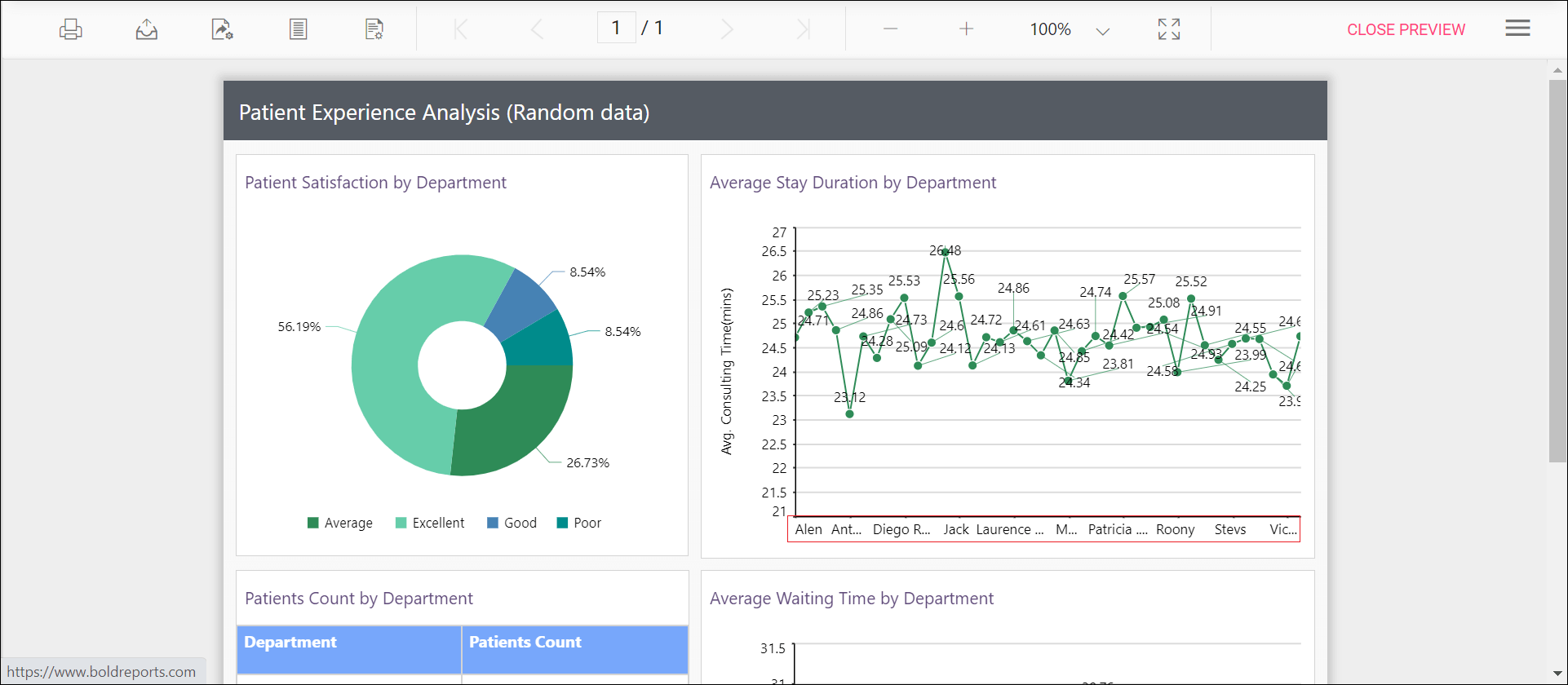
To keep long axis labels from appearing partially outside the chart in the Report Viewer, set the XAxisEdgeLabelPlacement or YAxisEdgeLabelPlacement custom property. Labels with long text at the edges of an axis may appear partially outside the chart. The XAxisEdgeLabelPlacement and YAxisEdgeLabelPlacement custom property can be used to avoid the partial appearance of the labels at the corners. The default value is none.
You can set the XAxisEdgeLabelPlacement property value.
Before you set the edge label placement, the chart uses the default value.
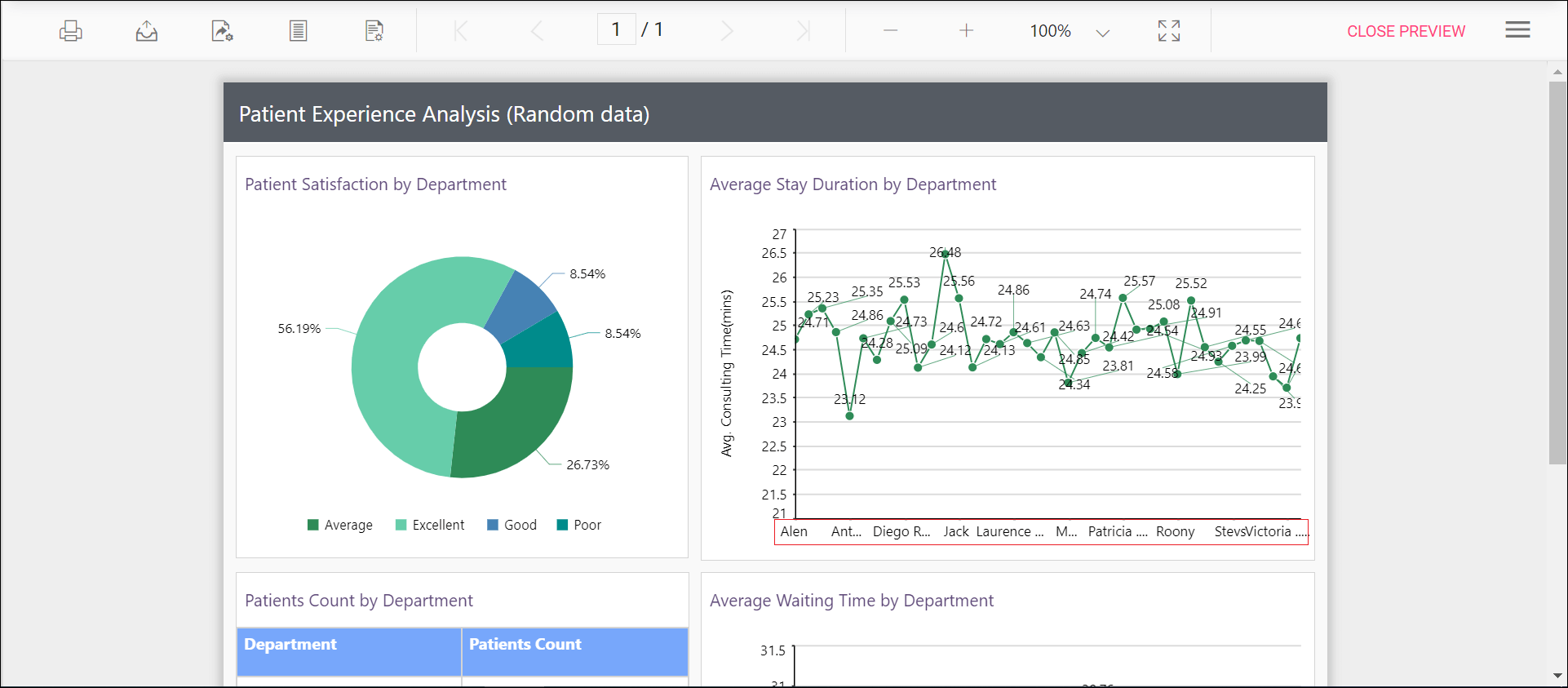
Set the edge label placement to see the changes in the chart report.
How do I change the drawing style of a column or bar series?
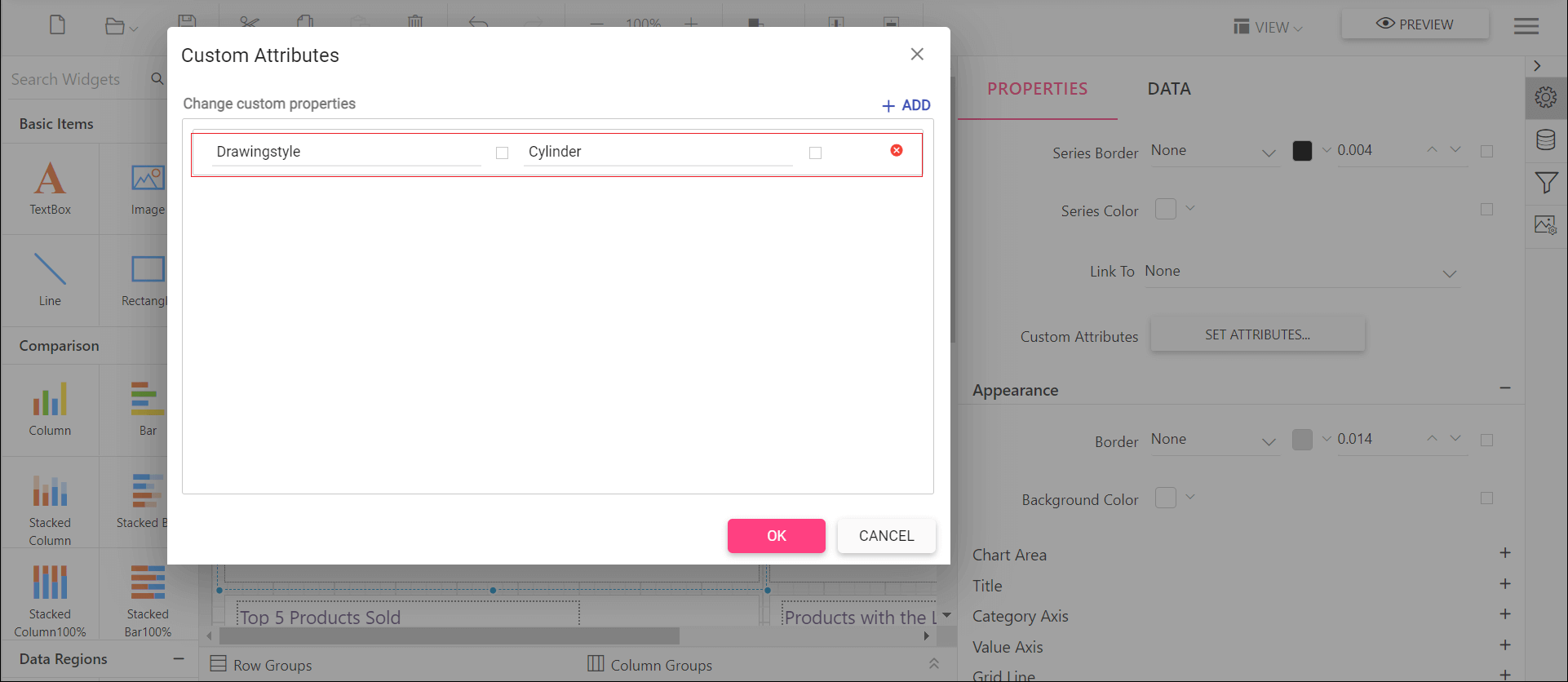
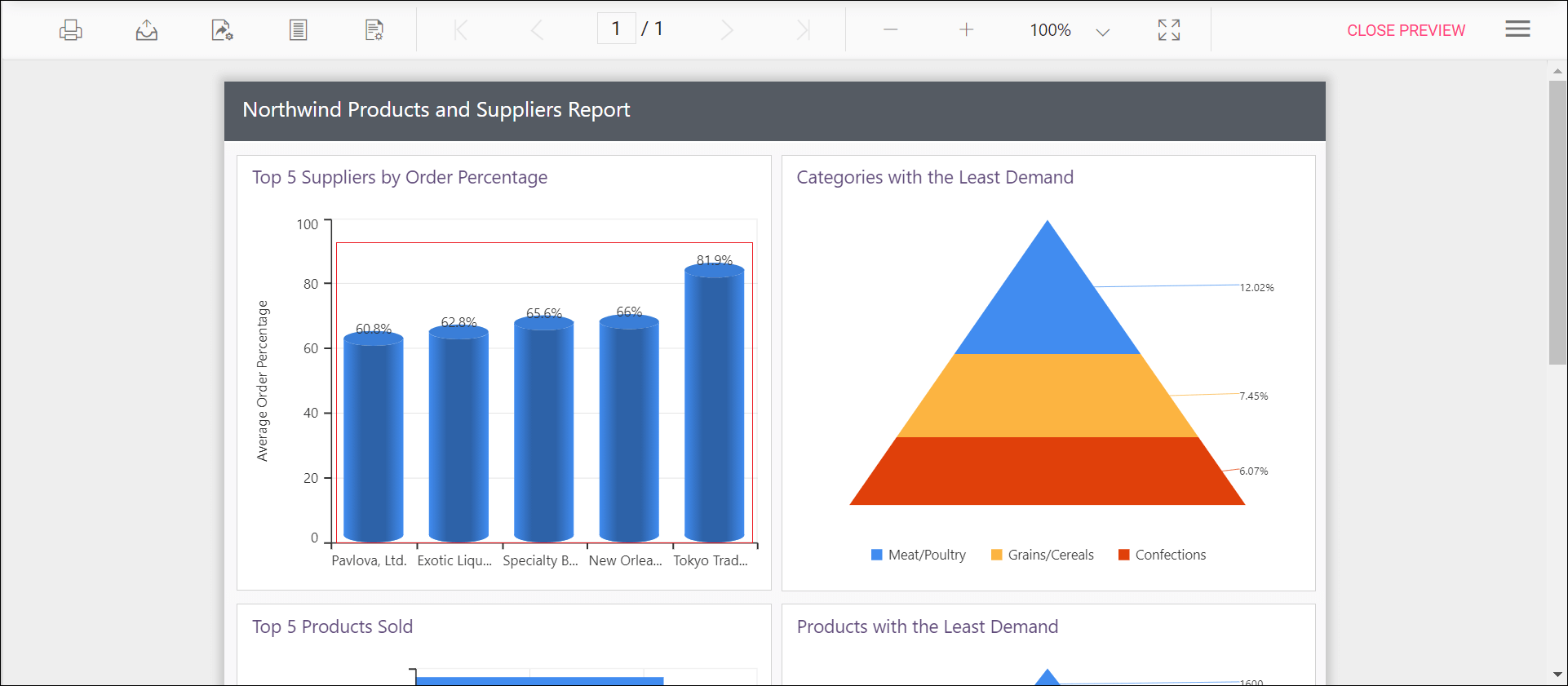
To change the shape of a chart column or bar in the Report Viewer, set the Drawingstyle custom property. By default, the Drawingstyle property value is rectangle.
You can set the Drawingstyle property value.
Preview the report to see the column or bar shape in the chart report.
How do I change the width of a column series in a chart?
To change the width of a column type series in the Report Viewer, set the Pointwidth property. Default value of Pointwidth is 0.7. Value ranges from 0 to 1. Here 1 corresponds to 100% of available width and 0 corresponds to 0% of available width.
You can set the Pointwidth property value.
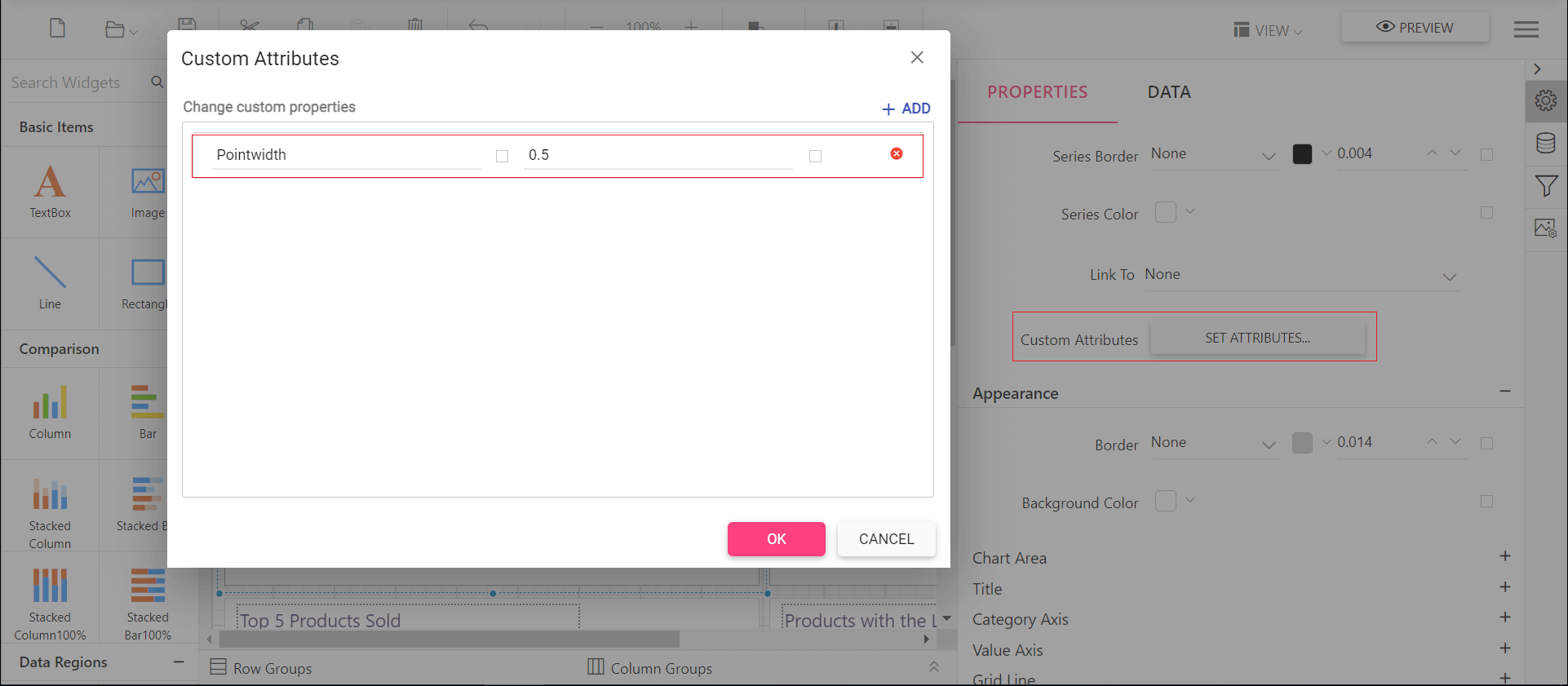
Before you set the point width, the chart uses the default value.
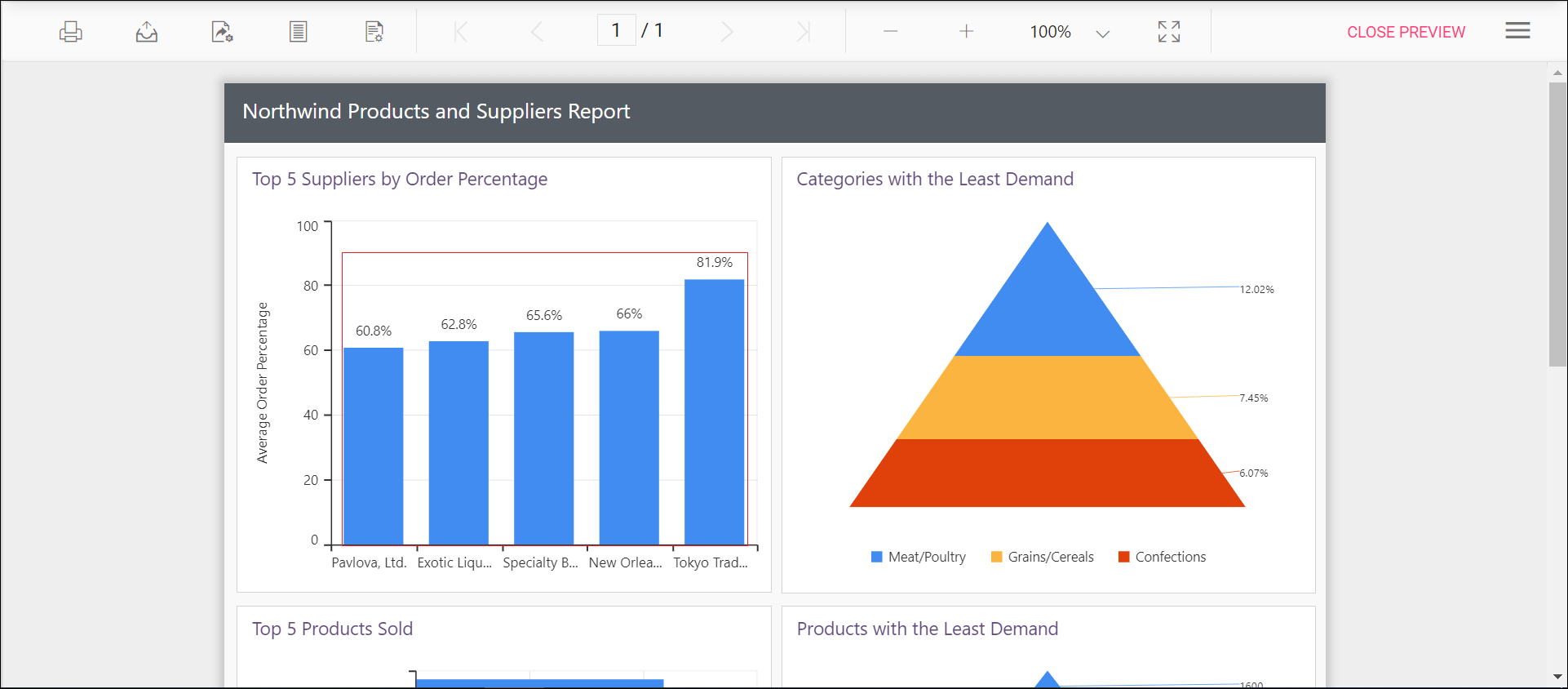
Preview the report to see the column width in the chart report.