Integrate the component with Report Server
To embed the classic Bold Reports® ASP.NET MVC Report Designer with Report Server, set the serviceUrl, serviceAuthorizationToken and reportServerUrl properties. You can then create, edit, browse and publish reports using the Report Server built-in API service.
Follow these steps to integrate Report Server with Bold Reports® Designer version less than
v5.2.xx
Create ASP.NET MVC 5 web application
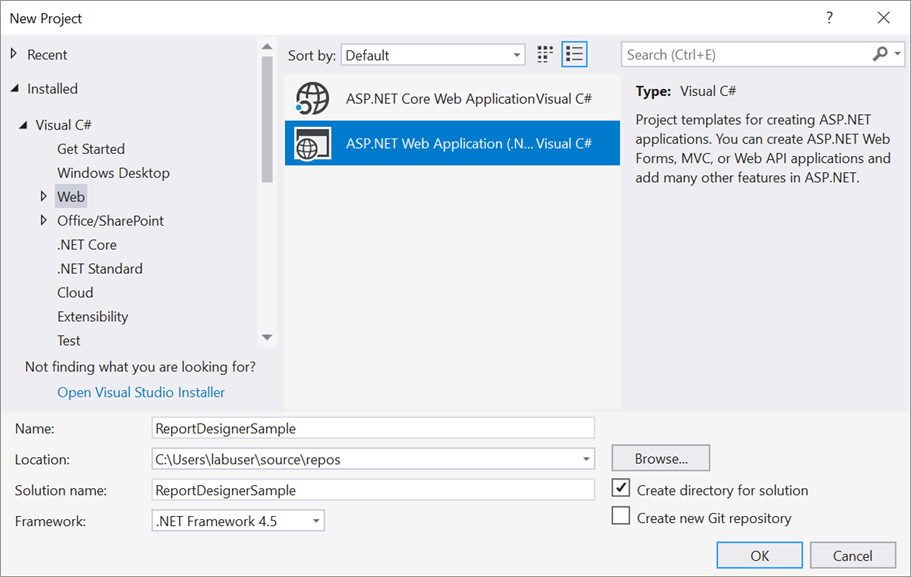
- Open Visual Studio 2017, click the File menu, go to New, and then select Project.
- Go to Installed > Visual C# > Web, and then select the required .NET Framework in the drop-down.
- Select ASP.NET Web Application (.NET Framework), change the application name, and then click OK.
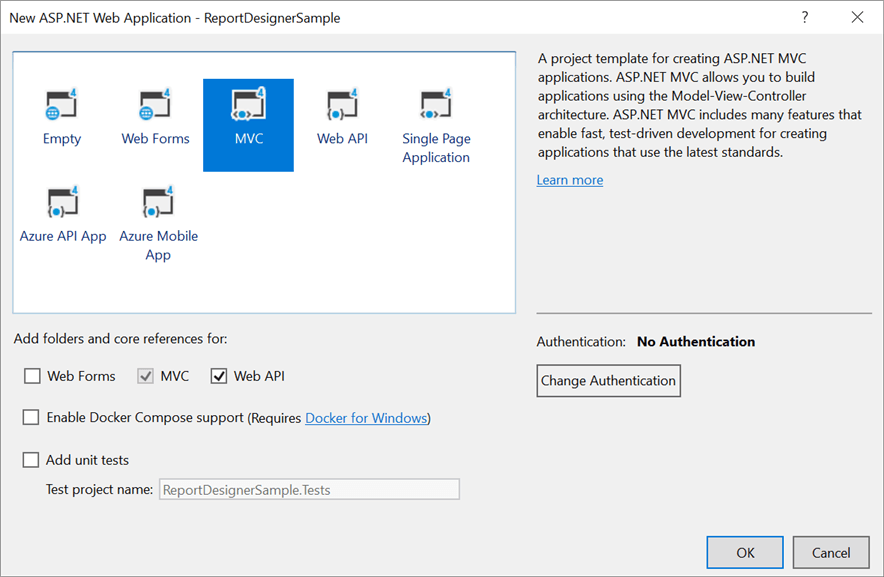
- Then choose the MVC in the template and enable the Web API option in the Add folders and core references for: section.
Which NuGet packages does the classic Report Designer need?
The classic Bold Reports® ASP.NET MVC Report Designer needs the BoldReports.Web, BoldReports.Mvc5 and BoldReports.JavaScript NuGet packages. Add them to your application with the following steps:
-
Right-click the project/solution in the Solution Explorer tab, and choose
Manage NuGet Packages…. Alternatively, select the Tools > NuGet Package Manager > Manage NuGet Packages for Solution menu command.Refer to the NuGet Packages to learn more details about installing and configuring Report Designer NuGet packages.
-
Search for
BoldReports.Web,BoldReports.Mvc5, andBoldReports.JavaScriptNuGet packages, and install them in your MVC application.Package Purpose BoldReports.WebUsed to create Web API service for processing the reports. BoldReports.Mvc5Contains tag helpers to create client-side web Report Designer control. BoldReports.JavaScriptContains Report Designer scripts and style sheets.
Registering namespaces within Web.config
Open ~/Views/Web.config file and add the BoldReports.Mvc namespace under the namespaces tag.
<namespaces>
    <add namespace="BoldReports.Mvc"/>
</namespaces>
Disable unobtrusive mode
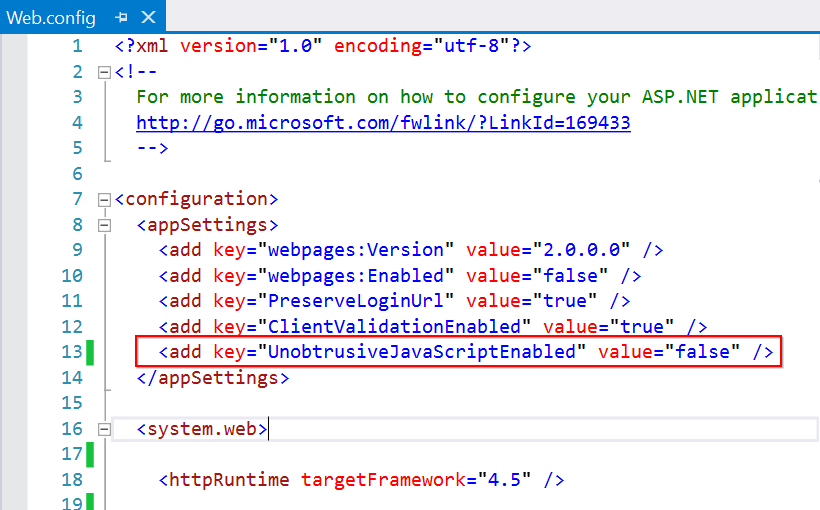
Set the UnobtrusiveJavaScriptEnabled to false in Web.config file of root directory as shown in the following image:
If you want to use with ‘UnobtrusiveJavaScriptEnabled’, then use ej.unobtrusive.min.js script with your application. You can get the script from the installed location as shown in the following image.

Refer Scripts and Styles
Add the following references in the same order. You can replace the following code in the \Views\Shared\_Layout.cshtml page.
<!DOCTYPE html>
<html>
<head>
    <meta charset="utf-8" />
    <meta name="viewport" content="width=device-width, initial-scale=1.0">
    <title>@ViewBag.Title - My ASP.NET Application</title>
    @Styles.Render("~/Content/css")
    @Styles.Render("~/Content/bold-reports/material/bold.reports.all.min.css")
    @Styles.Render("~/Content/bold-reports/material/bold.reportdesigner.min.css")
    @Styles.Render("~/Scripts/CodeMirror/lib/codemirror.css")
    @Styles.Render("~/Scripts/CodeMirror/addon/hint/show-hint.css")
    @Scripts.Render("~/bundles/modernizr")
    <!--Render the gauge item. Add these scripts only if your report contains the gauge report item.-->
    @Scripts.Render("~/Scripts/bold-reports/common/ej2-base.min.js")
    @Scripts.Render("~/Scripts/bold-reports/common/ej2-data.min.js")
    @Scripts.Render("~/Scripts/bold-reports/common/ej2-pdf-export.min.js")
    @Scripts.Render("~/Scripts/bold-reports/common/ej2-svg-base.min.js")
    @Scripts.Render("~/Scripts/bold-reports/data-visualization/ej2-circulargauge.min.js")
    @Scripts.Render("~/Scripts/bold-reports/data-visualization/ej2-lineargauge.min.js")
    @Scripts.Render("~/Scripts/bold-reports/data-visualization/ej2-maps.min.js")
</head>
<body>
    <div style="height: 600px;width: 100%;">
        @RenderBody()
    </div>
    @Scripts.Render("~/bundles/jquery")
    @Scripts.Render("~/Scripts/jsrender.min.js")
    @Scripts.Render("~/bundles/bootstrap")
    @Scripts.Render("~/Scripts/CodeMirror/lib/codemirror.js")
    @Scripts.Render("~/Scripts/CodeMirror/addon/hint/show-hint.js")
    @Scripts.Render("~/Scripts/CodeMirror/addon/hint/sql-hint.js")
    @Scripts.Render("~/Scripts/CodeMirror/mode/sql/sql.js")
    @Scripts.Render("~/Scripts/CodeMirror/mode/vb/vb.js")
    @Scripts.Render("~/Scripts/bold-reports/common/bold.reports.common.min.js")
    @Scripts.Render("~/Scripts/bold-reports/common/bold.reports.widgets.min.js")
    @Scripts.Render("~/Scripts/bold-reports/common/bold.report-designer-widgets.min.js")
    <!--Renders the chart item. Add this script, only if your report contains the chart report item.-->
    @Scripts.Render("~/Scripts/bold-reports/data-visualization/ej.chart.min.js")
    <!-- Report Designer component script-->
    @Scripts.Render("~/Scripts/bold-reports/bold.report-viewer.min.js")
    @Scripts.Render("~/Scripts/bold-reports/bold.report-designer.min.js")
    @RenderSection("scripts", required: false)
</body>
</html>
Refer to the Dependencies to learn more details about classic web Report Designer dependent scripts and style sheets links. To learn more about rendering a report with data visualization report items, refer to the how to render data visualization report items section.
Configure Script Manager
Open the ~/Views/Shared/_Layout.cshtml page and add the Script Manager at the end of <body> element as in the following code sample.
<body>
    ....
    ....
    <!-- Bold Reporting ScriptManager -->
    @Html.Bold().ScriptManager()
</body>
The main reason for referring to the Script manager in
_Layout fileis that, it can be referred as common by all the View files present within your application.
Add Control in View page
Using Bold() tag, add the classic Bold Reports® Report Designer component in any web page (cshtml) of your application in the ~/Views folder.
@(Html.Bold().ReportDesigner("designer"))How do I configure Report Server for the classic Report Designer?
To configure Bold Reports® Report Server for the classic ASP.NET MVC Report Designer, set the serviceUrl, serviceAuthorizationToken and reportServerUrl values from your Report Server.
-
The Report Designer requires the
serviceAuthorizationToken,serviceUrlandreportServerUrlto perform the API actions with Bold Reports® Report Server. You can provide the information from Report Server as follows: -
serviceUrl– Report Server Reporting Service information should be provided for this API. -
serviceAuthorizationToken– Authorization token to communicate with reportServiceUrl. -
reportServerUrl- Report Server Reporting Server information should be provided for this API.
Based on your Report Server type, you can follow one of the procedures listed as follows:
Enterprise Reporting Server
-
Generate token with your user credentials and assign it to serviceAuthorizationToken. To generate the token by using credentials, see Generate an authentication token using credentials.
@(Html.Bold().ReportDesigner("designer")
            .ServiceAuthorizationToken("bearer <server-token>")
        )
To generate the token within an application, see Generate an authentication token by using the embed secret key API.
-
Set the Bold Reports® Report Server built-in service URL to the
ServiceUrlproperty. TheServiceUrlproperty value should be in format ofhttps://<<Report server name>>/reporting/reportservice/api/Designer.@(Html.Bold().ReportDesigner("designer") .ServiceAuthorizationToken("bearer <server-token>") .ServiceUrl(@"https://<your-report-server-domain>/reporting/reportservice/api/Designer") ) -
Set the Bold Reports® Report Server built-in server URL to the
ReportServerUrlproperty. TheReportServerUrlproperty value should be in format ofhttps://<<Report server name>>/reporting/api/site/<<site name>>.@(Html.Bold().ReportDesigner("designer") .ServiceAuthorizationToken("bearer <server-token>") .ServiceUrl(@"https://<your-report-server-domain>/reporting/reportservice/api/Designer") .ReportServerUrl(@"https://<your-report-server-domain>/reporting/api/site/<site-name>") )
Cloud Reporting server
-
Generate token with your user credentials and assign it to serviceAuthorizationToken. To generate the token by using credentials, see Generate an authentication token using credentials.
    @(Html.Bold().ReportDesigner("designer")
    .ServiceAuthorizationToken("bearer <server-token>")
    )
To generate the token within an application, see Generate an authentication token by using the embed secret key API.
-
Set the Bold Reports® Report Server built-in service URL to the
ServiceUrlproperty. TheServiceUrlproperty value is ahttps://service.boldreports.com/api/Designer.@(Html.Bold().ReportDesigner("designer") .ServiceAuthorizationToken("bearer <server-token>") .ServiceUrl(@"https://service.boldreports.com/api/Designer") ) -
Set the Bold Reports® Report Server built-in server URL to the
ReportServerUrlproperty. TheReportServerUrlproperty value should be in format ofhttps://<<Report server name>>/reporting/api/.@(Html.Bold().ReportDesigner("designer") .ServiceAuthorizationToken("bearer <server-token>") .ServiceUrl(@"https://service.boldreports.com/api/Designer") .ReportServerUrl(@"https://<your-report-server-domain>/reporting/api/") )