Merge cells in a tablix in the Bold Reports® Web Report Designer
In the Bold Reports® Web Report Designer, you can merge two or more adjacent cells in a tablix data region into a single cell. Merging improves the appearance or provides spanning labels for column groups and row groups.
What are the merge restrictions?
In a Bold Reports® tablix, you can merge the cells in each area of a data region only within that area. The following restrictions apply when you merge cells in a tablix data region:
- Cannot merge a cell in the corner area of data region with a cell in the row group area. Cross boundary merge is not allowed.
- In body area, the cells can only be merged in the horizontal direction and not in vertical direction.
- In corner area, the cells can be merged in horizontally across columns or vertically down rows at a time.
How do I merge cells?
The following sections show how to merge cells in each area of a Bold Reports® tablix data region, using a company sales report.
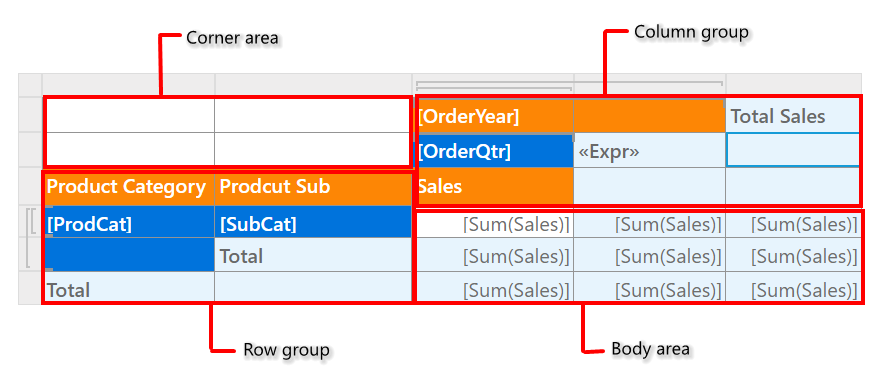
Corner area
To merge cells in the corner area of a Bold Reports® tablix, follow these steps:
-
Select the cells in the corner area of the tablix data region.
-
Right-click the cell to open the cell menu, and click the
Merge Cellsoption in the menu list.If the cell selection is invalid or across boundaries,
Merge Cellsoption will not be available in the menu.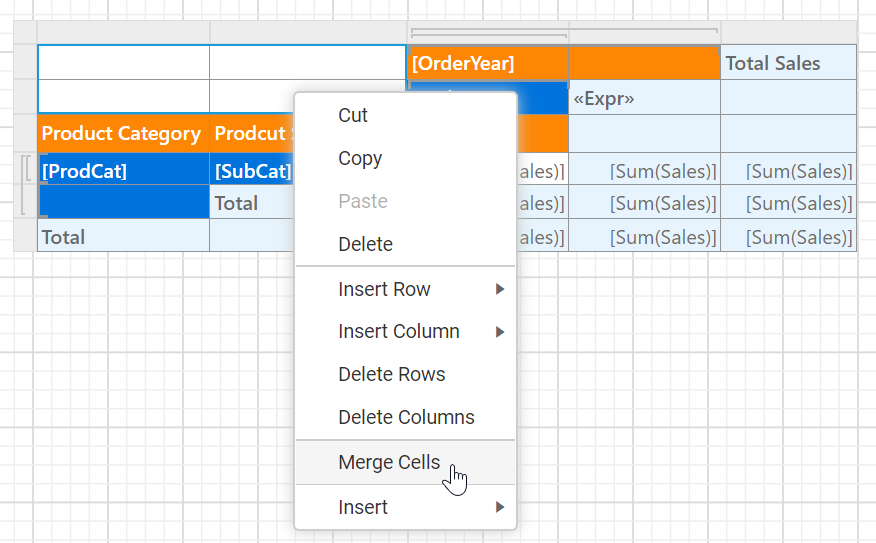
-
The selected cells in the corner area are merged as shown in the following image.
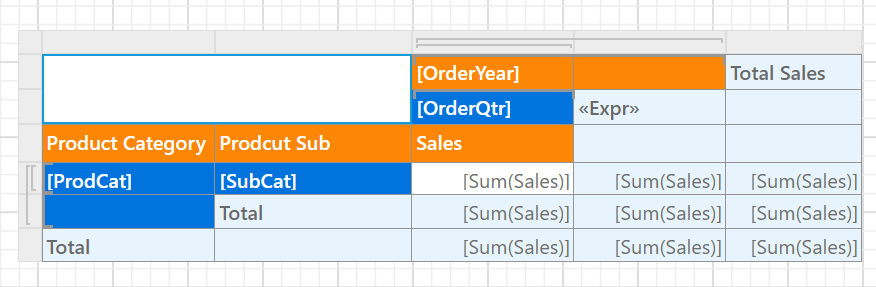
If the cell has any content, the content of the top-left cell will be displayed in the newly merged cell. The content of the rest of the cells in the merged region will be cleared.
Body area
To merge cells in the body area of a Bold Reports® tablix, follow these steps:
-
Select the cells in the body area of the tablix data region.
-
Right-click the cell to open the cell menu, and click the
Merge Cellsoption in the menu list.If the cell selection is invalid or across boundaries,
Merge Cellsoption will not be available in the menu.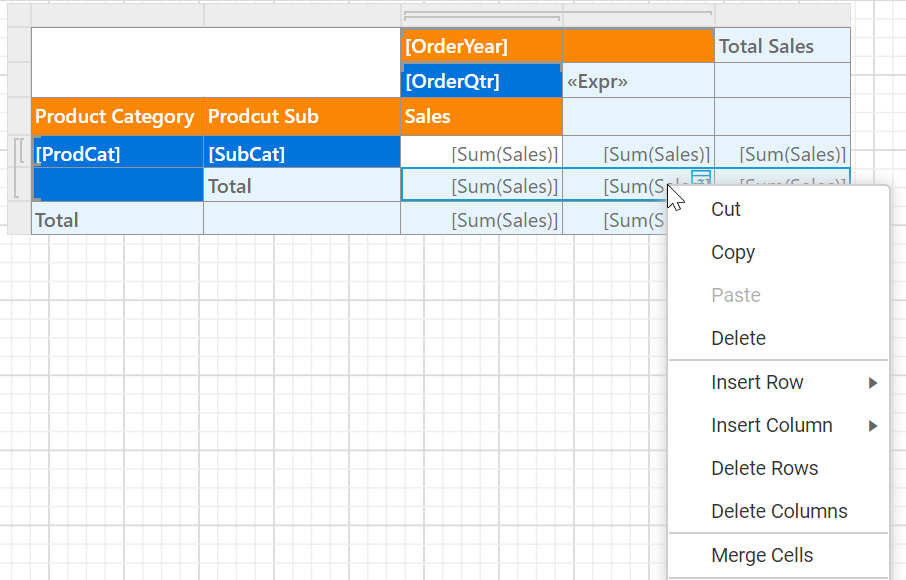
-
The selected cells in the body area are merged as shown in the following image.
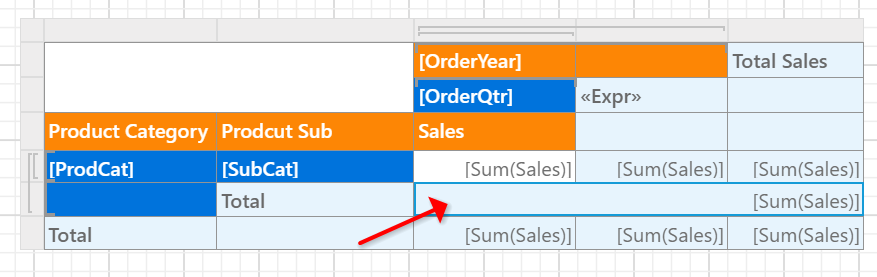
If the cell has any content, the content of the top-left cell will be displayed in the newly merged cell. The content of the rest of the cells in the merged region will be cleared.
Row group
To merge cells in the row group area of a Bold Reports® tablix, follow these steps:
-
Select the cells in the row group of the tablix data region.
-
Right-click the cell to open the cell menu, and click the
Merge Cellsoption in the menu list.If the cell selection is invalid or across boundaries,
Merge Cellsoption will not be available in the menu.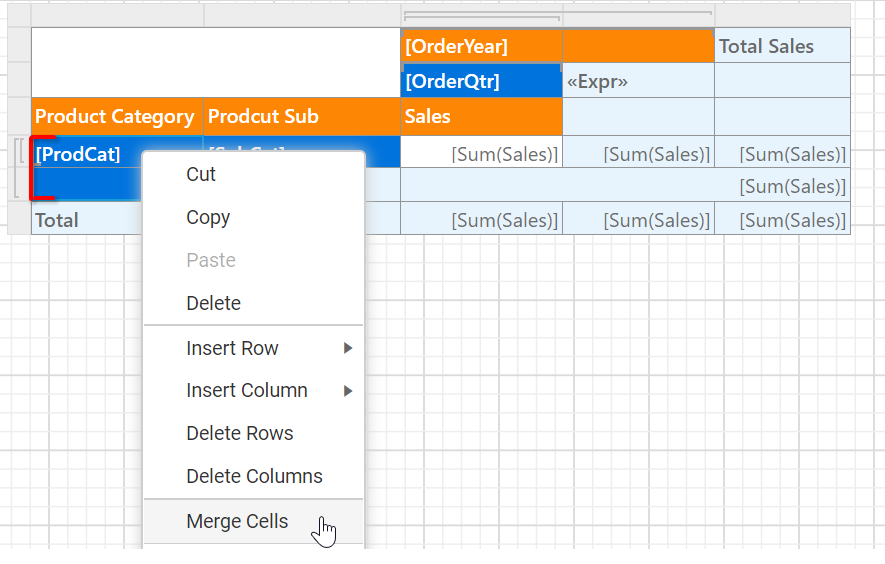
-
The selected cells in the row group area are merged as shown in the following image.
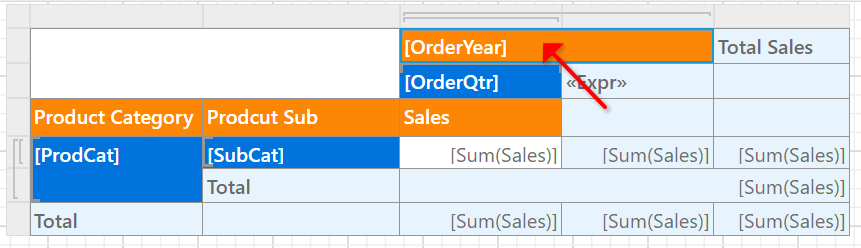
If the cell has any content, the content of the top-left cell will be displayed in the newly merged cell. The content of the rest of the cells in the merged region will be cleared.
Column group
To merge cells in the column group area of a Bold Reports® tablix, follow these steps:
-
Select the cells in the column group area of the tablix data region.
-
Right-click the cell to open the cell menu, and click the
Merge Cellsoption in the menu list.If the cell selection is invalid or across boundaries,
Merge Cellsoption will not be available in the menu.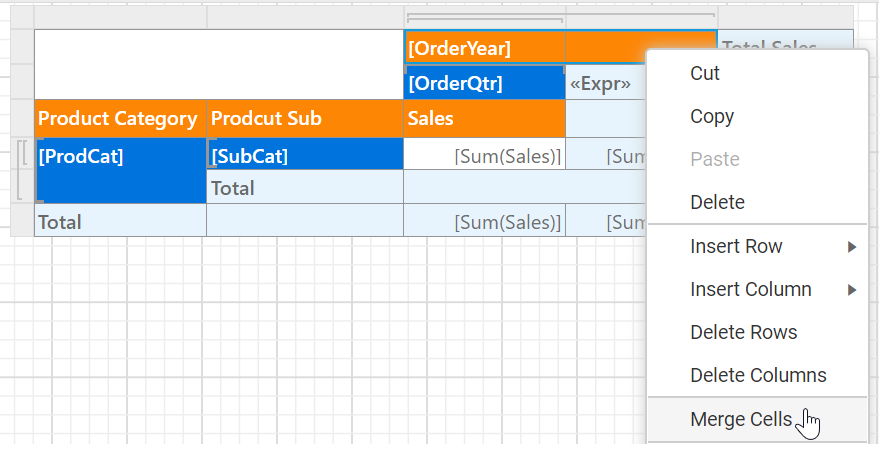
-
The selected cells in the column group area are merged as shown in the following image.
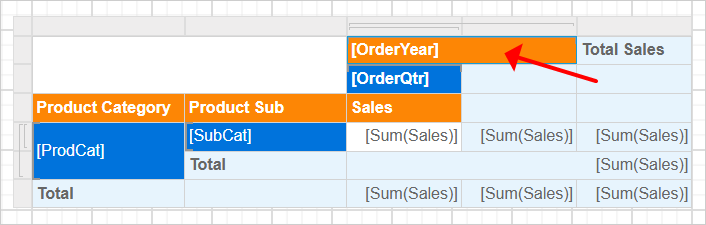
If the cell has any content, the content of the top-left cell will be displayed in the newly merged cell. The content of the rest of the cells in the merged region will be cleared.
How do I split merged cells?
After you merge a cell in a Bold Reports® tablix, you can split it with the Split Cells option in the menu list. Cells split in the horizontal direction across columns or in the vertical direction down rows.
-
Select the cells in the specific area of the tablix data region.
-
Right-click the cell to open the cell menu, and click the
Split Cellsoption in the menu list.If the cell selection is invalid or across boundaries,
Split Cellsoption will not be available in the menu.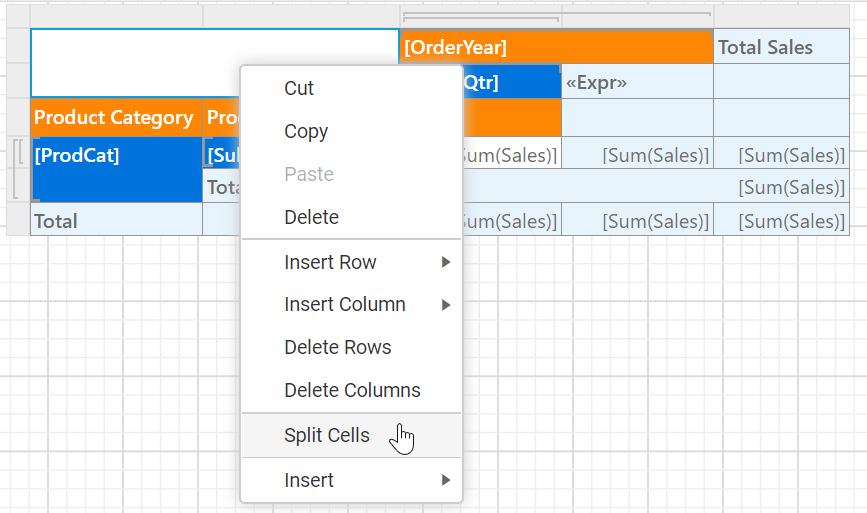
-
The selected cell in the column group area splits as shown in the following image.
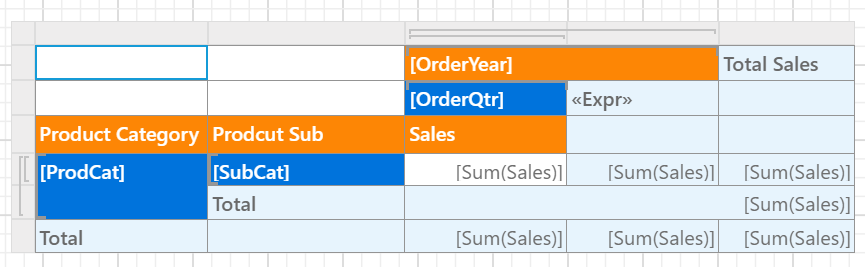
If the cell has any content, the content of the top-left cell will be displayed in the newly merged cell. The content of the rest of the cells in the merged region will be cleared.
Frequently asked questions
Why is the Merge Cells option missing from the cell menu?
In the Bold Reports® Web Report Designer, the Merge Cells option is not available when the cell selection is invalid or crosses area boundaries.
What happens to cell content when I merge cells?
The content of the top-left cell is displayed in the newly merged cell. The content of the rest of the cells in the merged region is cleared.