Apply conditional formatting to a tablix in Bold Reports®
In the Bold Reports® Web Report Designer, conditional formatting enhances the visual appearance of the tablix data region in the report design. The following steps show how to configure conditional formatting in a basic tablix report design.
How do I create the dataset?
To bind data to the tablix data region in the Bold Reports® Web Report Designer, create a dataset in your report. The following query fetches customer details from the Customers table in the NorthWind database:
Select CustomerID, CompanyName, Address, City, PostalCode, Country From Customers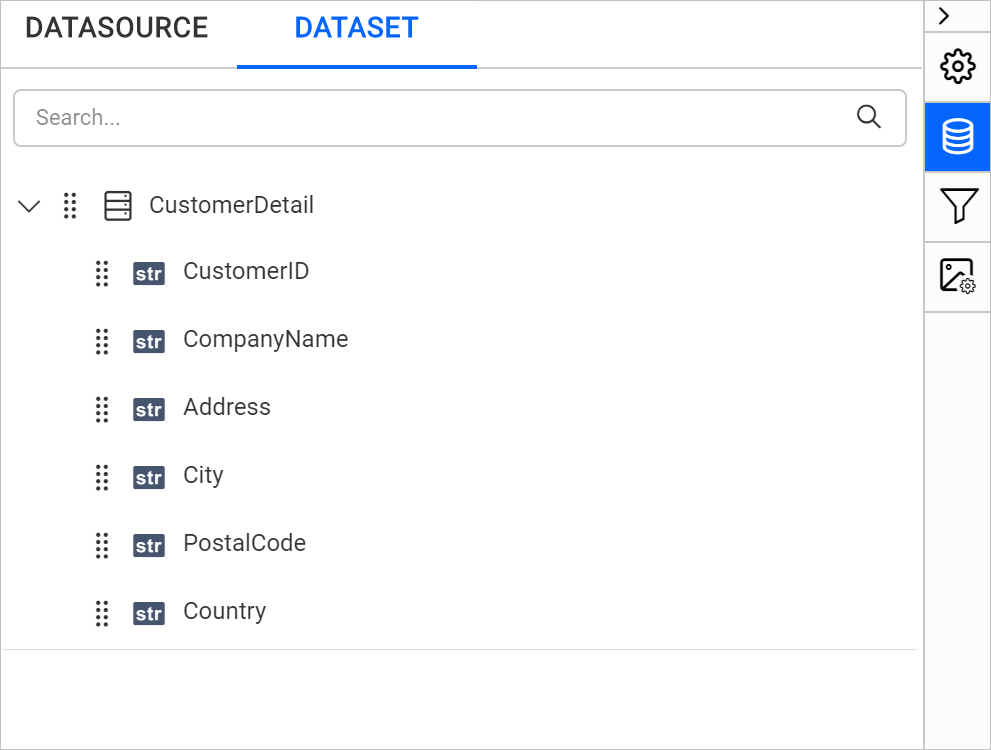
How do I create the parameter?
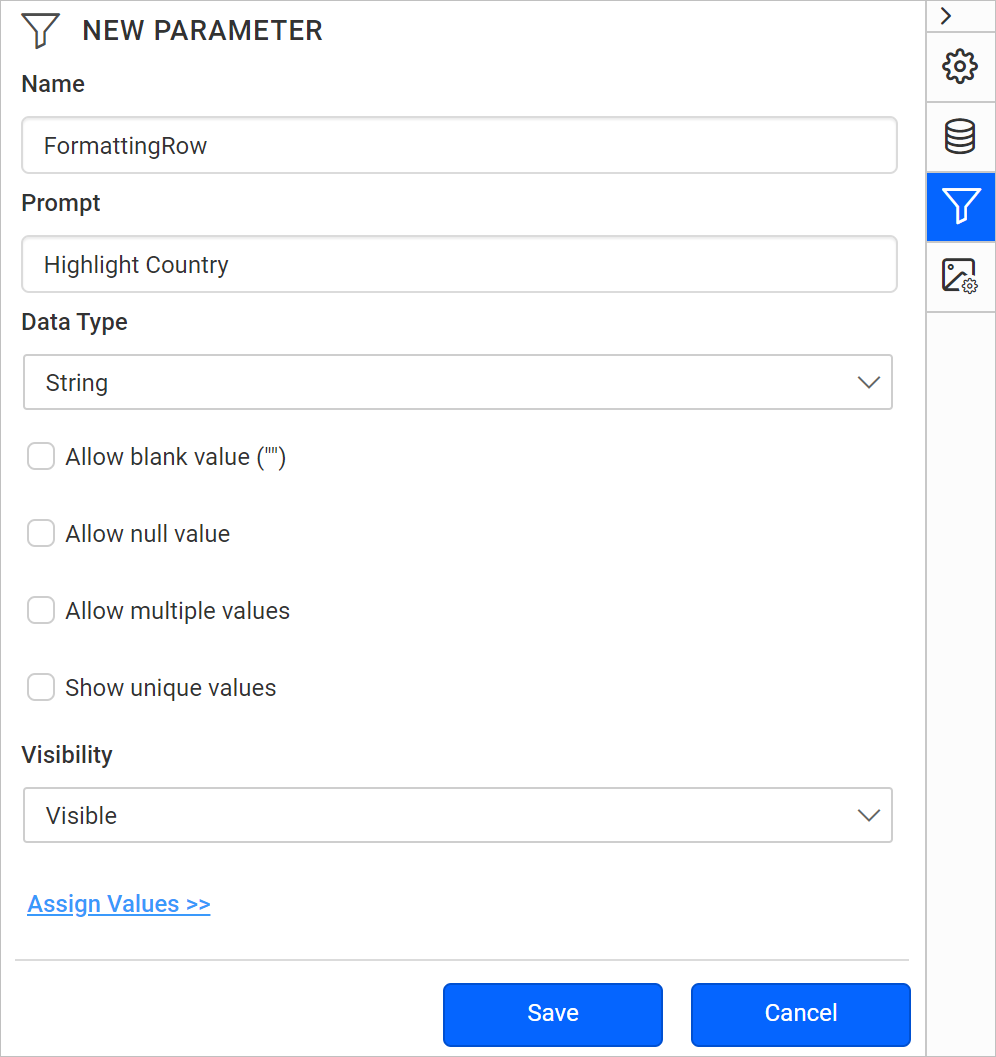
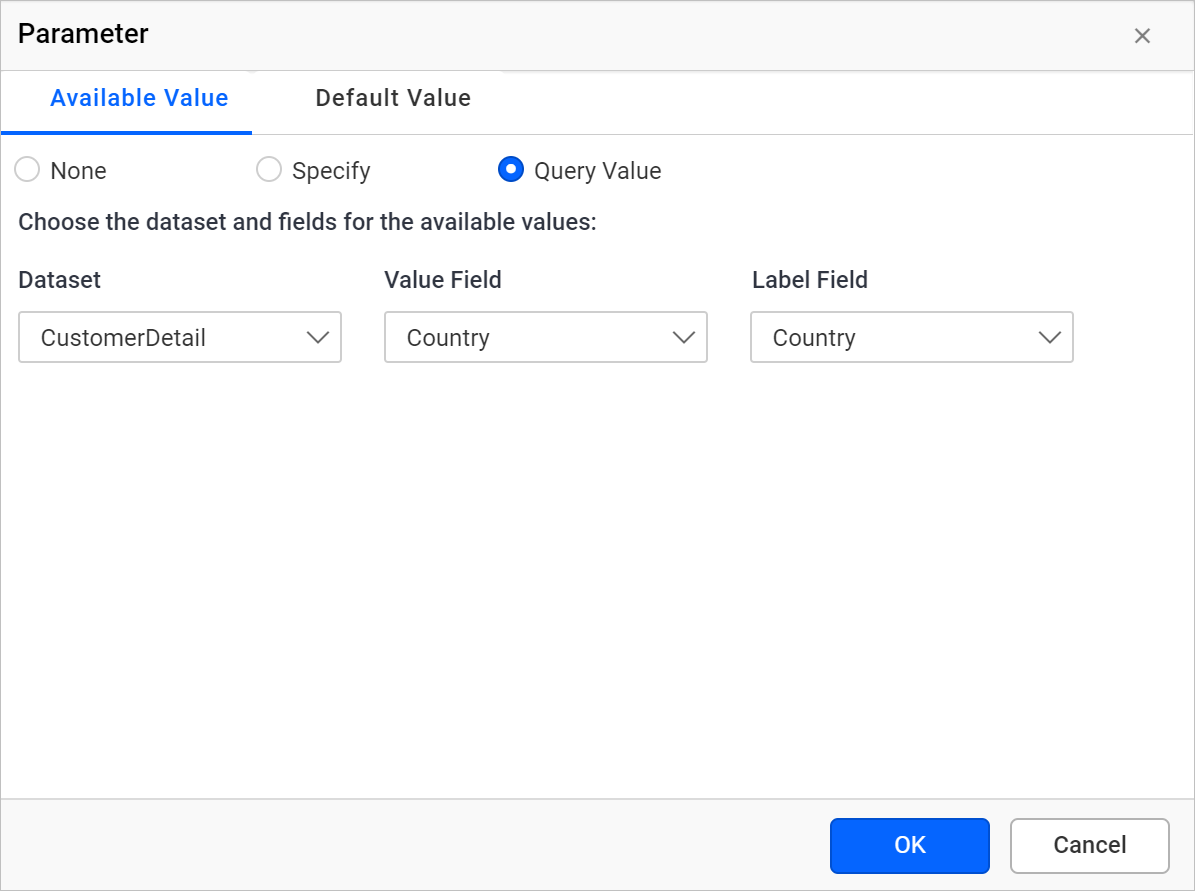
To apply conditional formatting based on a report parameter in the Bold Reports® Web Report Designer, create a parameter in your report. Refer to the Create Parameter and Define Available Value sections to create and assign a value to the parameter. In this example, you create the FormattingRow parameter and assign the Country data field as its query value. The following images show these steps.
New parameter creation
The following image shows the new FormattingRow parameter being created.
Assign value
The following image shows the Country data field assigned as the query value of the parameter.
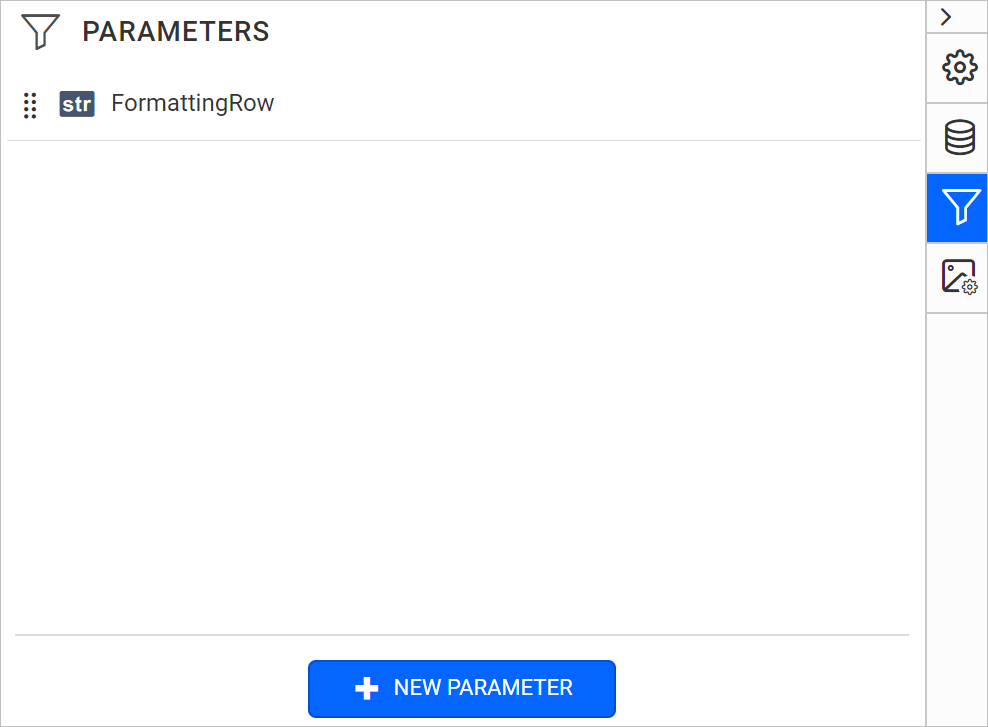
Parameter list view
The following image shows the parameter in the parameter list.
How do I add the table data region?
You design a simple table in the Bold Reports® Web Report Designer that contains the following fields from the dataset:
- CustomerID
- CompanyName
- City
- PostalCode
- Country
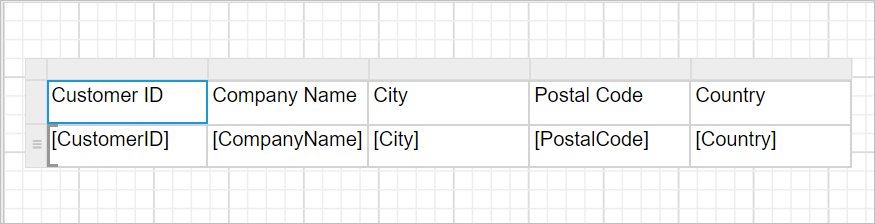
Refer to the Simple Table Design section to create the above table design.
How do I format the table header?
You improve the tablix design in the Bold Reports® Web Report Designer by applying a background color and font style to the table header with the following steps:
- Select the first row of the table and click the
Propertiesicon in the configuration panel.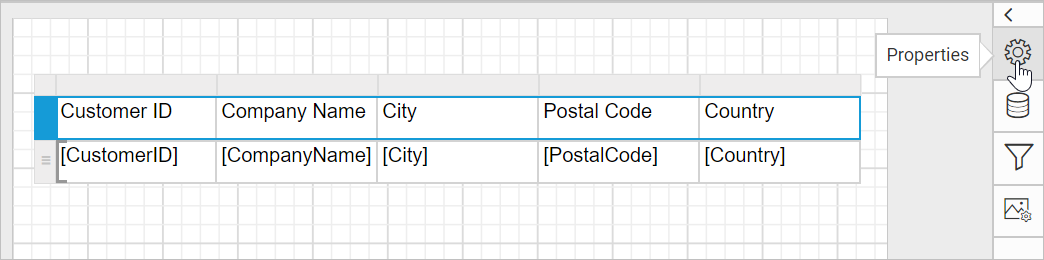
- Set the font color, font style and background properties for the header row.

Refer to the Properties Panel section to set or edit values in the properties panel.
How do I apply conditional formatting?
You apply conditional formatting in the Bold Reports® Web Report Designer by setting an expression on the BackgroundColor property. To highlight the table rows that have the Country value selected in the parameter drop-down at run time, follow these steps:
- Select the
DetailsRow group in the tablix. The common properties for the selected cells are listed in the properties panel.
- In the properties panel, select the
BackgroundColorproperty and then click the square icon in the right corner of the property.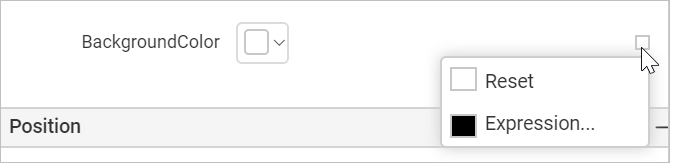
- Click the
Expressionmenu to open the expression builder. Set the conditional expression=IIf(Fields!Country.Value=Parameters!FormattingRow.Value,"#e2f2bf","Transparent")in the text area and click theOKbutton.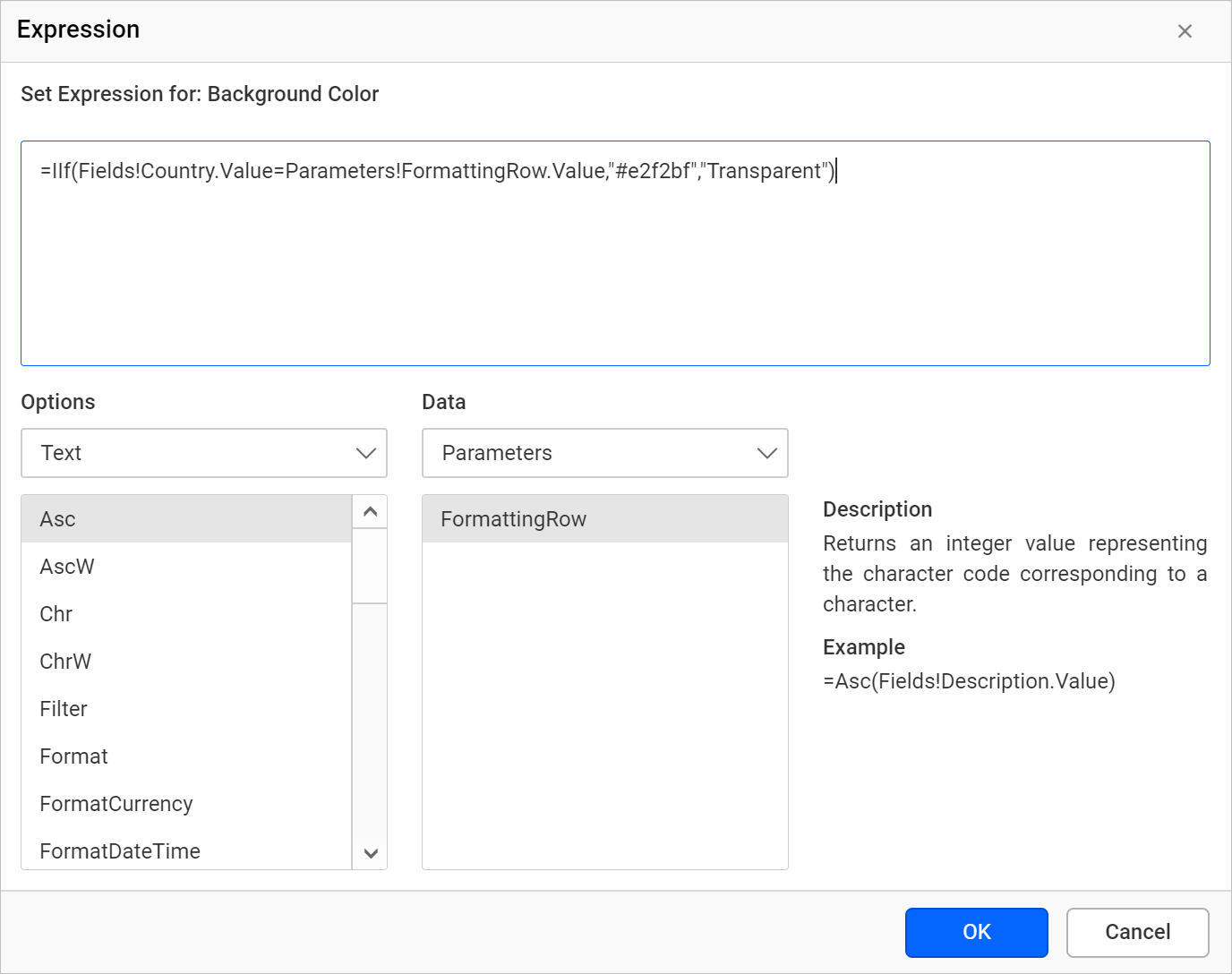
What does the report preview show?
The Bold Reports® report preview highlights the rows that contain the selected country name. Select the country in the parameter drop-down and click the View Report button.
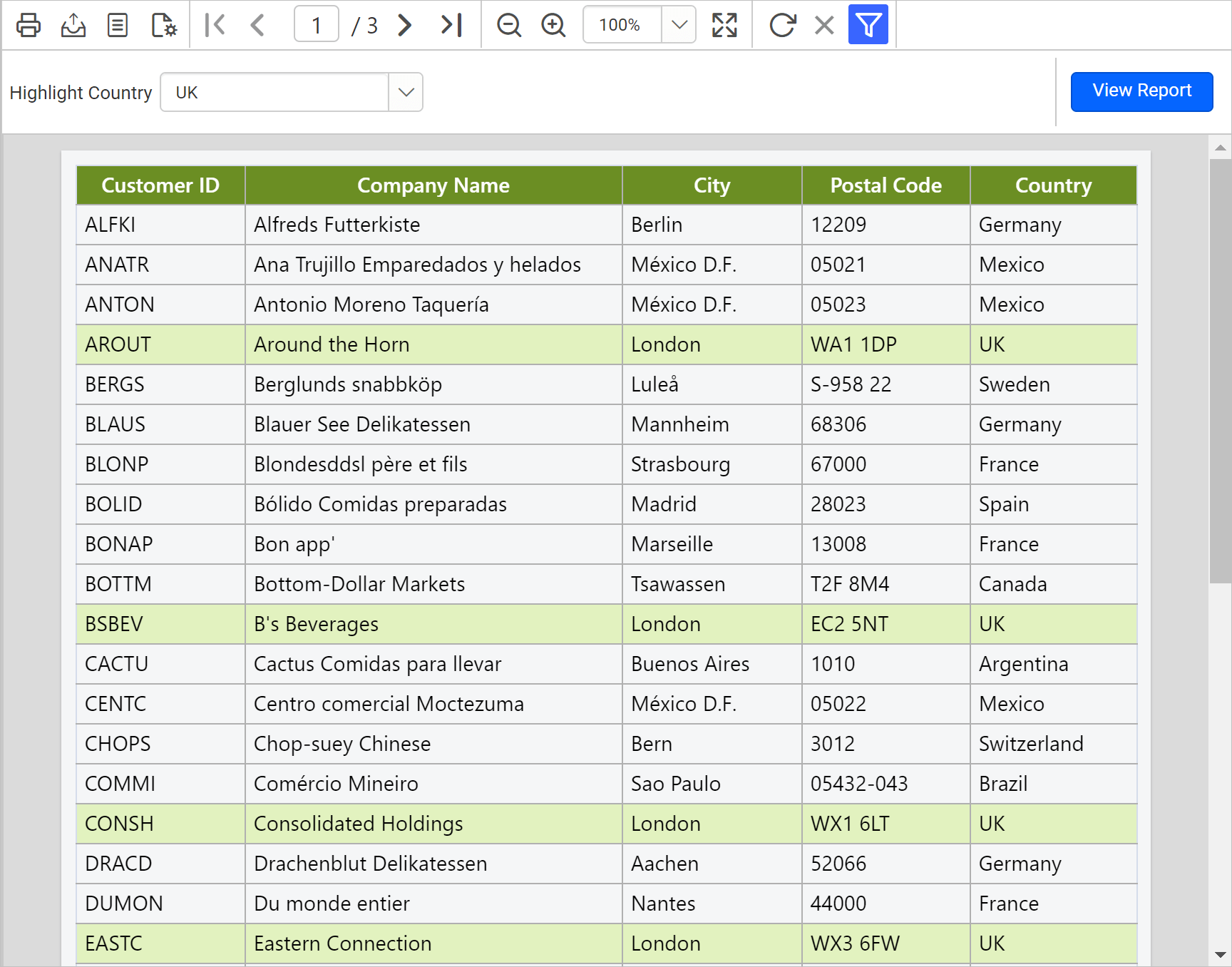
Download the conditional formatting report design (RDL).
Frequently asked questions
Which property highlights the matching rows?
The BackgroundColor property of the Details row group uses the expression =IIf(Fields!Country.Value=Parameters!FormattingRow.Value,"#e2f2bf","Transparent").
Which database does the sample use?
The sample query fetches customer details from the Customers table in the NorthWind database.