Subreport report item in Bold Reports®
The subreport report item in the Bold Reports® Web Report Designer embeds another report inside the body of a main report. You can customize the subreport properties along with the report path and parameters.
Properties
The subreport report item in the Bold Reports® Web Report Designer has basic settings, appearance, no rows, position, data element, visibility, and miscellaneous properties.
Basic Settings
The Basic Settings category contains the Report and Set Parameters properties.
- The
Reportproperty specifies the report path of the subreport. Refer to the Report Path section to set the report path for this property. - The
Set Parametersproperty passes parameters from the main report to the subreport. Refer to the Set Parameters section to set parameters for the subreport.
Appearance
The Appearance property improves the style of the subreport layout. Border style, color, and width properties are displayed under the Appearance category.

Border
Border properties add or customize the border around a subreport item to visually separate items in the report design. To set border properties for the subreport item using the properties panel, refer to the Border Properties section.
No Rows
The No Rows property displays static text when the dataset returns empty or zero rows.

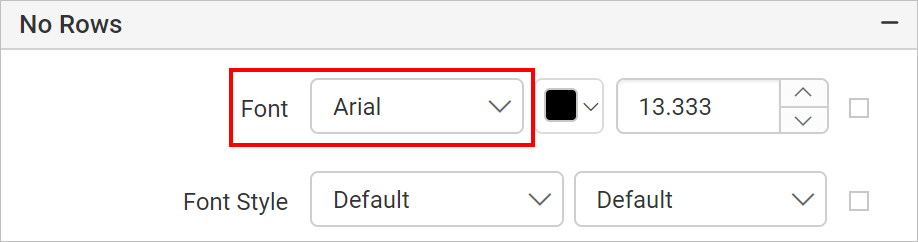
Font Family
The Font Family drop-down lists the supported font family names. Choose the required font family from the drop-down list to change the font family of the no rows message.
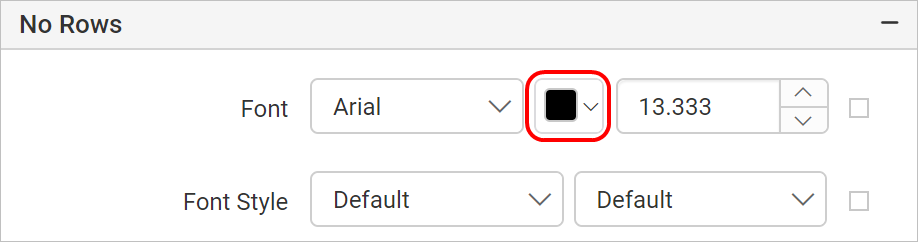
Font Color
The font color of the no rows message is set from the Color Palette. Click the color palette icon and choose the required color.
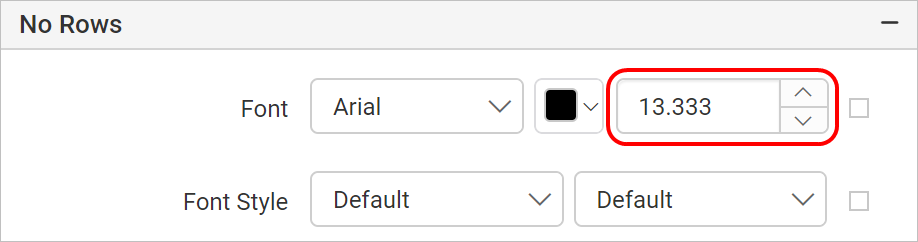
Font Size
The Font size property increases the size of the text in the no rows message. Increase the font size using the numeric drop-down highlighted in the following image.
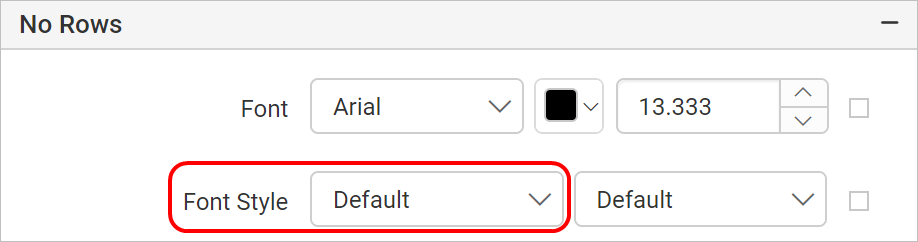
Font Styles
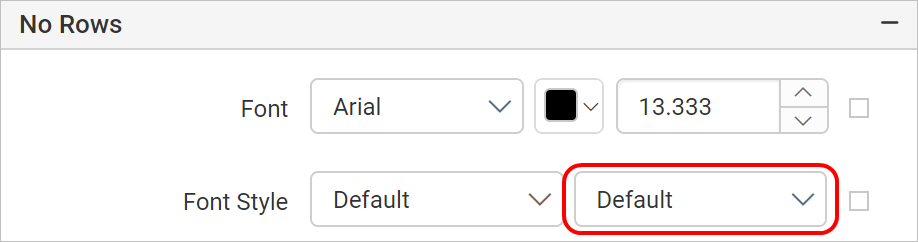
The font style of the no rows message is set in the Font Style drop-down list. The following font styles are supported:
- Default
- Normal
- Italic
Font Weight
The font weight of the no rows message is set by choosing the required type of font weight property from the drop-down list.
Message
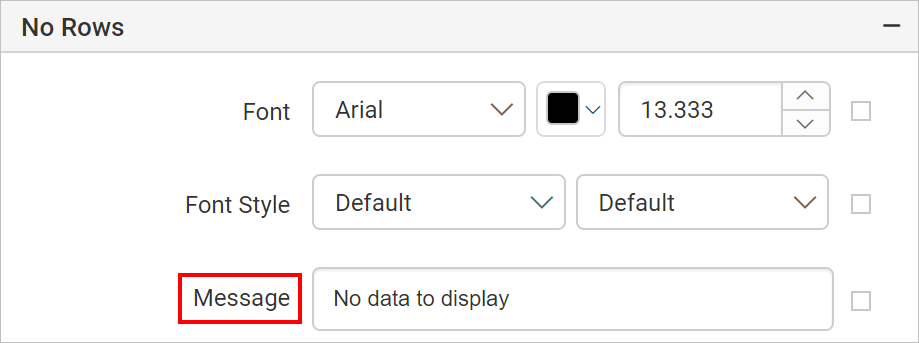
The message textbox holds the text displayed to the user when the dataset returns empty or zero rows. Enter the required text in the message textbox.
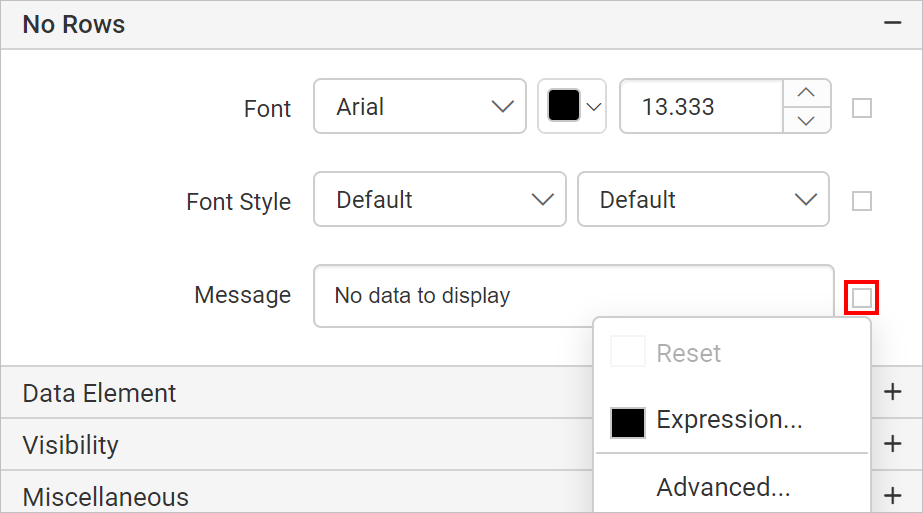
To customize the message appearance, open the Advanced Panel.
Text Decoration
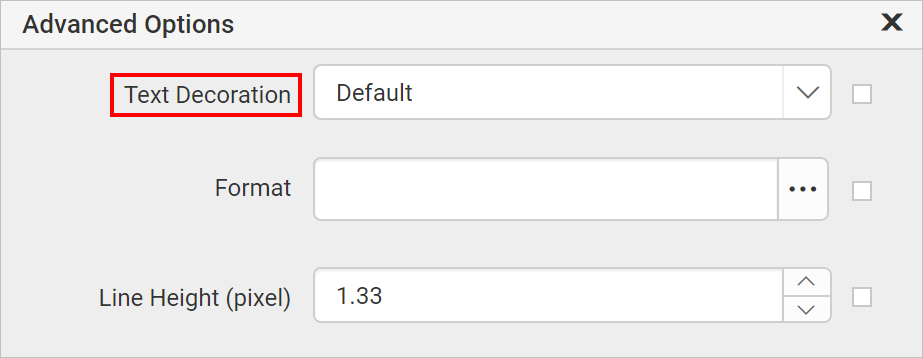
The text decoration property sets the appearance of decorative lines on text.
- None - Produces no text decoration.
- Underline - Each line of text is underlined.
- Overline - Each line of text has a line above it.
- Line-through - Each line of text has a line through the middle.
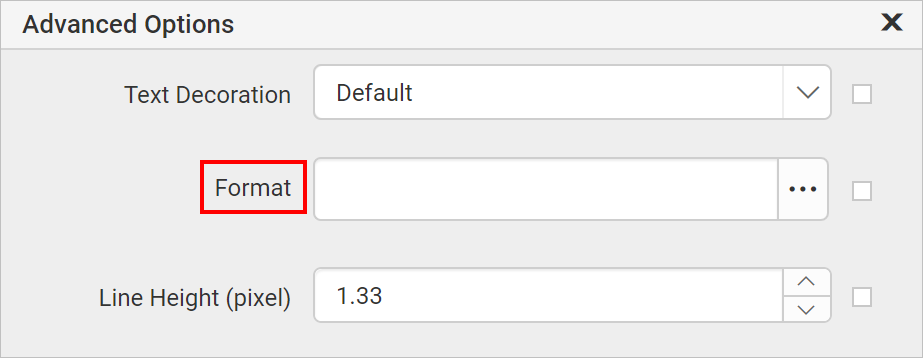
Format
The Format property formats the given text in the no rows message. Refer to the Format section to represent the text in Numbers, Currency, Date, Time, Scientific, Percentage and Custom formats.
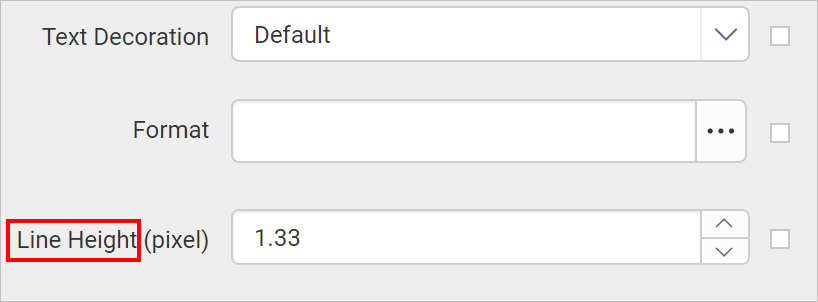
Line height
The Line height property increases the space between lines in the given message. Increase or decrease the values in the numeric drop-down to set the line height for the no rows message.
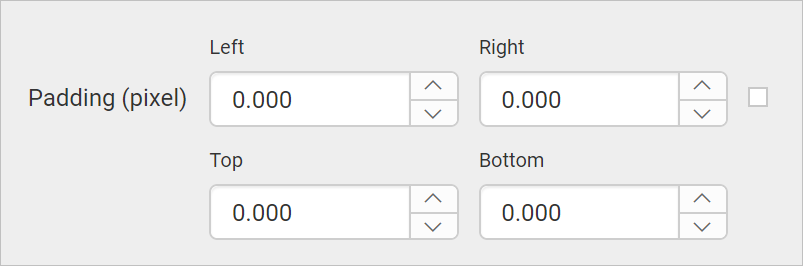
Padding
The Padding property provides space around the no rows message content. Increase or decrease the values in the numeric drop-down to set the left, right, top and bottom padding for the no rows message.
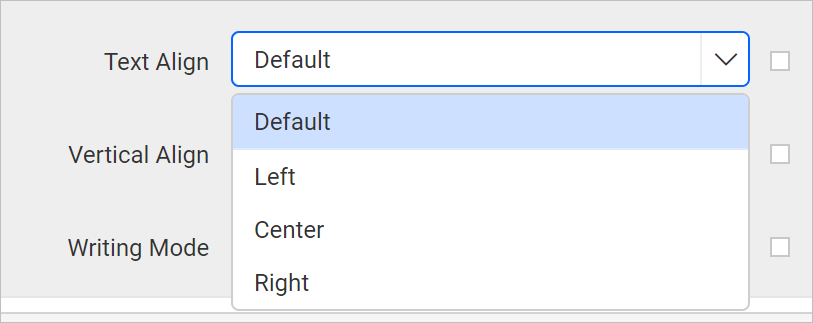
Text Align
The Text align property sets the horizontal alignment of a no rows message. The text can be aligned in the left, right, or center position. Choose the required text align property from the drop-down list.
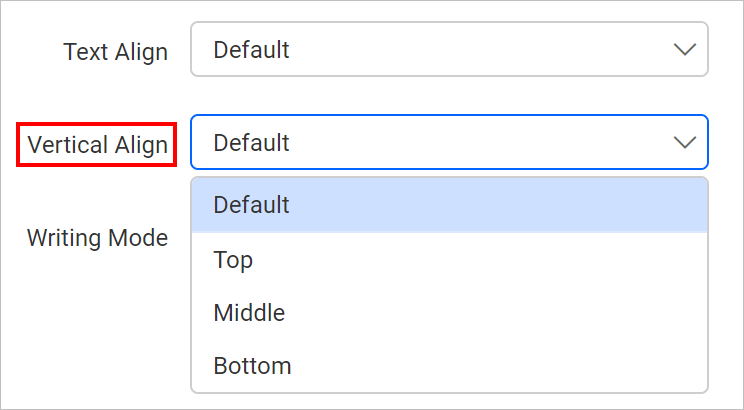
Vertical Align
The Vertical Align property sets the vertical alignment of a no rows message. Choose the required vertical align property from the drop-down list.
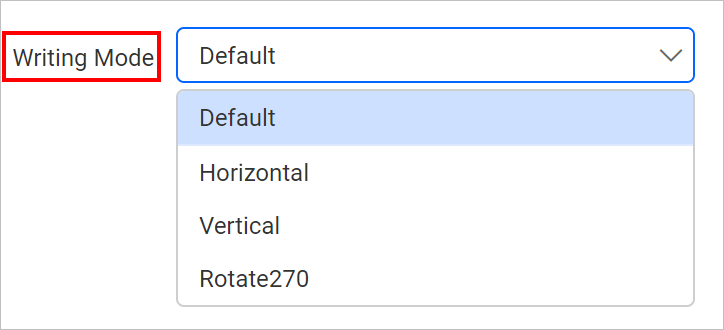
Writing Mode
The writing mode property sets the direction of the no rows message as Horizontal, Vertical, or Rotate270. Choose the required writing mode property from the drop-down.
Horizontal: Text is horizontal, read left to right.
Vertical: Text is vertical, read top to bottom.
Rotate 270: Text is vertical, read bottom to top.
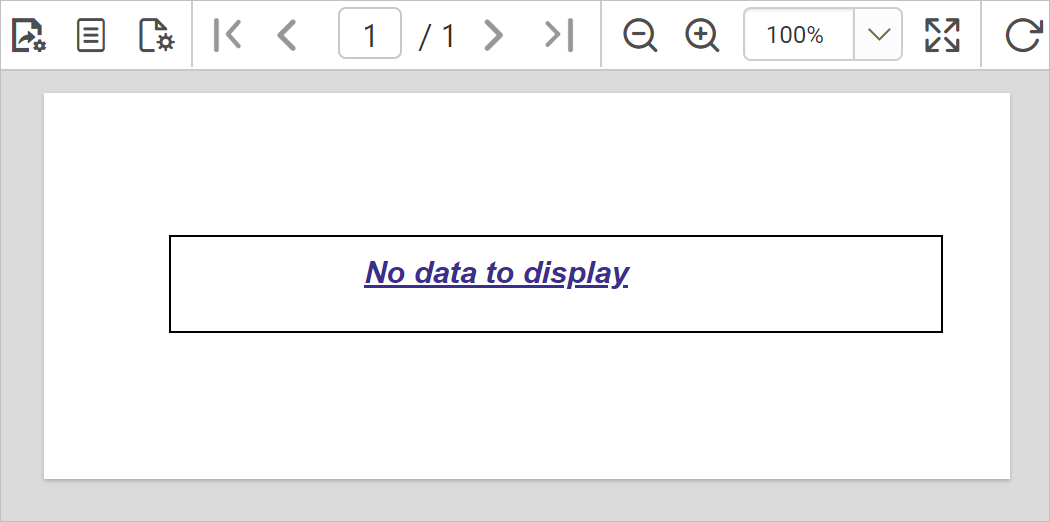
All the customizations are applied to the no rows message container when you preview the report.
Position
The Position property sets the width, height, left and top position of the subreport item in the report design. To handle these properties using the properties panel, refer to the Position section.
Data Element
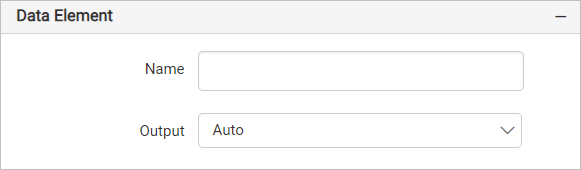
The Data element properties control the visibility of a report item when you export the report in XML format. The Data element properties are listed in the properties panel, under the Data Element category.
Name
The Name field assigns a custom name to the subreport element. The subreport is exported with the provided name.
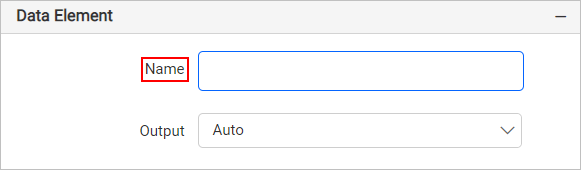
Note: The name cannot contain spaces, and it must begin with a letter followed by letters, numbers, or the underscore character (_).
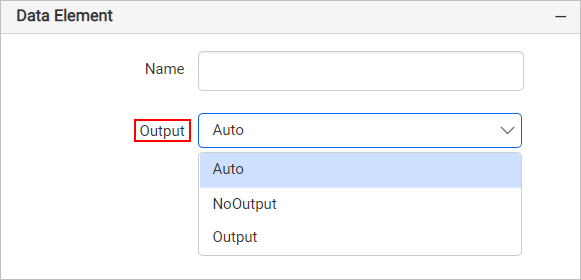
Output
The Output property controls the visibility of the subreport when you export the report. Choosing the following options for the Output property performs the respective operations:
- Auto or Output - Exports the subreport report item.
- NoOutput - Does not export the subreport report item.
Visibility
The Visibility property conditionally shows or hides the subreport report item on report preview or export action. To set visibility of the subreport item using the properties panel, refer to the Visibility section.
Miscellaneous
The miscellaneous properties of the subreport cover keep together, custom attributes, document map, bookmark, tooltip, and custom style.
Keep together
The Keep together property displays the subreport item on a single page on report preview or export action. Enable the checkbox to keep the content on a single page; otherwise it spans multiple pages.

Custom attributes
The custom attributes property sets the values for subreport custom properties. To create and assign values for custom properties using the properties panel, refer to the Custom Properties section.
Document Map
A document map is a navigational feature that displays a separate side pane with a set of navigational links in a hierarchical structure when you view a report. A user can click the content in the list to navigate to the report page that displays that item. Refer to the Document Map section to configure a document map in the report design.
You can set static or dynamic text as the value for the document map property. To set and reset dynamic text, refer to the Set Expression and Reset Expression sections.
Bookmark
Bookmark links let users navigate to different parts of an SSRS report. You can add bookmarks to each textbox, image, table or chart, or to the unique group values displayed in a tablix, to direct users to specified locations in the report. The value of the bookmark property can be your own strings or an expression. Refer to the Bookmark section to configure a bookmark in the report design.
You can set static or dynamic text as the value for the bookmark property. To set and reset dynamic text, refer to the Set Expression and Reset Expression sections.
Tooltip
The Tooltip property displays informative text or a value when the user hovers over the report item in report preview. To set a tooltip for the subreport item using the properties panel, refer to the Tooltip section.
Custom Style
The Custom Style property enables the use of external CSS for styling report items, providing more flexibility than the built-in styling options. Use this property to meet specific design requirements and keep styling consistent across multiple reports. For a step-by-step guide on setting up custom styles in your report, check the How To section of this guide.
The following image shows the Custom Style property in the properties panel.

How do I set an expression on a subreport property?
You can specify expressions that include two or more data fields and various functions in the Bold Reports® Web Report Designer properties panel. To set expressions for the report or report item properties, refer to the Set Expression section.
How do I reset an expression?
You Reset the property value and expression from the Web Report Designer properties panel. For the steps, refer to the Reset Expression section.
What are advanced properties?
Advanced properties are the nested properties that a few subreport properties contain in the Bold Reports® Web Report Designer. To open and handle nested properties, refer to the Advanced Properties section.
How do I design an RDL report using a subreport?
The Bold Reports® subreport walkthrough shows how to link a report, set parameters, and customize the subreport properties. Refer to the Design rdl report using subreport section.
Frequently asked questions
Can a subreport stay on a single page?
Yes. Enable the Keep together checkbox to display the subreport item on a single page on report preview or export action.
How do I pass values from the main report to a subreport?
Use the Set Parameters property under Basic Settings to pass parameters from the main report to the subreport.