Shape report item in Bold Reports®
The Shape report item in the Bold Reports® Web Report Designer is a graphical element used in a report layout. It provides visual structure, separates content areas, or enhances the design without directly displaying data.
If you prefer watching over reading, see this video for the shape report item:
How do I add a shape to the report?
You add a shape in the Bold Reports® Web Report Designer from the item panel. Follow these steps:
- Find the shape report item in the item panel under the
Shapescategory.
- Drag and drop the shape report item from the item panel into the design area.
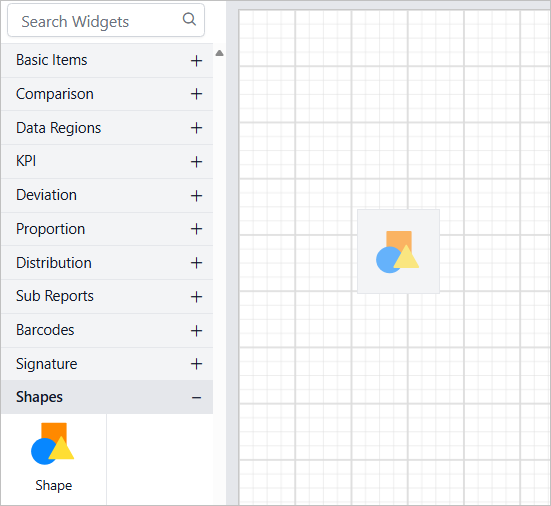
- After the shape item is placed in the design area, its properties are displayed in the properties panel.

Common Shape Properties
The common properties of a shape report item in the Bold Reports® Web Report Designer are listed under the Basic Settings category in the properties panel.

Shapes
The Shapes drop-down menu lists the supported shapes.

Select a shape in the design area, and then choose a new shape type from the drop-down menu. The design updates accordingly.

The supported shape types are listed in the Shape Types section.
Rotation Angle
The Rotation Angle property rotates a specific shape to a desired angle. The range is from 0 to 360 degrees.

Fill Color
The Fill Color property sets a fill color for a particular shape report item.

Line Style
The Line Style property sets a stroke color, stroke width, and stroke style for a particular shape report item.
Line Style
The Line Style property sets the border style for a particular shape report item.

Line Color
The Line color property sets the border color for a particular shape report item.

Line width
The Line width property sets the border width for a particular shape report item.

Additional properties for Star shape
The Star shape in the Bold Reports® Web Report Designer has two unique properties: Star Count and Concavity.

Star Count
The Star Count property specifies the number of points on the star. The range is between 3 and 8.

Concavity
The Concavity property adjusts the depth of the star’s inner points. It ranges from 0.3 to 1.0, where lower values create sharper indents.

Additional properties for Arrow shape
The Arrow shape in the Bold Reports® Web Report Designer has two unique properties: Arrow Height and Arrow Width.

Arrow Height
The Arrow Height property defines the height of the arrowhead, with a range from 0 to 100.

Arrow Width
The Arrow Width property defines the width of the arrow’s stem, with a range from 0 to 100.

General properties
The general properties of the shape report item in the Bold Reports® Web Report Designer include name, appearance, link, position, visibility, and miscellaneous properties.
Name
The Name property gives the shape item a unique name in the report.
Appearance
The Appearance properties style the shape and customize its look in the report design. They include border style, color, width, and background color. These properties are listed under the Appearance category in the properties panel.
Link
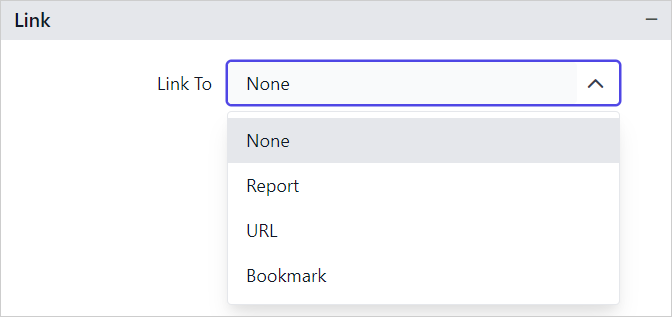
The Linking property lets you create interactive and user-friendly reports by adding actions such as Hyperlink and Report Linking. See Linking to learn more about linking.
Border
The Border properties add or customize the border around a shape item to visually separate it in the report design. To set border properties in the properties panel, see Border Properties.
Background color
The Background color property sets the color of the shape’s background. To set the background color in the properties panel, see Background color.
Position
The Position property defines the width, height, left, and top position of the shape in the report design. To handle these properties in the properties panel, see Position.
Visibility
The Visibility property conditionally shows or hides the shape report item on report preview or export. To set the visibility of the shape item in the properties panel, see Visibility.
Miscellaneous
The Miscellaneous category of the shape report item holds the tooltip, bookmark, and custom style properties.
Tooltip
The Tooltip property displays informative text or a value when the user hovers over the report item in report preview. To set a tooltip for the shape item in the properties panel, see Tooltip.
Bookmark
Bookmark links let users navigate to different parts of an SSRS report. You can add bookmarks to textboxes, images, tables, charts, or unique group values in a tablix to direct users to specified locations in the report. The value of the bookmark property can be either custom strings or expressions. See Bookmark to configure bookmarks in the report design.
You can set static or dynamic text as the value for the bookmark property. To set and reset dynamic text, see Set Expression and Reset Expression.
Custom Style
The Custom Style property enables the application of external CSS for styling report items, providing enhanced flexibility beyond the built-in styling options. Use this feature to meet specific design requirements and keep styling consistent across multiple reports. For a step-by-step guide on setting up custom styles in your report, check the How To section of this guide.

Set expression
The Bold Reports® Web Report Designer lets you set an expression on a few properties of the shape report item, so the property values are processed based on expressions. To set expressions on the shape report item properties, see Set Expression.
Reset expression
To Reset the expression applied to a shape property in the Bold Reports® Web Report Designer, see Reset Expression.
Advanced properties
A few properties of the shape report item in the Bold Reports® Web Report Designer contain nested properties. To open and handle nested properties, see Advanced Properties.
Frequently asked questions
What range does the shape Rotation Angle support?
The Rotation Angle property ranges from 0 to 360 degrees.
How many points can a Star shape have?
The Star Count property ranges between 3 and 8 points.