Define a custom data range for a map in Bold Reports®
In the Bold Reports® Web Report Designer, the custom distribution type defines the data ranges explicitly for the map report item. You set each range as a bucket with a start value and an end value.
How do I open the Map Bucket panel?
You open the Bold Reports® Map Bucket panel from the distribution properties of the map report item.
-
Choose the Custom type in the distribution dropdown.

-
Click the edit icon of the Buckets option that appears.

-
Use the Map Bucket panel that opens.
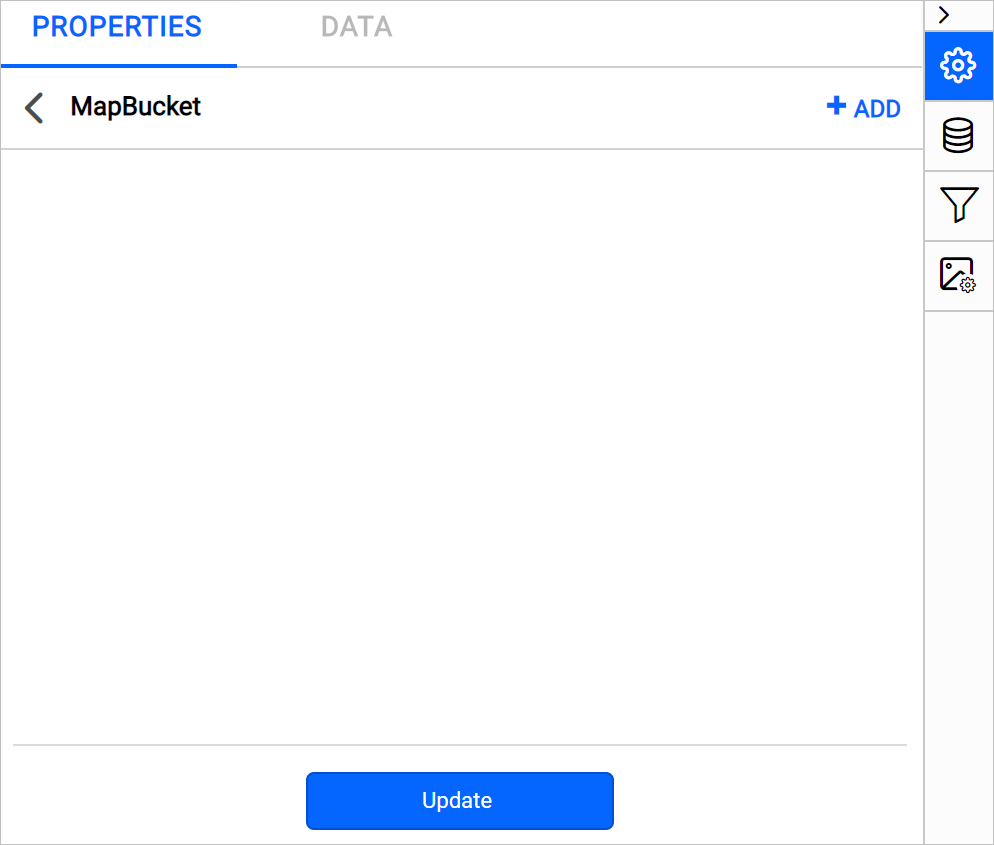
Add bucket
To add a bucket in the Bold Reports® Map Bucket panel, click the ADD icon in the top-right corner. A new field with Start Value and End Value options to define a data range is added to the panel.

Click Update.
If you know the minimum and maximum values in the analytical data, you can split them into ‘N’ number of buckets in this panel. The total number of ranges in the panel counts as the bucket count for the map report item. For example, when the minimum and maximum population range is known, you can split it as shown in the following image.

You can also define start and end values based on dynamic values by using Expressions. To open the set or reset expression menu in the properties panel, see the Set Expressions and Reset Expressions sections. Click the square icon on the right side of each field to open the expression menu.

How do I delete a bucket?
To delete an existing bucket range in the Bold Reports® map report item, follow these steps:
- Click the edit icon for the
Bucketsproperty. The MapBucket panel lists the available data ranges. - Click the
Deleteicon in the right corner of the data range you want to remove. - Click Update.

Frequently asked questions
How is the bucket count decided?
The total number of ranges in the Map Bucket panel counts as the bucket count for the map report item.
Can bucket start and end values use expressions?
Yes. Click the square icon on the right side of each field to open the expression menu.