Connect to CSV data source
To use CSV data in Bold Reports®, create a CSV data source that retrieves data from CSV and text files, or from an external URL.
How do I create a CSV data source?
To create a CSV data source in the Bold Reports® Web Report Designer, open the Data configuration panel and choose the CSV connection type.
- Click the Data icon in the configuration panel.
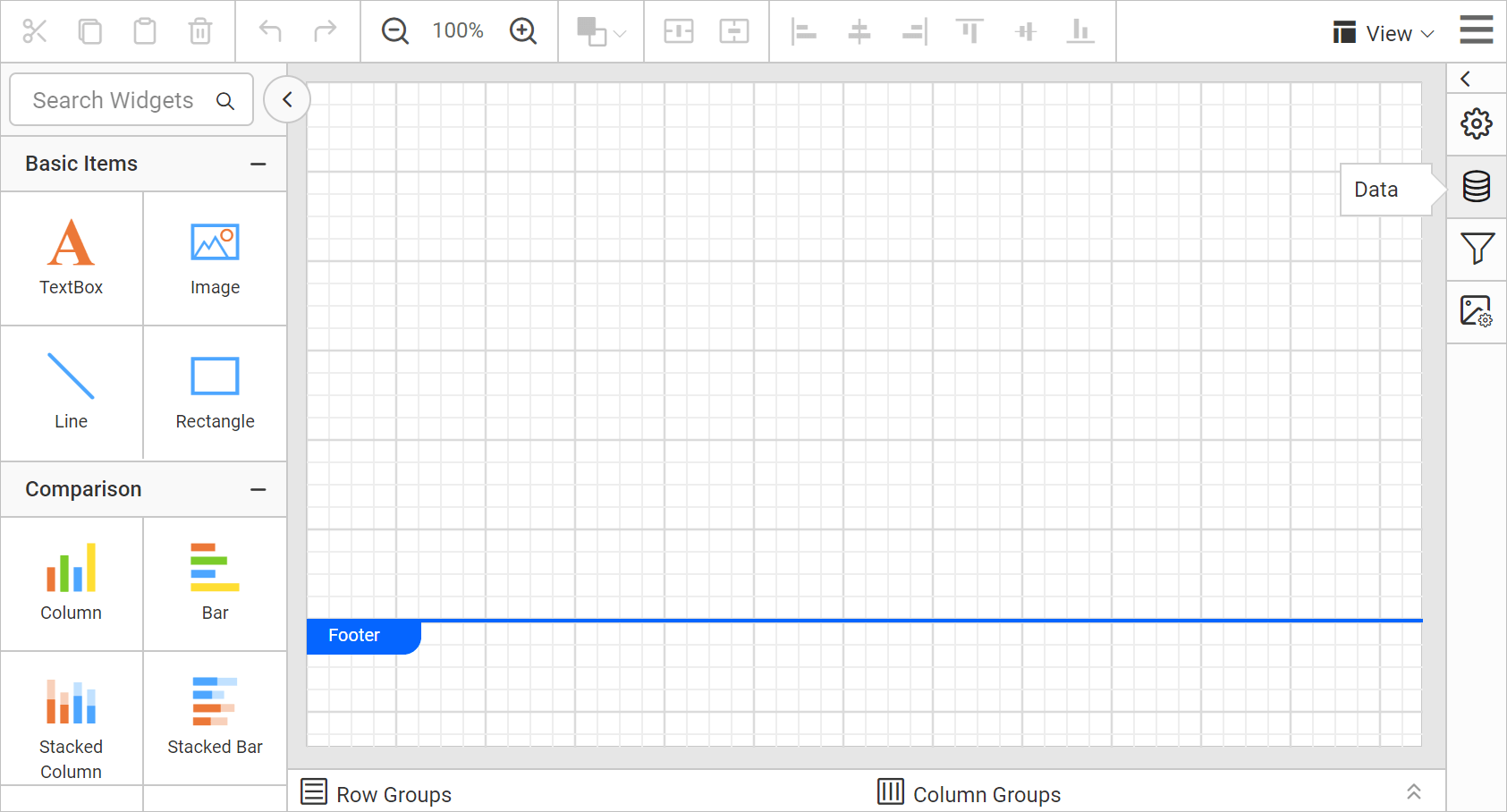
- In the
DATAconfiguration panel, click theNEW DATAbutton.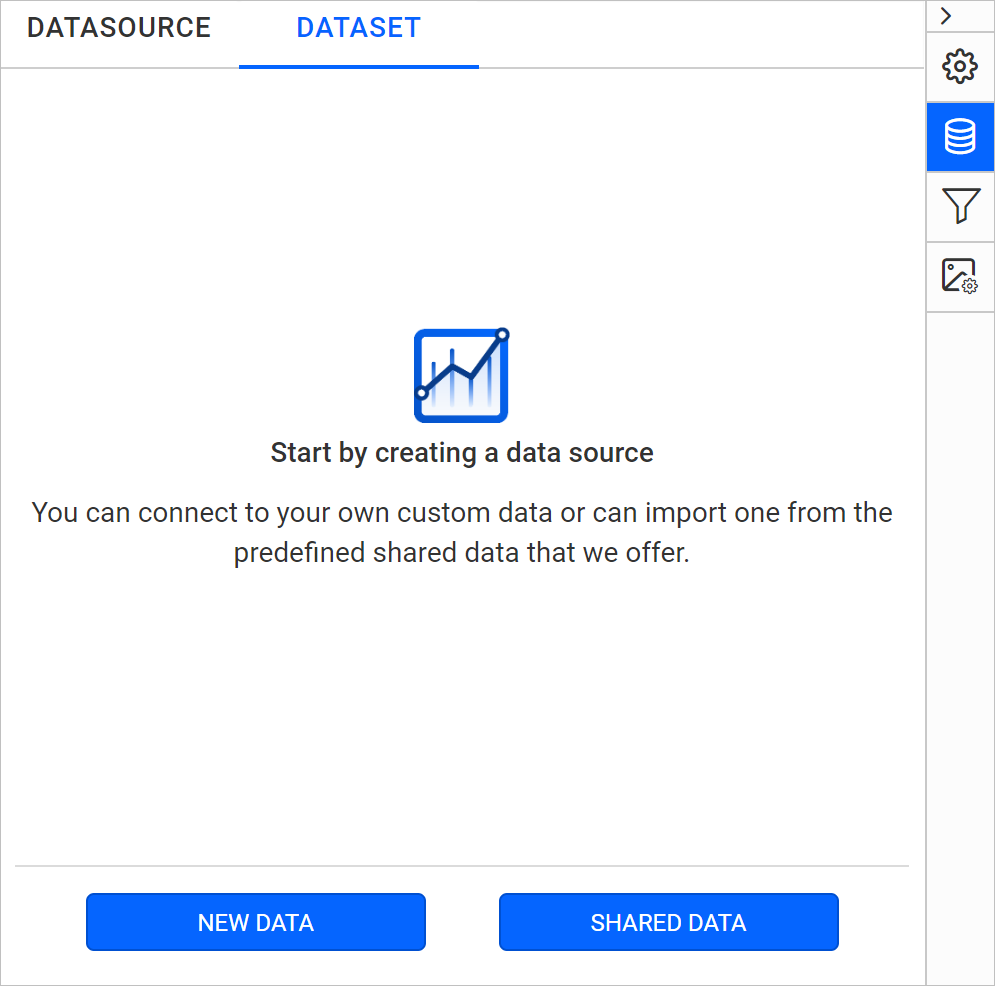
- In the connection type panel, choose the
CSVdata source type.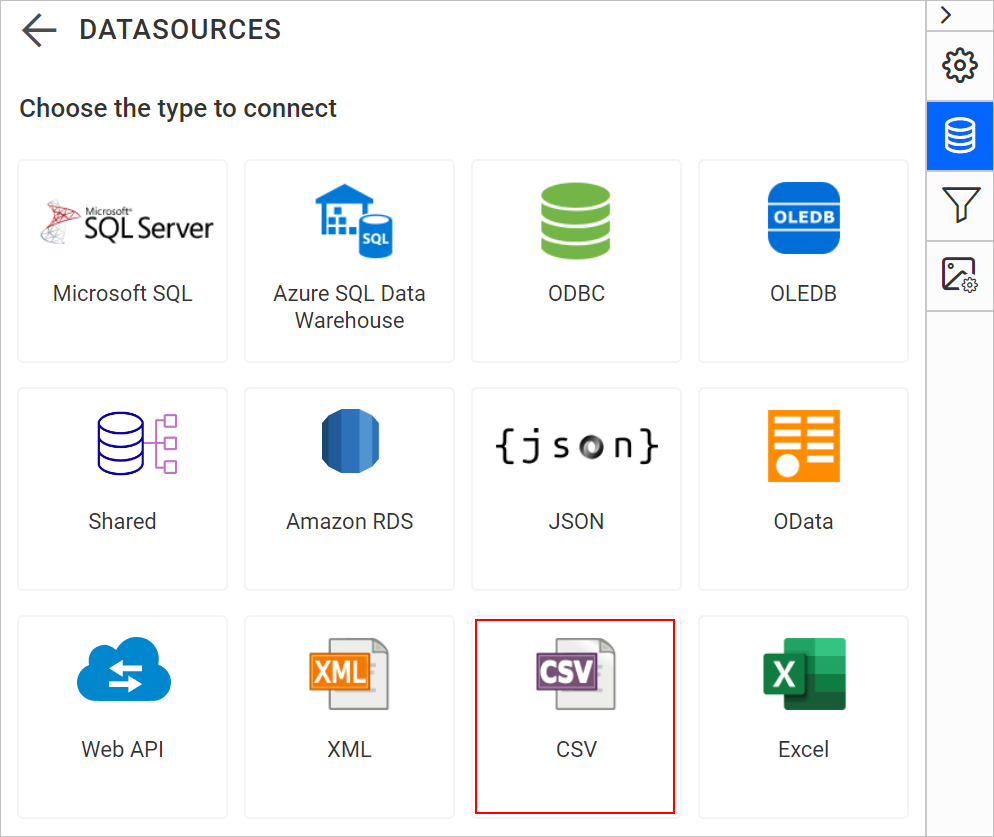
- Specify the data source name without special characters in the Name field.
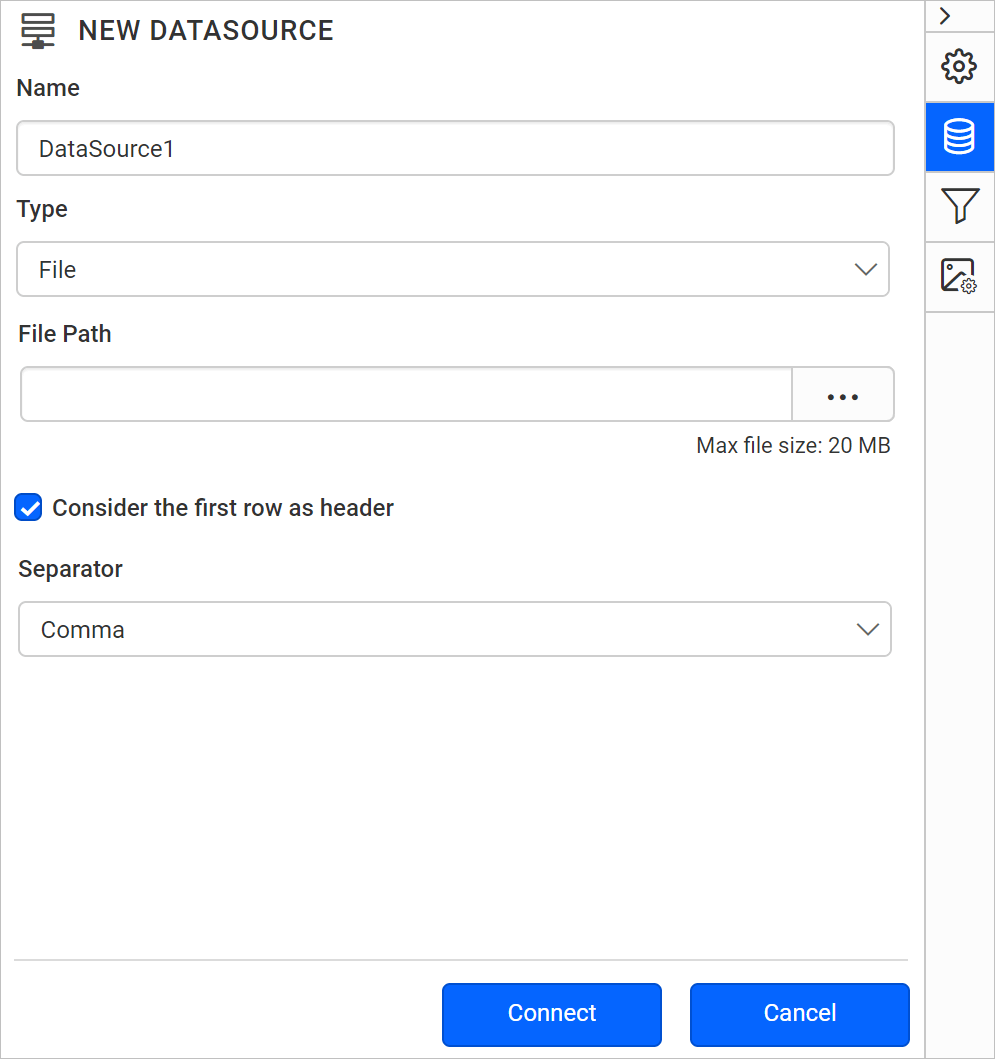
You can connect CSV data using the following two options:
- File Path - Load from disk.
- External - Load from external URL.
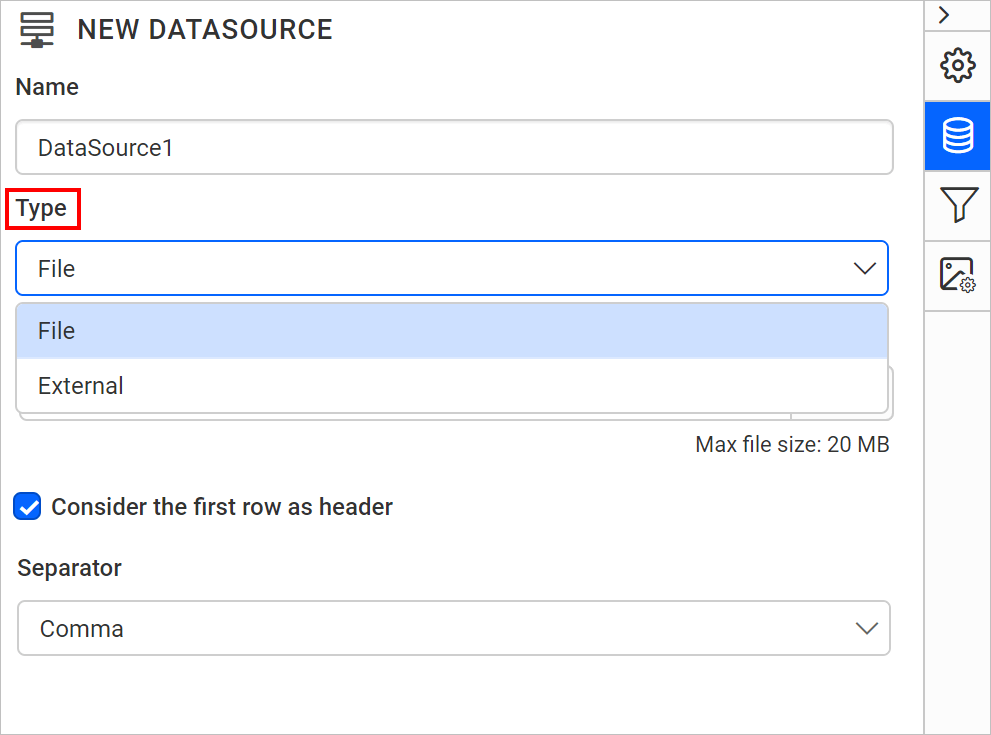
Load from disk
To load a CSV file from disk in the Bold Reports® Web Report Designer, upload the file and connect.
- Choose the
Fileoption in theTypefield. The upload option appears, as shown in the following image.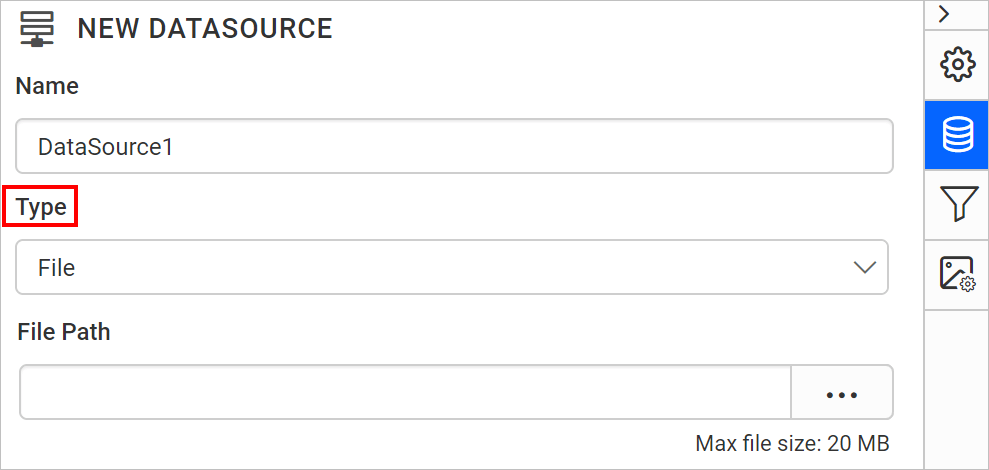
- Click the three-dotted button to open the upload box. Browse the CSV file and click open.
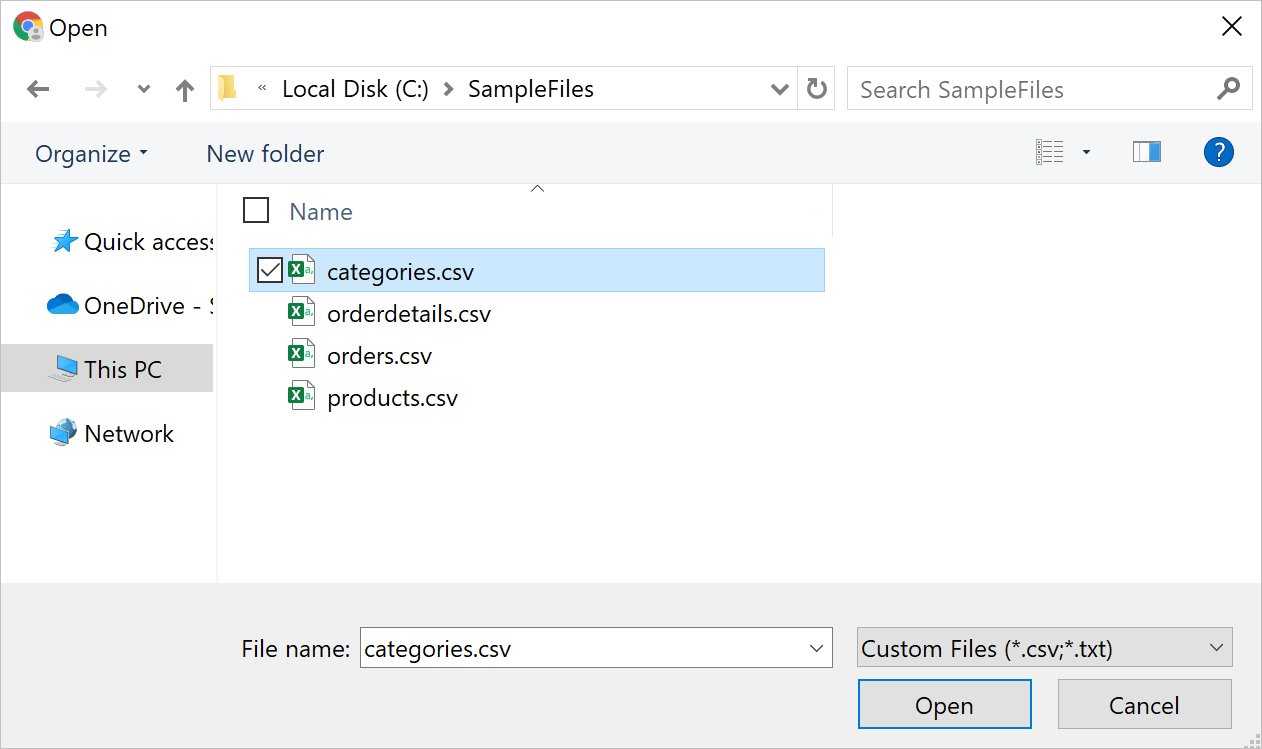
- If your data contains headers, enable the
Consider the first row as headeroption to treat them as headers. - Use
Separatorbased on the type of file uploaded. For the list of supported separators, see CSV separators.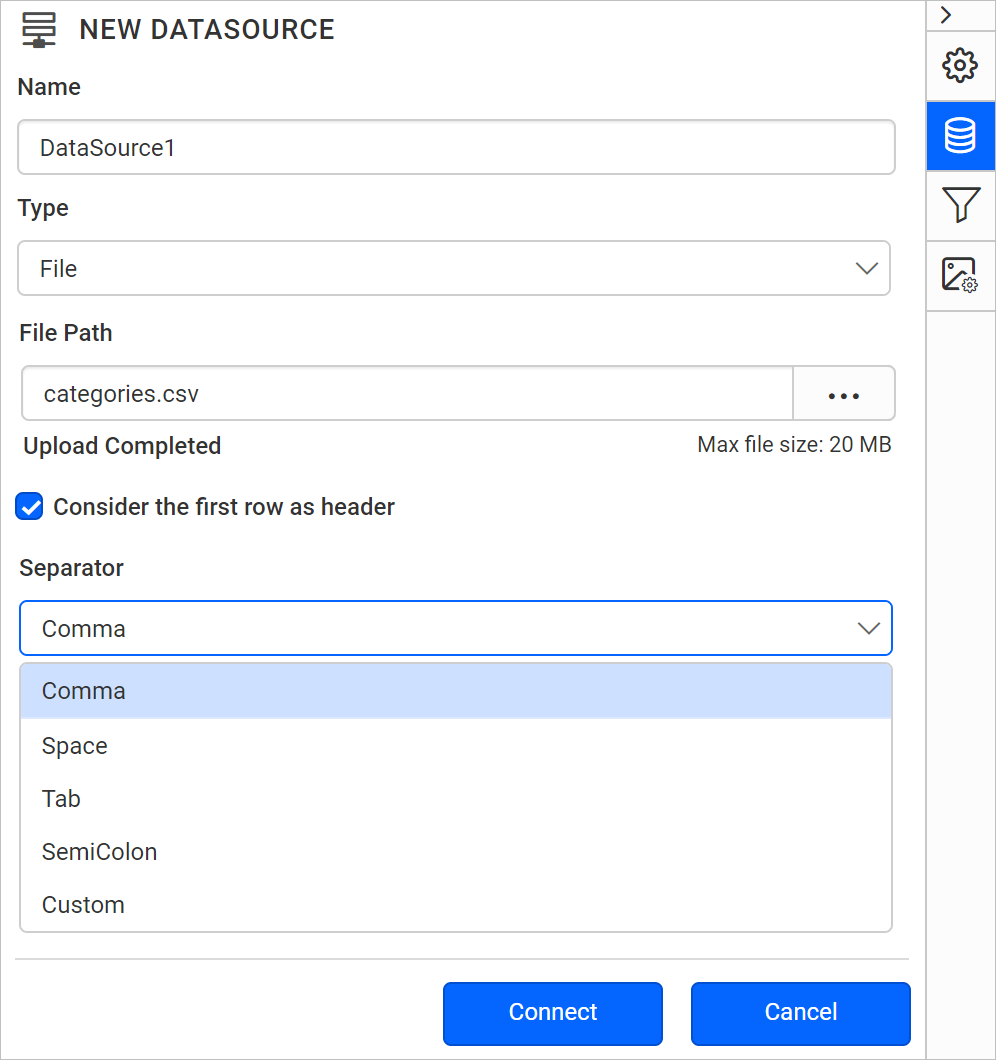
- Click
Connectto open the query design pane. The query design pane shows the specified CSV data’s structure in the left pane.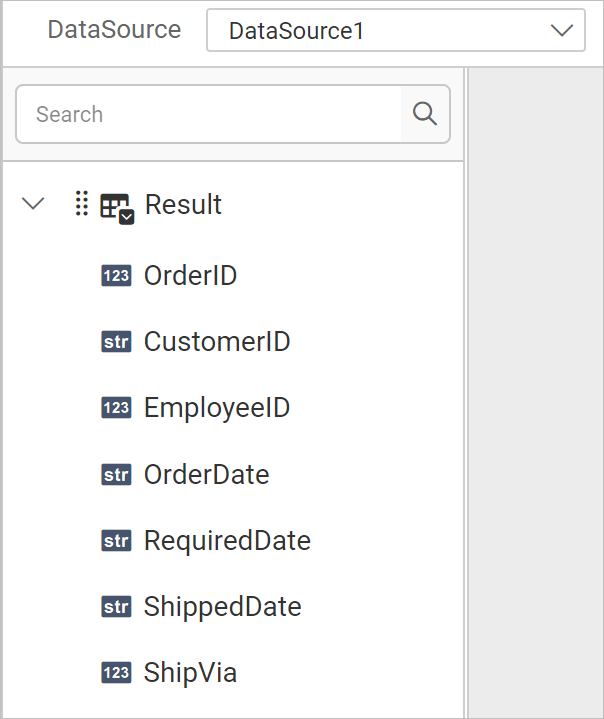
- Drag and drop the table from the left pane in the query design view page and execute.
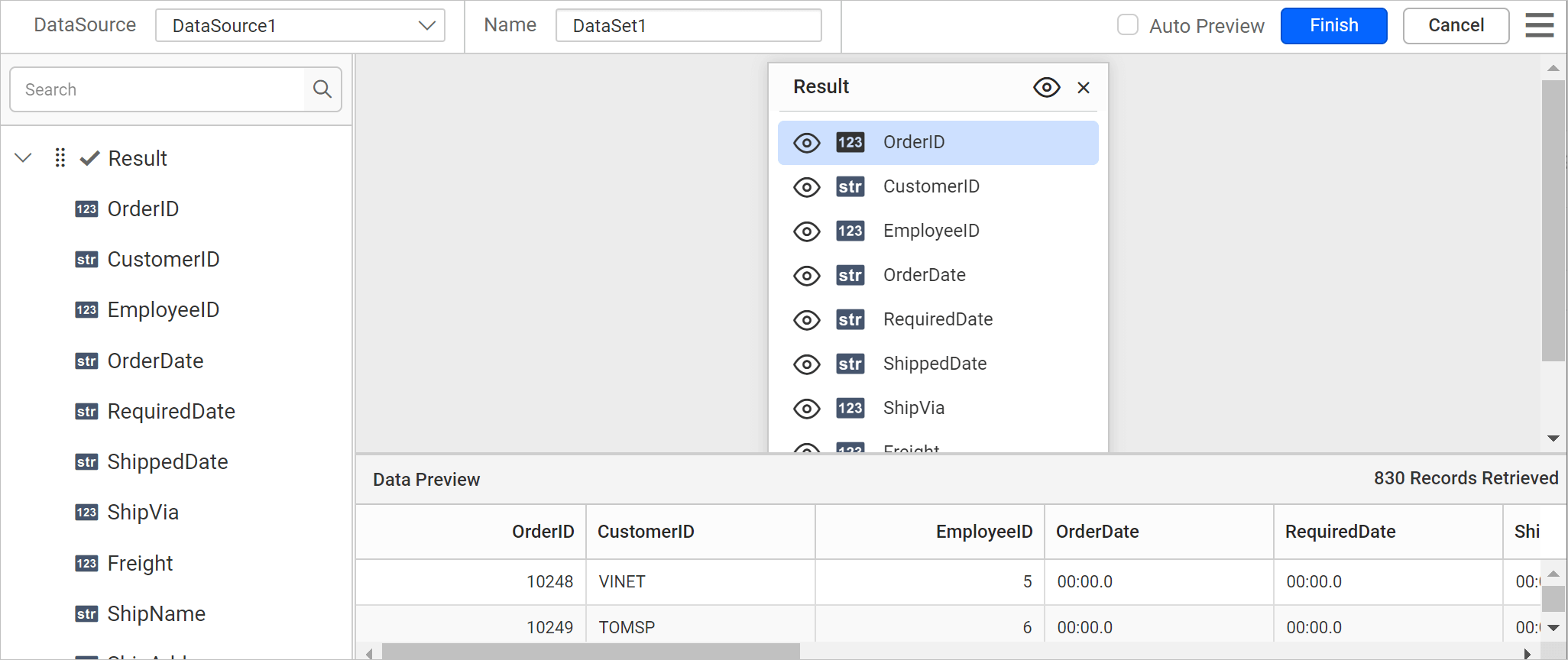
- Click
Finishto save the data source with a relevant name and continue designing the report.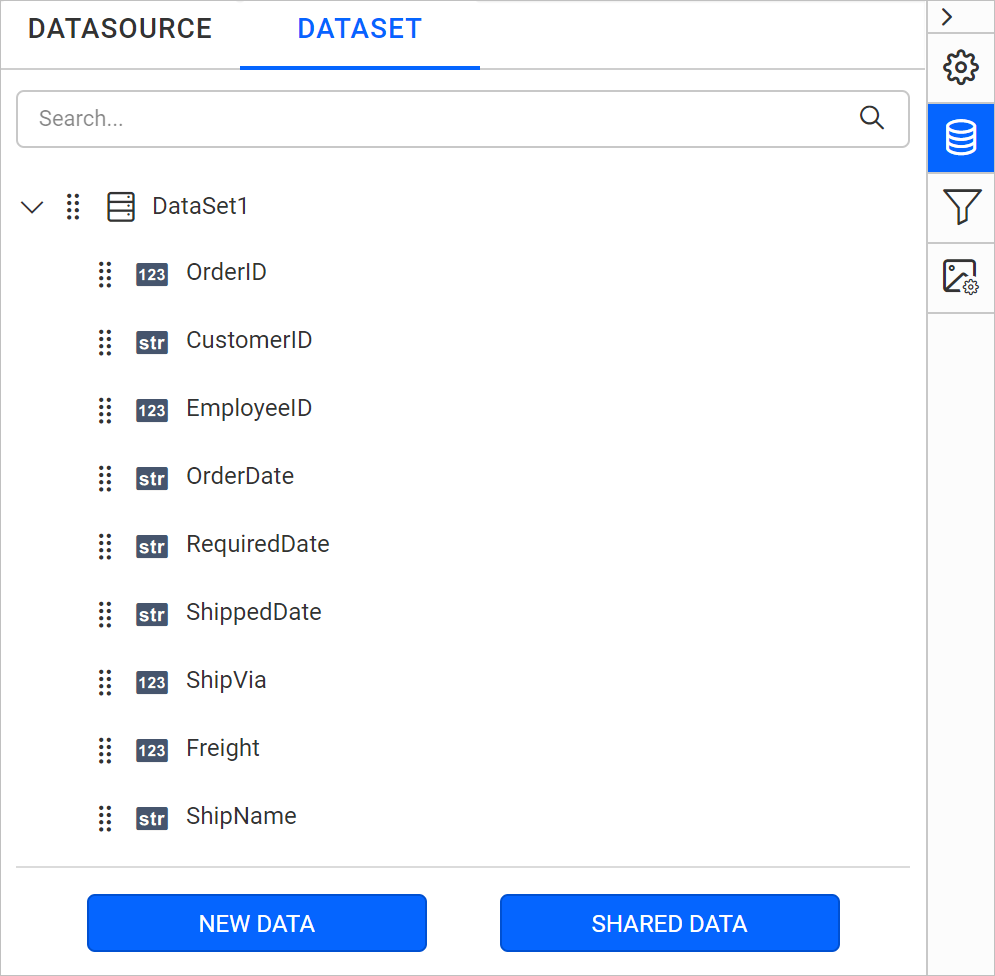
Load from external URL
To load CSV data from an external URL in the Bold Reports® Web Report Designer, specify the URL and connect.
- Choose the
Externaloption in theTypefield.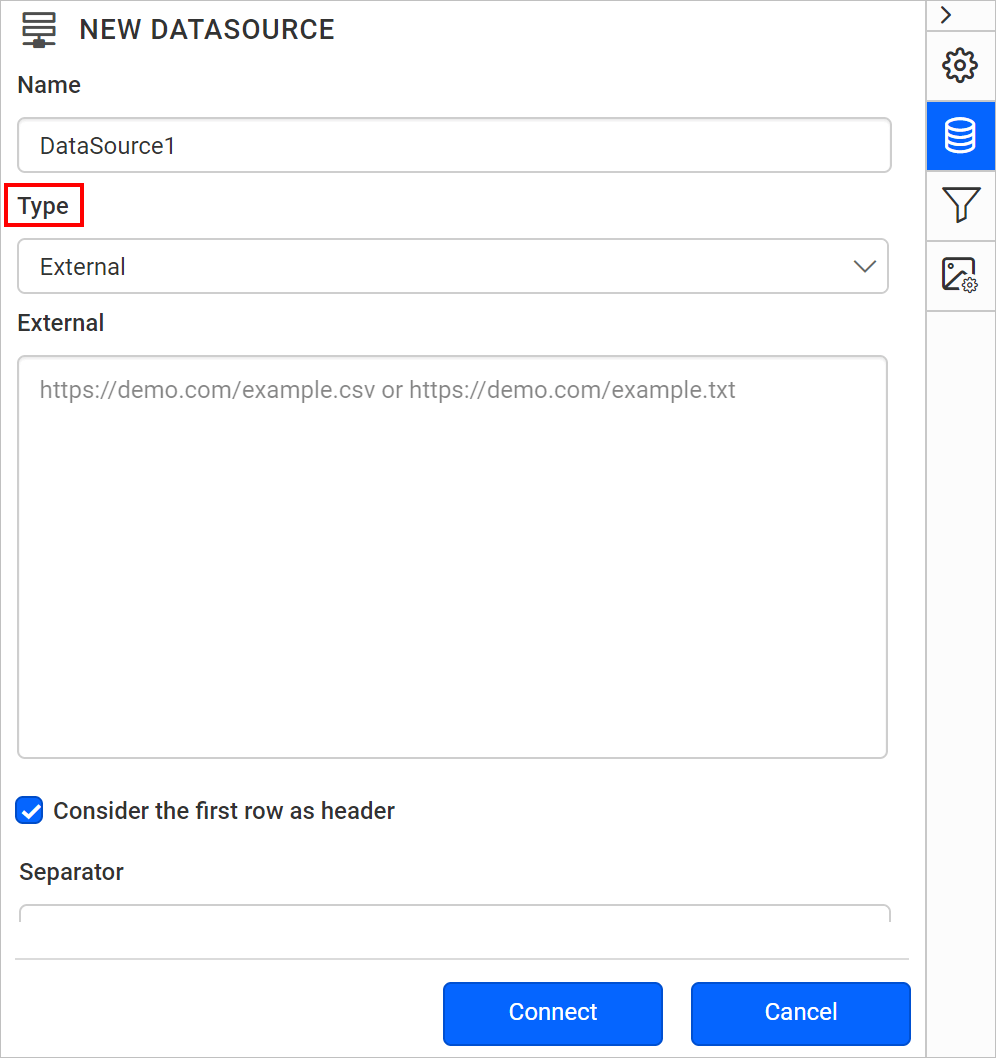
- Specify an external URL in the
Externaltext area.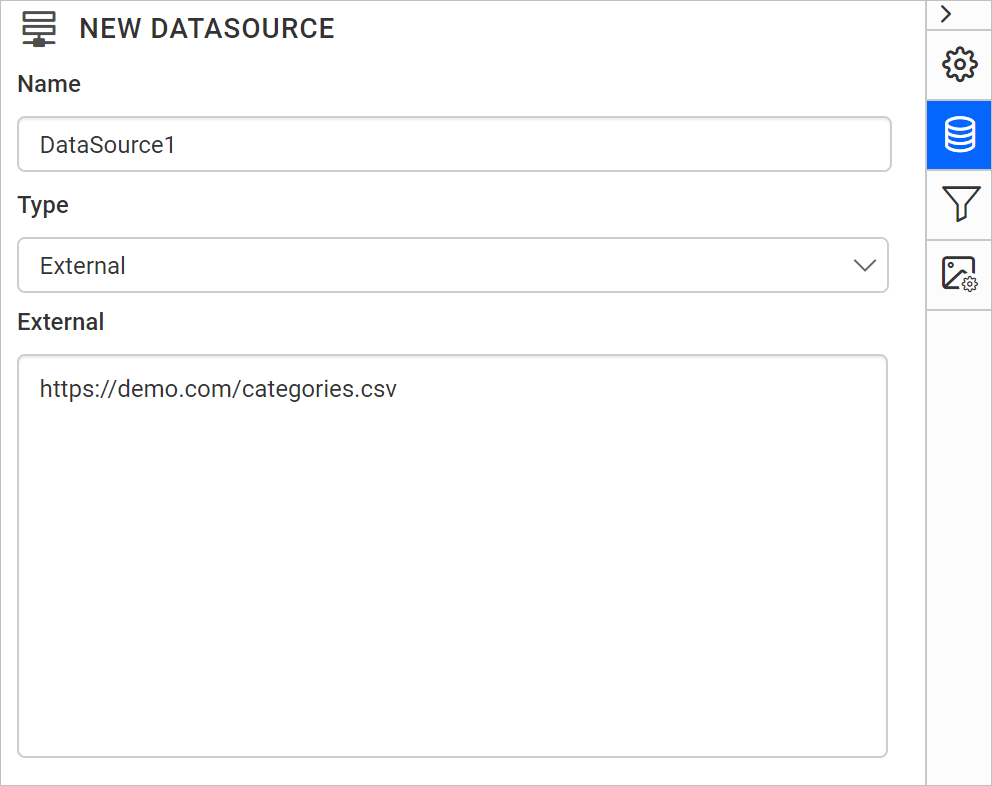
- If your data contains headers, enable the
Consider the first row as headeroption to treat them as headers. - Use
Separatorbased on the type of file uploaded. For the list of supported separators, see CSV separators. - Click
Connectto open the query design pane. The query design pane shows the specified CSV data’s structure in the left pane. - Drag and drop the table from the left pane in the query design view page and execute.
- Click
Finishto save the data source with a relevant name and continue designing the report.
Separator
The Bold Reports® CSV data source uses the Separator setting based on the type of file uploaded. Available options are listed under the separator drop-down.
To set a custom delimiter, choose the Custom option in the separator drop-down.
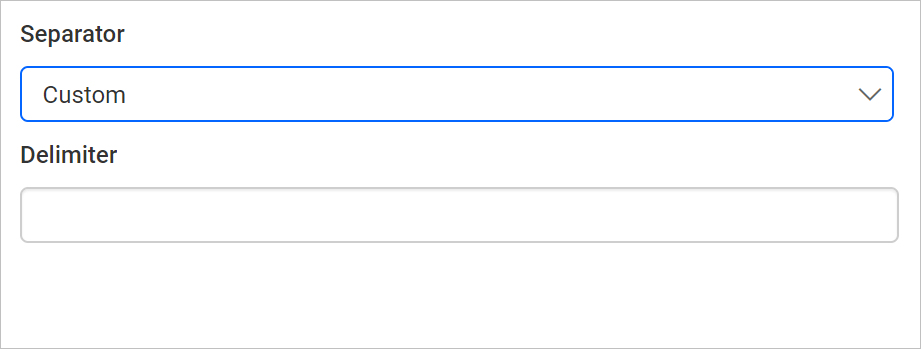
In the delimiter textbox, enter the required delimiter. The data is retrieved from the data source based on that delimiter.
Frequently asked questions
Where can I load CSV data from?
You can load CSV data from disk with the File Path option or from an external URL with the External option.
Can I use a custom delimiter for CSV files?
Yes. Choose the Custom option in the separator drop-down and enter the required delimiter in the delimiter textbox.