Add an embedded image with the Bold Reports® Image Manager
The Image Manager in Bold Reports® Web Report Designer adds an embedded image to the report, and that image is always available to the report. The embedded images in a report are listed in the Image Manager panel.
Add an embedded image
You add an embedded image in Web Report Designer from the Add Image button in the IMAGE MANAGER panel.
-
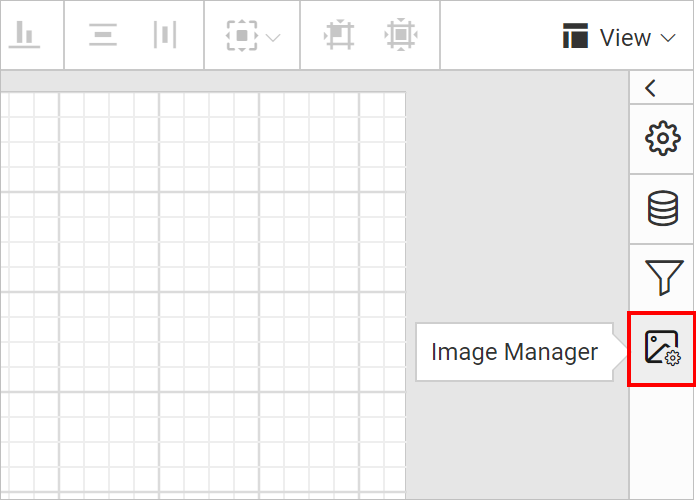
Click the Image Manager icon in the configuration panel.
-
Click the Add Image button in the
IMAGE MANAGERpanel.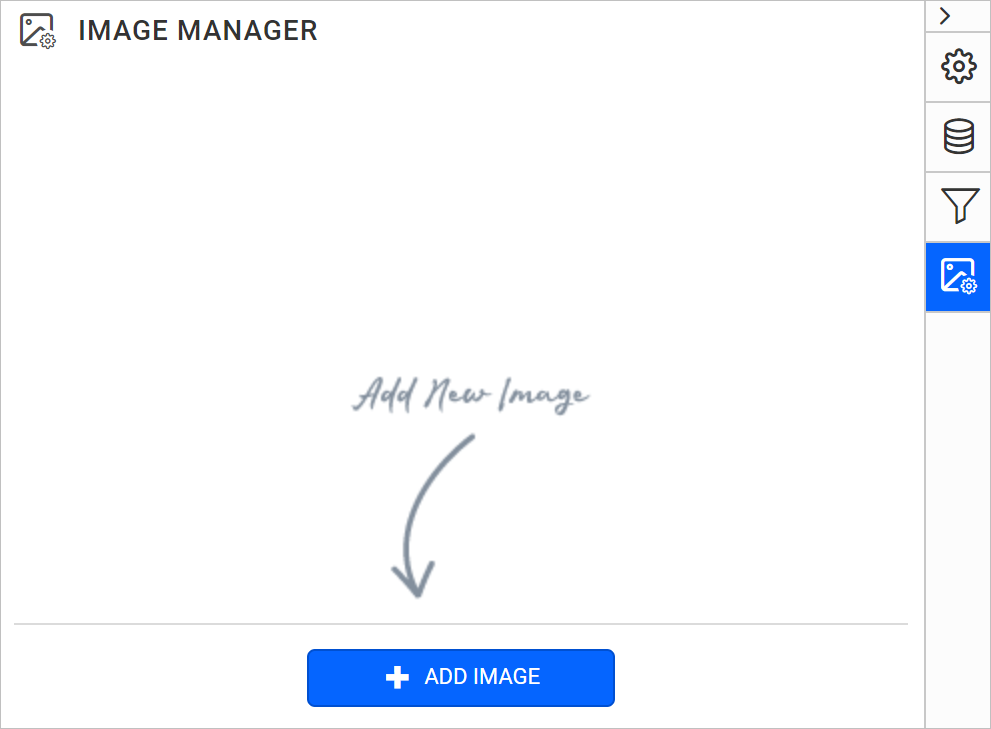
-
Select an image and click the
Openbutton.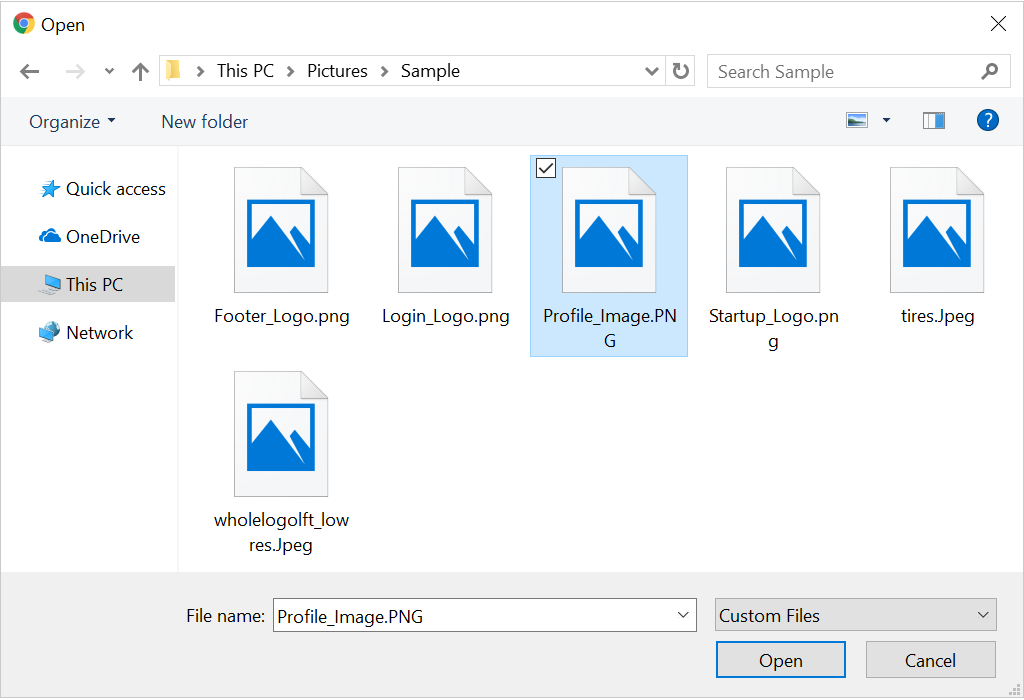
Note: Images can be of the BMP, GIF, JPG, PNG, X-PNG or SVG type.
-
The image is embedded in the report and listed under the IMAGE MANAGER panel.

Note: Only one image can be imported at a time. To add more images, repeat steps 2 to 4.

How do I design a report using an embedded image?
You add an embedded image to the design area in Web Report Designer from the IMAGE MANAGER panel.
- Hover the mouse over the image in the IMAGE MANAGER panel.
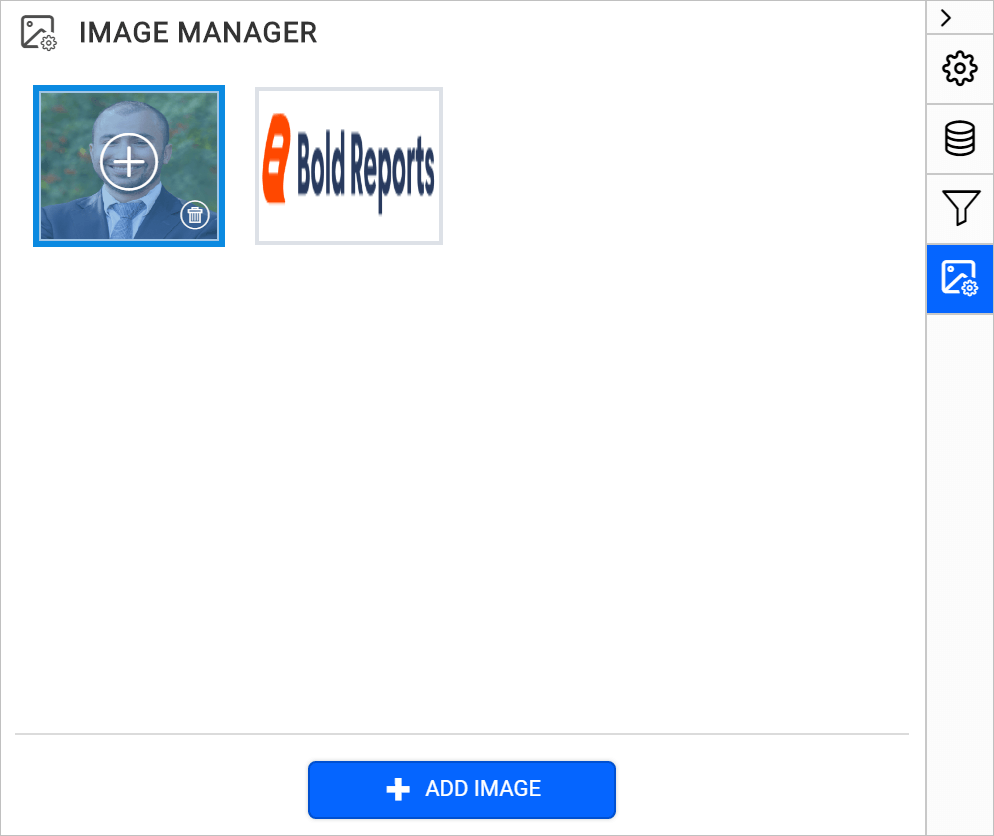
- Click the
plusicon. The image item is added to the design area.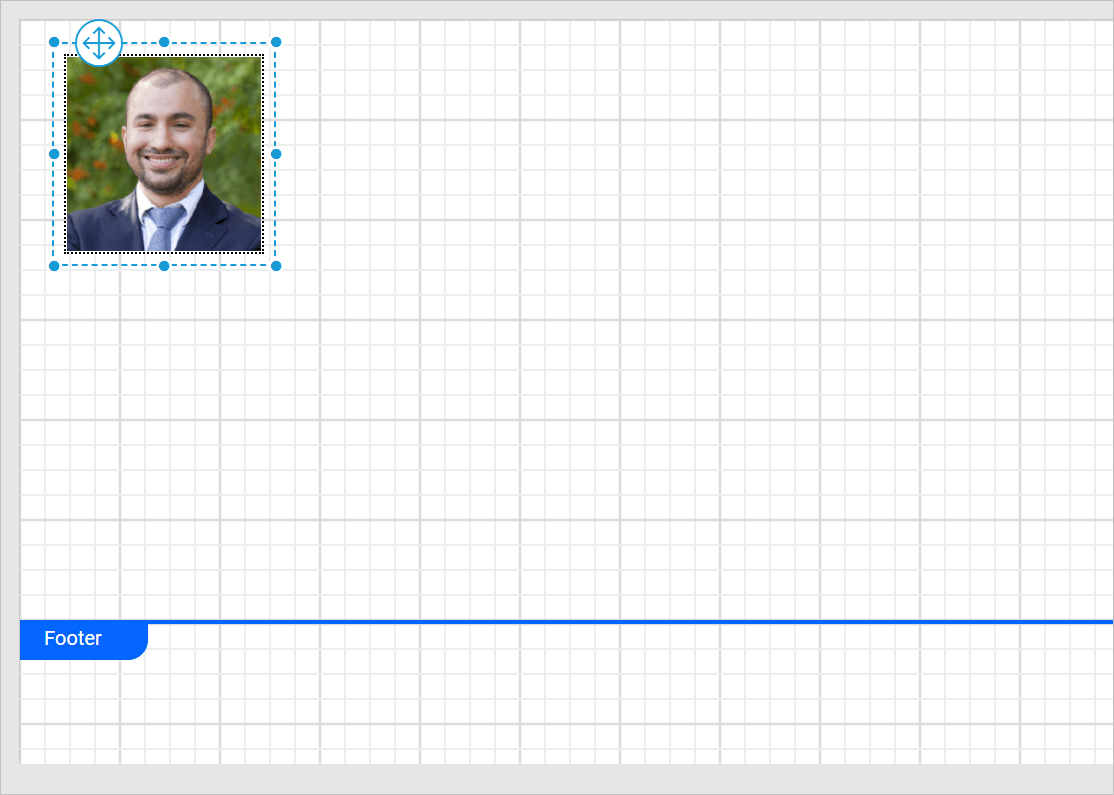
- The following image shows a simple report designed with an embedded image.
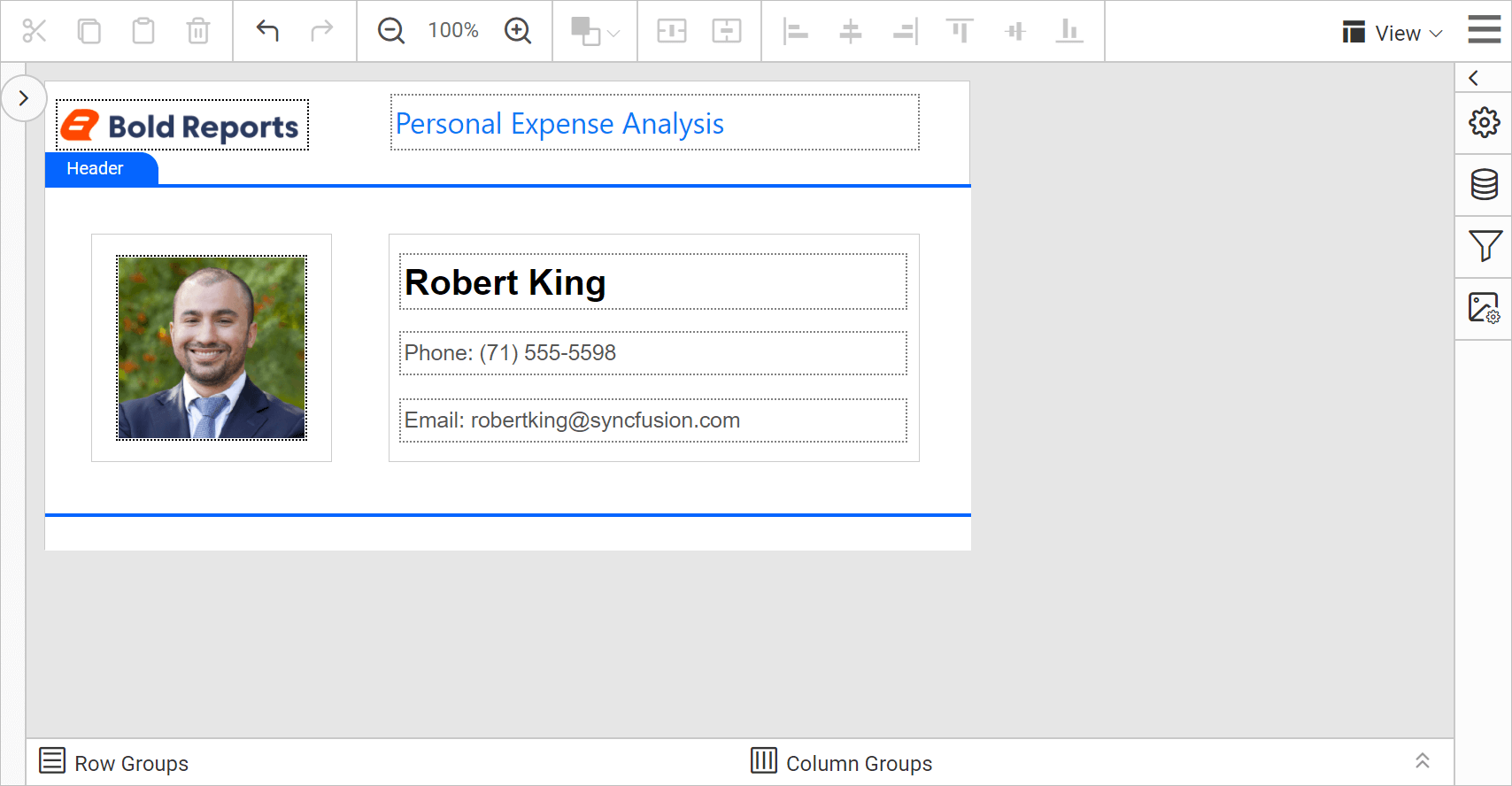
Download the above report design from the image manager sample report on GitHub.
Frequently asked questions
Which image types can I embed?
Images can be of the BMP, GIF, JPG, PNG, X-PNG, or SVG type.
Can I import several images at once?
No. Only one image can be imported at a time. Repeat the add steps to add more images.