How to select all the available values in the parameter list as default in the report
To select all available values by default in Bold Reports® Report Designer, use the same dataset query for the parameter’s available values and default values. First, review the Create Parameter section, and then follow these steps.

How do I set the available values?
You set the available values for a Bold Reports® parameter in the parameter assign dialog.
-
Click
Assign Value >>to open the parameter assign dialog.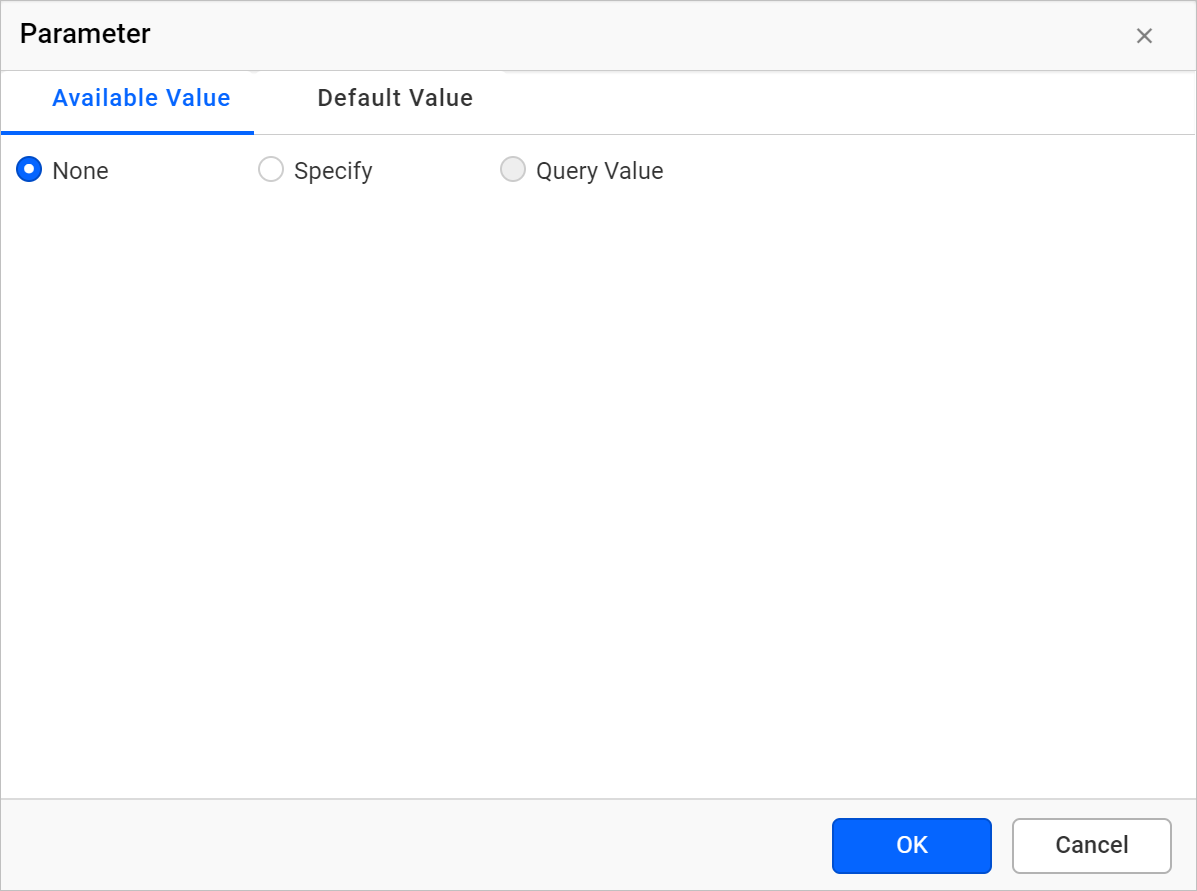
-
The parameter dialog opens on the
Available Valuetab by default. Follow the Available Values section and choose the dataset values you need in the dropdowns.
How do I set all values as default?
You set all values as default in Bold Reports® by choosing Query Value on the Default Value tab with the same dataset and value field.
-
Switch to the
Default Valuetab, which has the following options.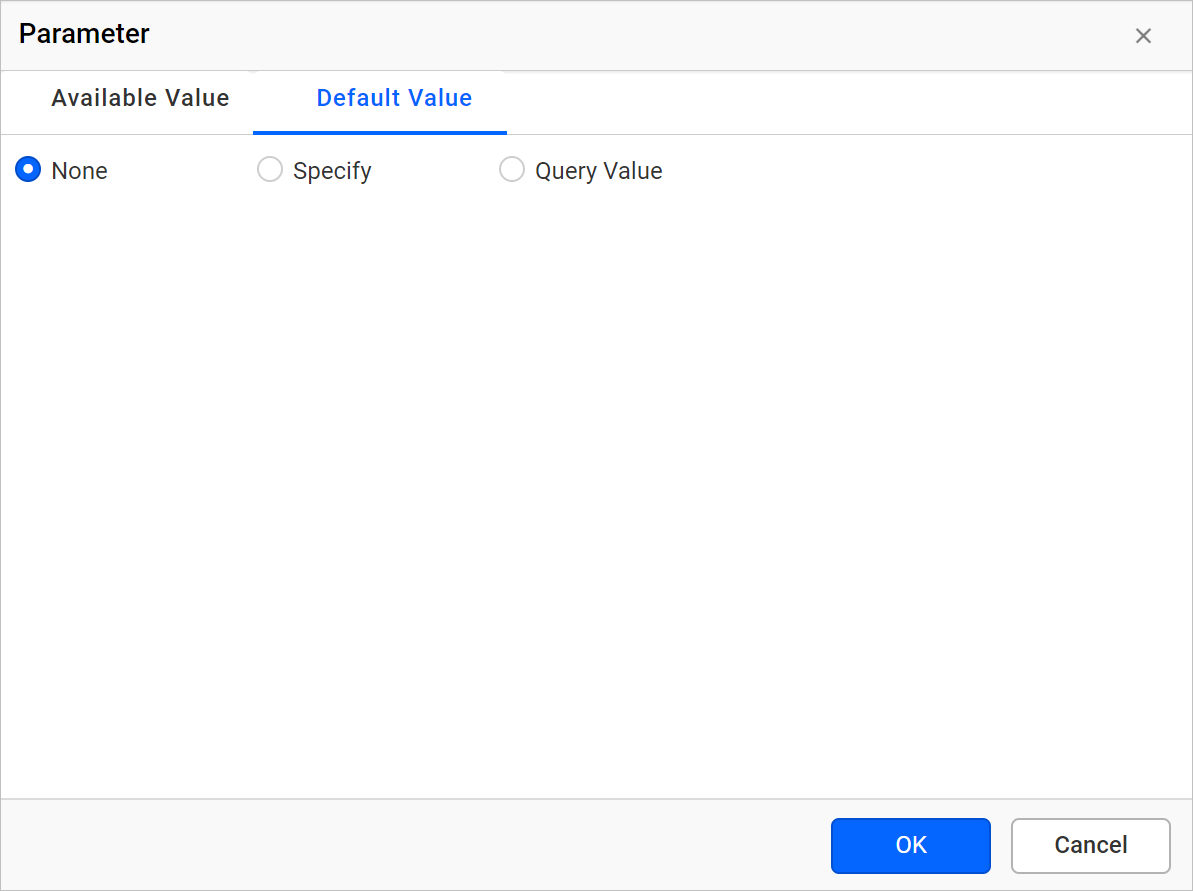
-
Select the Query Value option under the Default Value tab.
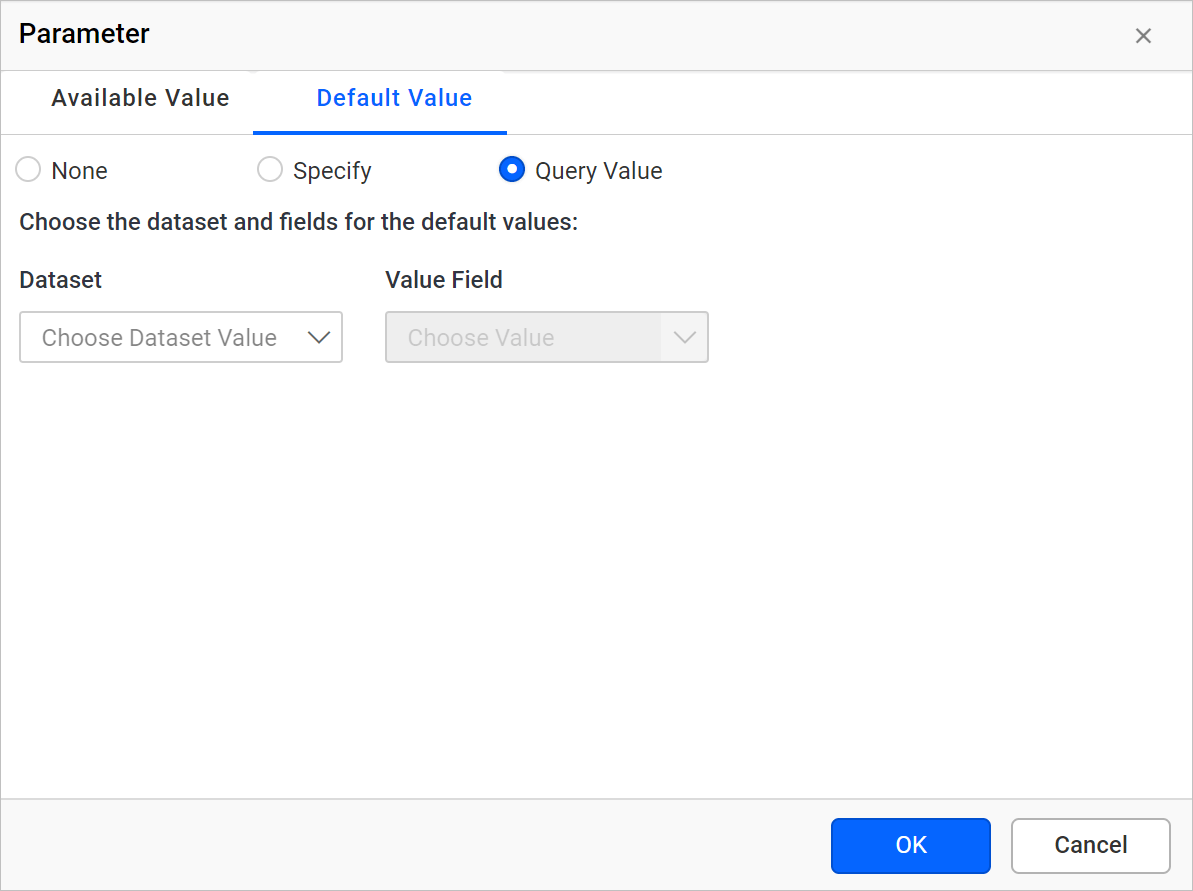
-
Choose the dataset and the value field. They must be the same as the Available Value dataset and value field query value.

-
Save the parameter and preview the report. By default, the report renders with all available values in the parameter list.

Frequently asked questions
Why are not all values selected by default?
The Default Value dataset and value field must be the same as the Available Value dataset and value field.