How to repeat row and column headers on multiple pages
Bold Reports® Report Designer lets you repeat row and column headers on multiple pages. Use the Repeat Column and Repeat row options for a matrix, and the RepeatOnNewPage option for static table rows or columns.
How do I display column headers on multiple pages in a matrix?
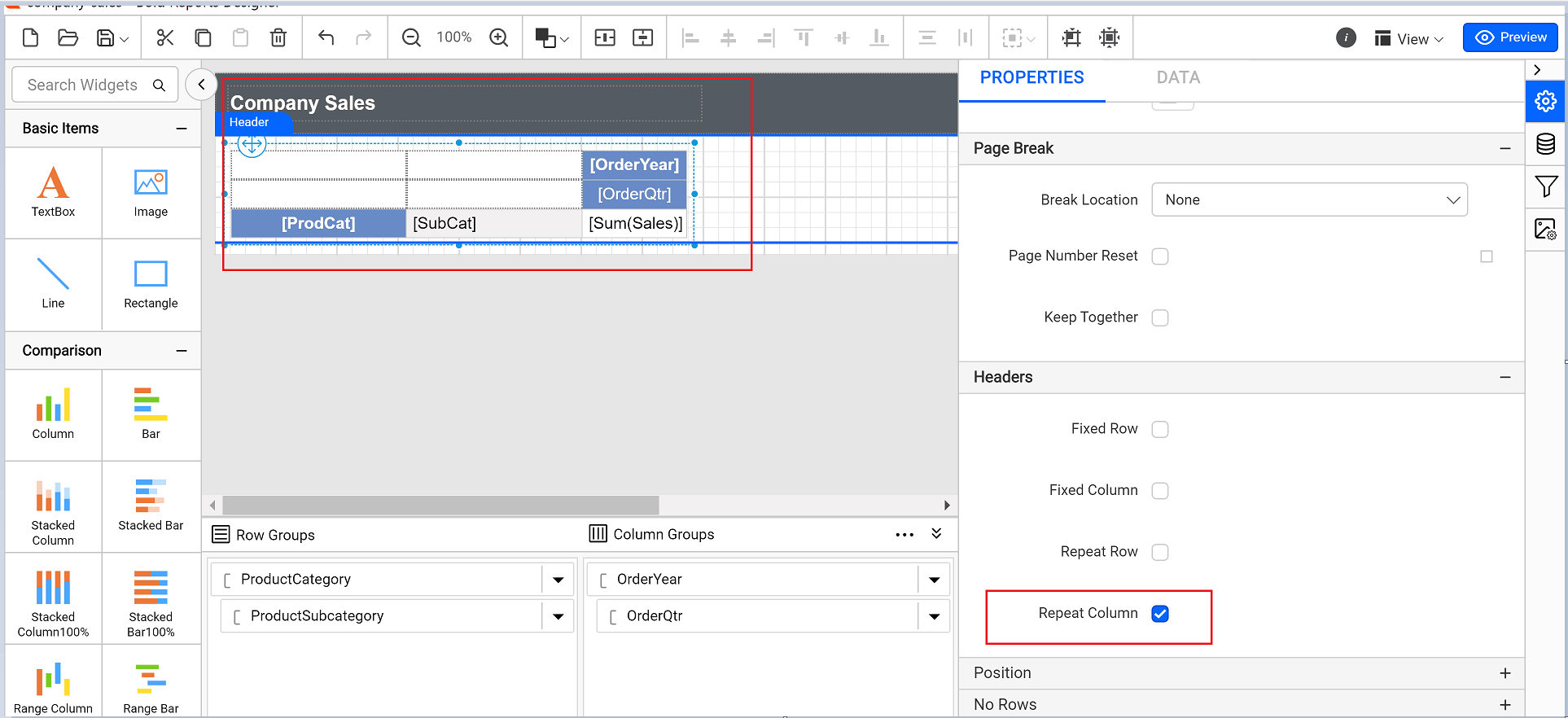
You repeat matrix column headers in Bold Reports® Report Designer with the Repeat Column option in the Headers section.
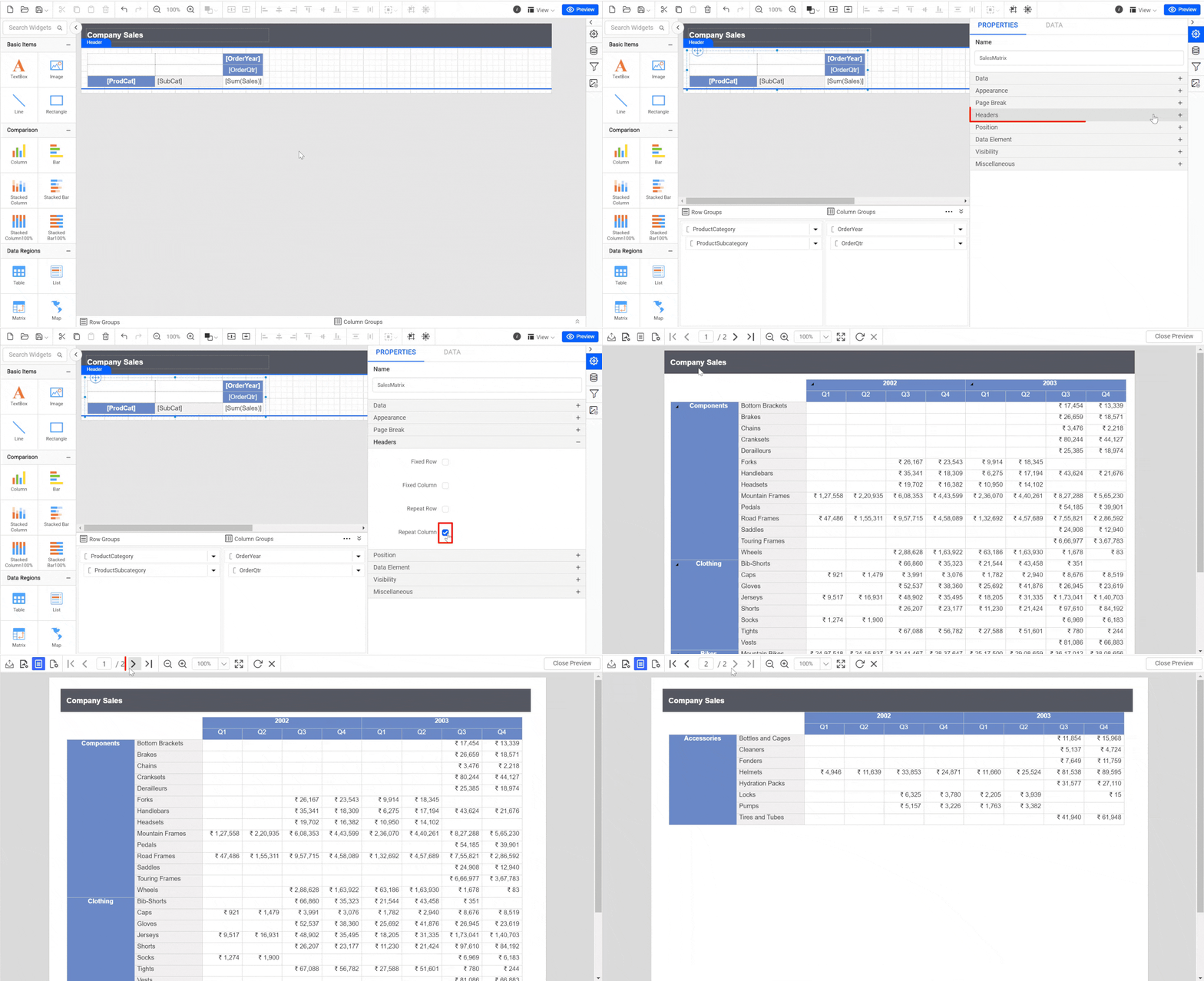
- Select the matrix report item in the report and open the Properties panel.
- Expand the Headers section in the Properties panel and select the Repeat Column check box under the Headers section.
- Click Preview at the top-right corner. The matrix header columns are repeated on each report page, as in the following image.
How do I display row headers on multiple pages in a matrix?
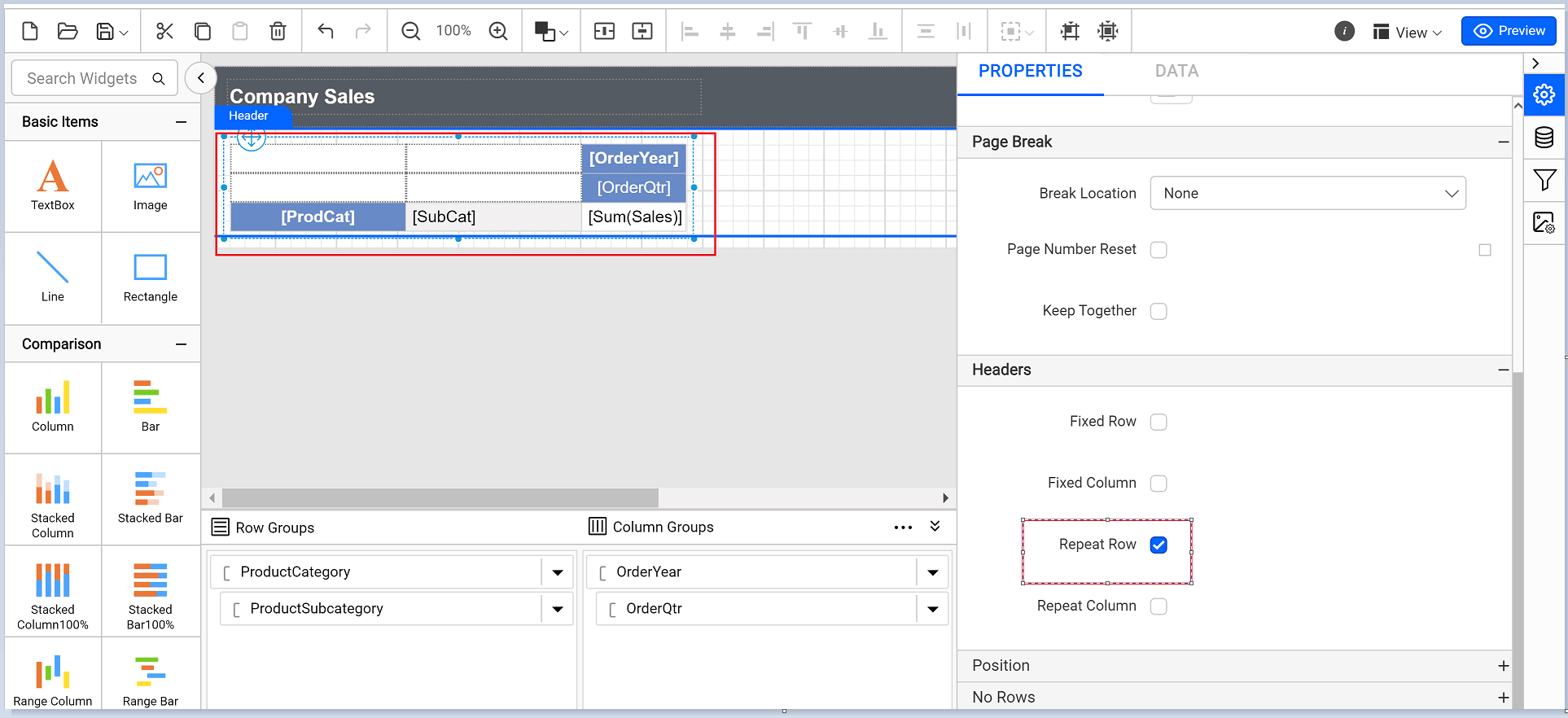
You repeat matrix row headers in Bold Reports® Report Designer with the Repeat row option in the Headers section.
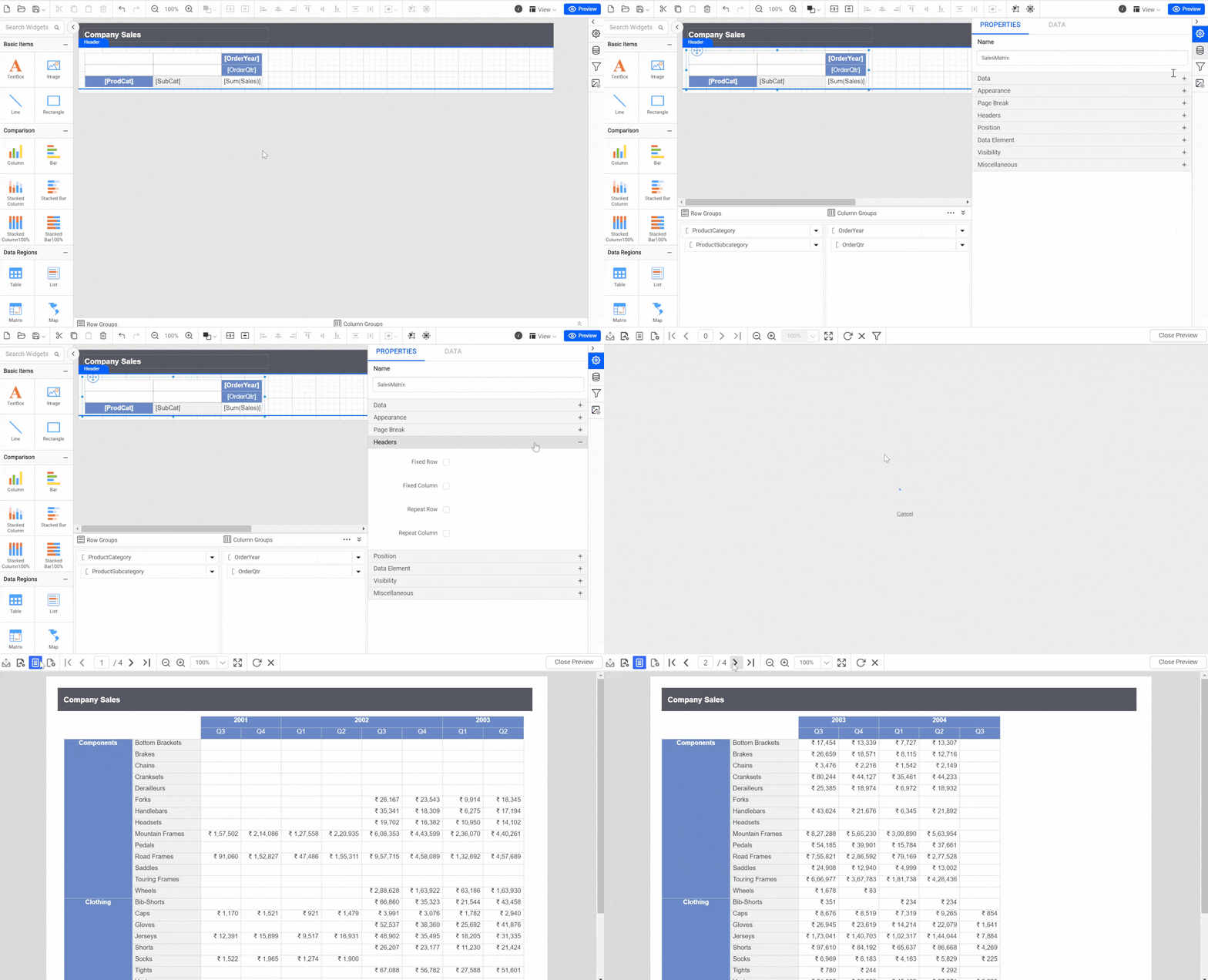
- Select the matrix report item in the report and open the Properties panel.
- Expand the Headers section in the Properties panel and select the Repeat row check box under the Headers section.
- Click Preview at the top-right corner. The matrix header rows are repeated on each report page, as in the following image.
How do I display a static row or column on multiple pages?
You repeat a static table row or column in Bold Reports® Report Designer with the RepeatOnNewPage option in the Grouping panel’s Advanced Mode.
-
Select the table report item and open the Properties panel.
-
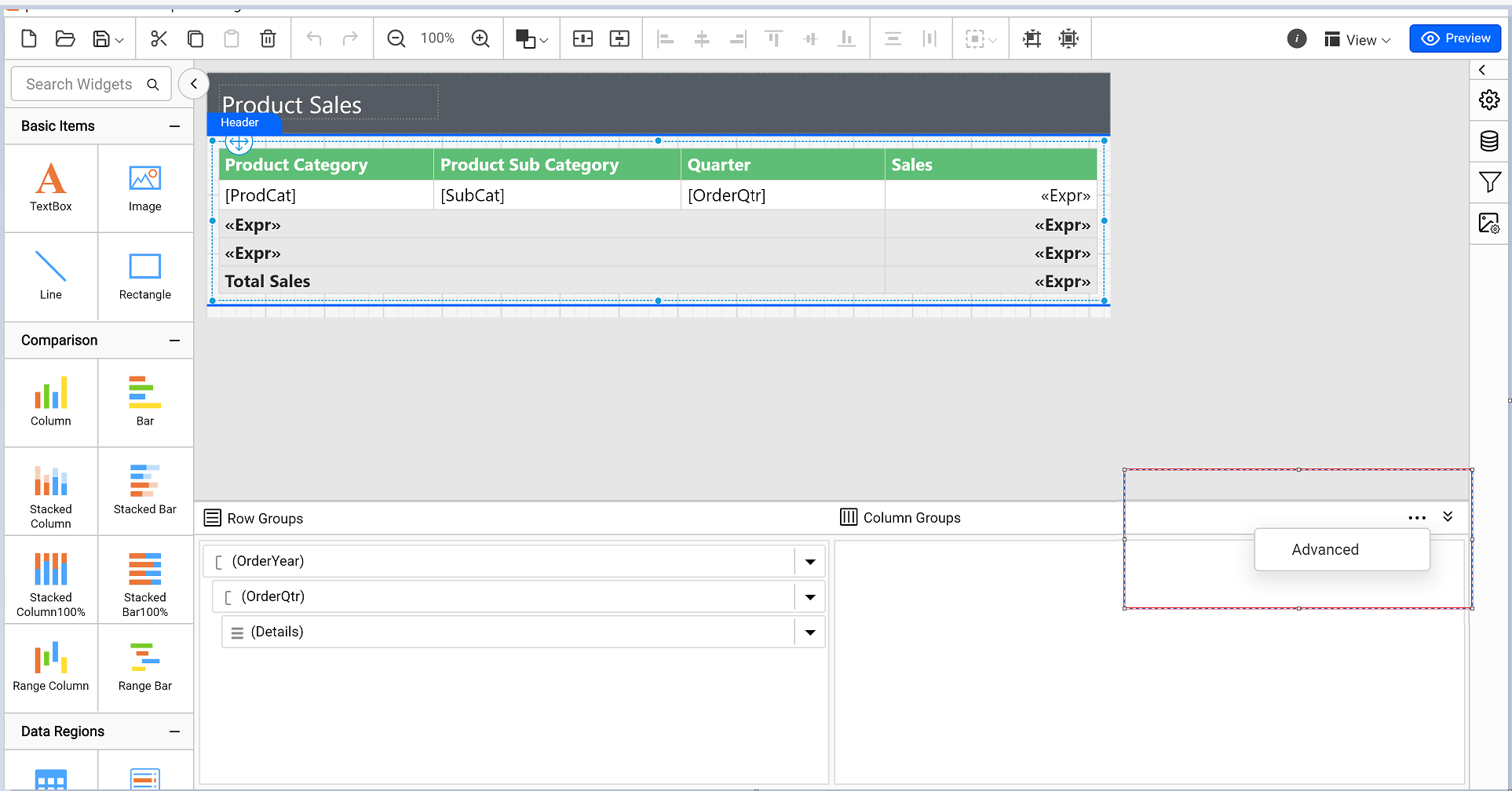
Click the dotted button on the right side of the Grouping panel and select Advanced Mode. The Grouping panel displays the hierarchical static and dynamic members of the table groups.
-
Click a static member in Row Groups and check the RepeatOnNewPage option in the Properties panel.
-
Set the KeepWithGroup property to After. Choose one of the following options from the drop-down menu based on your group:
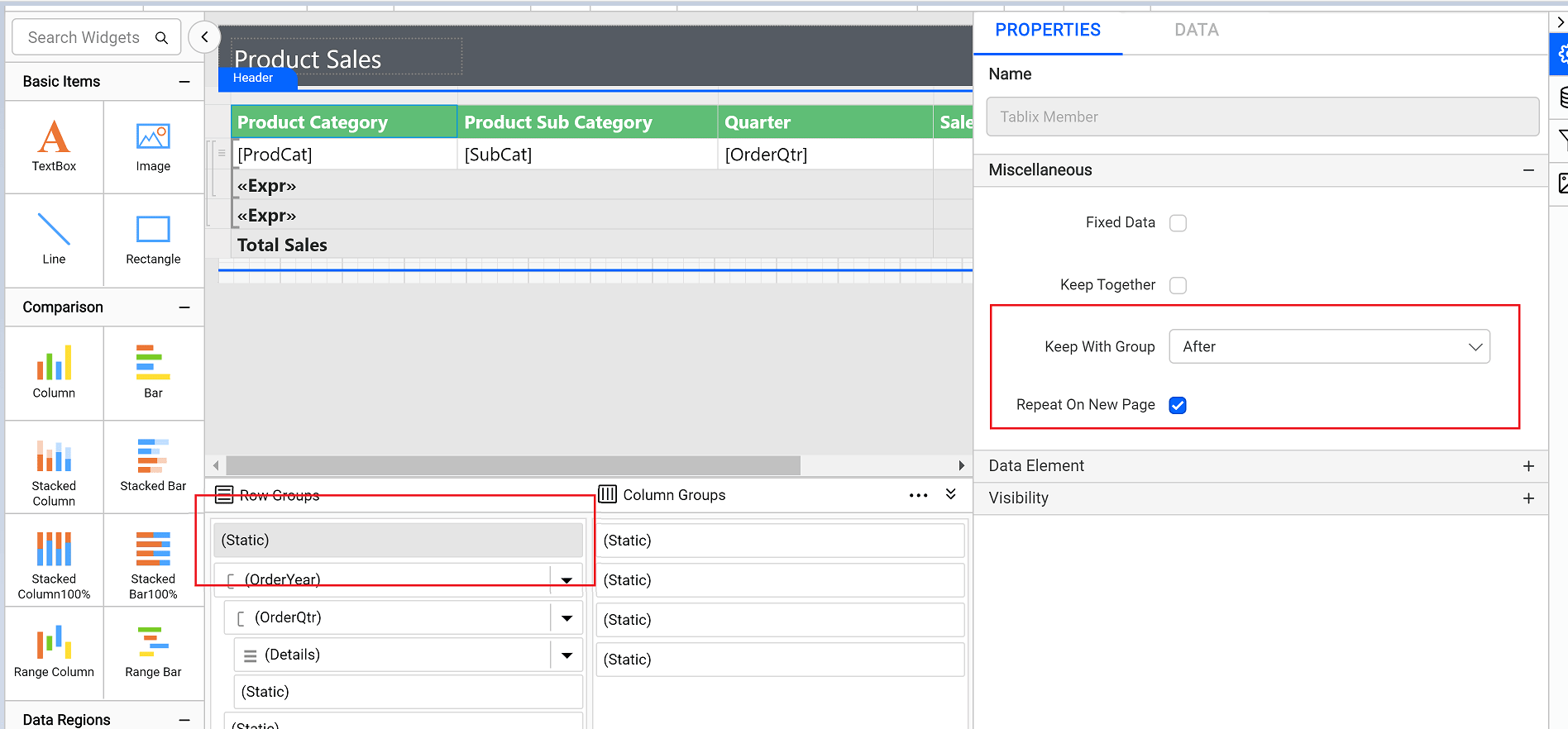
- After: Keep this selected member with the following group members. Set this option to keep a group header with a group.
- Before: Keep this selected member with the previous group members. Set this option to keep a group footer with a group.
- None: Set this option when you do not want this member kept with the members of the selected row group.
-
Repeat steps 3 and 4 for as many adjacent members as you want to repeat.
-
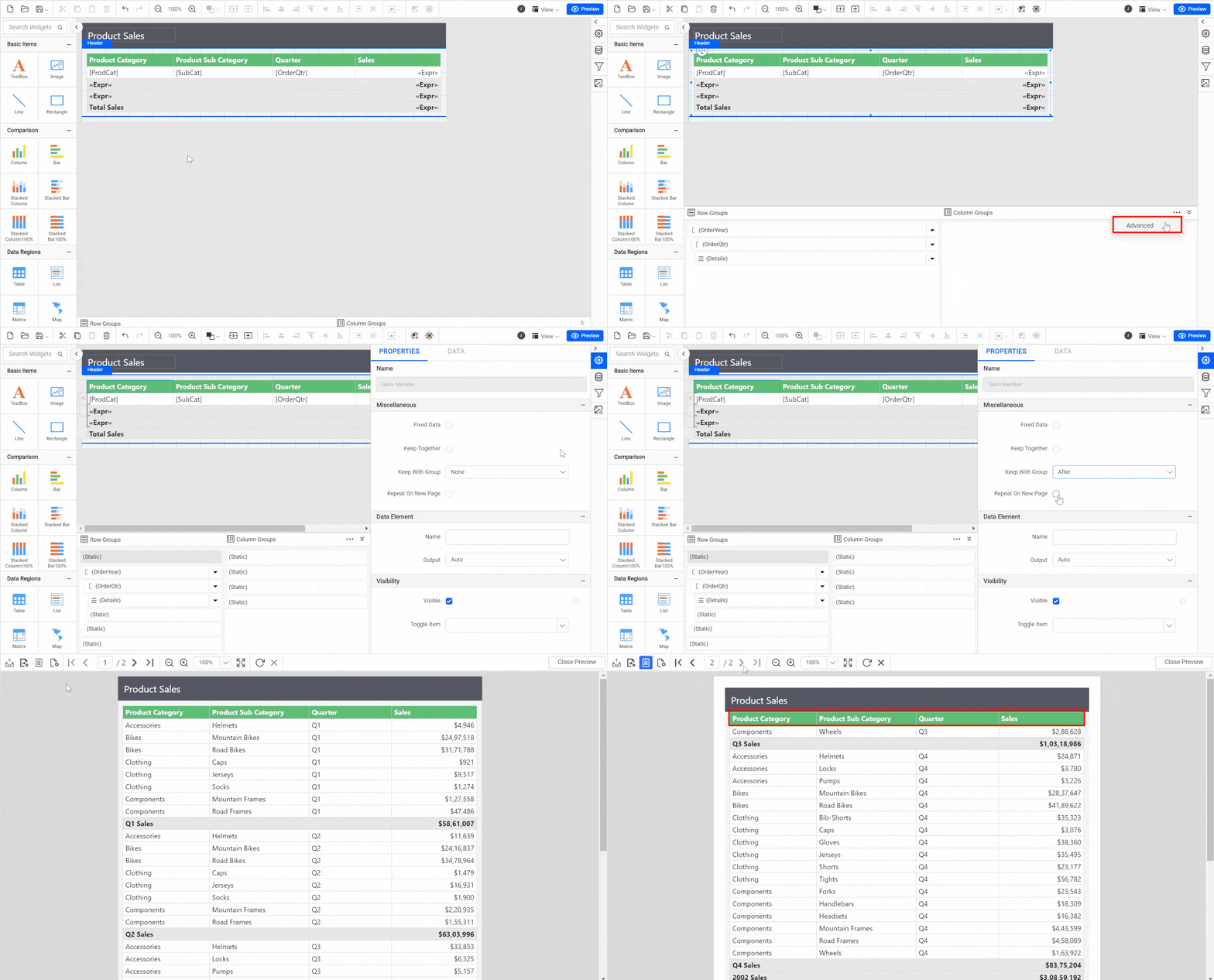
Click Preview. The table header is repeated on each report page, as in the following image.
Frequently asked questions
Which KeepWithGroup value keeps a group header with its group?
Set KeepWithGroup to After to keep a group header with a group.
Where is the RepeatOnNewPage option?
Select a static member in Row Groups in the Grouping panel’s Advanced Mode, and check RepeatOnNewPage in the Properties panel.