Grouping
Grouping can be used to organize and group data in data regions by a field value or expression value.
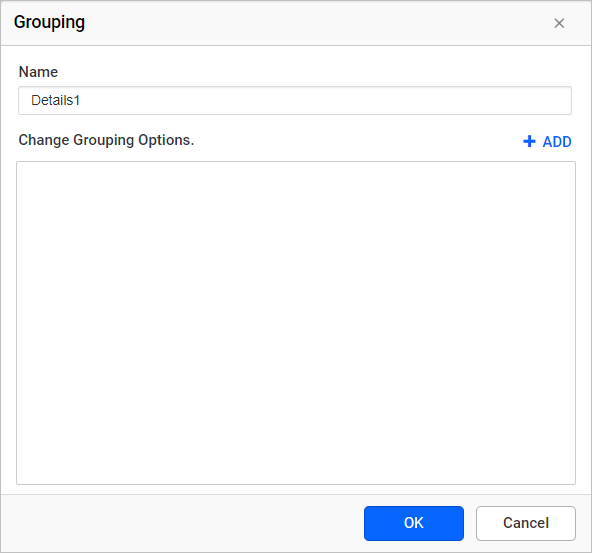
Add Grouping
-
To add a group expression, Click on the Add icon.
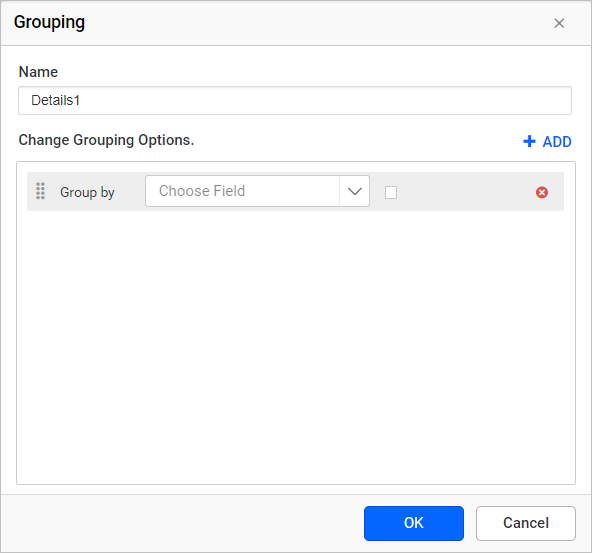
-
Based on the dataset assigned to the data region, dataset fields will be listed in this drop-down or else click on the square icon to set an Expression.
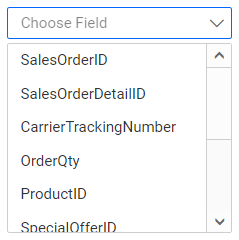
-
Click OK.
-
To add multiple group expression, follow steps 1 - 3.
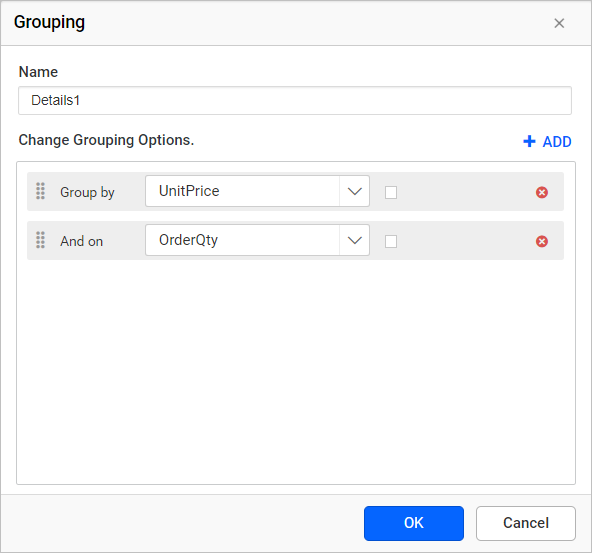
Set Expression
Follow steps 1 - 3, to add group expression.
-
To edit/create an expression, click on the square icon and select
Expression.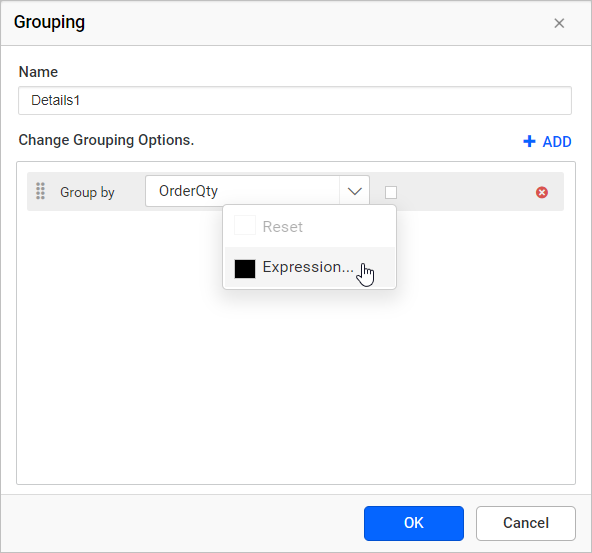
-
Expressiondialog will be open as shown below, Refer Expression section for better understanding with the following sections.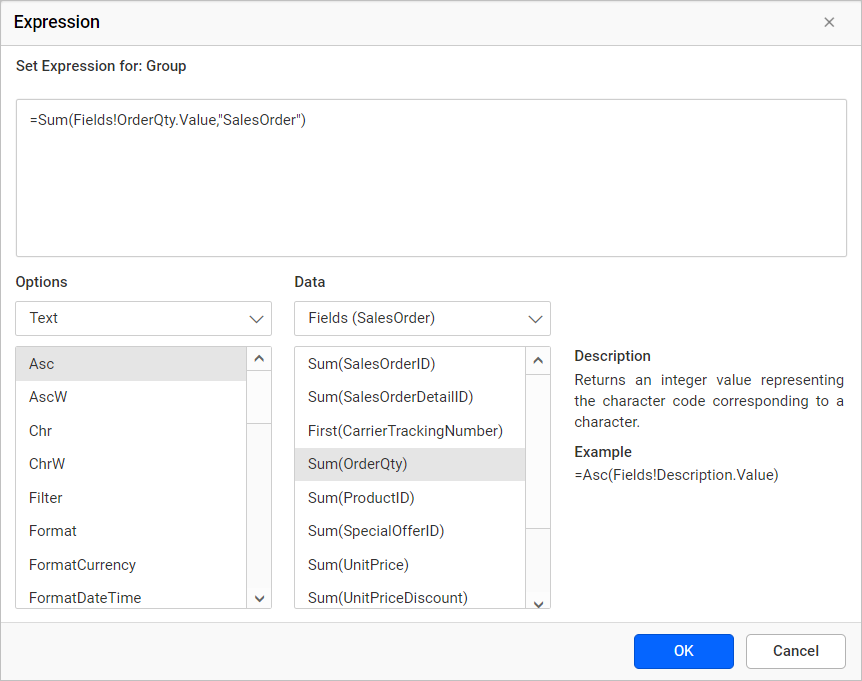
-
The icon will be indicated in
Black color, if the expression is applied to the dataset field.
Reset Expression
-
To reset an expression, click on the square icon and select
Reset.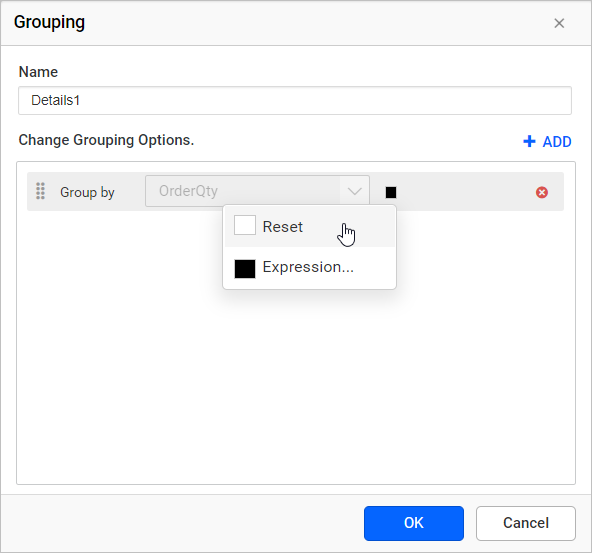
-
The icon will be indicated in
White color, after reset action.
Reordering
To change the order of an group expression, click and hold the icon in the left corner, and then drag the group expression to higher or lower position.
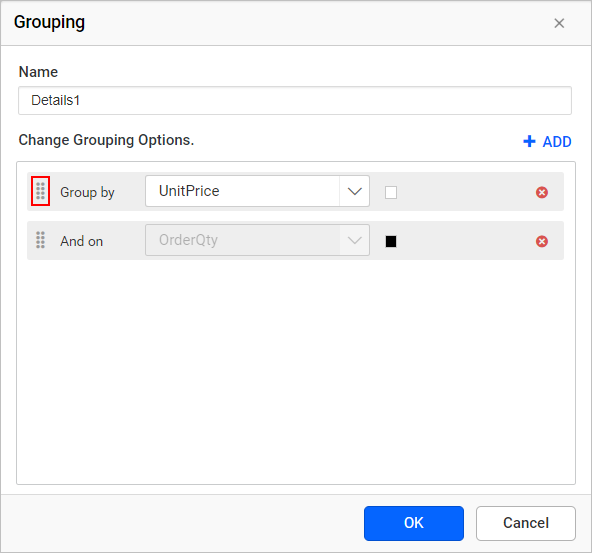
The position of dragged group expression is shown as below:
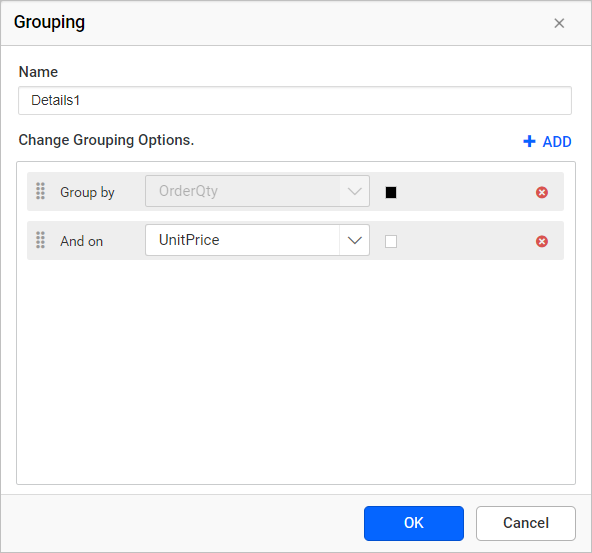
Remove Grouping
Click Delete icon in the right corner to remove the respective group expression.