Work with rulers in Bold Reports® Web Report Designer
The Ruler in Bold Reports® Web Report Designer helps you place report items precisely, both for on-screen design and print layout. Its visual guidance helps you keep a clean, organized layout, so reports export with consistent spacing and alignment.
With rulers, you can design, adjust, and finalize reports efficiently and keep them print-ready and ready for export.

What are error indication lines?
Error indication lines in Bold Reports® Designer warn you when report content may overflow the page on export. Reports are designed in a visual page view that simulates how elements appear when rendered.
The page view helps you see where content is placed, but it does not represent the final output in all export formats (print view). Specifically, pagination behavior may vary during export.
Design-Time View(Page View) vs. Export Output(Print View)
The design-time page view in Bold Reports® Designer is mainly for layout and positioning. It gives a close approximation of the final output but does not enforce the strict pagination rules that apply when you export a report (for example, to PDF).
When exporting, SSRS follows strict pagination rules based on the following parameters:
- Page size
- Margins
- Interactive height and width
Because of these constraints, even a slight overflow can add unexpected pages to the exported report. For example, one pixel of extra space caused by padding, spacing, or object alignment is enough.
Page Overflow Indicators
Bold Reports® Designer provides visual indicators during design time (page view) that alert you to potential overflow issues.
Red error lines appear on the rulers if the report content exceeds the defined page width or height.
A horizontal indication line appears if the following condition is met:
Page Width - (Page Left Margin + Page Right Margin) < Body Width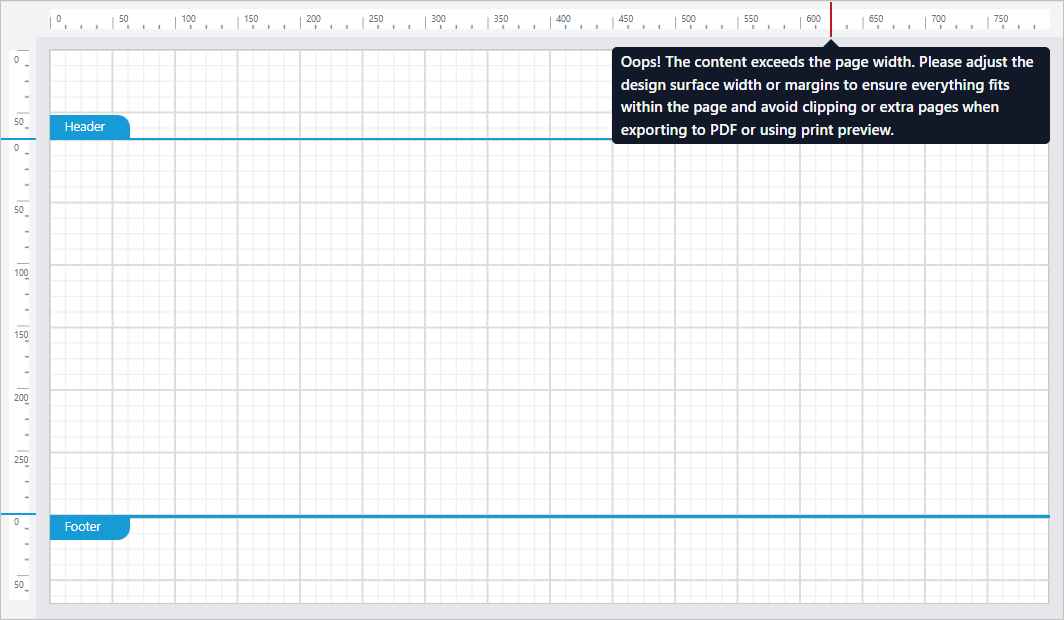
A vertical indication line appears if the following condition is met:
Page Height - (Page Top Margin + Page Bottom Margin) < (Header Height + Body Height + Footer Height)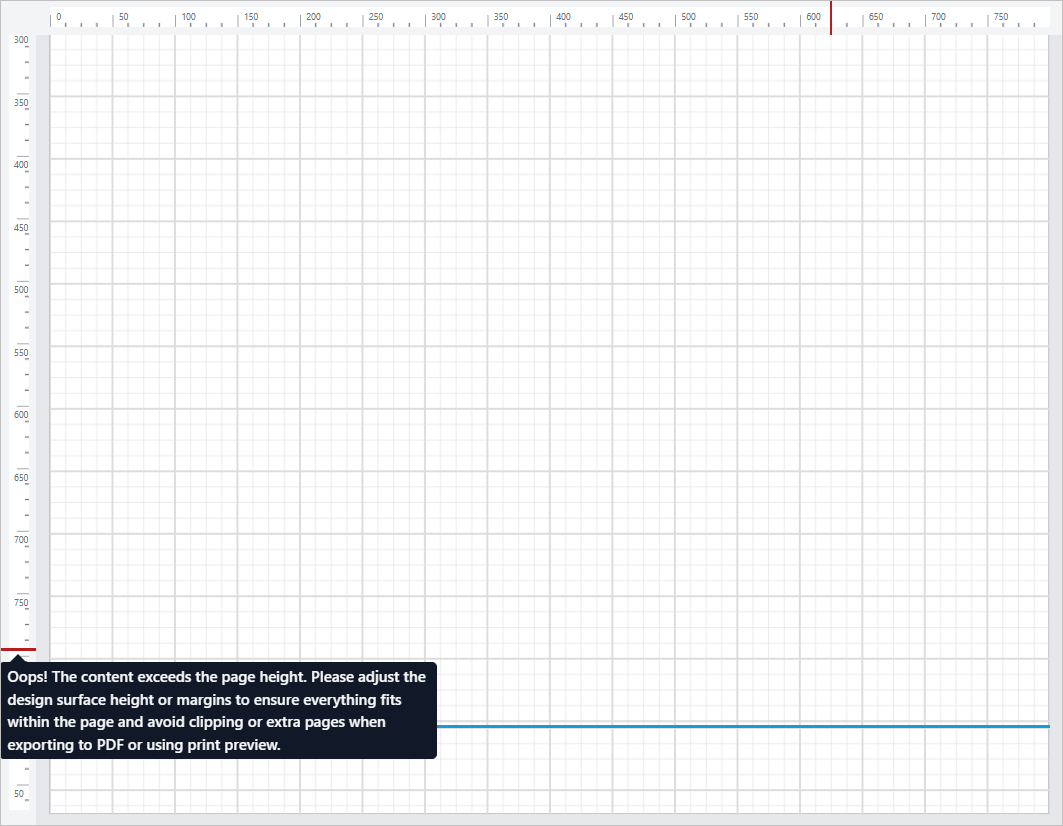
For example, the report width is 816 px, with a left margin of 100 px and a right margin of 100px. To check whether the body fits within the printable area, use the following formula:
Body Width (616 px) + Left Margin (100 px) + Right Margin (100 px) <= Report Width (816 px)A horizontal error indication line appears if the body width exceeds 616 px, because it would overflow the printable area (816 px - 100 px - 100 px = 616 px).
If the body width is 616 px or less, it fits within the available space, and the error indication line is not displayed.
Best Practices
To make sure your Bold Reports® report exports as intended, follow these guidelines:
- Keep all report elements within the visible horizontal and vertical page boundaries.
- Treat the red error lines as warnings and adjust content to match.
- Stay within the layout limits to keep a single-page format, especially for PDF exports.
To understand how page margin and usable area are calculated, read the Page Layout section.
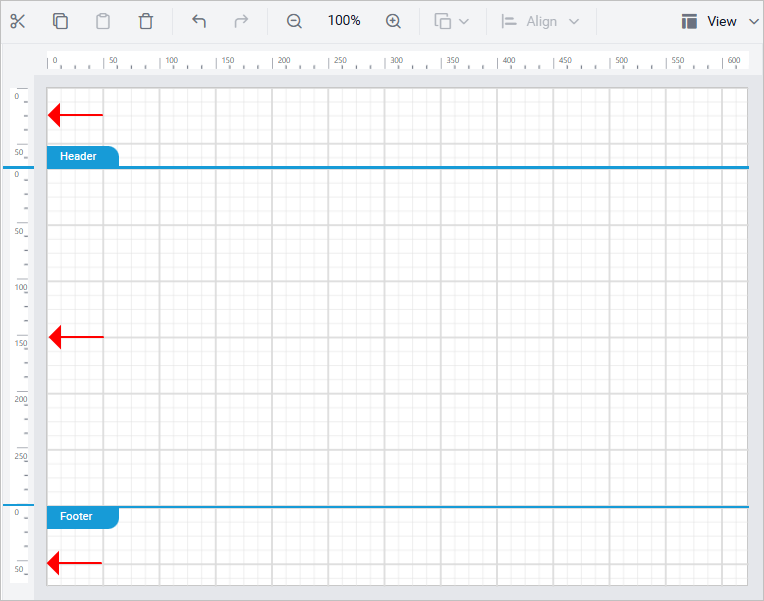
Vertical Rulers
Web Report Designer provides separate vertical rulers for the Header, Body, and Footer to clearly separate and measure each section.
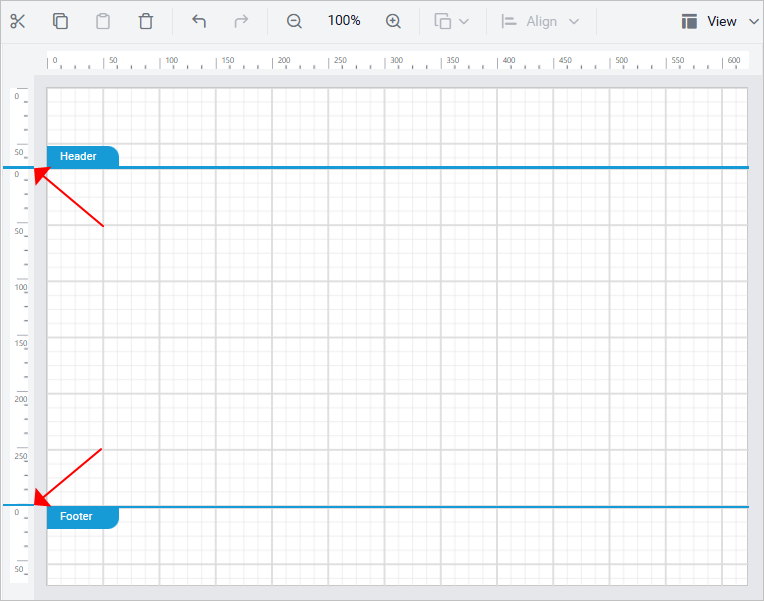
Section Lines
Section lines in Web Report Designer visually separate report sections like header, body, and footer. They make it easier to calculate each section’s height.
Mouse Position Indicator
The mouse position indicator in Web Report Designer shows where your cursor is on the rulers.
- A mouse move line tracks your current cursor location within the design area.
- These lines help you position report items accurately.
- They disappear when the mouse moves outside the design area.

Show or hide Ruler
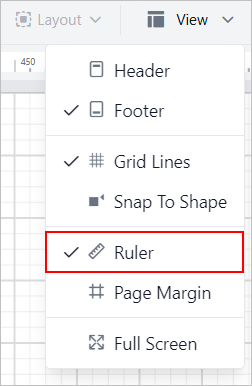
You show or hide the Ruler in Web Report Designer from the View menu.
- Open the View menu in the toolbar.
- Click the Ruler option in the menu.
Frequently asked questions
Why does my exported PDF have an extra page?
Even a slight overflow, such as one pixel of extra space from padding, spacing, or object alignment, can add unexpected pages. Red error lines on the rulers show content that exceeds the page width or height.
When does the horizontal error line appear?
It appears when the page width minus the left and right margins is less than the body width.