Azure Active Directory User Import
This section details the process for searching and importing users from Azure Active Directory into Bold Reports® Cloud.
Note: To import users, ensure that the Azure Active Directory connection is set up in theAzure Active Directory Settings.
Only users who are members of the System Administrator group can import Azure Active Directory users into Bold Reports®.
Search Users
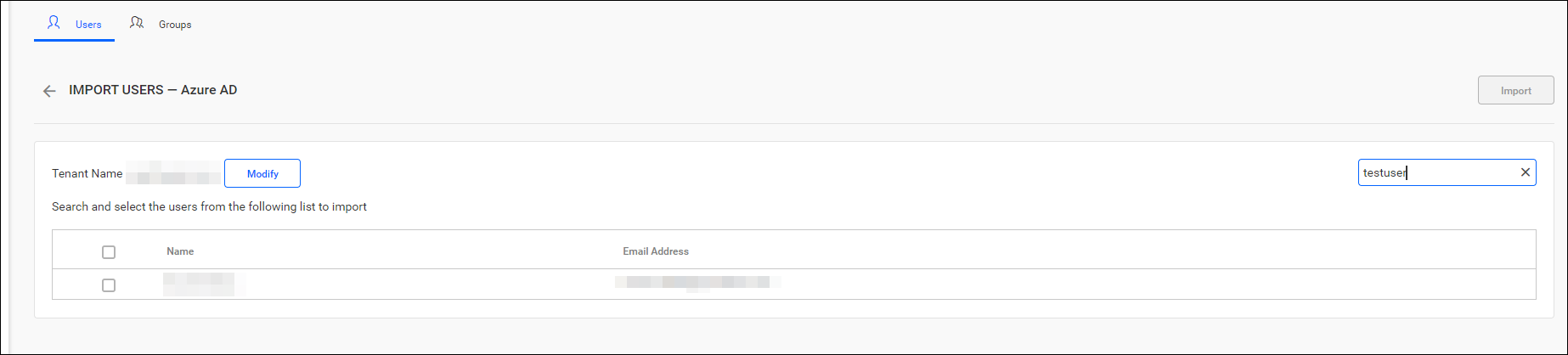
Active Directory users will not be displayed initially until a user search is conducted.
You can use any of the properties below to search for Azure Active Directory users and select them for import into Bold Reports®.
- Full name
- Email Address
A single request will search for and retrieve up to 1000 users from Azure Active Directory.
Bold Reports® will display the search results in the grid, as illustrated in the image below
Note: The search results will be generated based on a “starts with” query.
Import Users
-
To import users from Azure Active Directory into Bold Reports®, choose the users from the list and click the
Importbutton in the top right corner.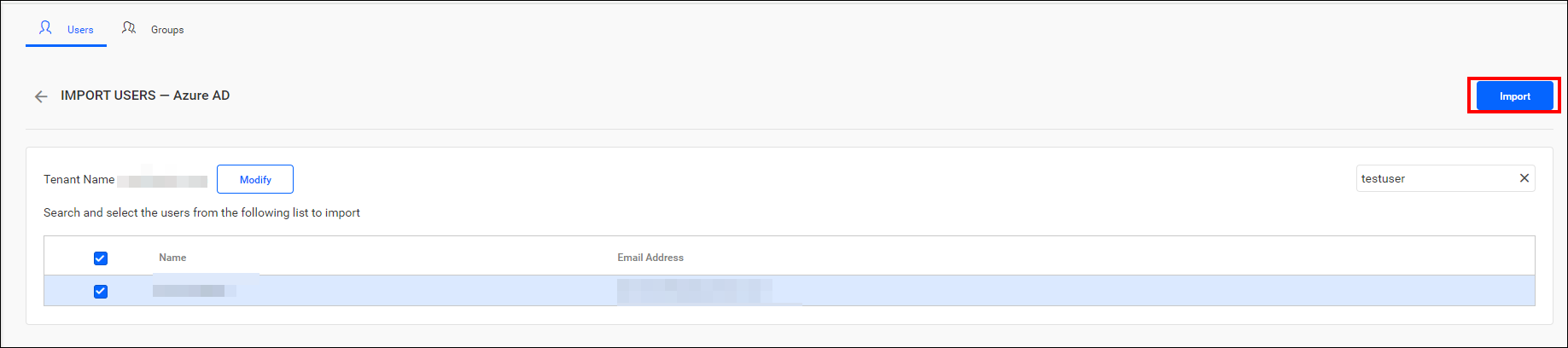
-
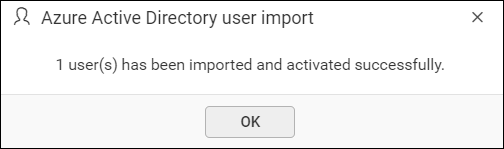
Bold Reports® will import the selected users, and a confirmation message will appear, as illustrated in the image below.
Duplicate Users
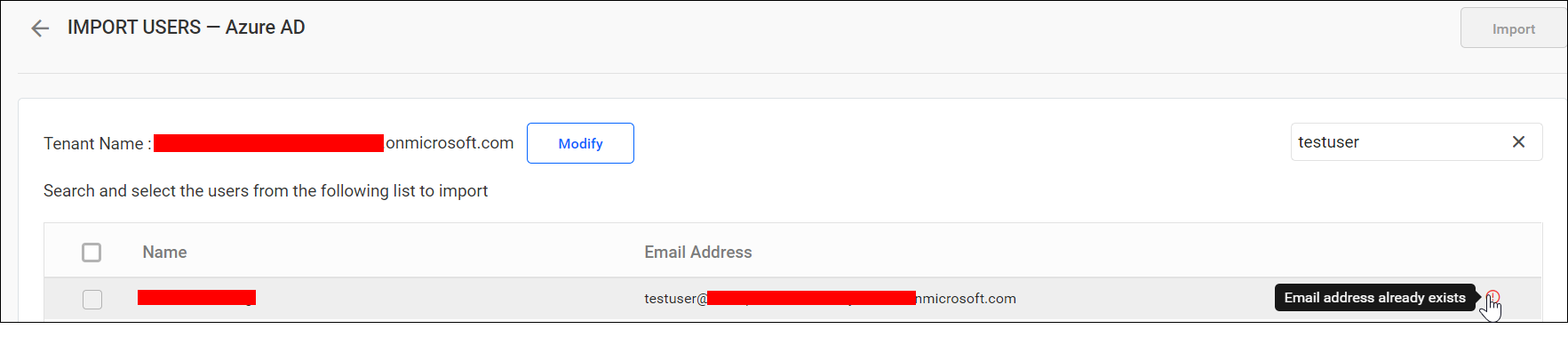
If Azure Active Directory users have email addresses that match those of users already in Bold Reports®, they will be marked as duplicates and will not be imported.
Modify the Azure Active Directory Connection
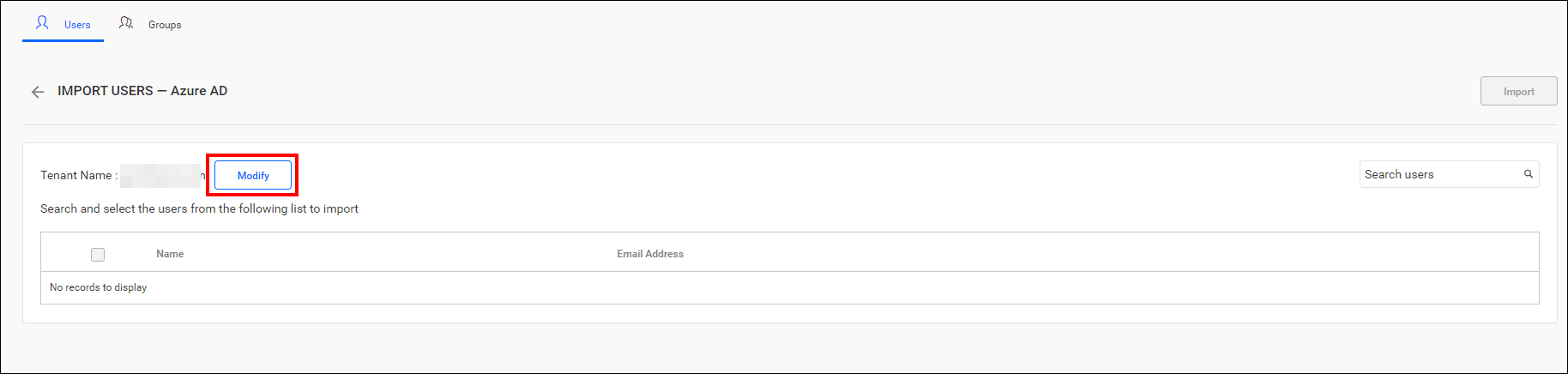
Click the Modify button, as indicated below, to change Azure Active Directory configuration settings.