Import users from CSV
To automate the process of adding a large number of users to Bold Report On-Premise, download the CSV template file, add the users to it, and then import the file.
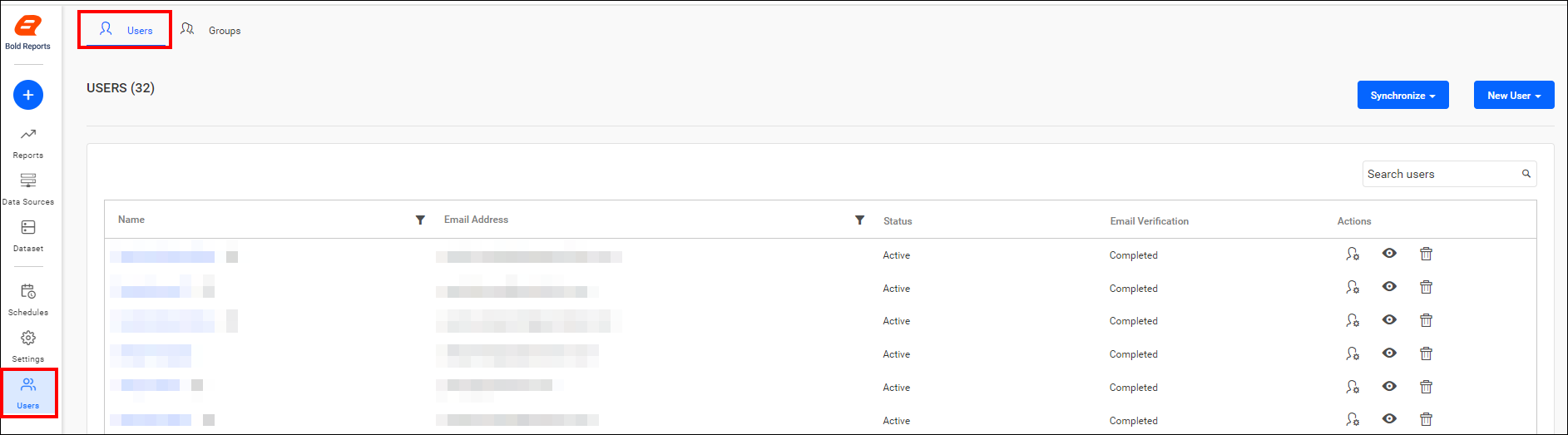
You can navigate to the user management page by clicking the User menu, as shown below.
Add users from the CSV file
In New User, click on Import from csv.

CSV template requirements
The first row in the CSV template represents the column heading. Bold Reports® assumes that the data starting from the second line in the file represents the user information.
We consider the following columns as mandatory in the downloaded CSV file.
- Email address
- Full Name
Follow the below steps to add users using the CSV template
-
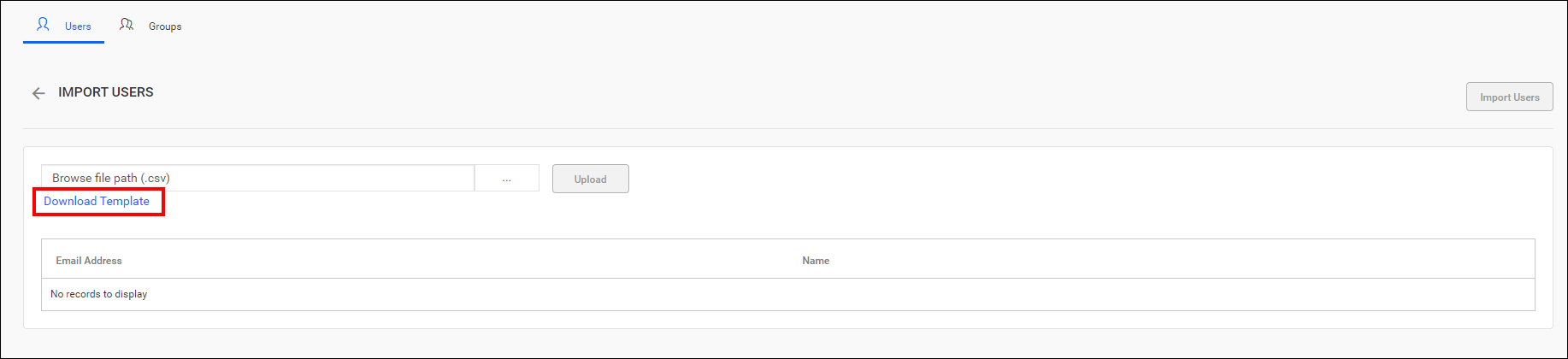
Download a CSV template.
-
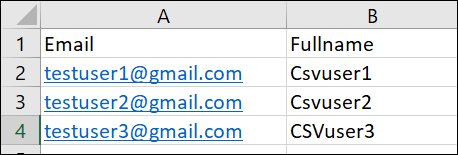
Add users in the CSV file.
-
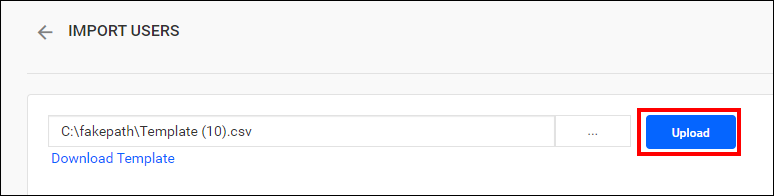
Save the CSV file and upload it.
-
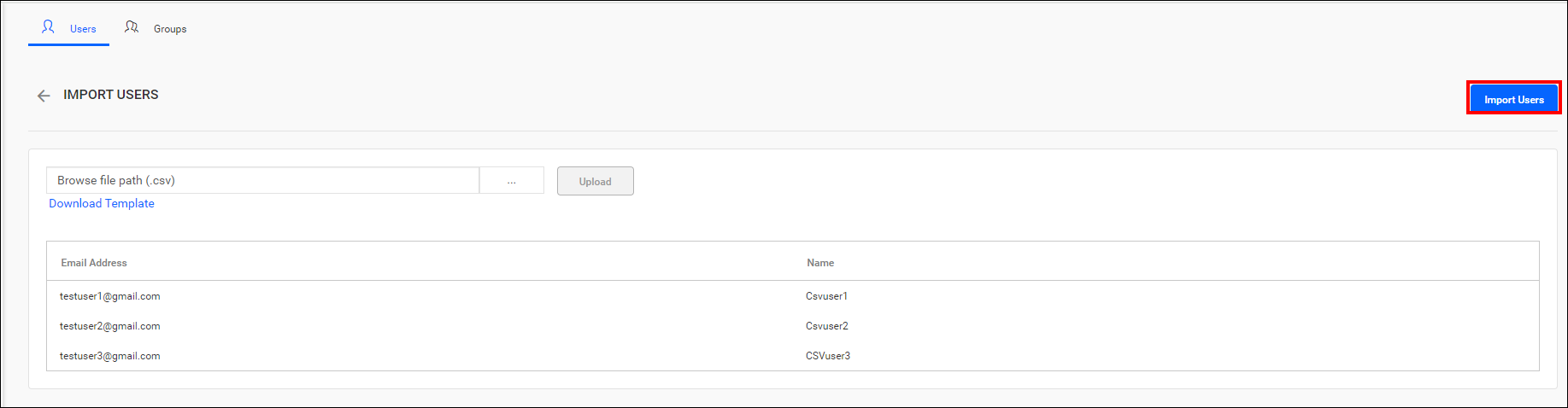
Once the file is uploaded, the user details will be displayed in the grid, as shown in the image below.
-
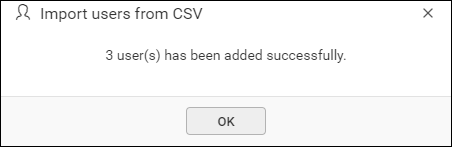
After importing users in Bold Reports®, the success message is displayed as shown below: