How nested object JSON data source is processed in Standalone Report Designer
When you connect a nested object JSON data source in the Bold Reports® Standalone Report Designer, the designer converts the nested data into a flat format. The following steps create a sample nested JSON data source and show how it is processed.
-
Open the data source panel, click
New Dataand select the JSON datasource.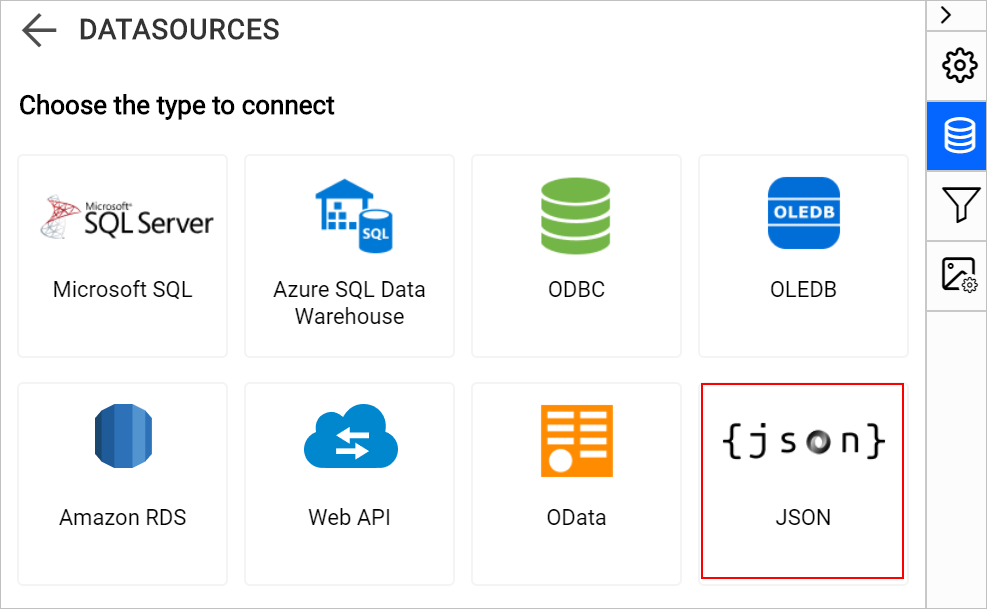
-
Choose the inline JSON type.

You can choose the JSON type as per your requirement.
-
Now, add the inline JSON data with nested object, which needs to be placed in the inline text box.
{   "employees":
 [{
         "name":"John",
         "email":"[email protected]",
         "age":32,
         "address": [{ "address" : "1/45 Western Street, berlin, Germany" }, { "address" : "1/45 Western Street, cologne, Germany" }]
},
{
         "name":"Smith",
         "email":"[email protected]",
         "age":21,
         "address": [{ "address" : "14/45 Western Street, berlin, Germany" }, { "address" : "14/45 Western Street, cologne, Germany" }]

},
{
         "name":"Chard",
         "email":"[email protected]",
         "age":21,
         "address": [{ "address" : "14/45 Western Street, berlin, Germany" }, { "address" : "14/45 Western Street, cologne, Germany" }]

},
{
         "name":"kristen",
         "email":"[email protected]",
         "age":21,
         "address": [{ "address" : "14/45 Western Street, berlin, Germany" }, { "address" : "14/45 Western Street, cologne, Germany" }]

}]
}
In the previous sample JSON data, each employee has two address in hierarchical level, which will be converted into flatten data format while connecting to the data source.
-
Click
Connect. -
Query Designer will be opened, in which you need to add the dataset to the report.
-
Click
Runto see the JSON data converted into flatten data format.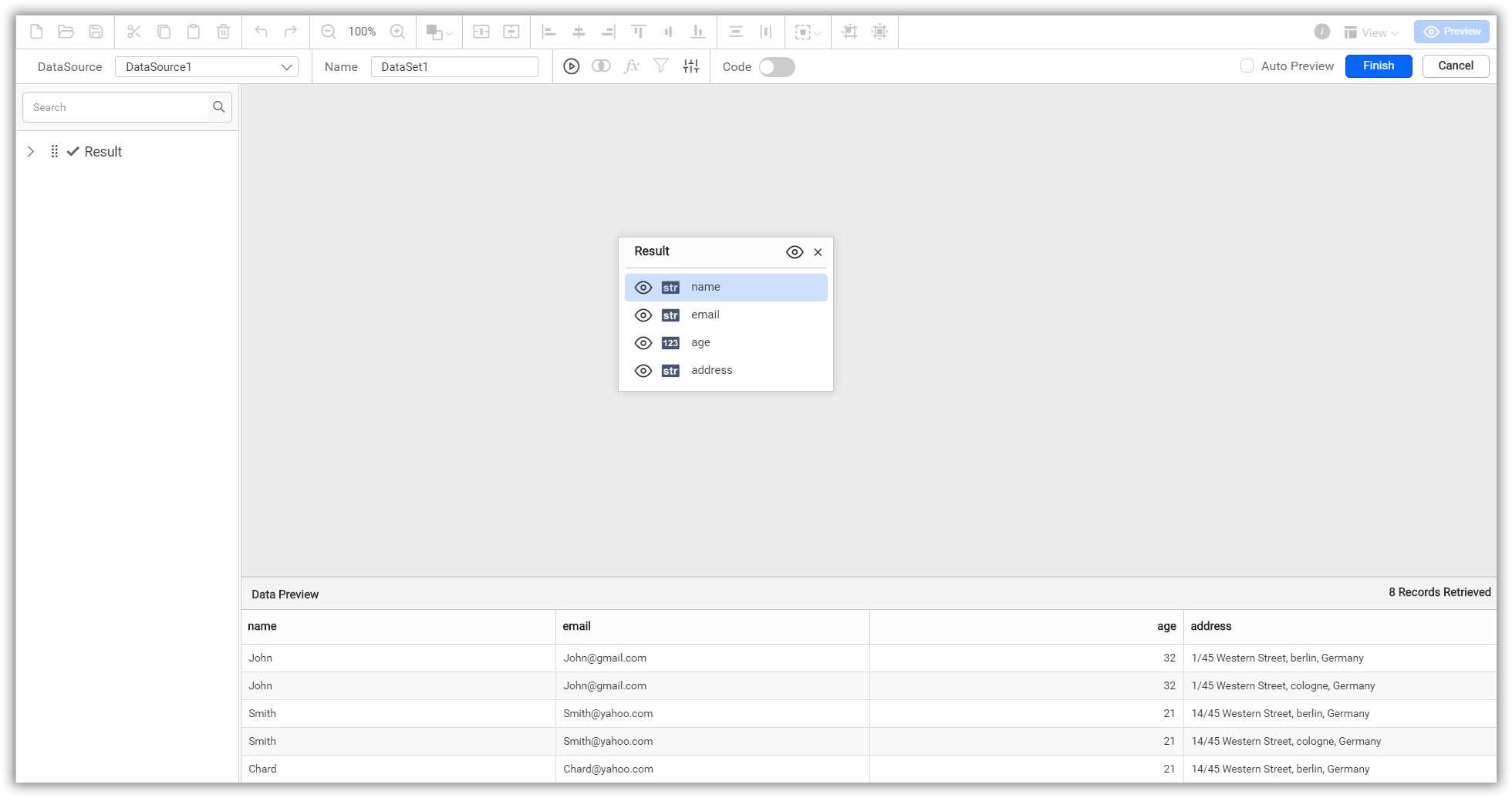
In the above JSON data each employee has two address in hierarchical level, which is converted into flatten data format.
-
Click
Finishto successfully add dataset to the report. -
Add a table and assign the necessary values.
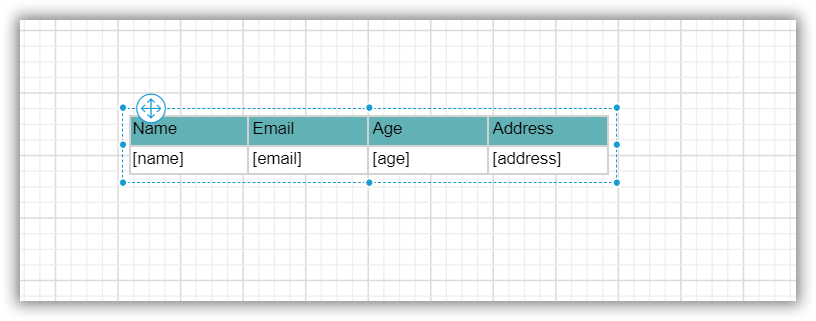
If you need to perform grouping to the data in the table, then you can refer to this Add Grouping and Totals section.
-
Now, the report preview can be visualized as follows.
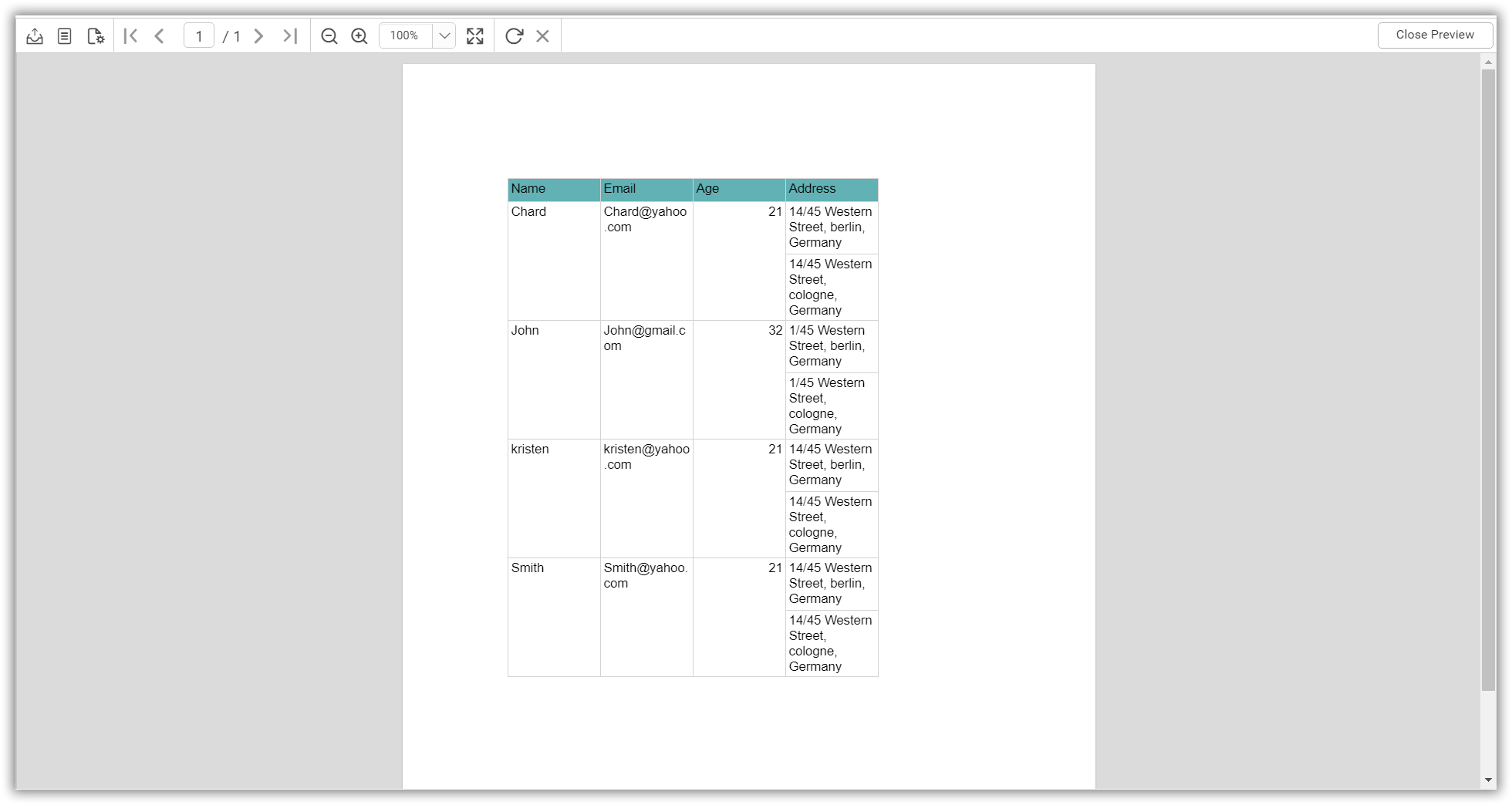
The previous report is grouped based on name of the employee.