Embed Bold Reports® Report Server Report
This section explains how to embed the Bold Report Server reports in your Angular application. The Bold Report Server contains built-in web API service that allows you to display the reports in your application without creating a new web API. You need a Report Viewer Angular application to do the following steps:
In Angular version
20.xand above, certain filenames have been updated. For example, the file previously namedapp.component.tsis now renamed toapp.ts.
Prerequisites
Before you begin, make sure your development environment includes the following:
- Node JS (
version 20.x or 22.x and above) Version Compatibility - NPM (
v10.x.x or higher)
Install the Angular CLI
Angular provides the easiest way to set Angular CLI projects using the Angular CLI tool. To install the CLI application globally on your machine, run the following command in the Command Prompt.
npm install -g @angular/cli@latestTo learn more about
angular-clicommands, click here.
Create a new application
To create a new Angular application, run the following command in the Command Prompt.
ng new project-name

E.g : ng new reportviewerapp
The ng new command prompts you for information about features to include in the initial app project. Accept the defaults by pressing the Enter or Return key.
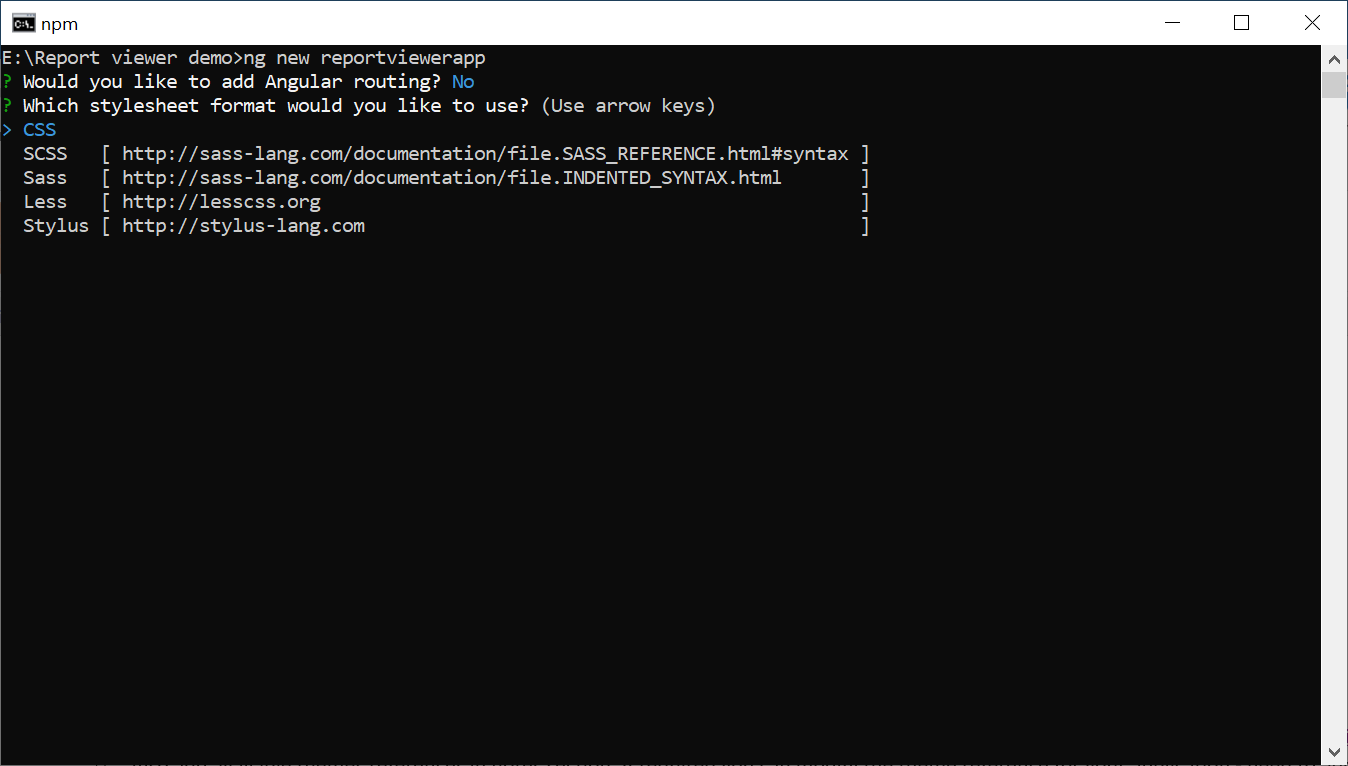
Configure the Bold Report Viewer in Angular CLI
Reporting tools packages are distributed in NPM package as @boldreports/angular-reporting-components.
-
To configure the Report Viewer component, change the directory to your application’s root folder.
cd project-name E.g: cd reportviewerapp -
Run the following commands to install the Bold Reports® Angular library.
npm install @boldreports/angular-reporting-components --save-dev -
Install the typings dependencies
jquery,types/jqueryandboldreports/types.npm install --save-dev jquery npm install --save-dev @types/jquery npm install --save-dev @boldreports/types -
Refer the jQuery script file (
jquery.js) as given in theangular.jsonfile within theprojectname > scriptssection (For example,reportviewerapp > scripts).{ "$schema": "./node_modules/@angular/cli/lib/config/schema.json", "projects": { "reportviewerapp": { "root": "src", "outDir": "dist", . . . . . . "styles": [ "src/styles.css" ], "scripts": [ "./node_modules/jquery/dist/jquery.js" ], . . . . . . } } } -
Add the typings
jquery, andreports.allto thetsconfig.app.jsonfile.{ ... ... "compilerOptions": { ... ... "types": [ "jquery", "reports.all" ] }, ... ... } -
Register the
@bold-reports/typesunder thetypeRootsnode in thetsconfig.jsonfile.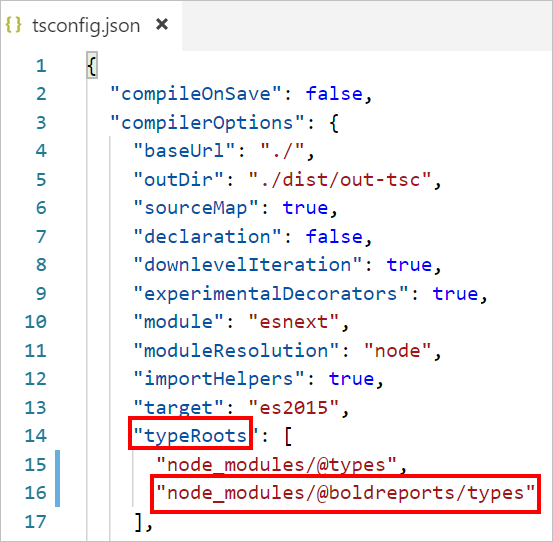
Adding CSS reference
Add the Report Viewer component style (bold.report-viewer.min.css) as given in the angular.json file within the projectname > styles section (For example, reportviewerapp > styles).
{
  "$schema": "./node_modules/@angular/cli/lib/config/schema.json",
  "projects": {
    "reportviewerapp": {
      "root": "src",
      "outDir": "dist",
      . . .
      . . .
      "styles": [
        "styles.css",
        "./node_modules/@boldreports/javascript-reporting-controls/Content/v2.0/tailwind-light/bold.report-viewer.min.css"
      ],
      "scripts": [
        "./node_modules/jquery/dist/jquery.js"
      ],
      . . .
      . . .
    }
  }
}
In the previous code, the
tailwind-lighttheme is used. You can modify the theme based on your application, refer the following syntax:./node_modules/@boldreports/javascript-reporting-controls/Content/v2.0/[theme-name]/bold.report-viewer.min.css
Adding Report Viewer component
To add the Report Viewer component, refer to the following steps:
-
Open the
app.tsorapp.component.tsfile. -
You can replace the following code snippet in the
app.tsorapp.component.tsfile.import { Component } from '@angular/core'; import { CommonModule } from '@angular/common'; import { BoldReportViewerModule } from '@boldreports/angular-reporting-components'; // data-visualization import '@boldreports/javascript-reporting-controls/Scripts/v2.0/common/bold.reports.common.min'; import '@boldreports/javascript-reporting-controls/Scripts/v2.0/common/bold.reports.widgets.min'; // Report viewer import '@boldreports/javascript-reporting-controls/Scripts/v2.0/bold.report-viewer.min'; @Component({ selector: 'app-root', imports: [CommonModule, BoldReportViewerModule], templateUrl: './app.html', // or app.component.html styleUrls: ['./app.css'] // or app.component.css }) export class AppComponent { public reportServiceUrl: string; public reportServerUrl: string; public reportPath: string; public serviceAuthorizationToken: string; constructor() { // Initialize the Report Viewer properties here. } } -
Open the
app.htmlorapp.component.htmlfile and initialize the Report Viewer. -
You can replace the following code snippet in the
app.htmlorapp.component.htmlfile.<bold-reportviewer id="reportViewer_Control" style="width: 100%;height: 950px"> </bold-reportviewer>
Report Server Configuration to render the report
Report Viewer requires the serviceAuthorizationToken, reportPath and reportServiceUrl to embed the reports. You can provide the information from report server as like explained below,
reportServiceUrl– Report Server Reporting Service information should be provided for this API.reportServerUrl- Report Server Reporting Server information should be provided for this API.serviceAuthorizationToken– Authorization token to communicate with reportServiceUrl.reportPath- Path of report need to formed with information for category and report name as like/{category name}/{report name}
If you need to know the difference between
reportServiceUrlandreportServerUrl, refer to the Difference between Report Service URL and Report Server URL.
You can replace the following code snippet in the app.html or app.component.html file.
  <bold-reportviewer
  id="reportViewer_Control"
  [reportServiceUrl]="reportServiceUrl"
  [reportServerUrl]="reportServerUrl"
  [serviceAuthorizationToken]="serviceAuthorizationToken"
  [reportPath]="reportPath"
  style="width: 100%;height: 950px">
  </bold-reportviewer>
You can follow one of the procedure from below based on your Report Server type,
Enterprise Reporting Report Server
-
Generate token with your user credentials and assign it to serviceAuthorizationToken. You can refer to the documentation here, to generate the token by using credentials.
import { Component } from '@angular/core';
import { CommonModule } from '@angular/common';
import { BoldReportViewerModule } from '@boldreports/angular-reporting-components';
// data-visualization
import '@boldreports/javascript-reporting-controls/Scripts/v2.0/common/bold.reports.common.min';
import '@boldreports/javascript-reporting-controls/Scripts/v2.0/common/bold.reports.widgets.min';
// Report viewer
import '@boldreports/javascript-reporting-controls/Scripts/v2.0/bold.report-viewer.min';

@Component({
  selector: 'app-root',
  imports: [CommonModule, BoldReportViewerModule],
  templateUrl: './app.html', // or app.component.html
  styleUrls: ['./app.css'] // or app.component.css
})
export class AppComponent {
  public reportServiceUrl: string;
  public reportServerUrl: string;
  public reportPath: string;
  public serviceAuthorizationToken: string;

  constructor() {
    this.serviceAuthorizationToken = 'bearer <server token>';
  }
}
You can refer to the documentation here on how to generate the token within an application.
-
Set the Bold Report Server built-in service URL to the
reportServiceUrlproperty. ThereportServiceUrlproperty value should be in format ofhttps://<<Report server name>>/reporting/reportservice/api/Viewer.import { Component } from '@angular/core'; import { CommonModule } from '@angular/common'; import { BoldReportViewerModule } from '@boldreports/angular-reporting-components'; // data-visualization import '@boldreports/javascript-reporting-controls/Scripts/v2.0/common/bold.reports.common.min'; import '@boldreports/javascript-reporting-controls/Scripts/v2.0/common/bold.reports.widgets.min'; // Report viewer import '@boldreports/javascript-reporting-controls/Scripts/v2.0/bold.report-viewer.min'; @Component({ selector: 'app-root', imports: [CommonModule, BoldReportViewerModule], templateUrl: './app.html', // or app.component.html styleUrls: ['./app.css'] // or app.component.css }) export class AppComponent { public reportServiceUrl: string; public reportServerUrl: string; public reportPath: string; public serviceAuthorizationToken: string; constructor() { this.reportServiceUrl = 'https://on-premise-demo.boldreports.com/reporting/reportservice/api/Viewer'; this.serviceAuthorizationToken = 'bearer <server token>'; } } -
Set the Bold Report Server built-in server URL to the
reportServerUrlproperty. ThereportServerUrlproperty value should be in format ofhttps://<<Report server name>>/reporting/api/site/<<site name>>.import { Component } from '@angular/core'; import { CommonModule } from '@angular/common'; import { BoldReportViewerModule } from '@boldreports/angular-reporting-components'; // data-visualization import '@boldreports/javascript-reporting-controls/Scripts/v2.0/common/bold.reports.common.min'; import '@boldreports/javascript-reporting-controls/Scripts/v2.0/common/bold.reports.widgets.min'; // Report viewer import '@boldreports/javascript-reporting-controls/Scripts/v2.0/bold.report-viewer.min'; @Component({ selector: 'app-root', imports: [CommonModule, BoldReportViewerModule], templateUrl: './app.html', // or app.component.html styleUrls: ['./app.css'] // or app.component.css }) export class AppComponent { public reportServiceUrl: string; public reportServerUrl: string; public reportPath: string; public serviceAuthorizationToken: string; constructor() { this.reportServerUrl = 'https://on-premise-demo.boldreports.com/reporting/api/site/site1'; this.reportServiceUrl = 'https://on-premise-demo.boldreports.com/reporting/reportservice/api/Viewer'; this.serviceAuthorizationToken = 'bearer <server token>'; } } -
Set the path of report in
reportPathproperty.import { Component } from '@angular/core'; import { CommonModule } from '@angular/common'; import { BoldReportViewerModule } from '@boldreports/angular-reporting-components'; // data-visualization import '@boldreports/javascript-reporting-controls/Scripts/v2.0/common/bold.reports.common.min'; import '@boldreports/javascript-reporting-controls/Scripts/v2.0/common/bold.reports.widgets.min'; // Report viewer import '@boldreports/javascript-reporting-controls/Scripts/v2.0/bold.report-viewer.min'; @Component({ selector: 'app-root', imports: [CommonModule, BoldReportViewerModule], templateUrl: './app.html', // or app.component.html styleUrls: ['./app.css'] // or app.component.css }) export class AppComponent { public reportServiceUrl: string; public reportServerUrl: string; public reportPath: string; public serviceAuthorizationToken: string; constructor() { this.reportServerUrl = 'https://on-premise-demo.boldreports.com/reporting/api/site/site1'; this.reportServiceUrl = 'https://on-premise-demo.boldreports.com/reporting/reportservice/api/Viewer'; this.serviceAuthorizationToken = 'bearer <server token>'; this.reportPath = '/Sample Reports/Product Line Sales'; } }
Cloud Reporting server
-
Generate token with your user credentials and assign it to serviceAuthorizationToken. You can refer the documentation here, to generate the token by using credentials.
import { Component } from '@angular/core';
import { CommonModule } from '@angular/common';
import { BoldReportViewerModule } from '@boldreports/angular-reporting-components';
// data-visualization
import '@boldreports/javascript-reporting-controls/Scripts/v2.0/common/bold.reports.common.min';
import '@boldreports/javascript-reporting-controls/Scripts/v2.0/common/bold.reports.widgets.min';
// Report viewer
import '@boldreports/javascript-reporting-controls/Scripts/v2.0/bold.report-viewer.min';

@Component({
  selector: 'app-root',
  imports: [CommonModule, BoldReportViewerModule],
  templateUrl: './app.html', // or app.component.html
  styleUrls: ['./app.css'] // or app.component.css
})
export class AppComponent {
  public reportServiceUrl: string;
  public reportServerUrl: string;
  public reportPath: string;
  public serviceAuthorizationToken: string;

  constructor() {
    this.serviceAuthorizationToken = 'bearer <server token>';
  }
}
You can refer to the documentation here on how to generate the token within an application.
-
Set the Bold Report Server built-in service URL to the
reportServiceUrlproperty. ThereportServiceUrlproperty value is ahttps://service.boldreports.com/api/Viewer.import { Component } from '@angular/core'; import { CommonModule } from '@angular/common'; import { BoldReportViewerModule } from '@boldreports/angular-reporting-components'; // data-visualization import '@boldreports/javascript-reporting-controls/Scripts/v2.0/common/bold.reports.common.min'; import '@boldreports/javascript-reporting-controls/Scripts/v2.0/common/bold.reports.widgets.min'; // Report viewer import '@boldreports/javascript-reporting-controls/Scripts/v2.0/bold.report-viewer.min'; @Component({ selector: 'app-root', imports: [CommonModule, BoldReportViewerModule], templateUrl: './app.html', // or app.component.html styleUrls: ['./app.css'] // or app.component.css }) export class AppComponent { public reportServiceUrl: string; public reportServerUrl: string; public reportPath: string; public serviceAuthorizationToken: string; constructor() { this.reportServerUrl = 'https://acmecorp.boldreports.com/reporting/api'; this.reportServiceUrl = 'https://service.boldreports.com/api/Viewer'; this.serviceAuthorizationToken = 'bearer <server token>'; } } -
Set the Bold Report Server built-in server URL to the
reportServerUrlproperty. ThereportServerUrlproperty value should be in format ofhttps://<<Report server name>>/reporting/api/.import { Component } from '@angular/core'; import { CommonModule } from '@angular/common'; import { BoldReportViewerModule } from '@boldreports/angular-reporting-components'; // data-visualization import '@boldreports/javascript-reporting-controls/Scripts/v2.0/common/bold.reports.common.min'; import '@boldreports/javascript-reporting-controls/Scripts/v2.0/common/bold.reports.widgets.min'; // Report viewer import '@boldreports/javascript-reporting-controls/Scripts/v2.0/bold.report-viewer.min'; @Component({ selector: 'app-root', imports: [CommonModule, BoldReportViewerModule], templateUrl: './app.html', // or app.component.html styleUrls: ['./app.css'] // or app.component.css }) export class AppComponent { public reportServiceUrl: string; public reportServerUrl: string; public reportPath: string; public serviceAuthorizationToken: string; constructor() { this.reportServerUrl = 'https://acmecorp.boldreports.com/reporting/api'; this.reportServiceUrl = 'https://service.boldreports.com/api/Viewer'; this.serviceAuthorizationToken = 'bearer <server token>'; } } -
Set the path of report in
reportPathproperty.import { Component } from '@angular/core'; import { CommonModule } from '@angular/common'; import { BoldReportViewerModule } from '@boldreports/angular-reporting-components'; // data-visualization import '@boldreports/javascript-reporting-controls/Scripts/v2.0/common/bold.reports.common.min'; import '@boldreports/javascript-reporting-controls/Scripts/v2.0/common/bold.reports.widgets.min'; // Report viewer import '@boldreports/javascript-reporting-controls/Scripts/v2.0/bold.report-viewer.min'; @Component({ selector: 'app-root', imports: [CommonModule, BoldReportViewerModule], templateUrl: './app.html', // or app.component.html styleUrls: ['./app.css'] // or app.component.css }) export class AppComponent { public reportServiceUrl: string; public reportServerUrl: string; public reportPath: string; public serviceAuthorizationToken: string; constructor() { this.reportServerUrl = 'https://acmecorp.boldreports.com/reporting/api'; this.reportServiceUrl = 'https://service.boldreports.com/api/Viewer'; this.serviceAuthorizationToken = 'bearer <server token>'; this.reportPath = '/Sample Reports/Product Line Sales'; } }
Serve the application
To serve the application, follow these steps:
-
Navigate to the root of the application and run the application using the following command.
ng serve -
Navigate to the appropriate port
http://localhost:4200in the browser.