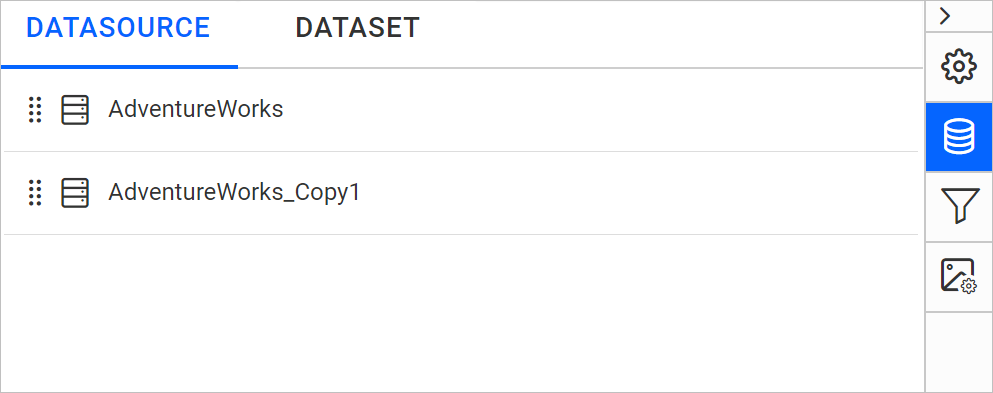
Duplicate a data source
You duplicate a data source in the Bold Reports® Web Report Designer by choosing Clone from the data source context menu in the DATASOURCE panel. A duplicate is useful when report items need data-level restrictions.
How do I duplicate a data source?
You duplicate a data source from the DATASOURCE panel of the Bold Reports® Web Report Designer with the following steps:
- Select the data source that you need to duplicate in the
DATASOURCEpanel.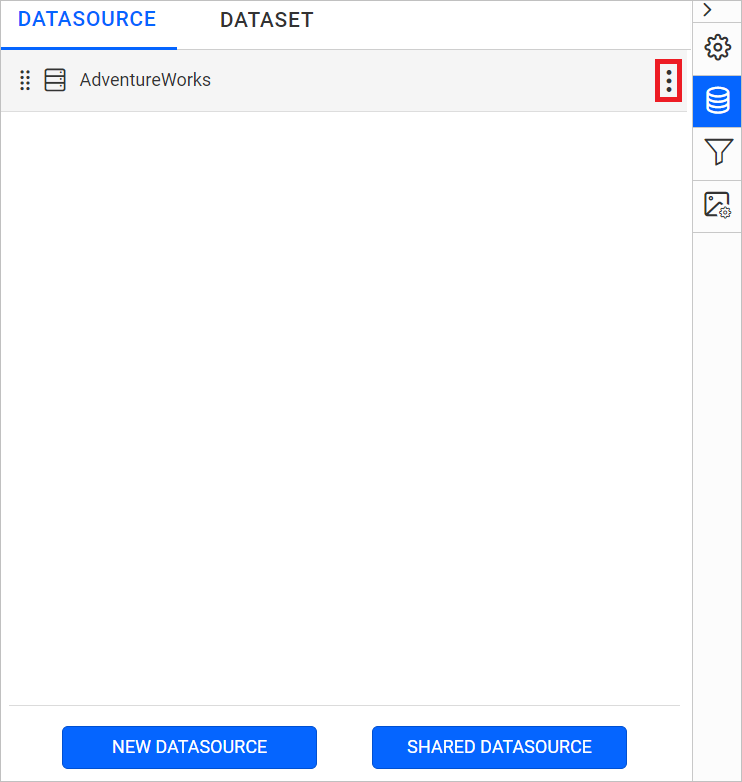
- Click the highlighted icon shown in the previous image to open the context menu.
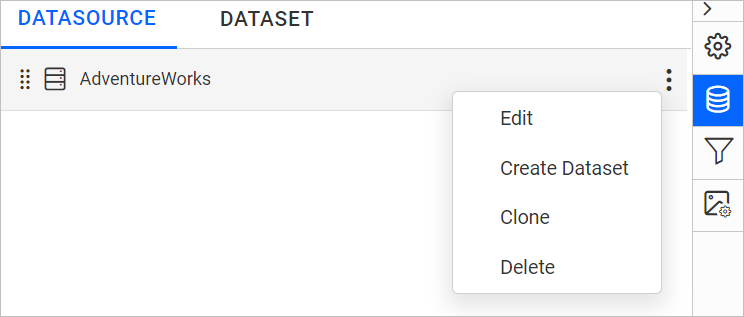
- Choose the
Cloneoption from the context menu to duplicate the selected data source.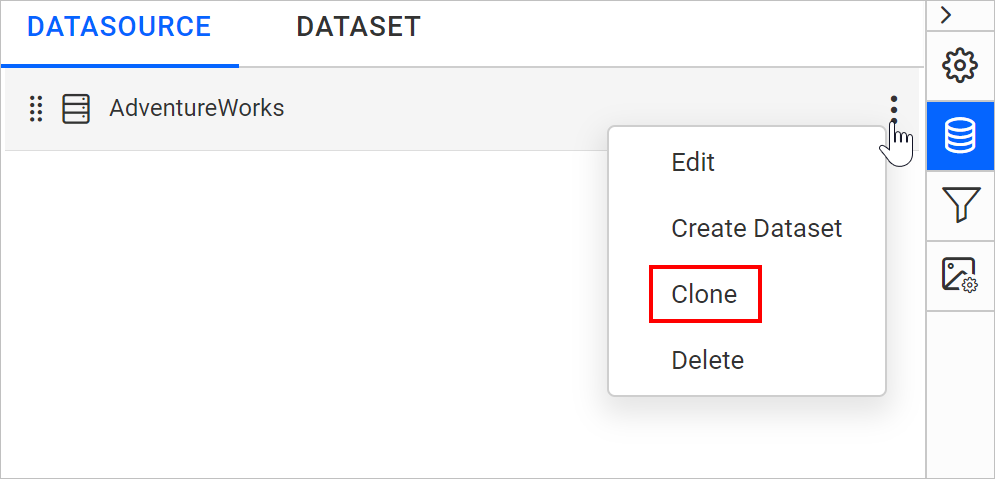
- Check the
DATASOURCEpanel. A duplicated data source is created, as shown below.