Install Data Hub
Make Data Hub optional during installation of Bold Reports®.
Users have the option to install the Data Hub Application in conjunction with Bold Reports® by following the outlined steps provided for their convenience.
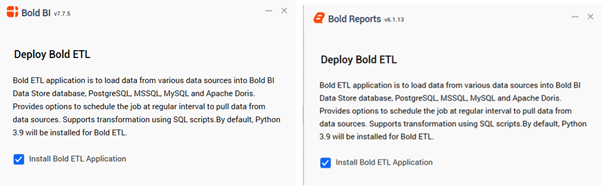
- During the installation process, users have the option to incorporate Data Hub Application by checking the box labeled “Install Data Application” in the installer wizard interface.
-
On the other hand, individuals who desire to skip the Data Hub application during the configuration process have the option to uncheck the specified checkbox.
-
Users have the option to install the Data Hub application after the initial setup by accessing the
BoldETL.msifile found within the installation directories of either Bold Reports® or Bold Reports®. -
In order to properly install the Data Hub service and application pool, it is necessary for users to access the command prompt in administrative mode and run the BoldETL.msi file.
Example, Bold Reports® & Bold Reports® Locations:
“C:\Program Files (x86) \Bold Reports\Enterprise Reporting\BoldETL>BoldETL.msi”
“C:\Program Files (x86) \Bold Reports Enterprise Edition\BoldETL>BoldETL.msi”
Failure to follow this procedure and instead attempting to install the Data Hub service by simply double-clicking on the MSI file may lead to potential service configuration issues within the Internet Information Services (IIS) environment
Uninstall Data Hub in Bold Reports®.
- To properly remove the Data Hub Application, users are recommended to access the system registry and locate the
Computer\HKEY_LOCAL_MACHINE\SOFTWARE\Microsoft\Windows\CurrentVersion\Uninstallkey associated with the application for uninstallation.
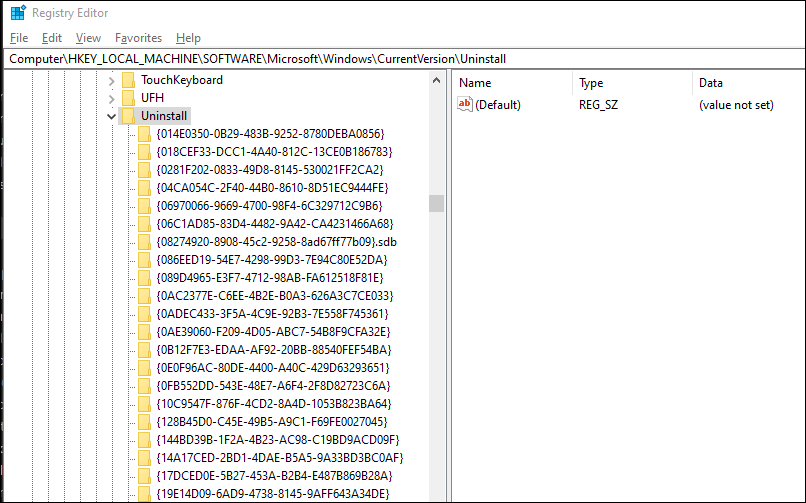
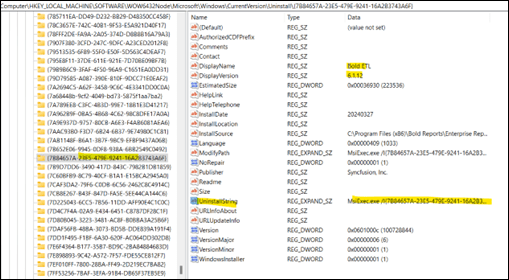
- Users can locate the precise Data Hub version or application by conducting a search within the provided key. Once identified, they can access the Uninstall string and proceed to execute the required command in the Command Prompt, ensuring administrative privileges are granted.
-
To access the complete uninstall string for MSIExec.exe, double click on the UninstallString. Subsequently, modify the /I to /X in the obtained string.
For example:
From: MsiExec.exe /I{7B84657A-23E5-479E-9241-16A2B3743A6F} To: MsiExec.exe /X{7B84657A-23E5-479E-9241-16A2B3743A6F} -
Next, proceed to execute the specified command in the command prompt while ensuring administrator privileges are active. The Data Hub application will then be uninstalled as directed. For example:
msiExec.exe /X{7B84657A-23E5-479E-9241-16A2B3743A6F}
Note: It is imperative to acknowledge that the removal of
BoldETL.msithrough the Windows Control Panel may not adequately eliminate the application pool and etlservice application components.